When it’s important for subtasks to retain the same information as the main task—such as deadlines, person responsible, participants, or custom field values—manual copying quickly becomes tedious. Mistakes are easy to make: forgetting a field, transferring the wrong data, or missing participants entirely.
To avoid this, you can set up a Conditional action: when a subtask is created, the system first pulls data from the main task using the Retrieve action, and then uses the Change fields action to populate the newly created subtask with values from the main one. This works for both default and custom fields and allows you to transfer participants and necessary links (CRM, Smart Objects, etc.)—all without extra user steps.
Here’s a step-by-step guide ⬇️
Setting up the conditional action
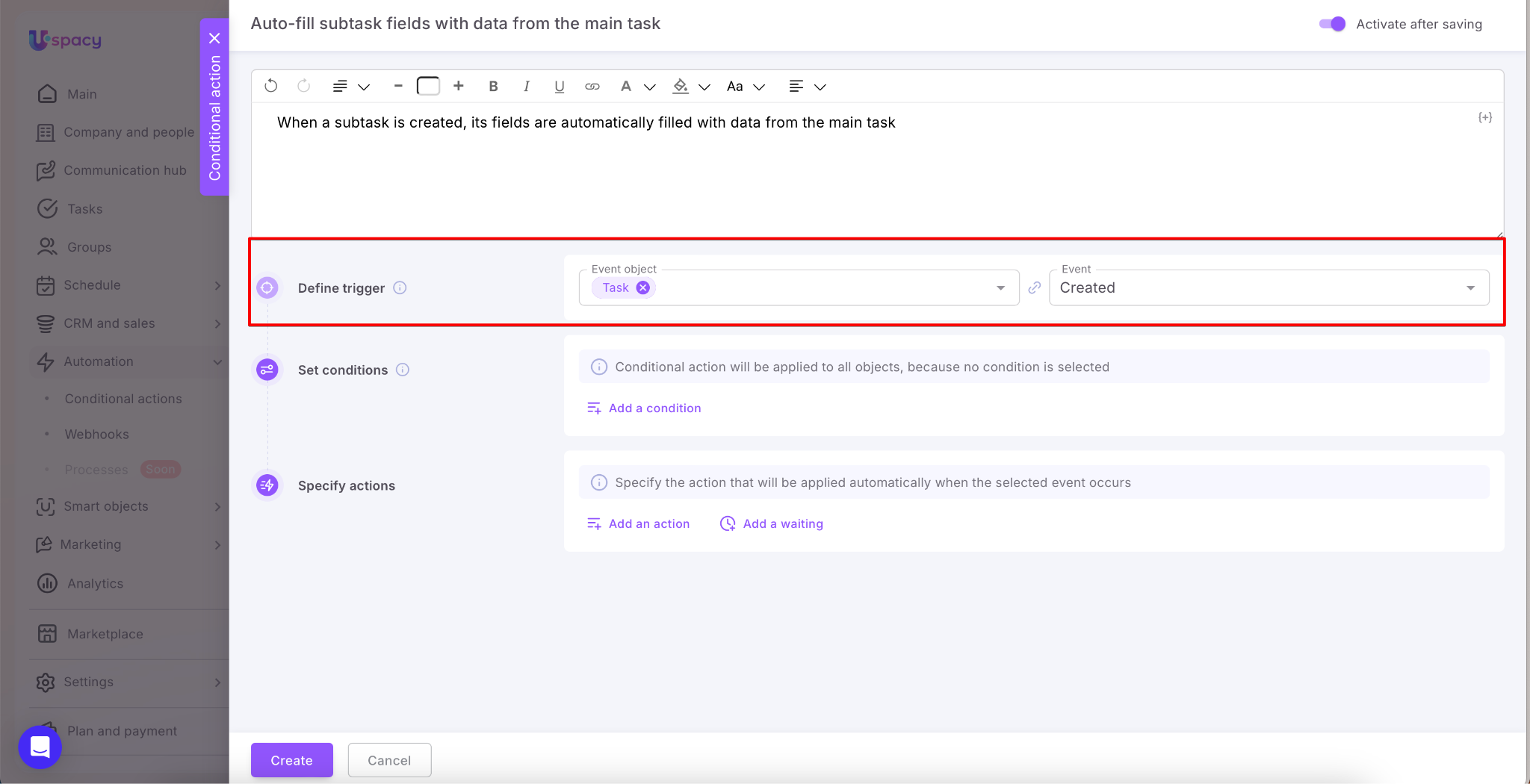
Define the trigger. In our example, the trigger is creating a new task.
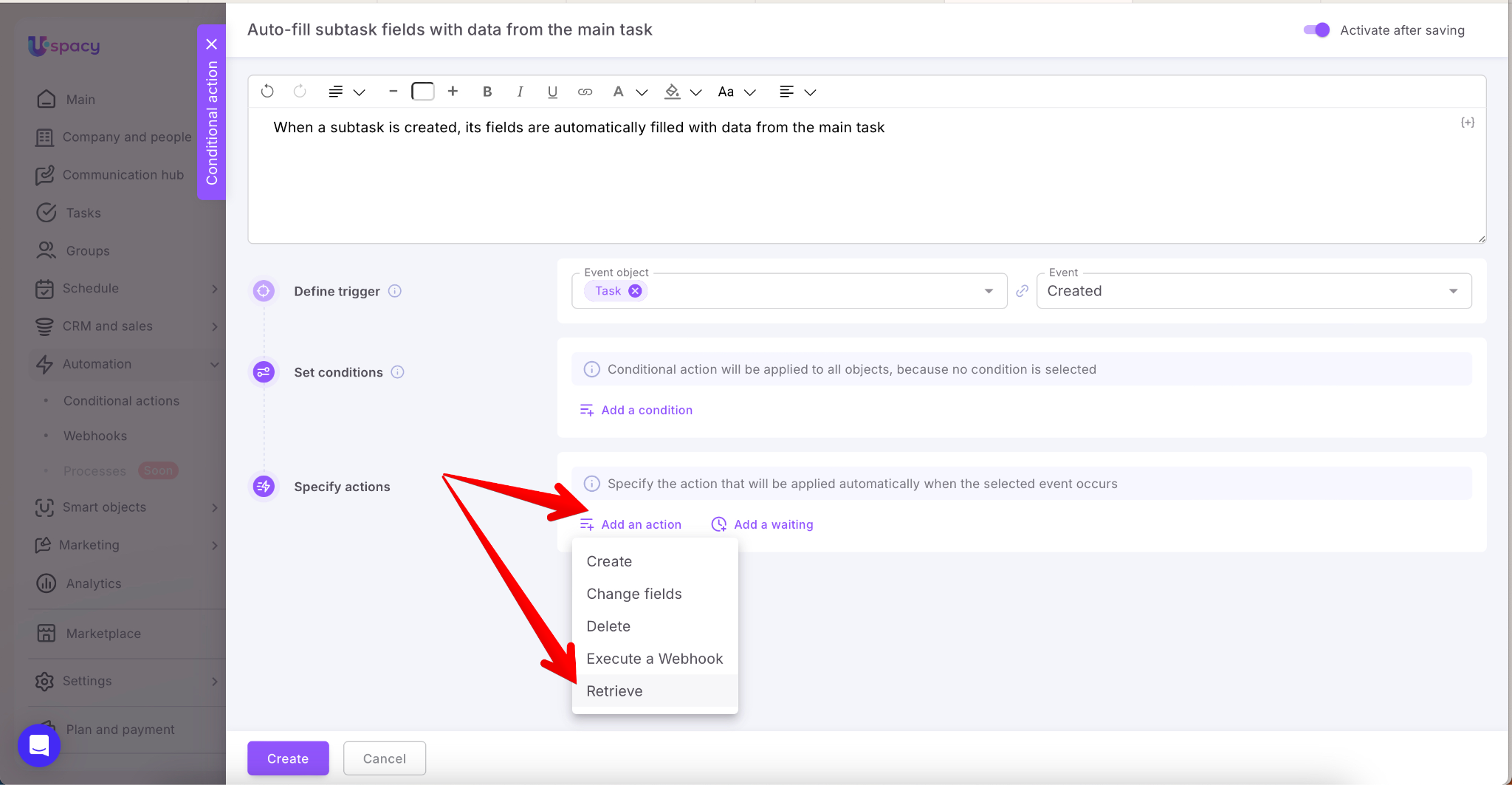
Specify the first action – Retrieve.
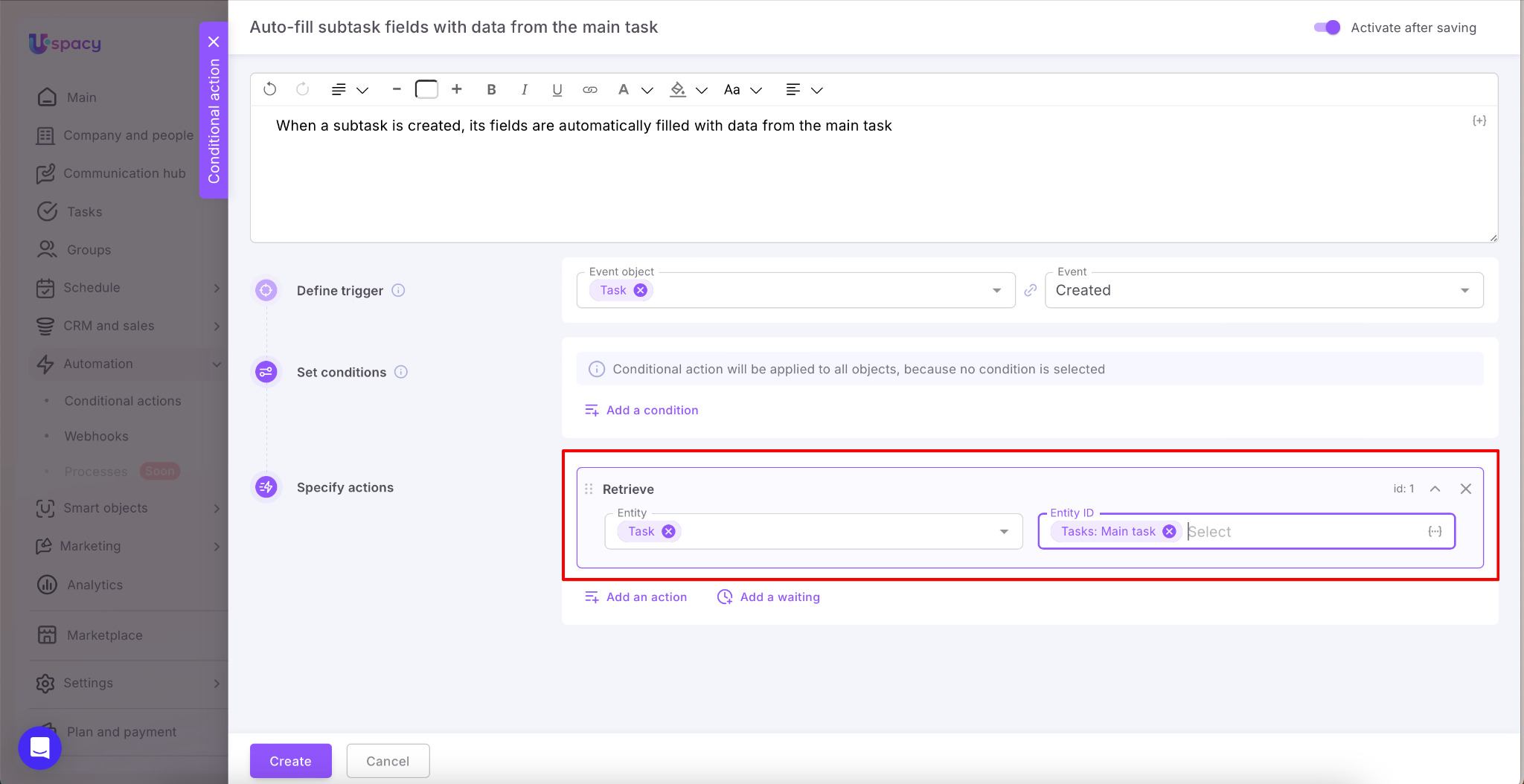
Select the entity Task, and for the entity identifier, select the Main task.
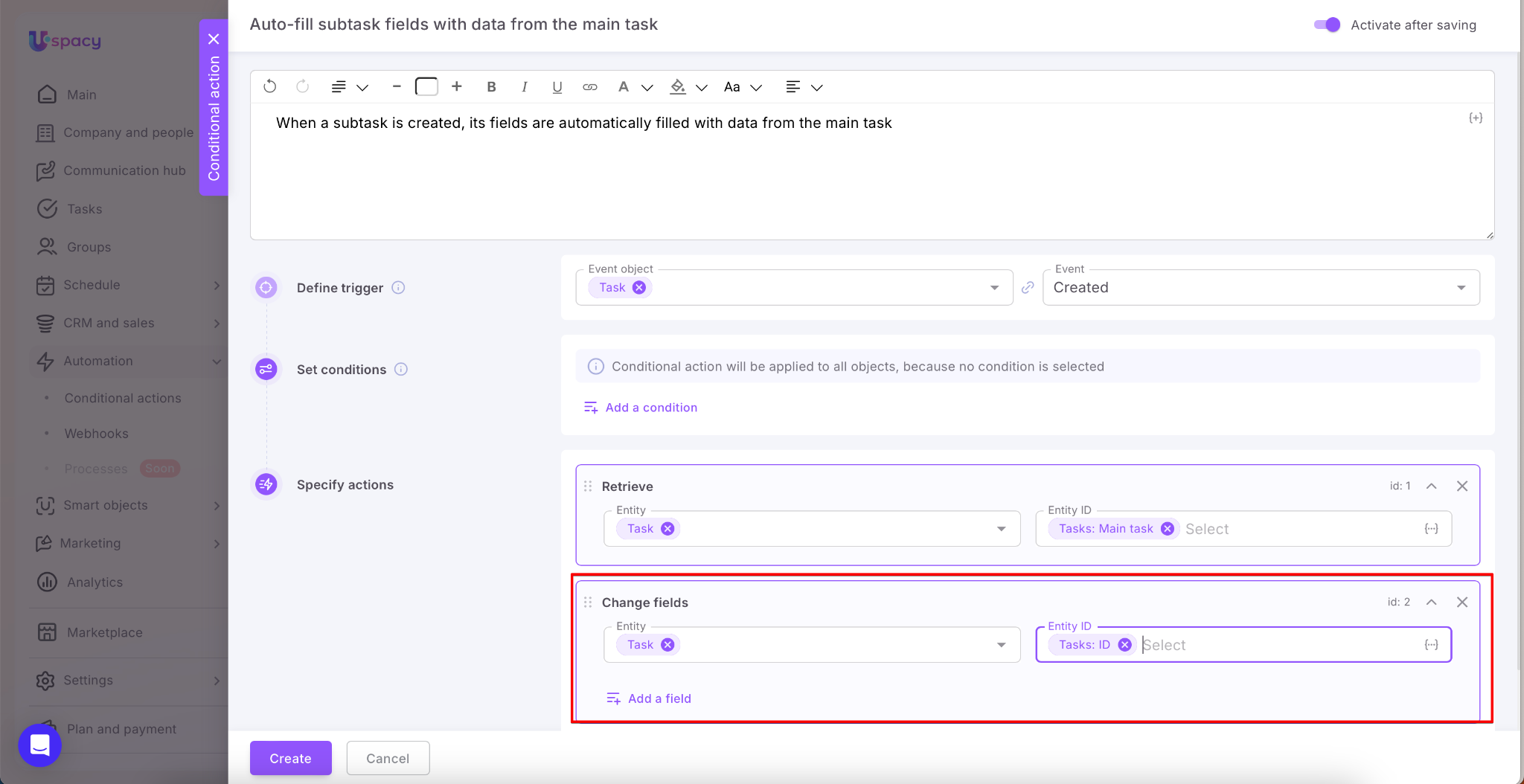
Specify the second action –Change fields. Select the entity Task, and for the identifier, use ID.
Select which fields to populate.
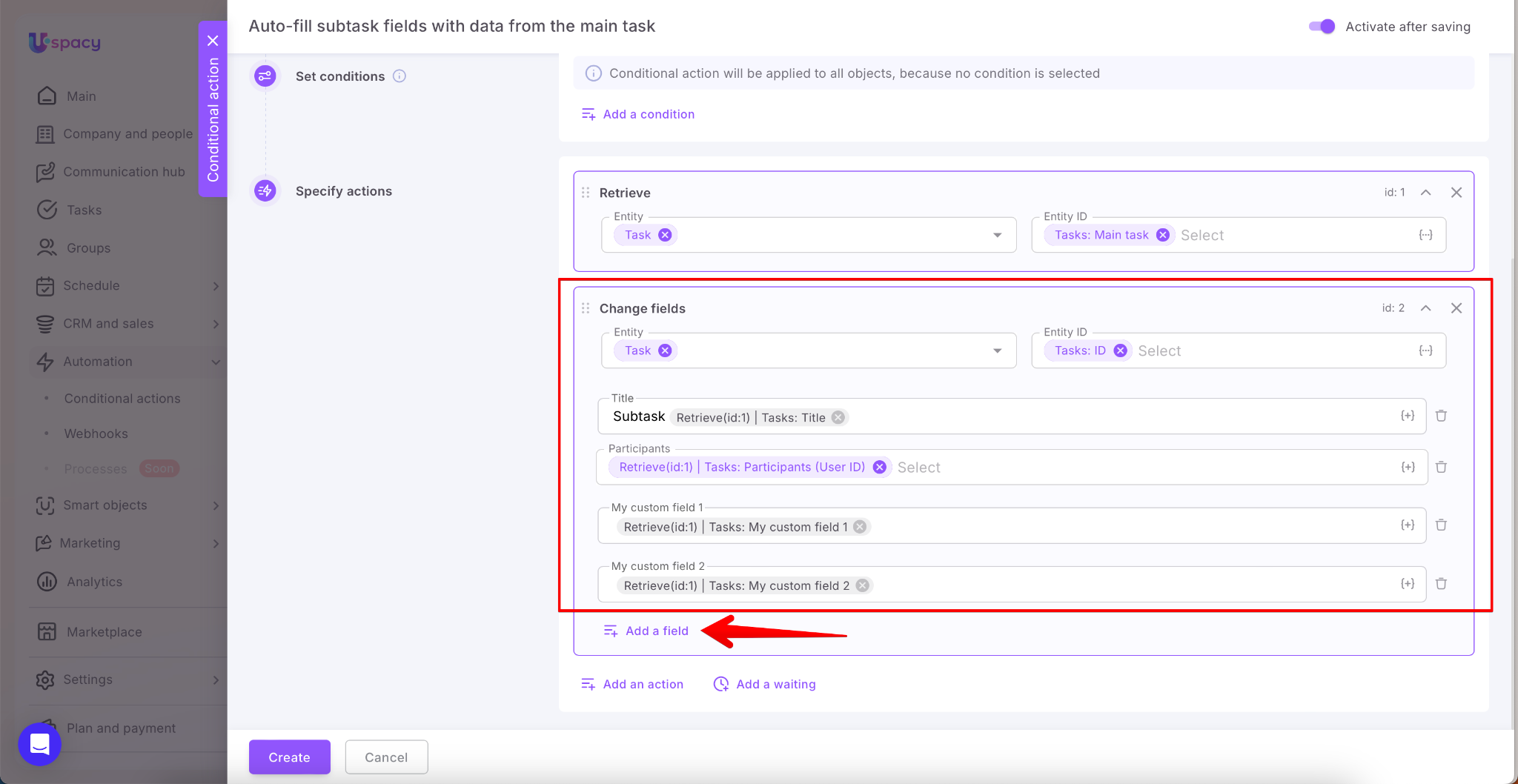
💡 Important: To make sure the conditional action pulls data from the main task, when specifying values for subtask fields, always select “Retrieve(id:1) | Task” in the right-hand substitutions panel (as shown in the screenshot), not just “Task.”
The “Retrieve(id:1)” block contains the main task data that was retrieved in the previous Retrieve action.
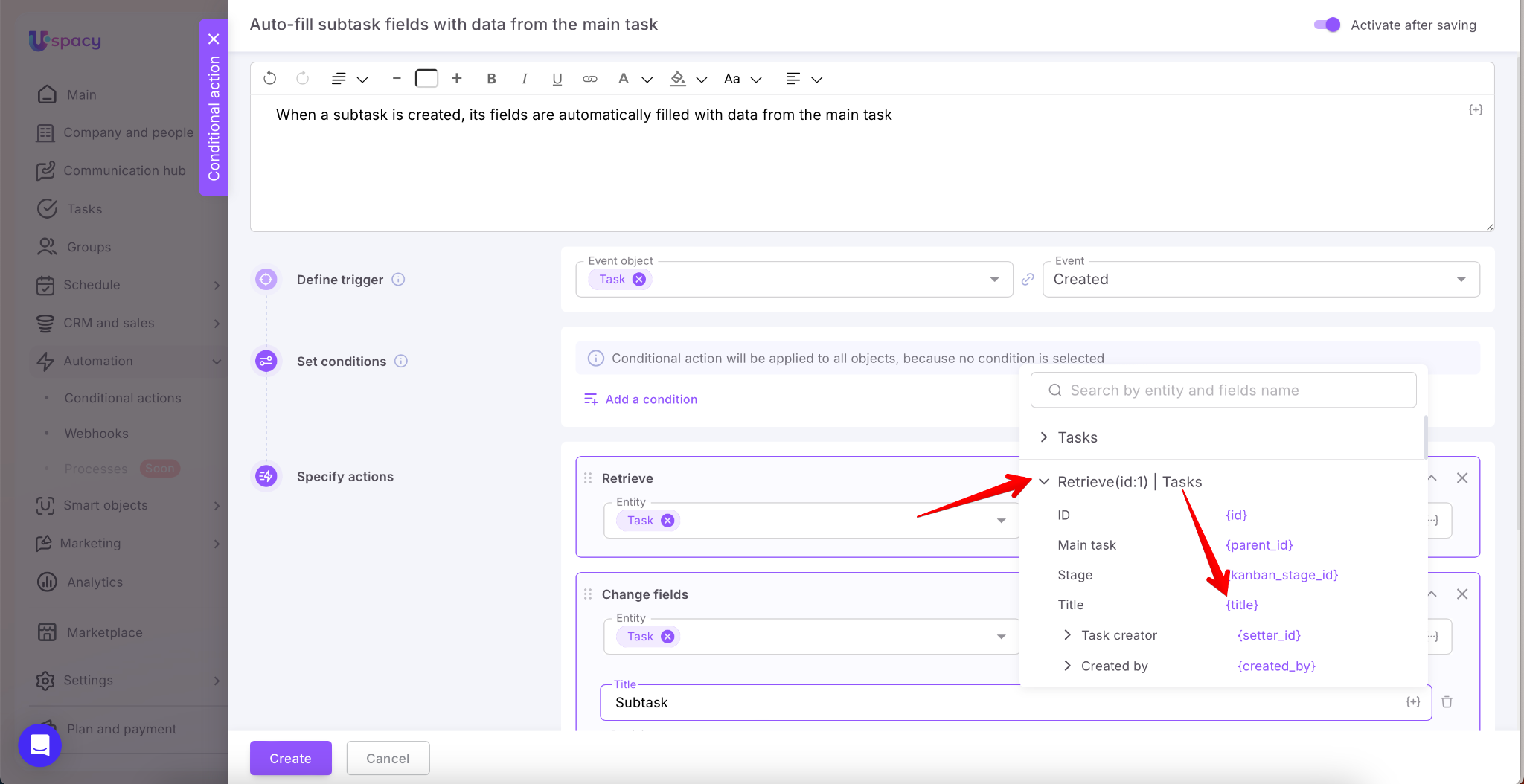
Select the fields you want to transfer:
🟣 Title → so the subtask title matches the main task.
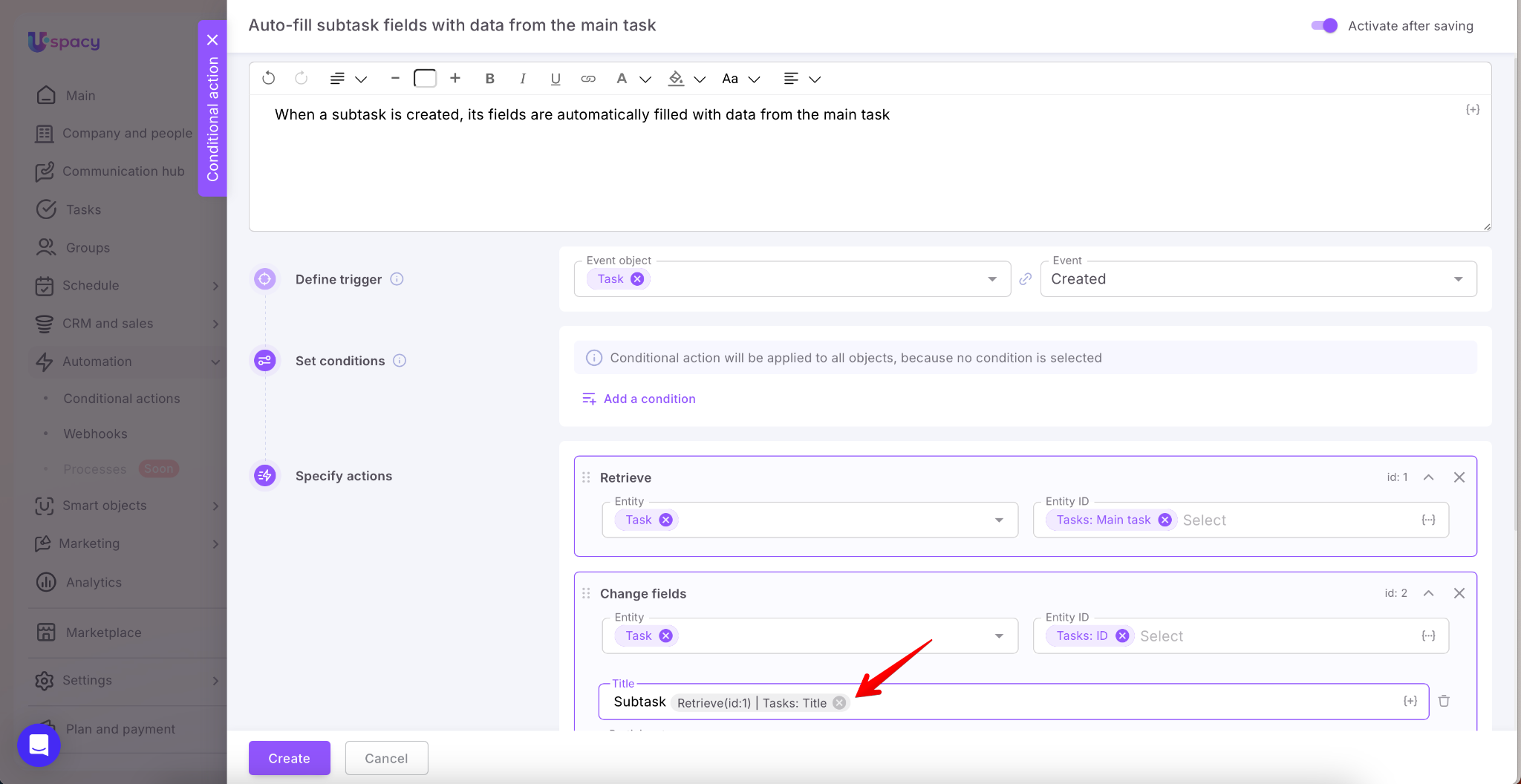
🟣 Participants/ other default fields.
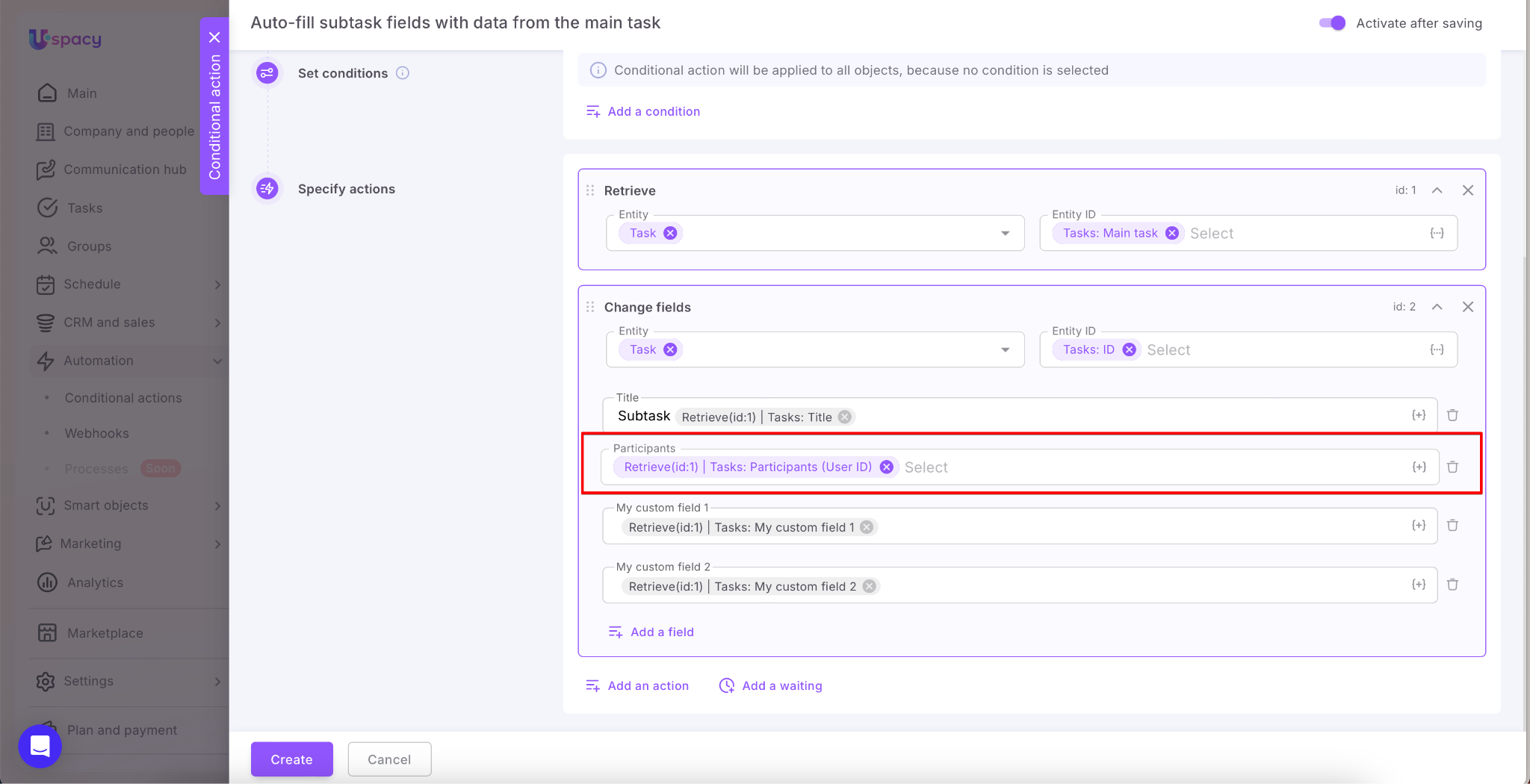
🟣 Custom fields → using the same principle.
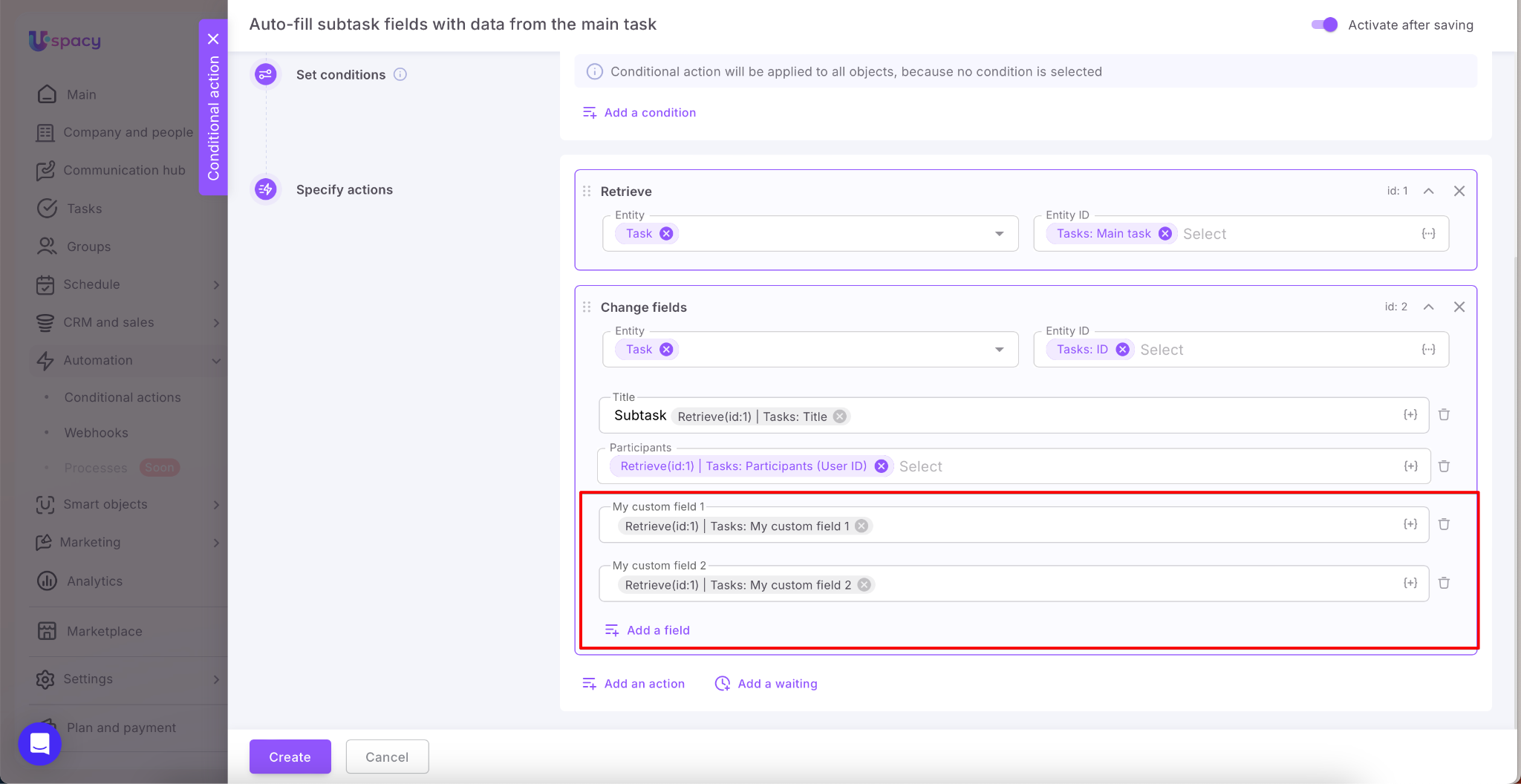
If you select values from “Task” instead of “Retrieve(id:1)”, the system will use data from the newly created subtask itself, and automatic population will not work correctly.
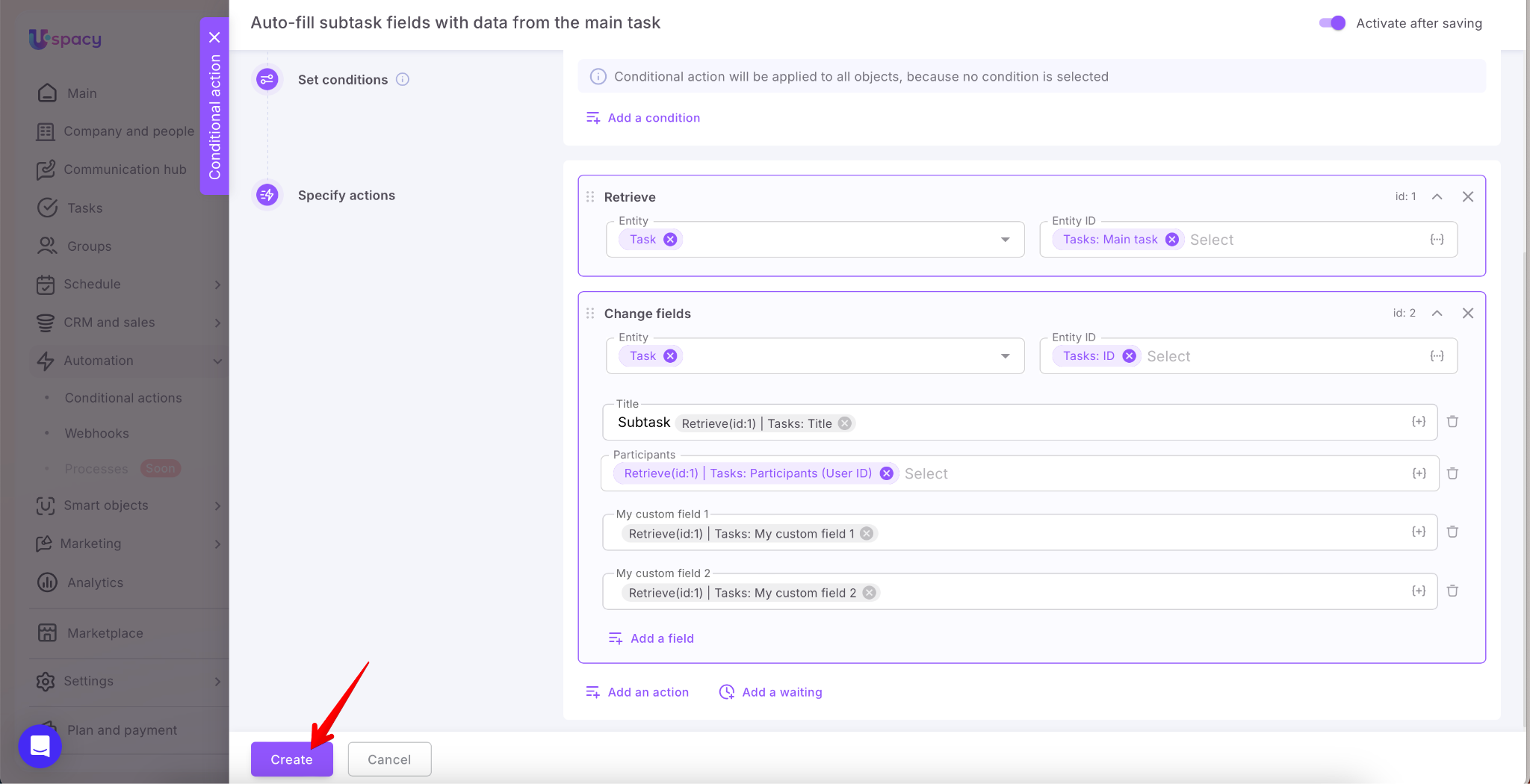
Create the conditional action.
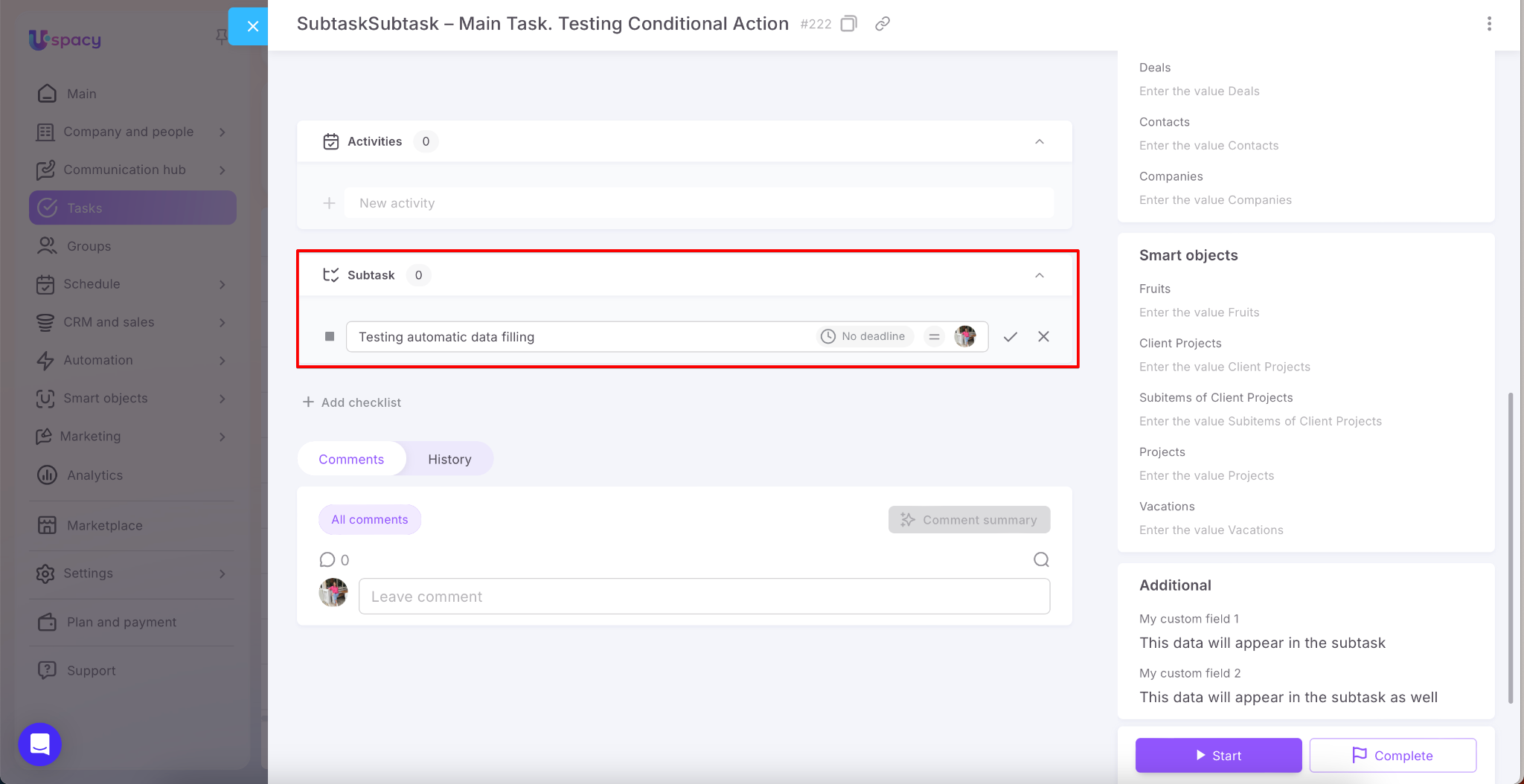
Result
Create a new subtask under an existing main task.
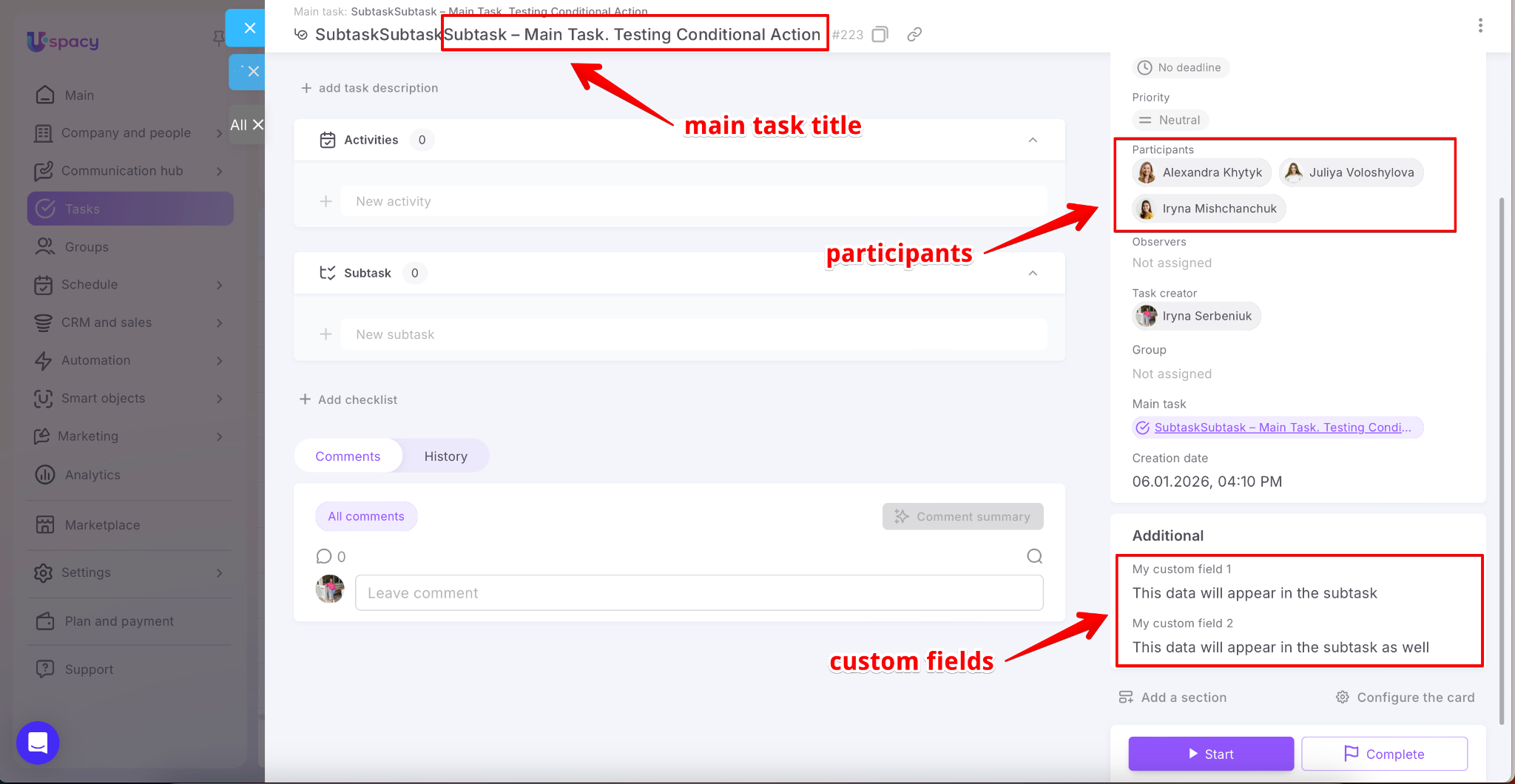
Opening the subtask card, you’ll see that the fields have been automatically populated with the values you configured in the conditional action.
✅ Done!
If you have additional questions or you need to contact the support, send a request to this email [email protected]
Created: January 6, 2026