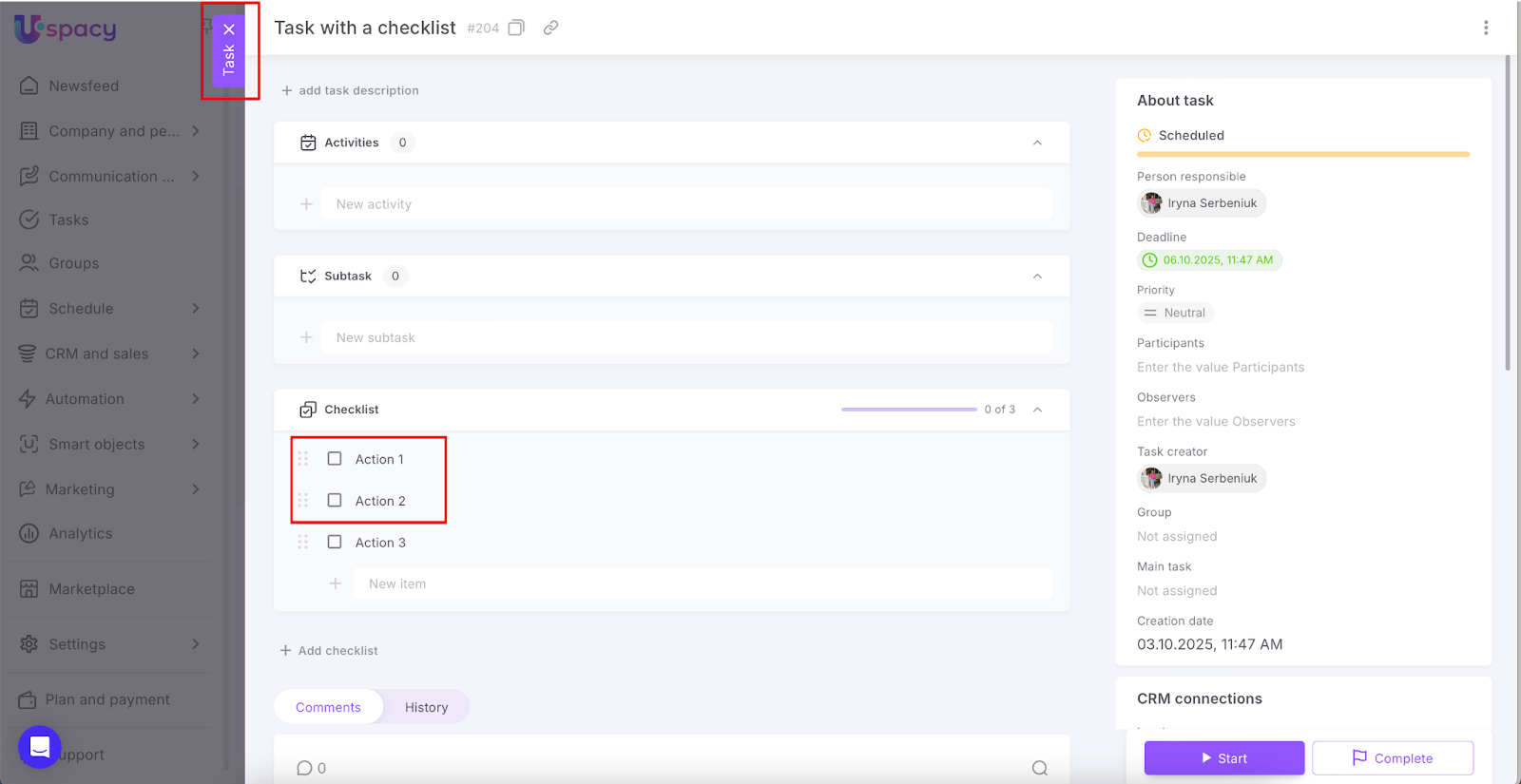
Checklists help you quickly break down work into understandable steps right within a task: you enter the items, check them off as you go, and see your progress. They’re ideal for control actions, regular routines, and small steps.
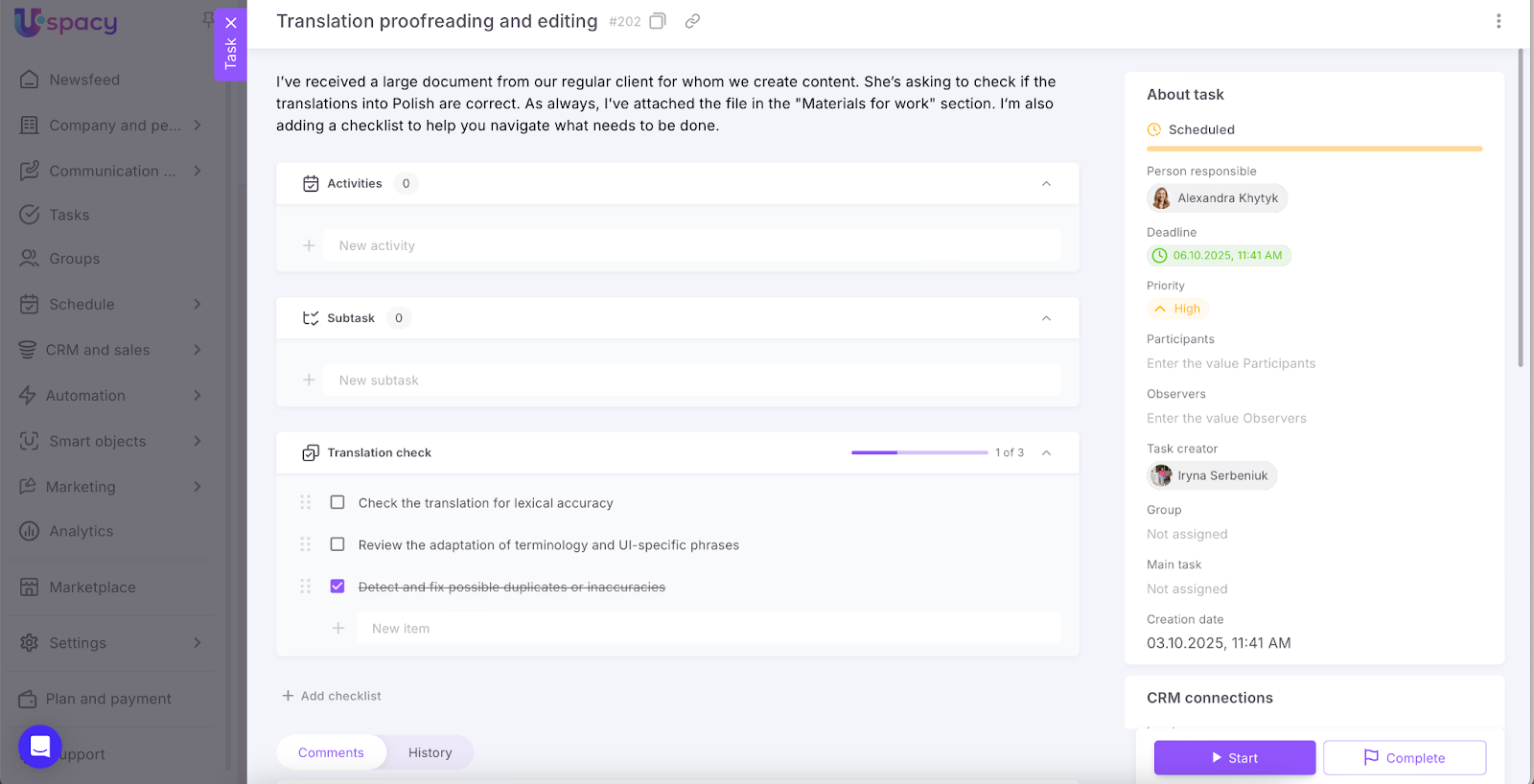
Important: Don't confuse checklists with subtasks. A checklist consists of simple items without an assigned person, deadline, or status. They help break work into specific steps, turning a general plan into an actionable list. Subtasks, on the other hand, are full-fledged tasks that may require separate completion — possibly by another team member.
🔍 You can read more about working with subtasks in this article.
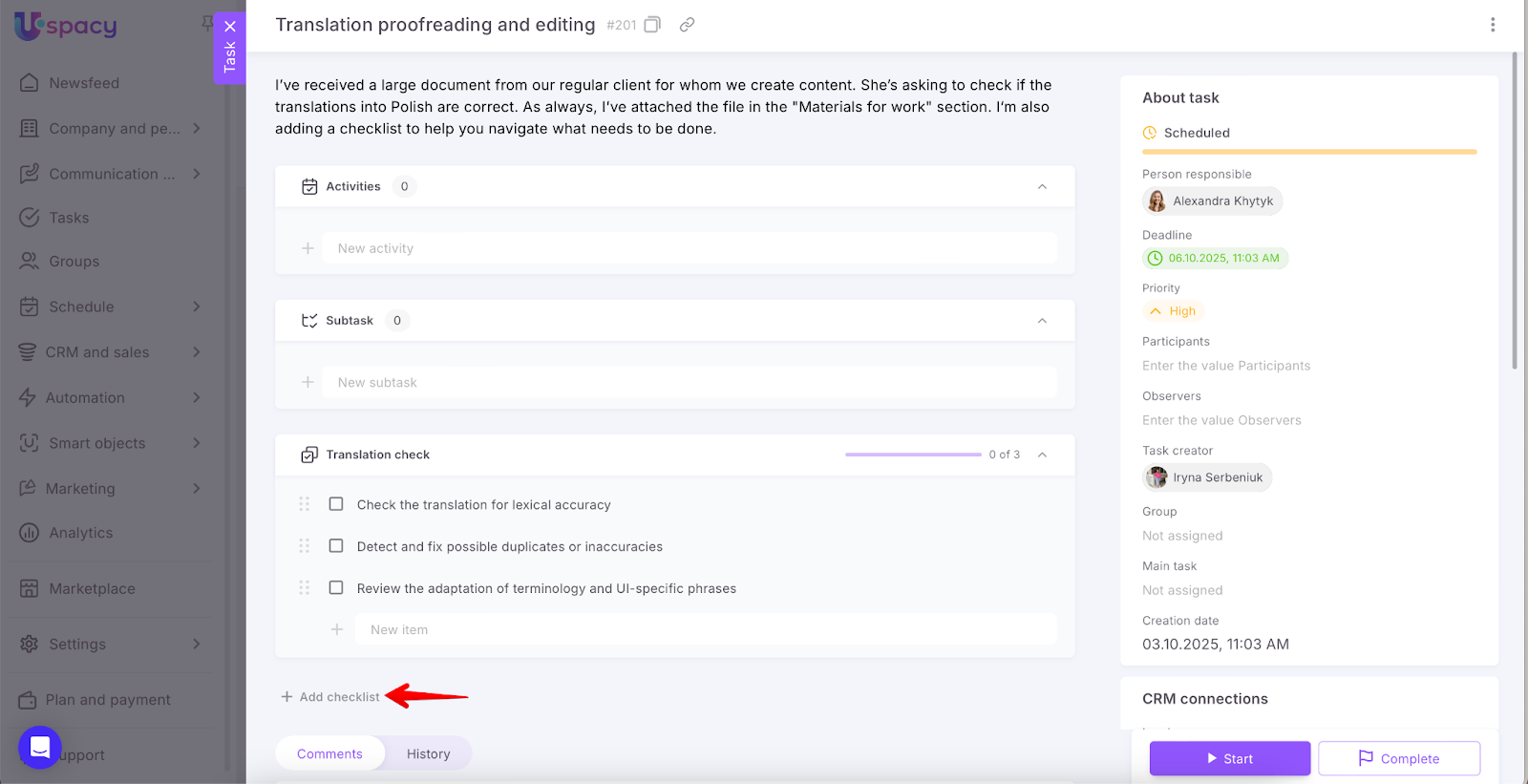
How to add a checklist to a task?
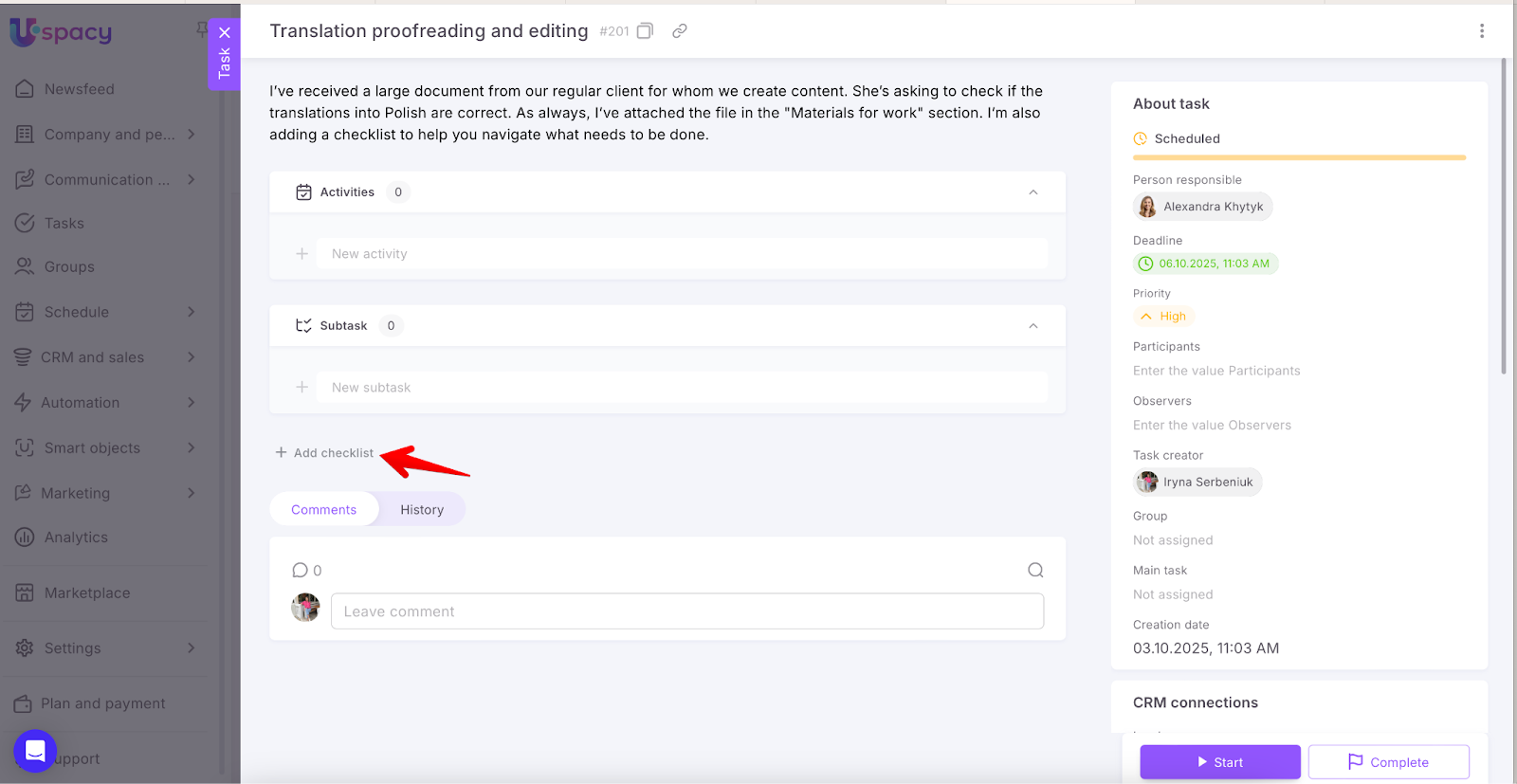
You can do this either while creating the task or later when viewing (or editing) the task card. Click the Add checklist button.
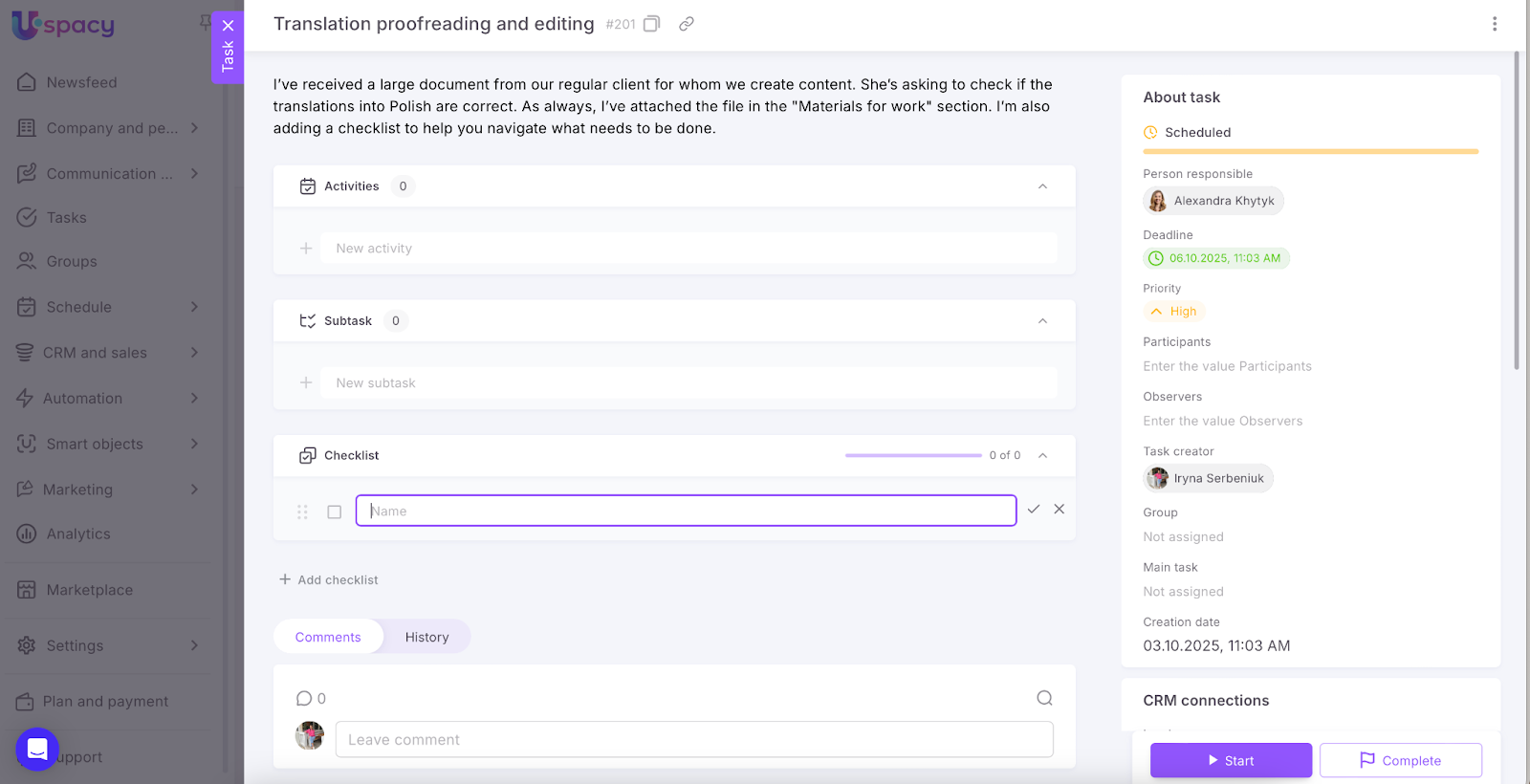
A section will expand where you can add your first item.
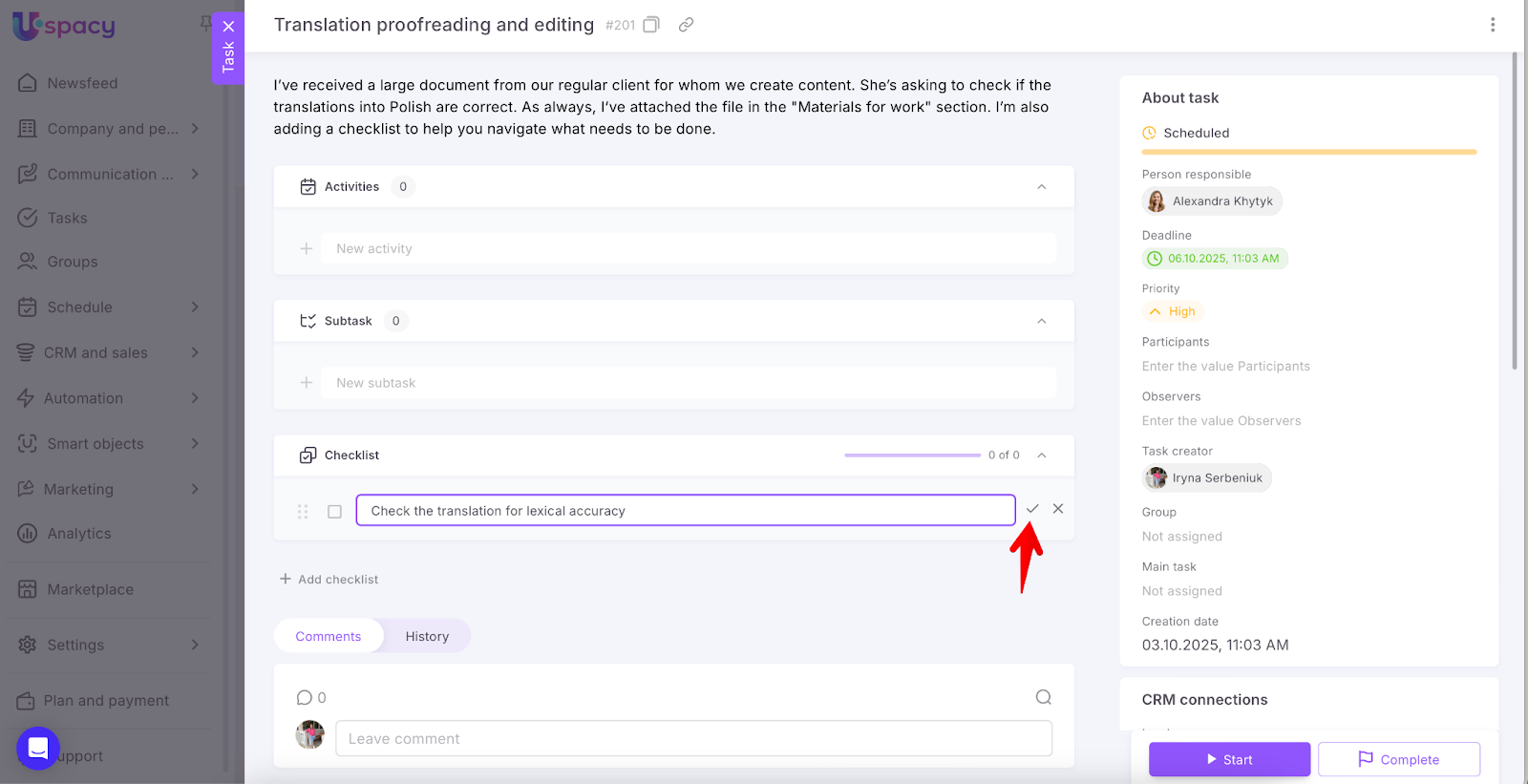
To save it, click the checkmark.
Done! Your first item is now in the checklist.
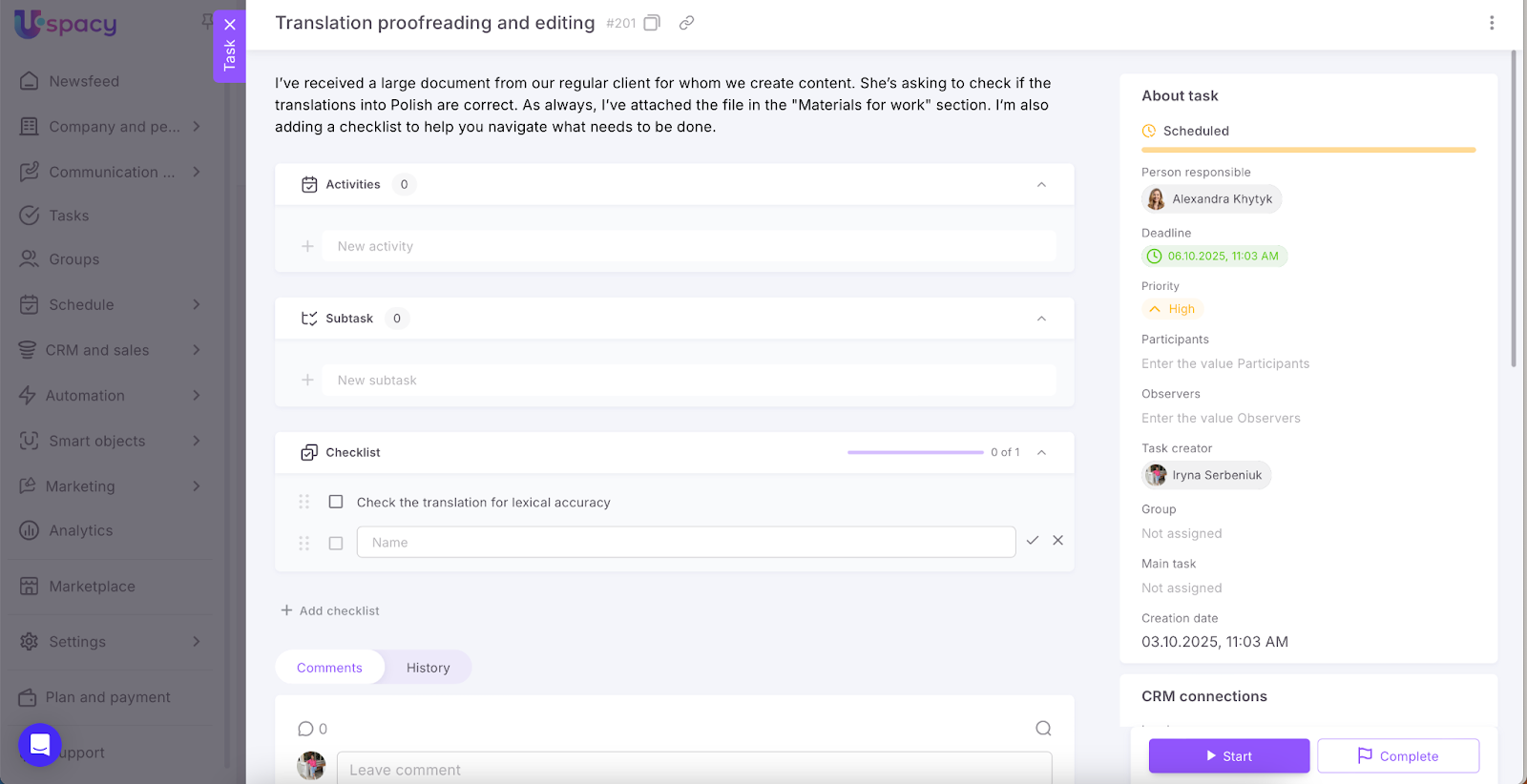
Then just keep adding items one by one until all your planned actions are listed.
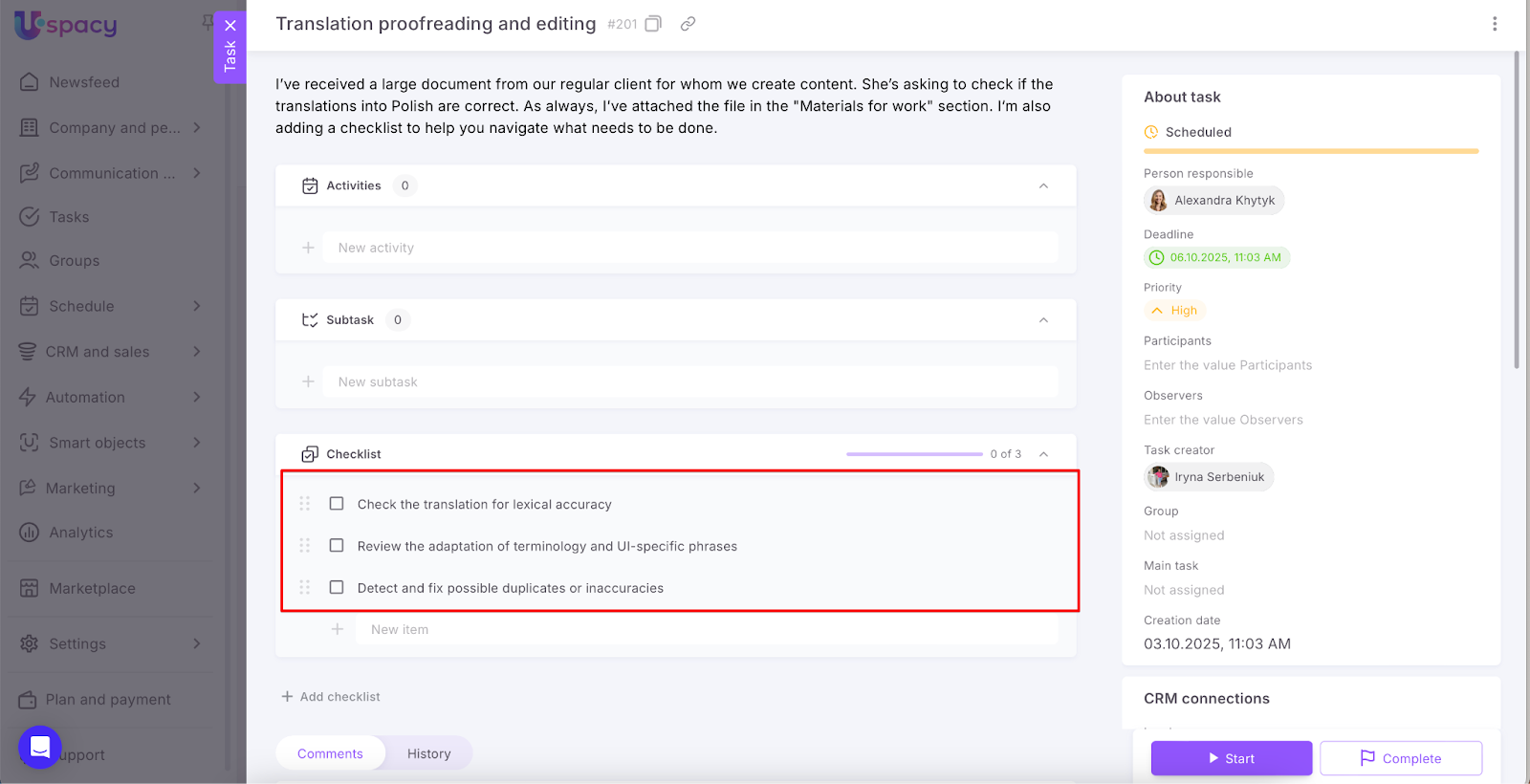
💡It is possible to add URLs to checklist items. If the links start with https://, they will automatically become clickable.
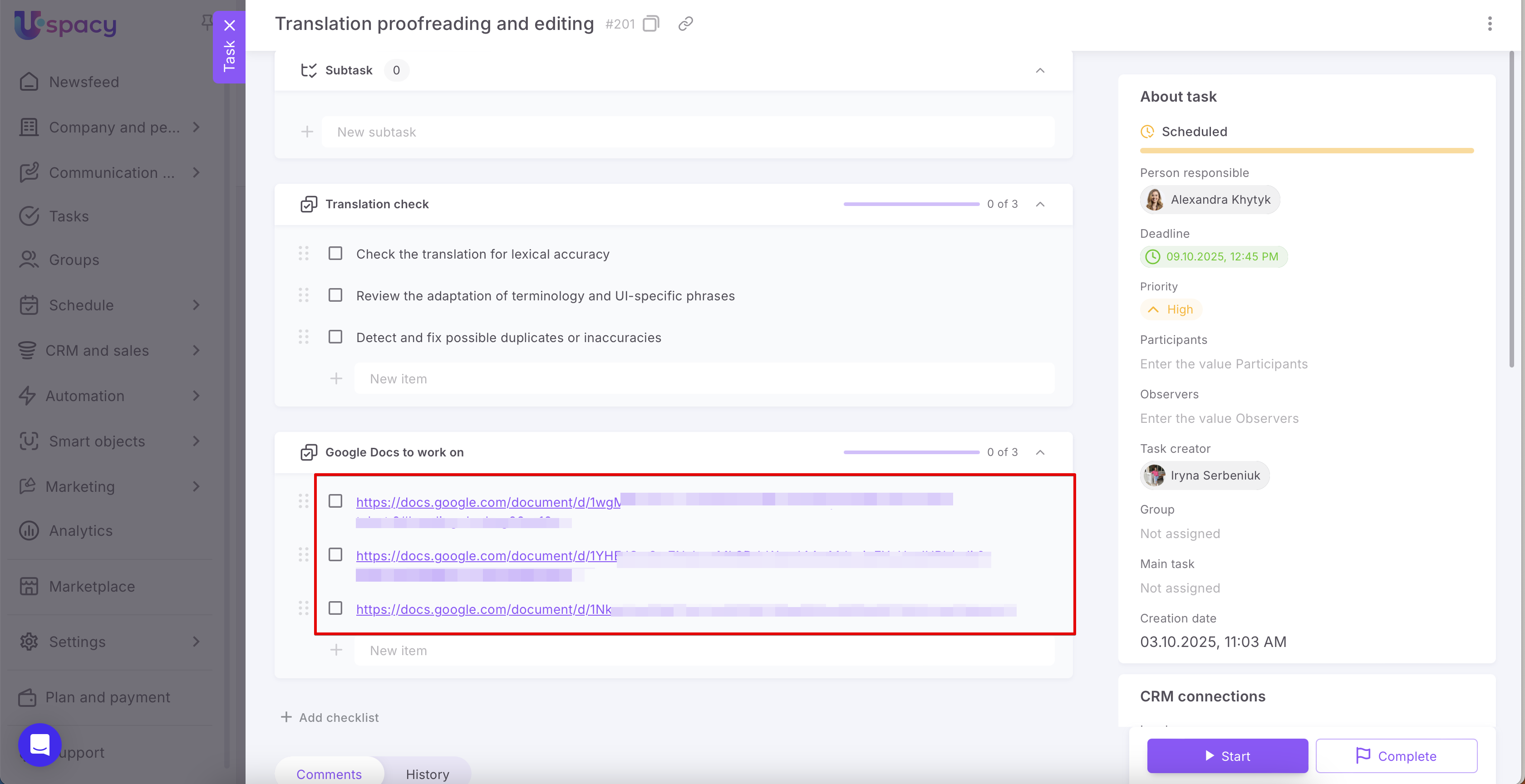
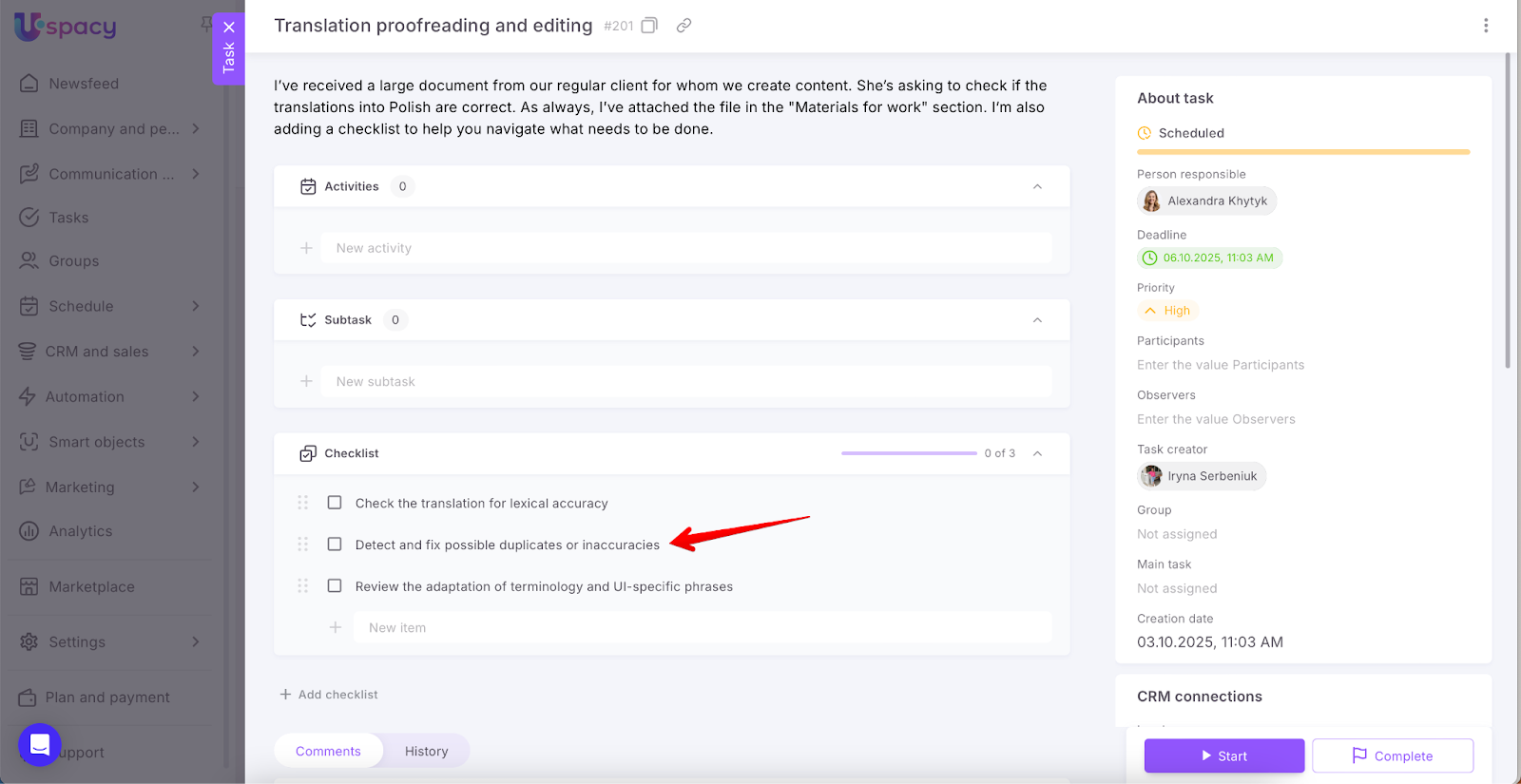
You can also change their order. Right-click and hold the six-dot icon, then move the item to the desired position.
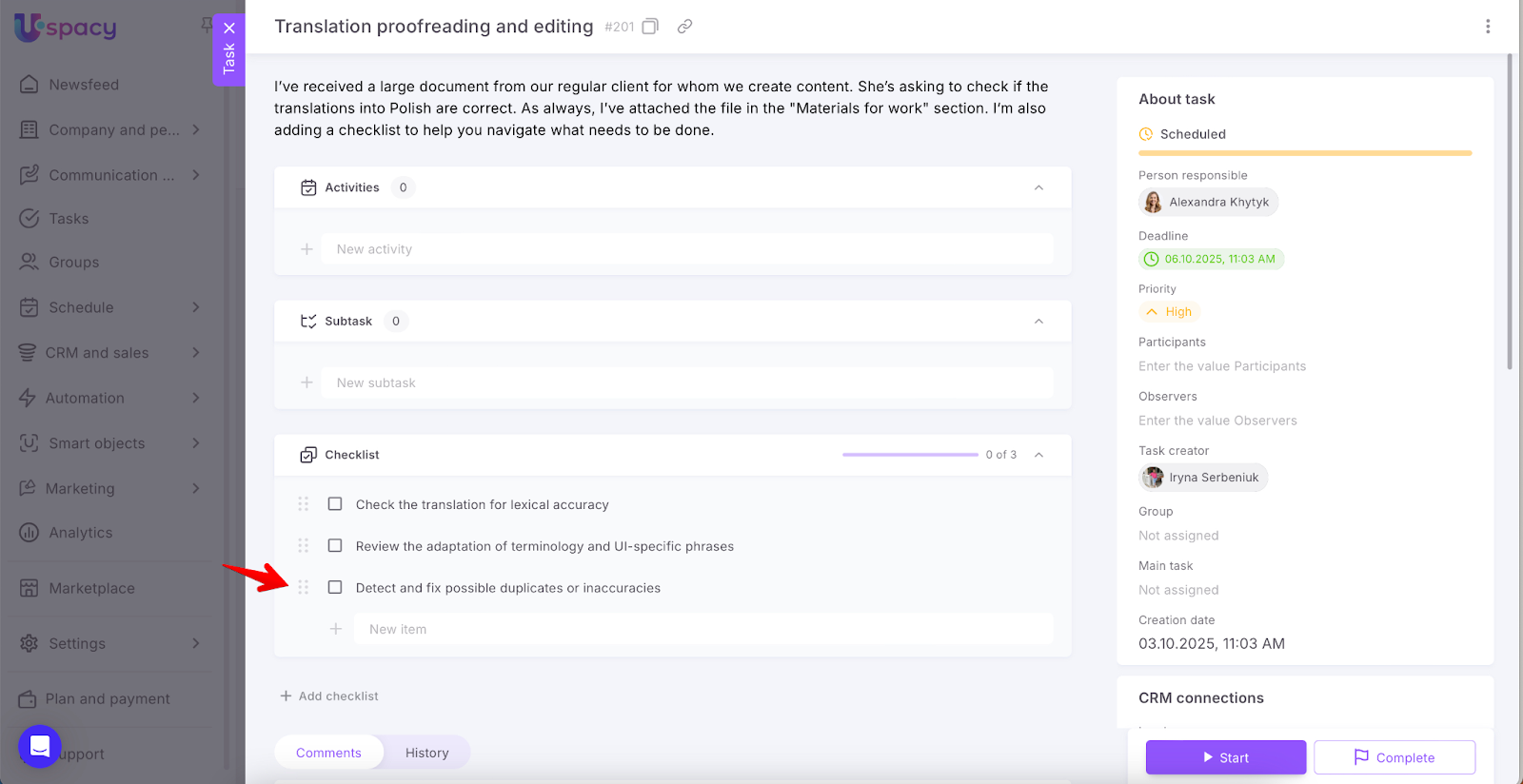
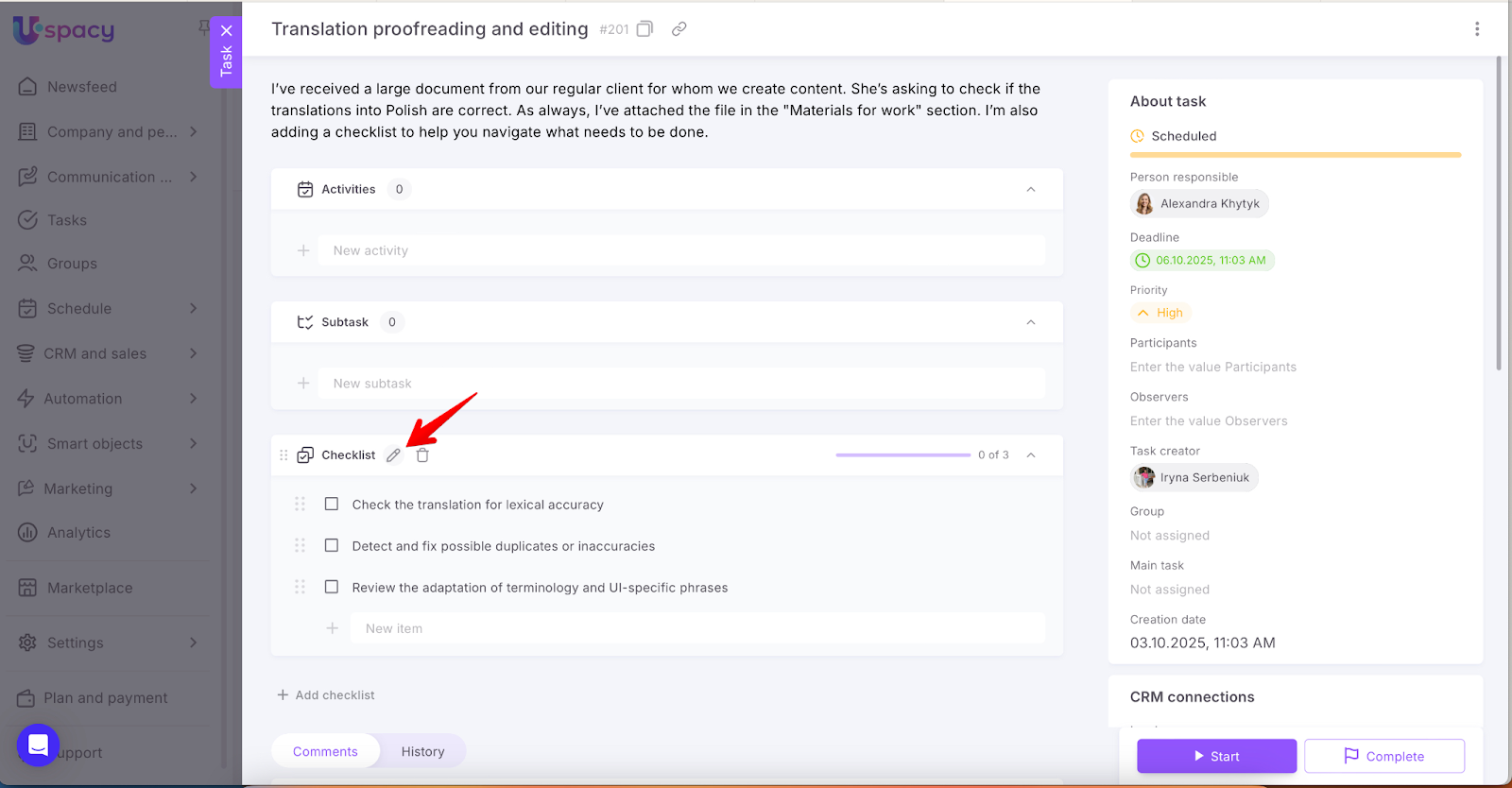
You can also rename the checklist. To do this, click the pencil icon.
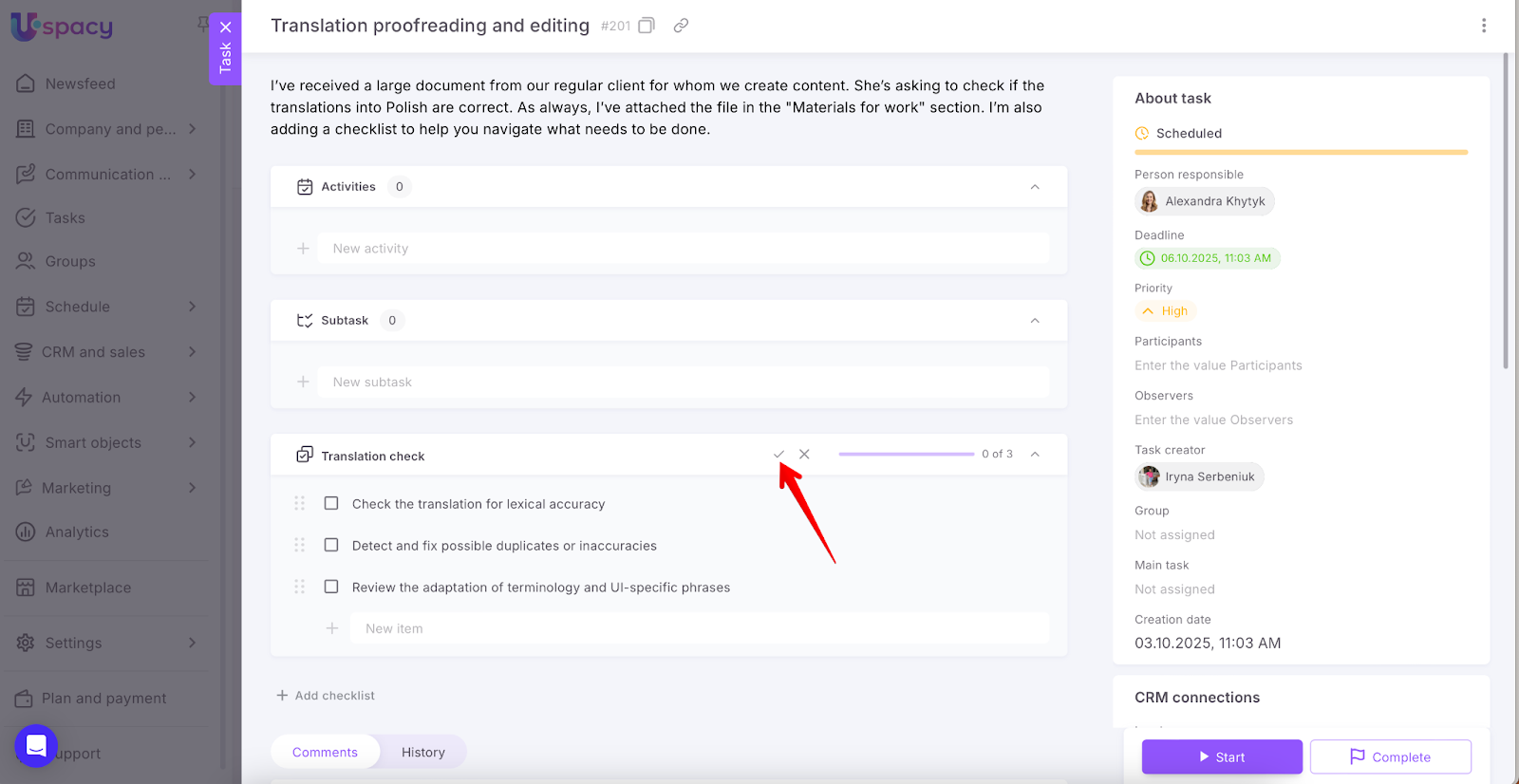
Enter the new name and save it.
Done!
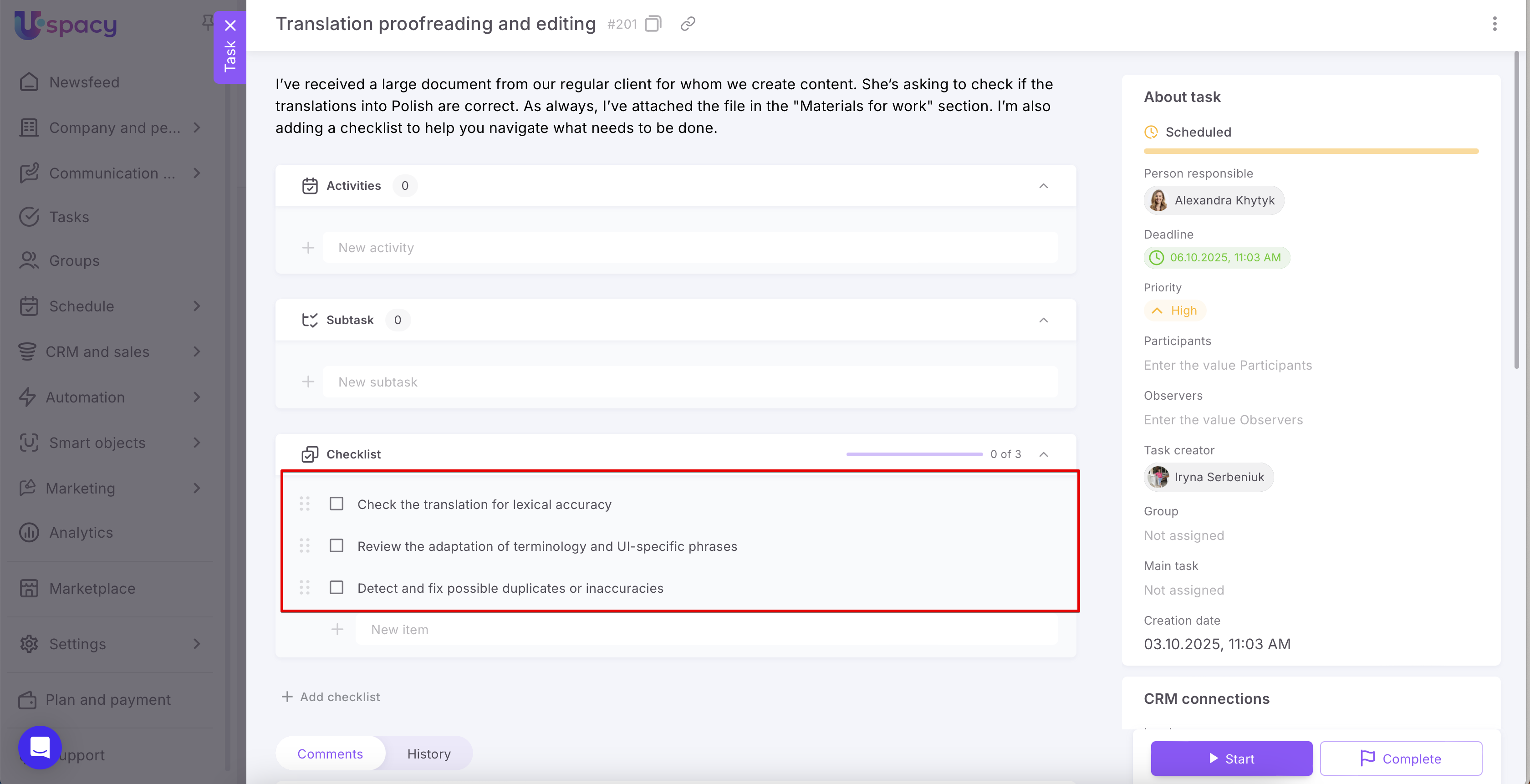
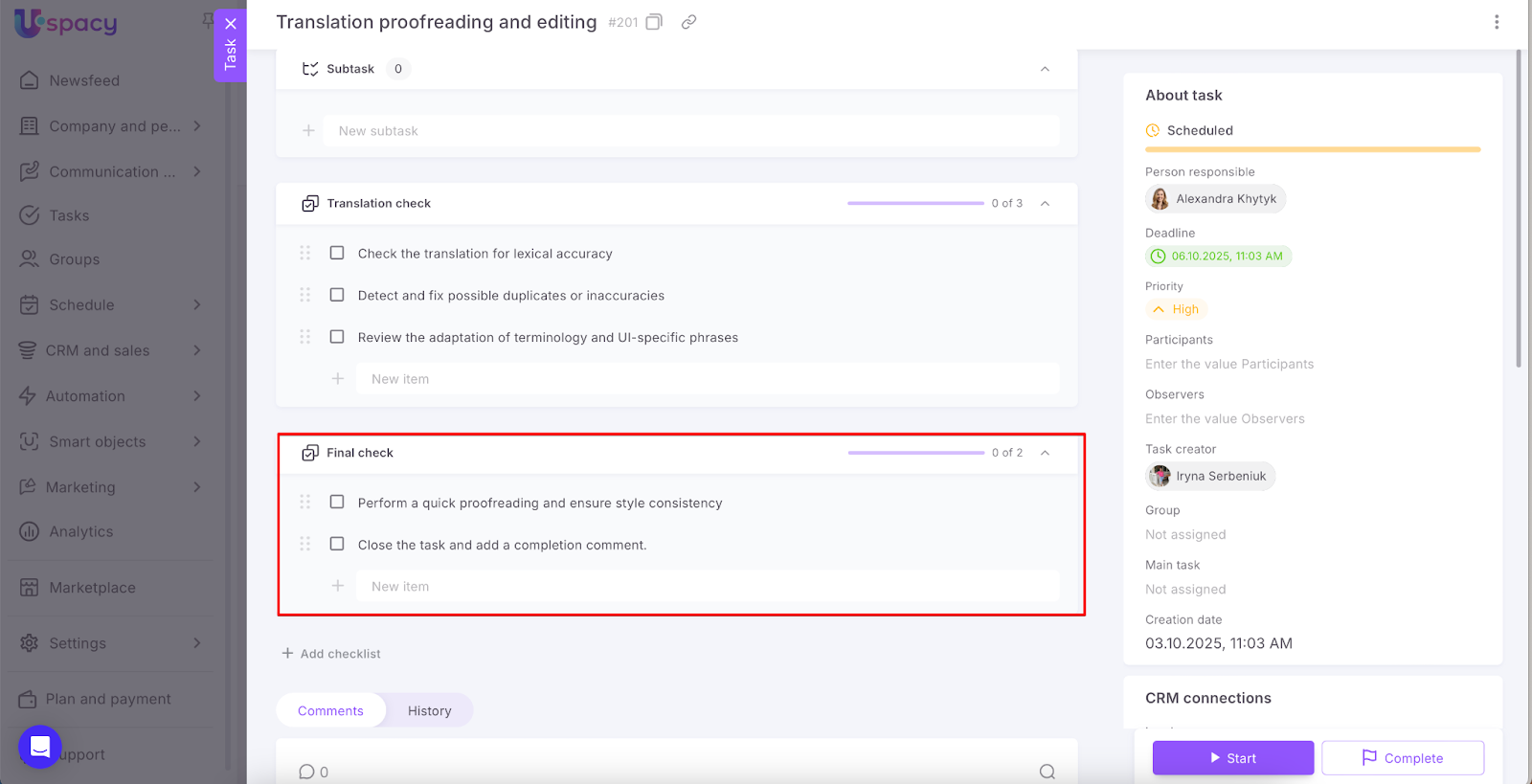
Of course, a task can include more than one checklist. Click the add button again and create another checklist by following the same steps as above.
How to mark a checklist item as completed?
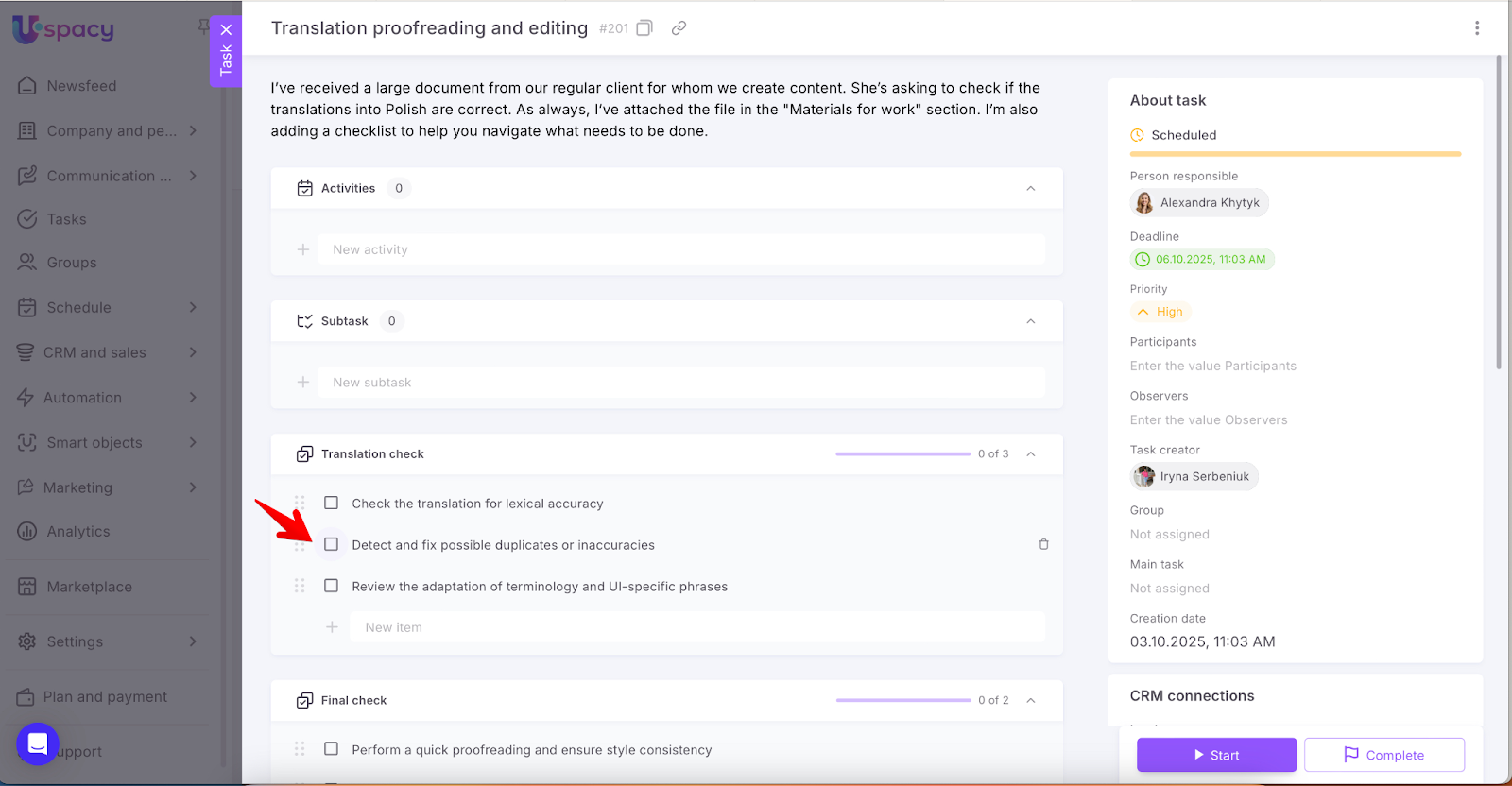
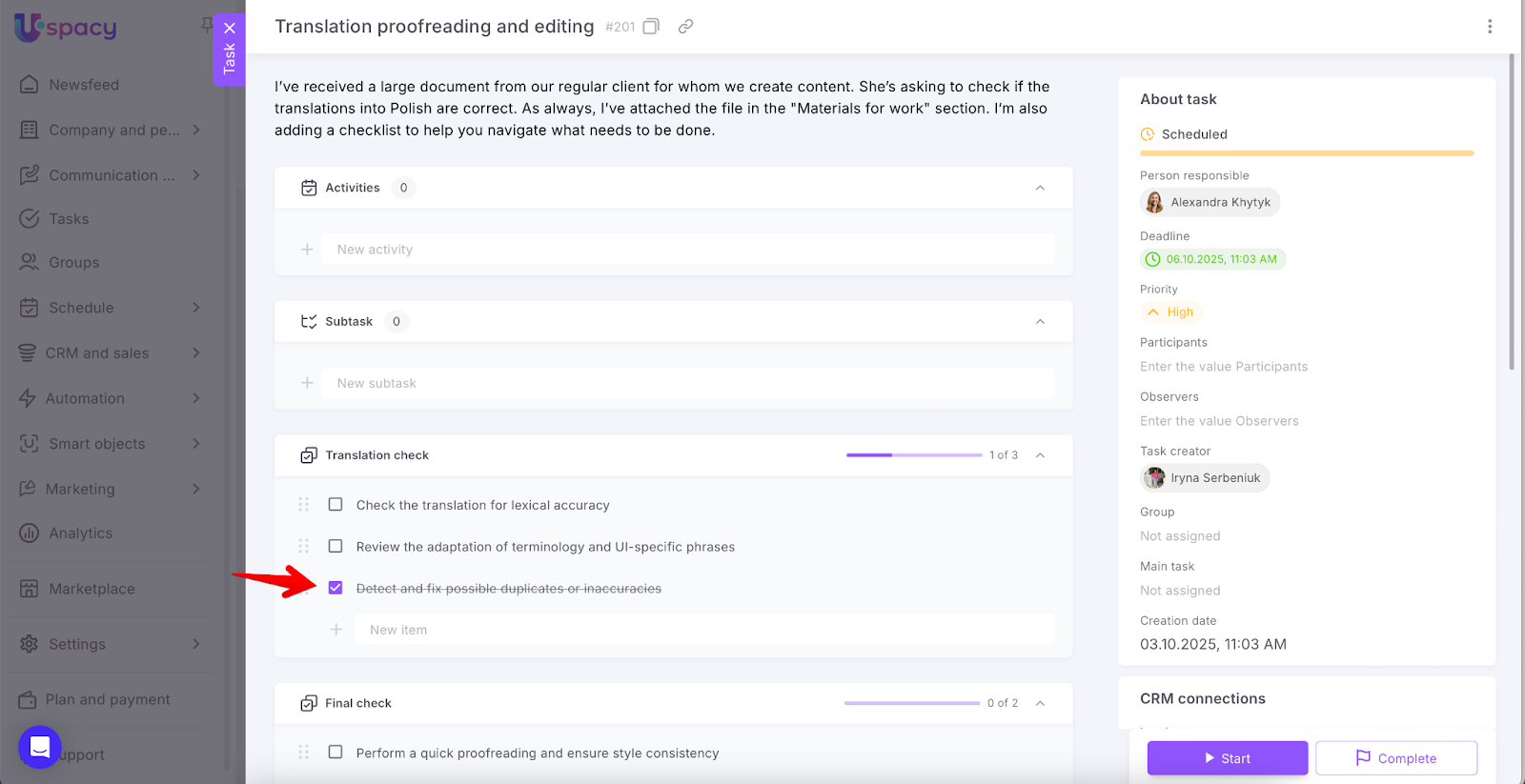
It’s very simple. If the action described in the item is done, just check the checkbox.
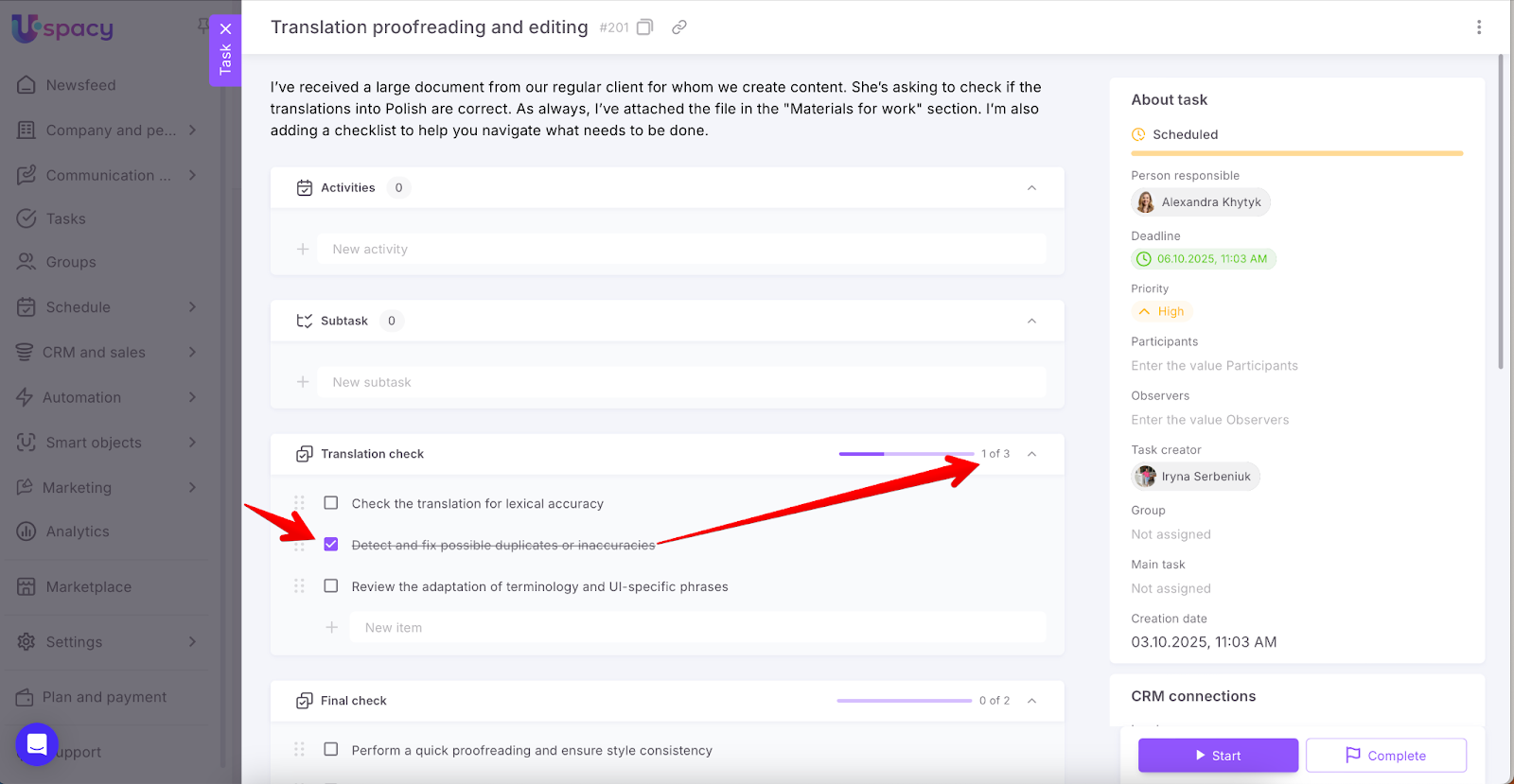
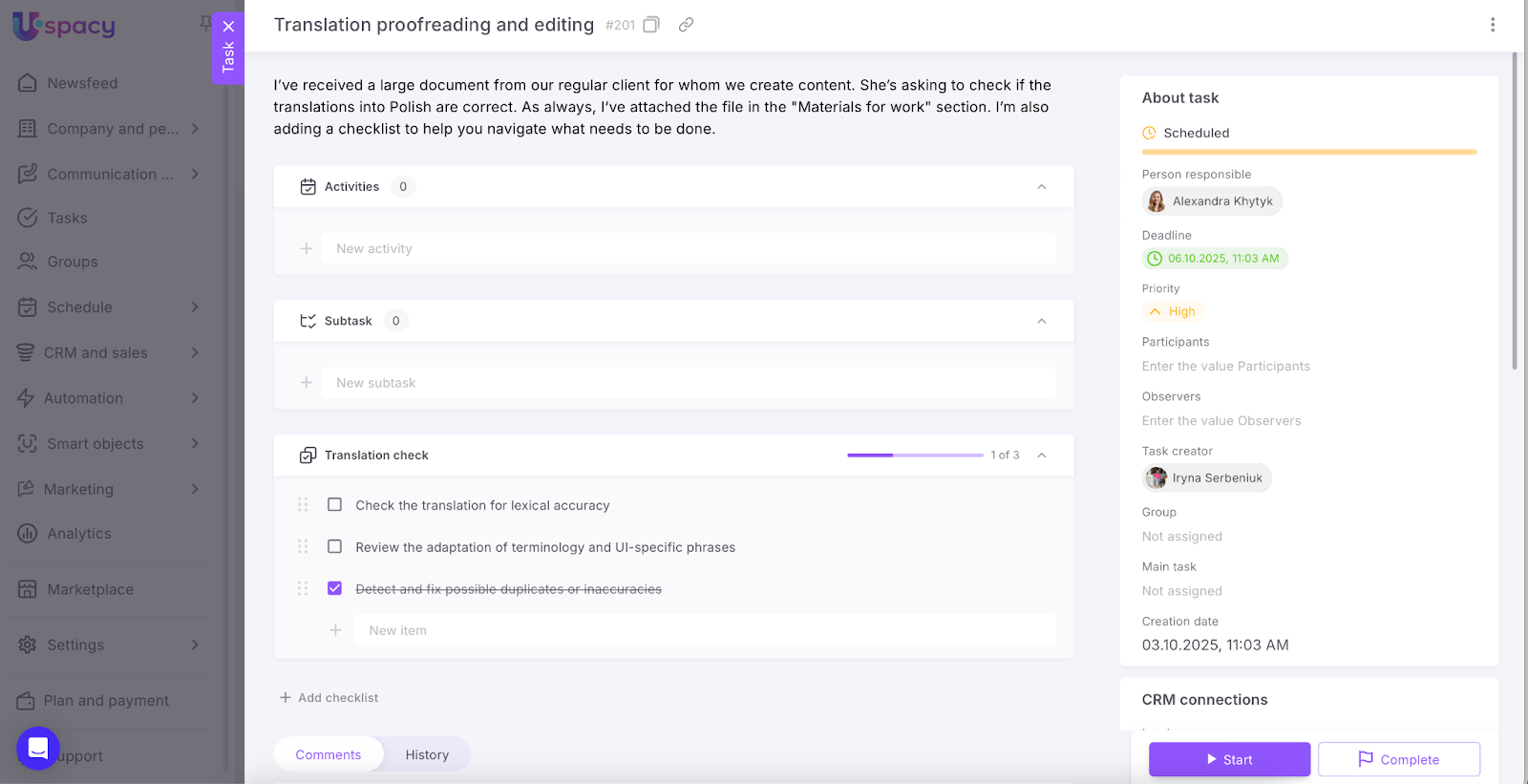
The item will be considered completed. You will also see it become crossed out. The item counter will show how many items have been completed out of the total (in our example, one out of three).
☝🏻 To mark an item as incomplete again, uncheck the box.
For convenience, you can move the completed item to the bottom of the list.
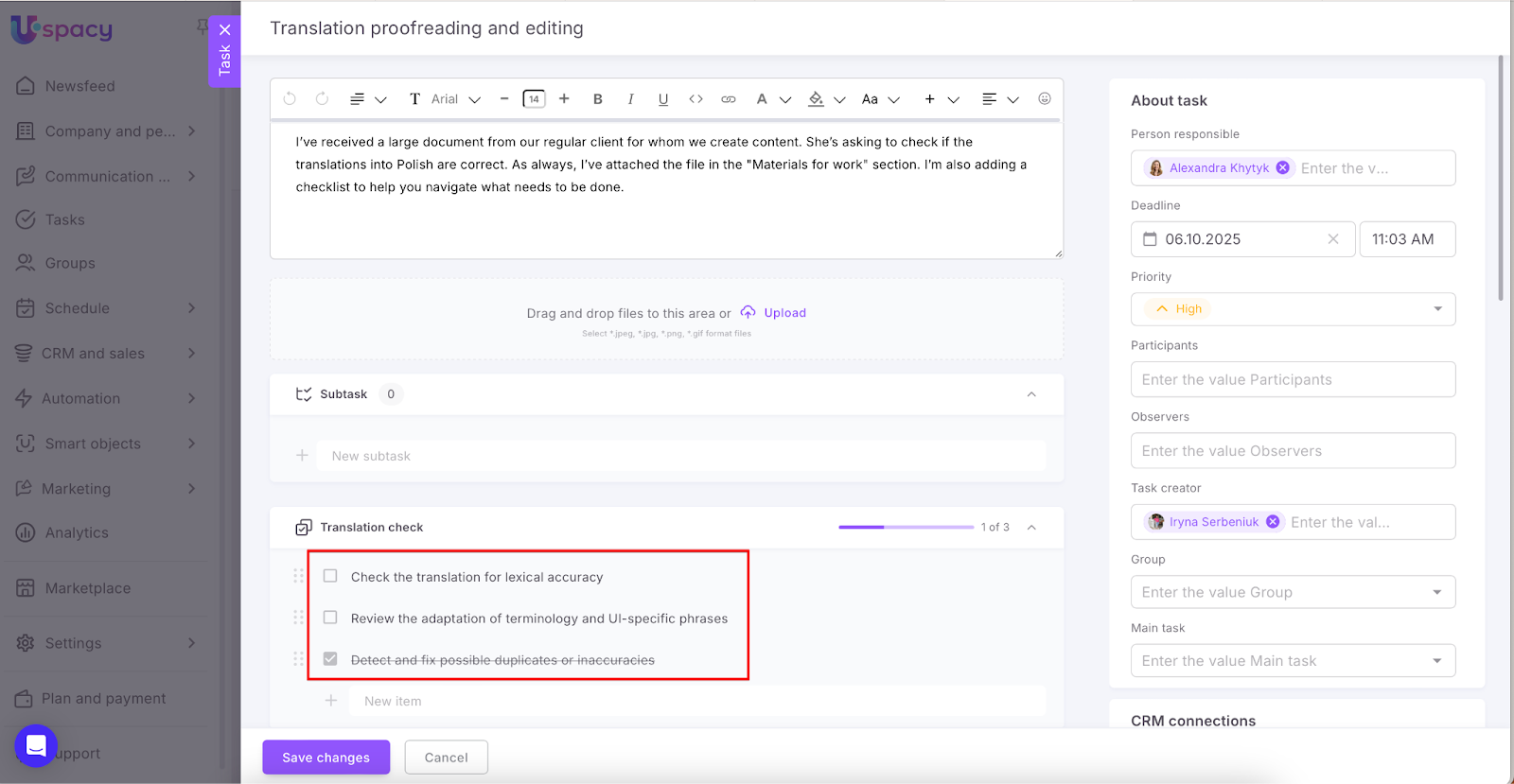
☝🏻 However, note that you cannot mark items as completed while editing the task.
How to delete a checklist item?
To do this, click on the trash icon that appears when you hover the cursor over the item.
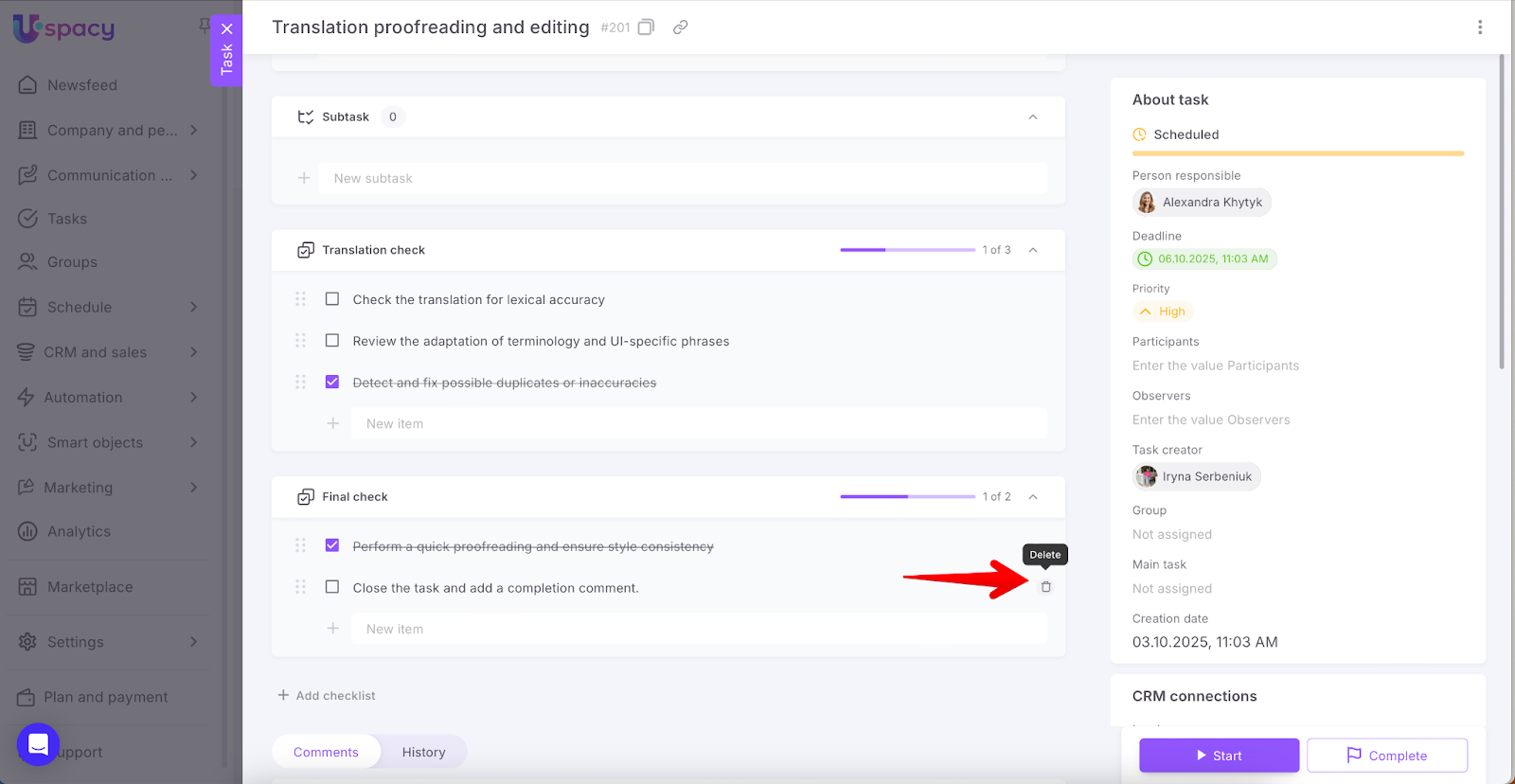
💡 You can delete both incomplete and completed items.
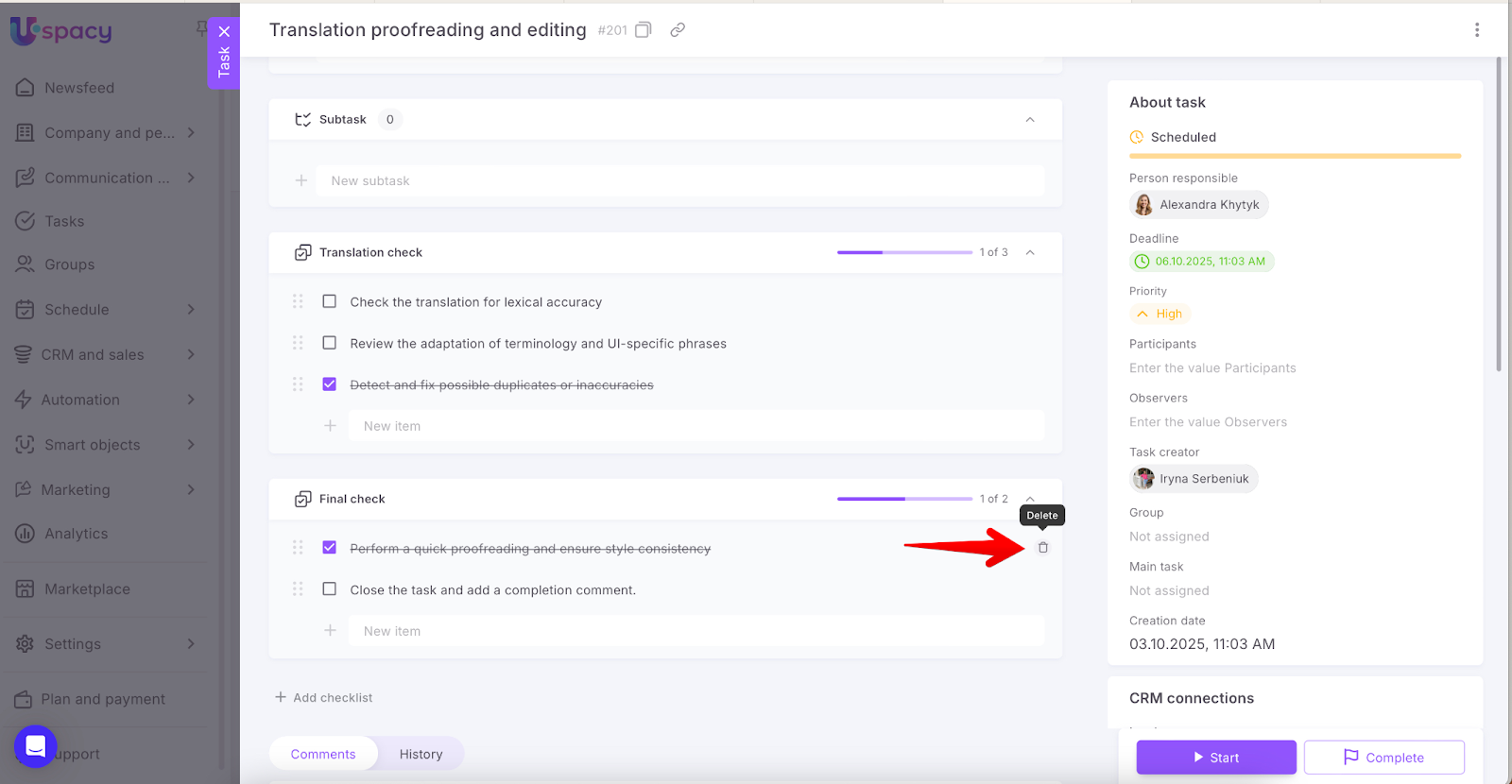
This action requires confirmation.
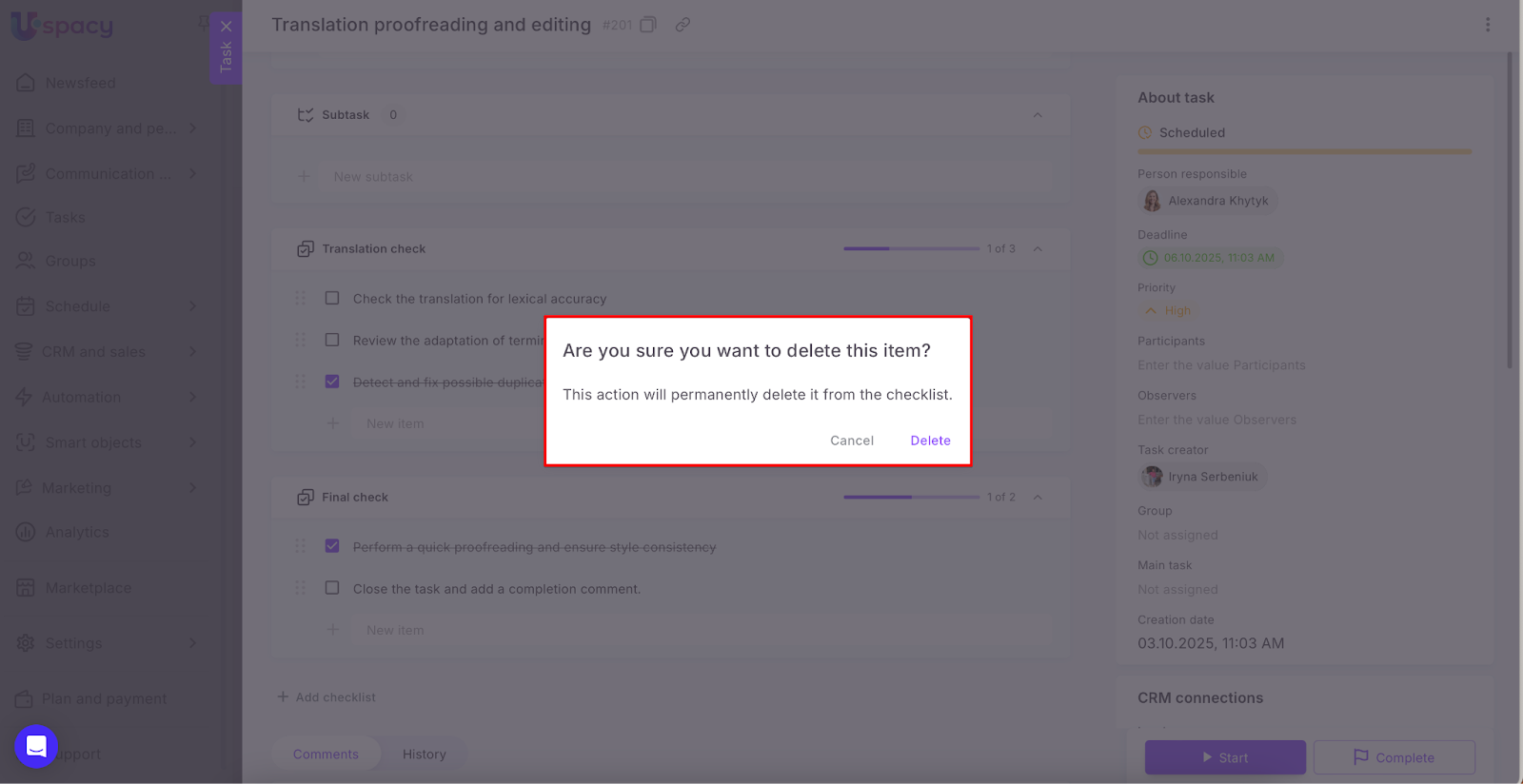
If you agree, the item will be permanently removed from the checklist and cannot be restored.
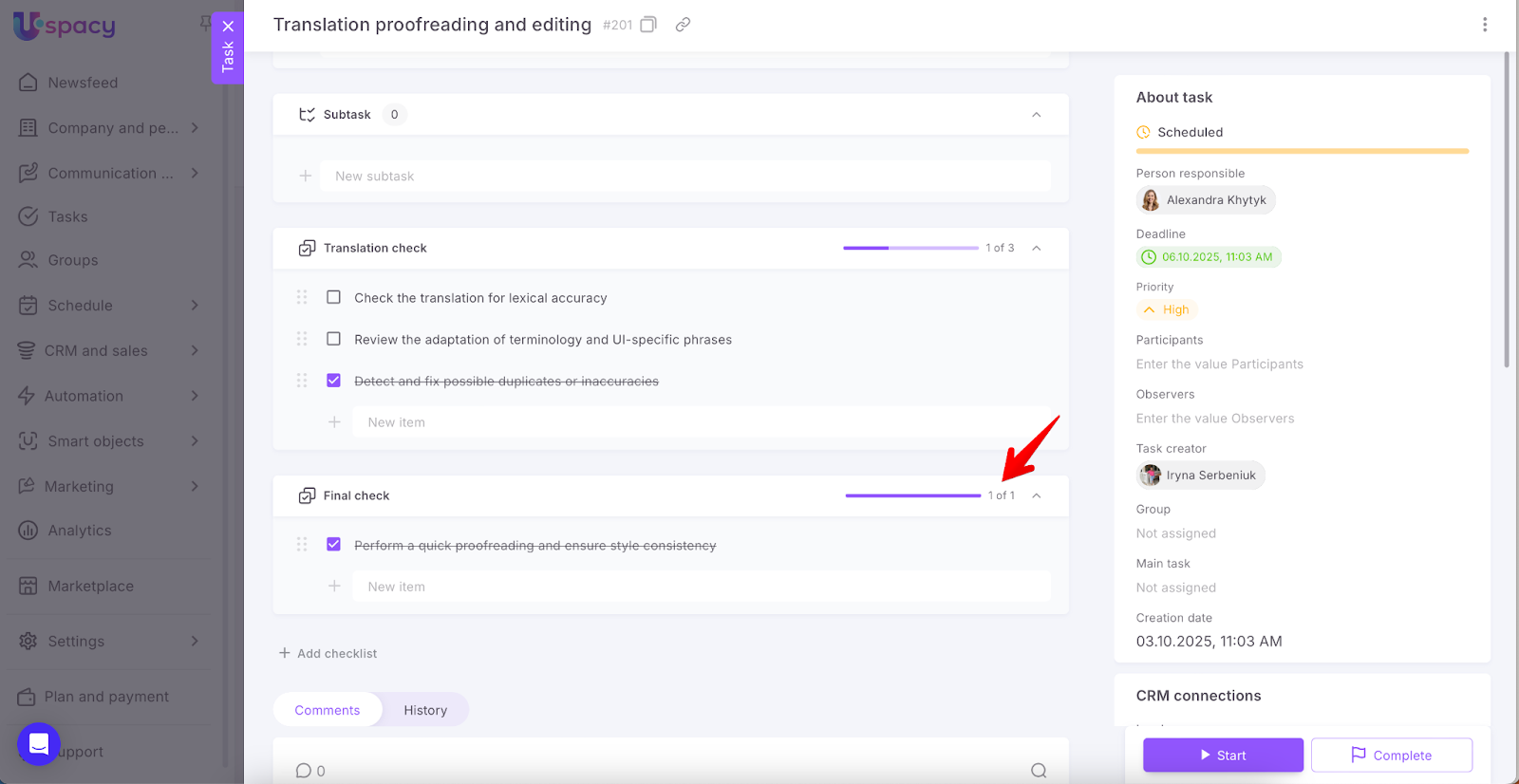
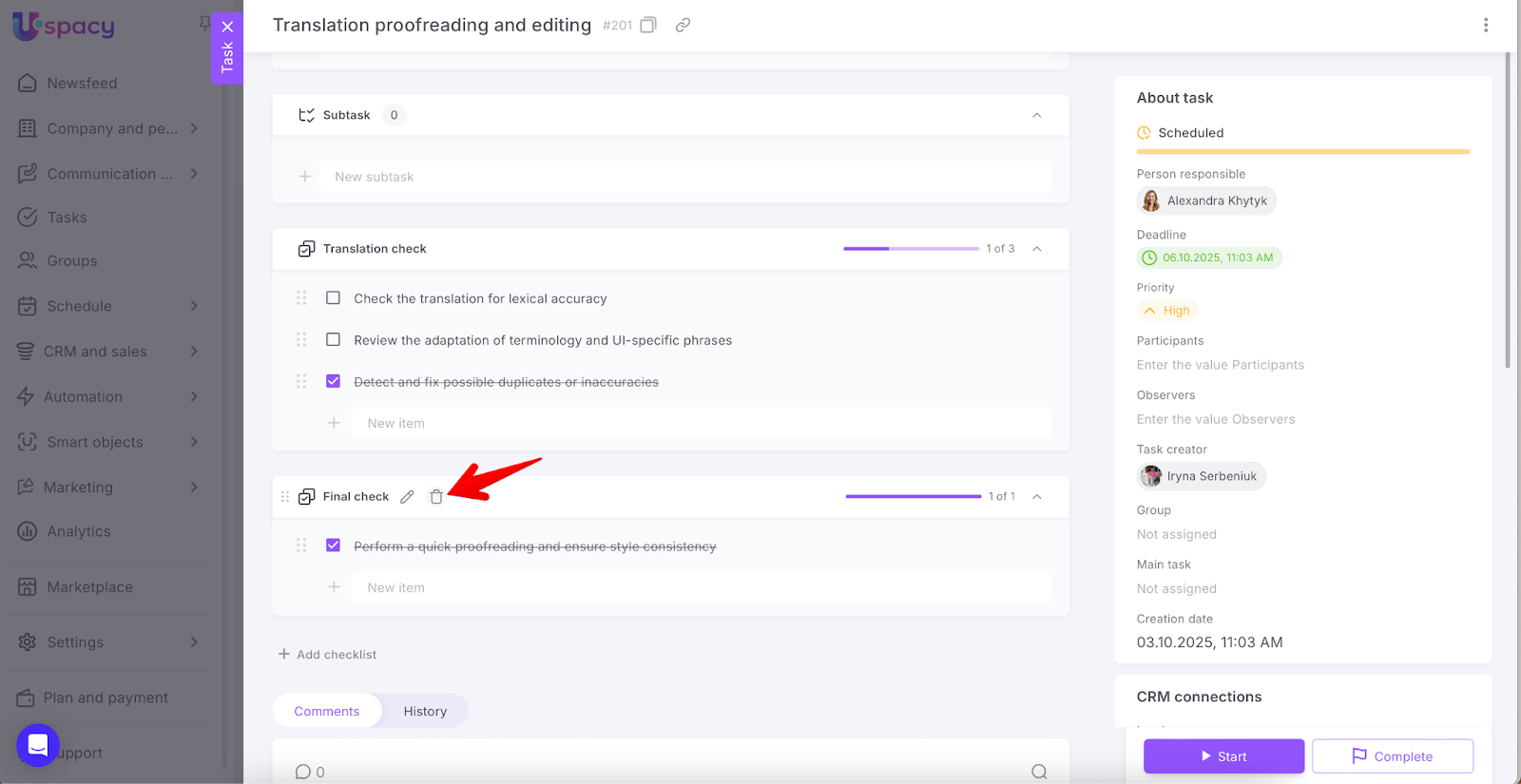
How to delete a checklist?
To do this, click on the trash icon that appears when you hover the cursor over the checklist title.
Deleting requires confirmation.
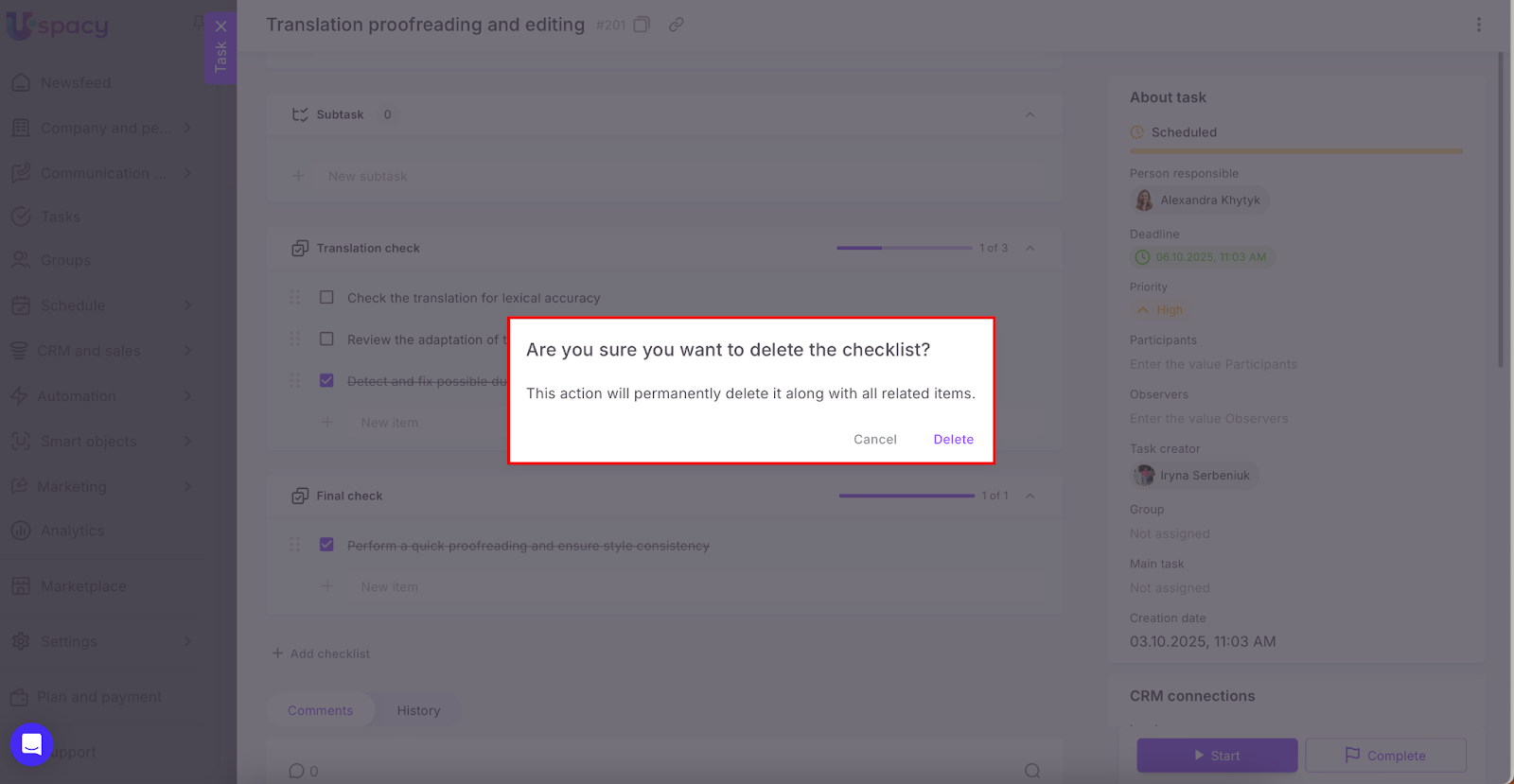
If you agree, the checklist will be removed along with all its items (both incomplete and completed).
Notes
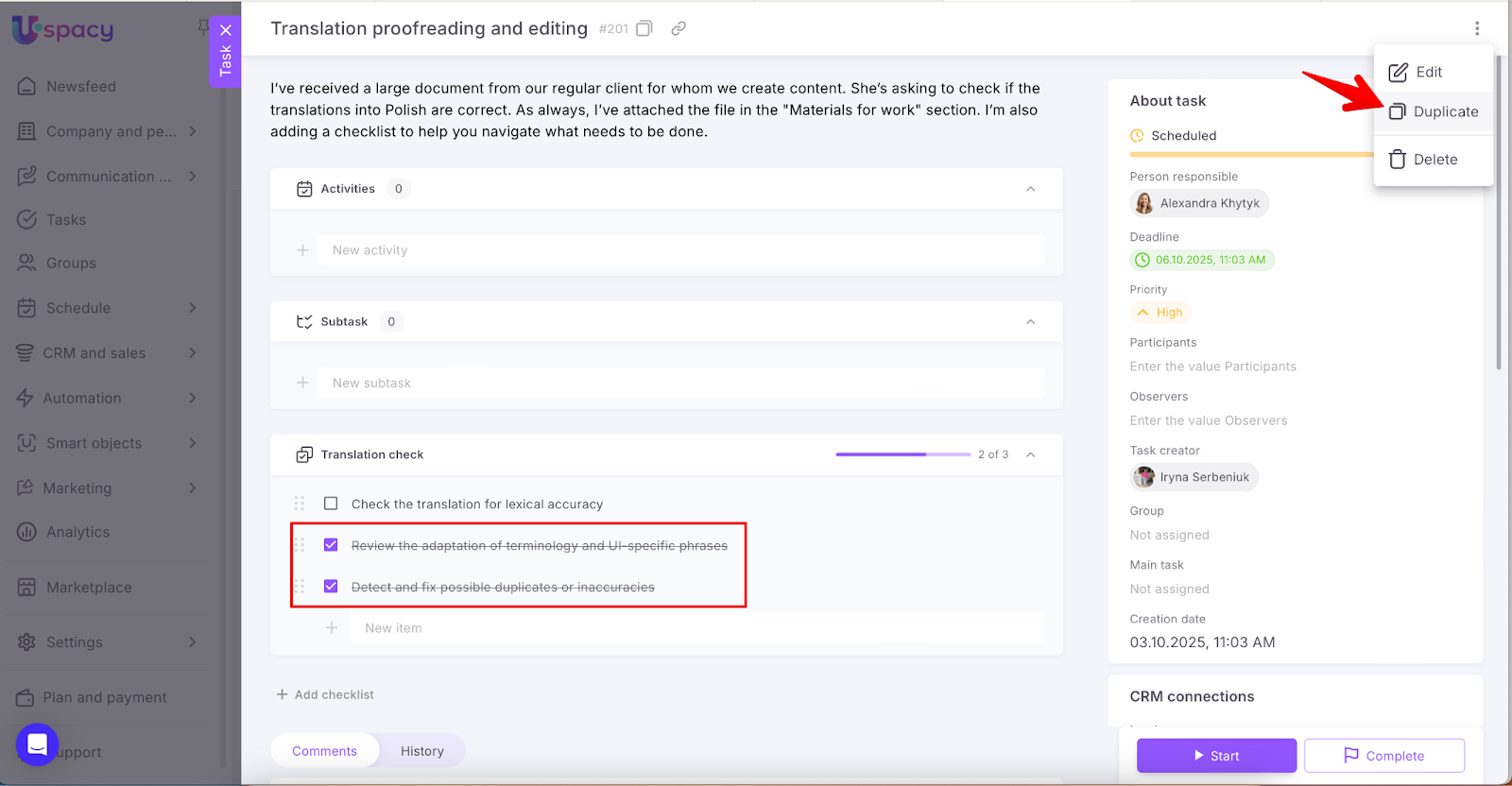
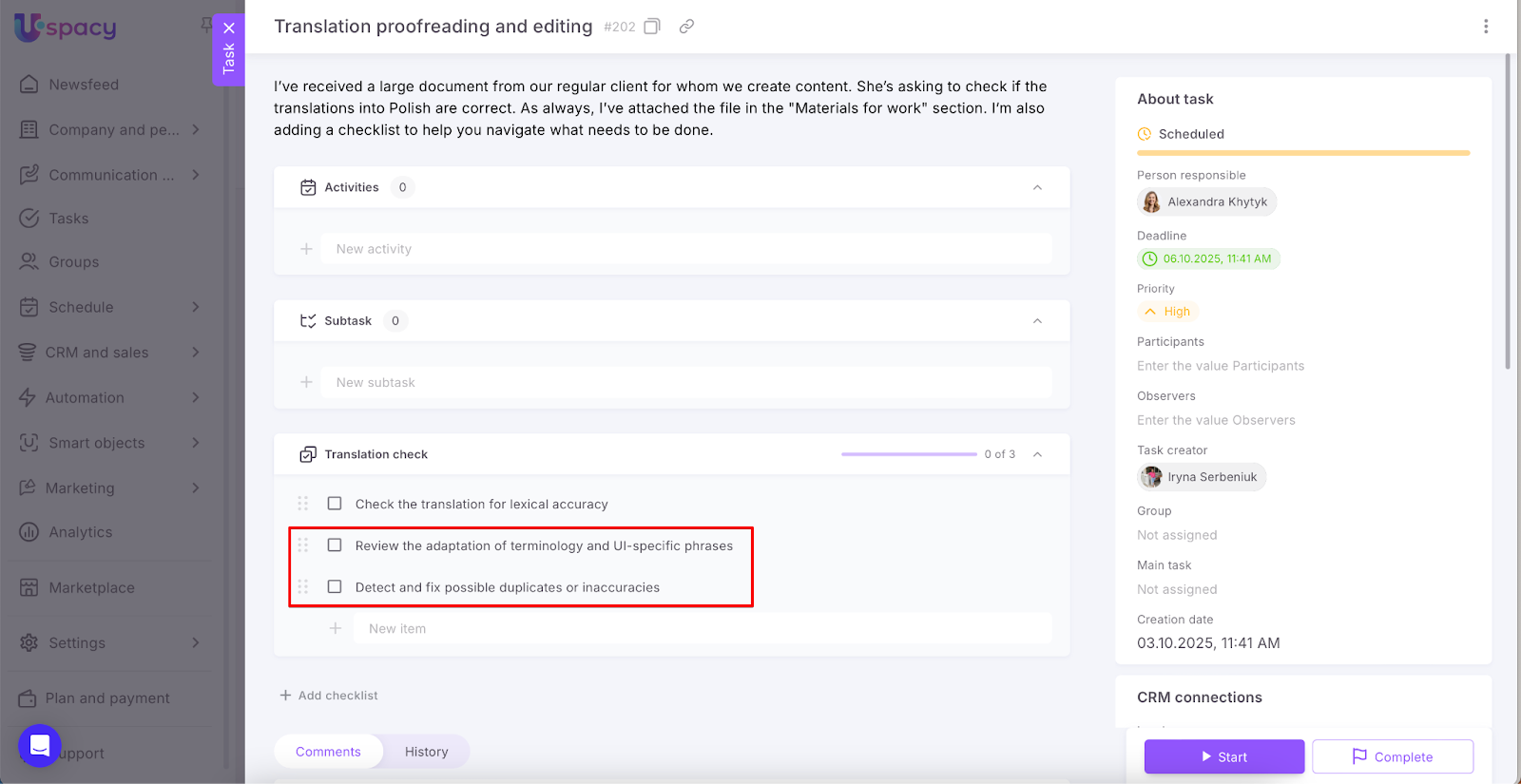
🟣 When duplicating a task, all checklist completion marks are reset to incomplete.
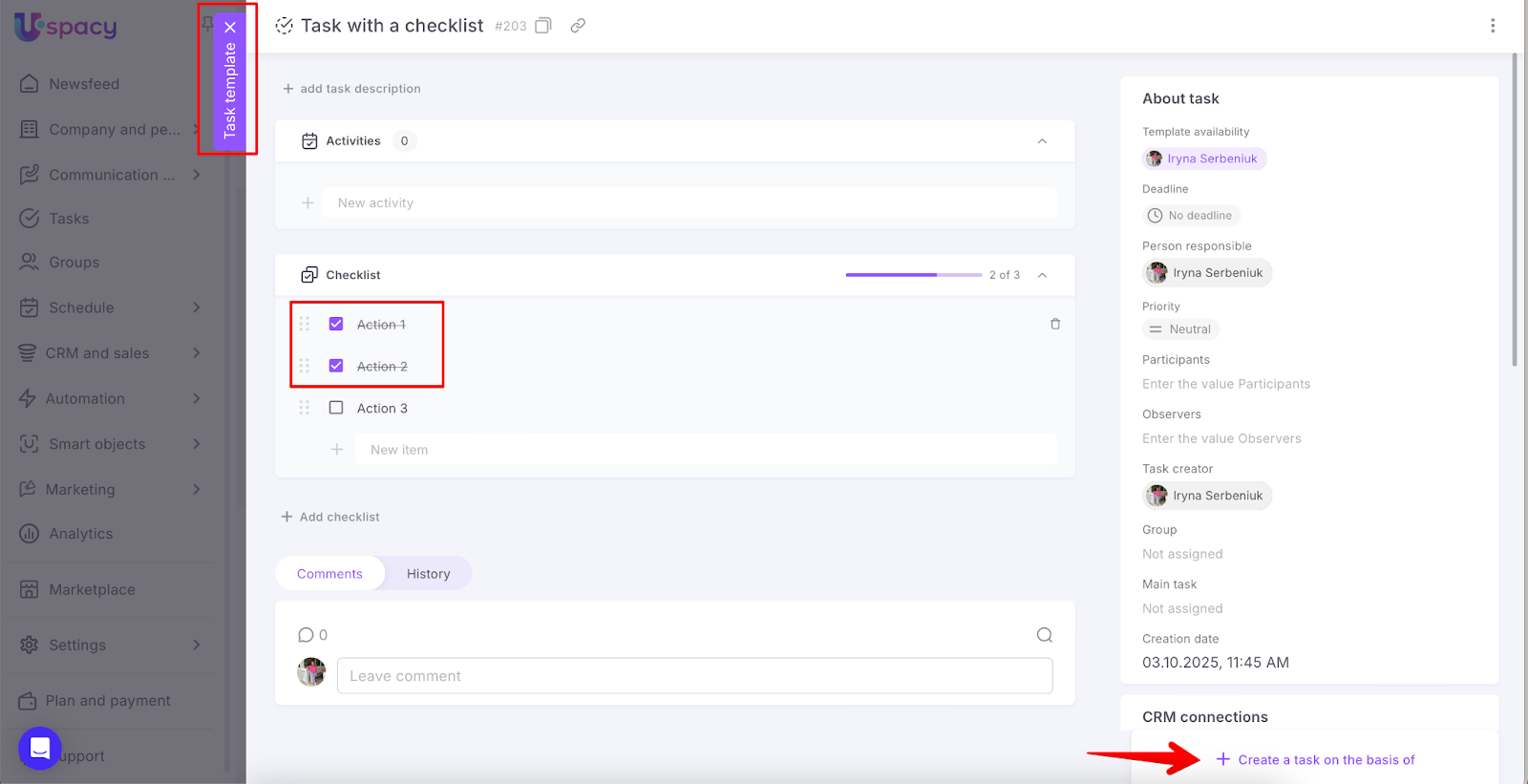
🟣 The same applies when a task is created from a template where checklist items are marked as completed — all marks will be reset.
If you have additional questions or you need to contact the support, send a request to this email [email protected]
Created: October 2, 2025 / Updated: November 20, 2025