
In Uspacy, you can set a separate default currency for each funnel in Leads and Deals, or for each direction in Smart Objects. This is useful if your company works with clients in different countries or manages multiple business lines that use different currencies.
The selected currency is automatically applied when creating new records in the corresponding funnel and is also used to display total amounts on the Kanban board. However, you can still select a different currency directly in an individual record.
🌟 Please note: The ability to set a separate default currency for each funnel is available on the Professional plan.
How to set a currency for a funnel
Go to Settings → Sections. Then open the CRM or Smart Objects tab, select the relevant entity, and navigate to Funnels settings.
In the list of funnels, you’ll find a currency selection field to the right of each funnel name. By default, this field is set to Workspace currency.

This means that the funnel uses the primary currency specified in your Workspace’s general settings.

Next, return to funnel settings and open the currency dropdown next to the funnel you want to configure.
You can select any currency available in your Workspace or keep the Workspace currency setting.

💡 Please note: If the currency you need isn’t listed, add it first under Settings → General → Basic settings using the Currencies available in the system option.

Once you select a currency, it will appear next to the corresponding funnel name. For example, you can set UAH for one funnel and USD for another.

This allows each funnel to have its own default currency, independently of the settings configured for other funnels.
Displaying amounts on the Kanban board
On the Kanban board, the total amounts displayed in each column will use the currency configured for that funnel.
For example, if a funnel is set to UAH, the totals will be displayed in Ukrainian hryvnias. If another funnel is set to USD, its totals will be displayed in US dollars.
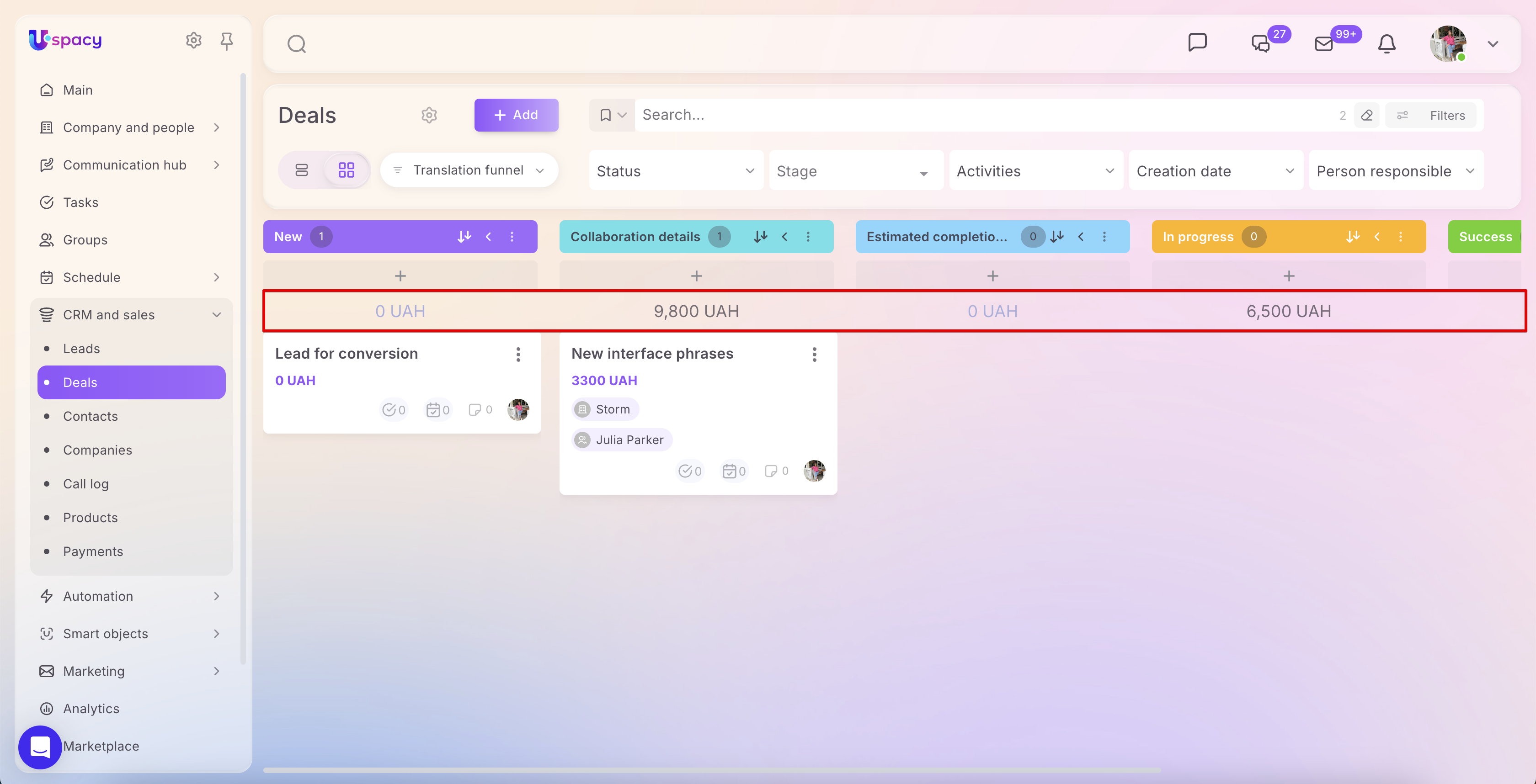
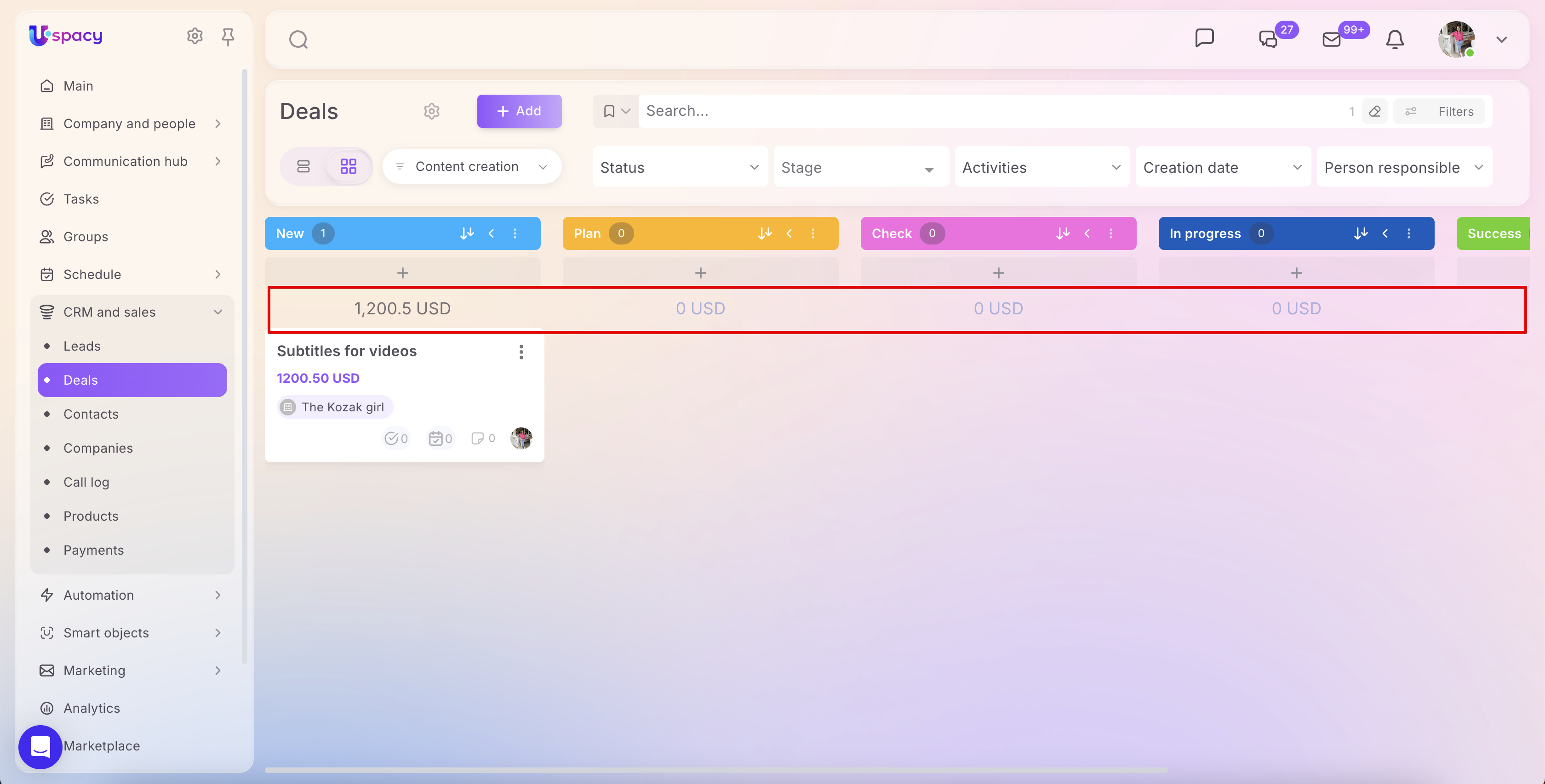
Individual records can still use different currencies. Amounts in those records are not added to the funnel’s total in its default currency; instead, they are displayed separately.
🔍 For more details on how totals are calculated, including how records with different currencies are handled, see the article “Board board in CRM.”
Creating new records
When you create a new lead, deal, or Smart Object record, the amount field will automatically use the currency configured for the corresponding funnel.
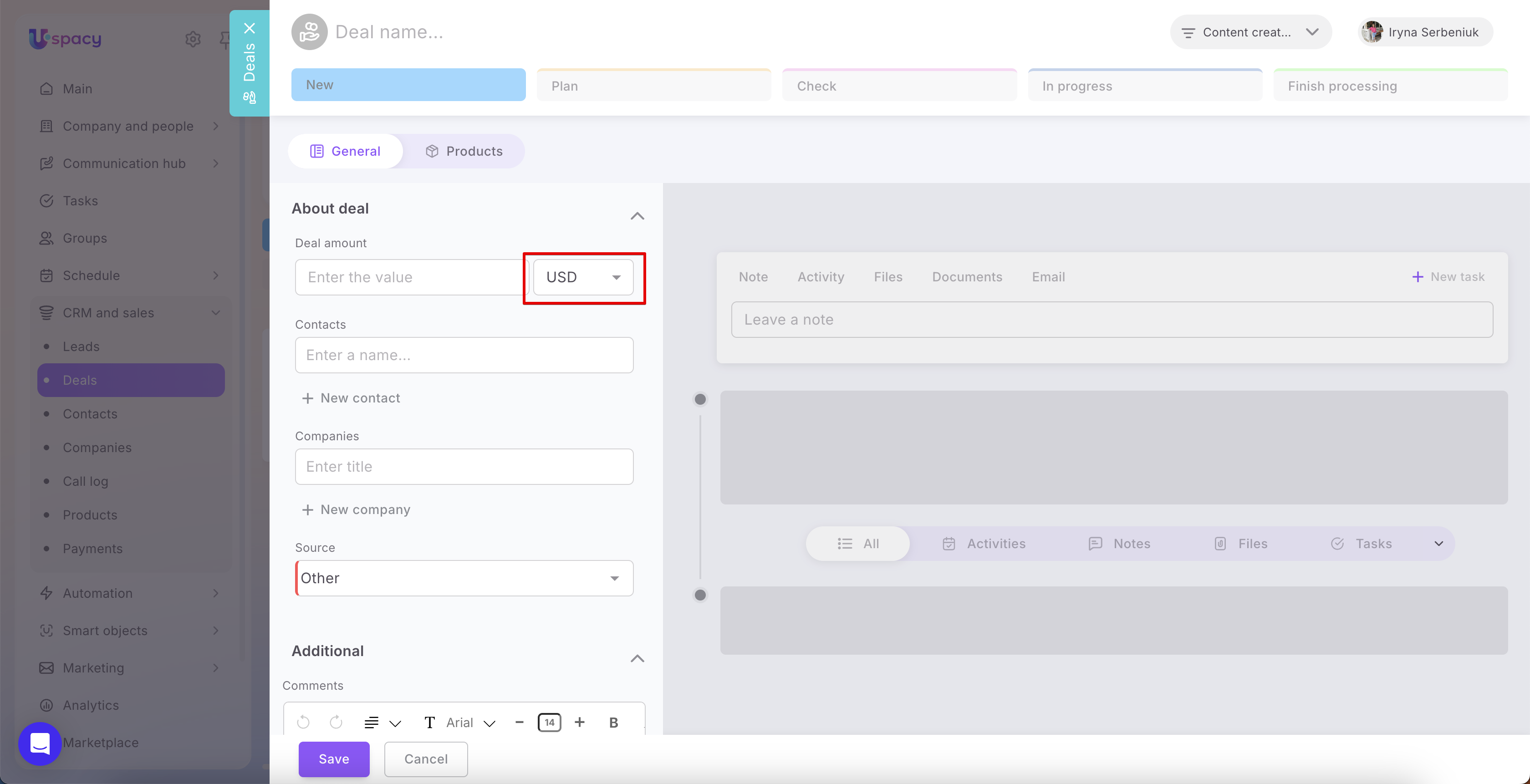
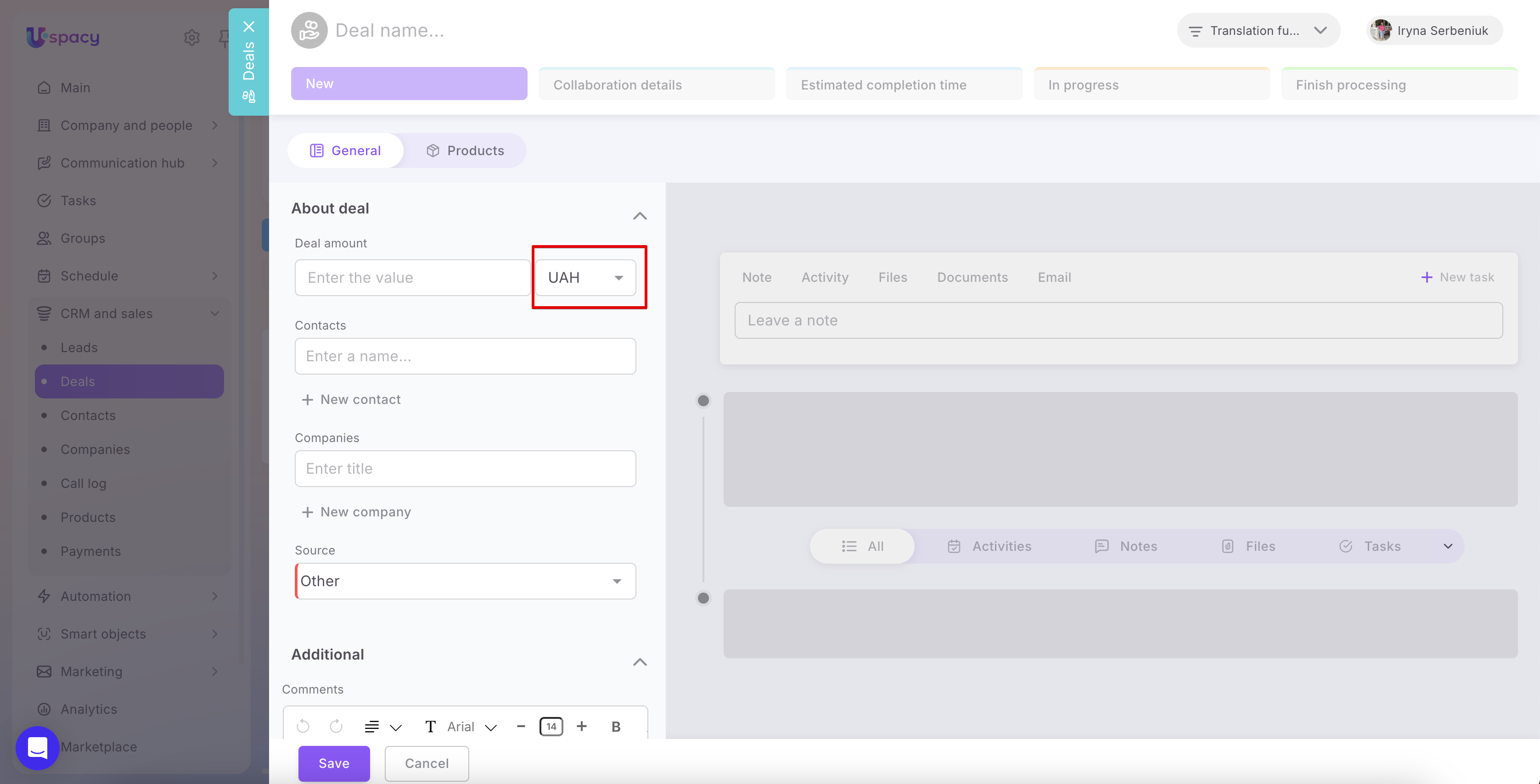
For example, if the funnel is set to USD, that currency will be preselected in the Deal amount field.
However, you can change the currency directly in the record. Simply open the dropdown and select another currency available in your Workspace.
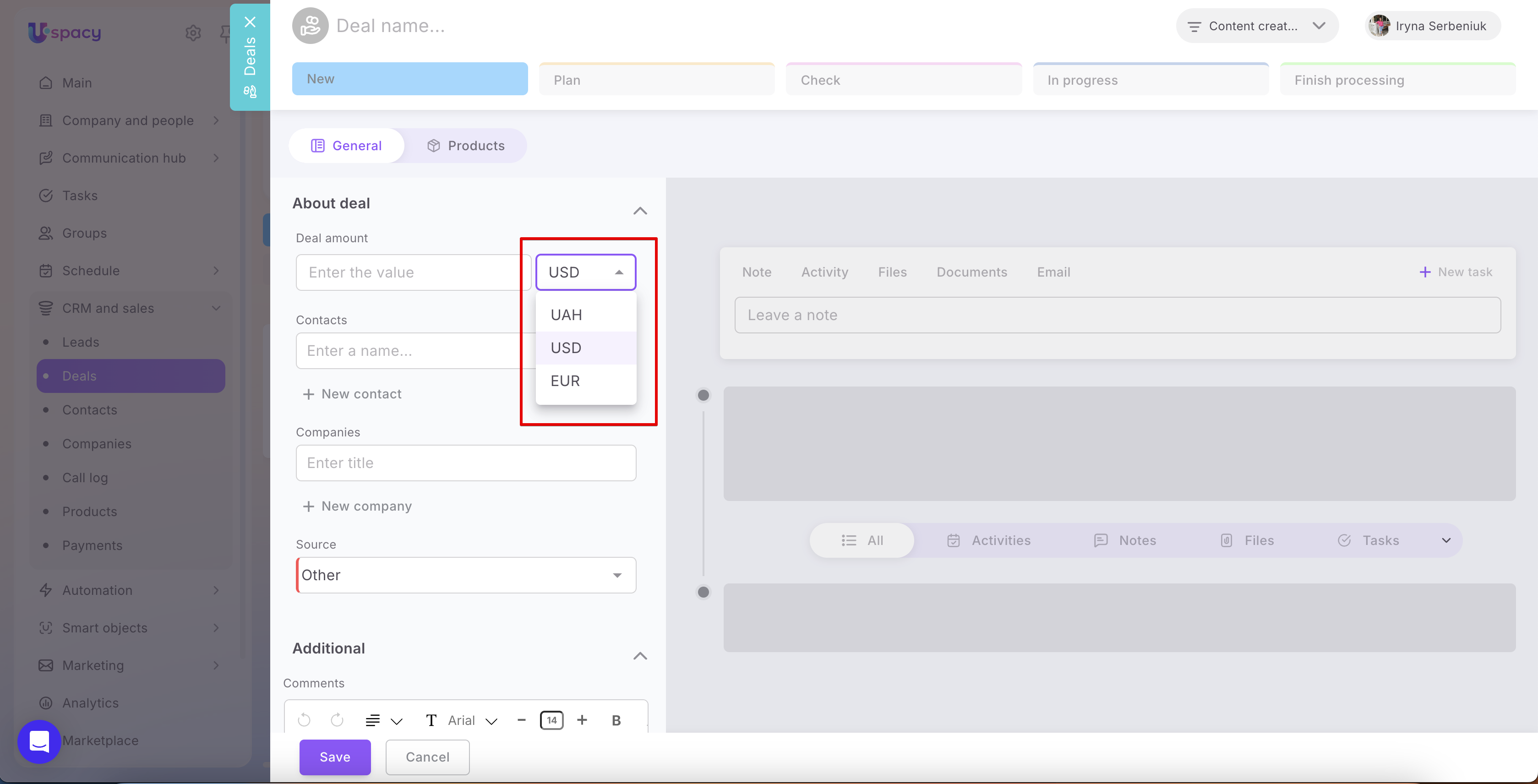
This means that setting a default currency does not prevent you from working with multiple currencies within the same funnel.
How to select a currency when creating a new funnel
You can set the default currency while creating a new funnel. There are two ways to do this.
1. Through section settings. Go to Settings → Sections → Funnels settings. Add a new funnel, enter its name, and select the desired currency from the dropdown. Then confirm the creation.

2. Directly in CRM or Smart Objects. In the Leads, Deals, or relevant Smart Objects section, start creating a new funnel. Select the desired currency in the appropriate field and click Save.
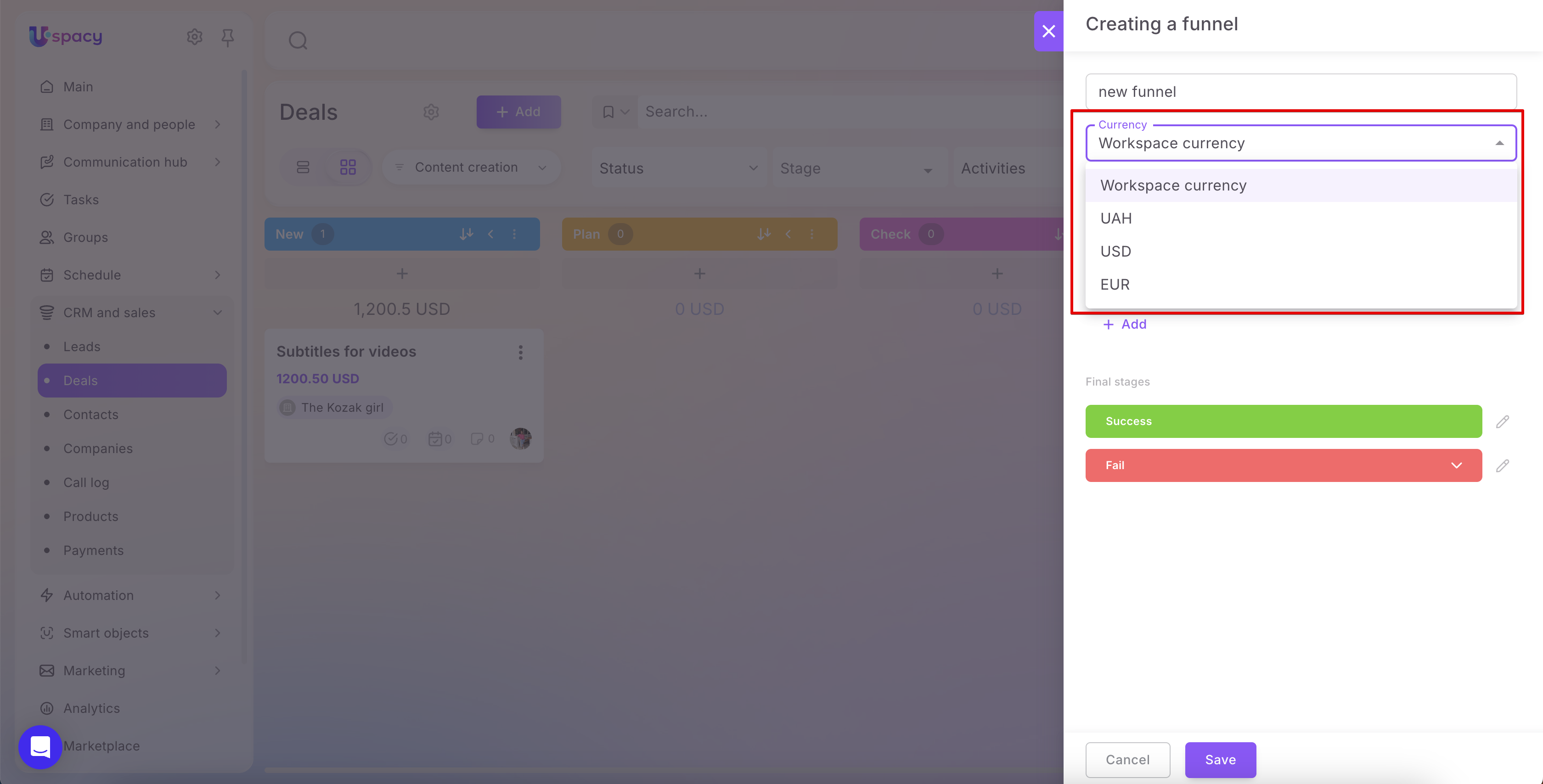
💡 Please note: In both cases, the default setting is Workspace currency. You can change it to any other available currency as needed.
The ability to configure a currency for each funnel makes it easier to work across different markets without having to change the currency every time you create a record. Simply select the desired currency once, and it will be applied automatically when creating new records and used to display total amounts on the Kanban board.
At the same time, you can select a different currency for any individual record to accommodate the needs of a specific deal or workflow.
If you have additional questions or you need to contact the support, send a request to this email [email protected]
Created: October 13, 2026 / Updated: October 14, 2026