
In Uspacy, you can configure which data is displayed on a task card on the board. This helps you navigate work faster by seeing the responsible person, task creator, deadline, priority, description, subtasks, comments, custom fields, and other important information without opening the full task card.
This setting is available for boards in the Tasks section, as well as for task boards within groups. The card layout can be adapted for individual work, team processes, or specific board stages.
This customization makes the board more informative, reduces unnecessary navigation, and helps the team find the needed data faster during work.
How does it work?
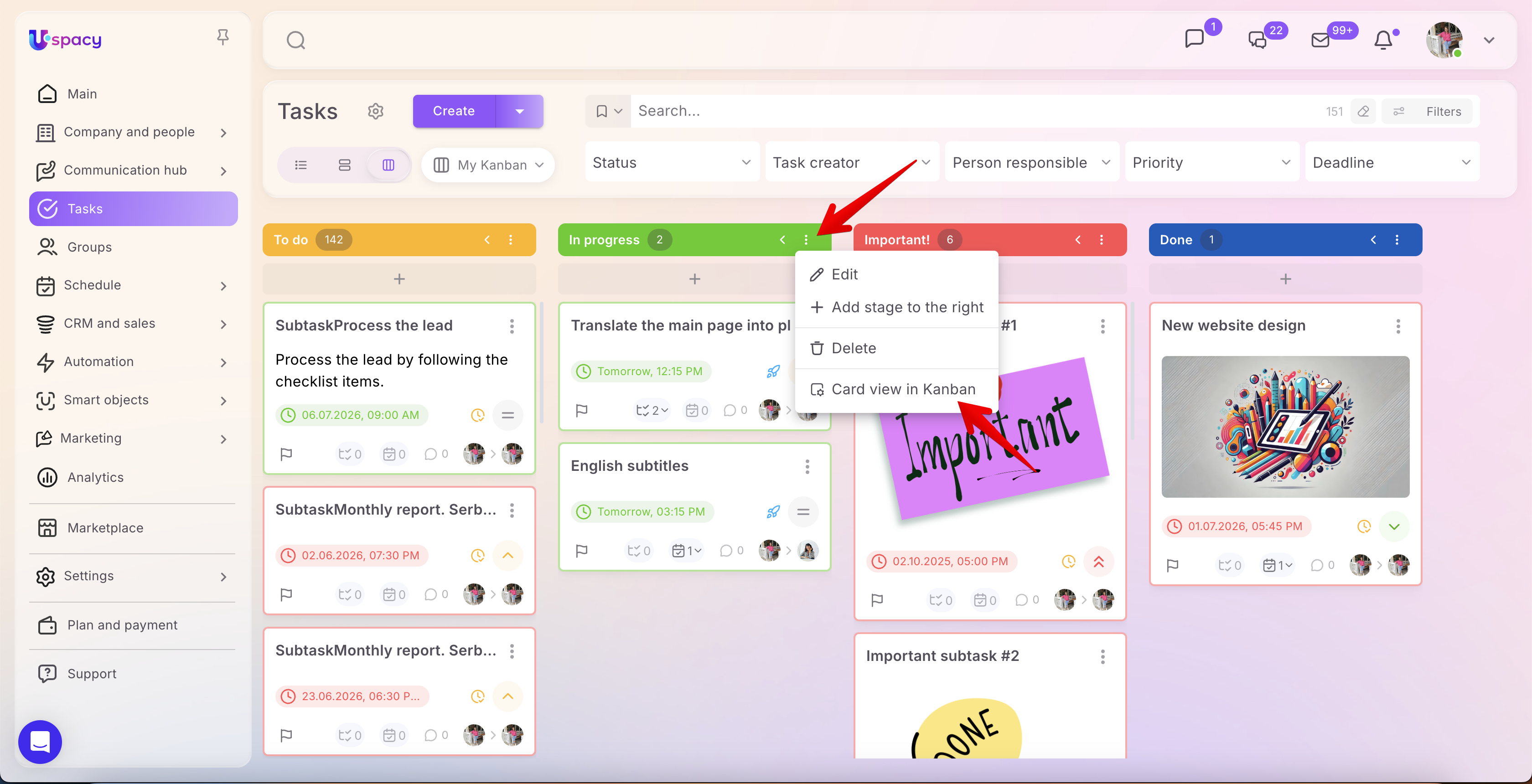
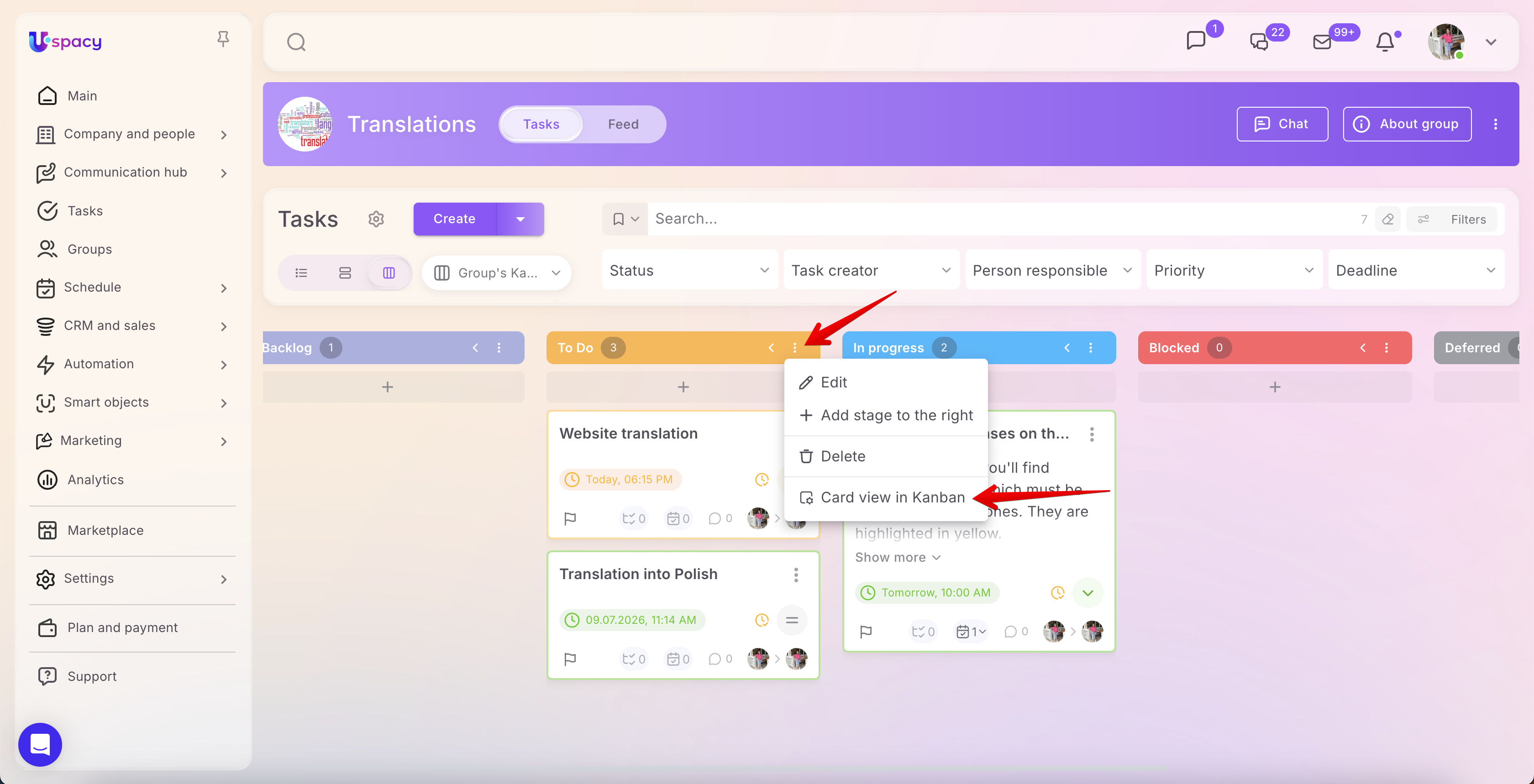
Open the board you want to configure. In the header of the required stage, click the three-dot menu and select the Card view in Kanban.
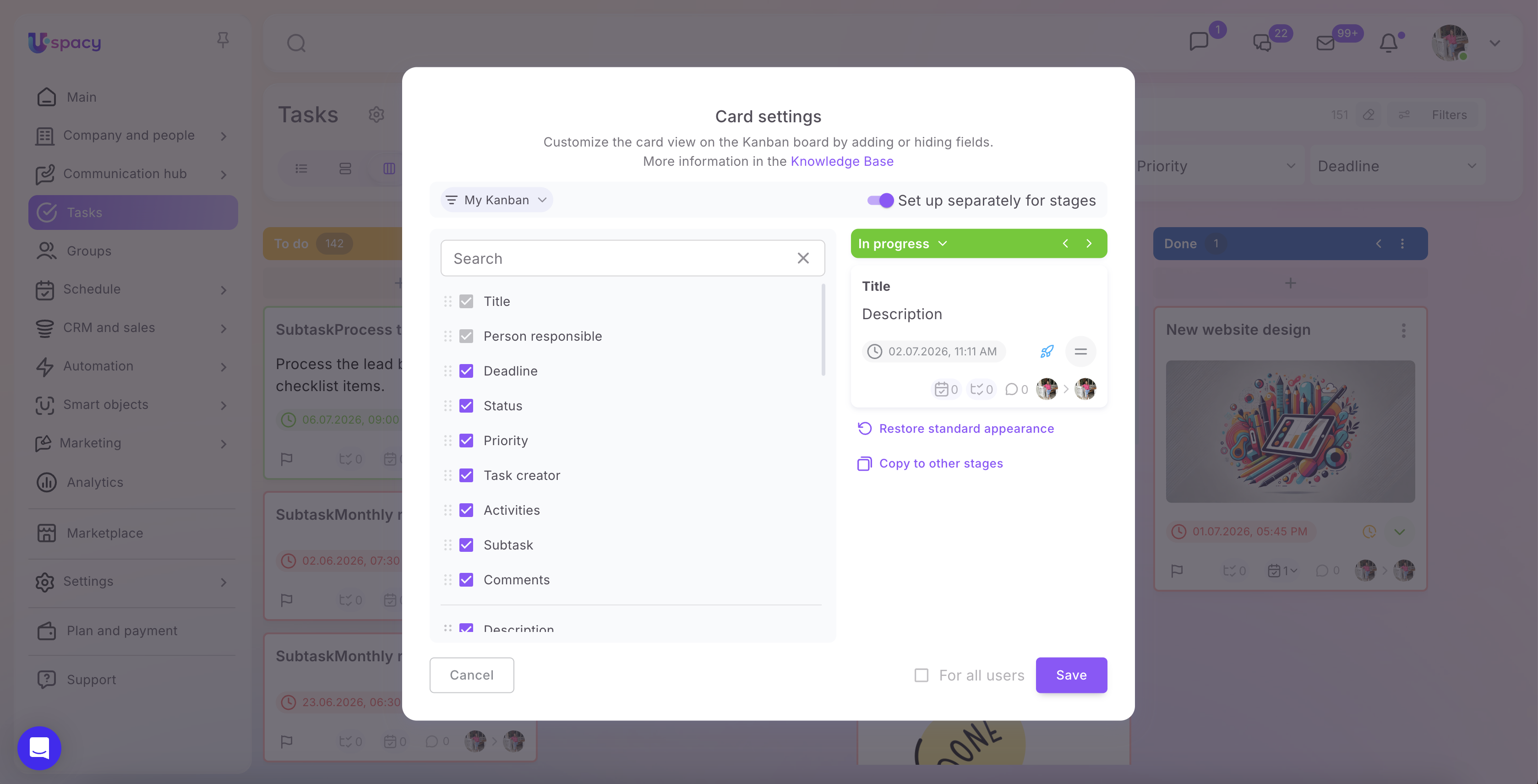
A Card settings window will open. Here you can select which fields will be shown on the card, change their order, configure the view for specific stages, or apply changes for all users if you have the required permissions.
On the right side, a live preview of the card is displayed, allowing you to immediately see how it will look after selecting fields.
Which boards support card customization
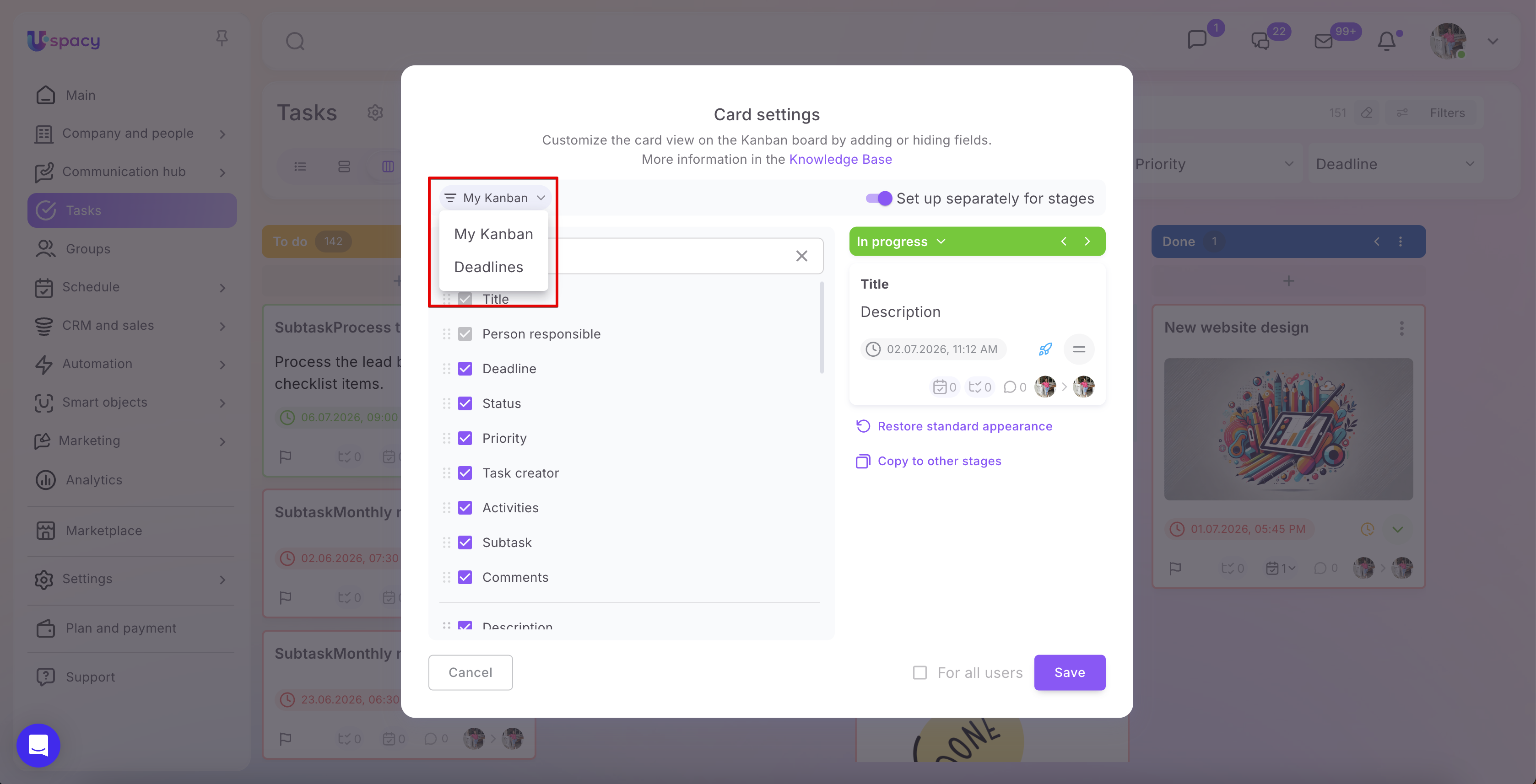
In the Tasks section, you can configure card view for two boards:
- My Kanban — a board with your tasks;
- Deadlines — a board where tasks are grouped by due dates.
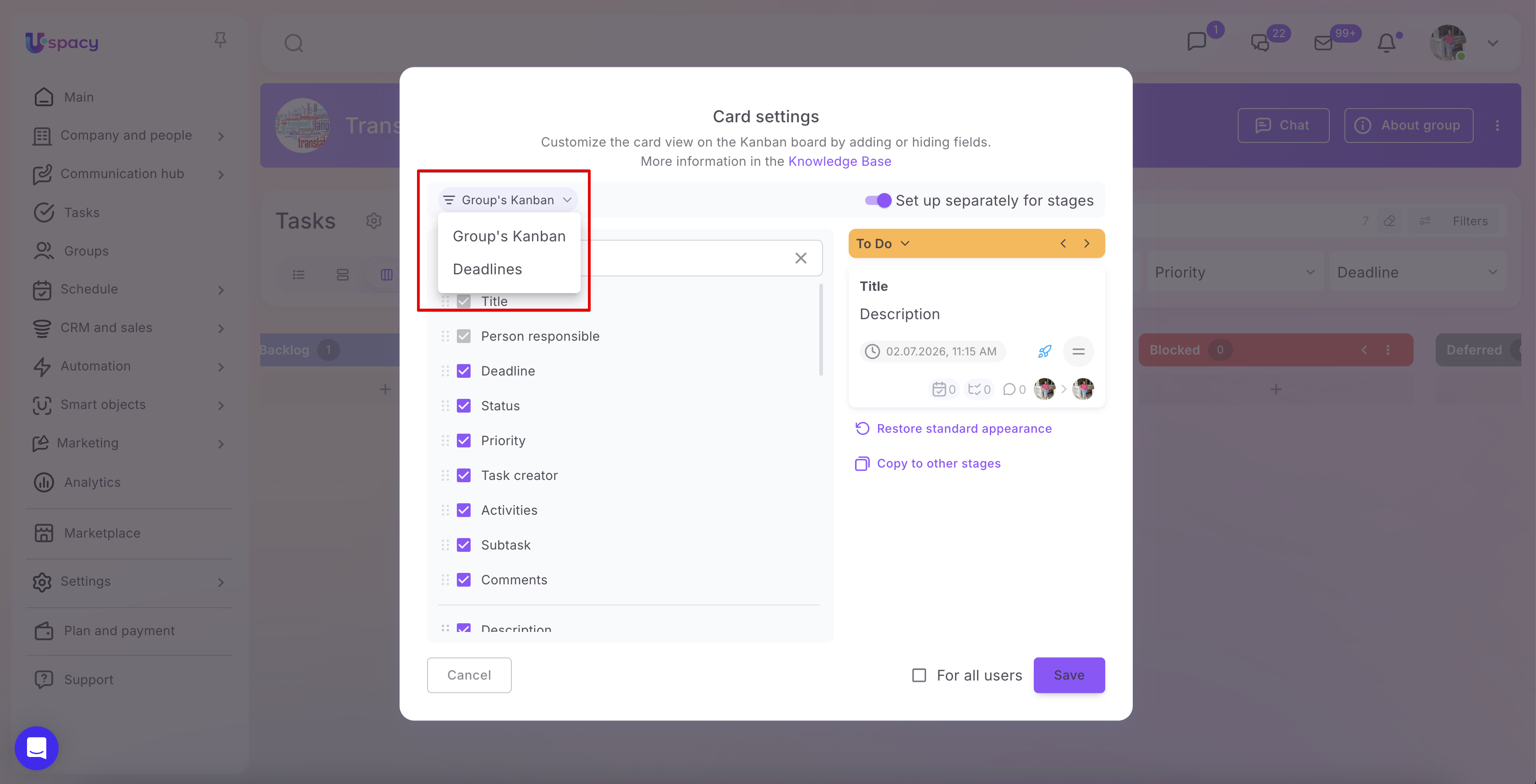
To switch between boards, use the dropdown menu at the top of the settings window.
In groups, the settings work separately for:
- Group’s Kanban;
- Deadlines board for that group.
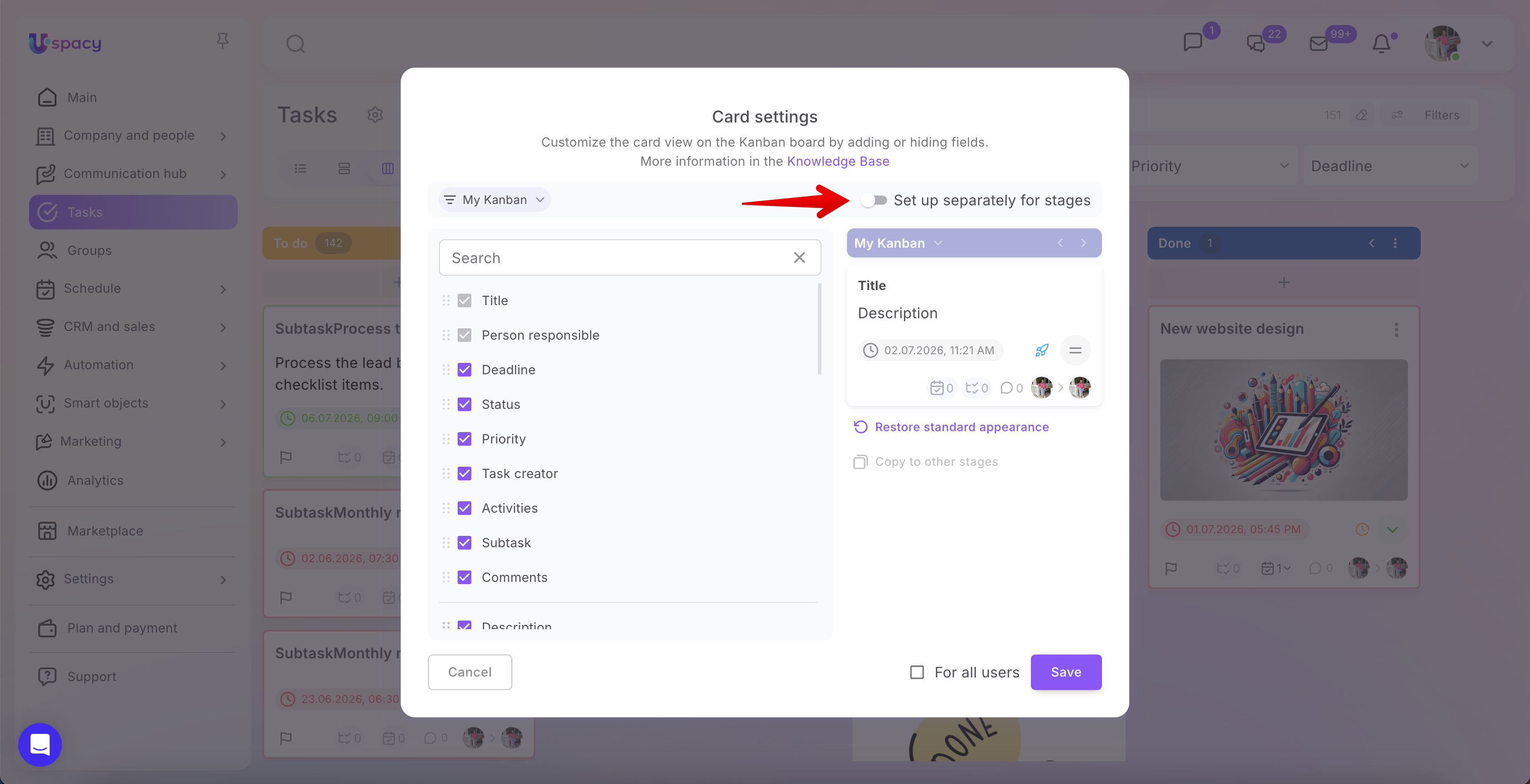
The card view can be configured either for the entire board or separately for each stage.
To configure cards per stage, enable the toggle Set up separately for stages. After that, you can select a specific stage on the right side of the window and define a separate set of fields for it.
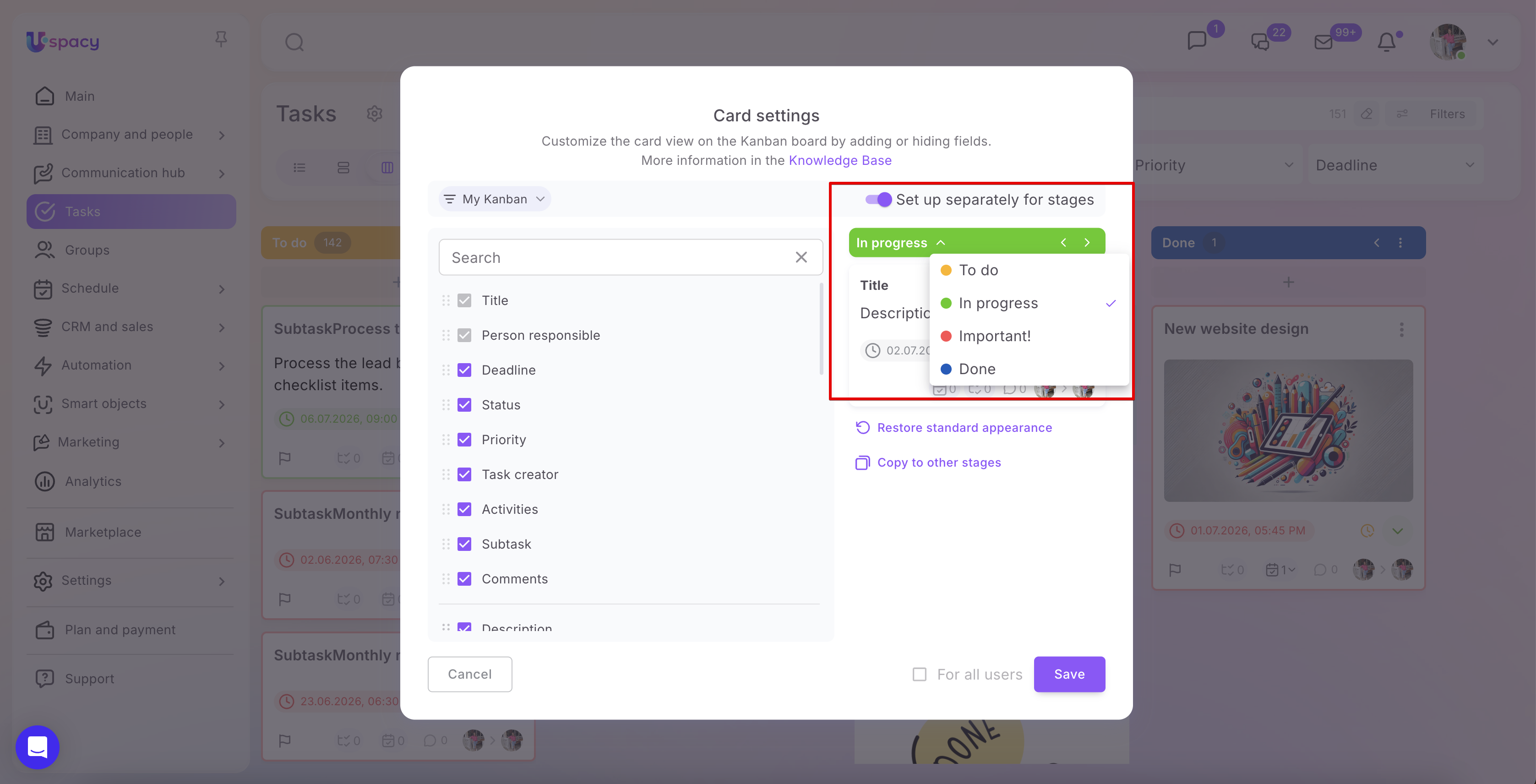
This is useful when different stages require different information. For example, at the To do stage, you can show the task creator, priority, and links to materials, while at the In progress stage, you can show participants, subtasks, comments, and task complexity.
If stage-specific configuration is disabled, the selected layout applies to the entire board.
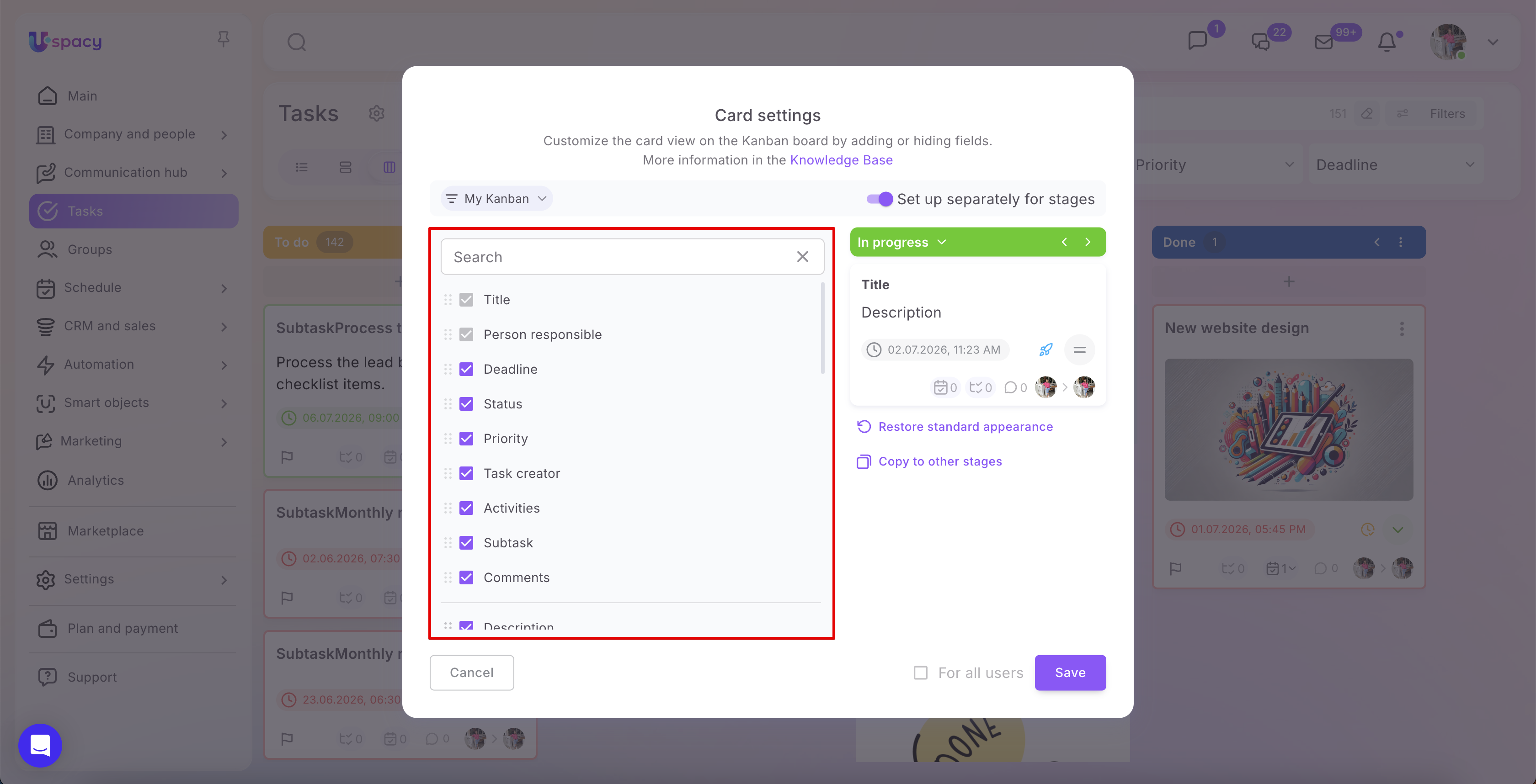
On the left side of the window, there is a list of fields that can be displayed on the card. To add a field, check the box next to its name. To hide a field, uncheck it. You can also use the search bar at the top of the list to quickly find a specific field.
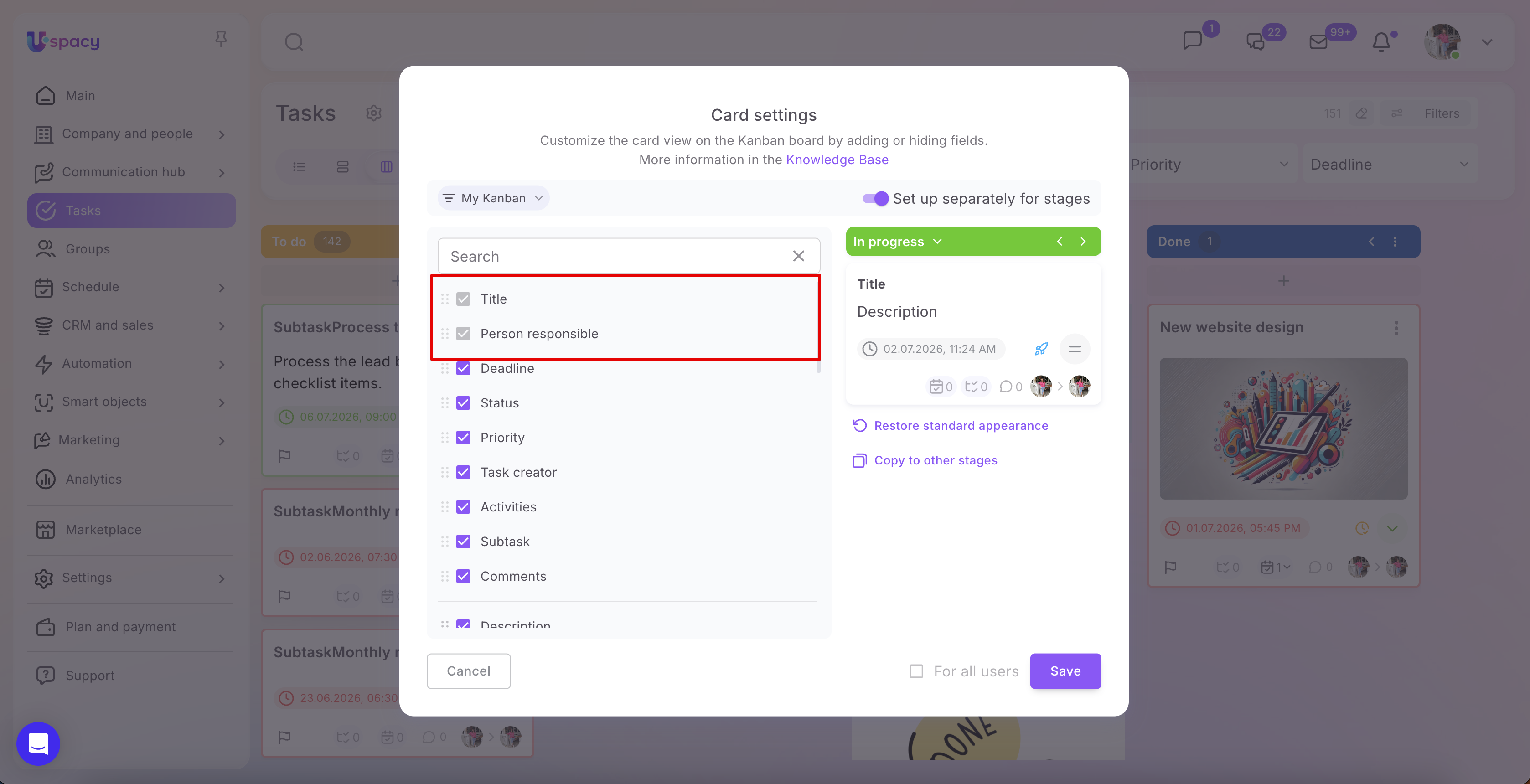
Some fields are core to the task card and cannot be hidden. For example, Title and Person responsible are always displayed.
These fields are marked as selected in the list but are not available for disabling.
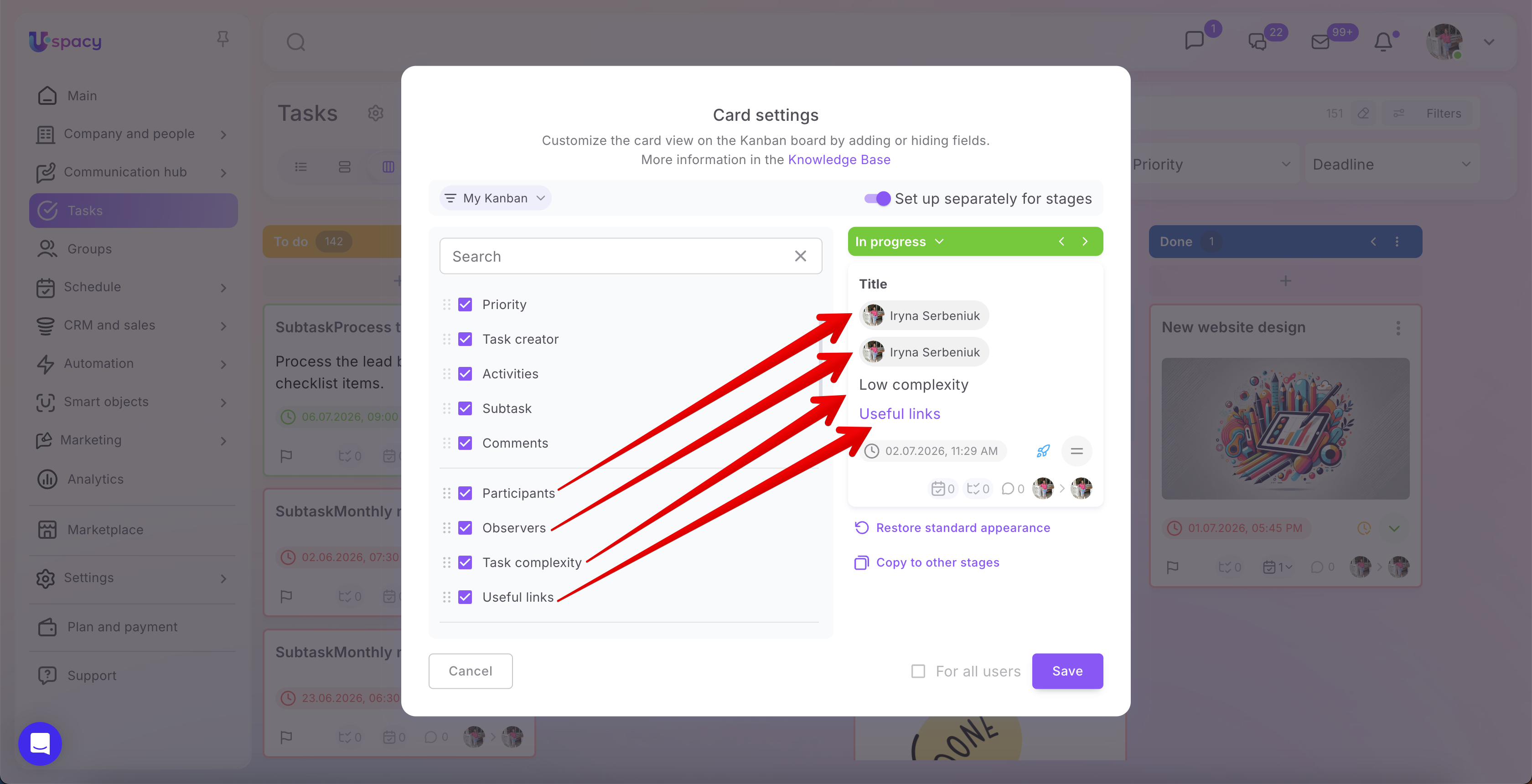
Fields on the card can be arranged in the desired order by dragging them up or down using the drag icon next to each field name.
In other words, the order in the list determines the display order on the card. For example, you can first show participants and observers, then task complexity, and below that — useful links.
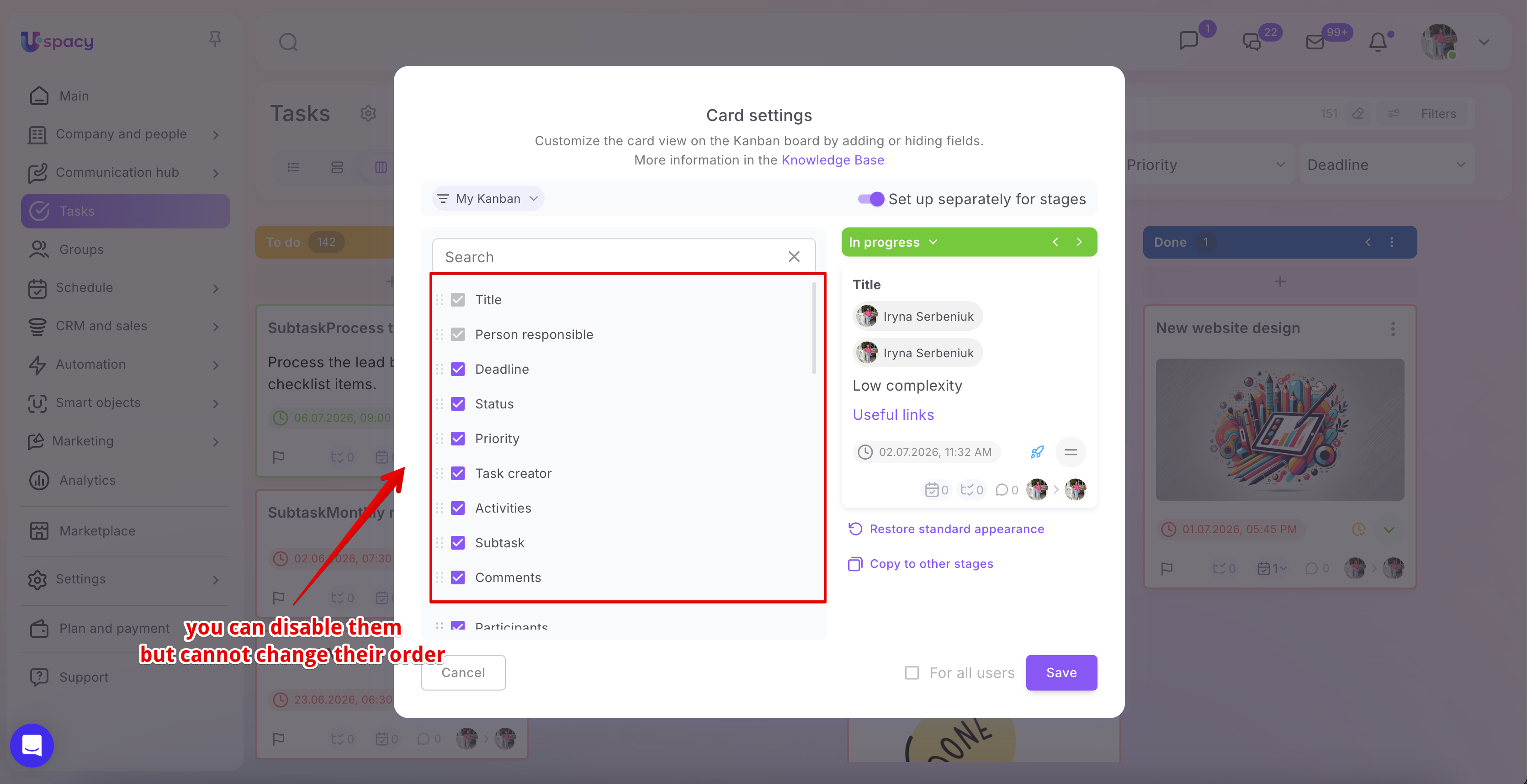
💡 In the Card settings window, fields are divided into separate blocks.
In the top block, the main system task fields are located, such as Deadline, Status, Priority, Task creator, Activities, Subtasks, and Comments. These fields can be shown or hidden on the card using checkboxes, but their order cannot be changed.
Below this, additional fields may be displayed, such as Participants, Observers, and custom task fields. Within this block, the order of fields can be adjusted by dragging them up or down using the drag icon next to each field name.
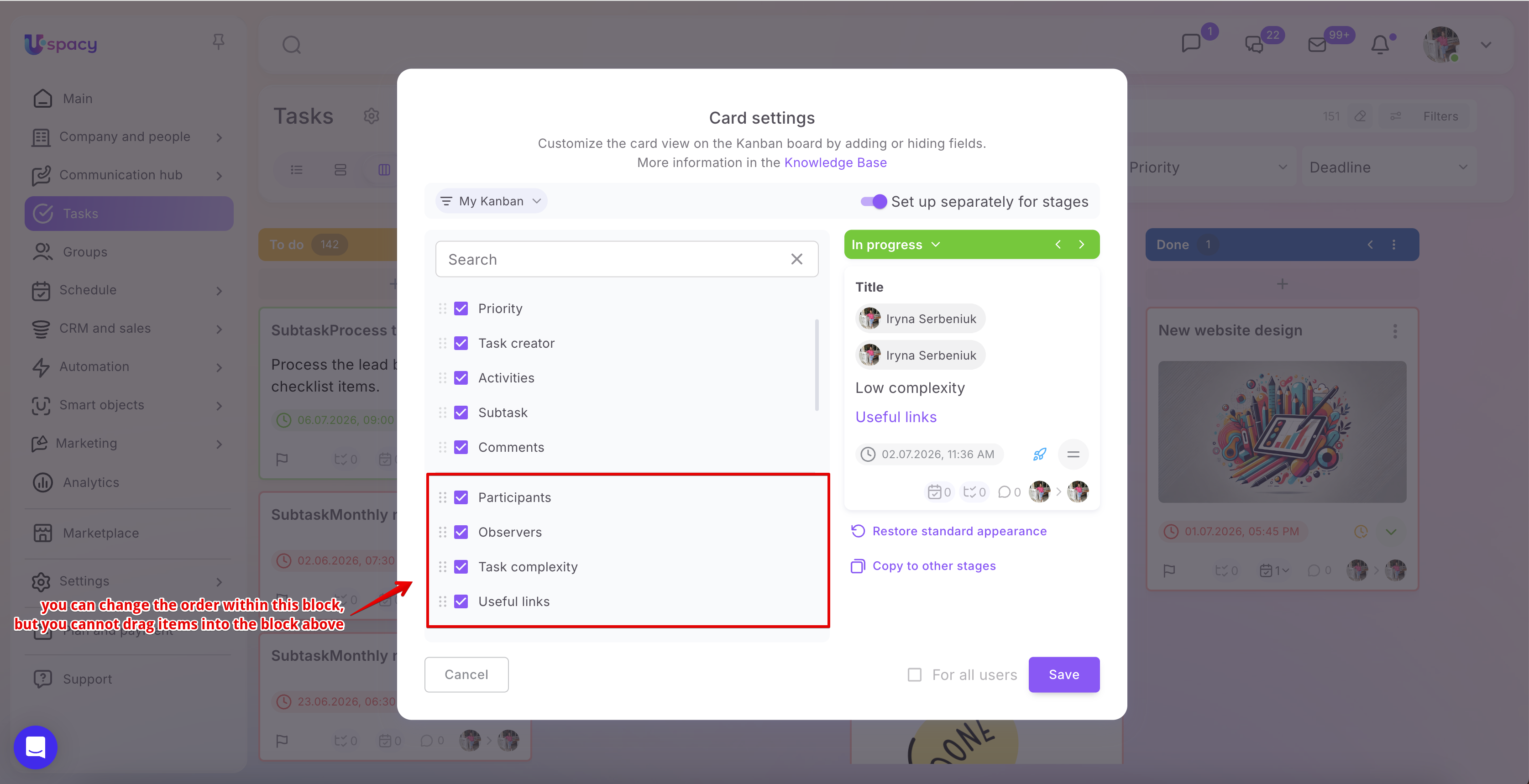
Please note that fields can only be rearranged within this lower block. It is not possible to move them above into the block of main system fields.
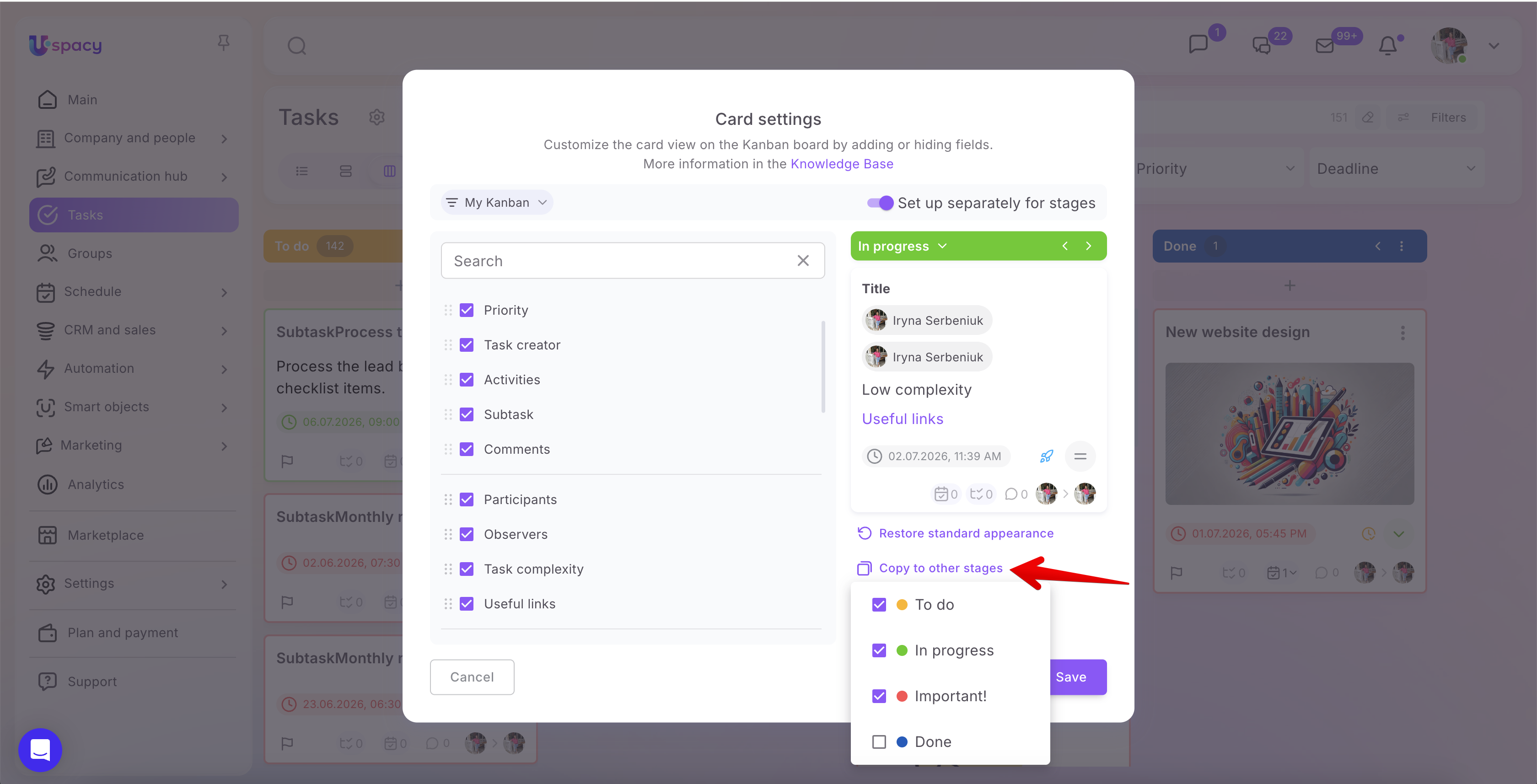
This section also includes the action Copy to other stages. It is useful if you have configured the card view for one stage and want to apply the same field setup to other stages of the board.
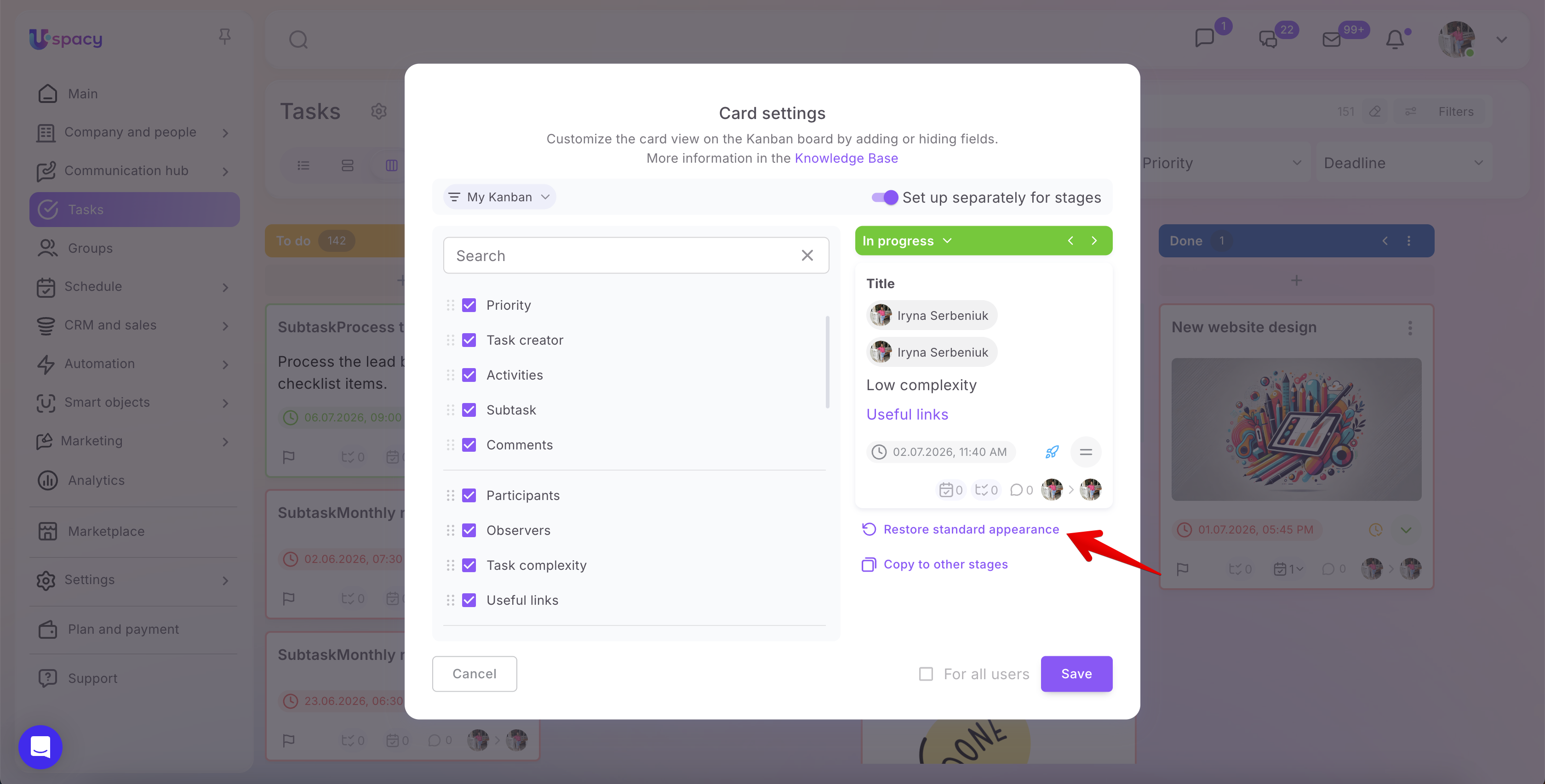
If you need to restore the original field set, click Restore standard appearance. This will undo all changes and return the card to its standard layout.
Configuration features
An administrator or Space owner can apply card view settings for all users by enabling the corresponding option.
However, certain conditions must be considered:
- When configuring the card for a personal board, an administrator or owner can apply settings for all users only if the view is configured for the entire board (i.e., all stages).
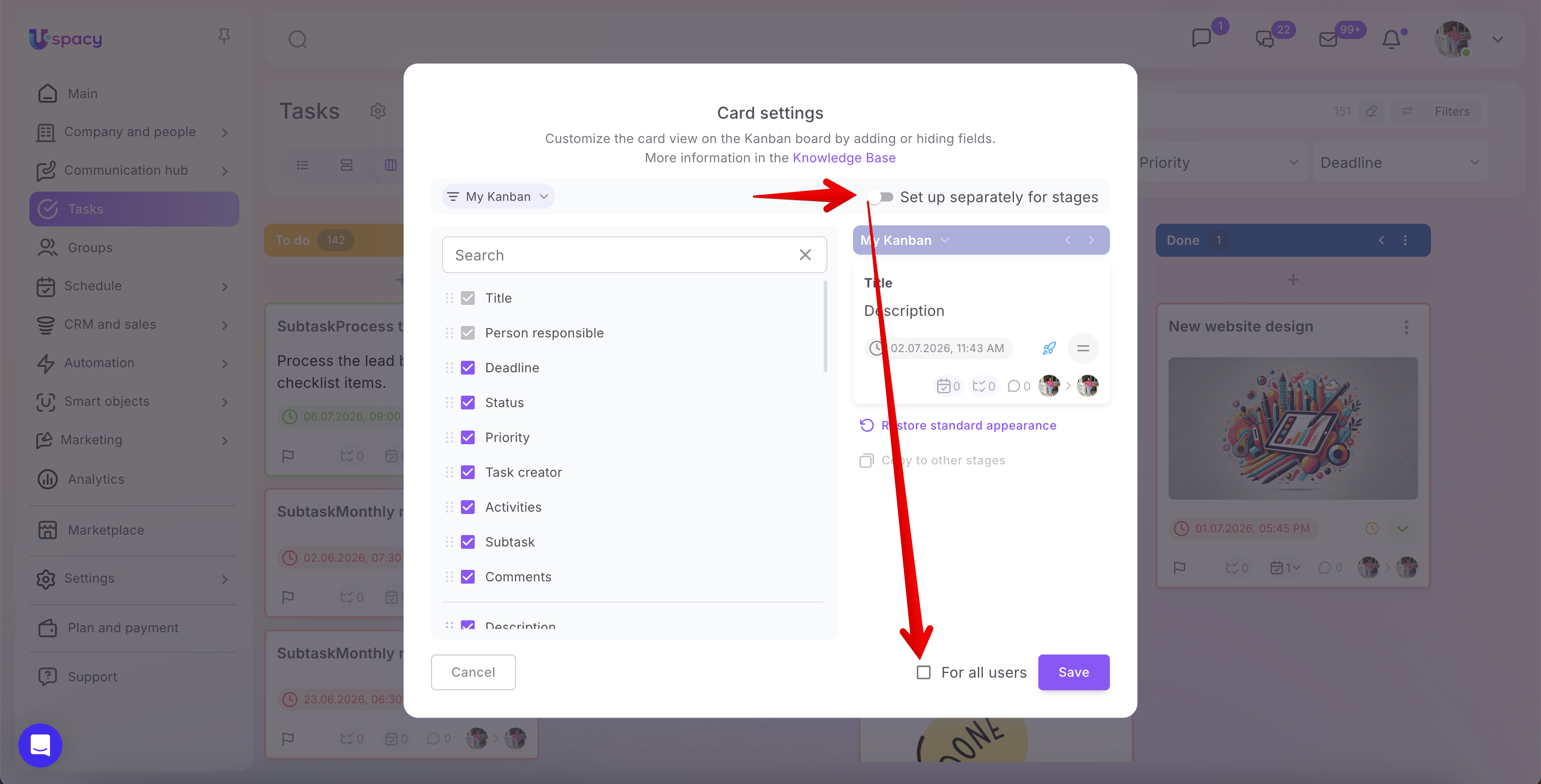
- If stage-specific configuration is enabled on a personal board, applying changes for all users is not available.
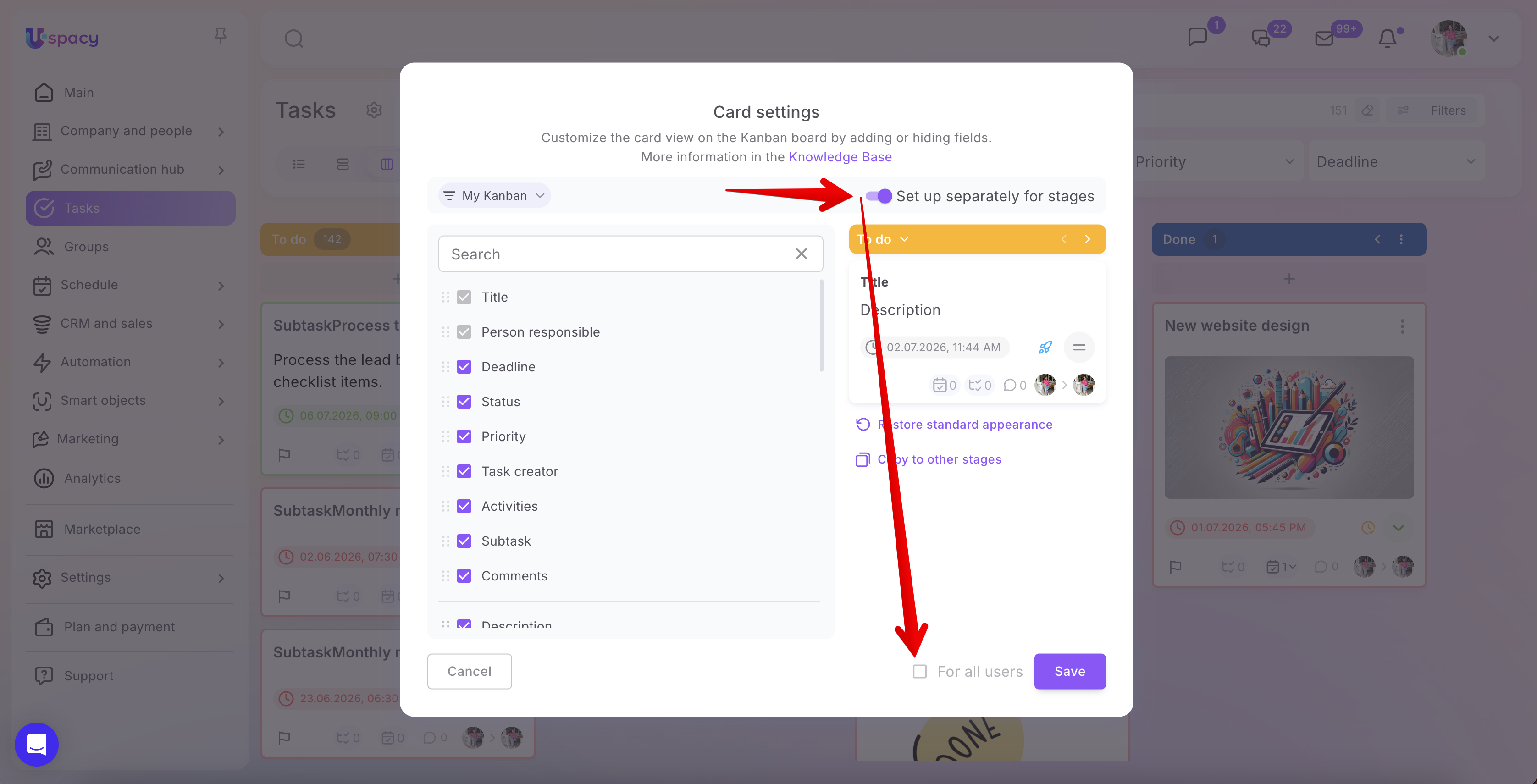
- For the Deadlines board, Group’s Kanban, and group Deadlines boards, administrators or owners can apply settings for all users.
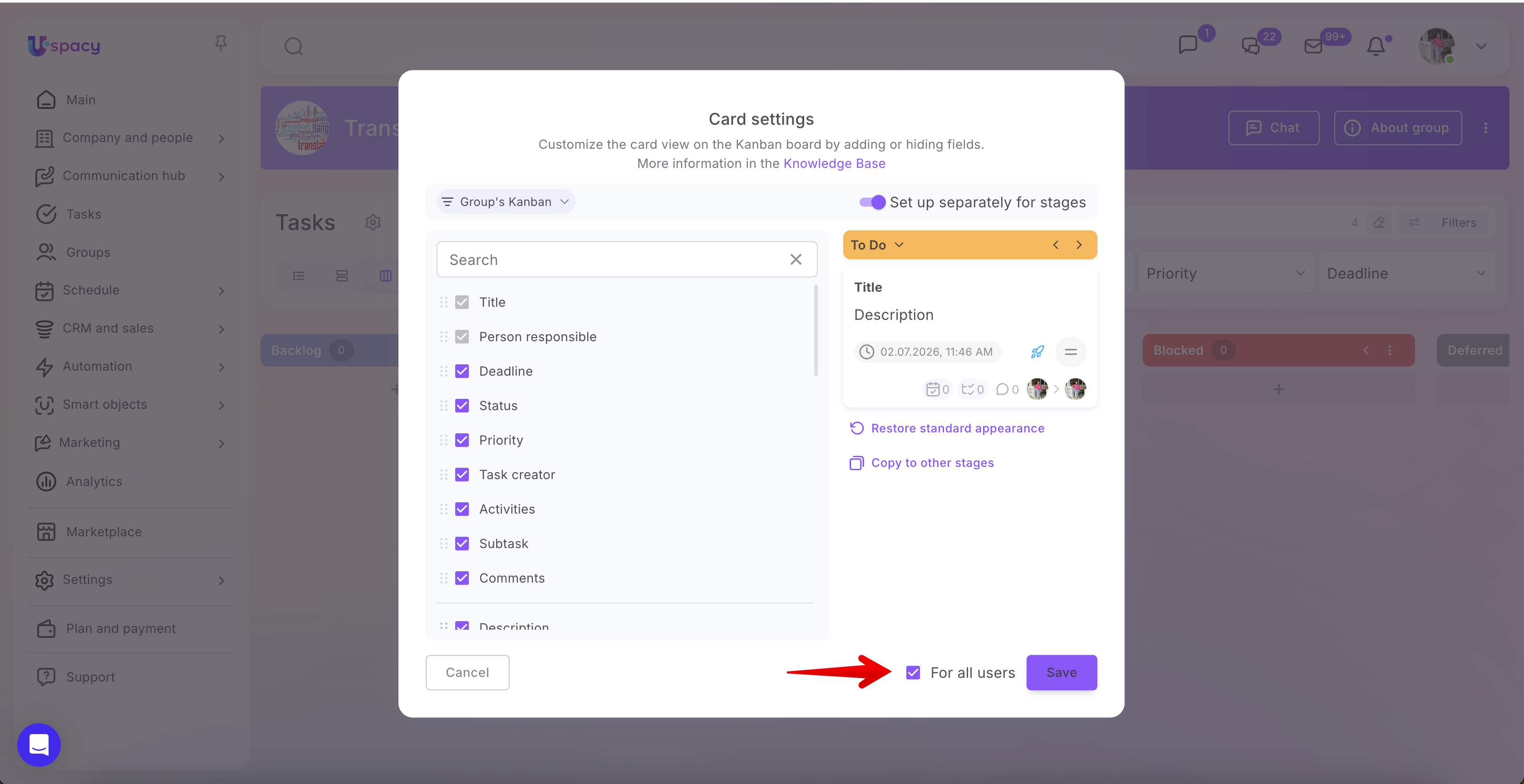
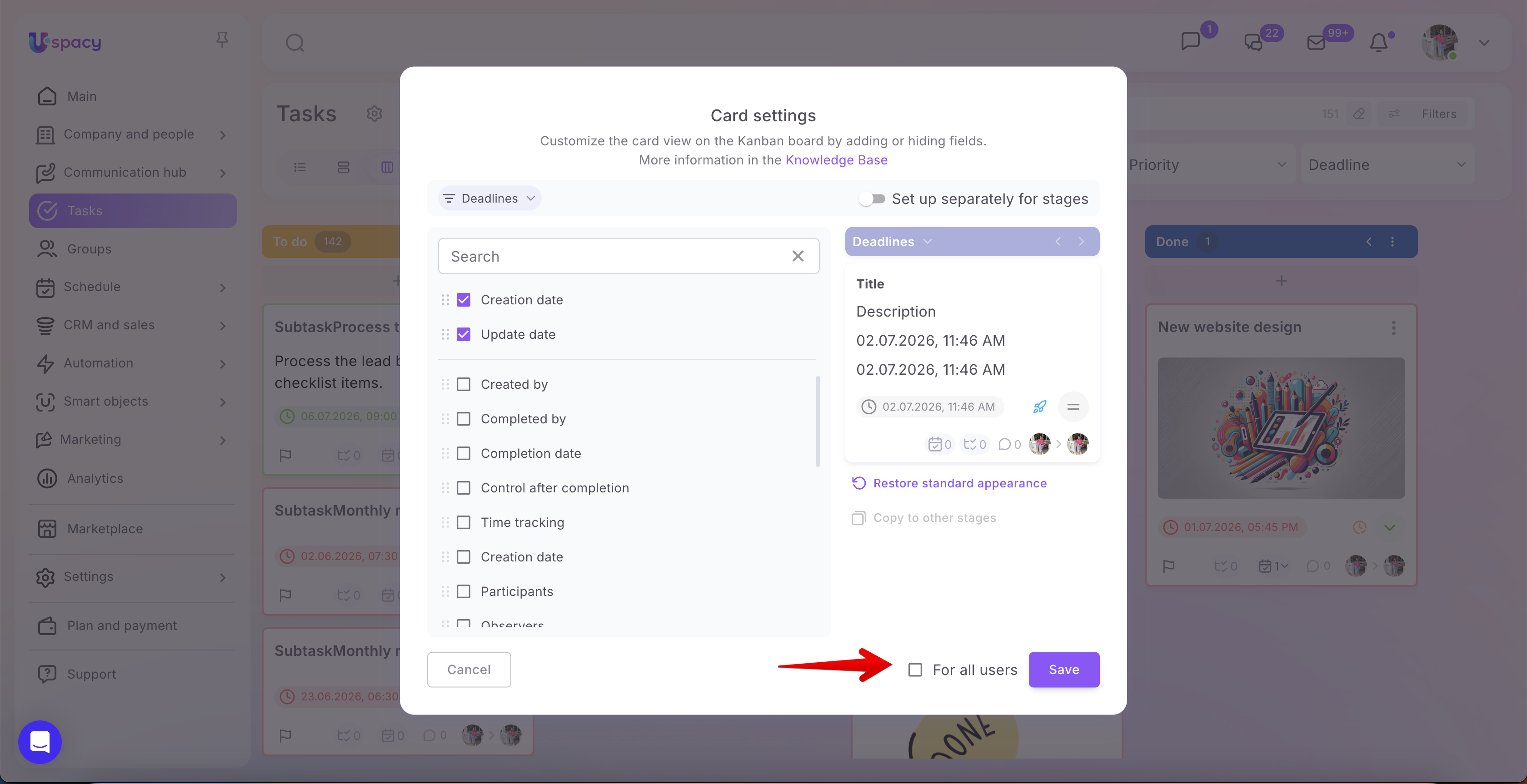
In other words, if an option cannot be activated, it means it is not available for the current board mode.
After all changes are made, click Save.
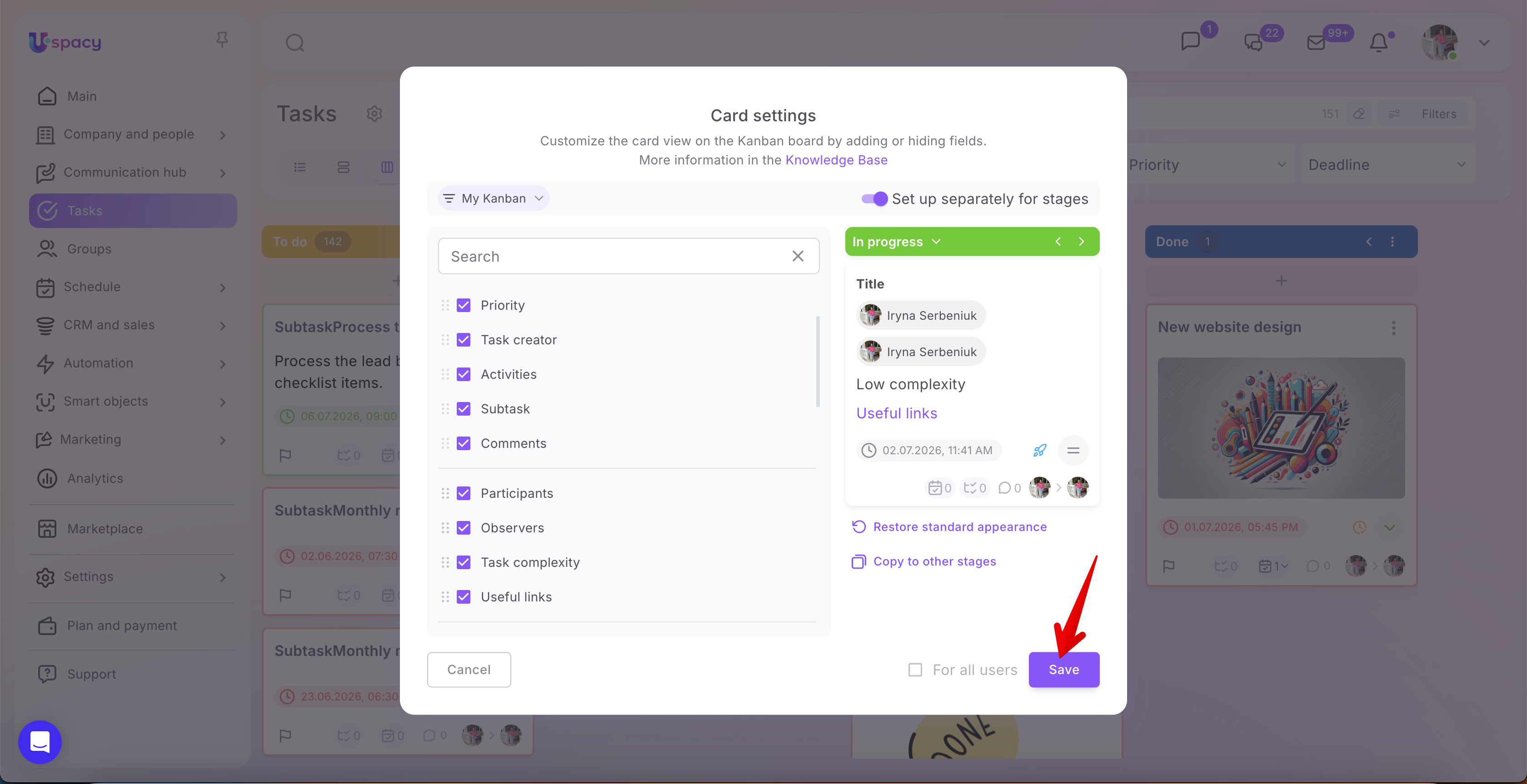
Once saved, task cards on the board will be displayed according to the selected settings. For example, one stage may show extended information with additional fields, while another may display the standard view with only basic data.
Overall, task card view customization makes the board more convenient for daily work. You can keep only the fields that are truly relevant for your team, add custom fields, adjust the order of information, and configure different views for different stages.
As a result, key task information is immediately visible on the board, and users do not need to open the full task card every time they want to check details.
If you have additional questions or you need to contact the support, send a request to this email [email protected]
Created: June 30, 2026