The employee list is a separate page of the space, which contains a list of all its users: active, invited or even already fired.
In addition, here you can find contact details of employees, information about their place in the company structure, i.e. department or position, etc.
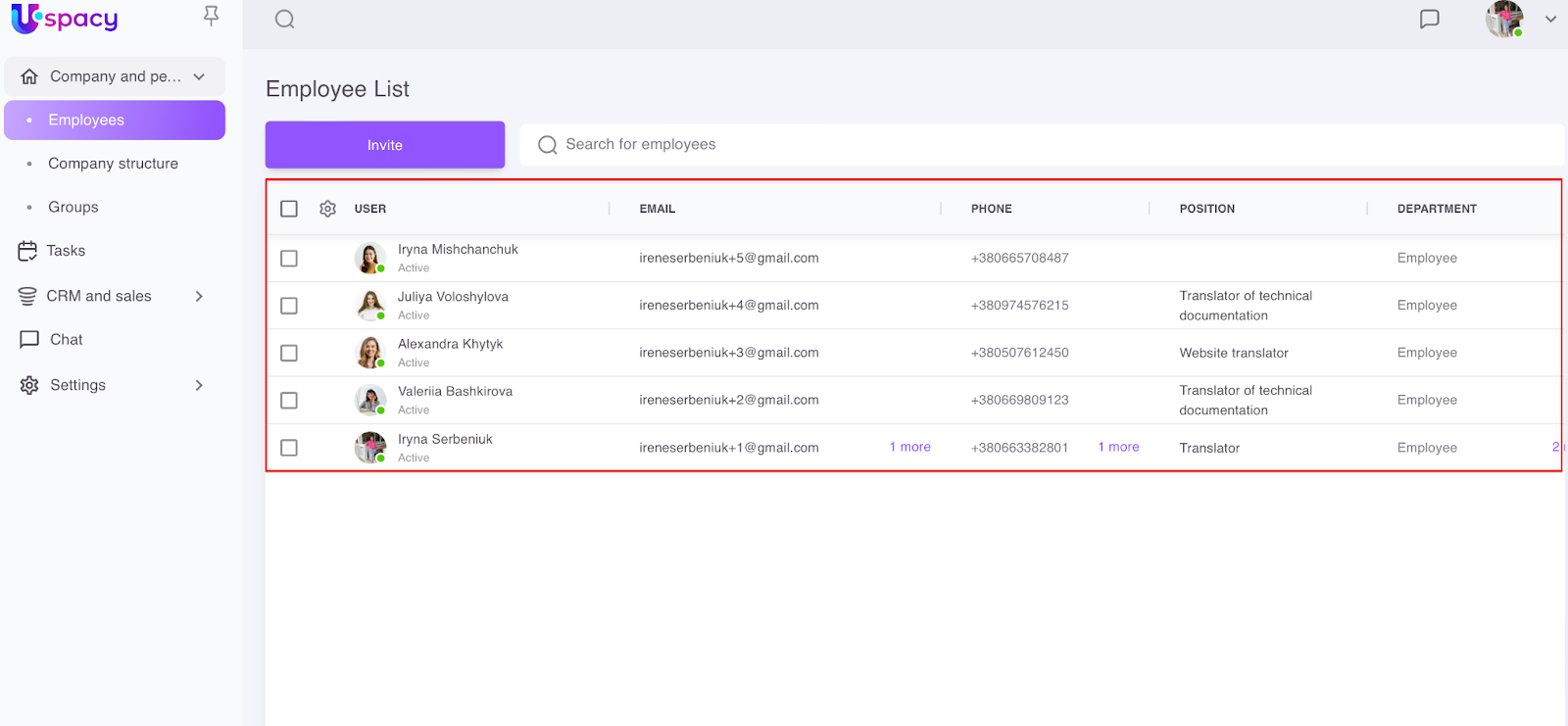
How to go to the employee list?
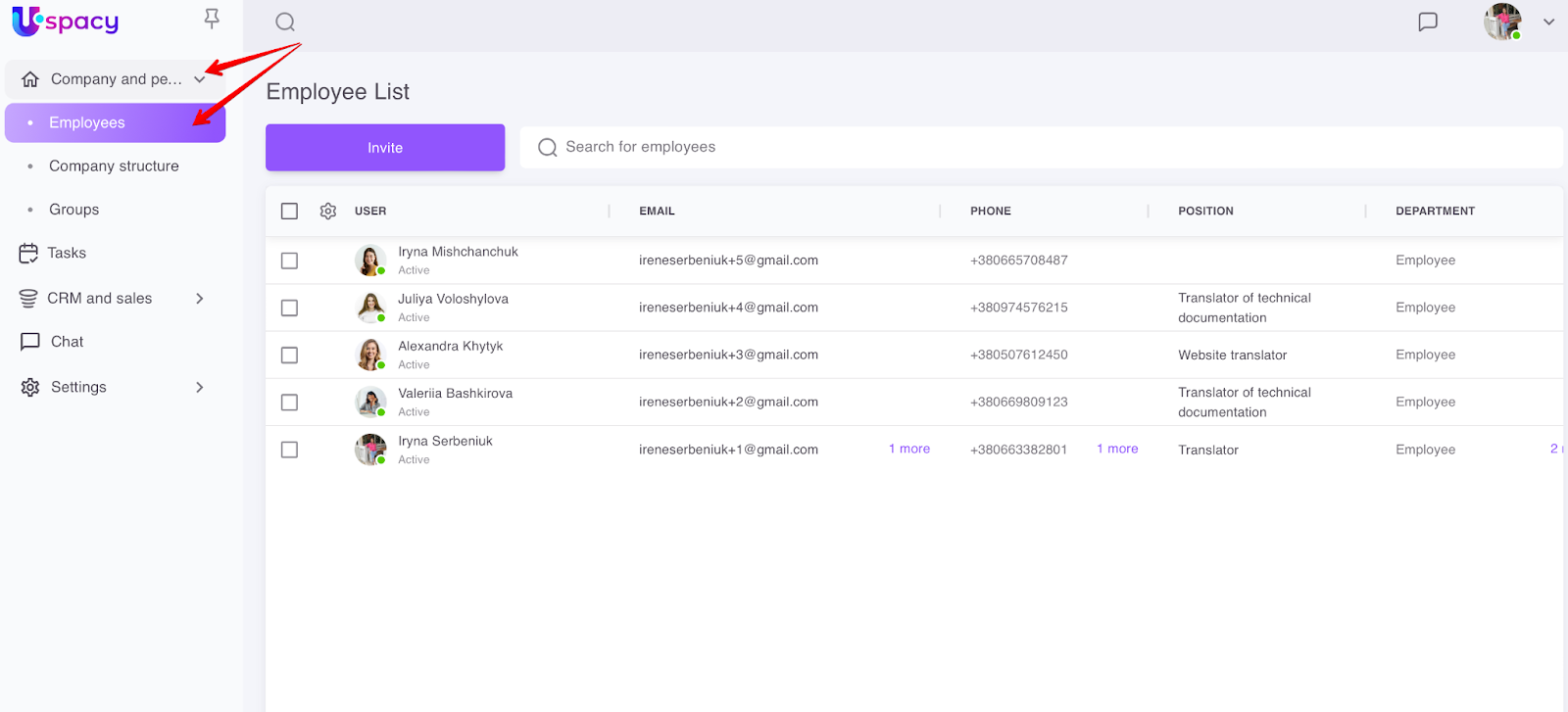
To open the employee list, you need to expand the Company and people section and select the Employees item. A page with a list of space users will open.
Appearance of the employee list
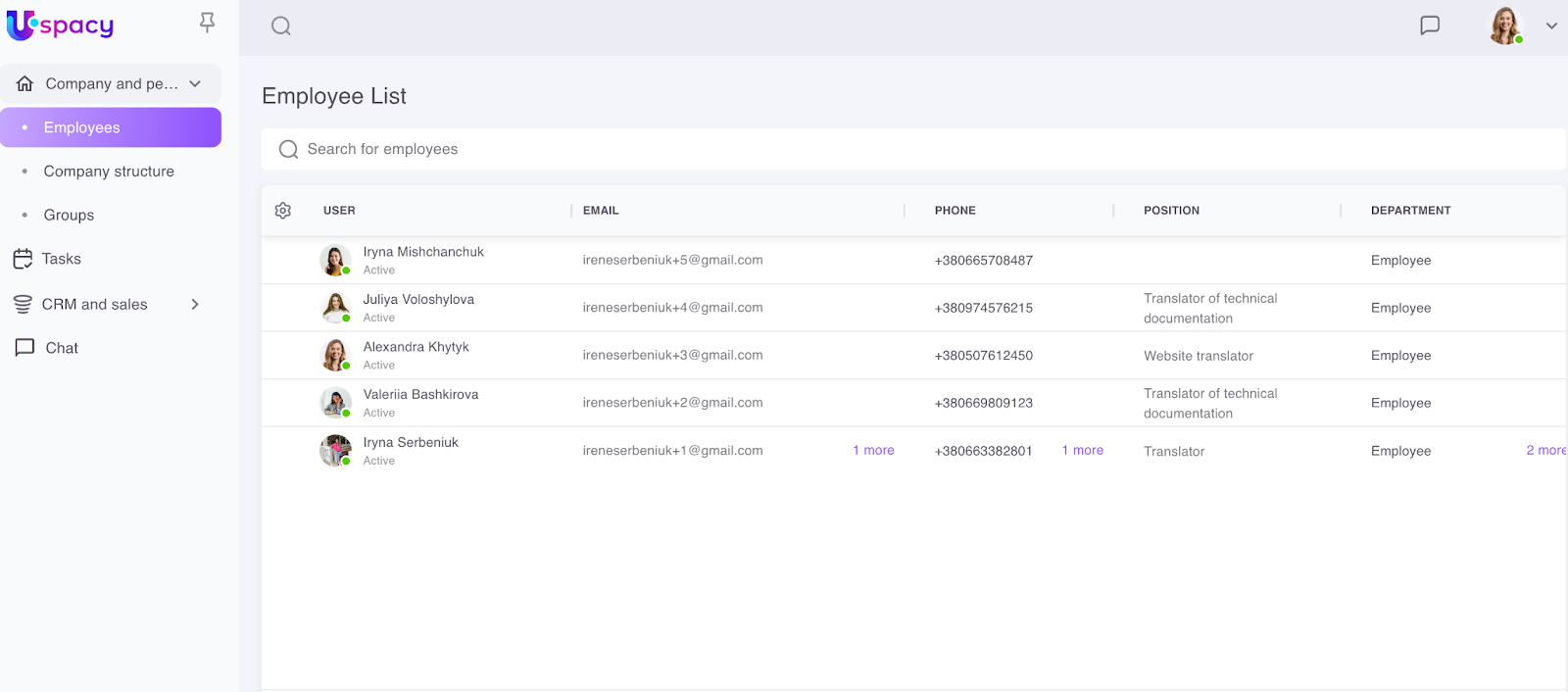
The employee list looks like a table. It contains a list of space users and some data about them.
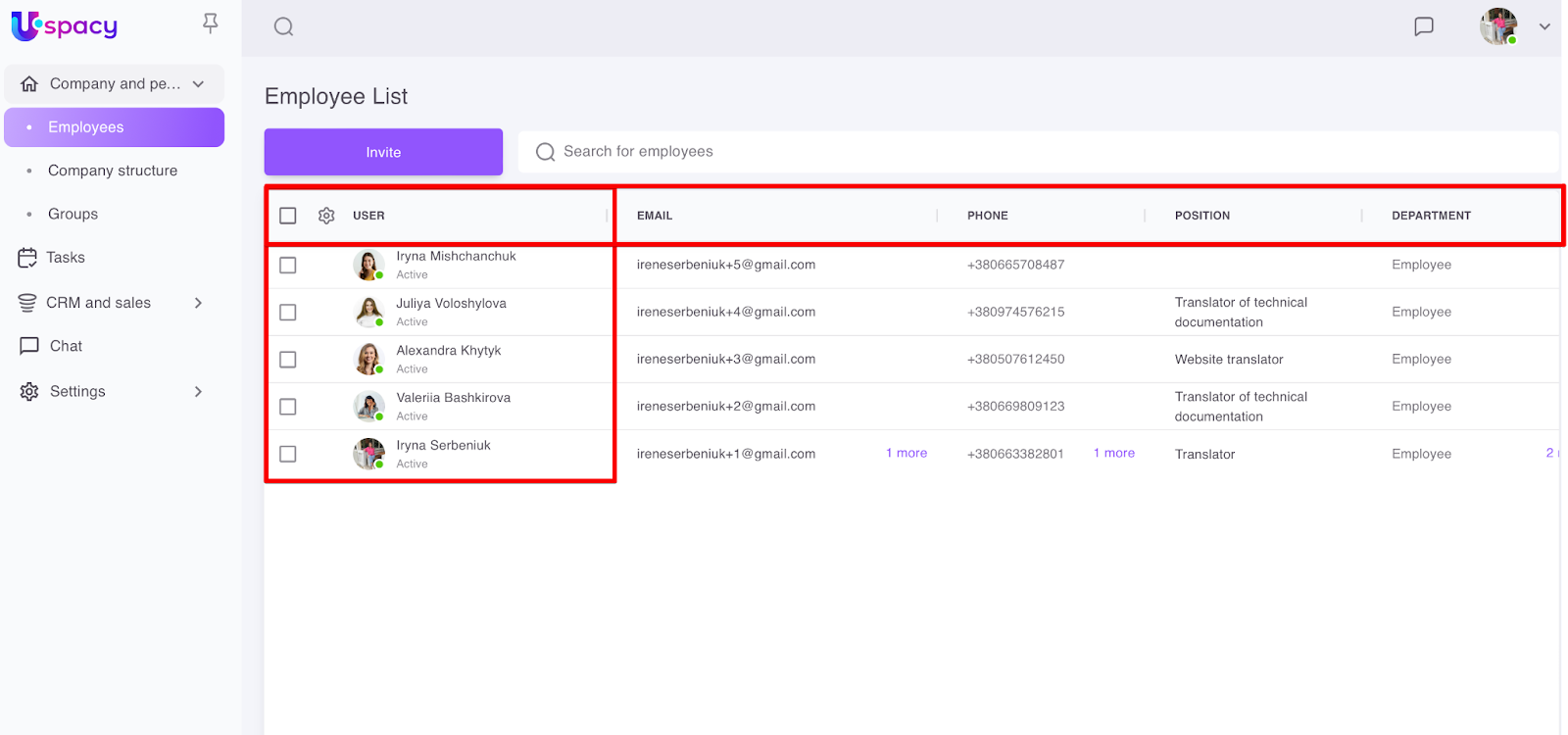
You can change the appearance of the table, for example, add necessary fields, sort data in them, change the number of lines that will be immediately displayed on the page, etc.
🔍 You can read more about how to configure the appearance of the employee list in the following article.
How do space and permissions settings affect the appearance of the employee list?
How users will see the Employees page depends on their permissions and roles. The difference is in two options:
1. Only the administrator and users with appropriate permissions will be shown the Invite button.
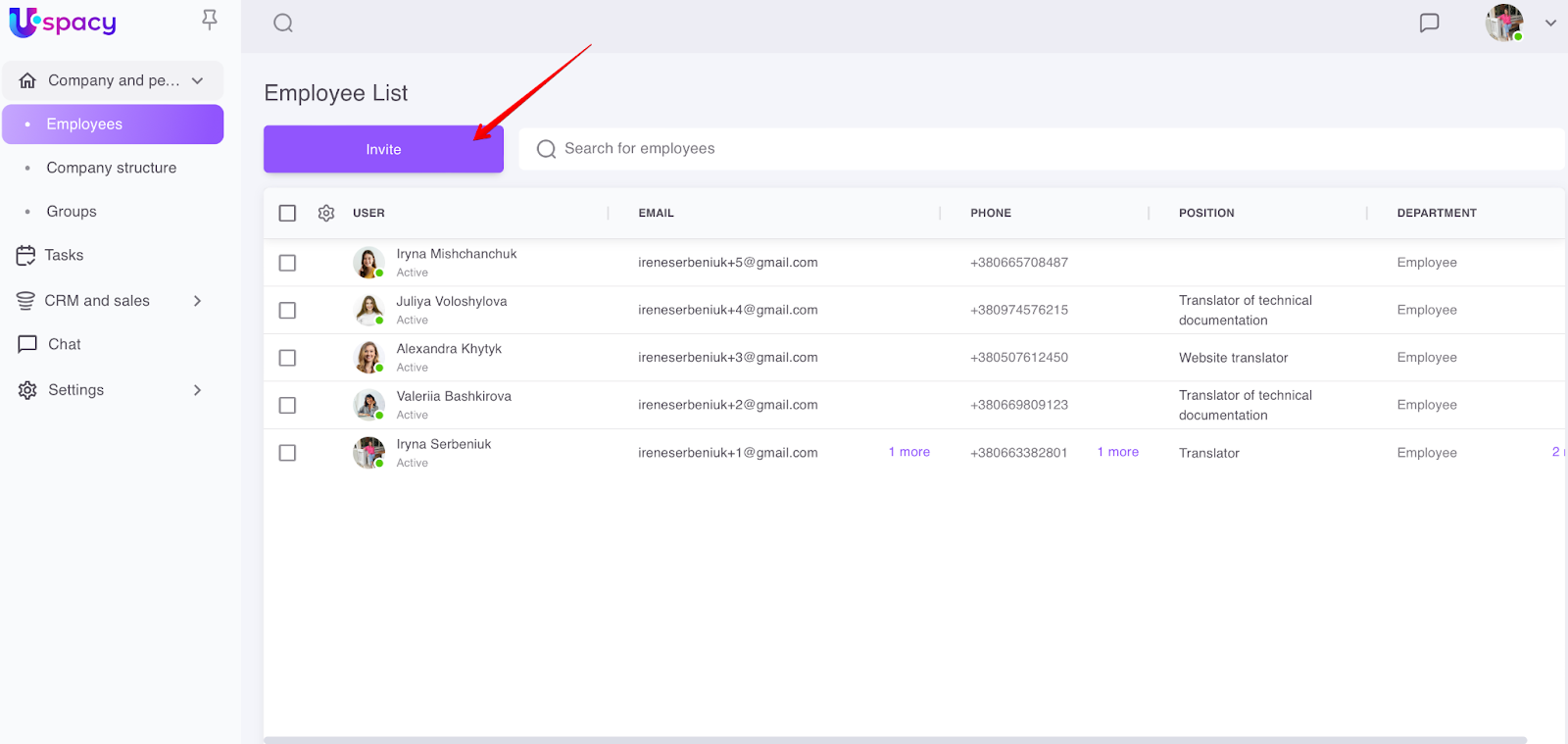
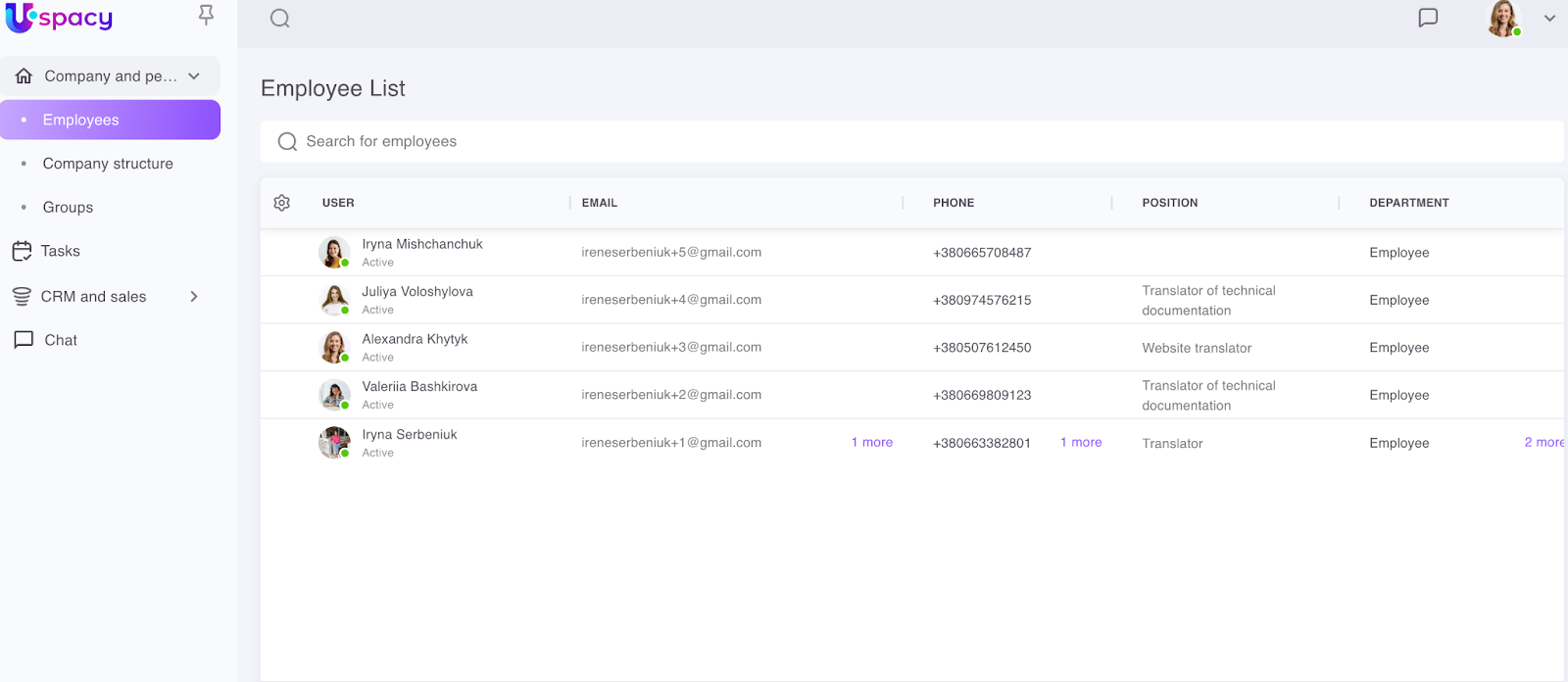
It is hidden from ordinary users. They see the employee list WITHOUT this button.
2. Special fields for selecting employees in the list will be available only to the administrator and users with appropriate permissions. They are necessary to perform mass actions.
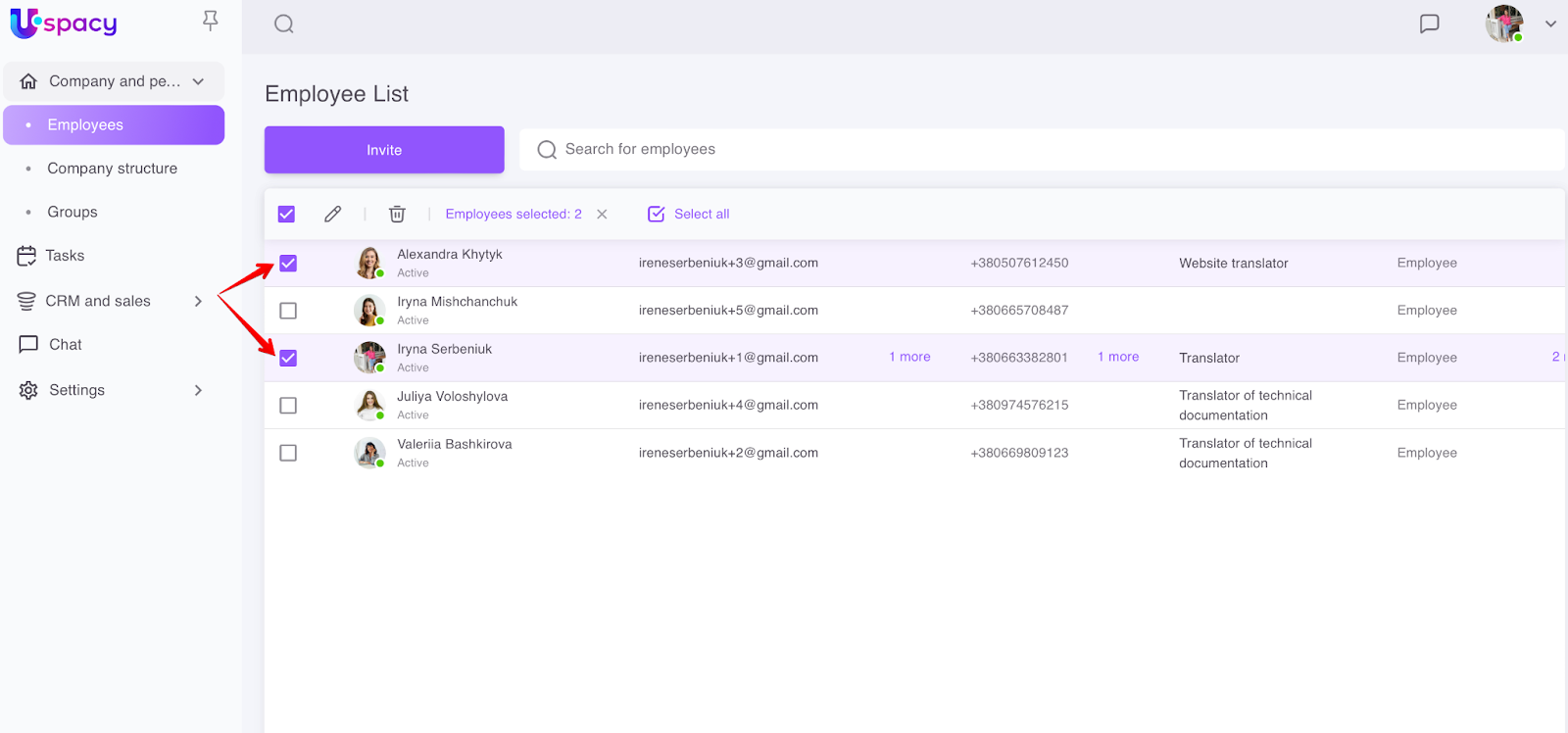
They are hidden from ordinary users. They see the employee list without fields for selection.
Actions in the employee list
On the Employees page, you can:
- Invite employees to the space.
❗️This option is available only to the administrator and users with appropriate permissions.
To add a new user, click on the Invite button. A window will open where you can either Invite by email or use Mass invitation (this option will soon be available for users of commercial plans).
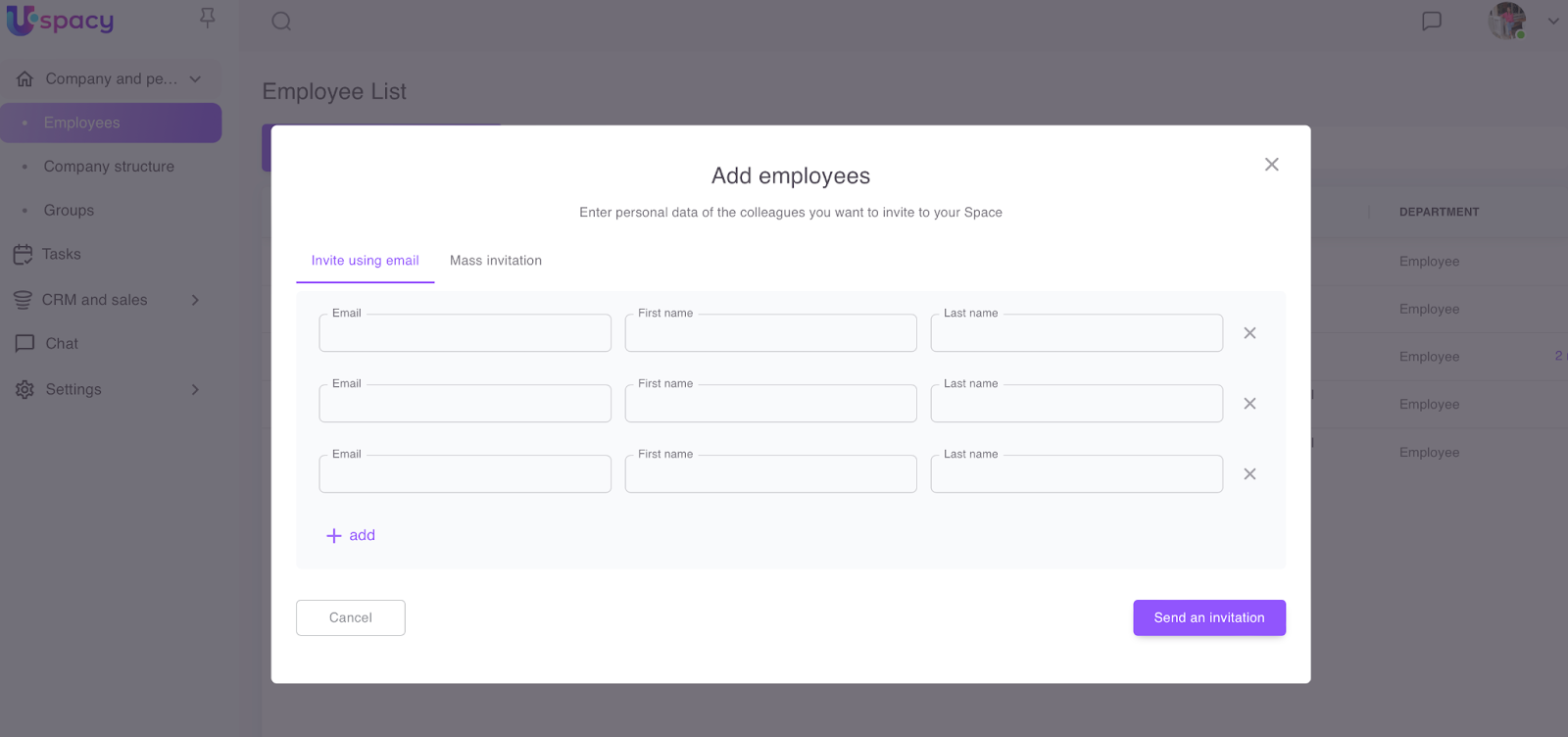
🔍 You can read more about employee invitations in the following article.
- Apply mass actions.
❗️This option is available only to the administrator and the user with the appropriate set of permissions.
In the employee list, you can select several or all employees, and then edit the data in their profiles or apply a quick firing.
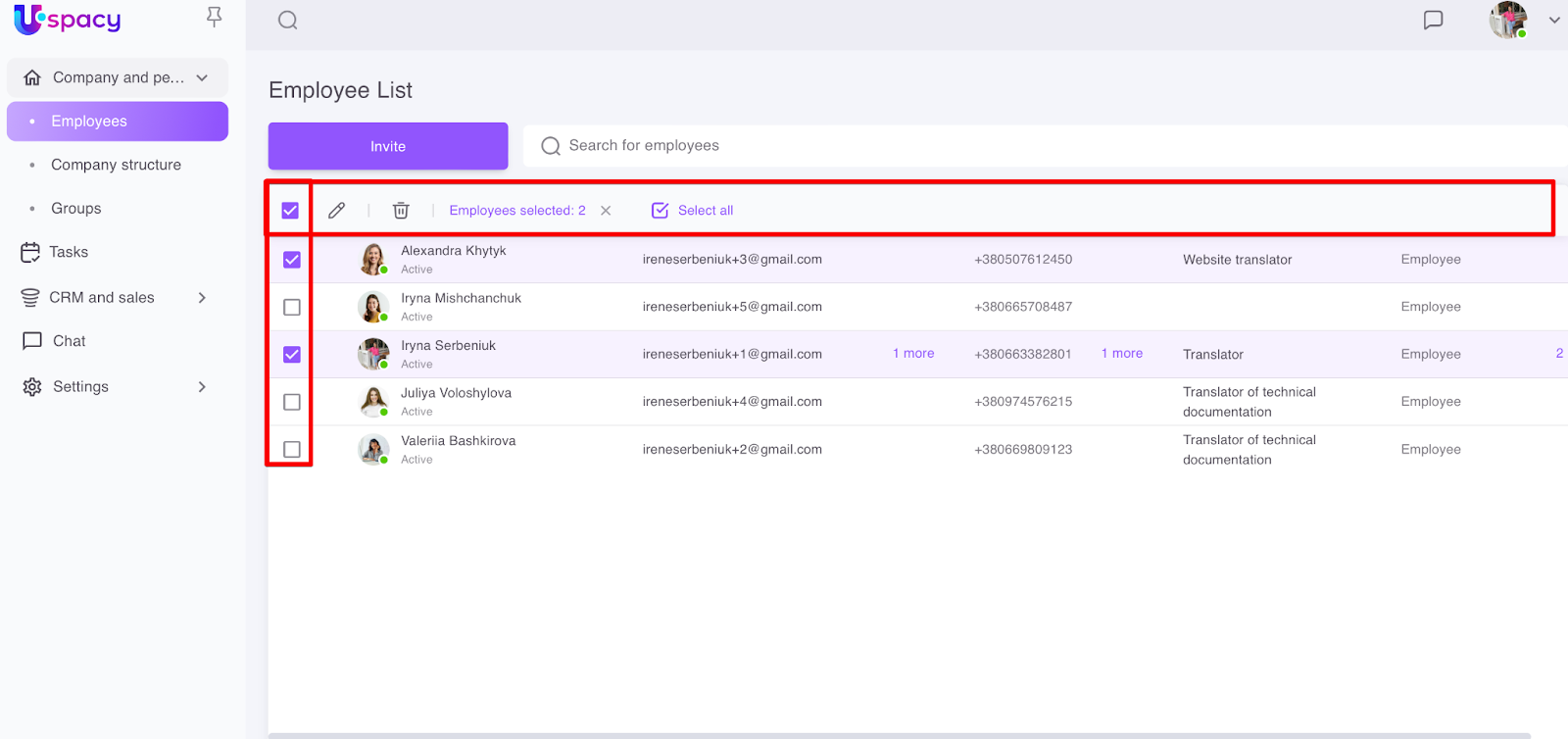
🔍 You can read more about mass actions in the employee list in the following article.
- Interact with an employee.
To call the interaction menu, you need to click on the three dots to the left of the user's photo in the list.
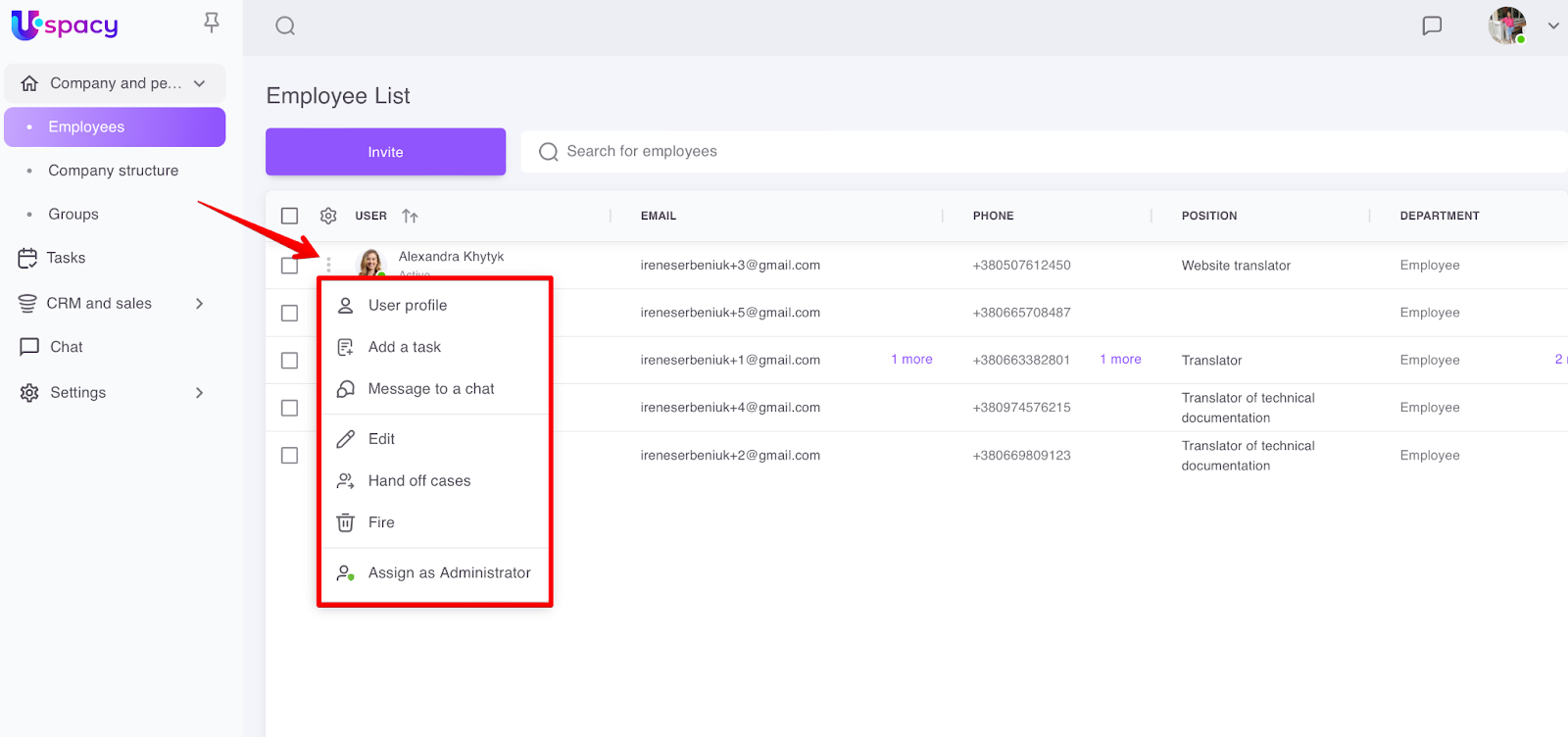
❗️ Interaction menu items are displayed according to:
- the status of the user with whom the interaction takes place (active employee, fired or invited);
- the role and permissions of the user initiating the interaction (administrator, space owner or regular user).
🔍 You can read more about interaction with users in the employee list in the following article.
- Search for employees
You can use the search bar and filters to find the right employee.

🔍 You can read more about the search for employees in the following article.
If you have additional questions or you need to contact the support, send a request to this email [email protected]
Created: January 24, 2023 / Updated: April 30, 2025