If you need to analyze your CRM database or prepare some reports, Data export can help in these cases. This will allow you to export all the necessary information about each of the entities into a separate *.xlsx format file.
How to do it?
First, you need to go to the page of the entity which data you want to export.

💡The export option is available for leads, deals, contacts, companies, products and activities.
Two types of data export are possible at Uspacy. The first is the export of data from the table, the second is the full export. The difference is in the amount of data and fields that will be exported into the file.
🌟Only the administrator or superadministrator have access to the export, regardless of its type.
Export from the table
To do this, you need to mark the necessary elements with a flag. As a result, the Export button will appear.

🟣 If you check the box in the table header, all elements on the page will be selected.

🟣 If you click Select all, all elements in the table will be marked.

In addition, as a result of using this button, those elements that are displayed in the table according to the applied filters will be selected.

Therefore, in order to select all the Space elements and export them, you should first reset the filters.

After clicking the Export button, a window will open where you need to confirm your actions.

The system will also inform that only data on the selected elements and information on the fields that are currently displayed in the table will be exported. That is, the file will contain the characteristics of the entity specified in the header of each of the columns.

Before starting the export from the table, think about what information about the elements you need and configure the display of the fields.

💡 If you used the Select all option, there will be a difference. As a result, all data matching the applied filters will be exported to the file, but also only with information in those fields that are currently displayed in the table.

Full export
To do this, you need to click on the gear icon next to the name of the entity and select the appropriate item.

After clicking the Export button, a window will open where you need to confirm your actions.

💡 Full export includes data about all elements of the entity and information from all fields (regardless of which of them are displayed in the table).
Result
It doesn't matter which of these two types of export you use, but after clicking the Export button, a window will open informing you about the start of the process.
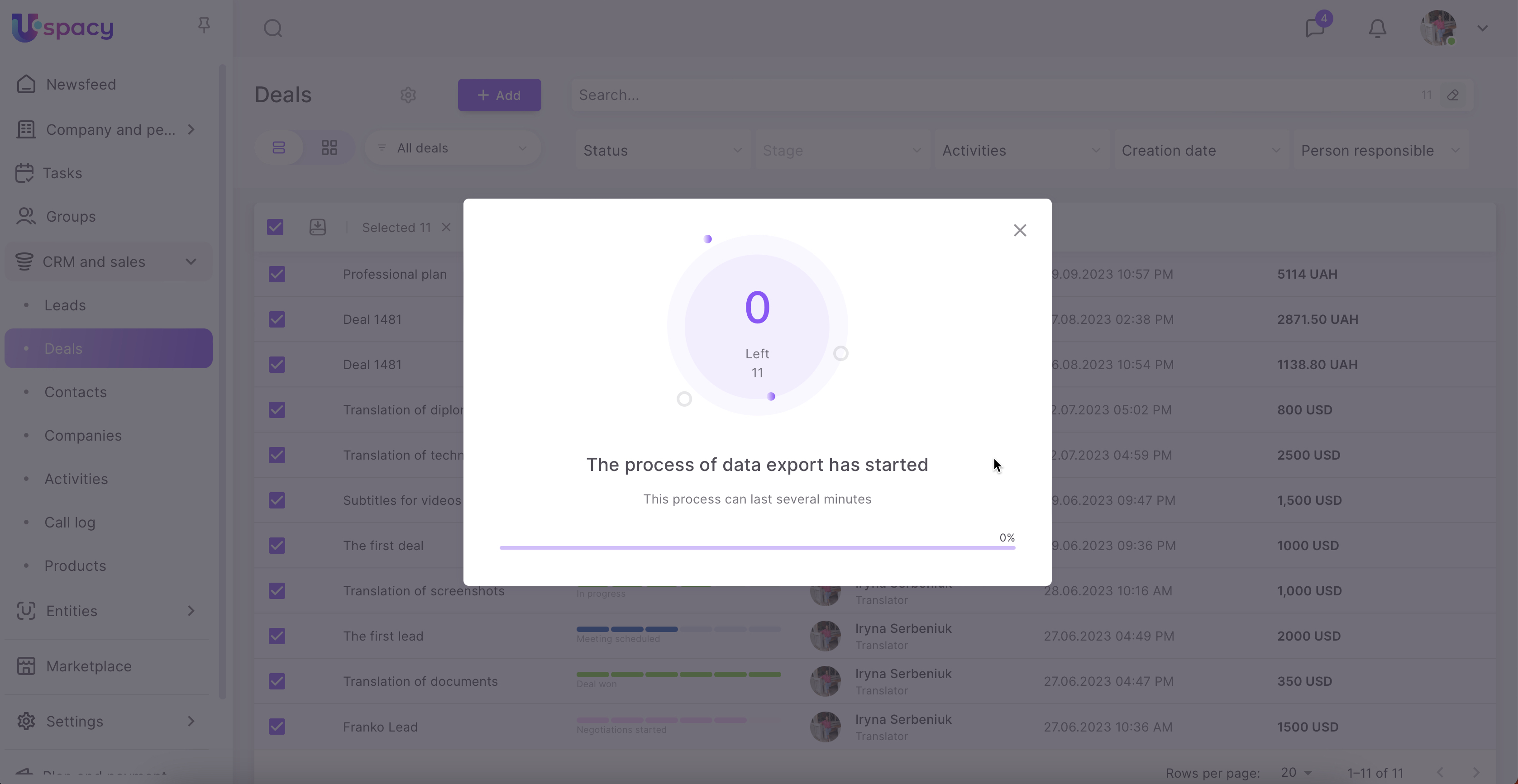
You just need to wait for its completion. The data will be successfully exported to a separate *.xlsx file, which will be downloaded automatically.
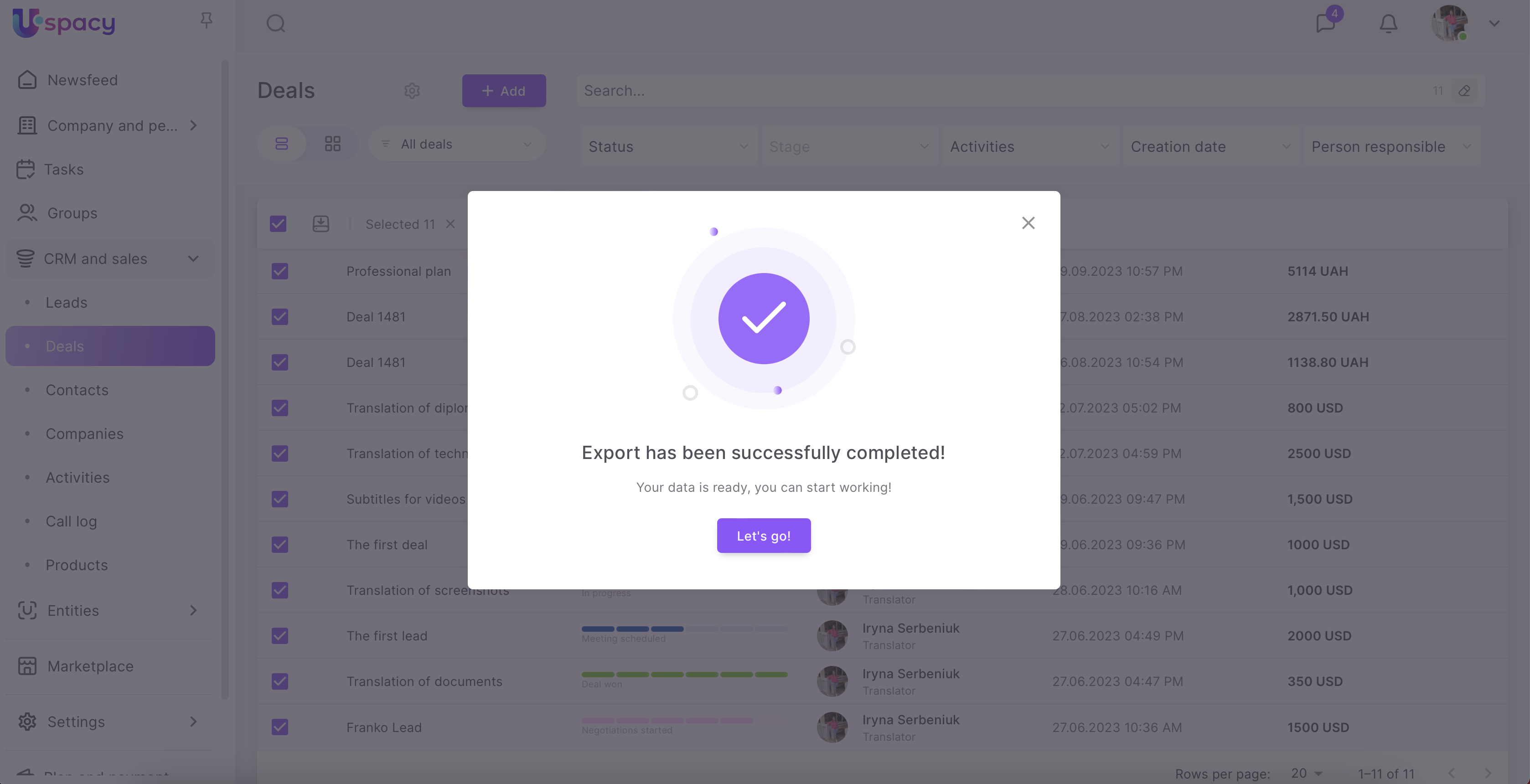
You can open it on your work computer.

Features of export
🟣 Values for multiple fields will be exported into one cell. For example, several social networks for a contact or company or product prices in different currencies will be contained in a single table cell after export.
🟣 In addition, for products, the price (monetary value and currency), tax and whether the tax is included in the price (inclusive) or not included (exclusive) will be exported into one cell.
🟣 For all CRM entities, except for products, you can export both standard and custom fields. For products, only data from standard fields can be exported for now.
🟣File and Image types fields are NOT exported, and these columns will be empty in the exported table.
🟣 When exporting deals, not only the names of the redlated deals, contacts, and companies will be loaded into separate cells, but also the data about their email addresses and phone numbers (if provided for the elements).

A feature for contacts is that all elements specified in the deal will be exported. However, the contact details (email, phone) will only be exported for the one listed first on the card.
Of course, this will work if the display of this information is set up in the table (export from the table) or during a full export.

If you have additional questions or you need to contact the support, send a request to this email [email protected]
Created: October 16, 2023 / Updated: November 15, 2024