The user profile at Uspacy has two forms of display: short - a view of general information and full - a separate page with data.
By default, if you click on a user's photo anywhere in space, the profile shows a short overview form.
Neither the profile owner nor any user with access to such actions CANNOT edit or enter new data through this form. To make changes or fill out the required fields, you need to go to the profile page.
🔎 You can read more about display forms and the appearance of the user profile in the following article.
So, after going to the profile page, you can fill out the required fields in each section or make changes.
❗️Please note that only the profile owner and space administrator have rights to such actions.
A completely filled-out profile of its owner looks like this.
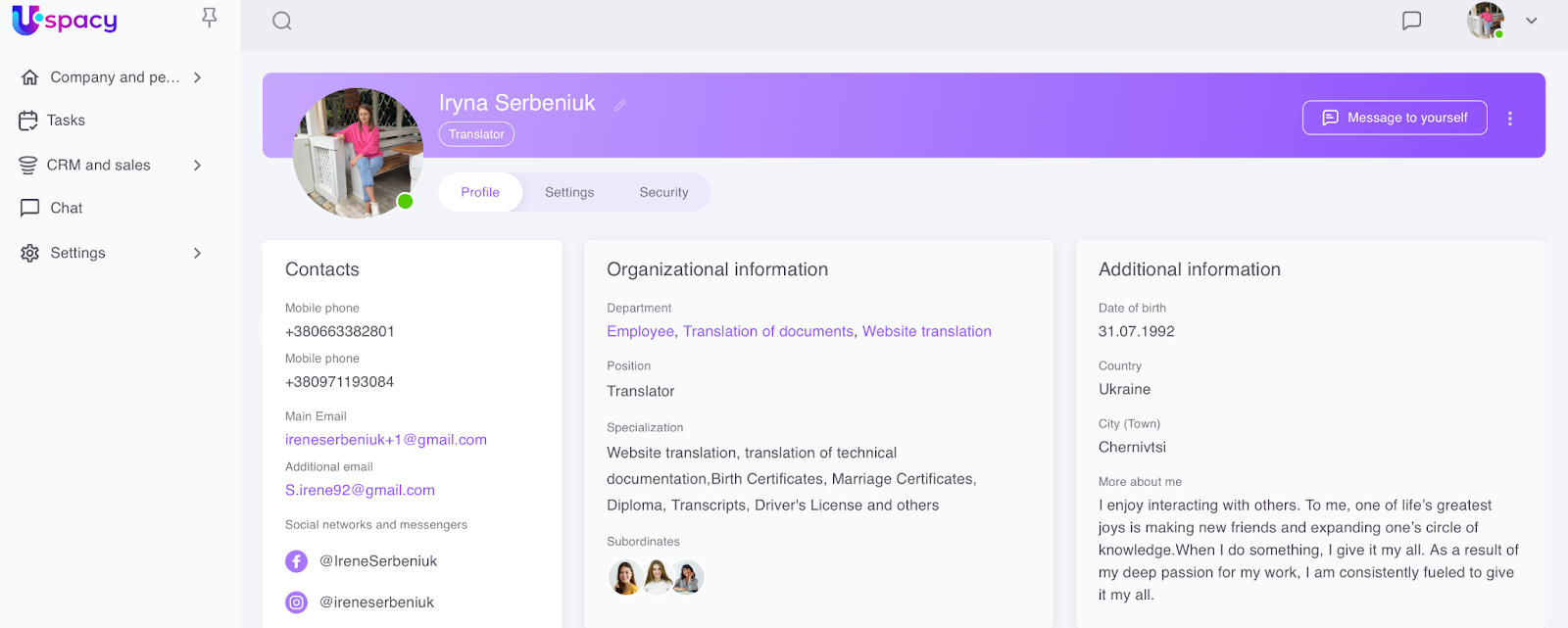
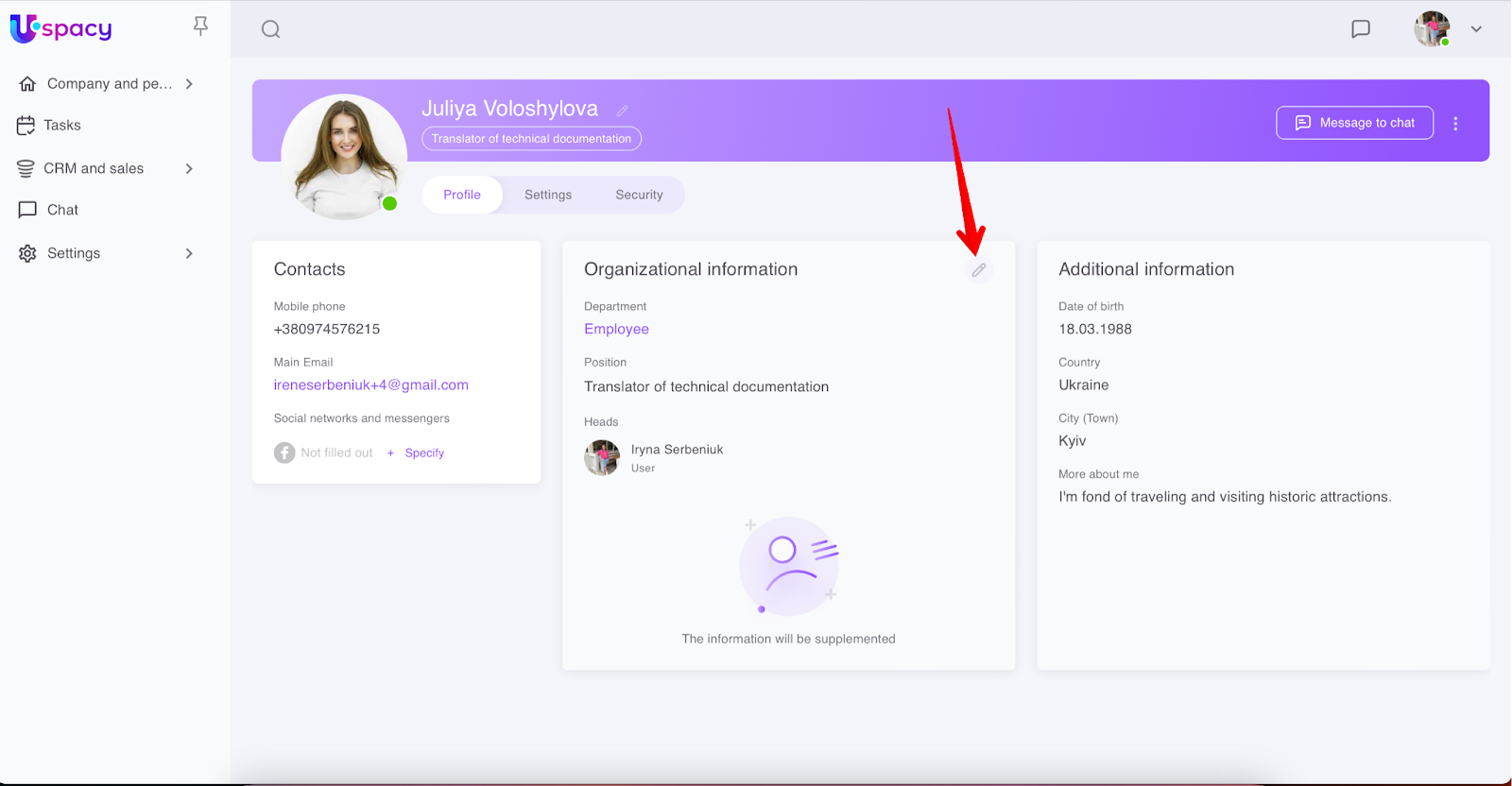
If you need to make changes to the data, just click on the pencil icon that appears after hovering over the block section.
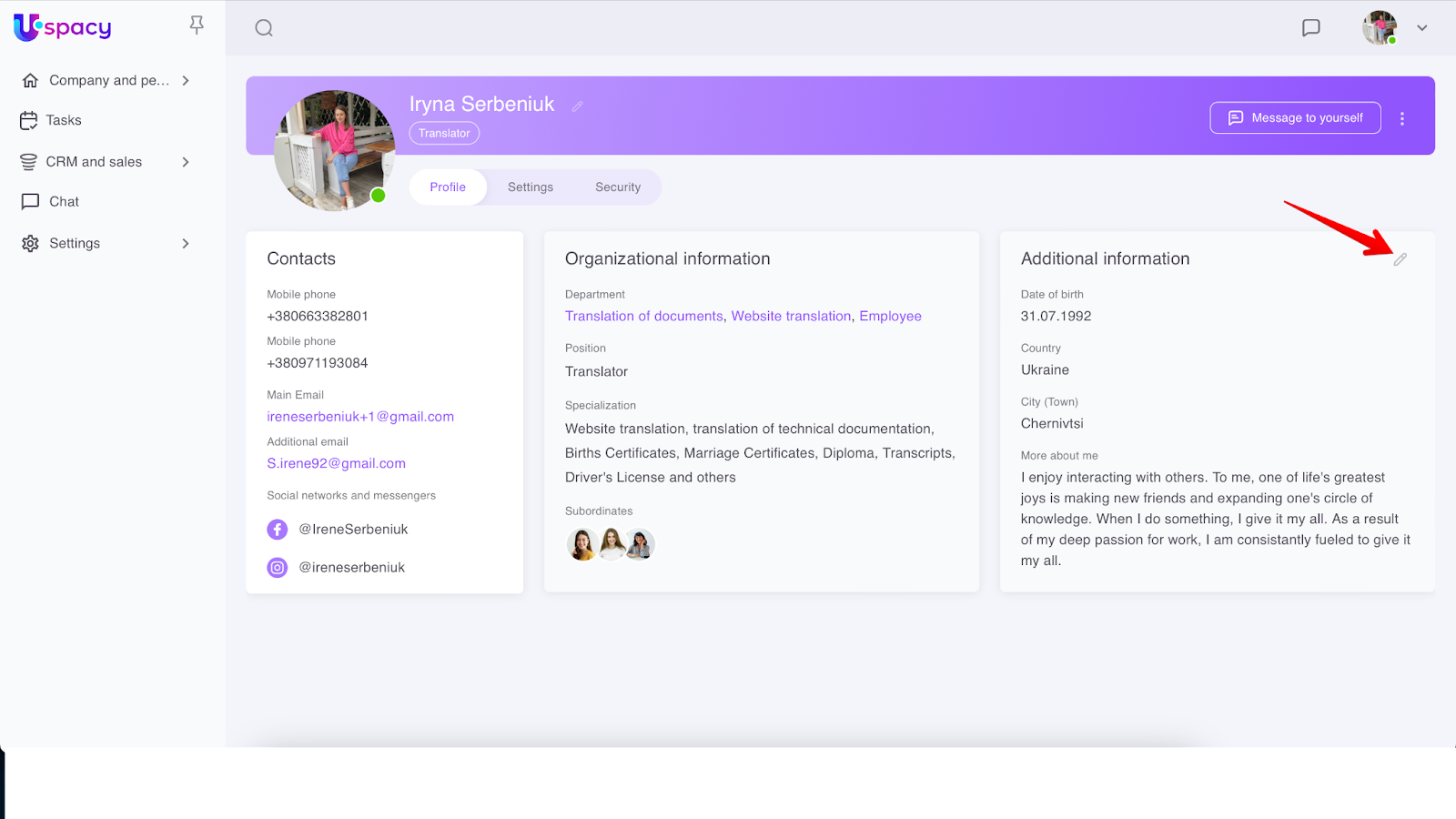
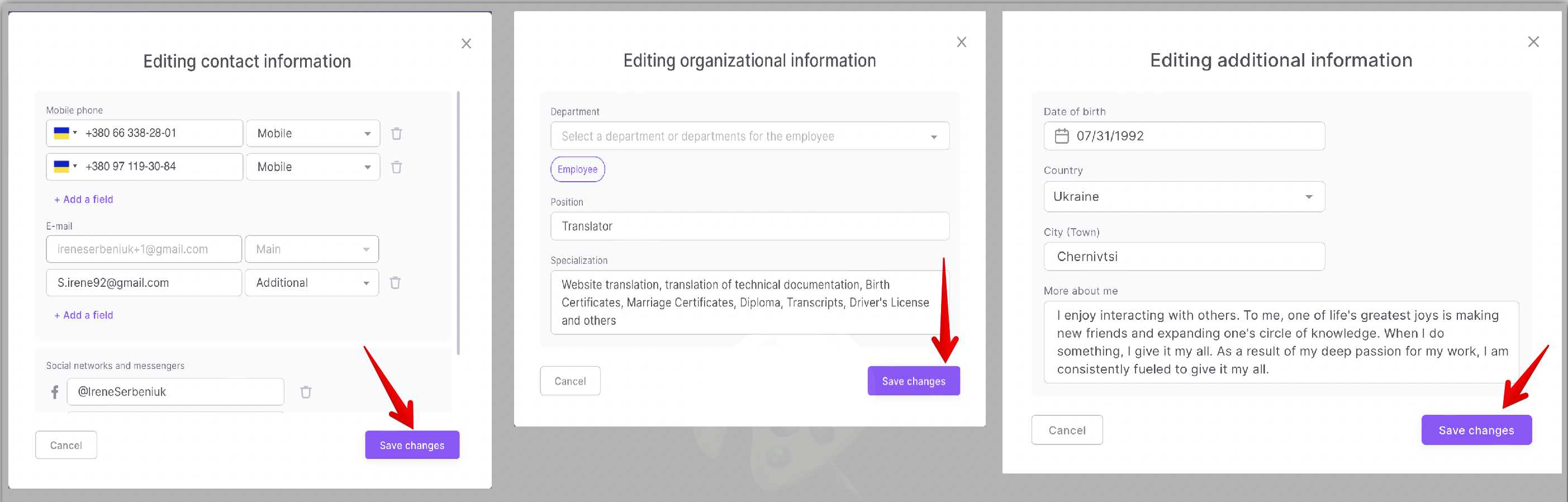
To Save changes, you need to click on the button of the same name, which is part of the editing form of any section block.
If the profile is not completely filled out, then it will have such an appearance:
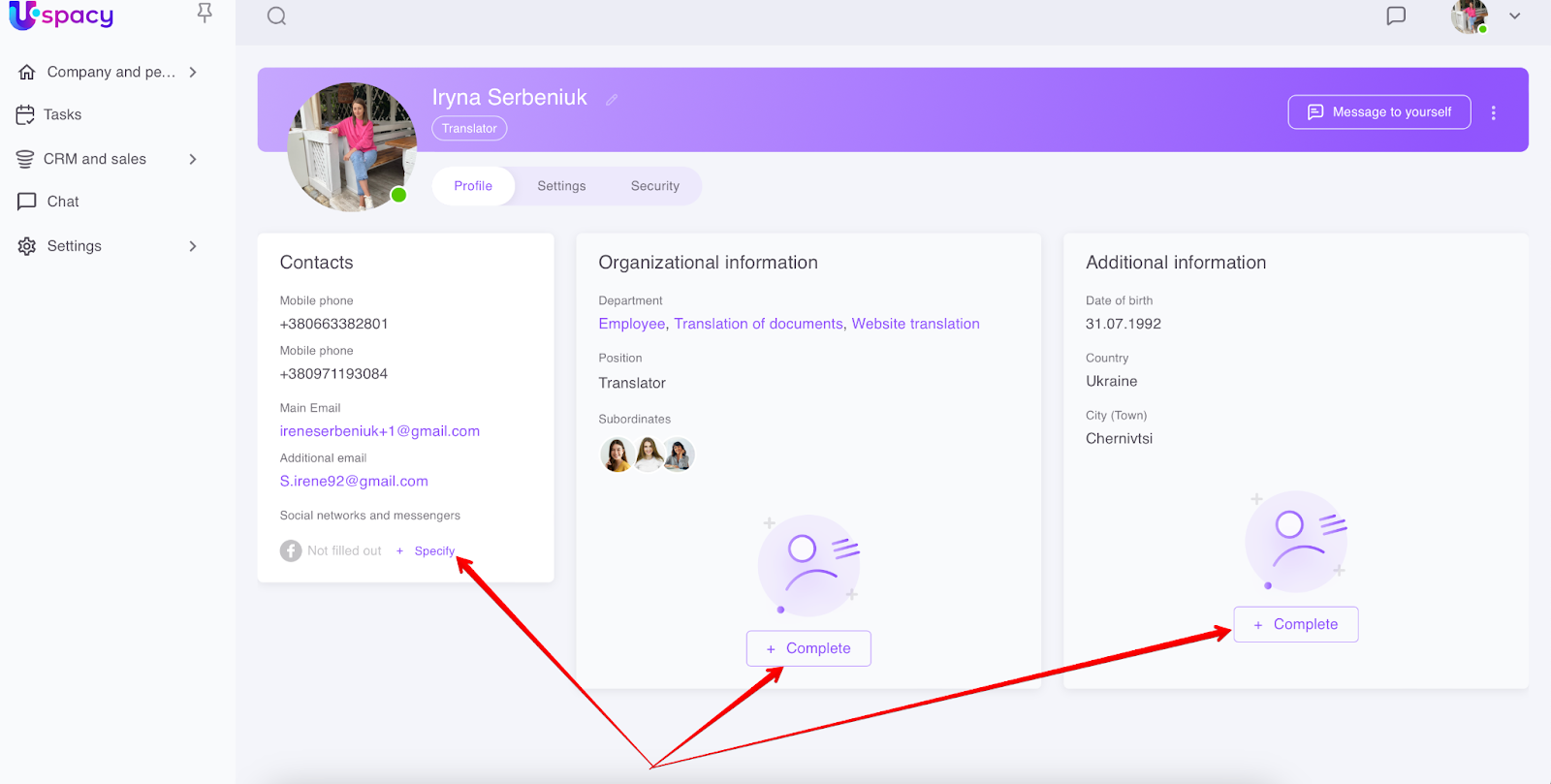
1. In the Contacts section, only filled fields will be displayed and the call to Specify your social networks if none is specified.
2. In the Organizational and Additional Information sections, only the filled fields and the call to Complete the section will be shown.
When you need to change the data, you can not only click on the pencil icon, but also use the specified function buttons.
💡 If the owner of the profile does not fill out all the fields in the Organizational and Additional Information sections, then other users of the space will see their profile in such a way.
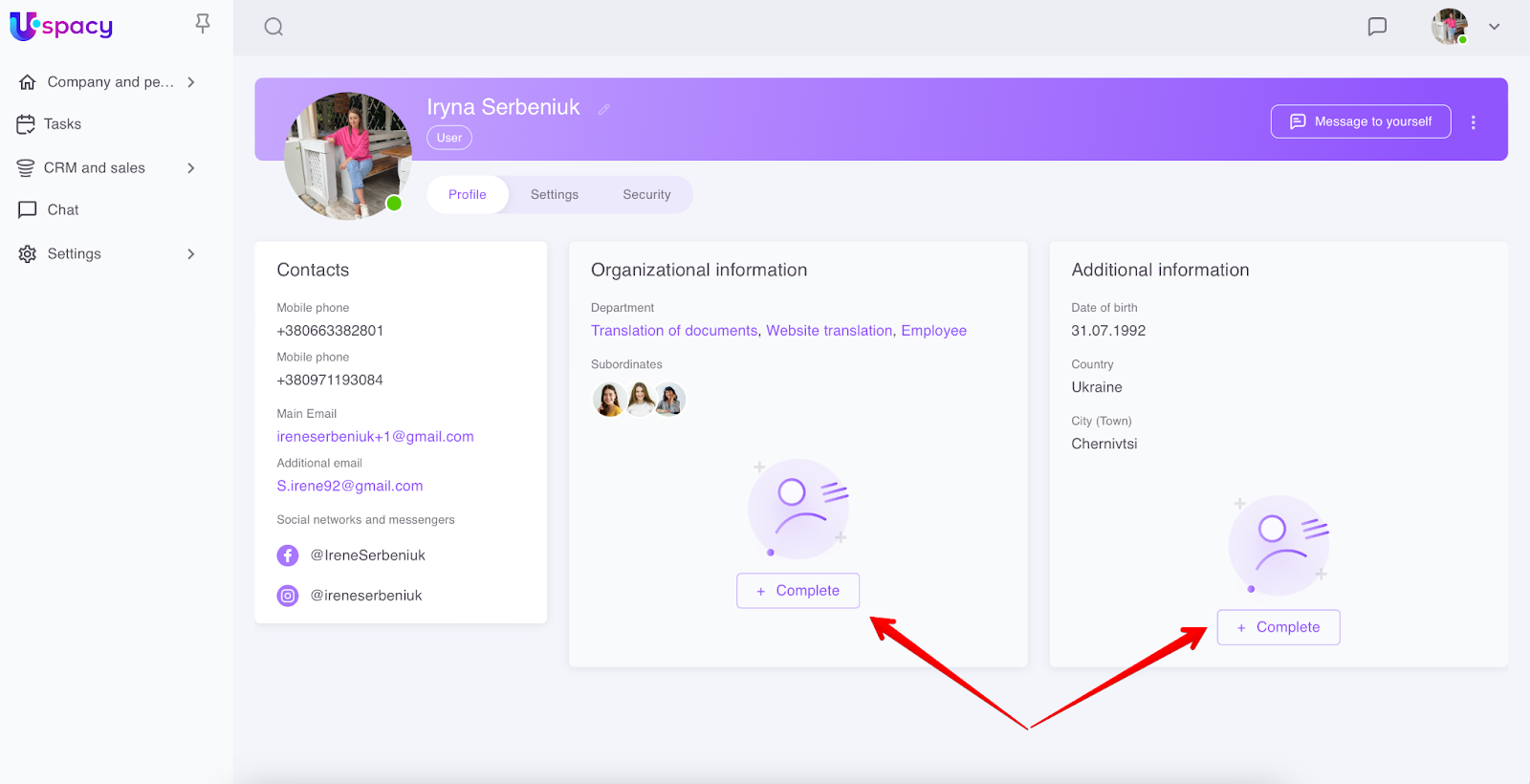
The page will be displayed to the administrator in the same way. But the administrator will be able to edit by using the pencil icon in the right corner of the block in each section.
Contacts section
In this block, you can specify phone numbers, email addresses, as well as social networks and messengers.
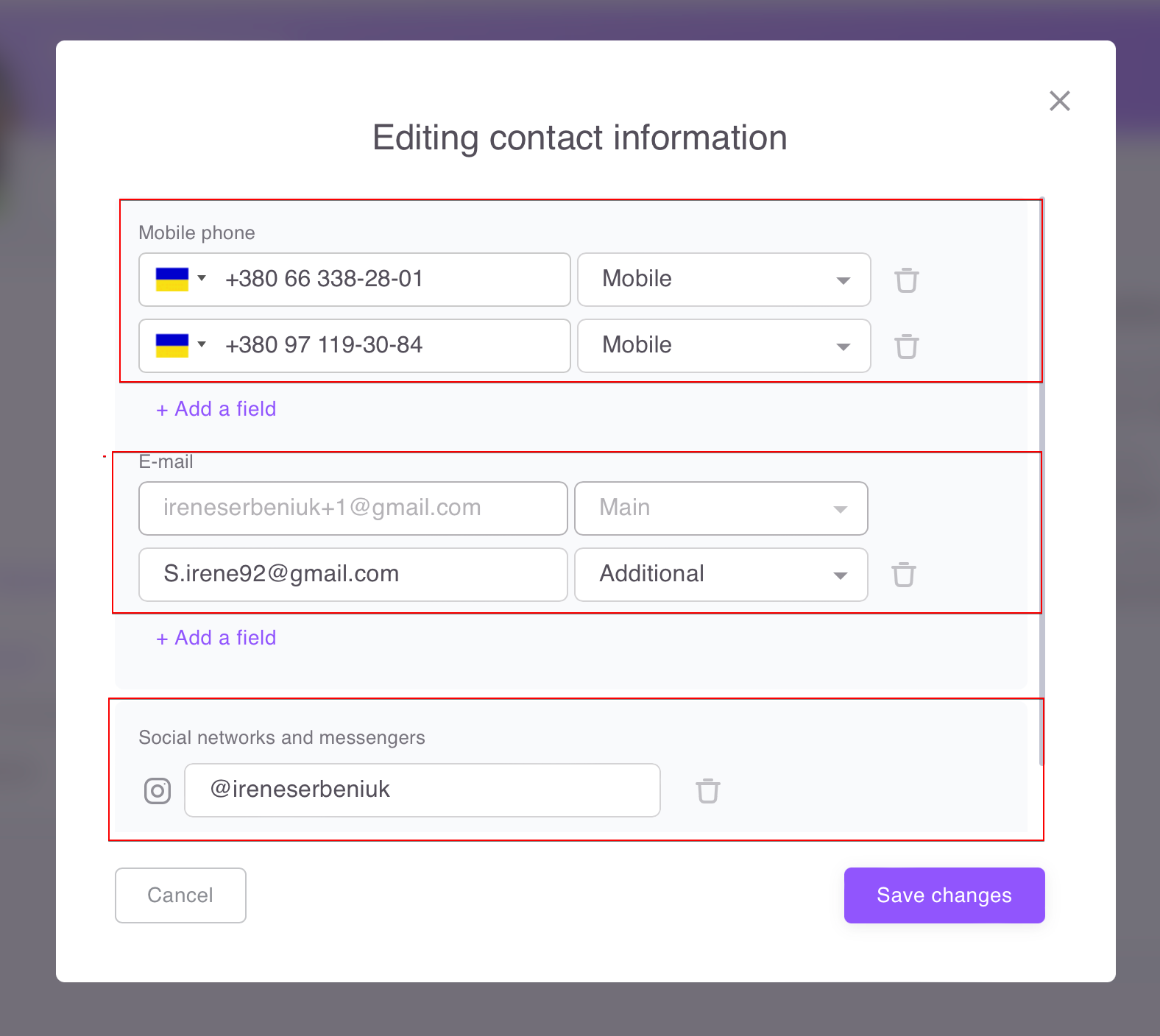
To Add a field, click on the button of the same name. And to delete it, use the trash bin icon.
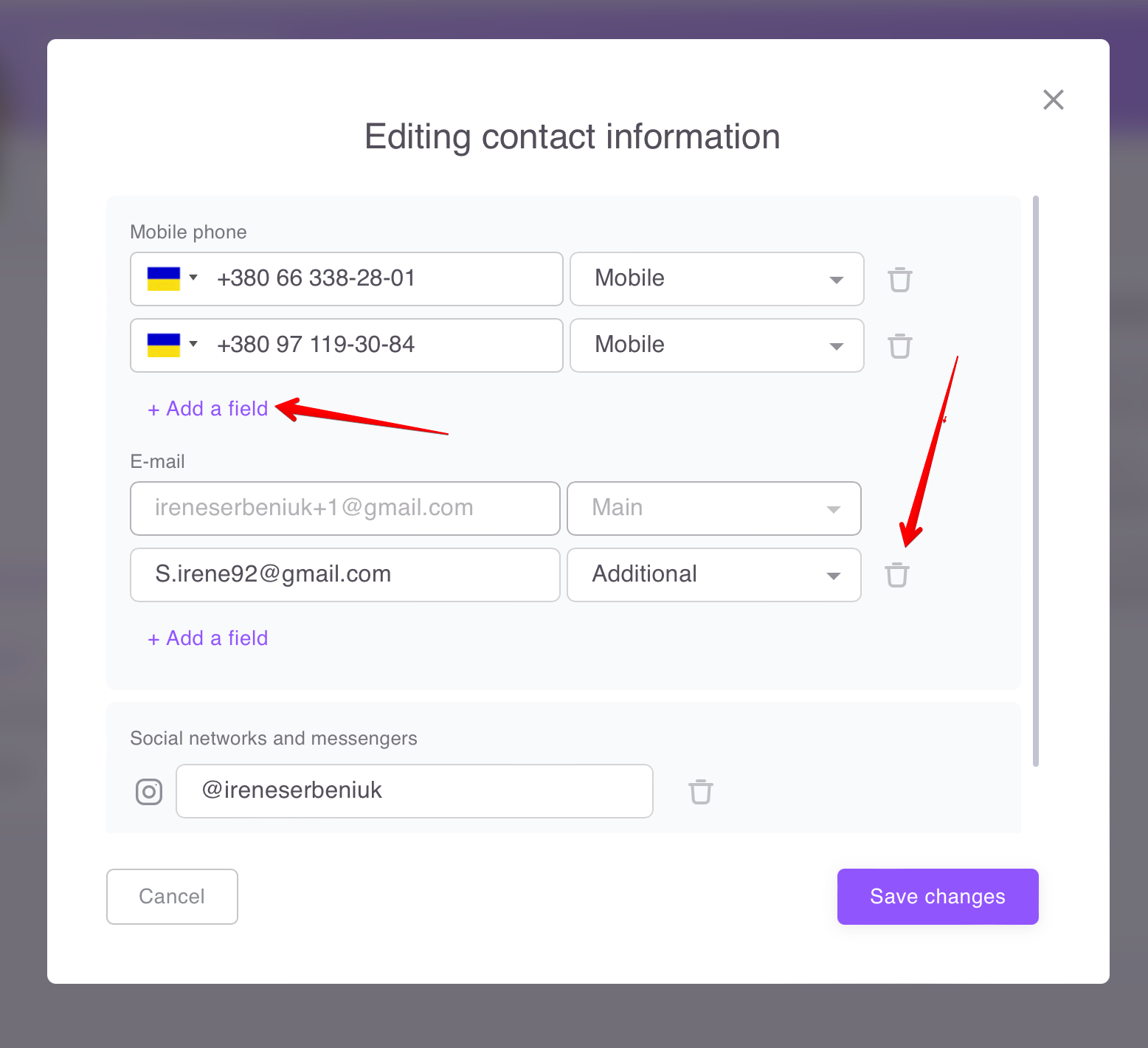
Phone numbers
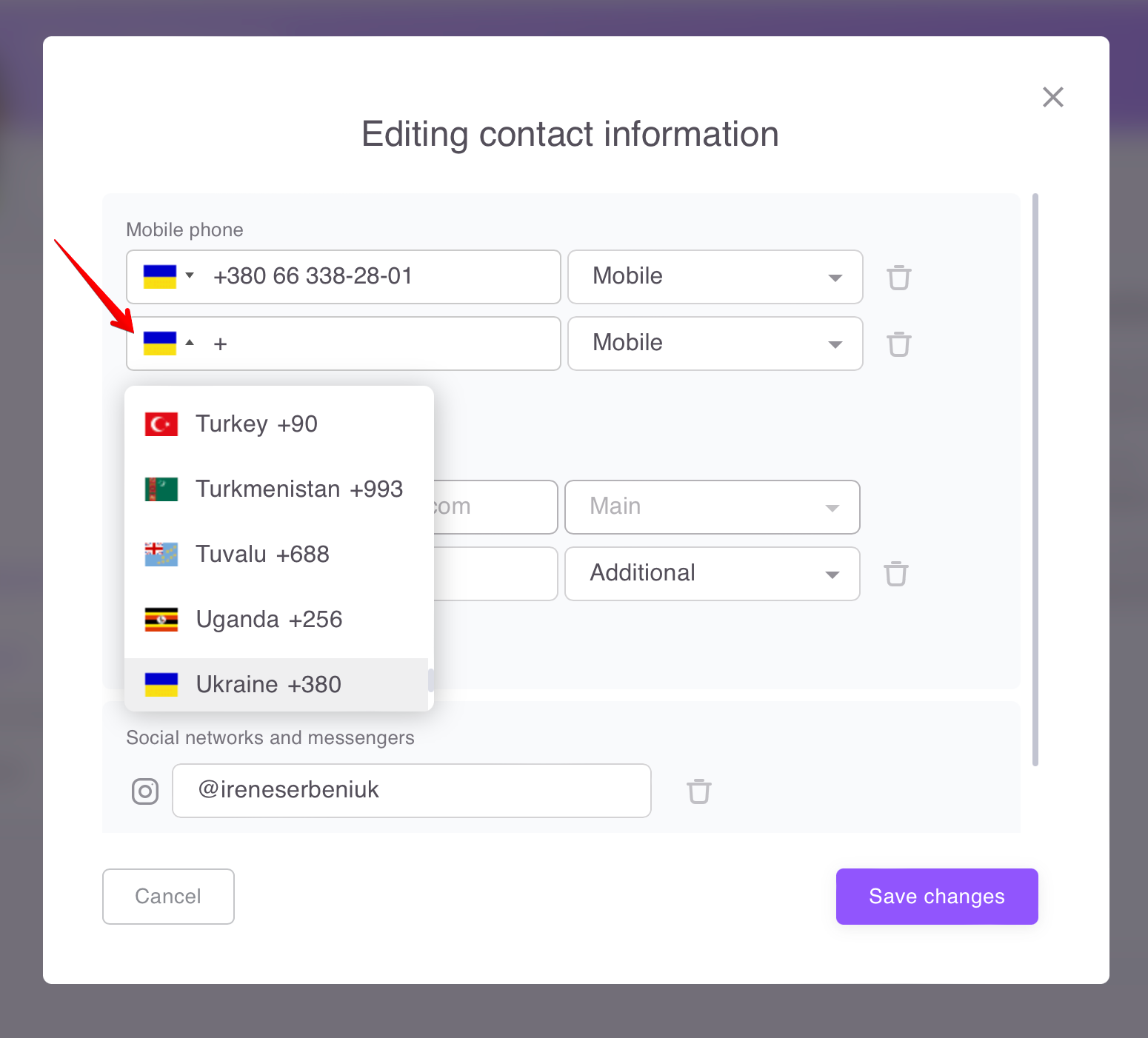
When adding a new phone to the profile, you can first select the country code, and then enter the number.
It is also possible to specify the type of phone: mobile, home or working.
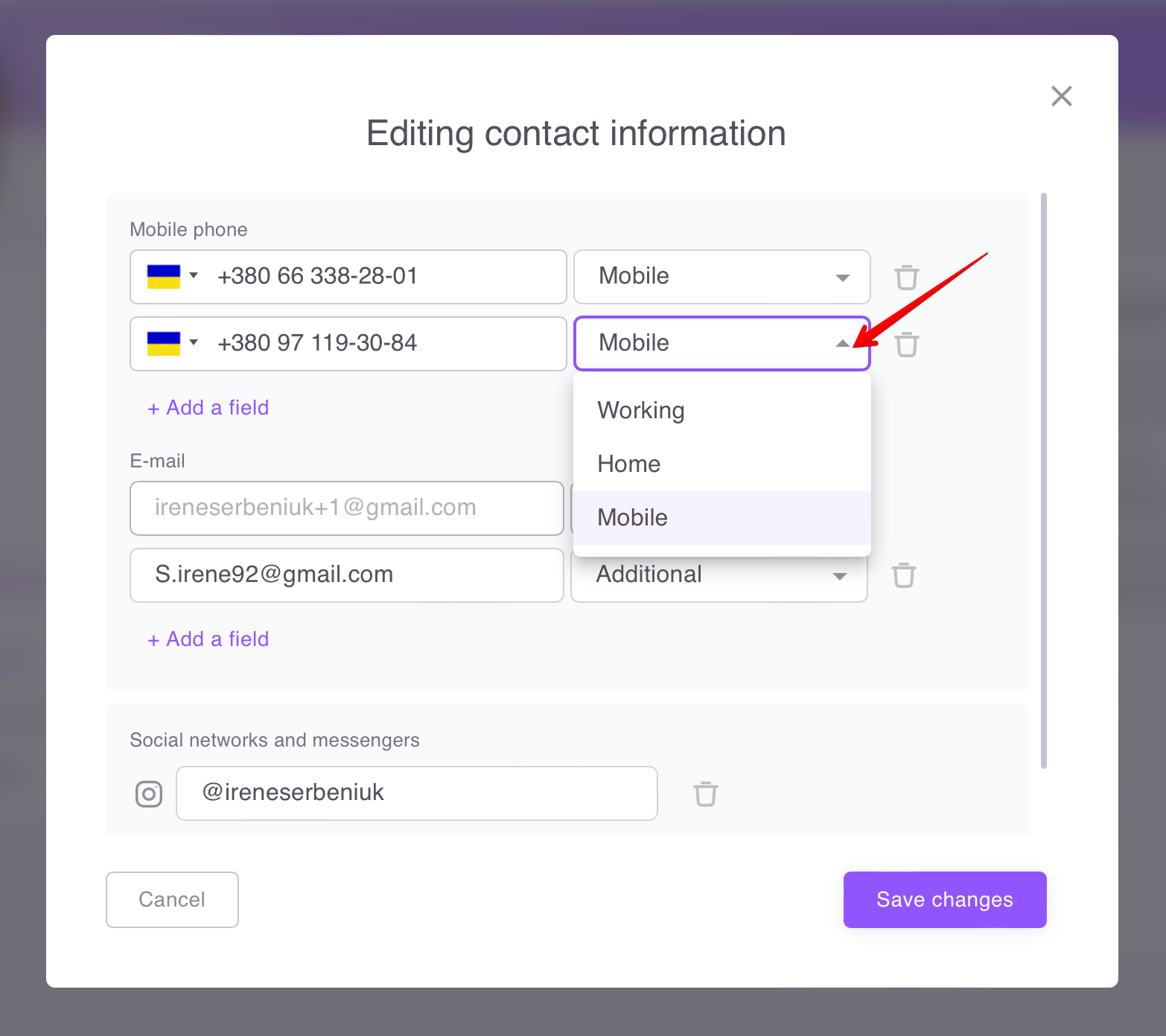
You can enter no more than 5 phone numbers.
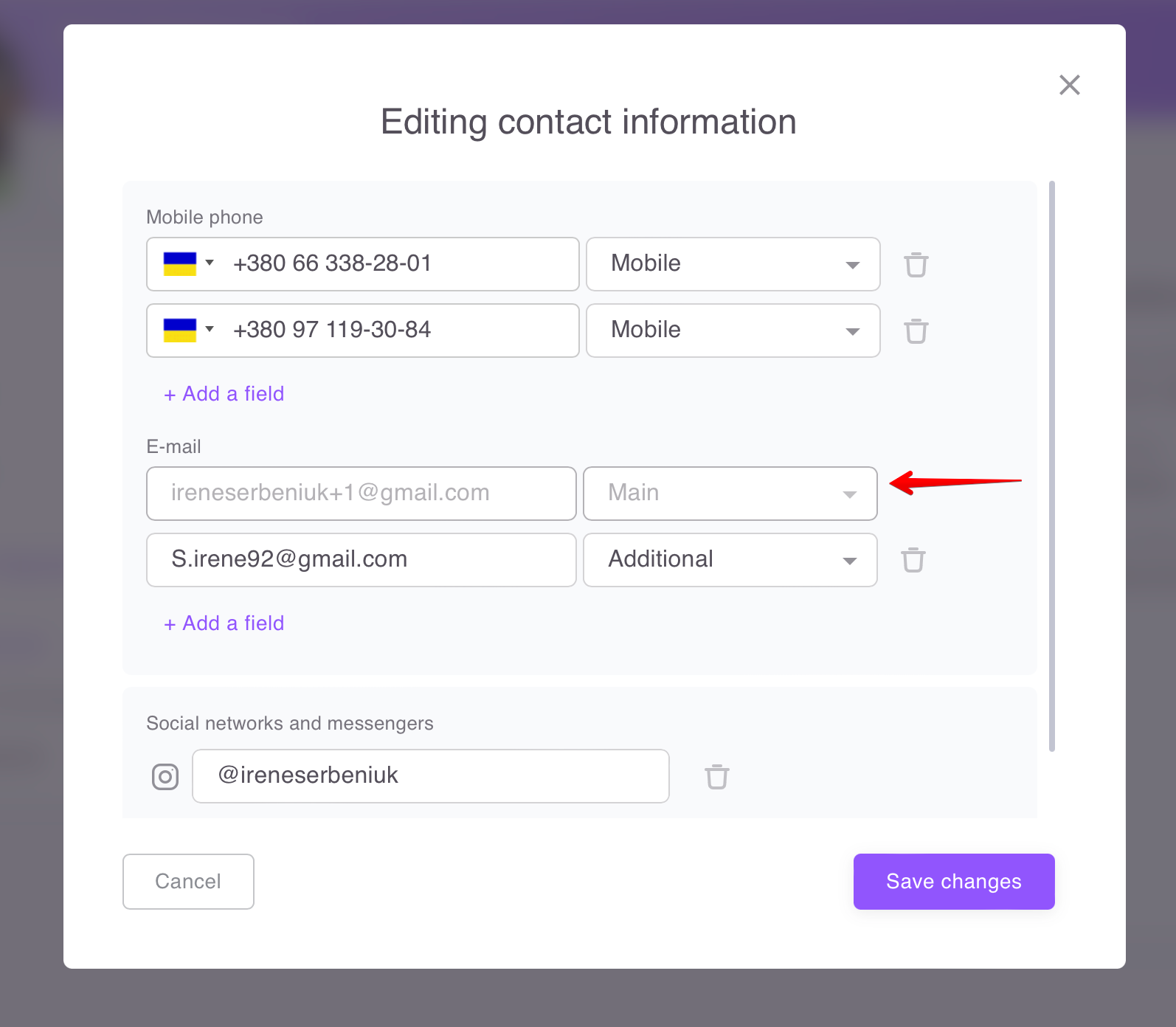
❗️The email address field will be filled out automatically if the user registers at Uspacy using the email. For the system, this mail will be the main one and CANNOT be deleted or edited.
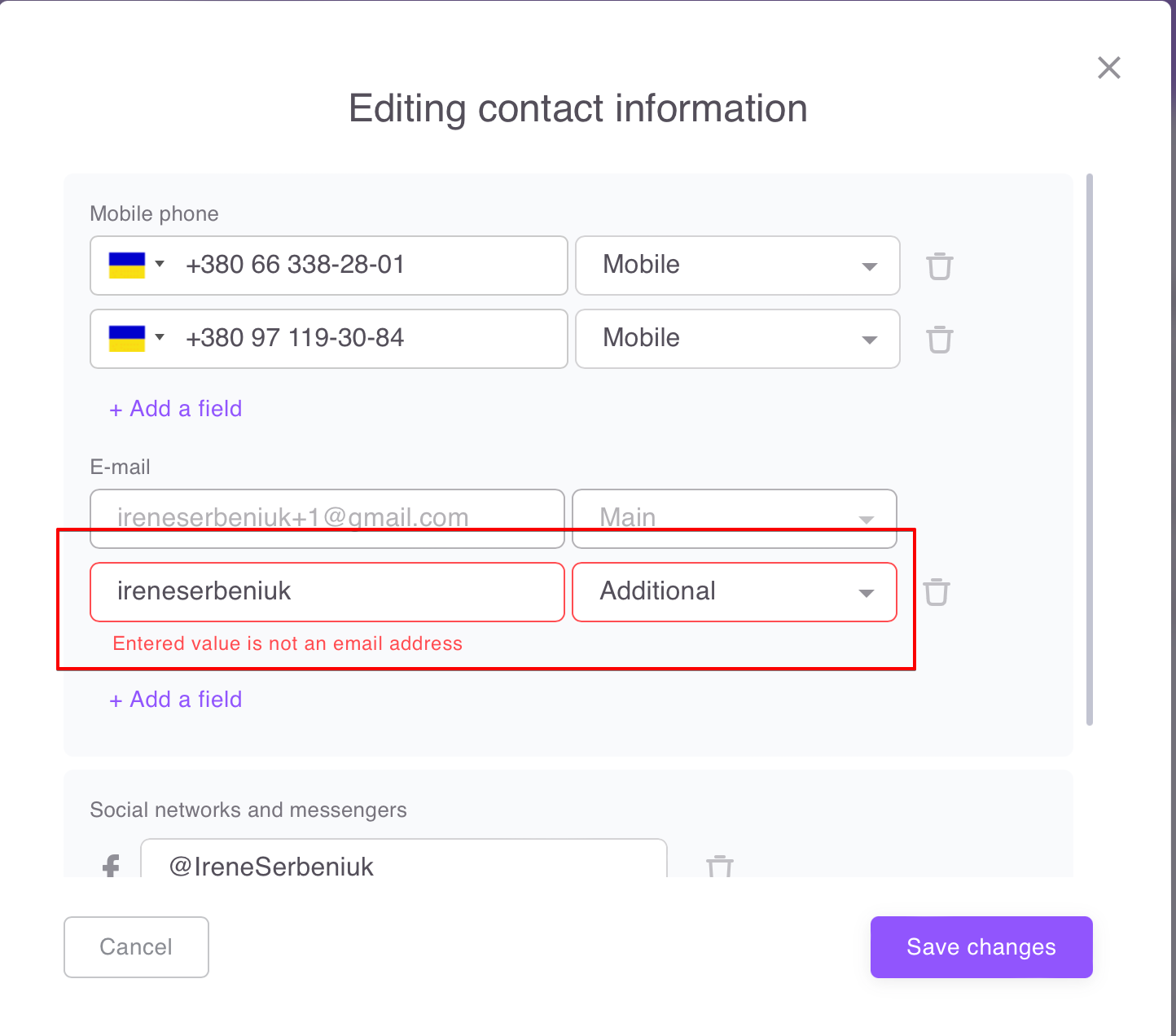
Email addresses must be entered in the correct format. If the domain part of the e-mail (after @) is written incorrectly, an error will occur when saving.
You can also specify types for email addresses: additional and for mailings.
The main type is indicated only for the mail that was used for registration.
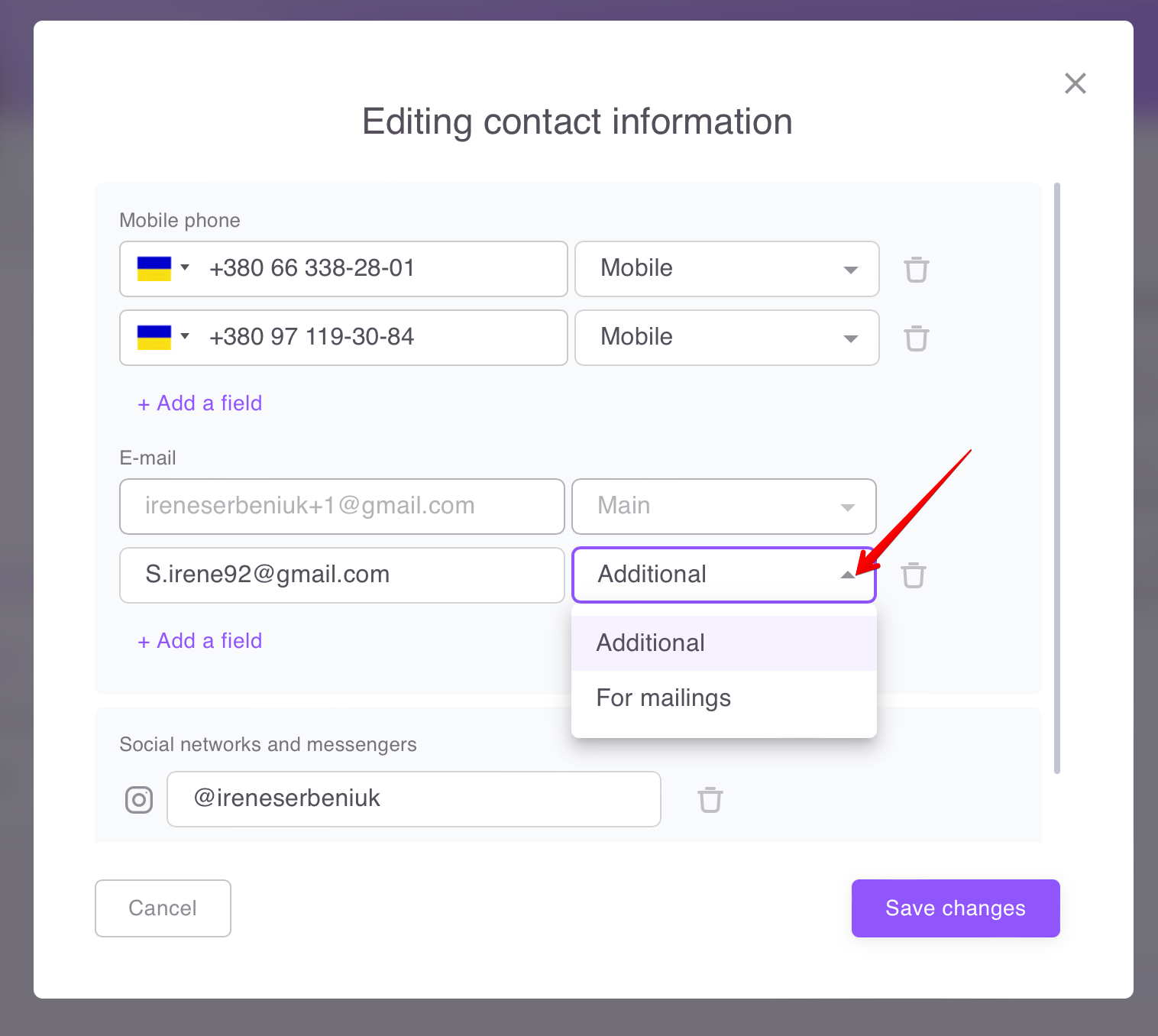
You can enter no more than 5 email addresses.
Social networks and messengers
It is possible to add links to your own profiles on Facebook, Instagram, Telegram, Twitter, Viber, Whatsapp.
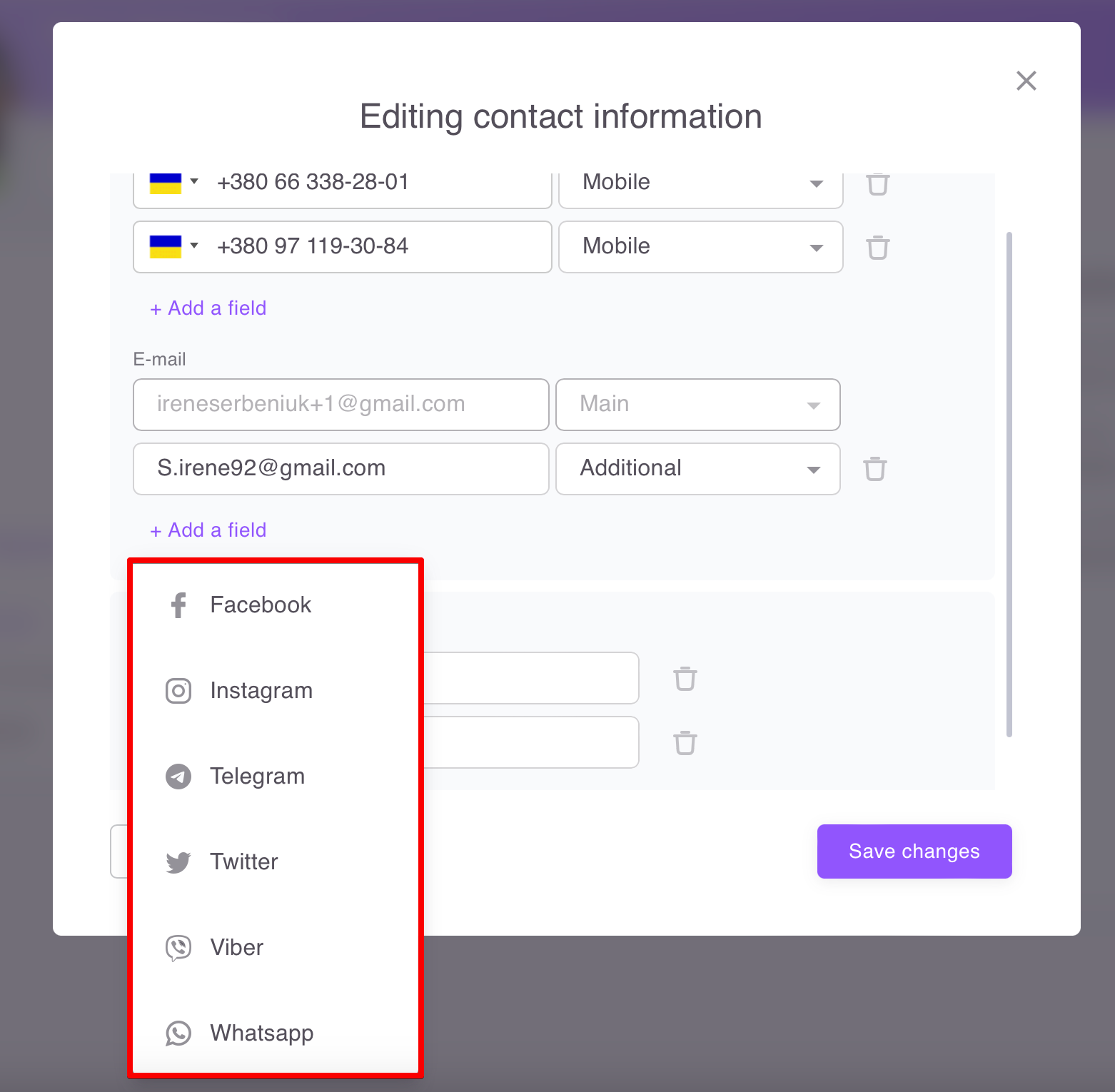
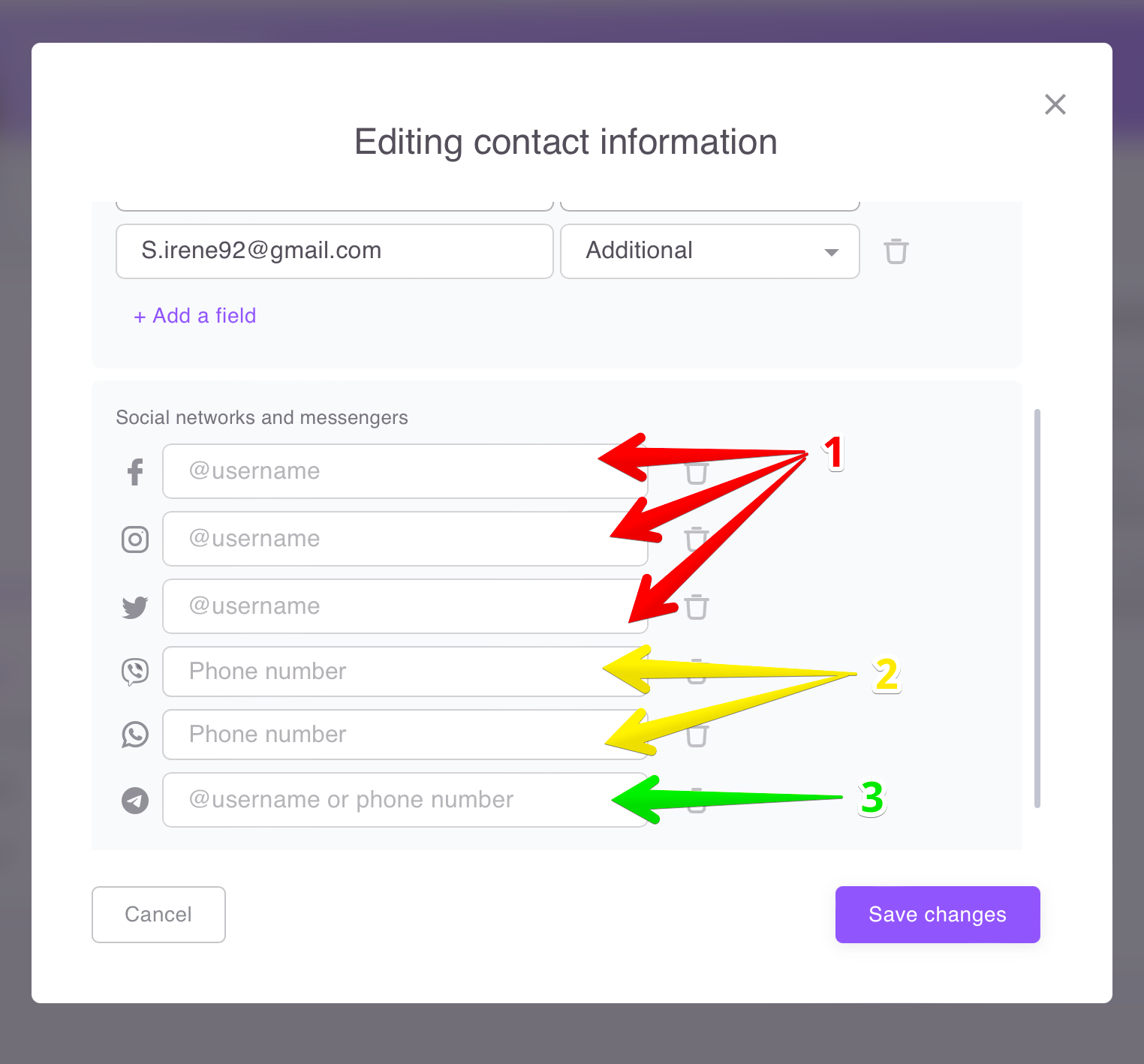
To display your own social networks and messengers in the contacts information section, you need to specify:
- for Facebook, Instagram, Twitter – your username;
- for Viber, Whatsapp – phone number in international format;
- for Telegram - either a username or a phone number in international format.
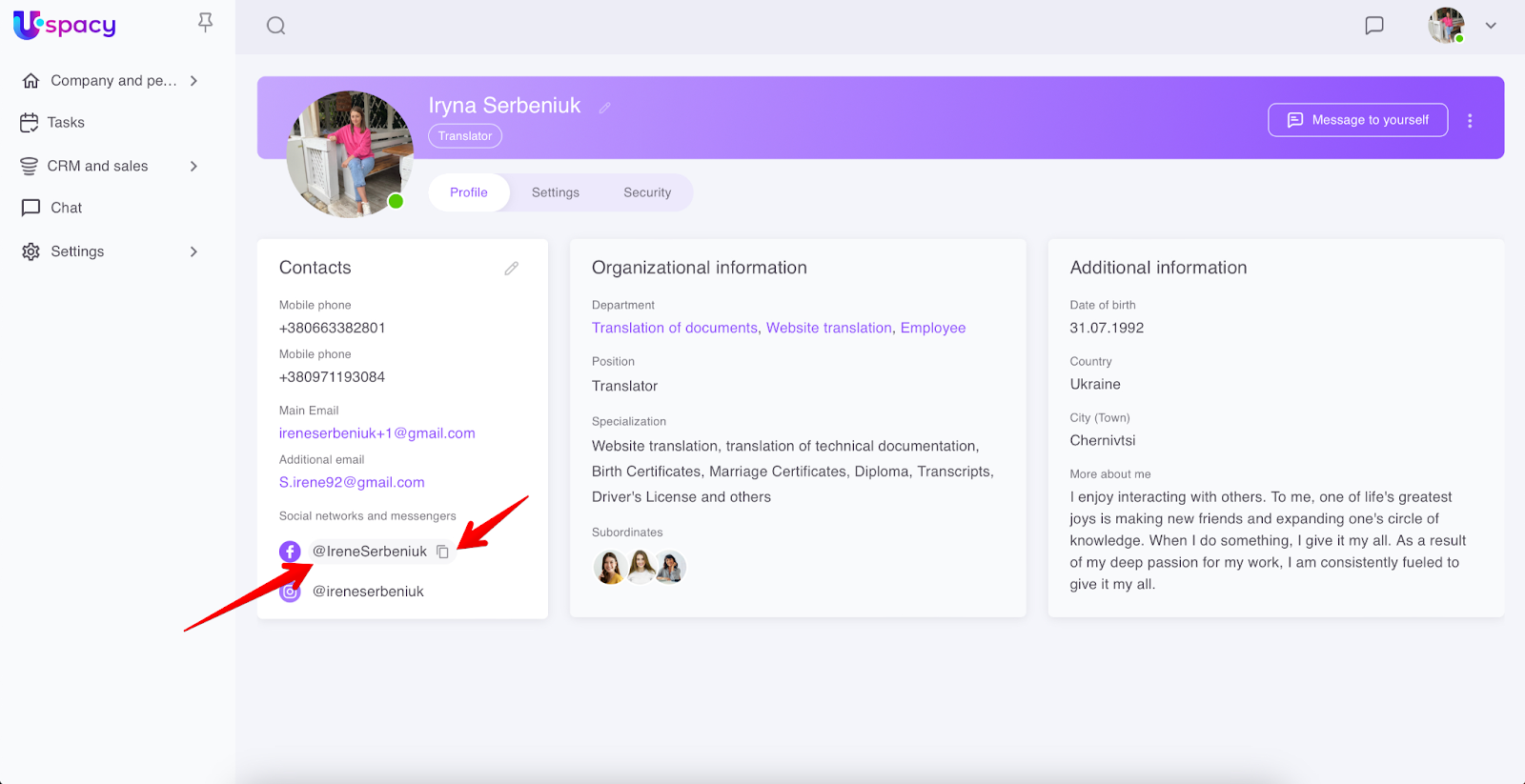
From the profile page, you can go to social network accounts or to chats in the specified messengers. To do this, click on the username or phone number. And to copy the number or link to the profile in the social network, you can click on the corresponding icon.
Organizational information section
The fields available for filling and editing are determined by access rights and the user's role in the space.
The owner of the profile (if he/she is not an administrator) can add information only about their specialization (competency and what questions can be addressed).
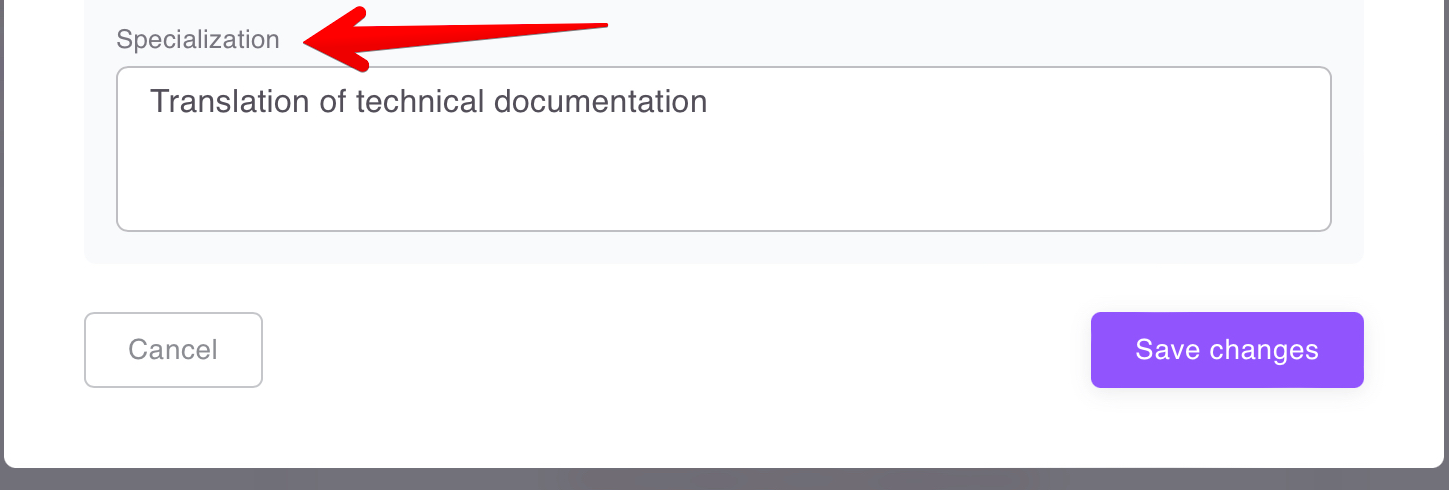
The administrator and space owner have rights to fill out all available fields, namely: department, position, as well as specialization.
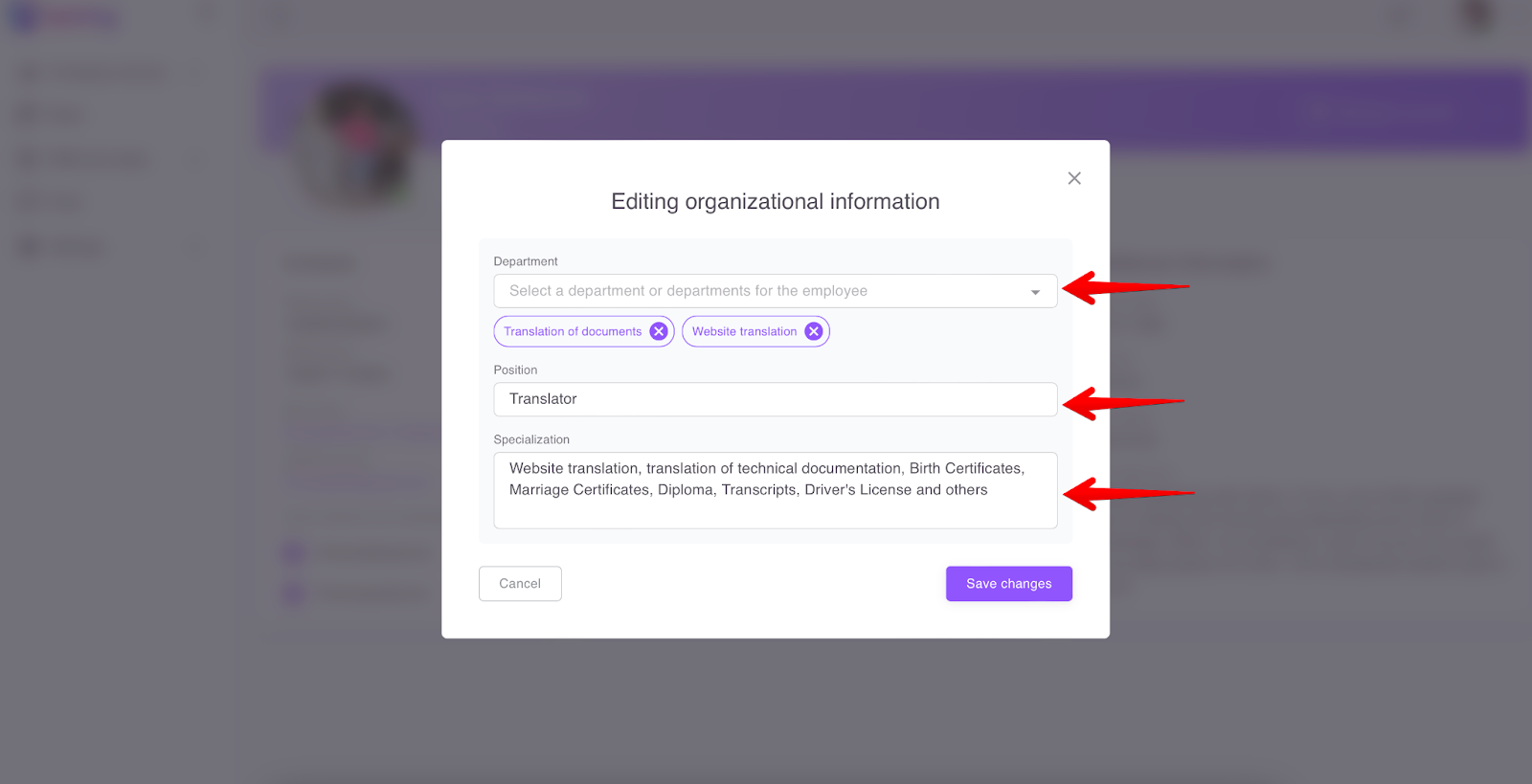
An employee can be included in several departments at the same time. To specify another department, you should click on the corresponding field, then click on the desired one in the company structure and Select it.
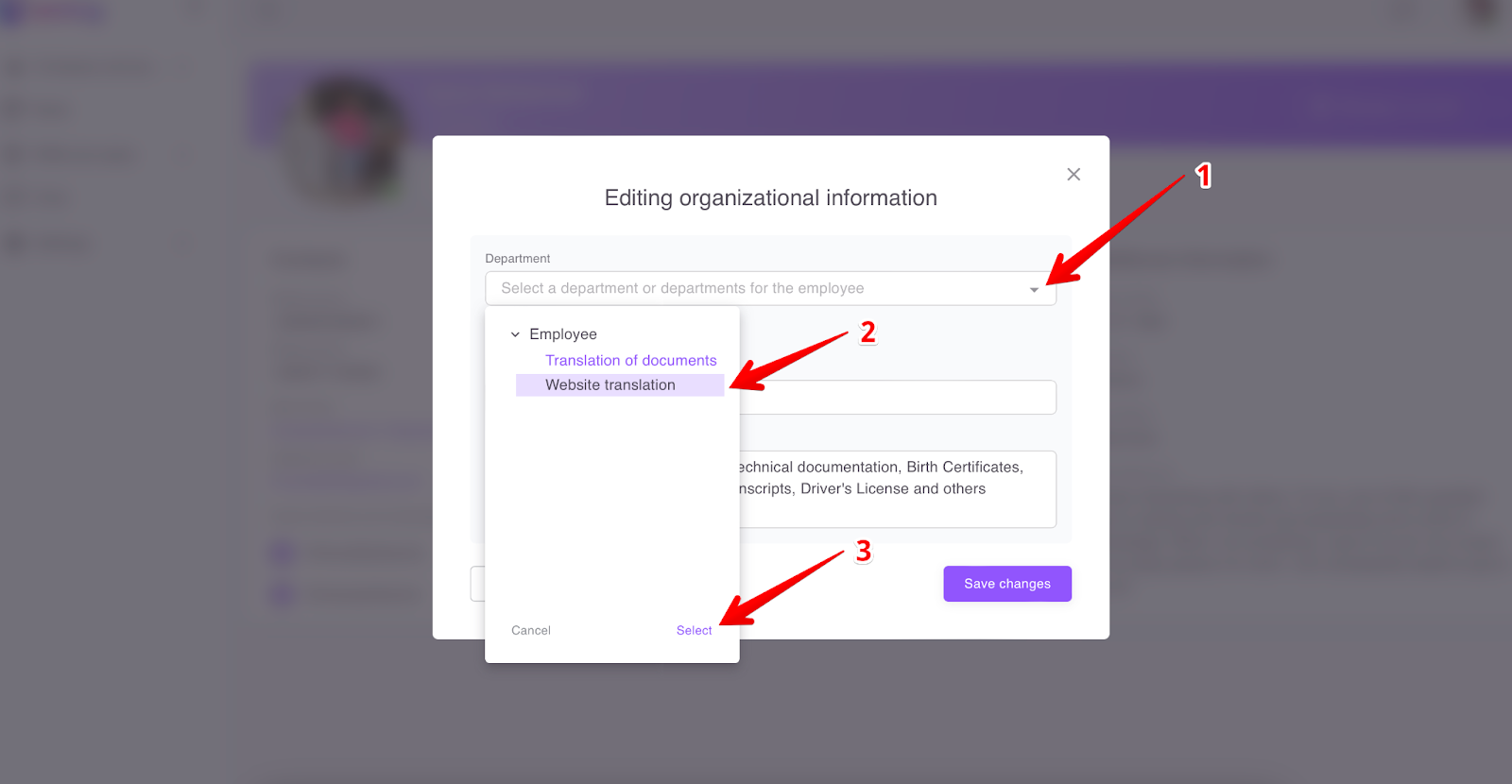
❗️ If you want to select two or more departments for the employee at once, press SHIFT on the keyboard and mark each department in sequence.
And if necessary, the specified departments can be deleted by clicking on the cross next to the name.
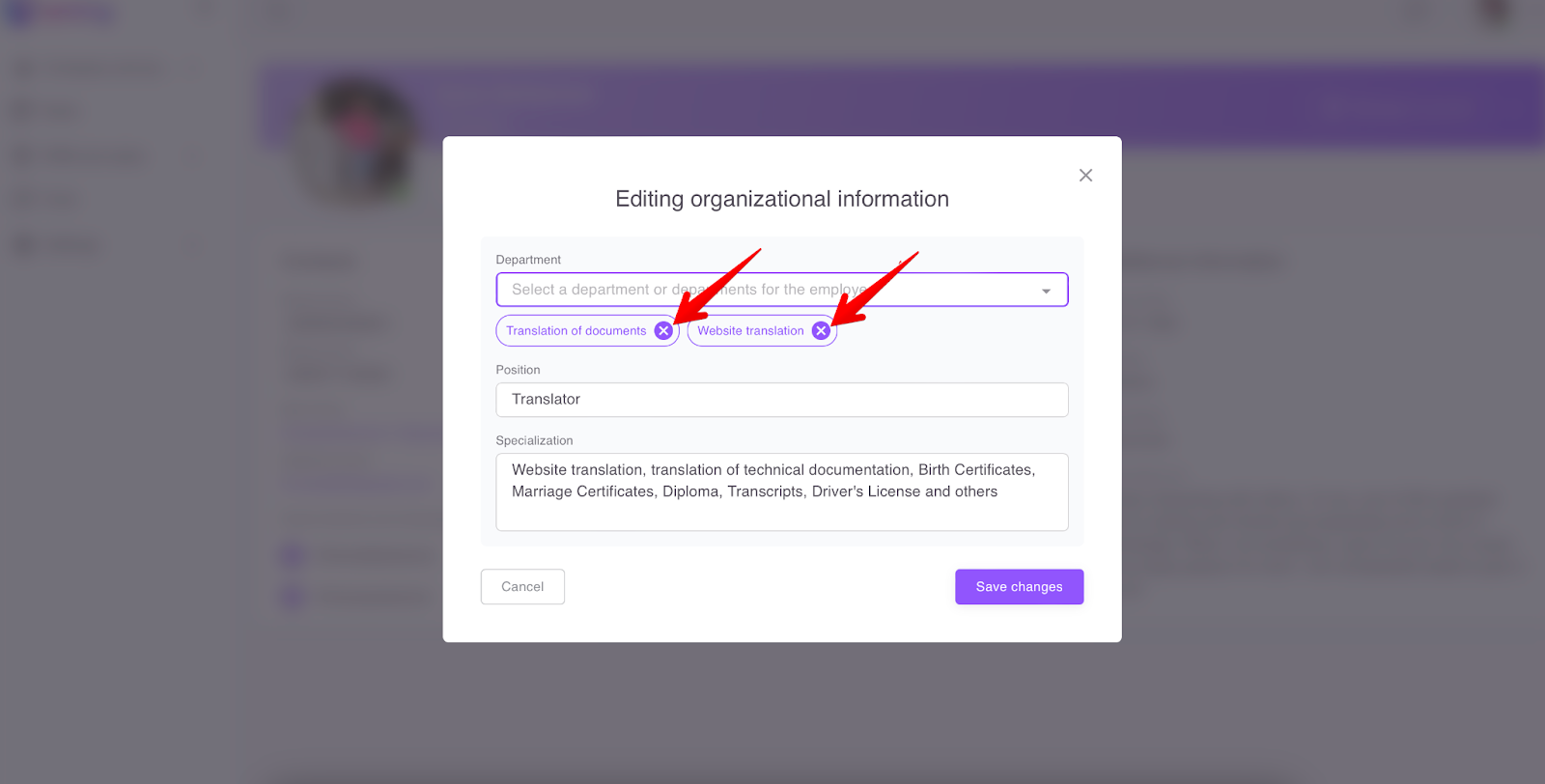
❗️Pay attention! If only one department is specified for the user, then it cannot be deleted, because the employee will remain outside the company.
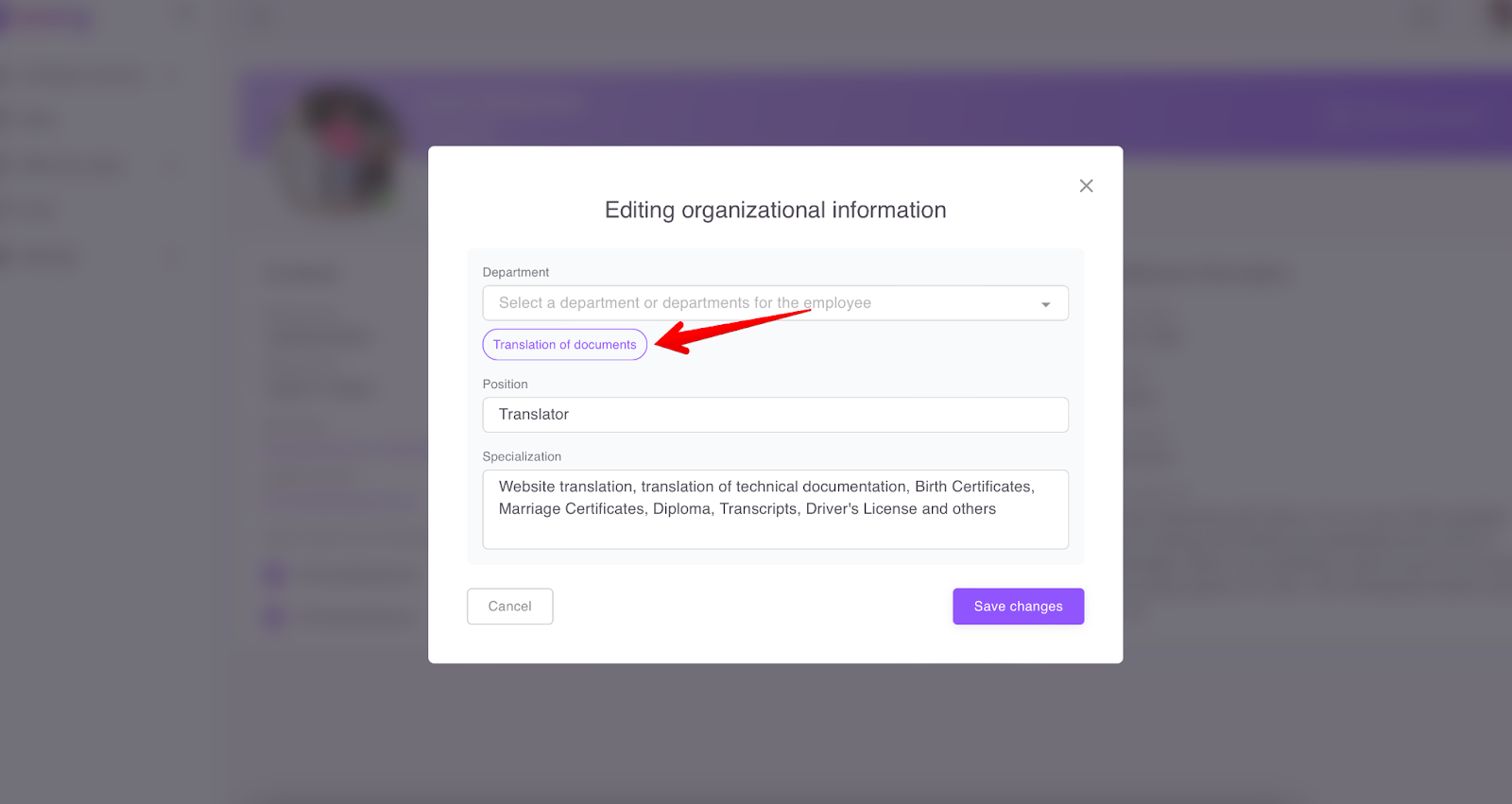
But a replacement is available. Firstly, you should add another department that is relevant for the employee, and then delete the one that was selected at the beginning.
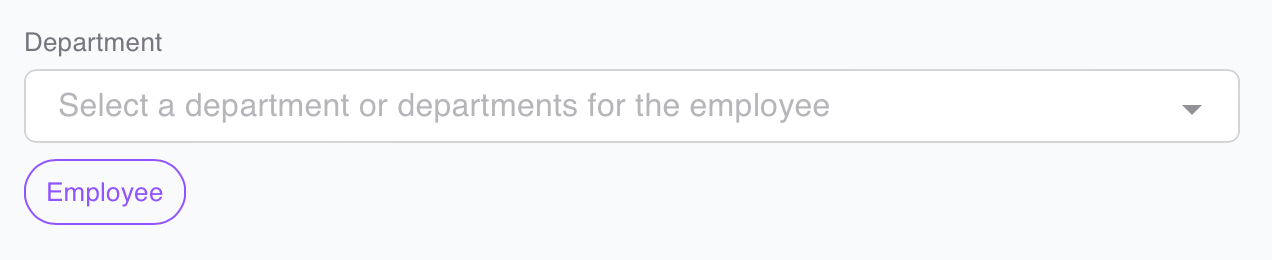
If the user is not added to any department or the company structure has not been created yet, the profile displays a default department with the same name as the space name (e.g. "Employee").
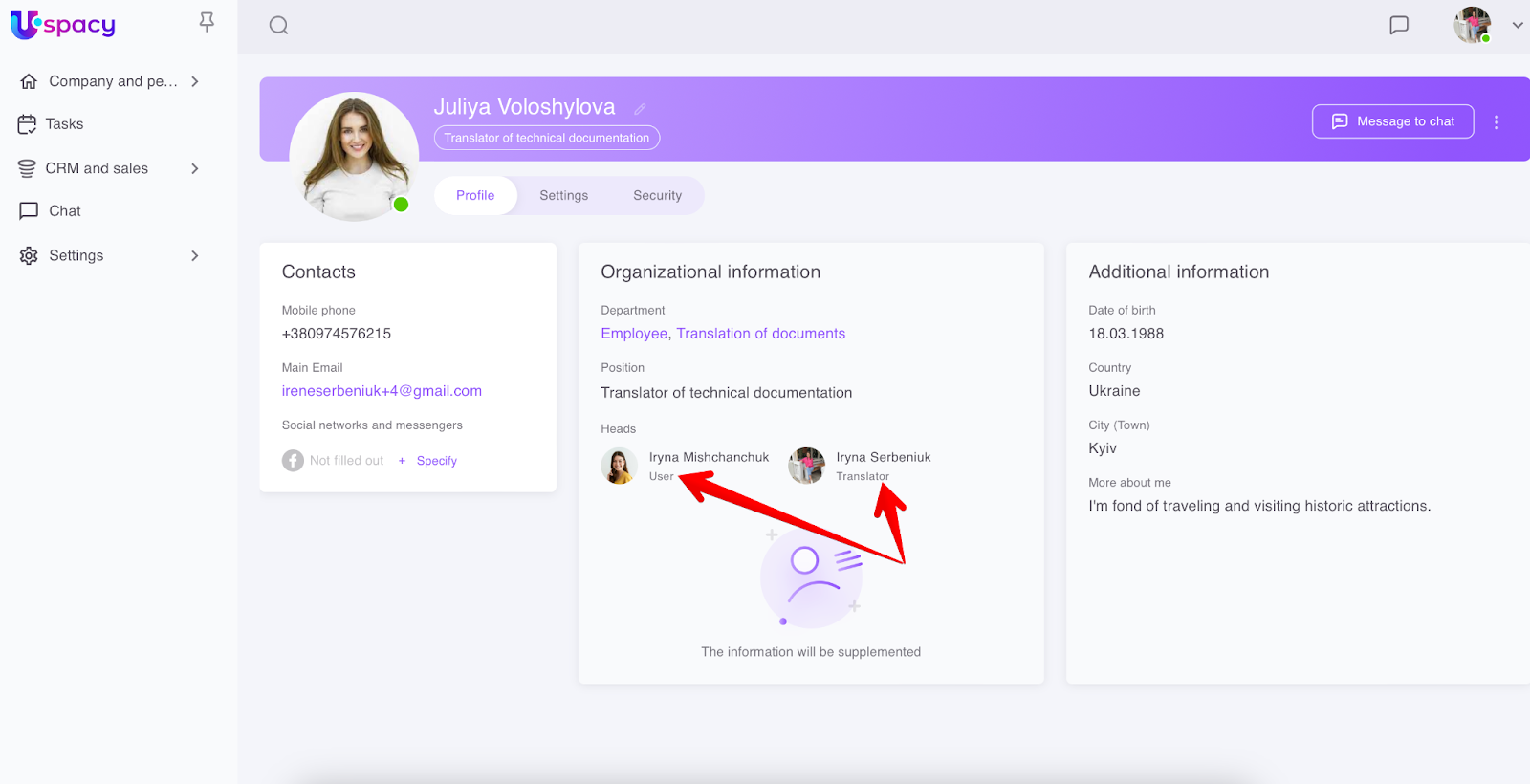
There are no Heads and Subordinates fields in the edit form, as the data for them is automatically pulled and displayed directly in the profile.
❗️A Head is a user who heads a certain department and this is specified in the company's structure.
If several different departments of different hierarchies are selected for the employee, then the heads of each of these departments will be shown in the profile.
Additional information section
In this block, the users can tell more about themselves, as well as specify the date of birth, country and city/town of residence.
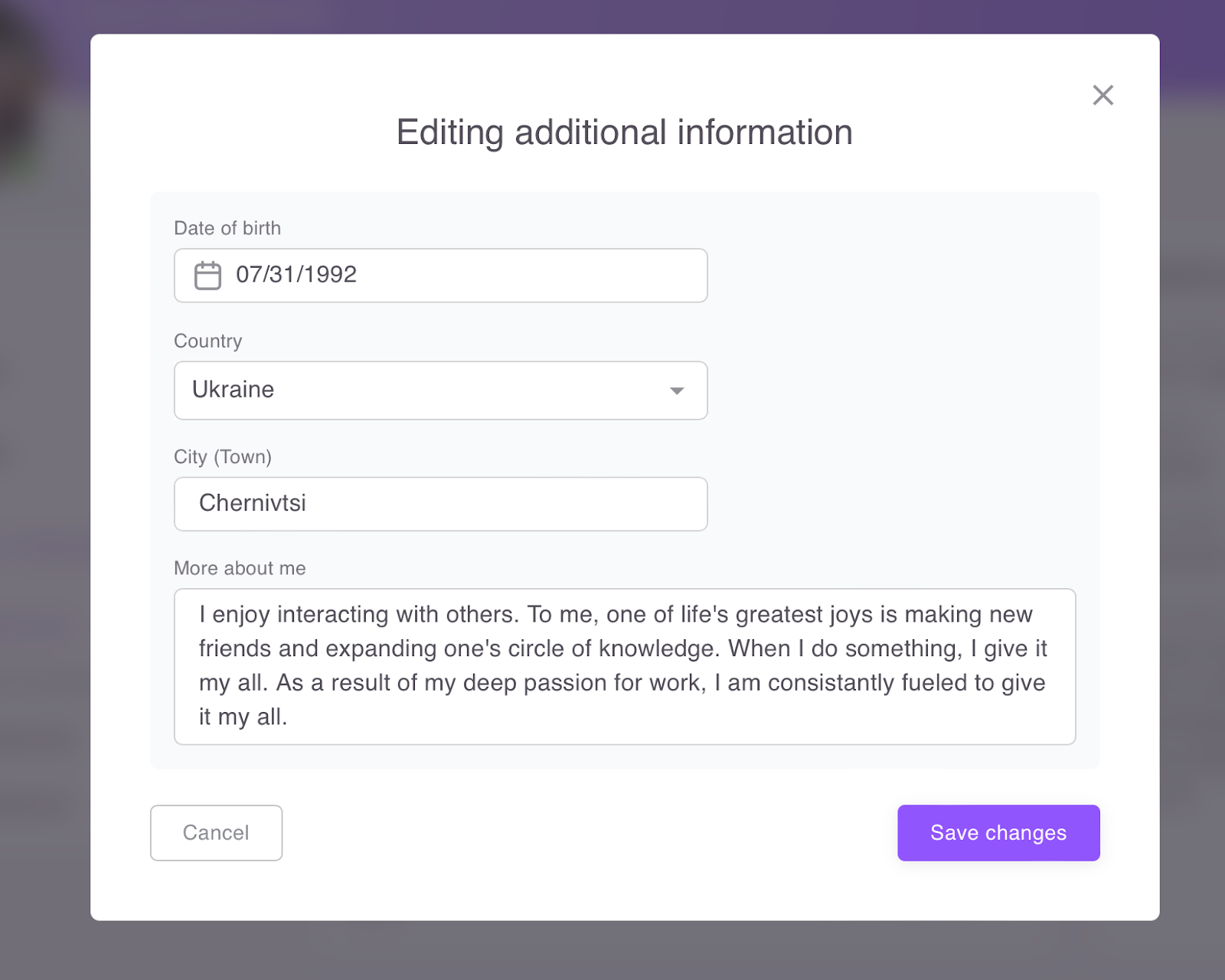
The Date of birth field is filled out by selecting it on the calendar or entering it manually.
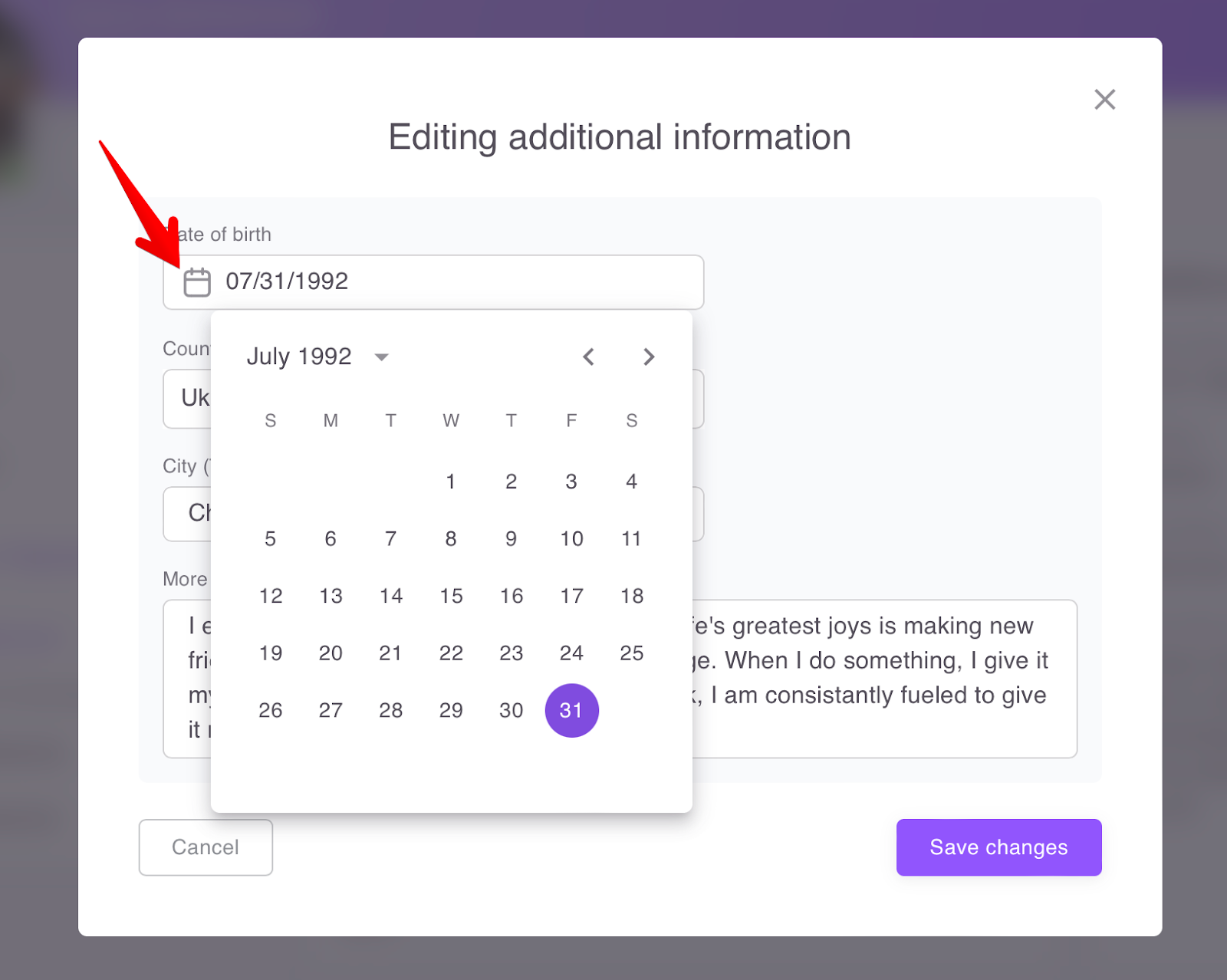
To enter the date manually, you need to follow the format DD.MM.YYYY – day.month.year in full. The system will put dots automatically.
The Country field is a drop-down list by type.
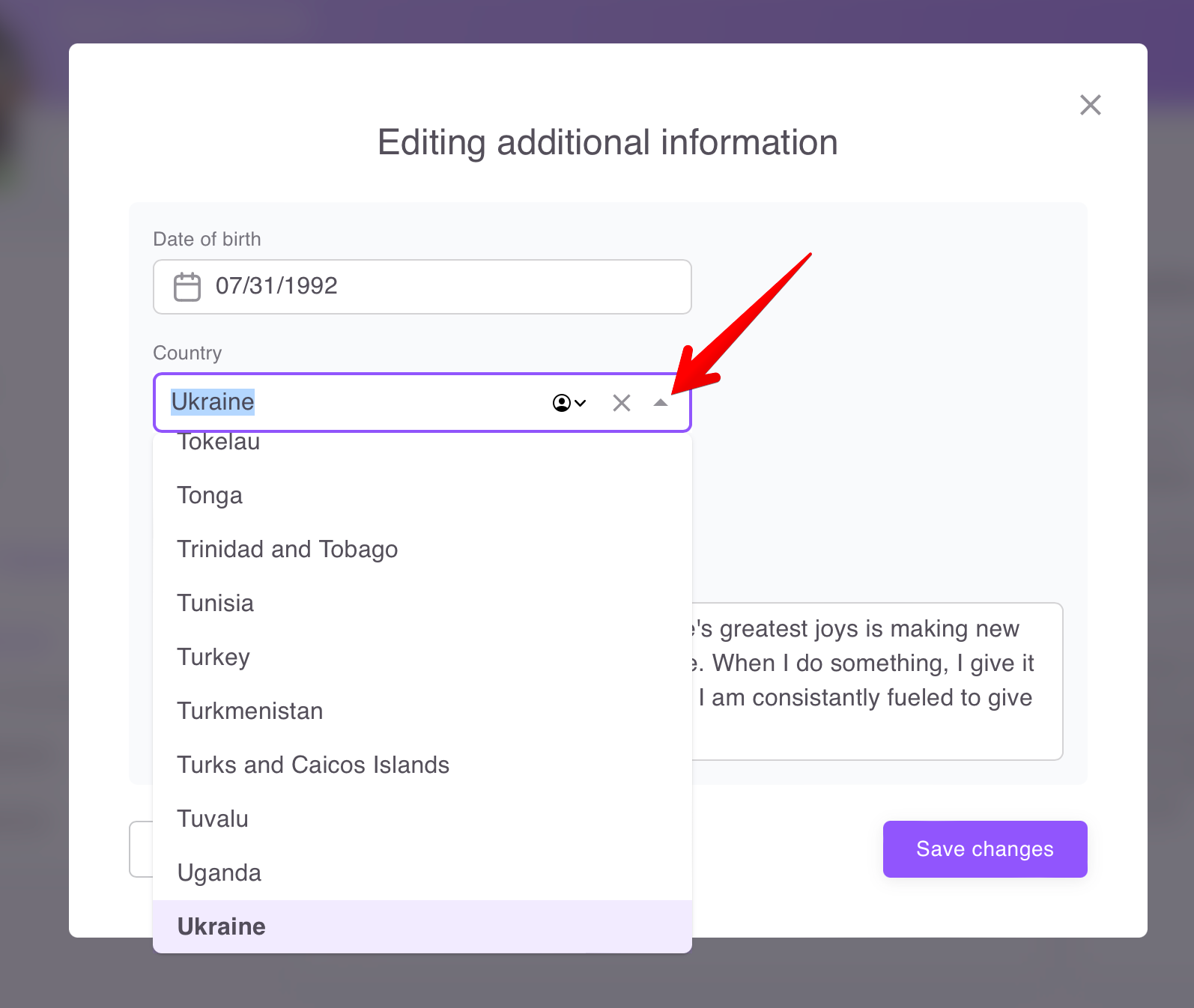
City (Town) and More about me are text fields. The latter should contain no more than 500 characters.
🔎You can read more about the user profile and its functionality in the following article.
If you have additional questions or you need to contact the support, send a request to this email [email protected]
Created: February 20, 2023 / Updated: February 8, 2024