Filters and search are designed to help you easily find the desired element of a CRM entity or a few elements that are united by common features.

Appearance
This block consists of two parts. The first is a line for entering search queries (1). Here, on the right side, there is also a counter of the number of elements (2) that meet the given conditions. There is also a clear button (3), after clicking on which search queries and set filters are reset.
Here you can also see the panel of saved filters (4), and the possibility to go to the window of advanced settings (4), which allows you to search by additional fields.

The second part is the quick filters panel. That is, the parameters by which the search will be carried out. The display depends on whether the filter is cleared or active and how many options are selected in it.

Types of filters
The system provides 5 quick standard filters, which are located under the search bar. This allows you to quickly find the necessary elements by the main fields.
It is also possible to expand the search parameters. This is why there is a window for advanced filter settings. Here you can use additional fields to find the required elements.
Quick
They depend on the entity you are working with:
🟣 For leads: Status, Stage, Source, Creation date and Person responsible.

🟣 For deals: Status, Stage, Activities, Creation date, Person responsible.

☝🏻Filtering by stage in deals will work only after the funnel is selected.

🟣 For contacts: Contact type, Source, Creation date, Person responsible, Update date.

🟣 For companies: Company type, Source, Creation date, Person responsible, Update date.

Simple
In this window, in the Simple tab, it is possible to manage a quick set of filters that is located above the search.

You can also use additional fields for searching.

Here you can control the logic of work and filtering conditions.

Filtering conditions
There are two of them, namely:
🟣All conditions at the same time. This option ensures that filtering of all fields, without exception, for which values are set, is carried out by "And" logic.
That is, the found elements must meet only all the specified parameters at the same time.

🟣At least one condition. This option ensures that filtering for all fields for which values are specified is carried out by “OR” logic.
That is, the found elements can correspond to only one of the specified parameters.

In this window, you can also see how many filters have been applied (1), as well as a counter of the number of elements (2) which meet the specified conditions. There is also a clear button (3), after clicking on which search queries and set filters are reset.

The window of advanced filters also includes a search bar (1) and a field for selecting a funnel (2) as part of the quick filters.

💡In addition, using the button Add a field for filtering, you can configure which fields will be displayed in the quick filters panel.

For example, you can remove all fields typical for quick filters from this list. There will be no filtering by them.

In this case, the additional fields marked in the list will be pulled up to the quick filters panel in order of priority.

You can select values for filtering by these fields on the entity page, without going to the window of advanced filter settings.

❗️To restore the standard field order, you need to use the corresponding button.

Custom (saved)
Uspacy allows you to customize your own set of parameters for filtering and save it.
It's easy to do. First, you need to select which fields to filter by.

You will see the full number in the list. You can leave everything as it is, or remove unnecessary ones.

❗️Please note that 5 parameters must be selected for filtering.
But, if necessary, you can restore the standard order of the fields by clicking the button.

When the necessary parameters are selected, it remains only to set values for them.

And also select the filtering conditions.

After that click Save filter.

Enter a name and save your new set of filters.

💡At this stage, you can also change the fields by which the filtering will be carried out, as well as their values and the logic of their work.

After that, the new filter will be displayed in the Saved tab and will be applied at once.

Each of your saved filters has a button to call up the interaction menu.

With the help of this button you can:
🟣 Apply - filtering is performed by the parameters specified in the filter.
In addition, you can apply it without going to the settings window, but on the entity page at once. To do this, select the desired one from the saved filters panel.

🟣 Pin – the filter will be moved and fixed at the top of the list as well as on the panel of saved filters.

You can pin the filter without going to the settings window, but on the entity page. To do this, select the desired one from the saved filters panel and click on the corresponding icon.

🟣 Delete - it means to completely remove the filter from the system. After that, you will not be able to use it, nor restore it.

💡Only the predefined filter for each entity like ( My deals, My leads, My companies, My contacts) can NOT be deleted. But it can be customized to your own needs.
In addition, for each filter you save, you can change the set of filtering parameters and their values at any time. To do this, click on the arrow to expand and see all settings.

Make the necessary changes and save them.

Advanced
In the Advanced tab of the Filters window, you can also add and remove fields. In addition, you can select a condition and assign a value for each field. The filter logic combines conditions using “AND” and “OR” principles, allowing you to build truly flexible queries.
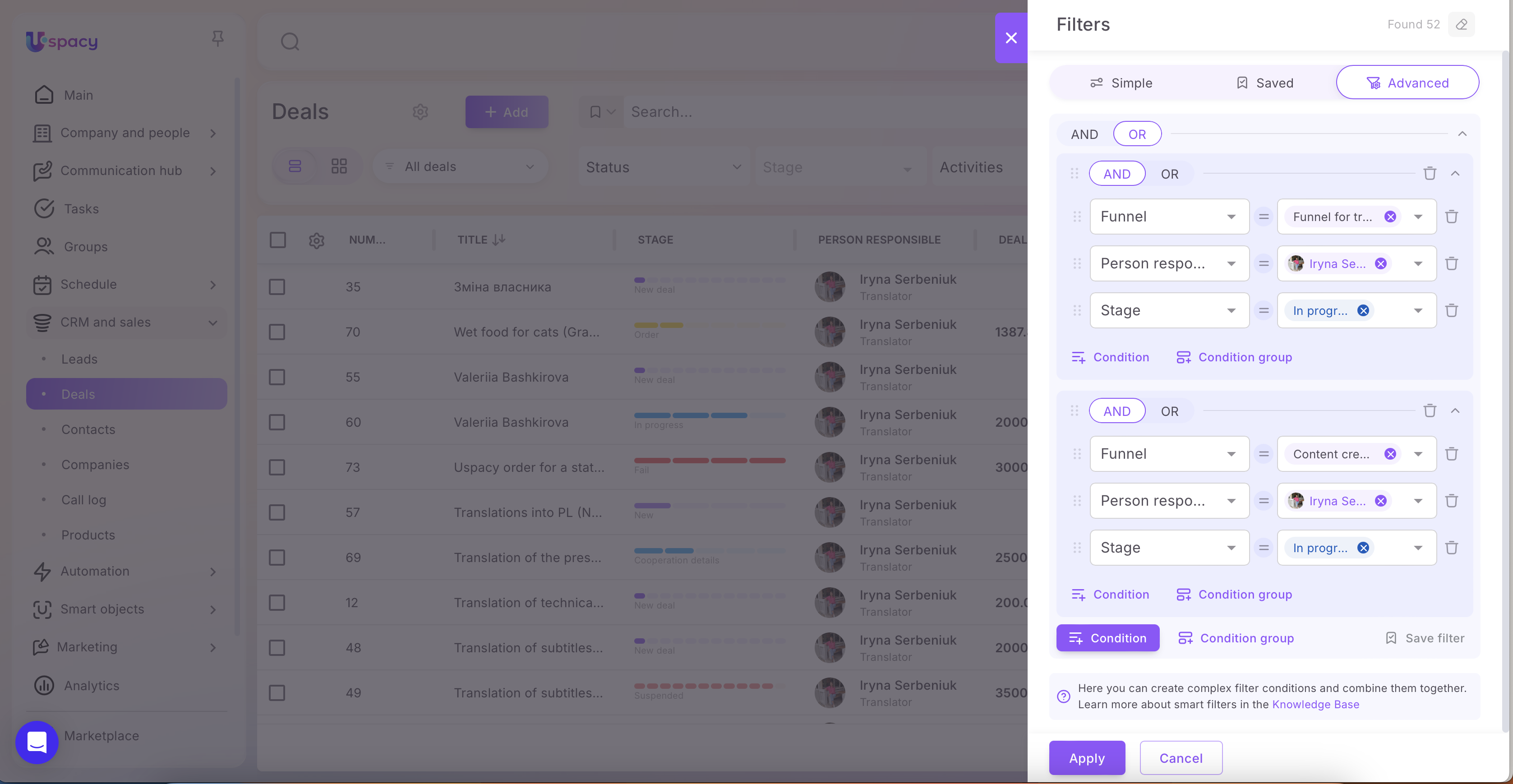
🔍 You can read more about advanced filters in CRM in this article.
The work of filters and search bar
Filters and search bar in CRM work together. It can be described in three steps:
Step one. Enter a search query.

Step two. Select value options for one filter or several filters. You can do this using the panel of quick filters.

Or in the window of advanced settings. It depends on what parameters you are searching for.

Or even use your own saved filters.

How to reset filters?
On the quick filters panel for each of the types, if at least one value is selected, the Clear button will be active.

Or in the window of advanced settings, you can click on the cross in the desired field.

To reset all filters, you can click on the clear button in the search bar (1). Or on the cross next to the name of the saved filter (2), if it is applied.

Features of searching by some types of fields
🟣 Money type field (for example, the standard Deal amount).

For this field, filtering can be carried out in two ways. The first is only by numerical value. That is, the currency will not be taken into account. As a result, elements that meet the parameters for the specified range of numbers will be displayed.

In order for the filtering to be carried out exactly like that, just do not specify the currency, but leave the Any option.

The second way is by specific currency. That is, now not only the specified numerical range is taken into account. As a result, elements that meet the parameters as a whole, taking into account the specified currency, will be displayed.
💡Since the field of type Money is combined, the logic rule “And” is always applied to it. The found elements will contain in this field the specified range of numbers AND the specified currency at the same time.
In order for the filtering to be carried out in this way, just select the desired currency.

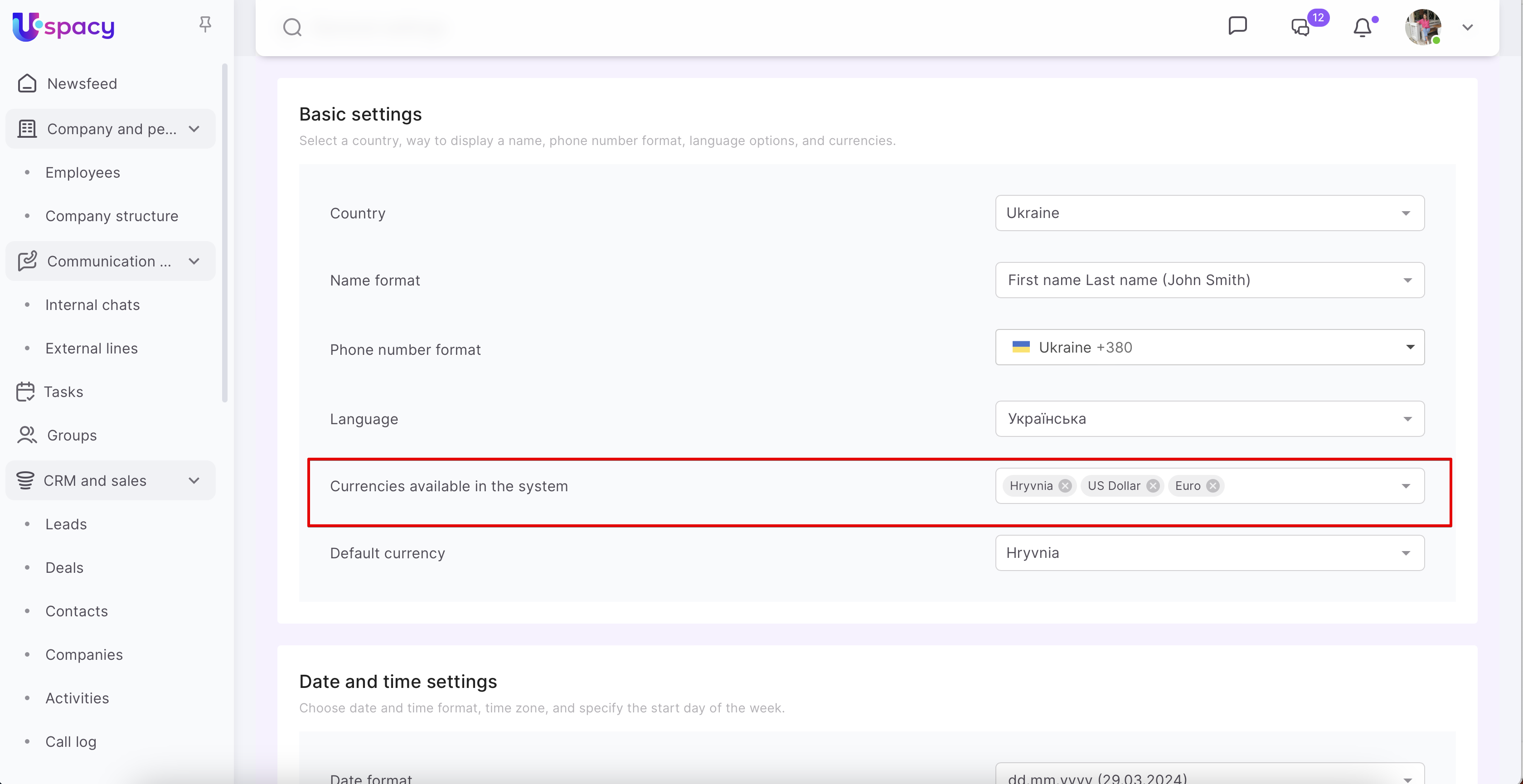
❗️Please note that the list will contain those currencies that are specified in the field Currencies available in the system in the General settings of the Space.
🟣 Field of type Number (Number with a fractional part). A range of numbers must be specified to perform filtering . If it is specified from.. to, then all elements whose field value is equal to or bigger than the entered number from and less than or equal to the entered number to are displayed.
☝🏻If the number from coincides with the number to, then all elements that match the values are displayed.
Or only the lower limit (from). Then all elements whose field value is equal to or bigger than the entered number are displayed.

Or only the upper limit (to). Then all elements whose field value is less than or equal to the entered number are displayed.
💡The same rules for numeric ranges apply to the Money field.
🟣 Binding to entity type field. For filtering to be carried out, you need to enter the element name of the bound entity.
Step three. View the results.

💡The search in the tasks must take into account all filter settings.The search result will depend on the values specified in each filter.
If you have additional questions or you need to contact the support, send a request to this email [email protected]
Created: February 29, 2024 / Updated: March 17, 2026