Tasks creation at Uspacy involves both quick adding it to the general list and the full form with all possible settings.
🔍 You can read more about the quick form of task creation in the following article.
We will consider how to create a task using the full form. So, first you need to go to the appropriate section. You can select in which format you want to work with tasks - in a list or on the Kanban board.

Next, you need to click on the Create button. It is both in the task list and on the Kanban board.

After that, the task creation form will open. Here you fill out all the fields you need.

Name and description
These fields require text input.

The name is required field. Therefore, if you leave this field empty, the system will highlight it in red and will not allow you to save and create.

You can use formatting for the description Description. For example, make the text bold, italic, underlined, or strikethrough, and select the type of alignment. Also, add an image, insert a diagram or a video from Youtube, etc.

🔍 You can read more about the functionality of the message editor for the Newsfeed and Tasks in the following article.
Attached files
Files can be attached to the task. It can be both images and some documents.
To add a file, you can either drag it to the required area.
Or download them from your computer's file manager. To open it, you need to click on the area required for this. Next, select the file and download it.
As a result, the files will be attached to the task.

If the file was attached by mistake or you changed your mind about adding it, you can click on the cross to delete it.

After deleting, it will be impossible to restore the file, you will need to download it again.
Task members
They are the Person responsible, Participants, Observers and the Task creator.

The user who must complete the assigned task will be the Person responsible. You need to find him/her in the list or use the search field.

To assign a user a person responsible, click on them and they will be added to the field.

Other task members can be assigned in the same way.
- Participants are those users who help in completing a task.
- Observers - monitor the task process.
- Task creator is the user, who is waiting for the task to be completed and needs the person responsible (and participants) to do everything in accordance with the established requirements.
You can specify several participants and observers.

But the task creator, as well as the person responsible can be only one.

❗️ By default, the task creator is automatically assigned to the user who creates the task. But of course you can assign another employee to this role.

If you accidentally assigned the wrong user as a person responsible, participant, observer or task creator, you can click on the cross to delete them.

Deadline and priority
These fields require more detailed and efficient planning of tasks.
The deadline is the date that is the last day of the task. You can specify not only a certain calendar day and month, but also select the hours and minutes after which the task will expire.

Or do not specify the deadline.

Priority is an indicator that helps the person responsible determine the importance of tasks and organize the completion of these tasks one by one as well as plan his/her work schedule.
When creating a task, this field is Neutral by default.

But you can change the priority and select the desired one from the list. So, the following options are available: Very High, High, Neutral, Not high, Low.

Groups
This field helps to bind the newly created task to the work group. If you need it, you should find the group in the list or use the search field. Click on the name and it will be added to the field.

❗️ The created task will also be displayed in the task list of the work group.
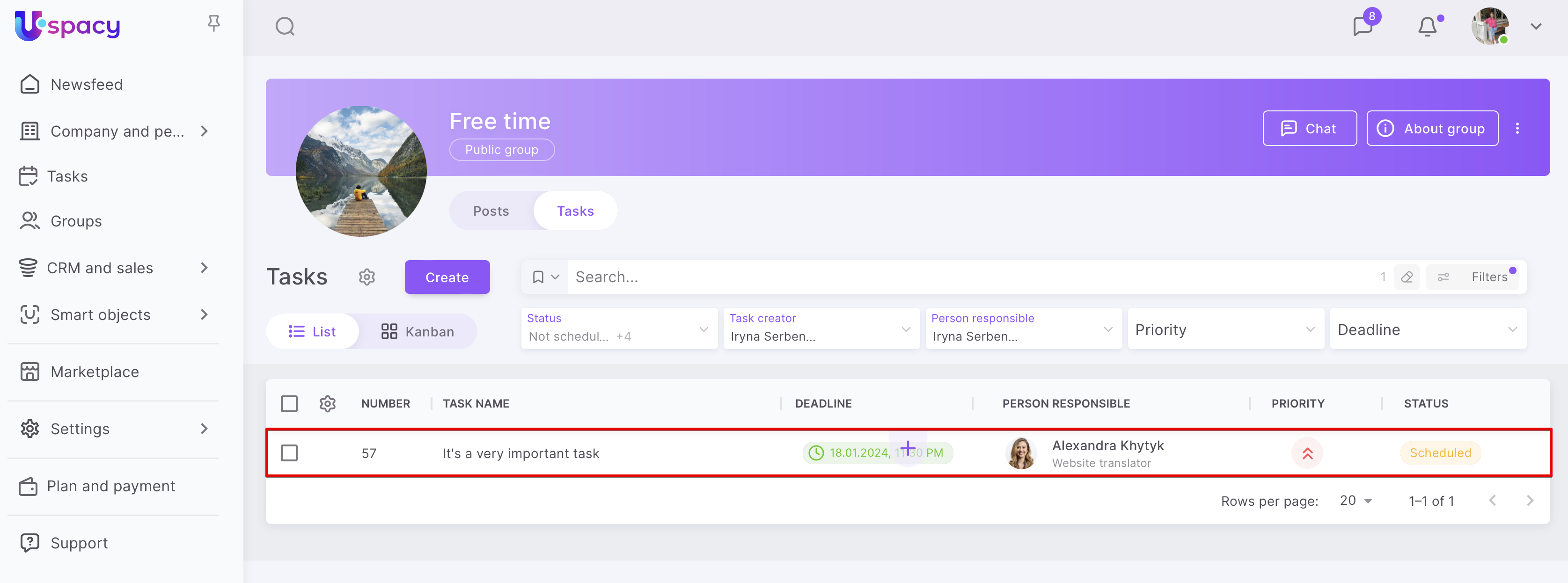
If you accidentally selected the wrong group or changed your mind about connecting a task to it, you can click on the cross to delete this connection.

🔍 You can read more about tools for working in groups in the following article.
The main task
At Uspacy, you can bind tasks to each other, define the main task and add subtasks for it.
In the creation form, you can make a task a subtask of some other task that already exists and is in progress.
To do this, you only need to fill out the Main task field. Use the search field or view the entire list. So you will find the task you need and make it the main one.

Click on it and it will be added to the field.

🔍 You can read more about work with subtasks in the following article.
Connections with CRM and Smart objects
If necessary, you can bind tasks to the required elements of the basic CRM entities. To do this, expand the corresponding block.

And specify the specific elements of the basic entities that you want to bind to the task.

Of course, if you added a lead, deal, contact or company to the field by mistake, you can remove them by clicking on the cross.

As a result, you can easily go from the task card to the related CRM element. To do this, just click on it.

The CRM element card will open. In its right dynamic part, the task will be displayed as a scheduled activity.
💡If it has the statuses Not scheduled, Scheduled, In progress, Stopped, Ready for review, it will remain active, that is, placed above the activity filter.

And only after completion, the task will move to the interaction history, that is, it will be placed under the filter.

In addition to basic entities, you can attach elements of smart objects you have created.

To display the corresponding block in the task creation form, at least one of the smart objects must support work with tasks. To do this, configure this option when creating or editing.

🔍 You can read more about how to work with smart objects in the following section of our knowledge base.
Time tracking in tasks
To determine and estimate how much time it can take to complete various types of work in the company, you can use time tracking. To do this, activate this option.

In order to inform the person responsible of the planned time consumption, you can specify the expected time for completing the task at once.

After creating a task, a tracker and a button to start will appear at the top of its card. As well as the Used time tab.

🔍 You can read more about how time tracking works in tasks in the following article.
Control after completion
At Uspacy, when creating a task, you can activate the Control after completion option.

After the person responsible has finished working on the task, then this task automatically gets the status Ready for review.

And then the task is ready to be checked by the task creator.

🔍 You can read more about the control of tasks after their completion in the following article.
Permission to delegate tasks
You can Allow the person responsible to delegate tasks when creating them.

The current person responsible can use the Delegate a task option at any time.

This will allow the person responsible to delegate the completion of tasks to other employees.
🔍You can read more on how to delegate tasks in the following article.
Frequency of tasks
It is convenient when it is possible to automate the creation of tasks of the same type. You don't need to fill out all the fields with the same information every time. It is enough to activate the option Make the task recurring. To do this, simply drag the toggle button and in the window that opens and configure the necessary parameters.
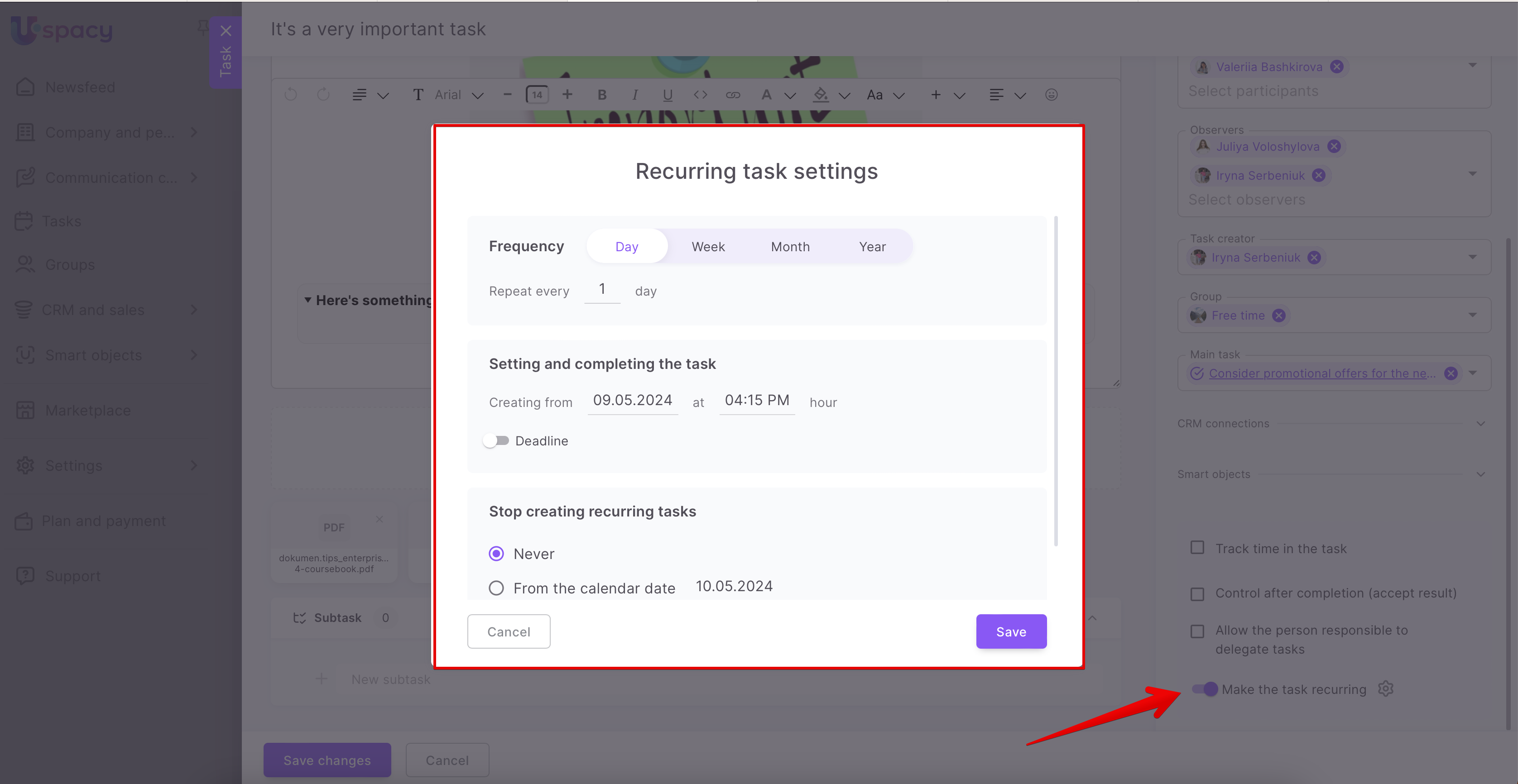
🔍You can read more on how to make the tasks recurring as well as how to create recurring tasks and also how to work with templates of such tasks in the following article.
How to finish task creation
When the necessary fields are filled out and all the planned settings are configured, do not forget to click on the Create a task button.

Done! You can start working on the task.

It will appear in your task list or on the board.

If you have additional questions or you need to contact the support, send a request to this email [email protected]
Created: March 30, 2023 / Updated: May 8, 2024