Facebook Lead Ads are one of the fastest ways to collect inquiries. However, the manual work often begins afterward—copying data from the form and creating a record in your CRM. Integration through Make eliminates these manual steps. A Facebook lead can automatically appear in Uspacy as the appropriate CRM entity and immediately become part of your sales funnel.
So, how do you integrate Facebook lead forms with Uspacy via Make.com?
Let’s walk through the process step by step ⬇️
Preparation
Before building the scenario, make sure to:
- Install the Make app in your Uspacy Workspace.
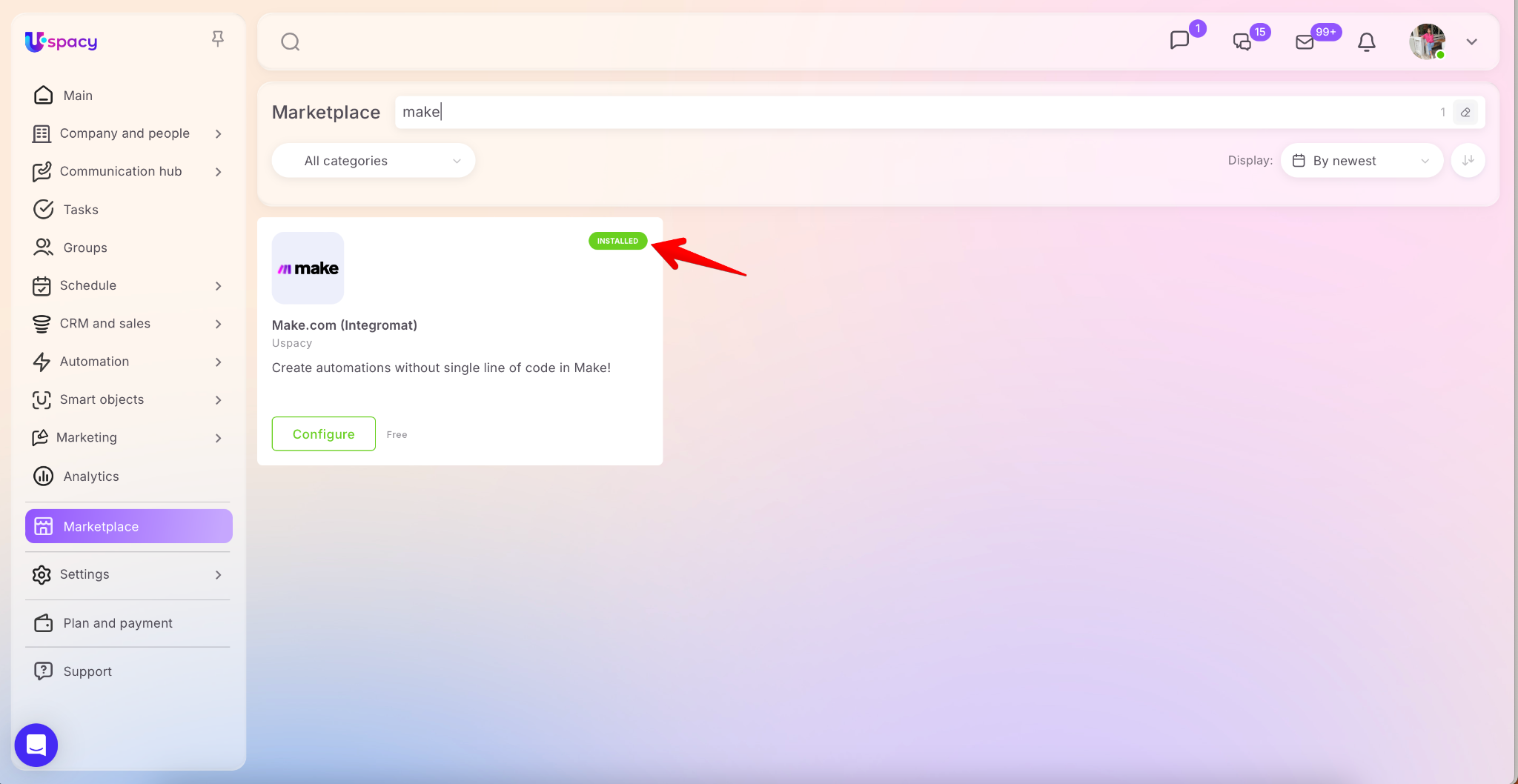
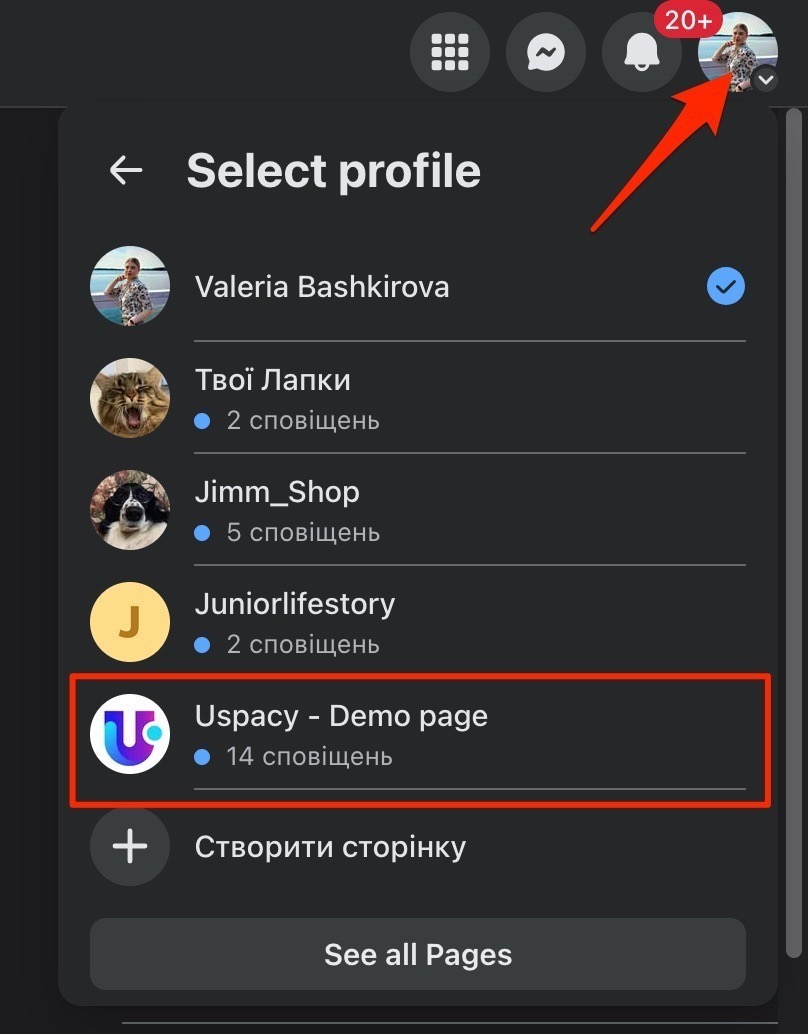
2. Log in to your Facebook account in your browser—the account that manages your business page.
Setting up the scenario
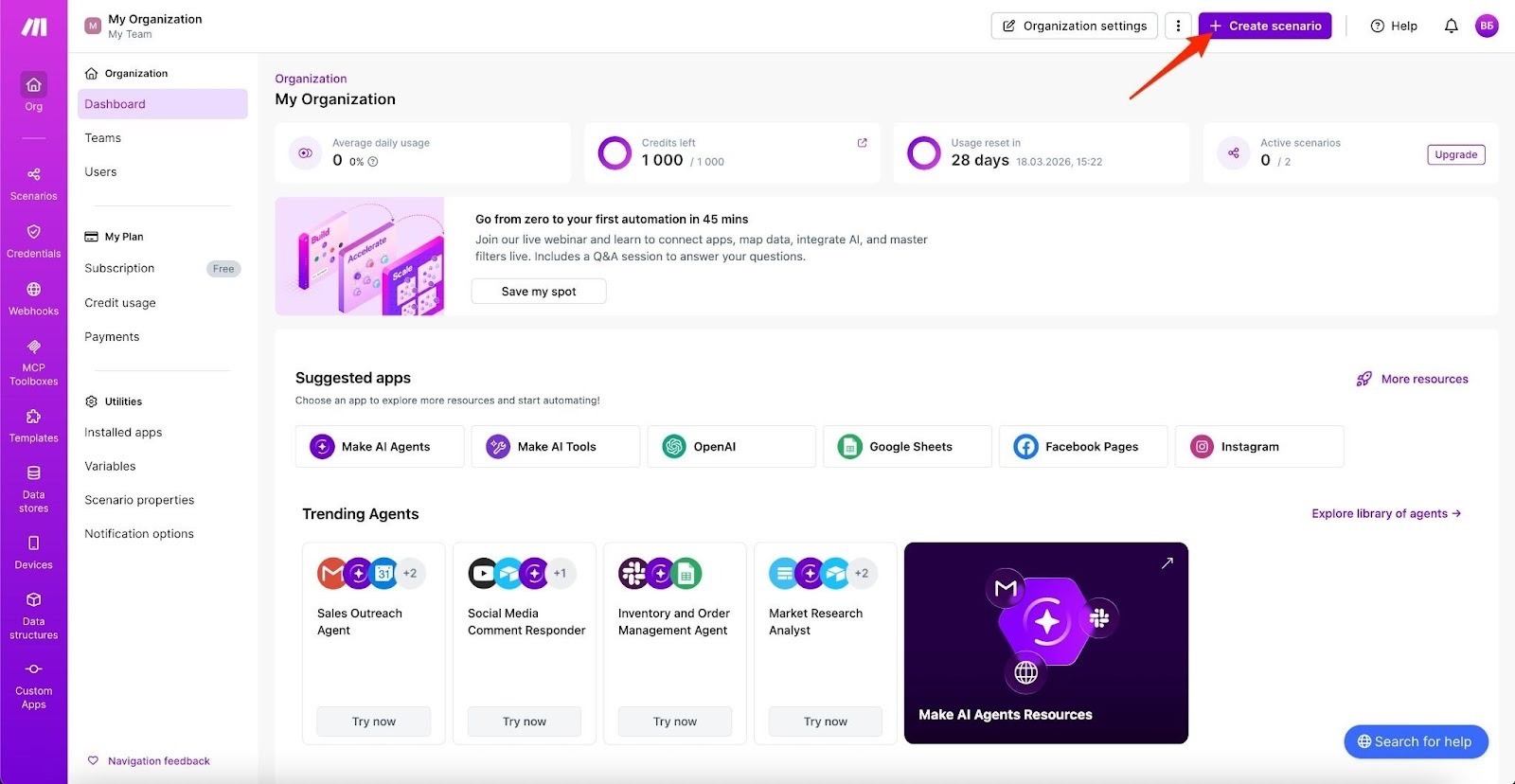
Log in to your Make.com account and click Create a scenario.
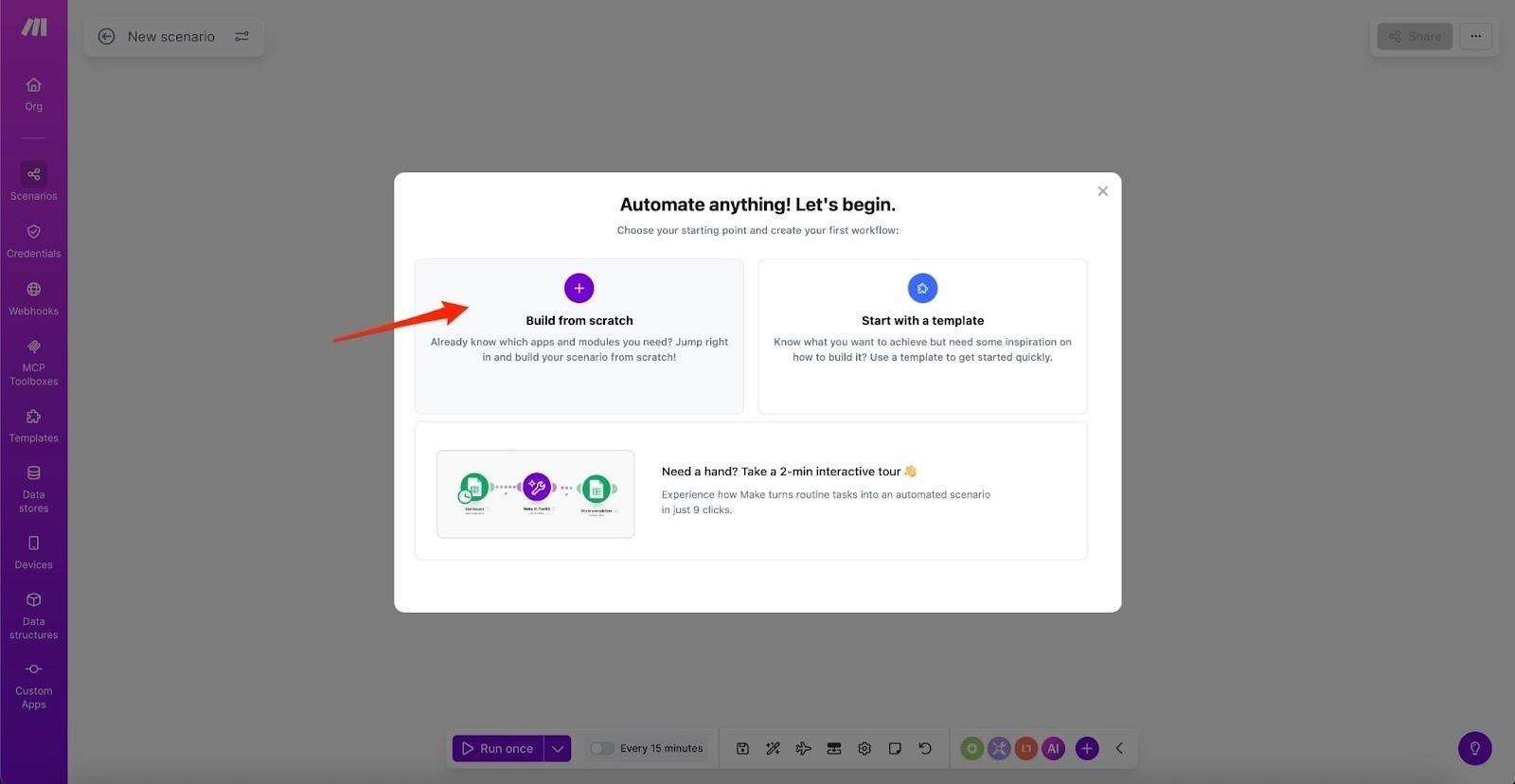
Select the option to build a scenario from scratch.
Capturing leads from Facebook
The first step is to configure lead capture from your Facebook form. In the list of available apps, search for Facebook Lead Ads – New Lead.
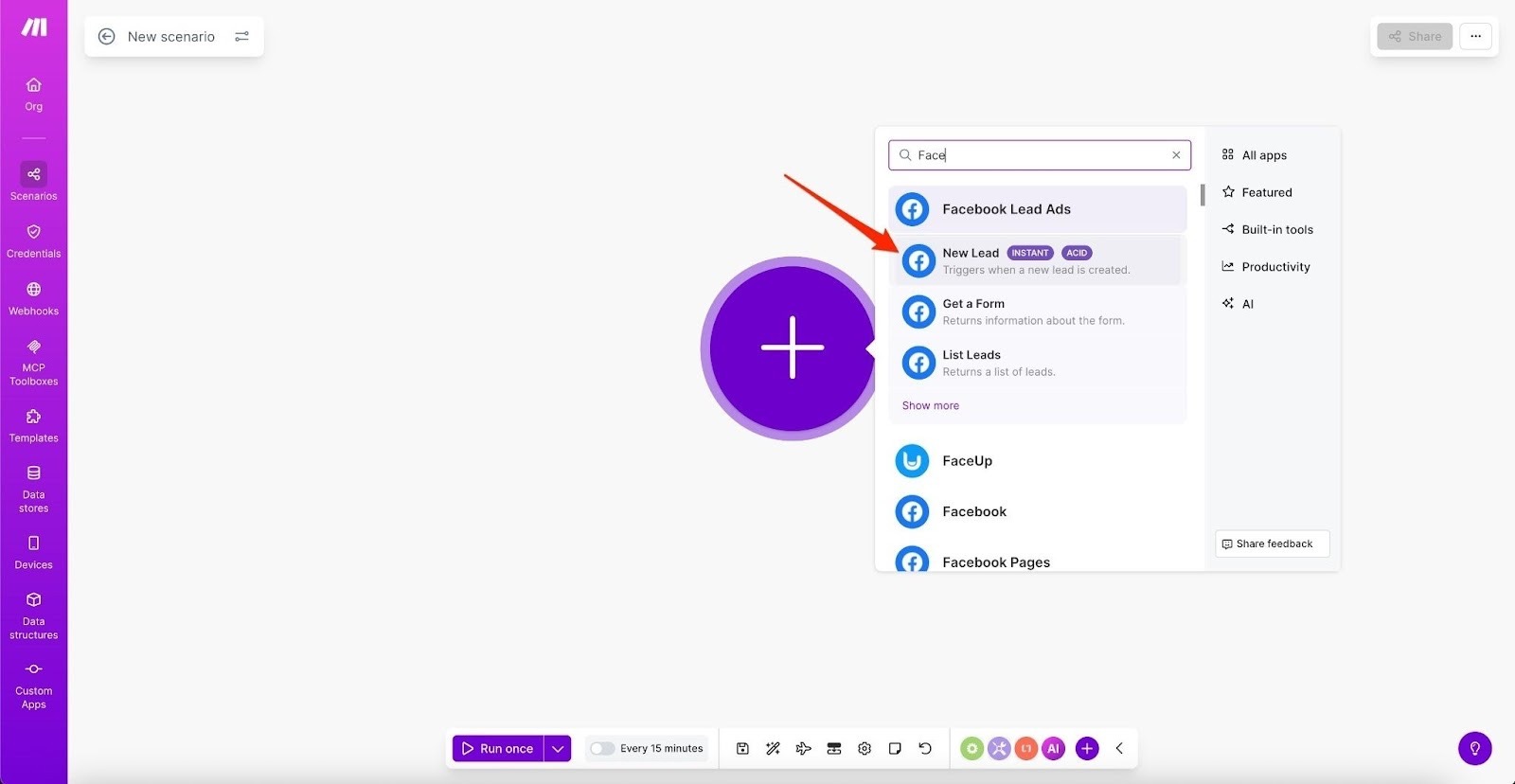
Click Create a webhook.
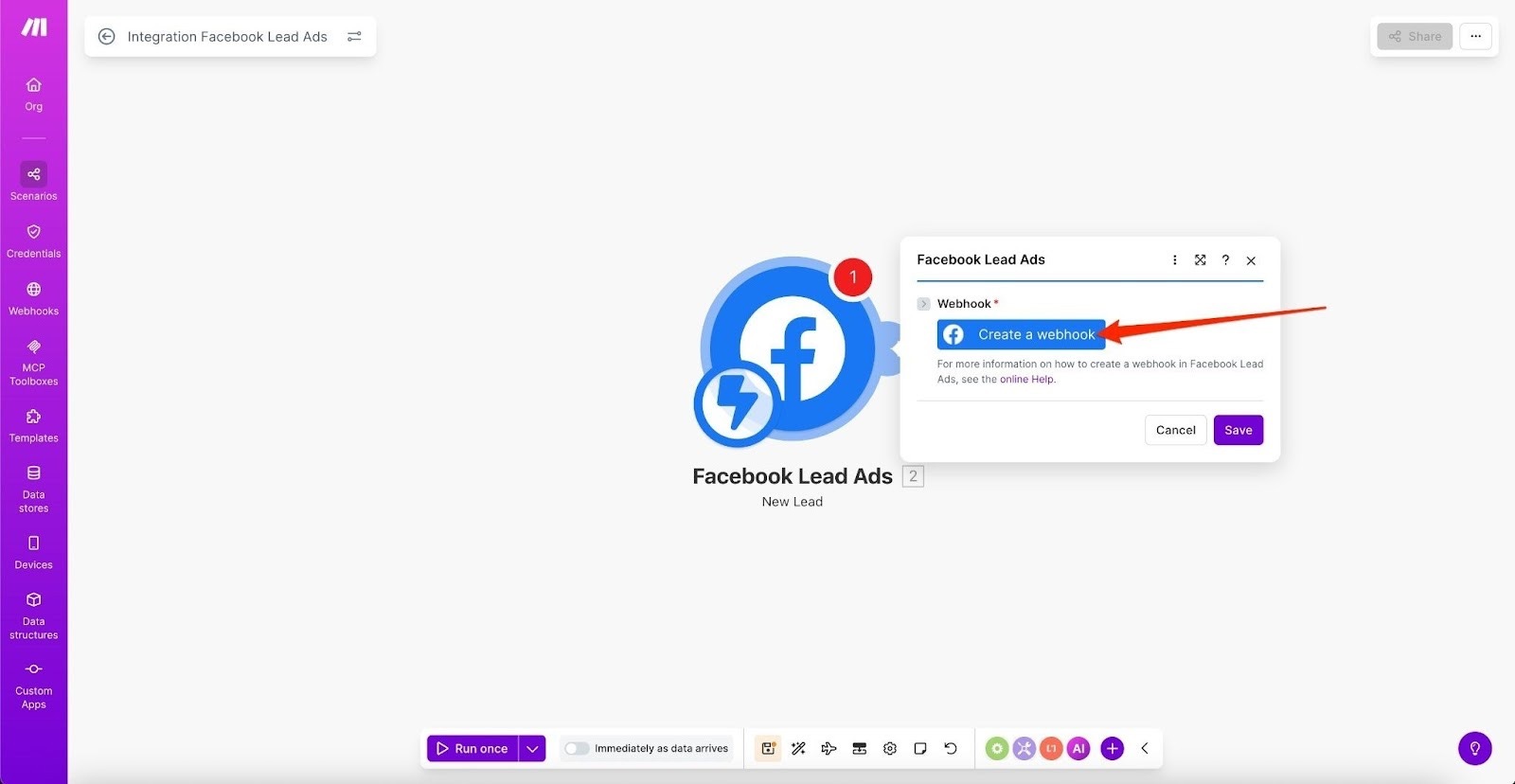
Enter a name for the webhook and click Create a connection.
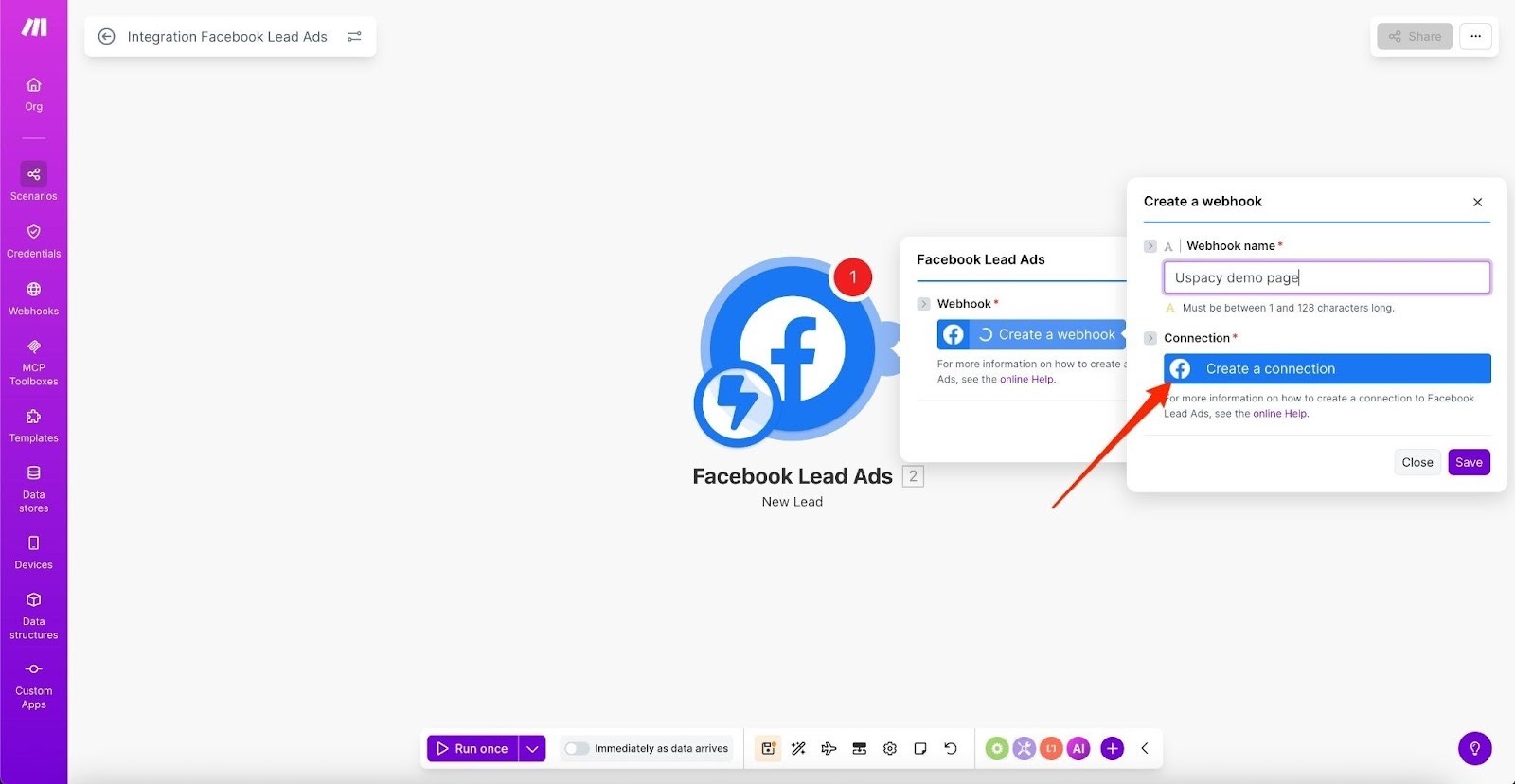
Name the connection and click Save.
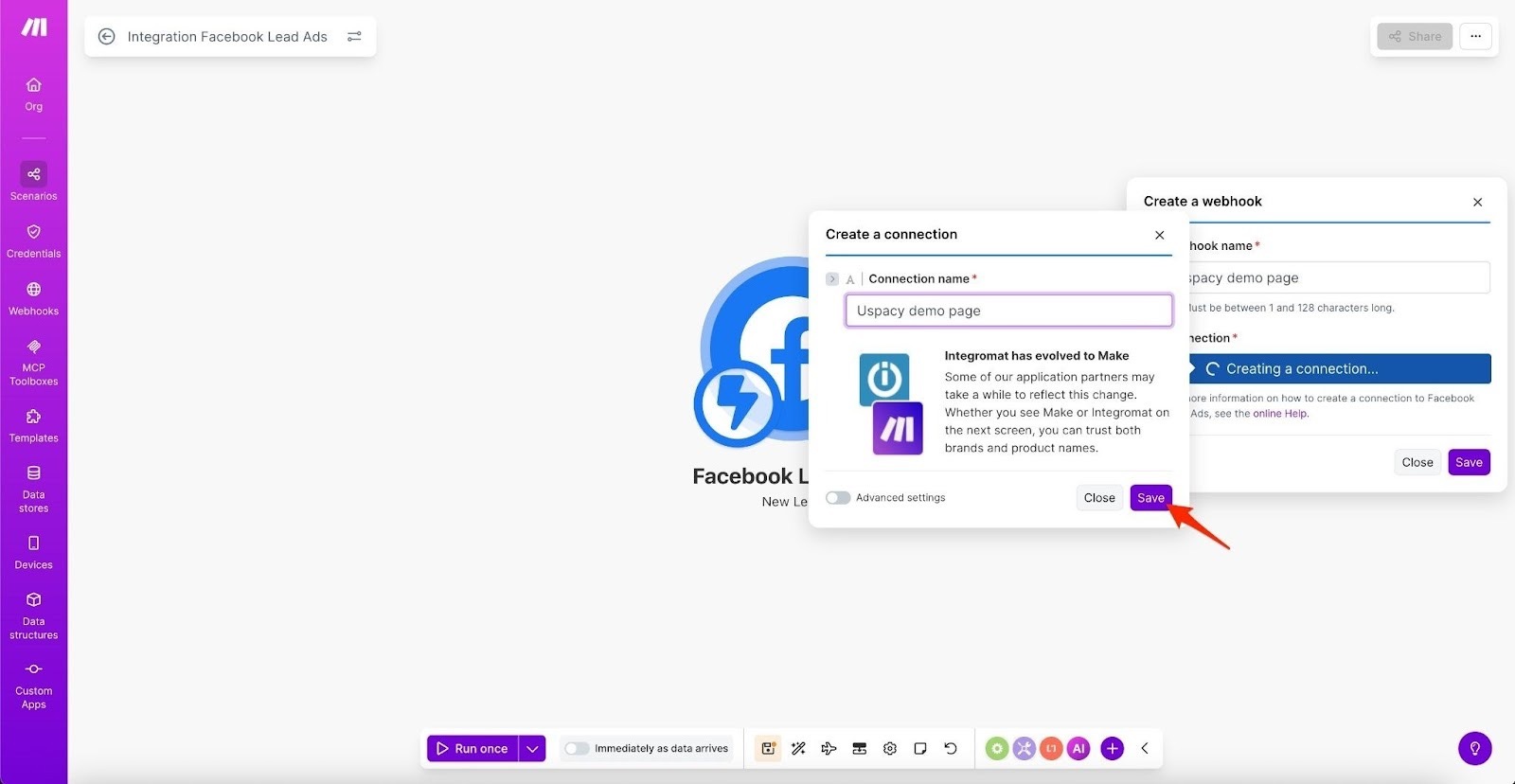
Make will now request access to the Facebook account that manages your business page. Grant the required permissions in the pop-up window.
In the Connection field, you will see a list of your Facebook business pages—select the appropriate one.
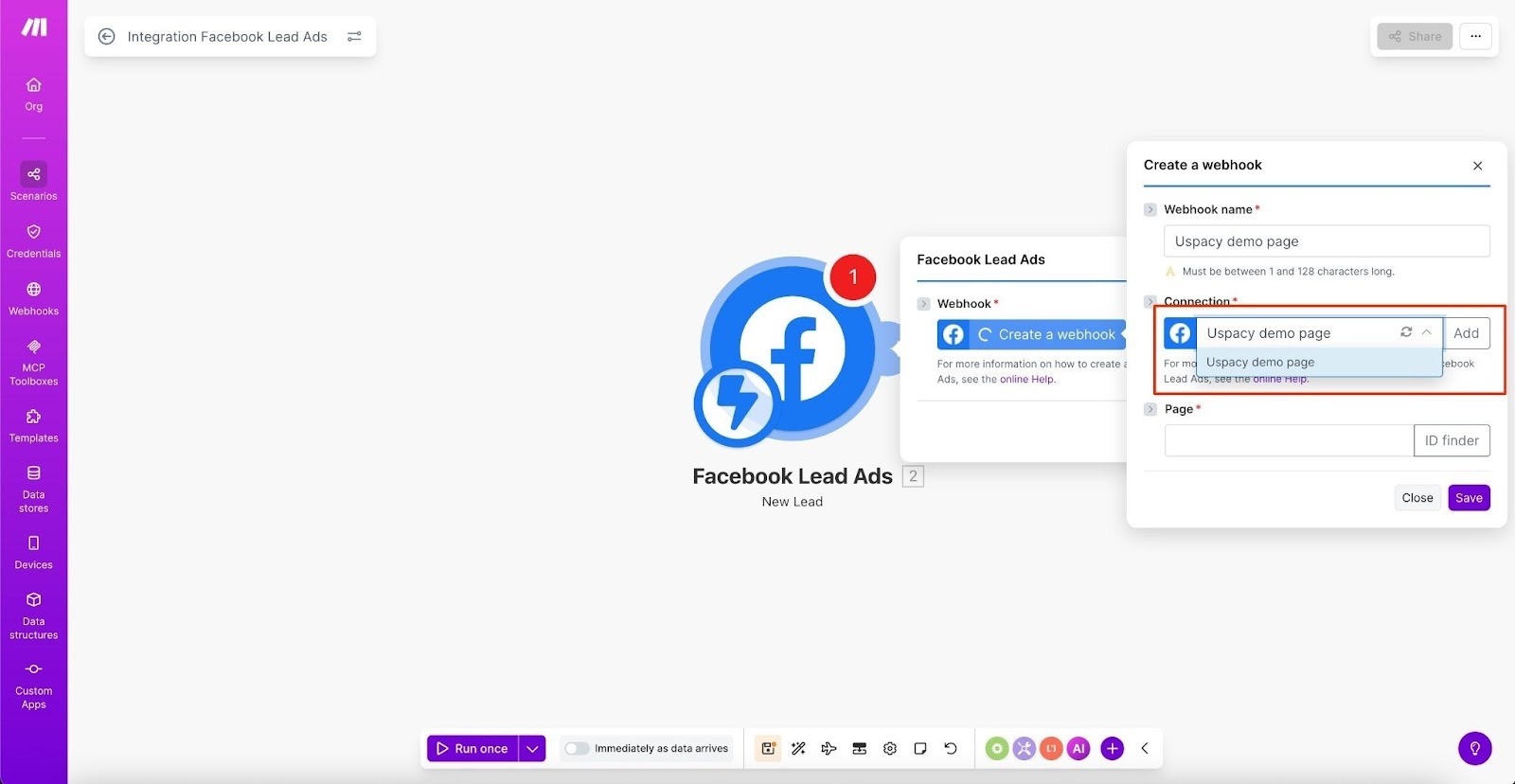
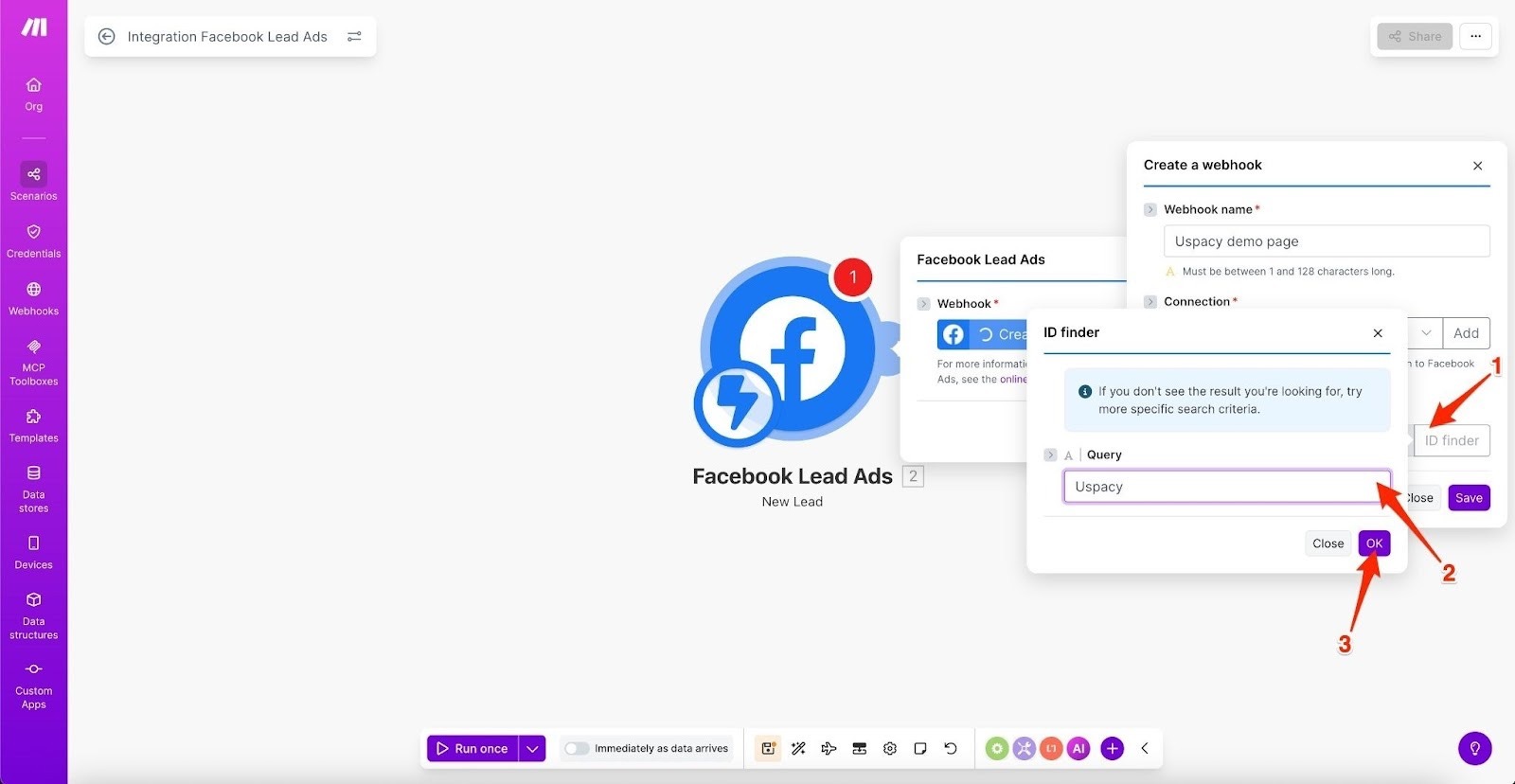
☝🏻If the Page ID does not populate automatically, use ID finder to search by page name.
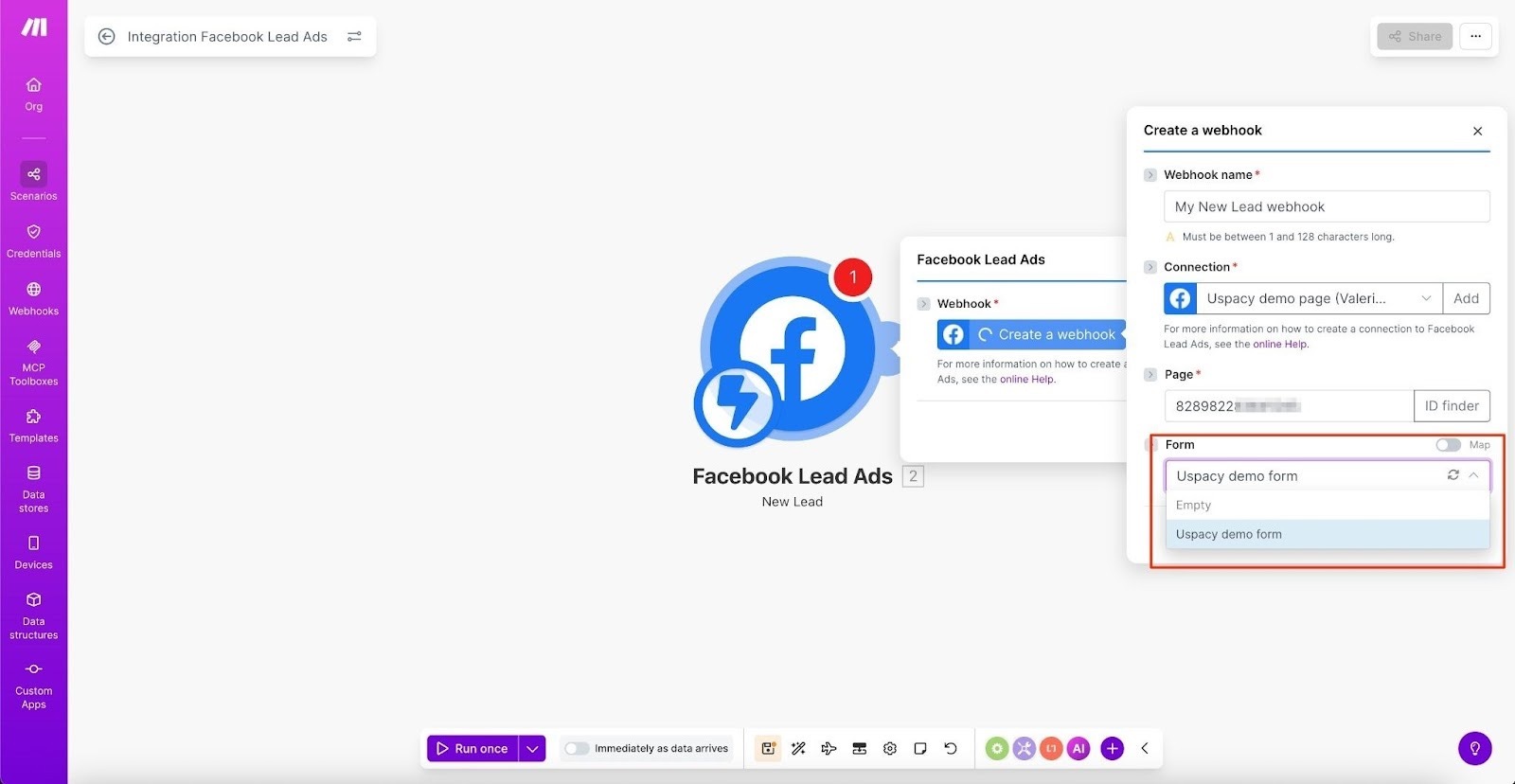
Next, in the Form field, select the appropriate Facebook lead form.
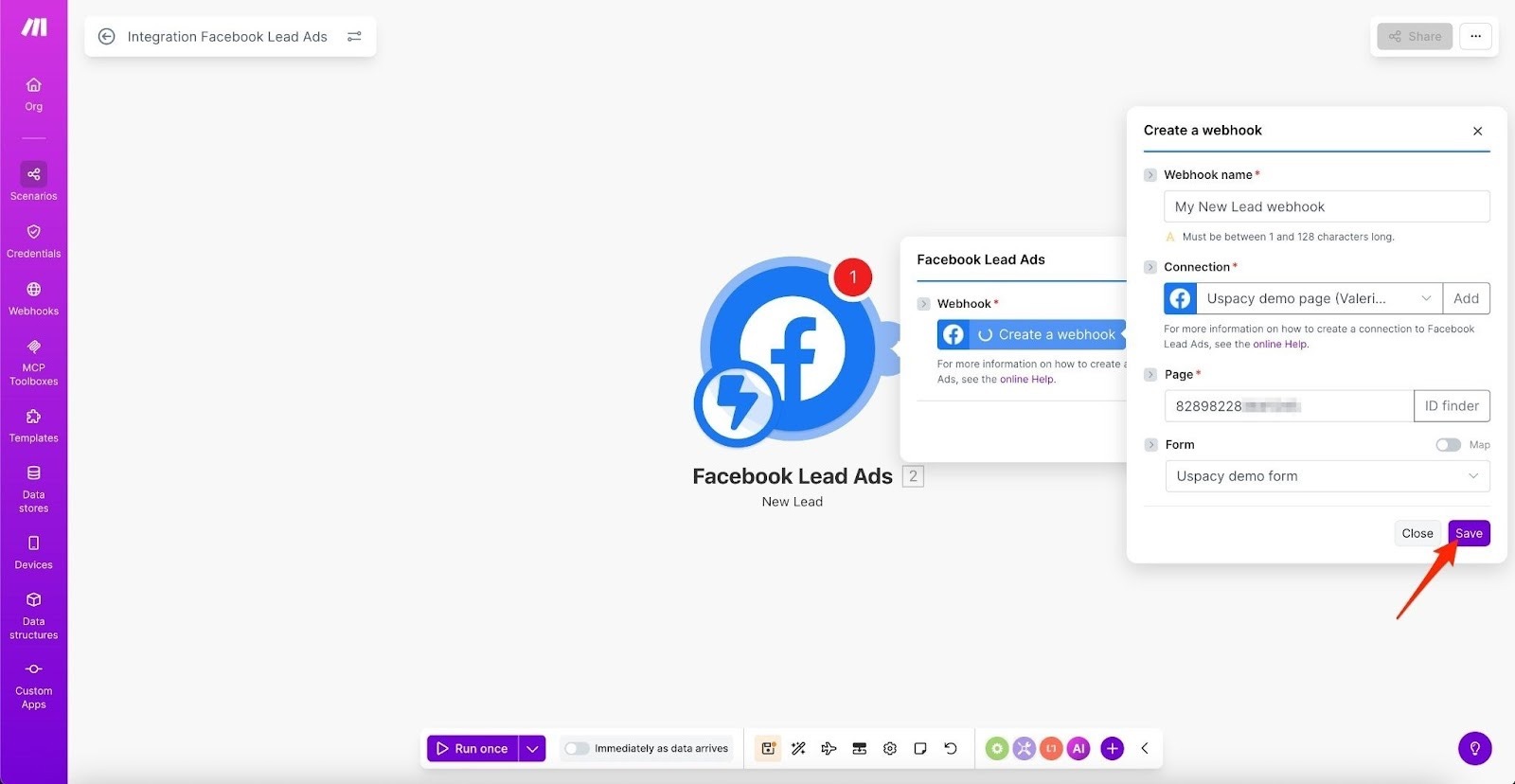
Once everything is configured, click Save.
Finally, select the form fields you want to use. Check the relevant boxes and click Save.
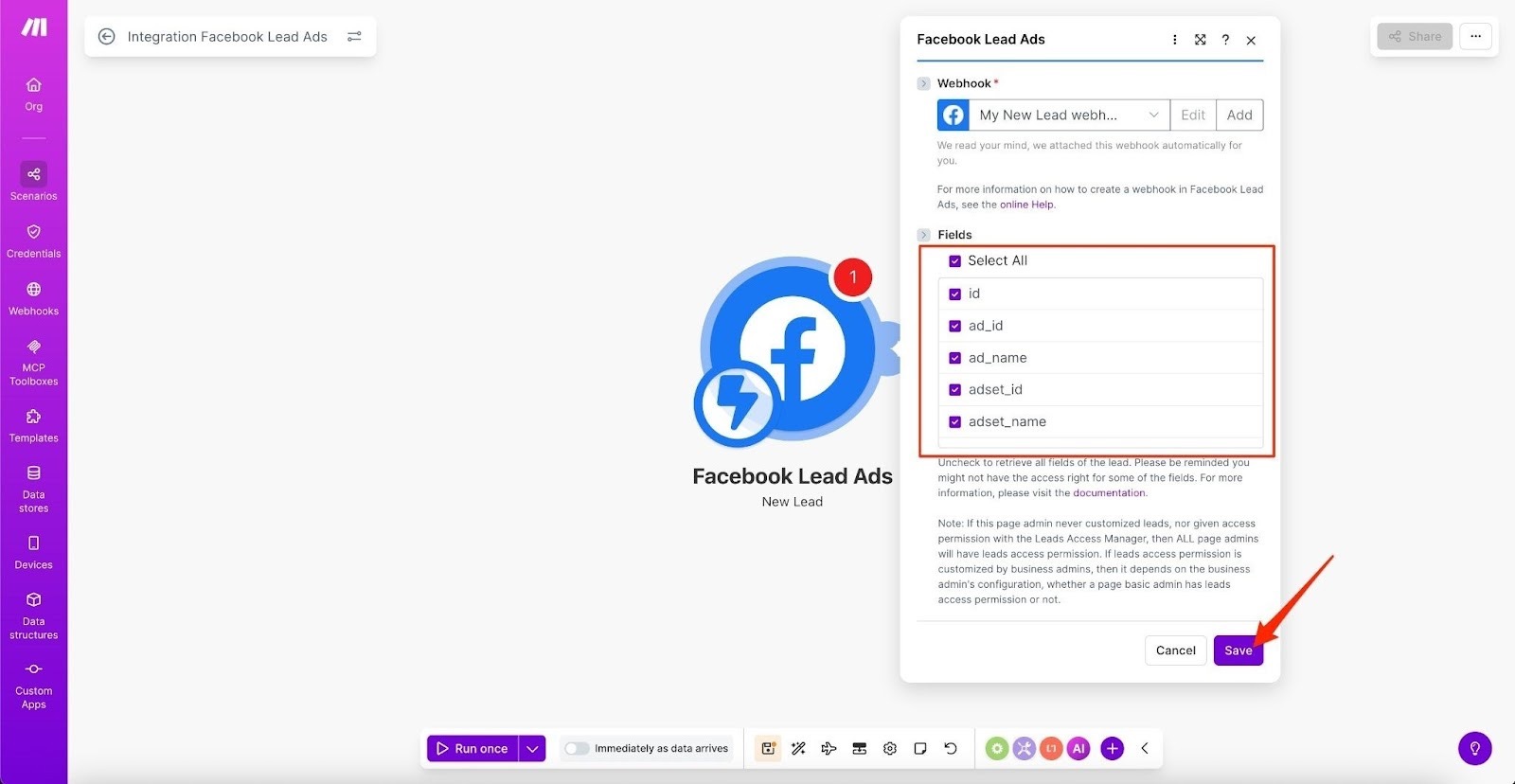
The first step is now successfully configured ✅
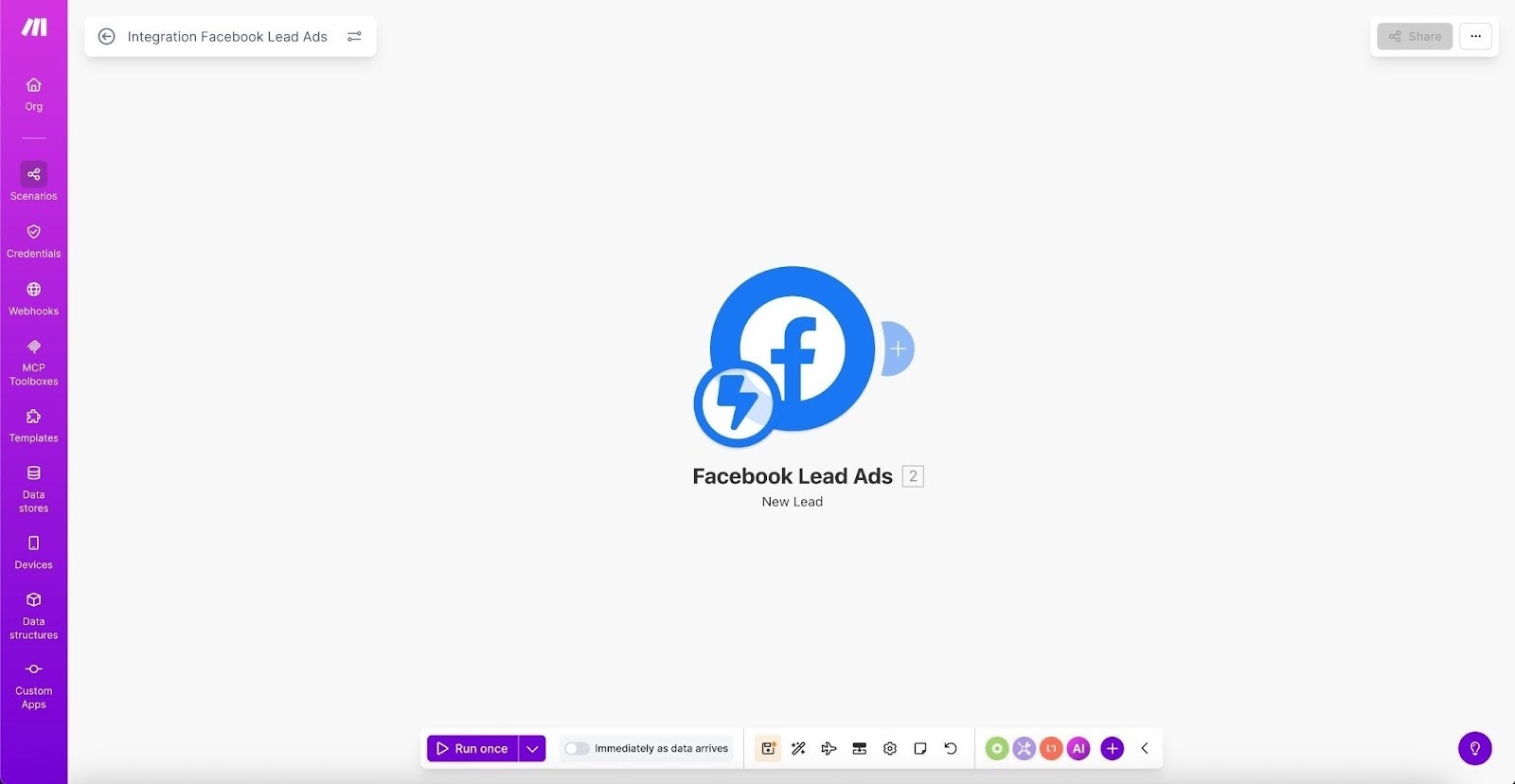
Sending leads to Uspacy
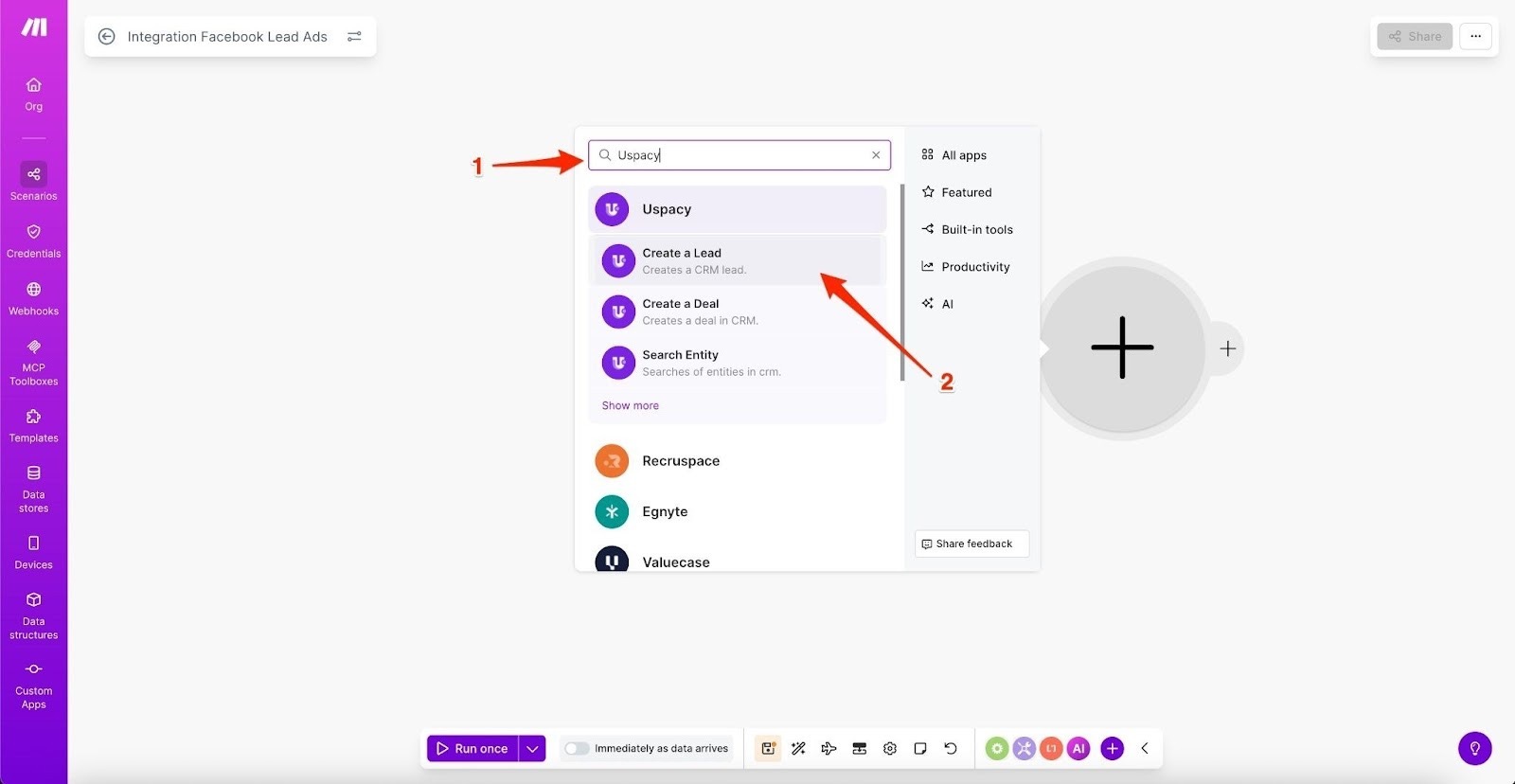
Now add another step to the scenario. In the list of available apps, search for Uspacy – Create a Lead.
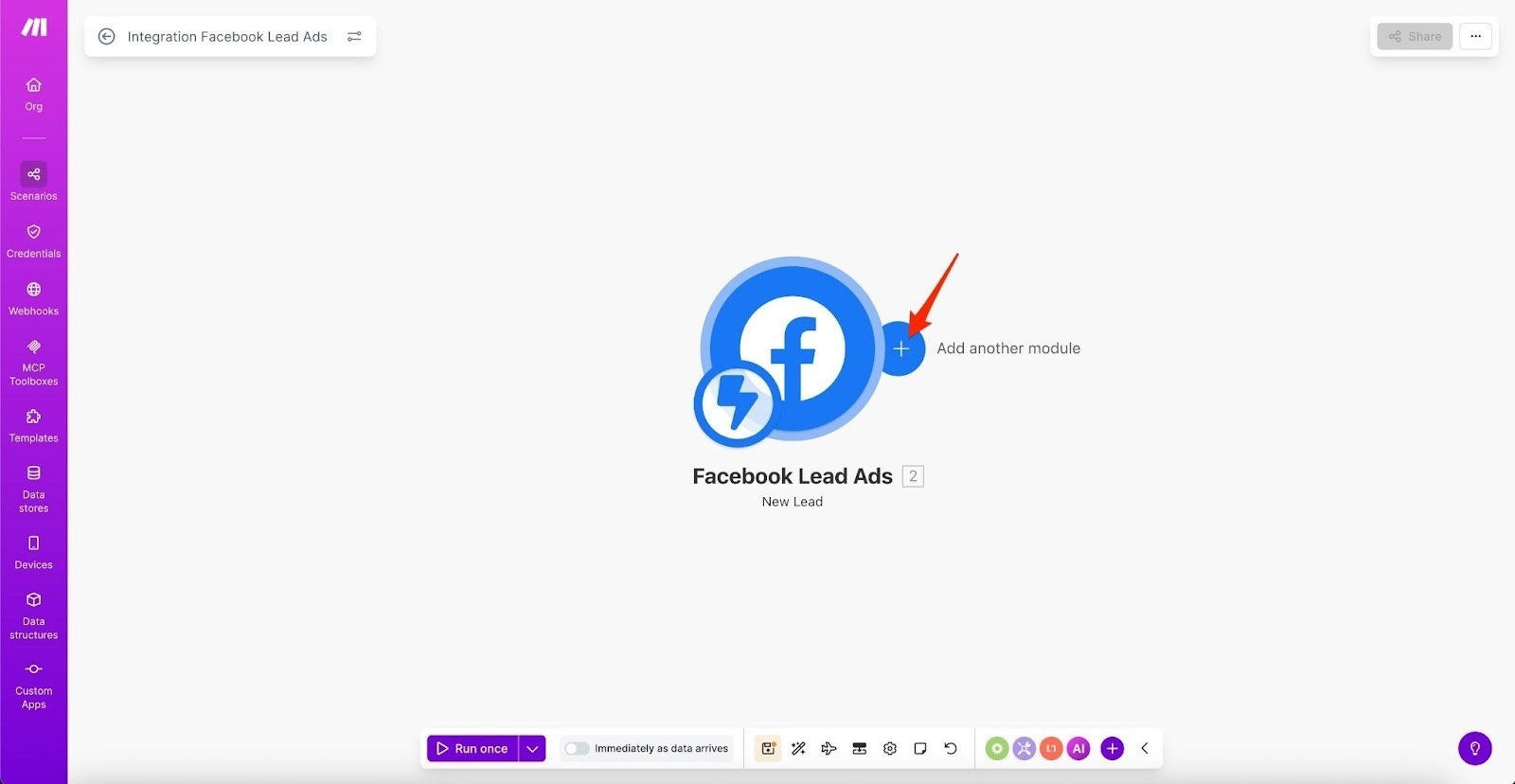
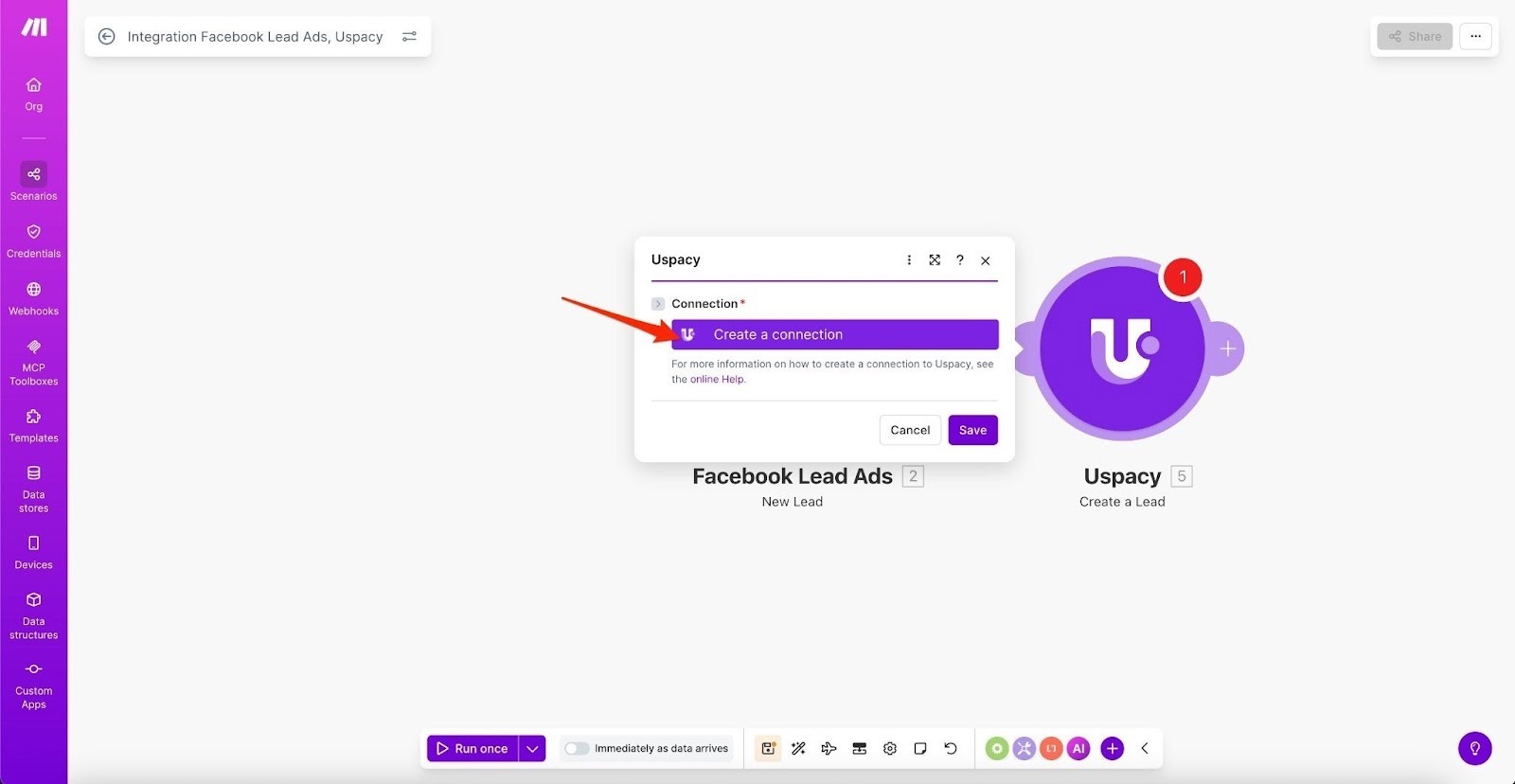
Click Create a connection.
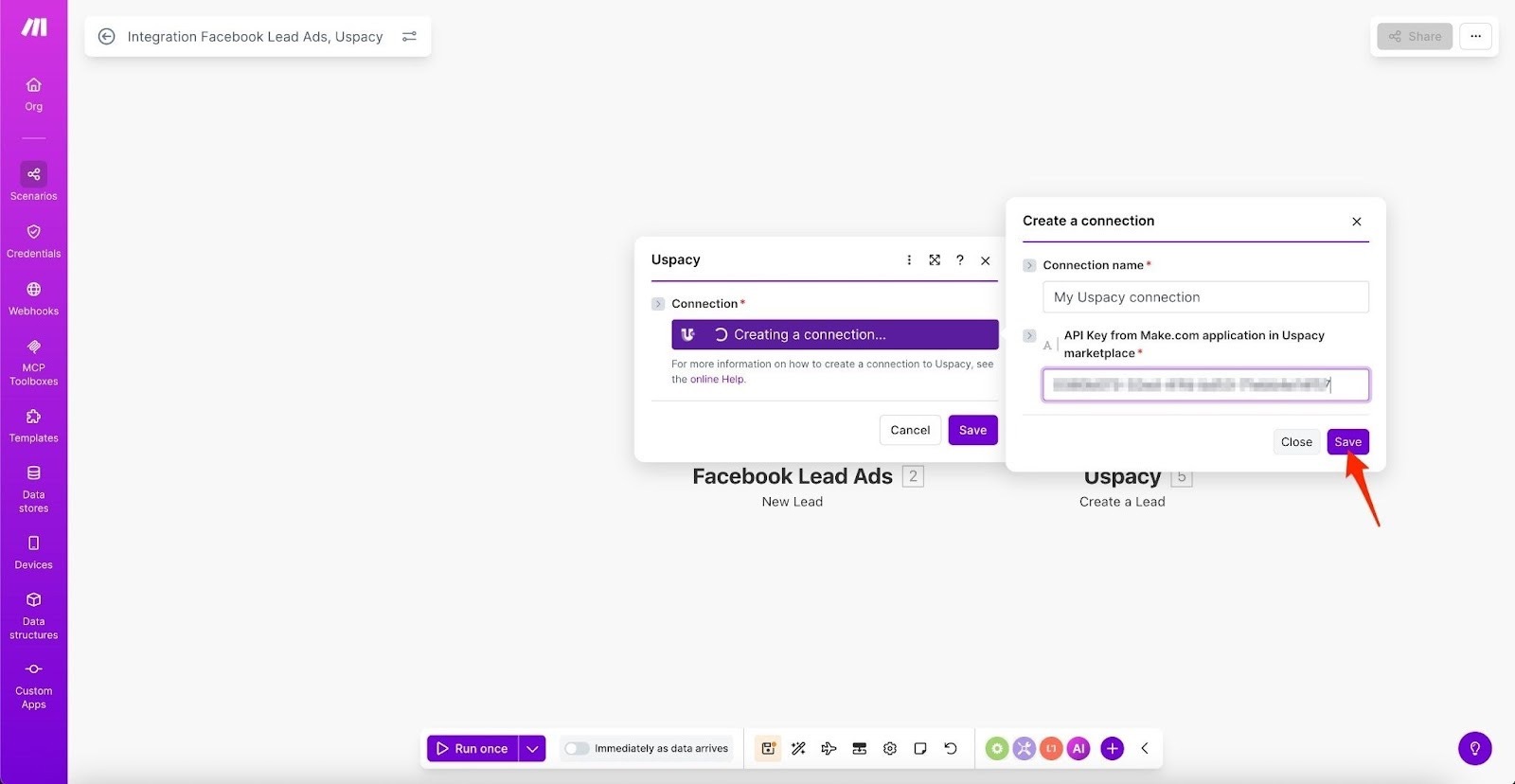
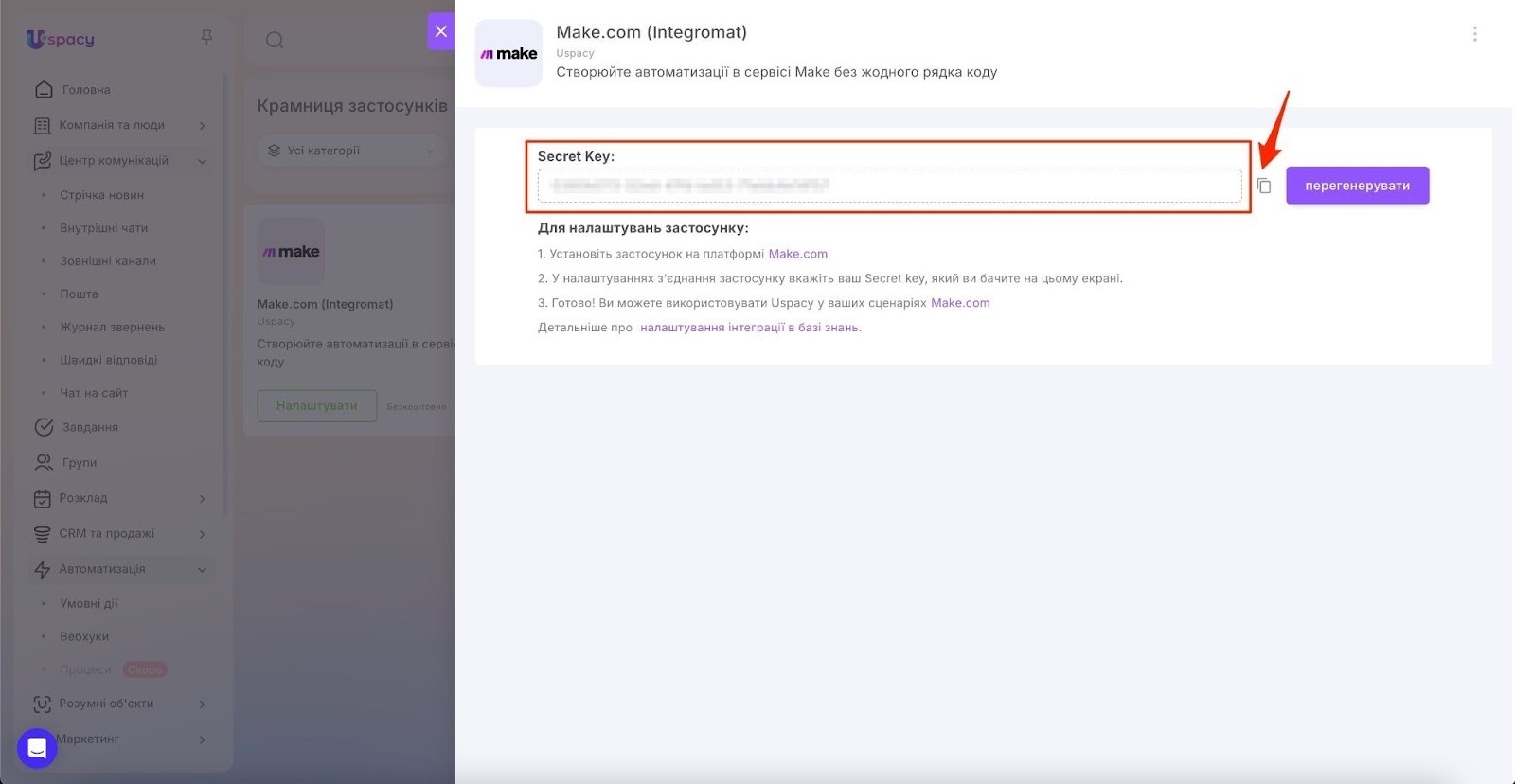
Name the connection, enter the API Key from the Make app in your Uspacy Workspace Marketplace, and click Save.
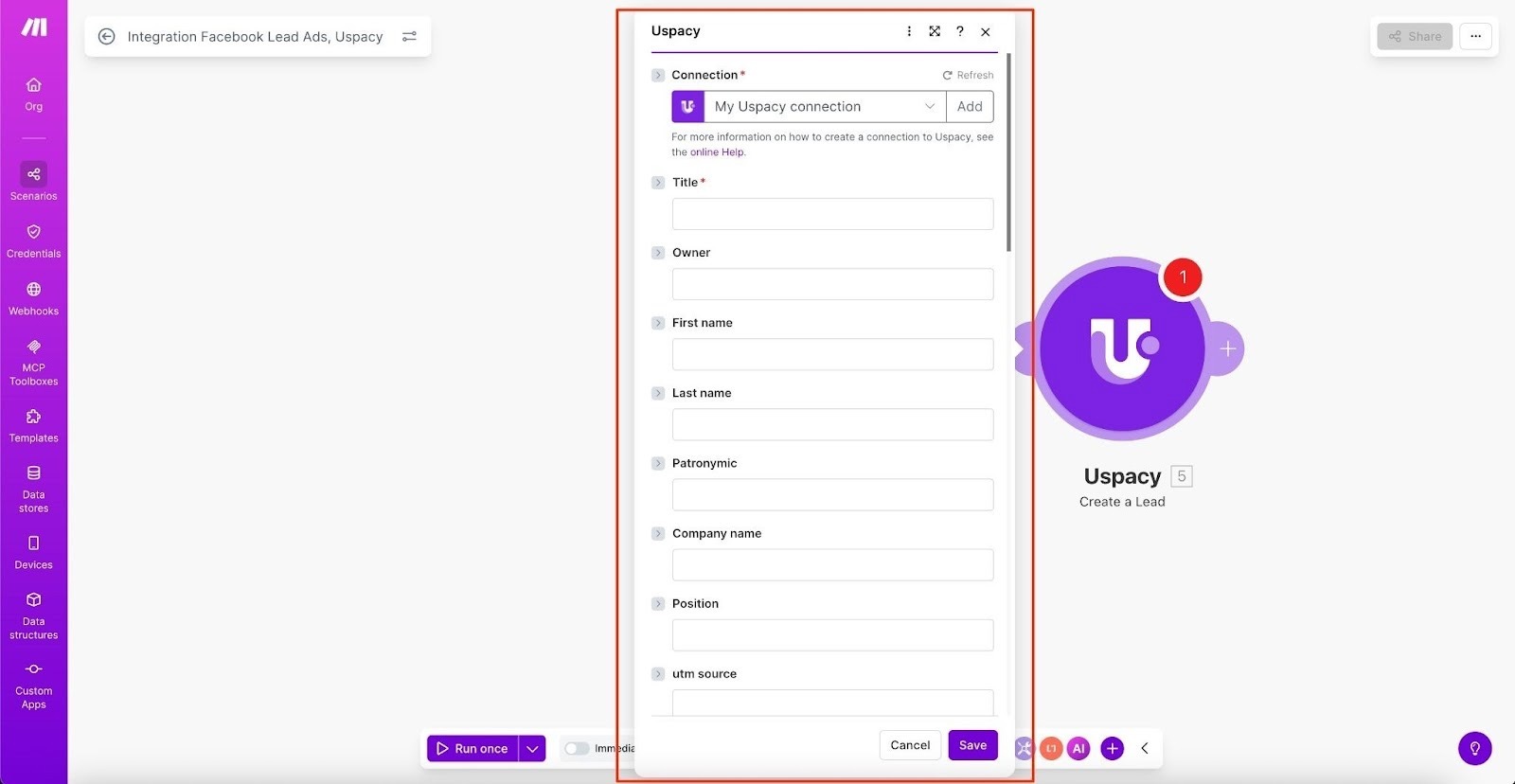
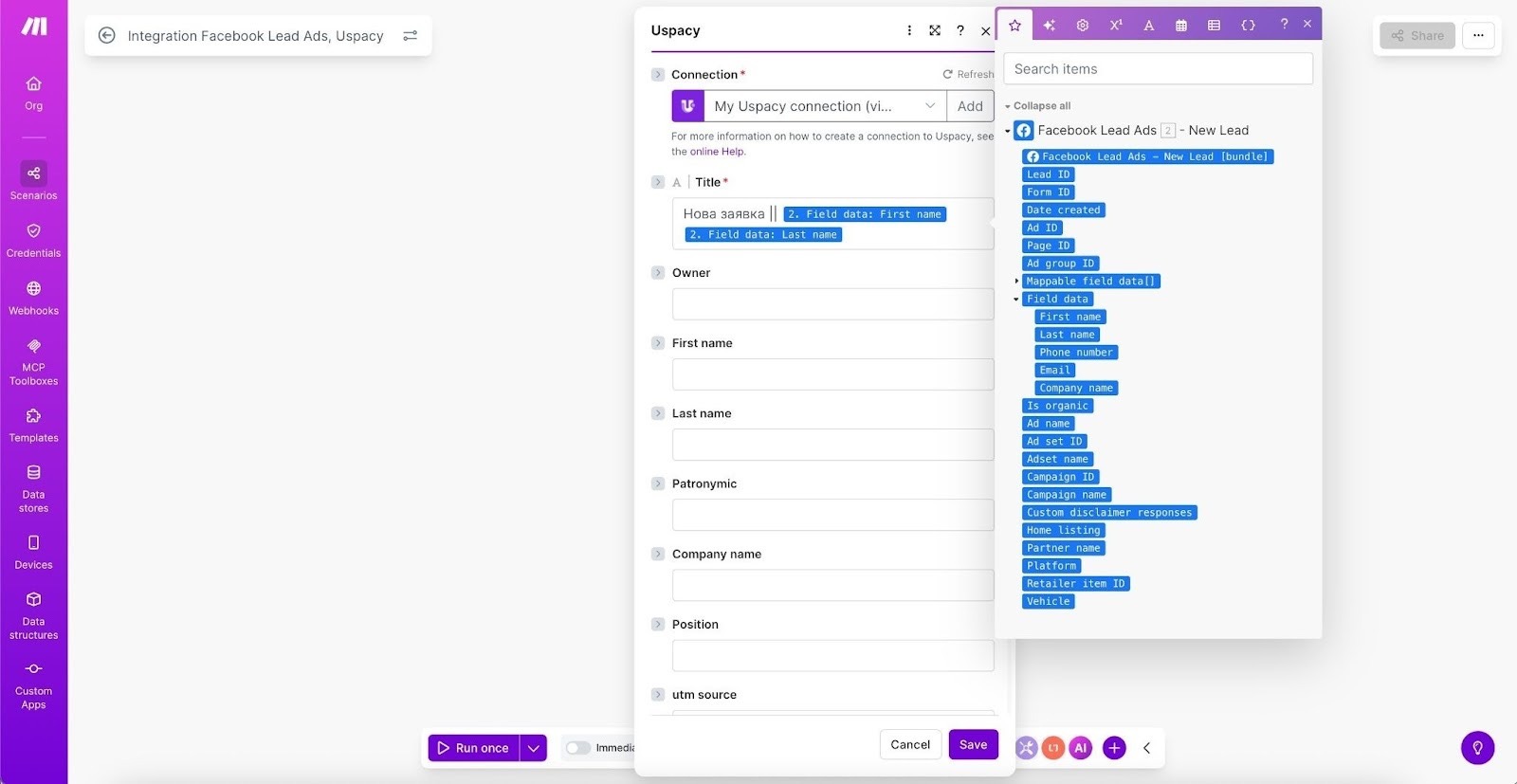
Next, configure field mapping. Select which Uspacy lead fields will receive the data submitted in the Facebook form. If necessary, assign static values to certain fields.
💡 Example:
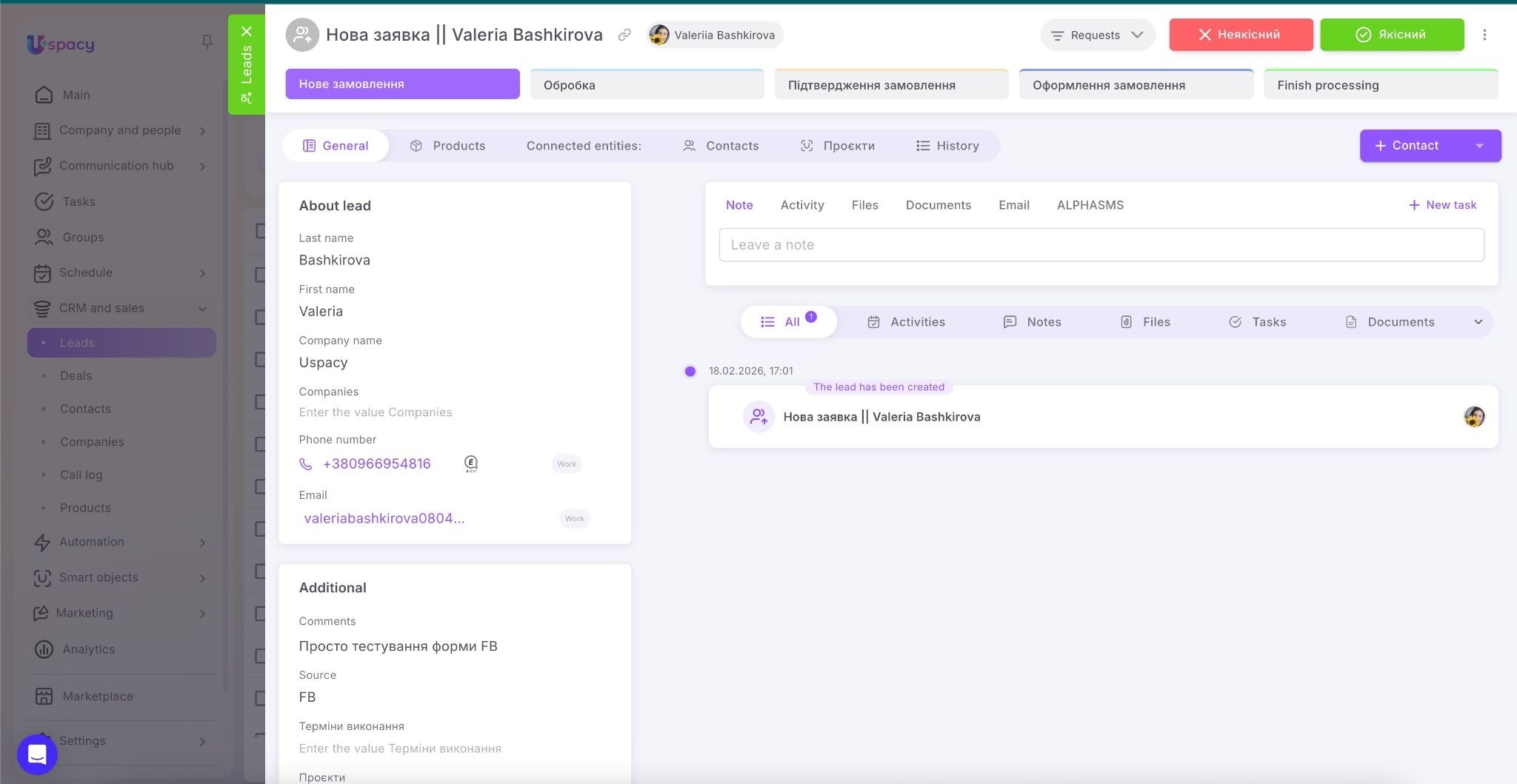
In the Title field, you can create a combined value: Start with fixed text such as “New inquiry ||” followed by the first and last name submitted in the Facebook form.
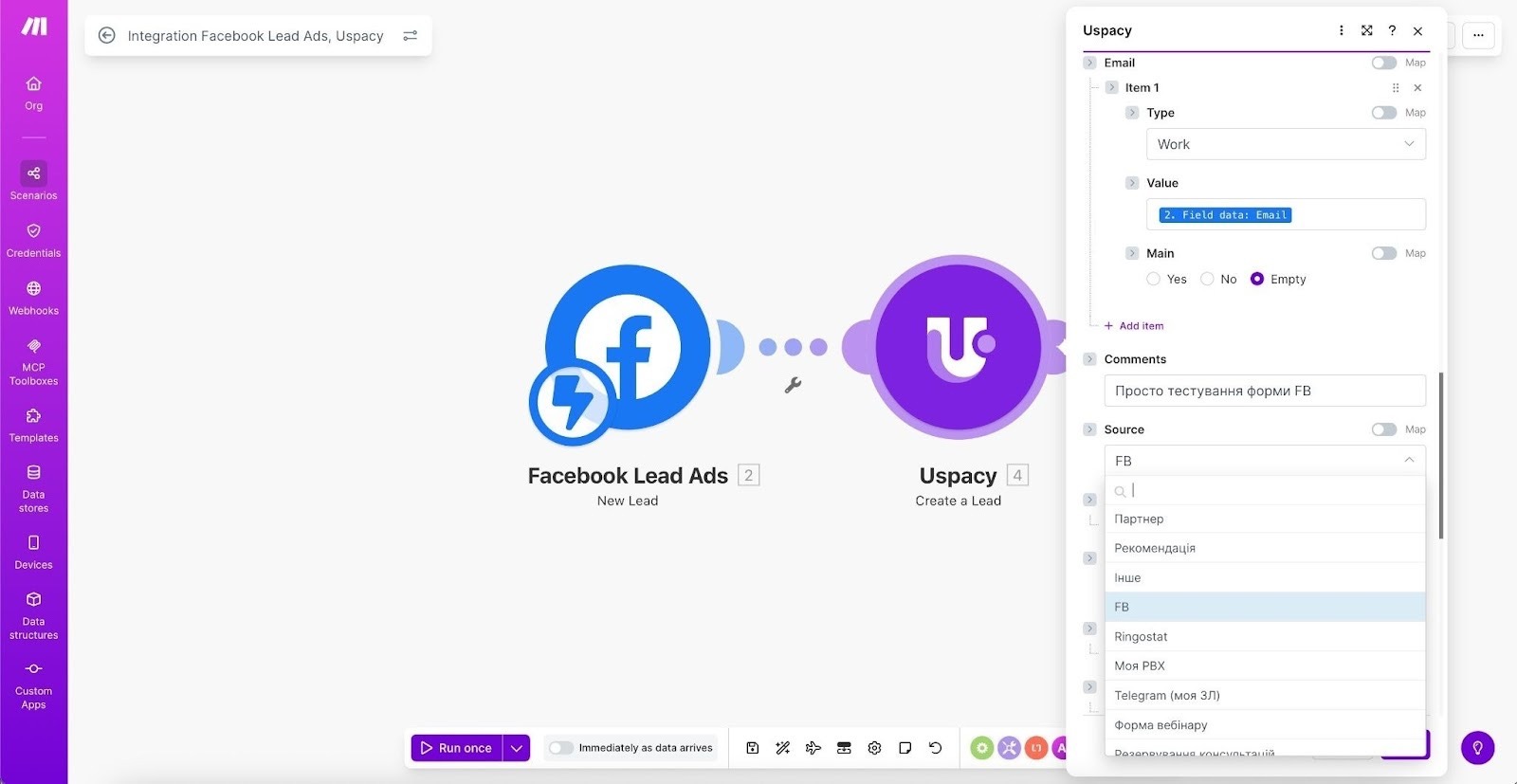
For the Source field, you can set a static value—for example, FB. The available options come from the Source field values configured in your Workspace. As a result, all leads created through this integration will have the same source.
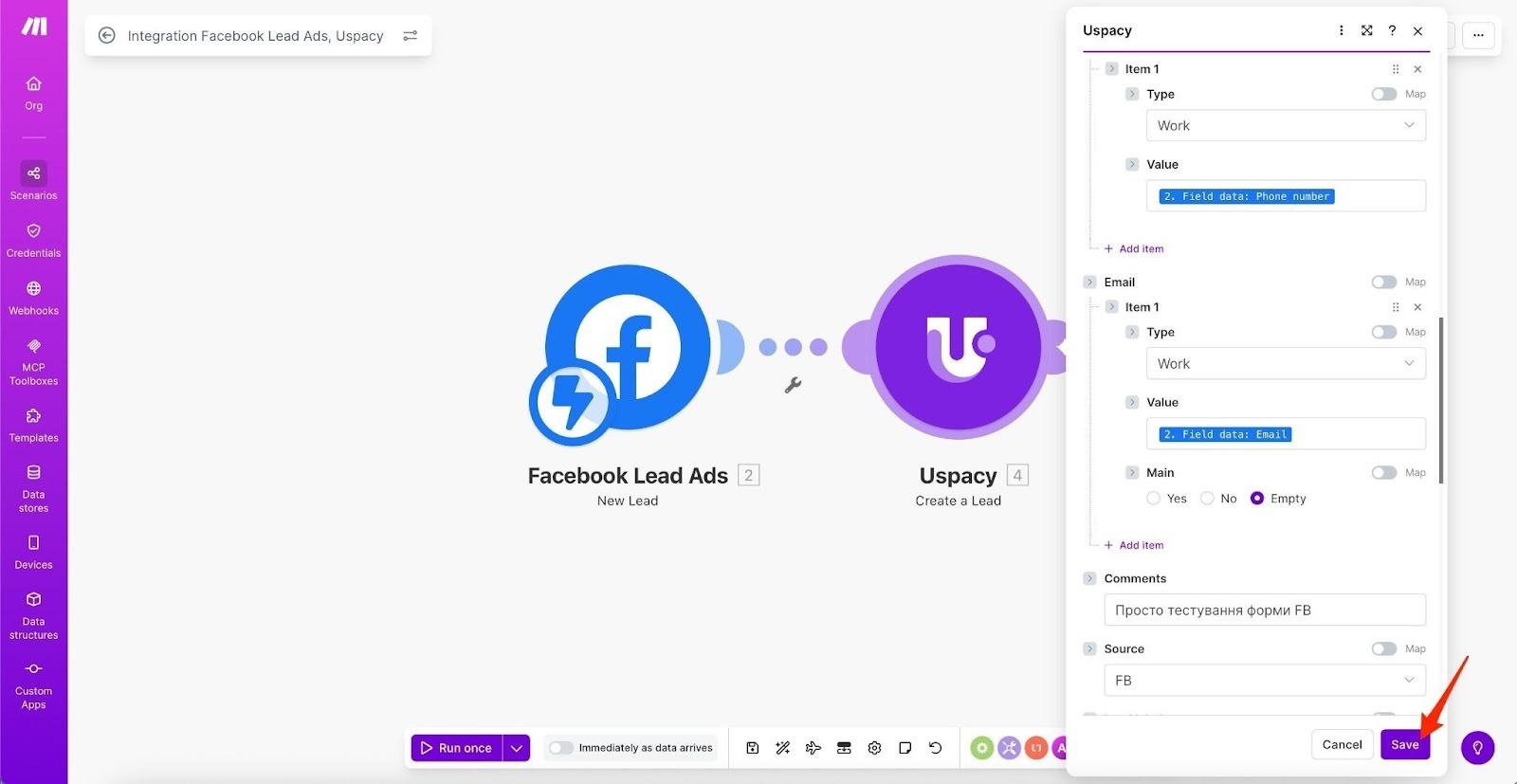
Once everything is configured, click Save.
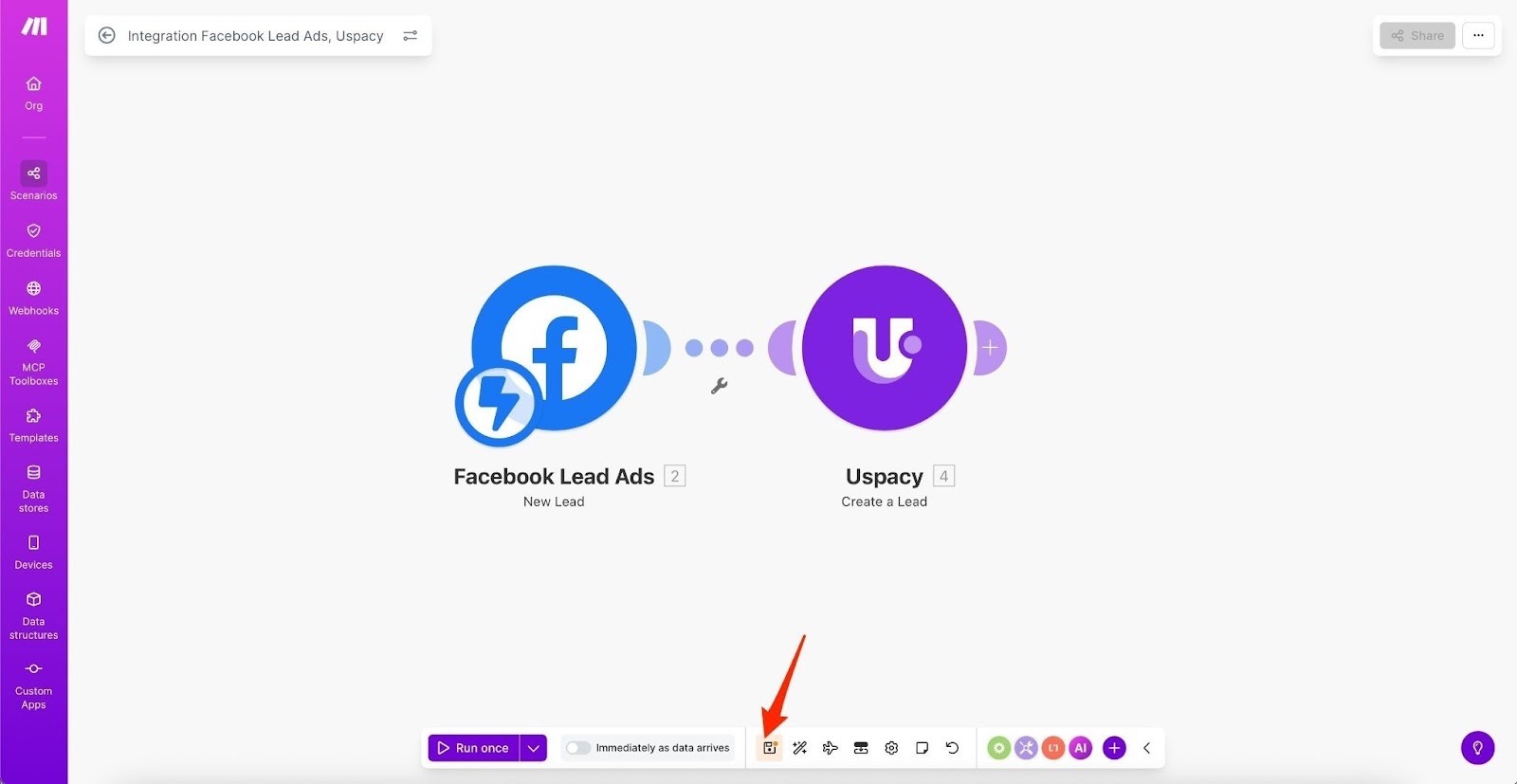
Don’t forget to save the entire scenario to activate and use it.
Testing and results
You can set a schedule for the scenario to run automatically (for example, Immediately as data arrives).
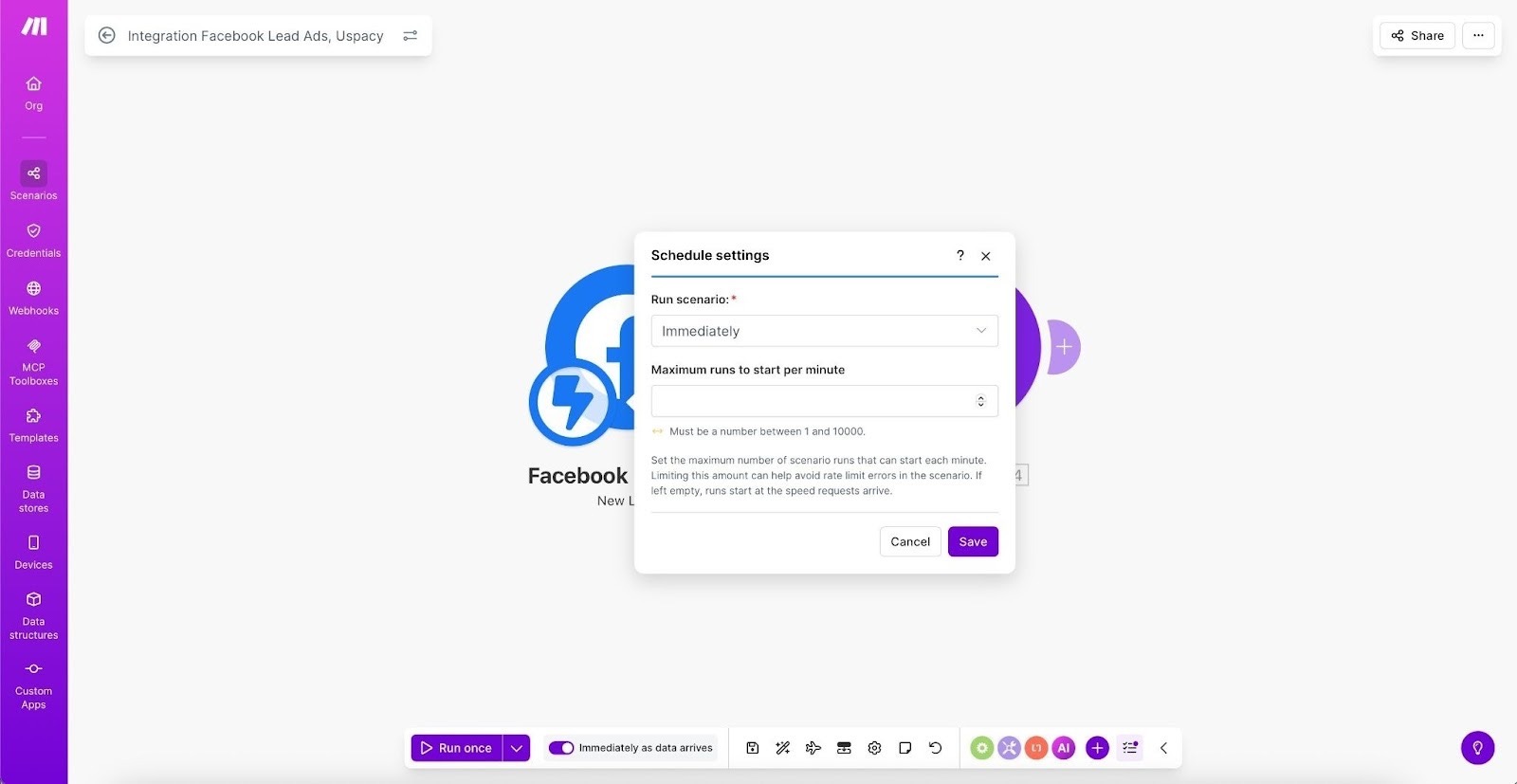
Alternatively, you can test it manually by clicking Run once.
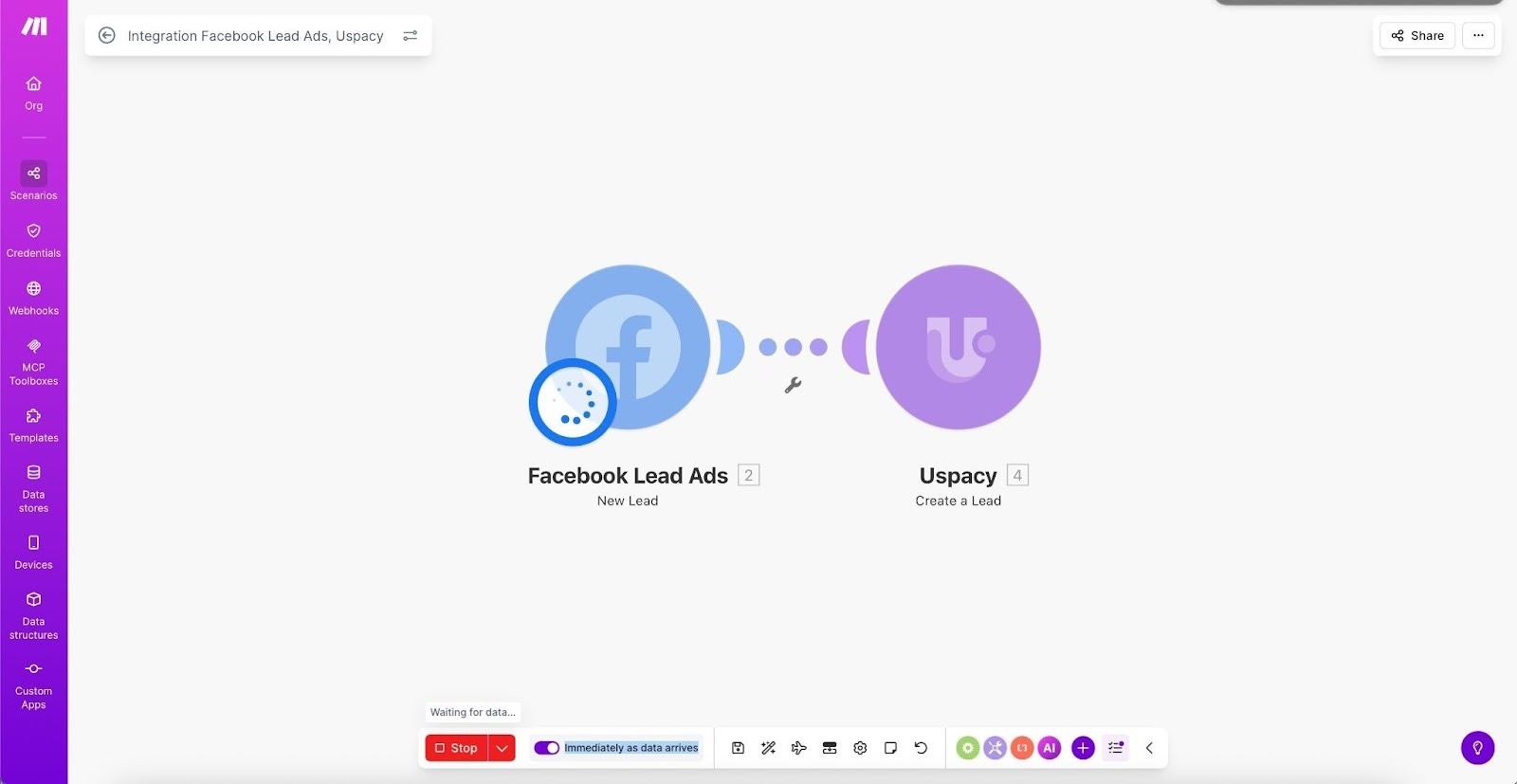
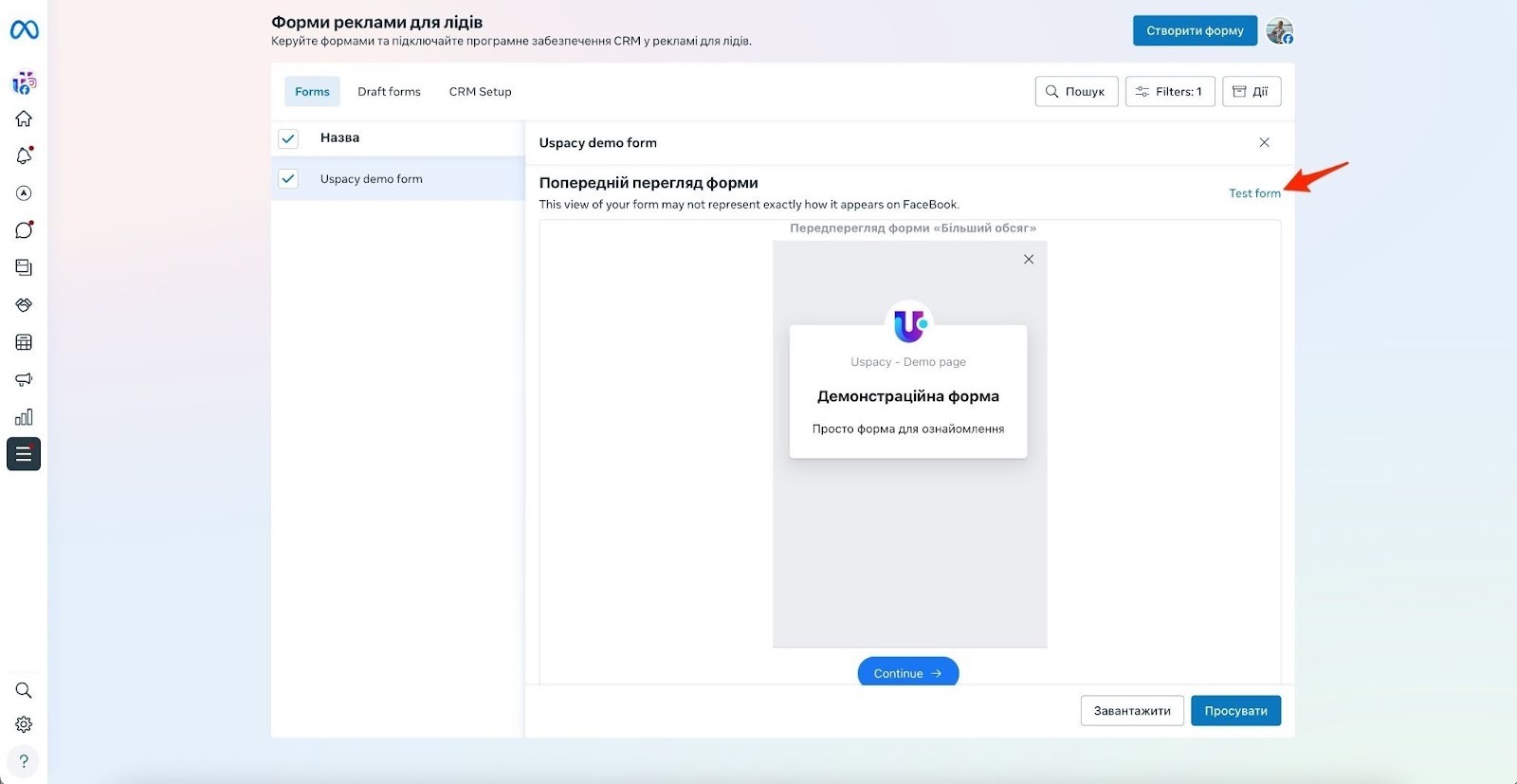
While the scenario is running, submit a test entry through your Facebook lead form to verify how the data is transferred to Uspacy.
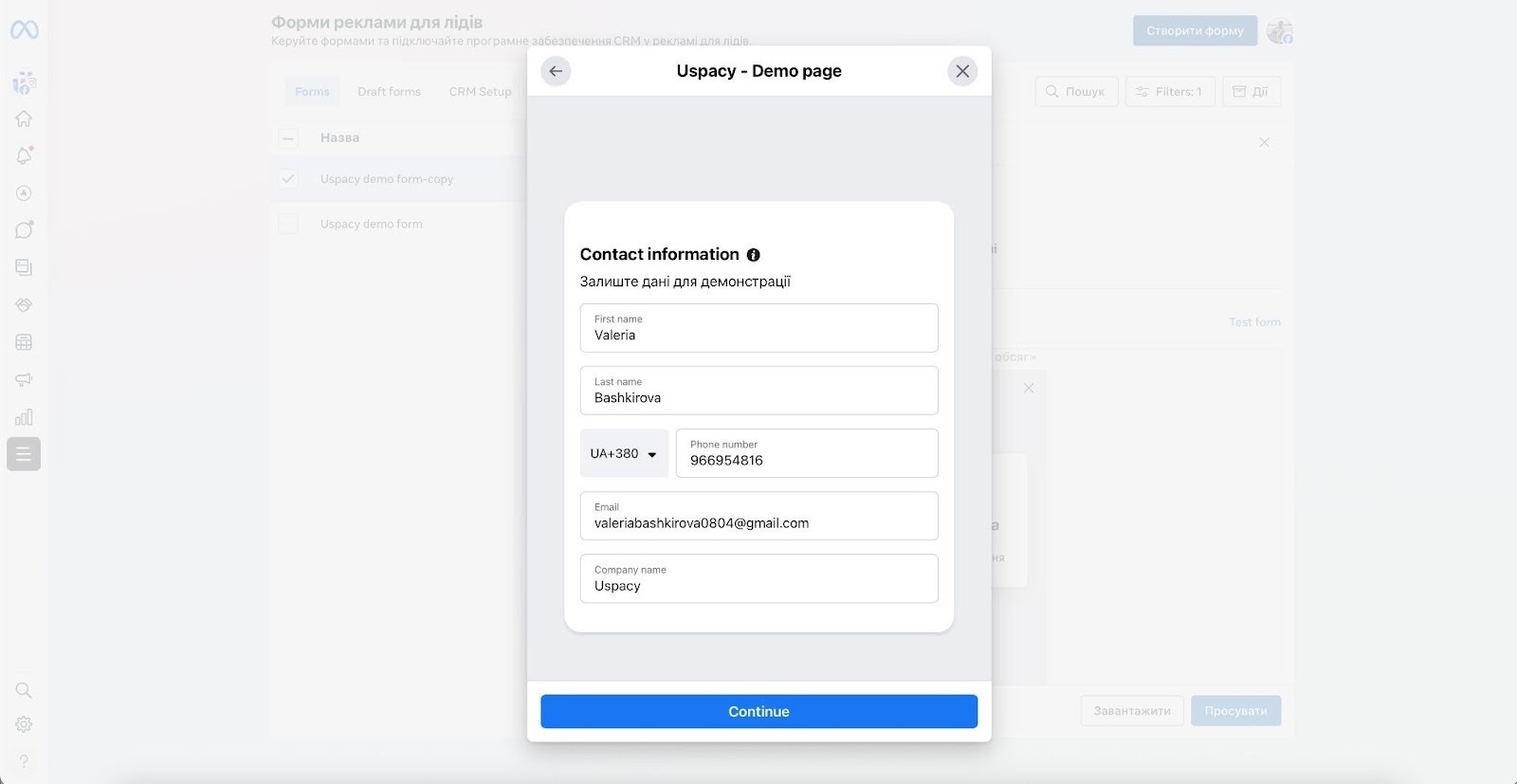
If the scenario runs successfully, a new lead will appear in your CRM ✅
If you have additional questions or you need to contact the support, send a request to this email [email protected]
Created: February 19, 2026