
In some cases, filters or search may not work correctly. For example, they may fail to find the required elements or display incomplete results. Most often, this is caused by temporary inconsistencies in the search index.
To update the index manually and restore proper search and filter functionality, the Space owner or an administrator can launch reindexing. Once the process is complete, the system will update the search index, and data will be displayed correctly again.
In which sections is reindexing available?
You can launch reindexing in the following Space tools:
- Tasks;
- Activities;
- Leads;
- Deals;
- Contacts;
- Companies;
- All created Smart Objects.
How to launch reindexing?
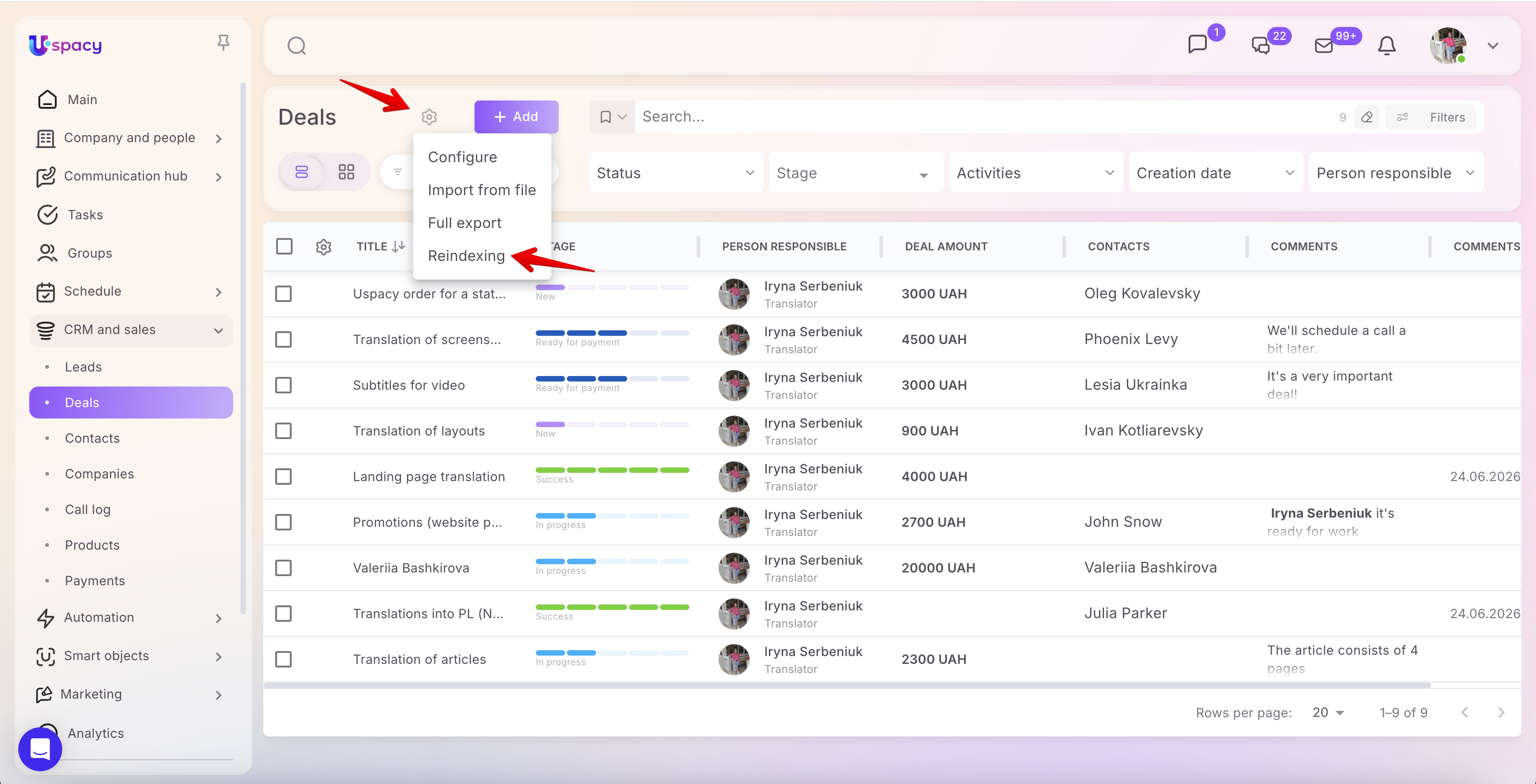
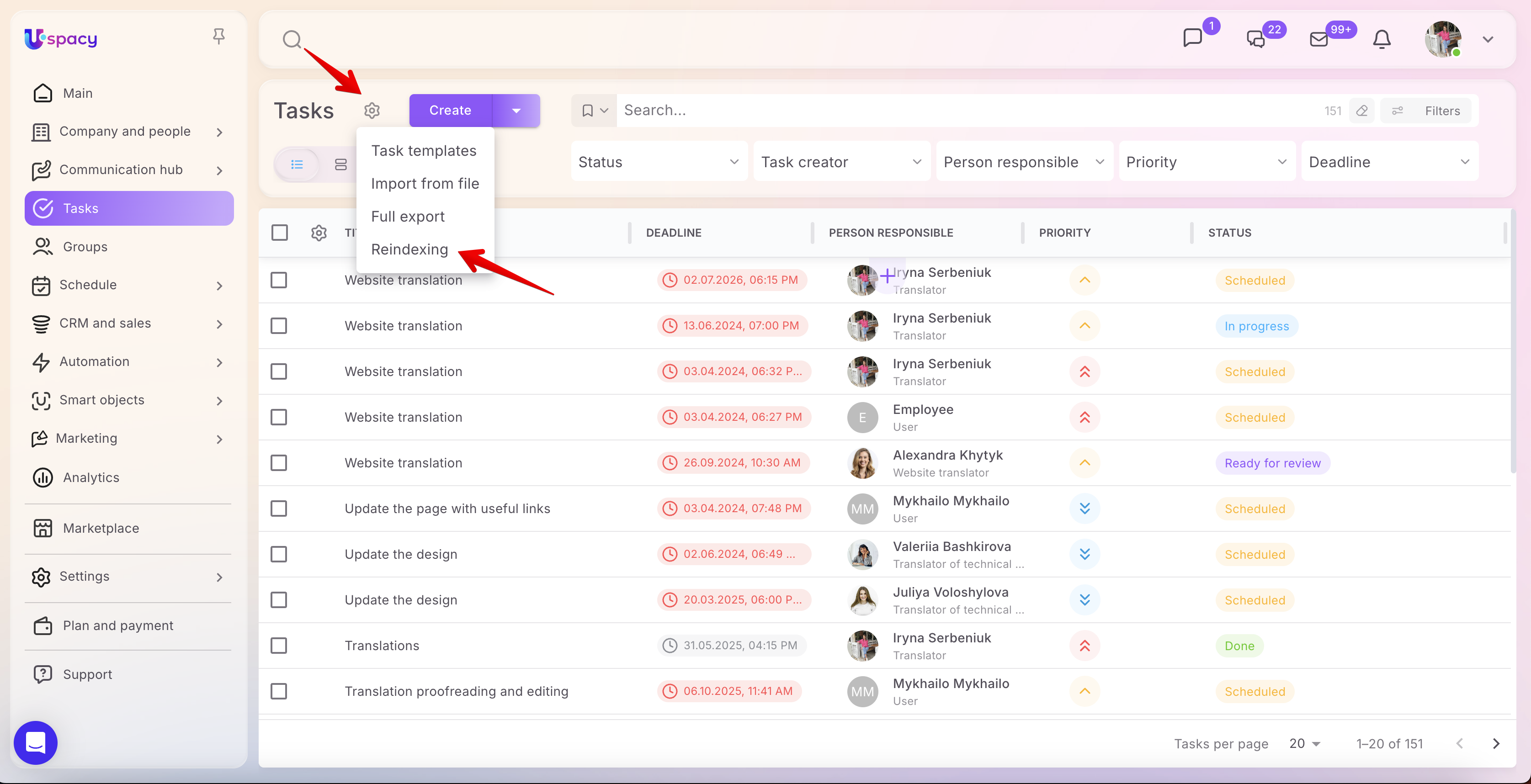
Open the required section. Click the gear icon at the top of the page. Select Reindexing from the menu.
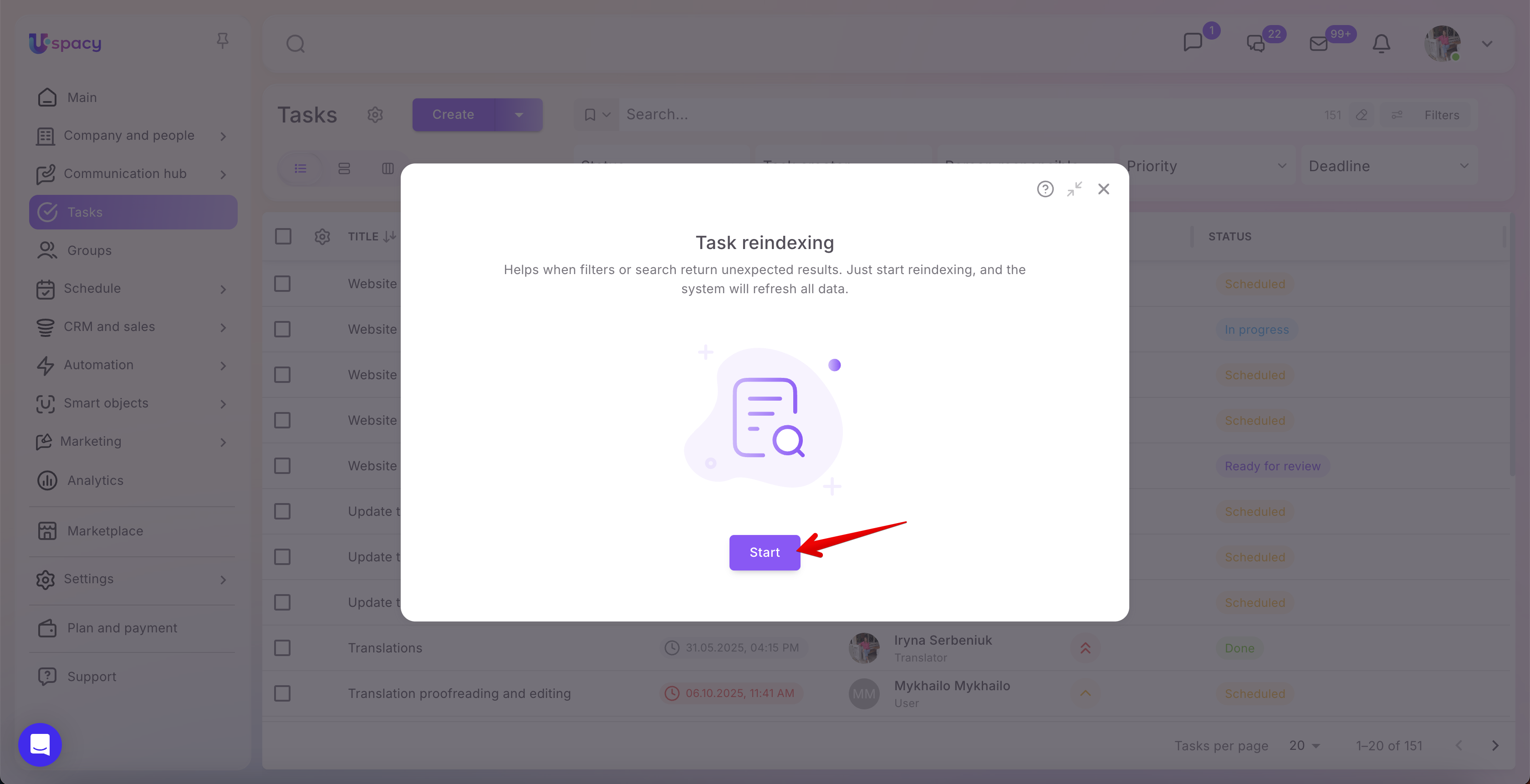
A window with a brief description of the feature will open. To start the process, click the Start button.
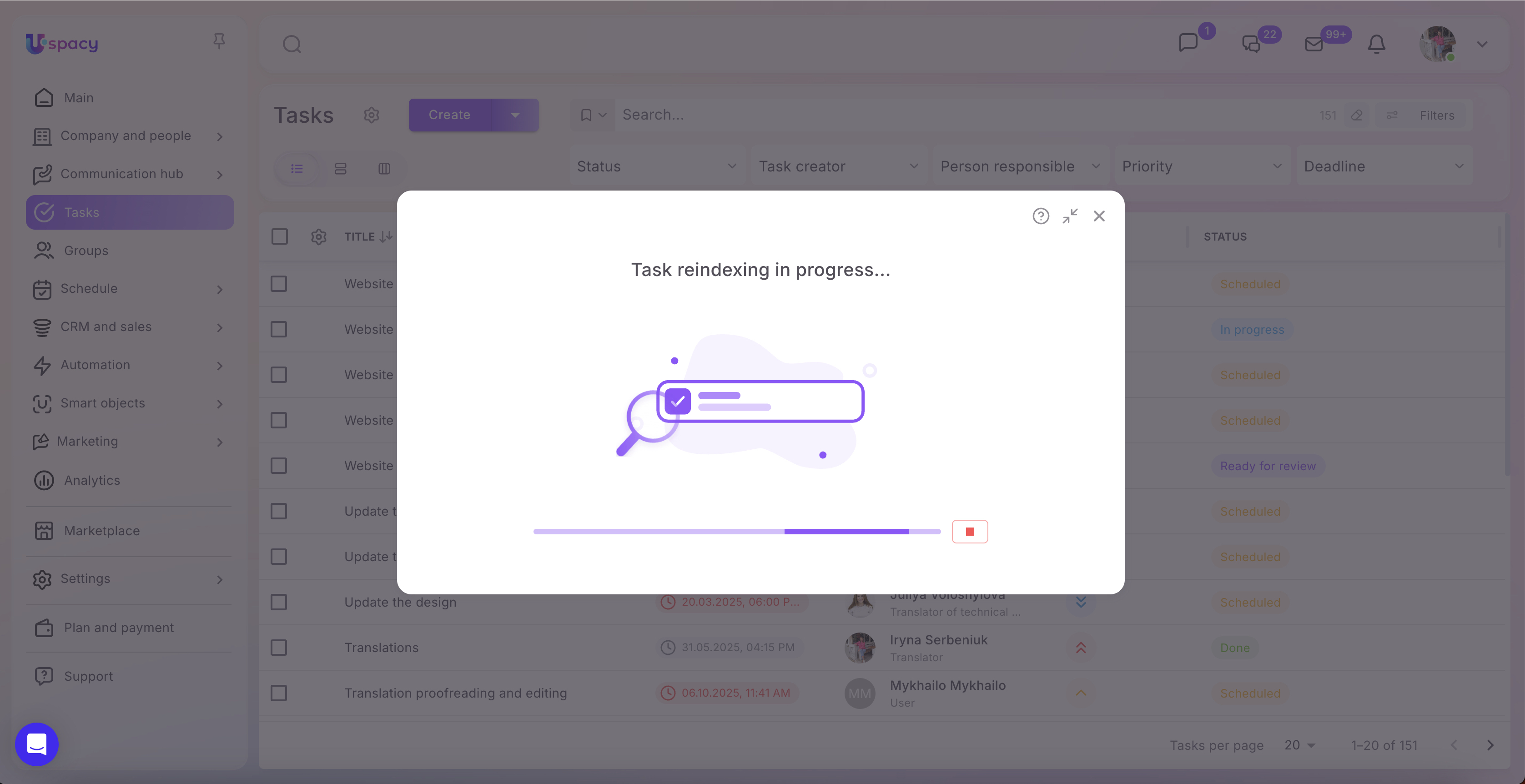
After launching, the system will begin updating the search index. If needed, you can stop the process by clicking the corresponding button next to the progress bar.
In this case, the part of the index that has already been updated will be saved, while the remaining data will stay unindexed. Therefore, inconsistencies in search or filter results may remain if they relate to the data that the system did not have time to process.
To complete the index update, you can launch reindexing again.
Recommendation: If there is no urgent need to interrupt the process, wait until it is fully completed.
After reindexing is complete, a success notification will appear. This means the search index has been updated, and search and filters will work correctly.
When should reindexing be performed?
Launch reindexing if:
- Search does not find elements that definitely exist;
- Filters display incorrect results;
- Inconsistencies in data display appear after mass data changes or other operations.
In most cases, reindexing helps quickly restore proper search and filter functionality without contacting support.
❗️Reindexing only updates the search index. It does not change, delete, or edit any data in your Space.
If you have additional questions or you need to contact the support, send a request to this email [email protected]
Created: July 10, 2026 / Updated: July 10, 2026