
A clear description helps the responsible person understand what needs to be done and what results are expected. However, there isn’t always time to organize the text when creating a task. Requirements, ideas, and agreements may end up in a single block of text.
AI in Uspacy lets you edit a description directly within a task. Depending on your needs, you can correct errors, improve wording, shorten the text, or expand it. If you need to turn the description into actionable steps, you can create a separate checklist.
Let’s see how it works ⬇️
Where to find AI tools?
You can use AI when creating a new task or editing the description of an existing one.
First, enter the text you want to edit. Click the AI icon on the right side of the description field.
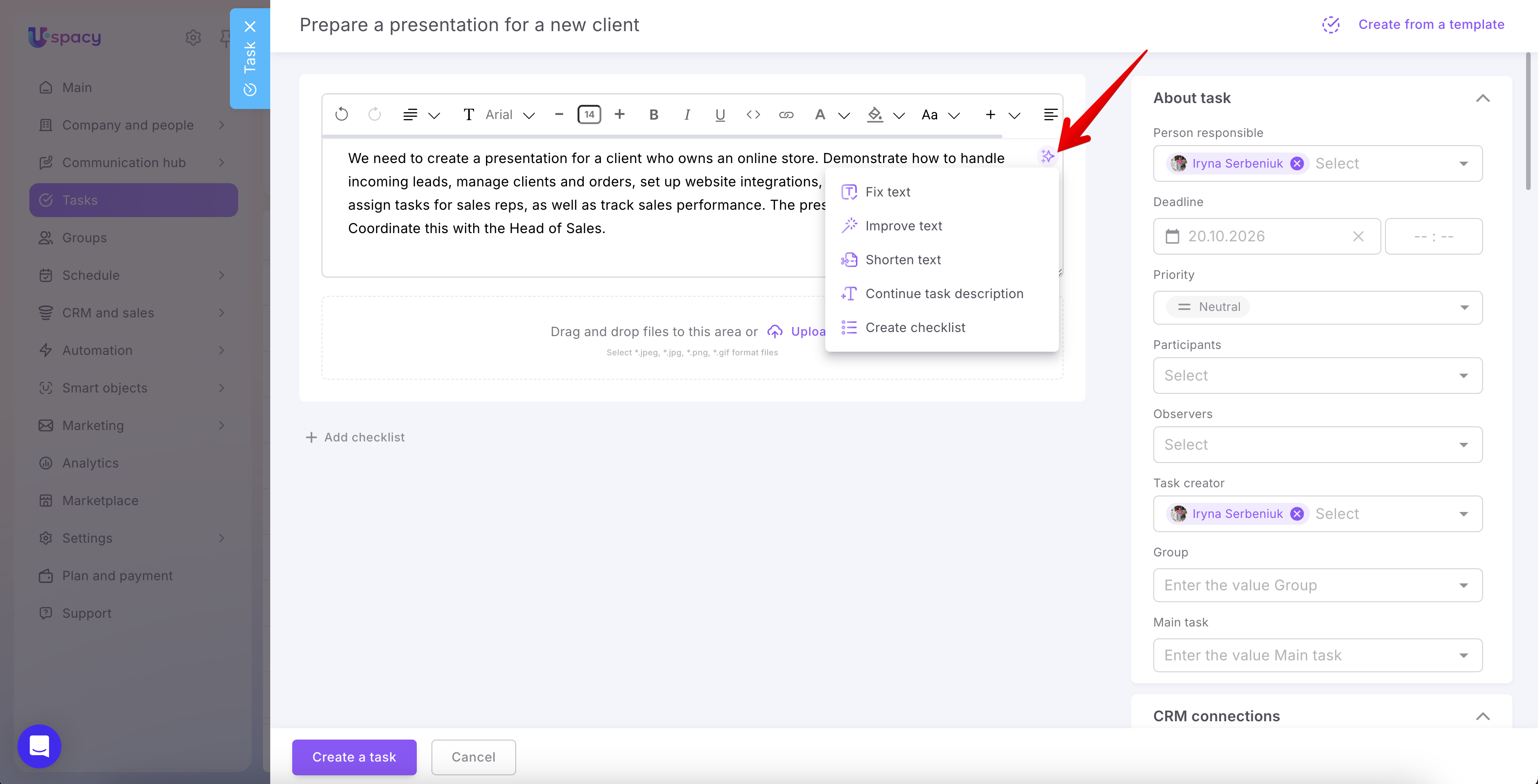
For an existing task, open the description editor and click the same icon.

A menu with five actions will appear:
- Fix text;
- Improve text;
- Shorten text;
- Continue task description;
- Create checklist.

💡 The first four actions work with the description text. The Create checklist action processes the content and adds a separate checklist directly to the task.
How to edit the description text?
Select the action based on what you want to change.
Fix text
Use this action to fix language errors in the description. It’s useful when the text already contains all the necessary information but needs proofreading before you save it.
For example, you may have quickly written down requirements after a conversation with a colleague and want to correct typos and punctuation.
Improve text
This action helps make the wording clearer and organize the text.
Use it when the description contains the necessary information, but the ideas are presented out of order, sentences are too long, or the text contains repetitions. For example, requirements for a presentation, the preparation deadline, and the approval process may all be written in a single paragraph.
Shorten text
Select this action when you need to reduce the length of the description and focus on the key points.
This is useful for tasks with lengthy explanations that make it difficult for the responsible person to quickly identify the main requirements.
Continue task description
This action helps expand an existing description based on its content.
Use it when you’ve outlined the main idea but want to provide more detail. After AI processes the text, review the additions and keep only those that match your expectations.
After completing the selected action, review the result. Make sure the text accurately conveys the task requirements, preserves important details, and doesn’t introduce inaccurate information. Edit it manually if necessary.
If you’re working with an existing task, click Save changes. If you’re creating a new task, finish filling it out and save it.

How to create a checklist from a description?
If a description includes several actions, AI can turn them into a separate checklist within the task. This helps transform a general description into a sequence of steps and makes it easier to track progress.
To do this, click the AI icon in the description field and select Create checklist.
AI will process the text and generate checklist items. They will appear in the Checklist section, where you can mark each item as completed.

💡 This creates a fully functional checklist within the task, not just a list added to the description text. Review the items and edit their wording or add your own as needed. Then save your changes.

AI helps you prepare clear task descriptions faster and identify the steps needed to complete a task. Use the text editing tools to organize requirements, and use checklist creation to turn them into actionable steps that you can conveniently track directly in Uspacy.
If you have additional questions or you need to contact the support, send a request to this email [email protected]
Created: October 20, 2026 / Updated: October 21, 2026