Do you need to change the department for several employees at once? Or assign them a new role? Or fire him/her at all? Then mass actions that can be applied to users in the employee list will help you.
This option is available only to the administrator and users with a certain set of rights.
The employee list has special fields, using which you can select several users to edit their profile data at once and make the same changes or apply quick firing.
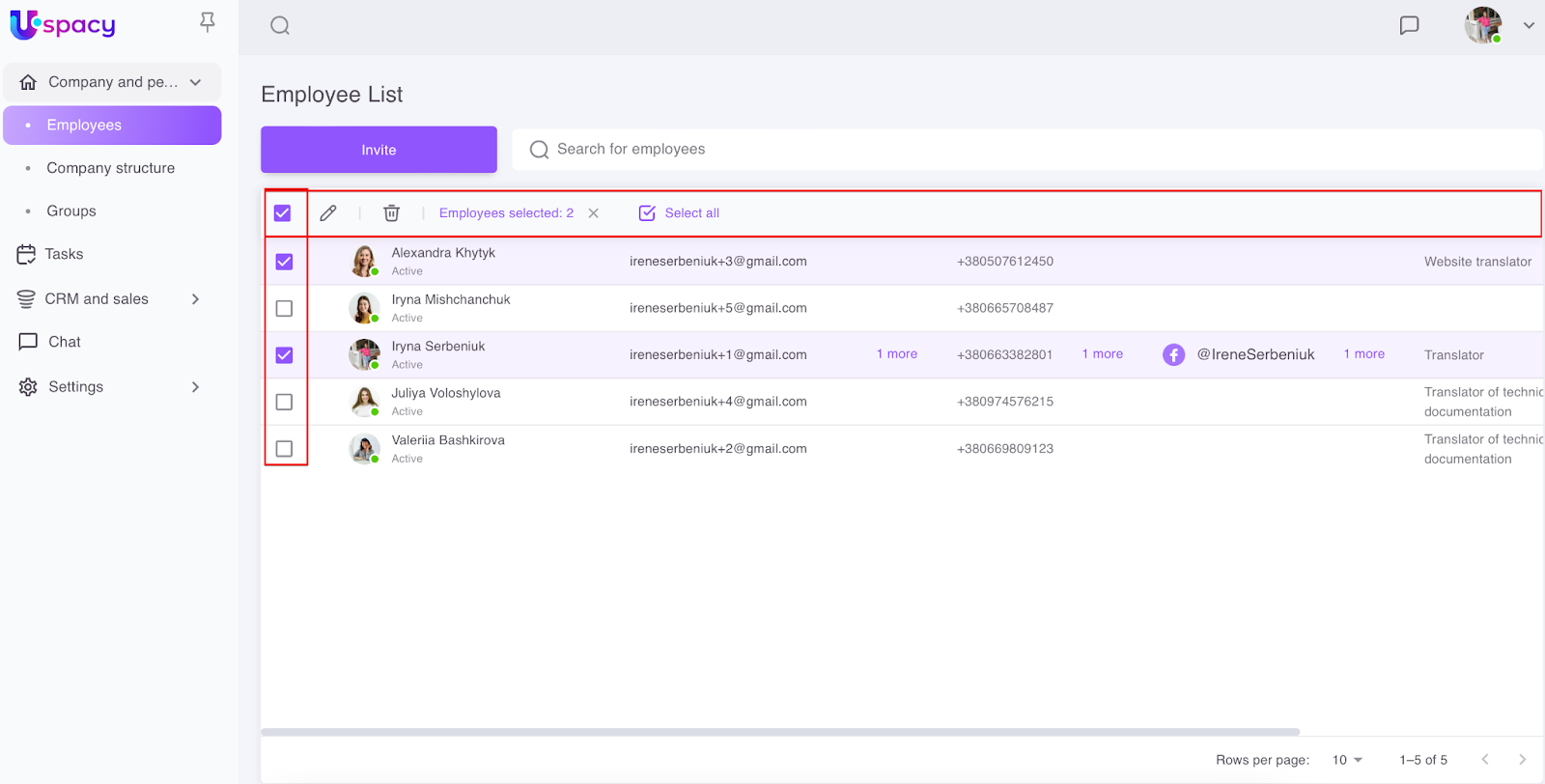
How does the status of users in space affect the ability to take mass actions?
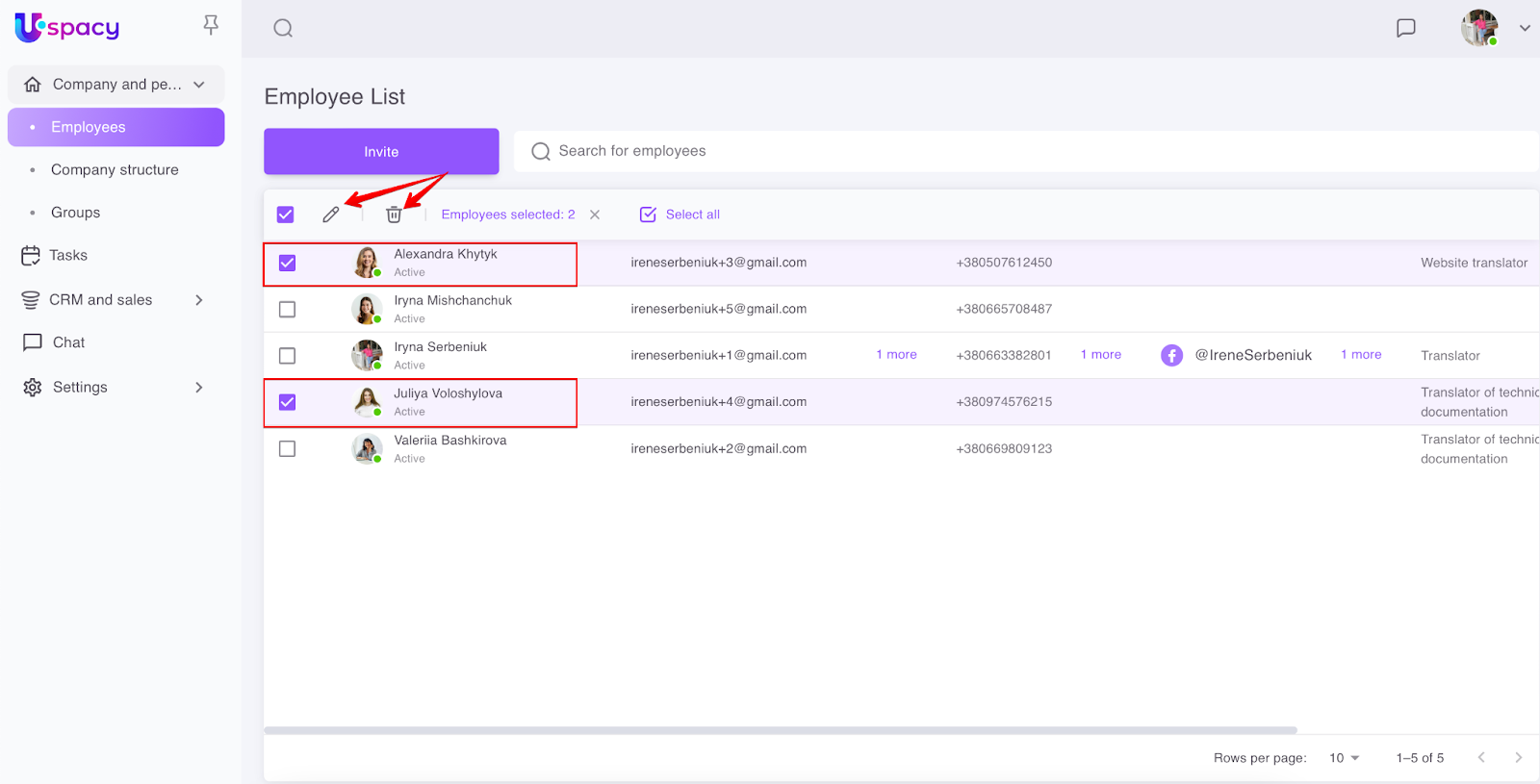
Mass actions are only possible with active current employees and also with invited users. But the types of these mass actions are different.
If you mark the current employees of the space in the list, you can proceed to editing information in their profiles and apply quick firing.
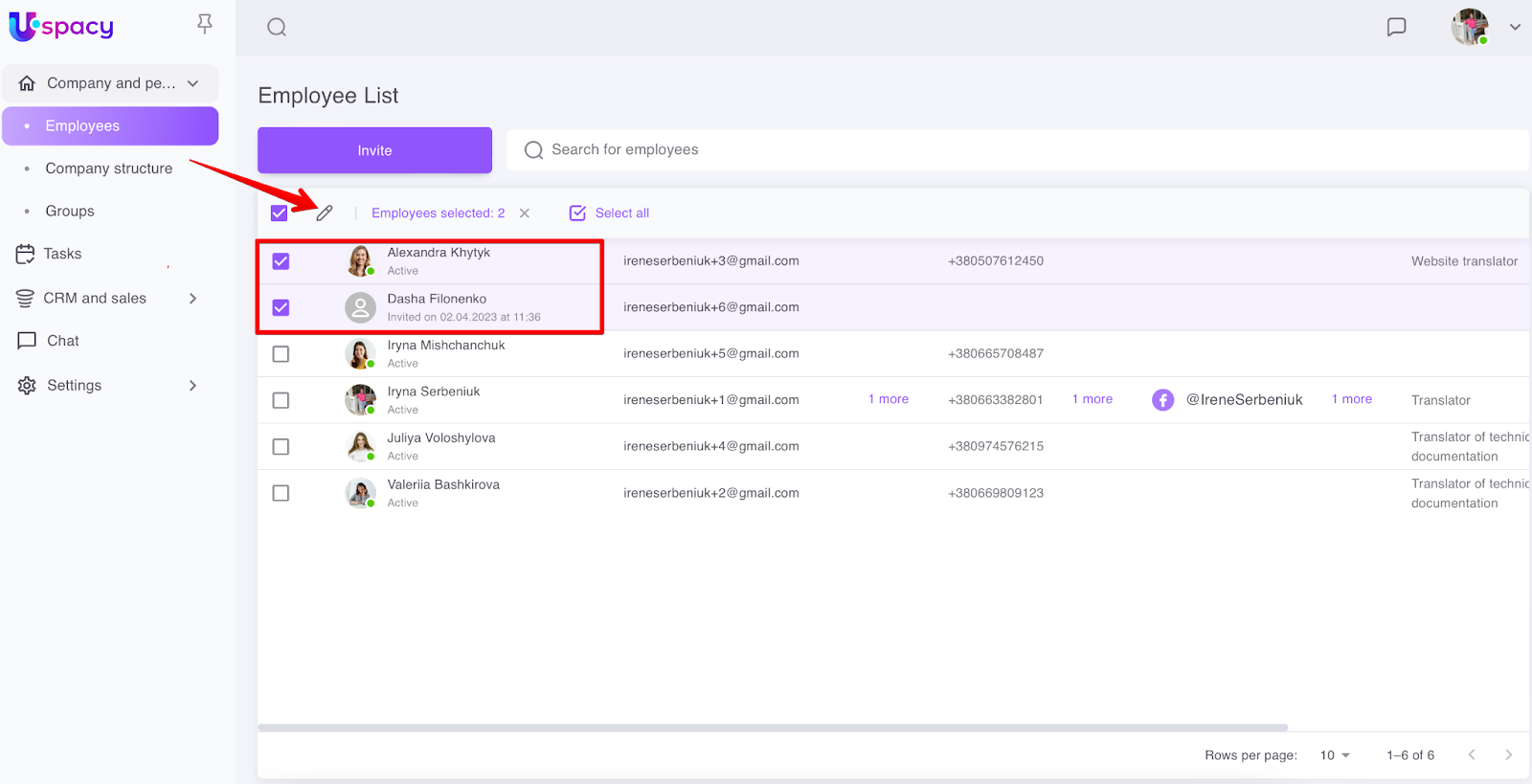
If you mark only the invited employees or the invited and current ones together, then only the profile editing will be available.
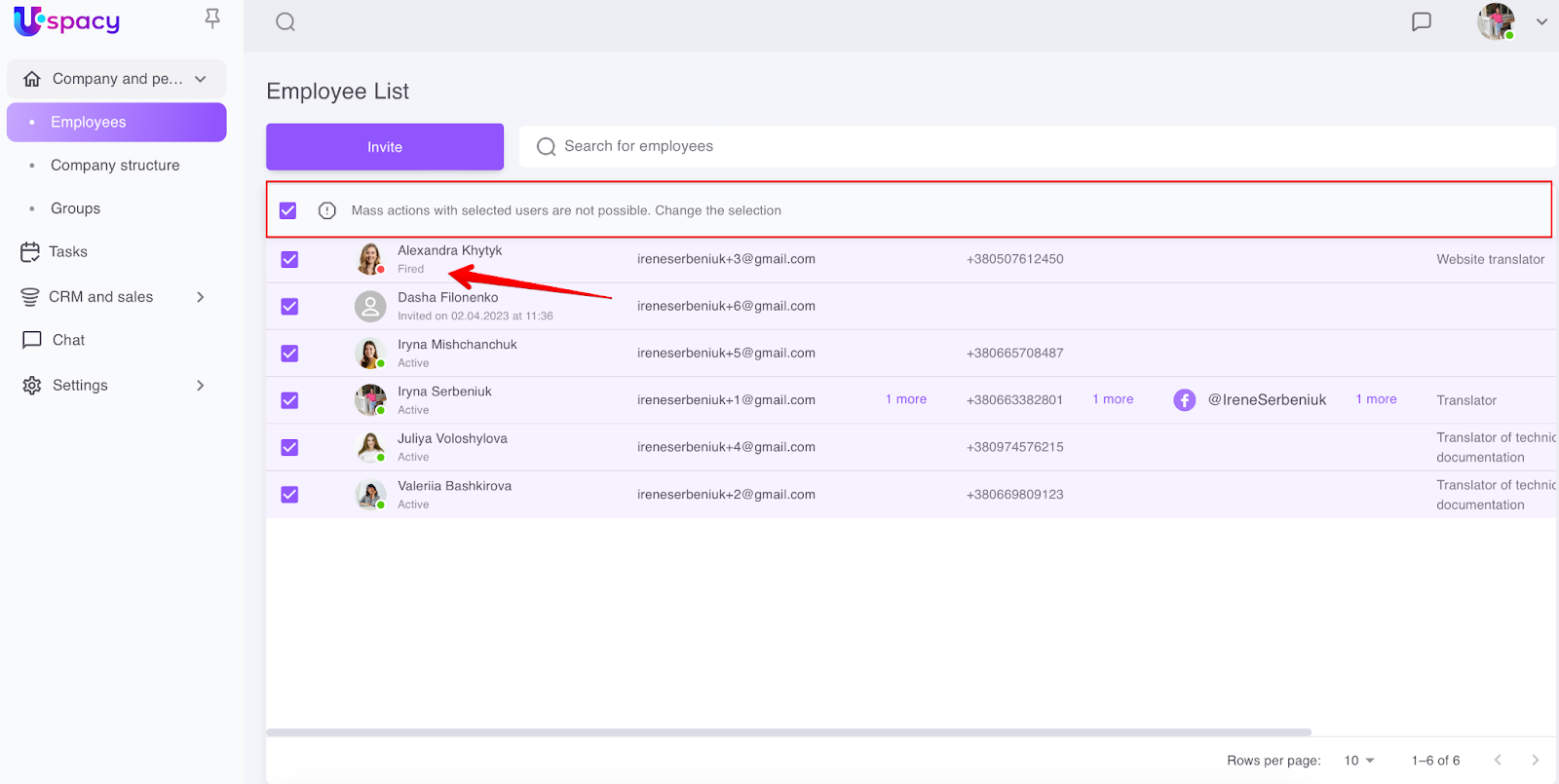
Mass actions with fired employees are not possible.
Editing information in user profiles
To do this, you need to mark the required employees in the list and click on the pencil icon.
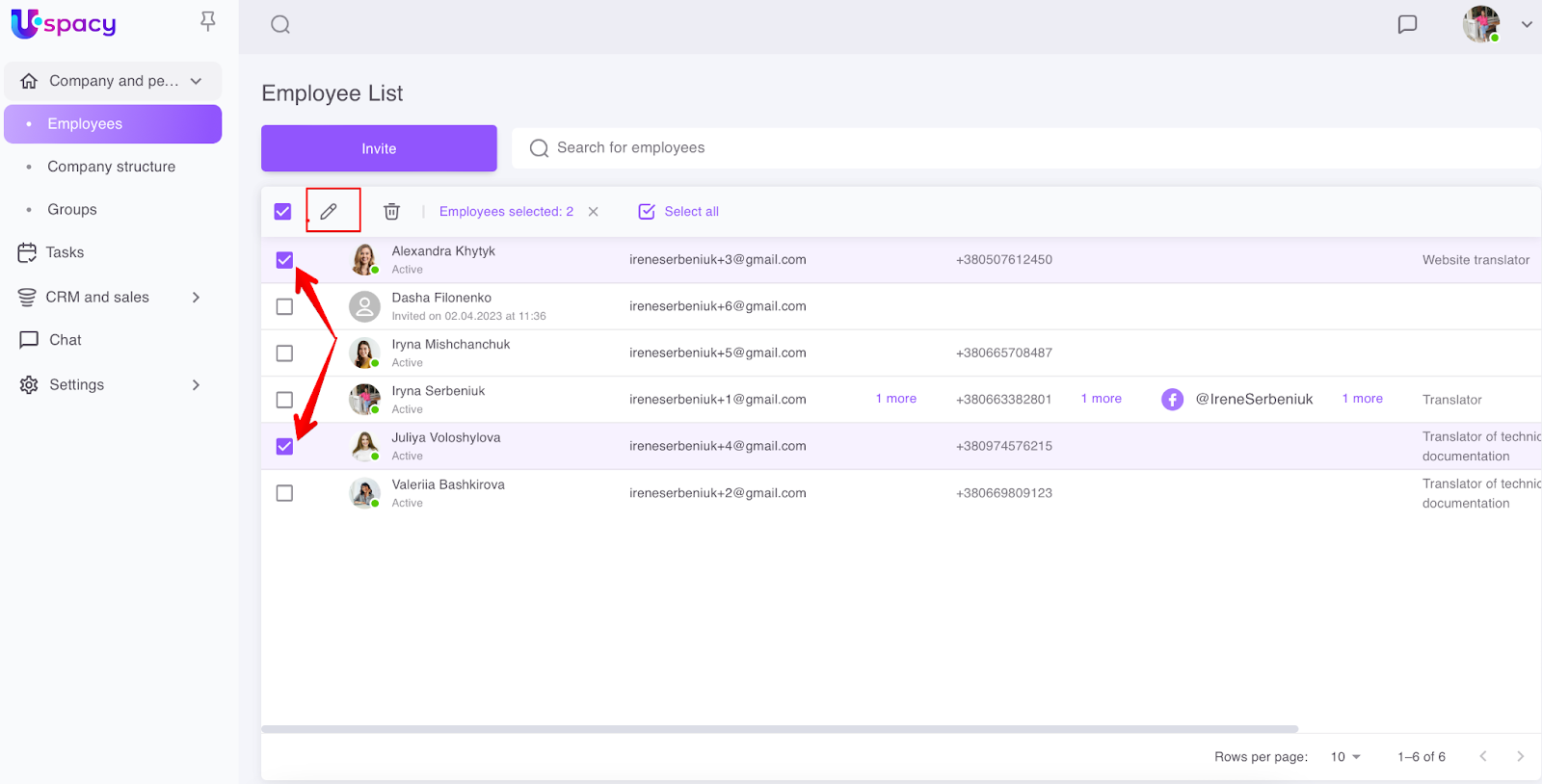
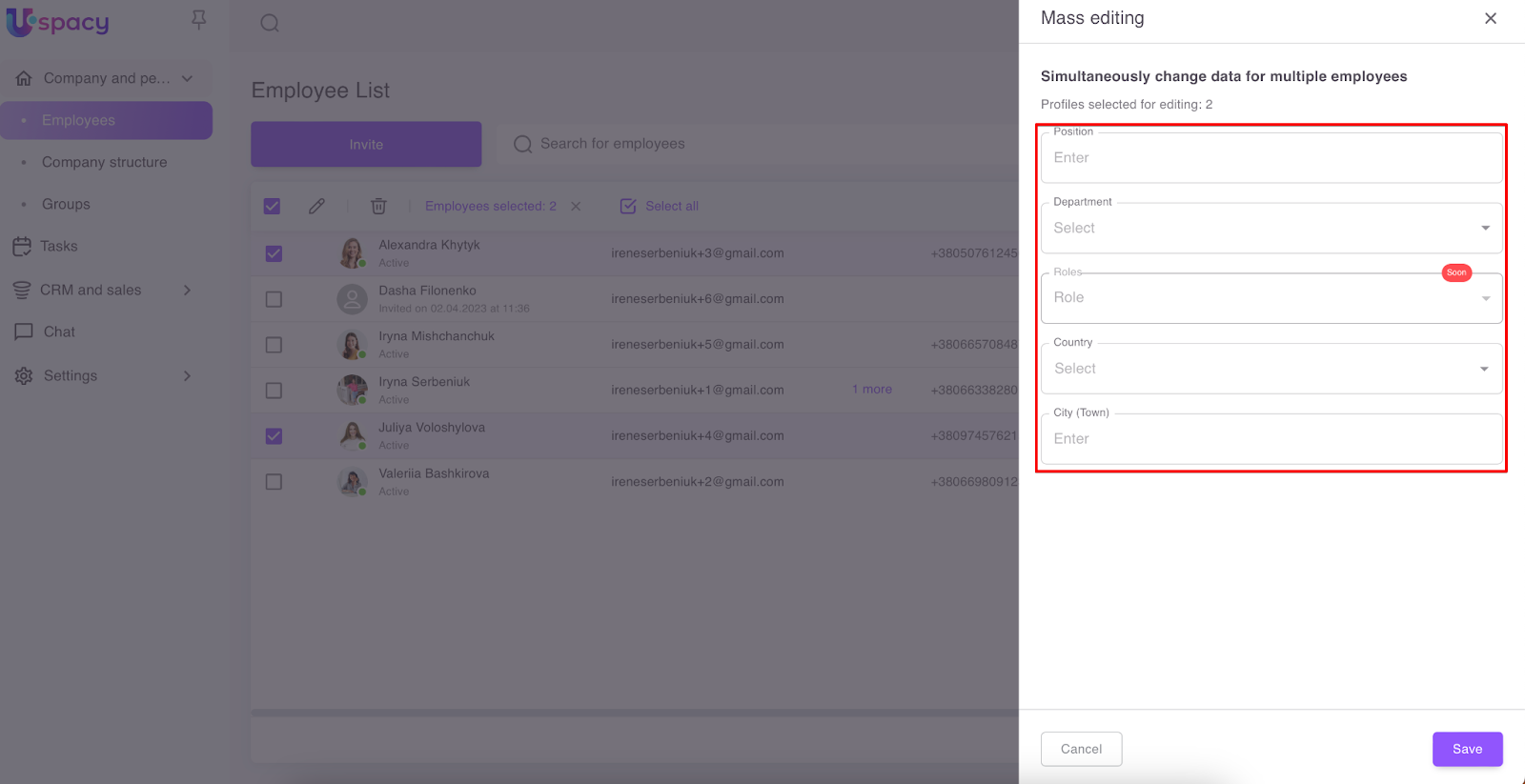
A window will open in which you can select which data in the profiles of these users should be edited. Fields that can be changed:
- Position
- Department
- Role
- Country
- City/Town
Position and City/Town are text fields, information must be entered manually. Other fields involve selection from lists.
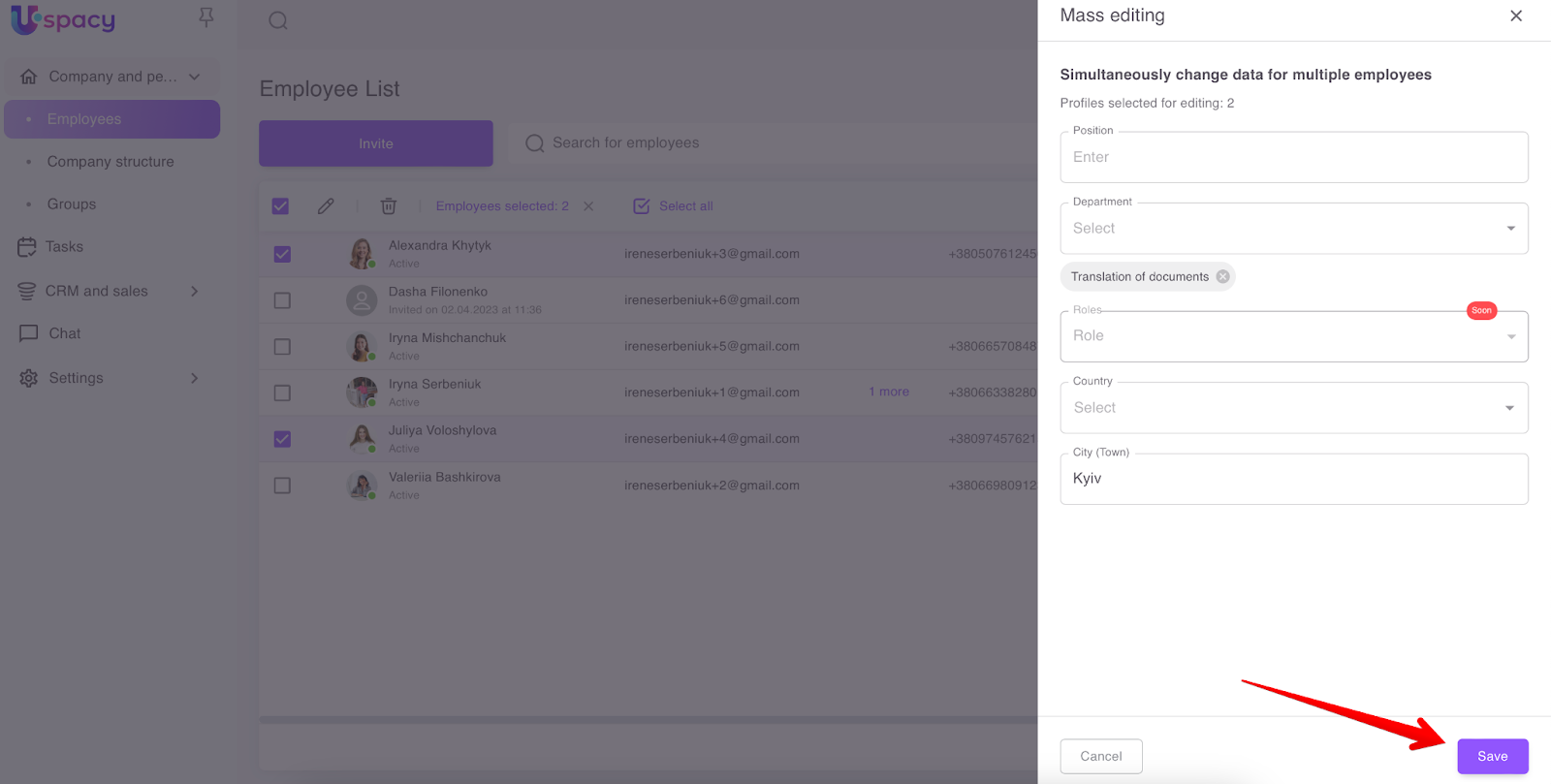
After making changes in the corresponding fields, click the Save button.
And Confirm your actions.
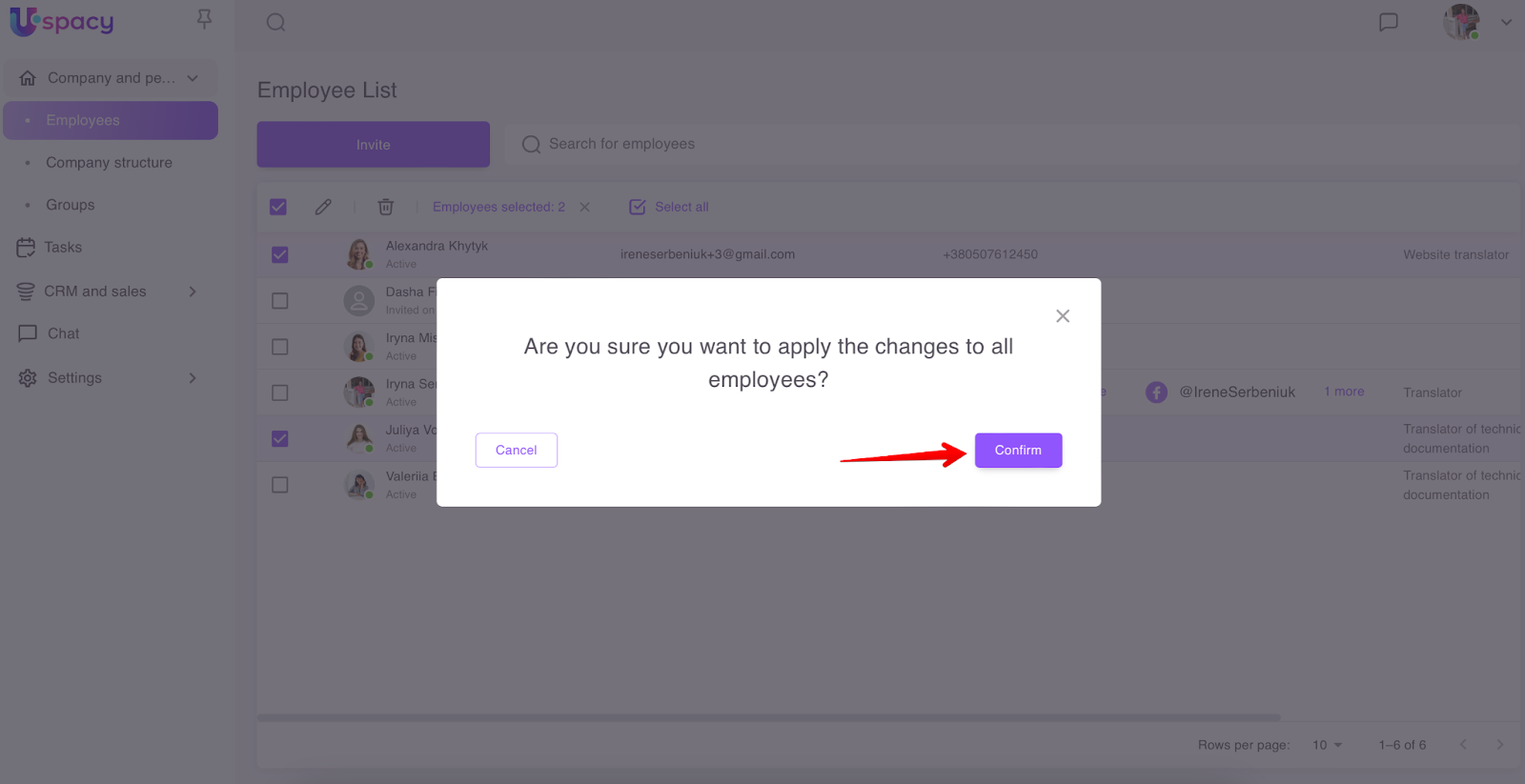
After that, the changes will be displayed in the employee profiles.
Quick firing
To do this, you need to mark the necessary employees in the list and click on the trash icon.
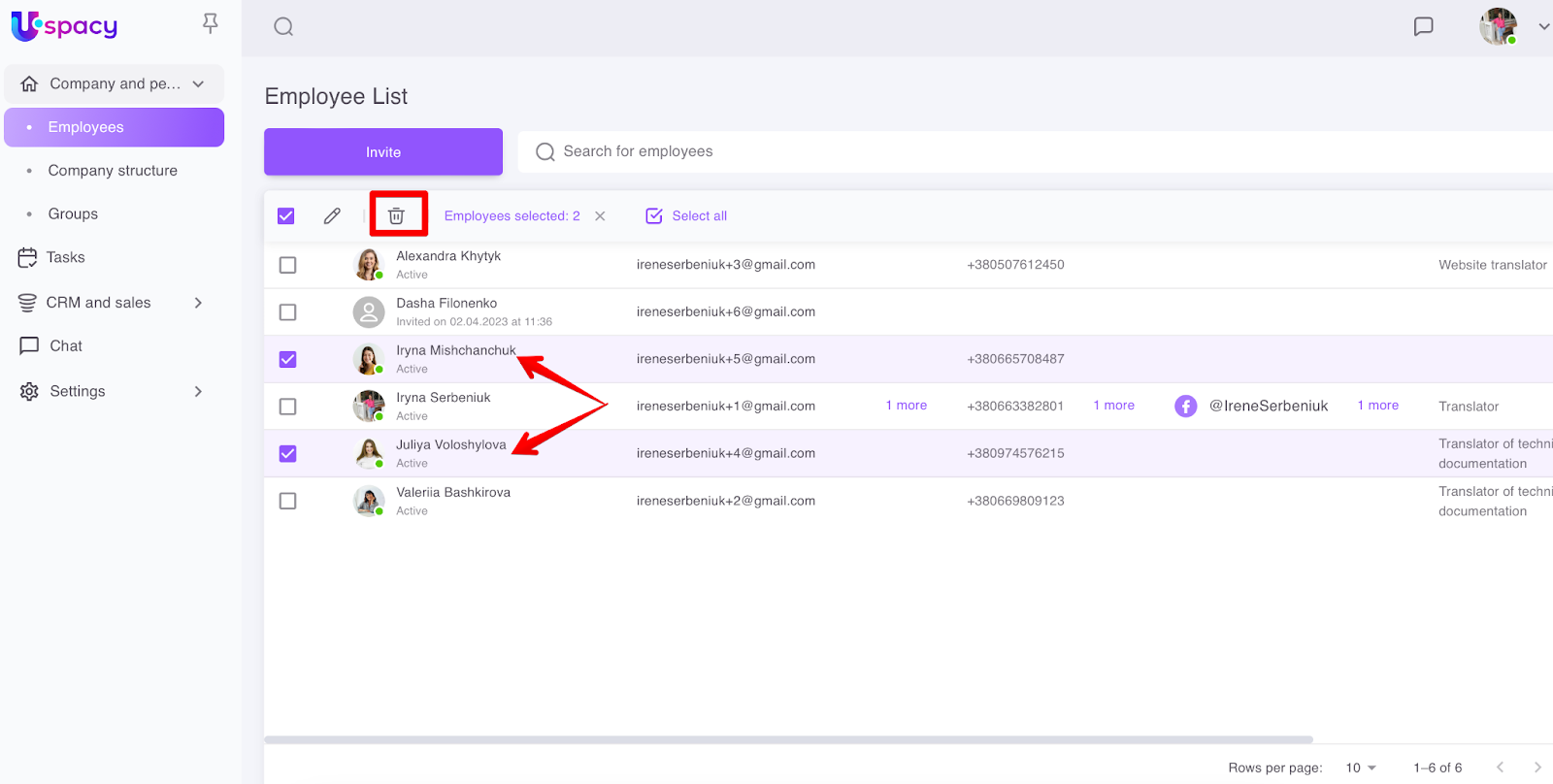
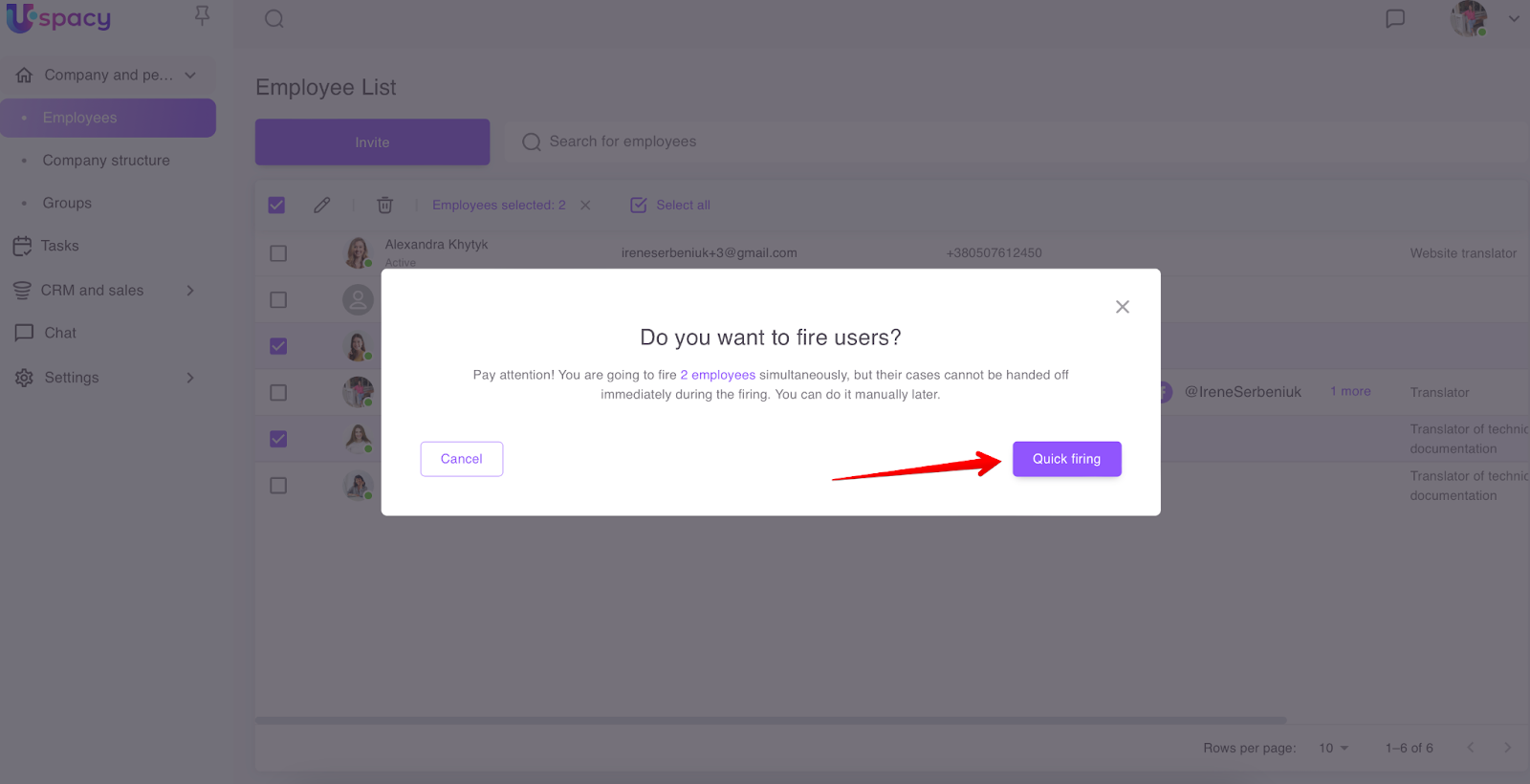
A window will open where you need to Сonfirm your actions. In addition, it contains a message that the cases cannot be handed off because of a quick firing. You can do this later manually.
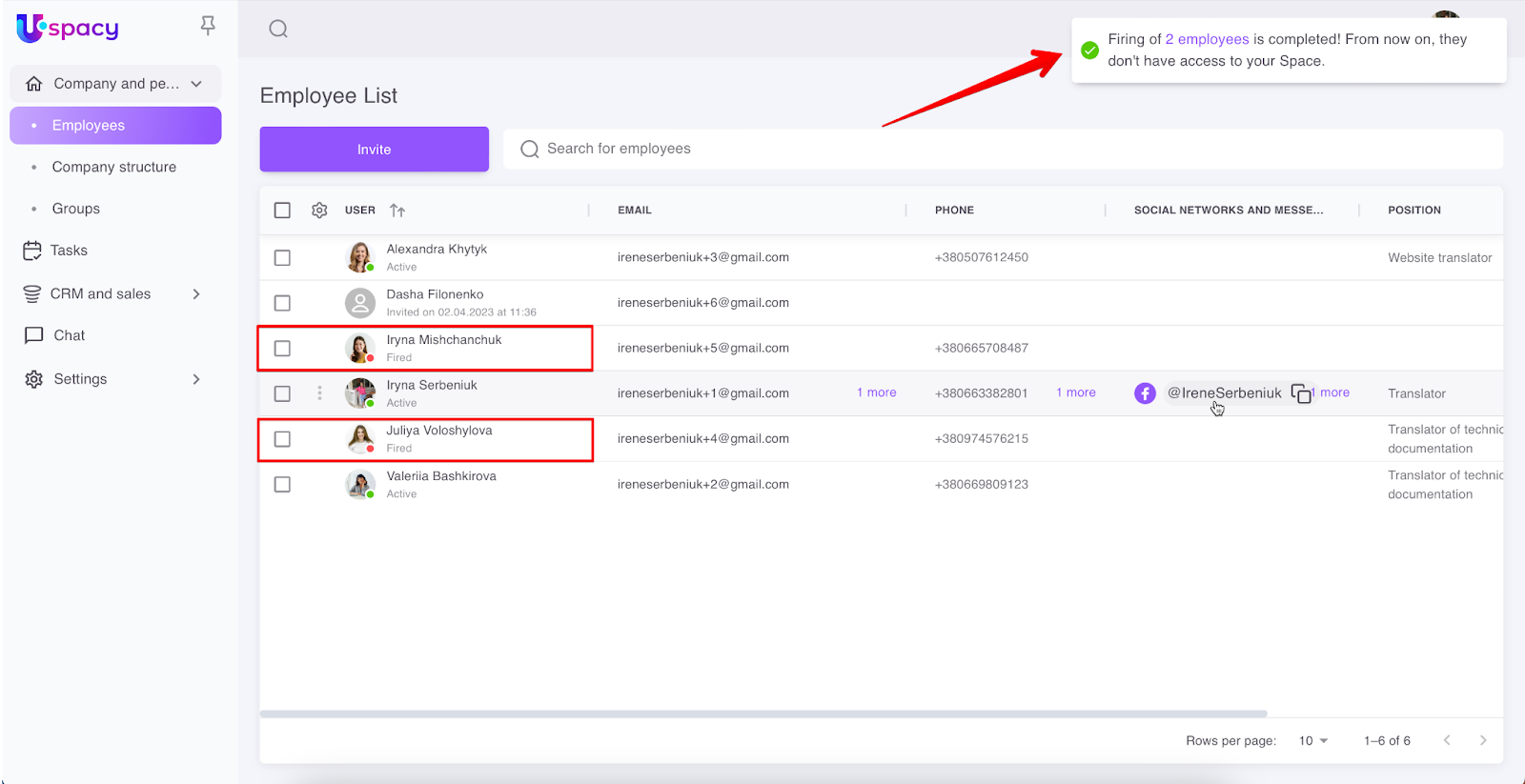
As a result, a message about the success of the actions will be displayed. And employees who have been fired will be displayed in the list with the appropriate status.
🔍 You can read more about the firing of employees in the following article.
If you have additional questions or you need to contact the support, send a request to this email [email protected]
Created: February 21, 2023 / Updated: February 8, 2024