To successfully transfer your data, you first need to complete the preparatory steps on Trello’s side, and then proceed directly with the migration in Uspacy. So, you’ll need to complete four main steps.
💡 But before starting, please check the relevance and accuracy of the data that will be transferred from Trello. This will speed up the migration process in Uspacy.
Step 1. Obtain data access credentials for Trello
First, log in to the Trello service.
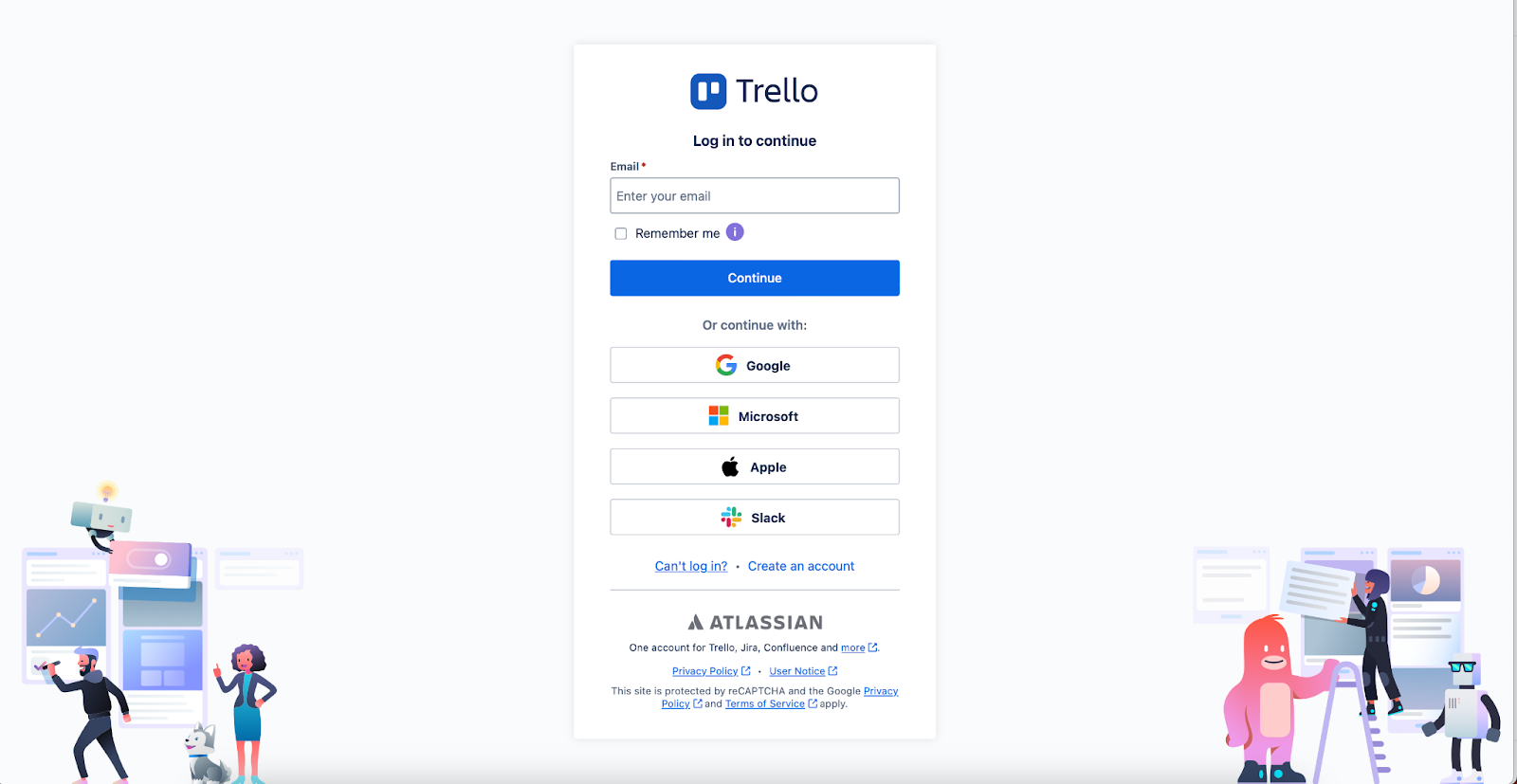
Then go to the Trello admin panel and start creating a new integration.
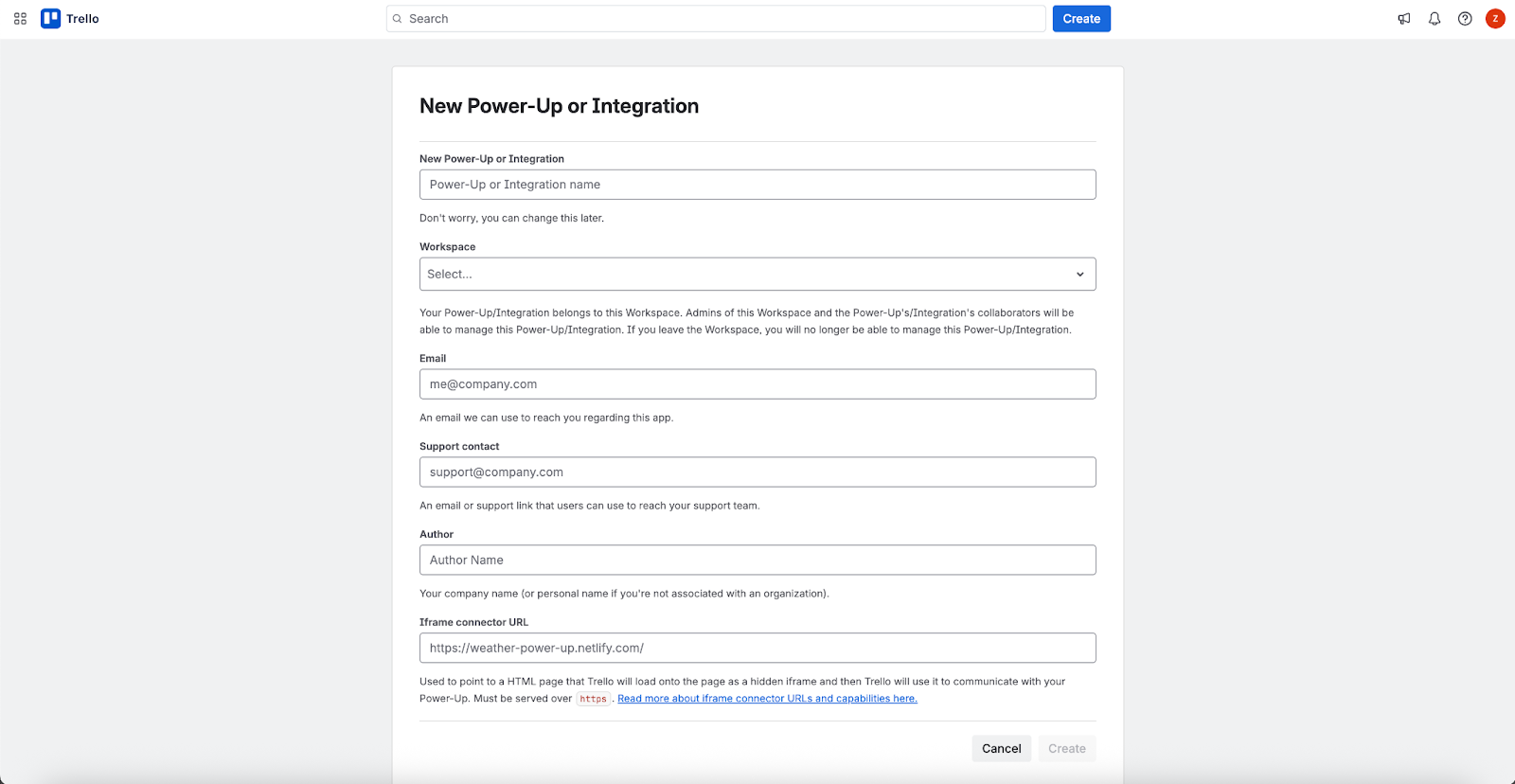
Fill out the required fields in the form and click Create to save.
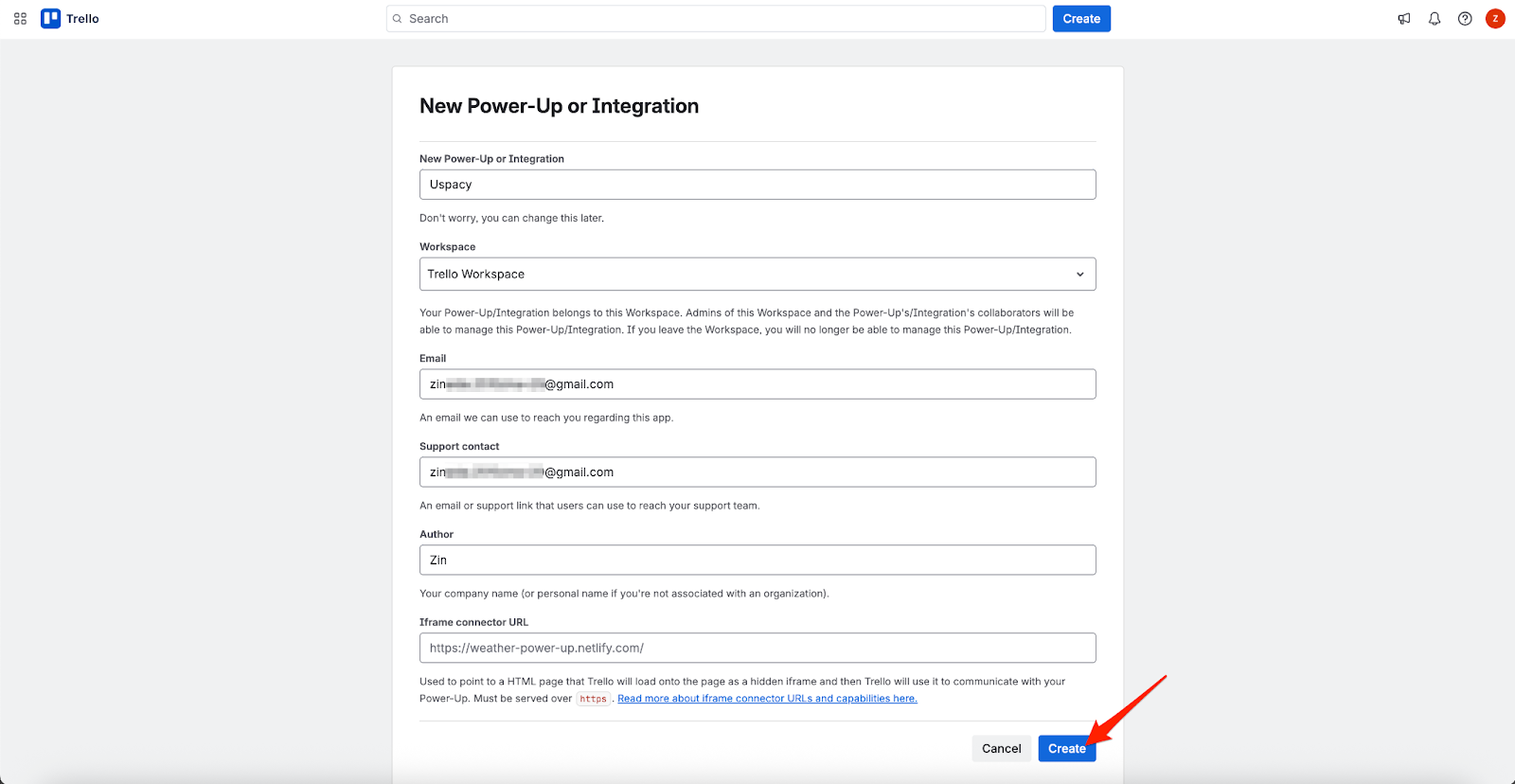
After that, you’ll be able to generate an API Key for your integration. Click the corresponding button.
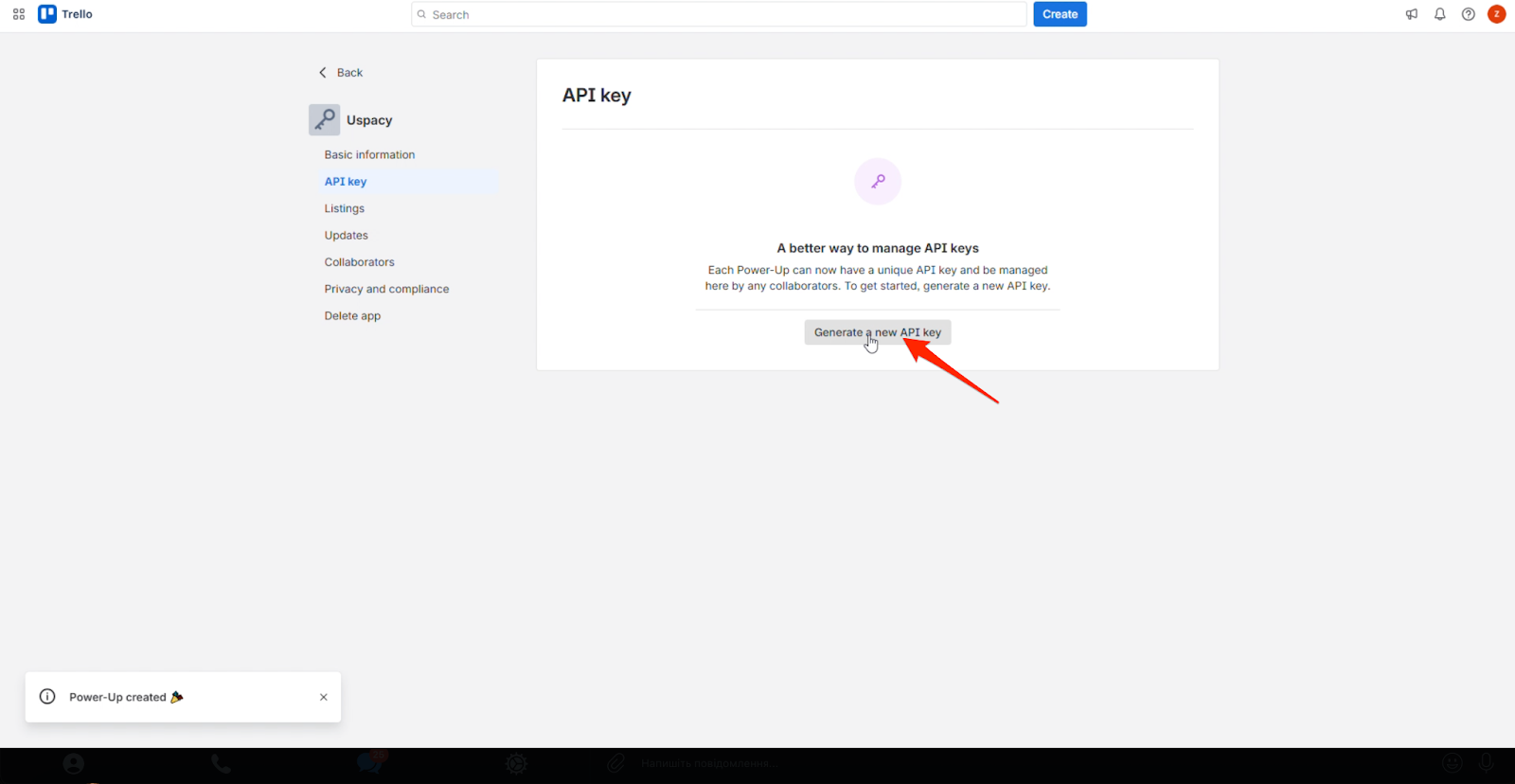
Then confirm your actions in the window that appears.
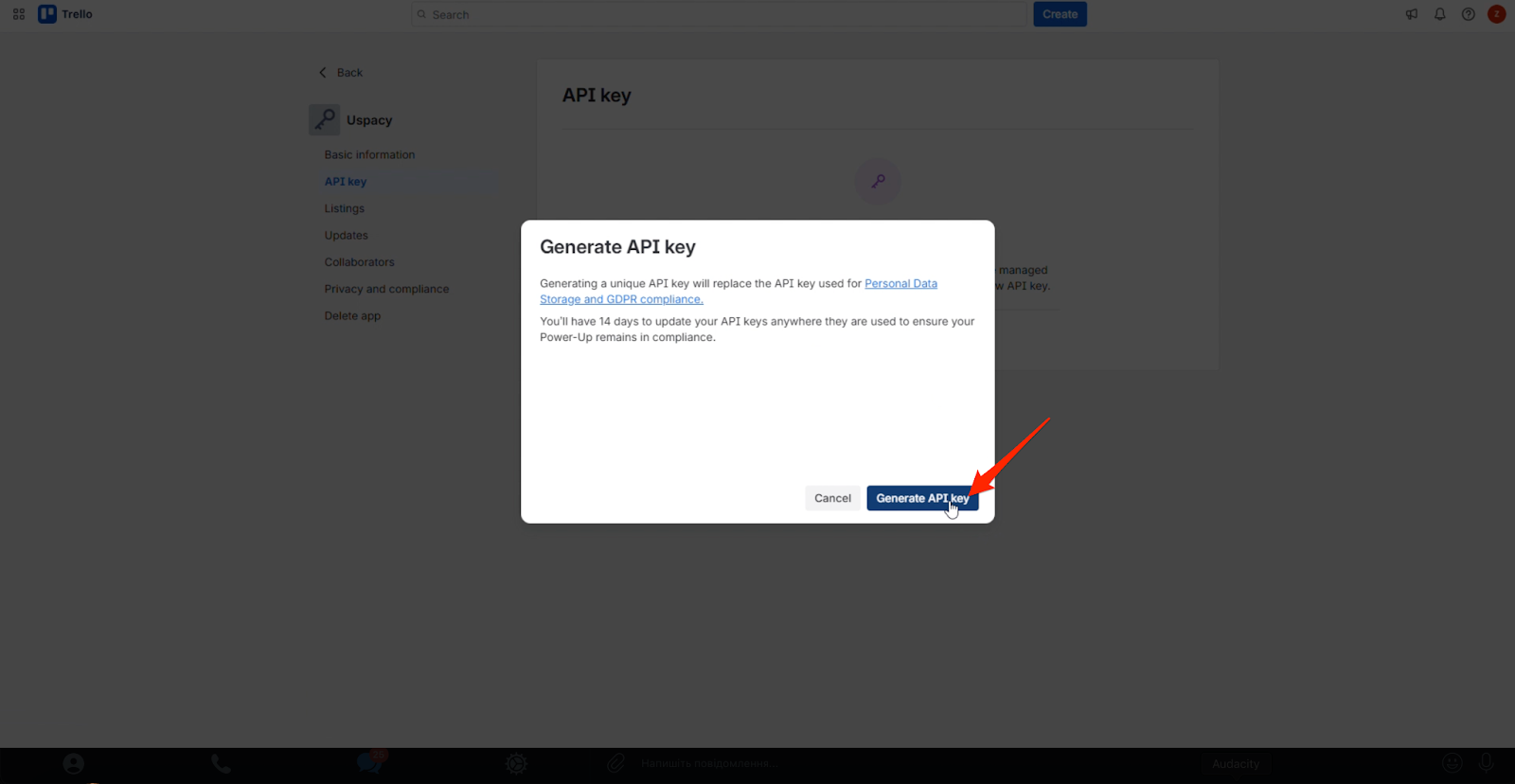
When the API Key is generated, copy it and save it for use in the next step.
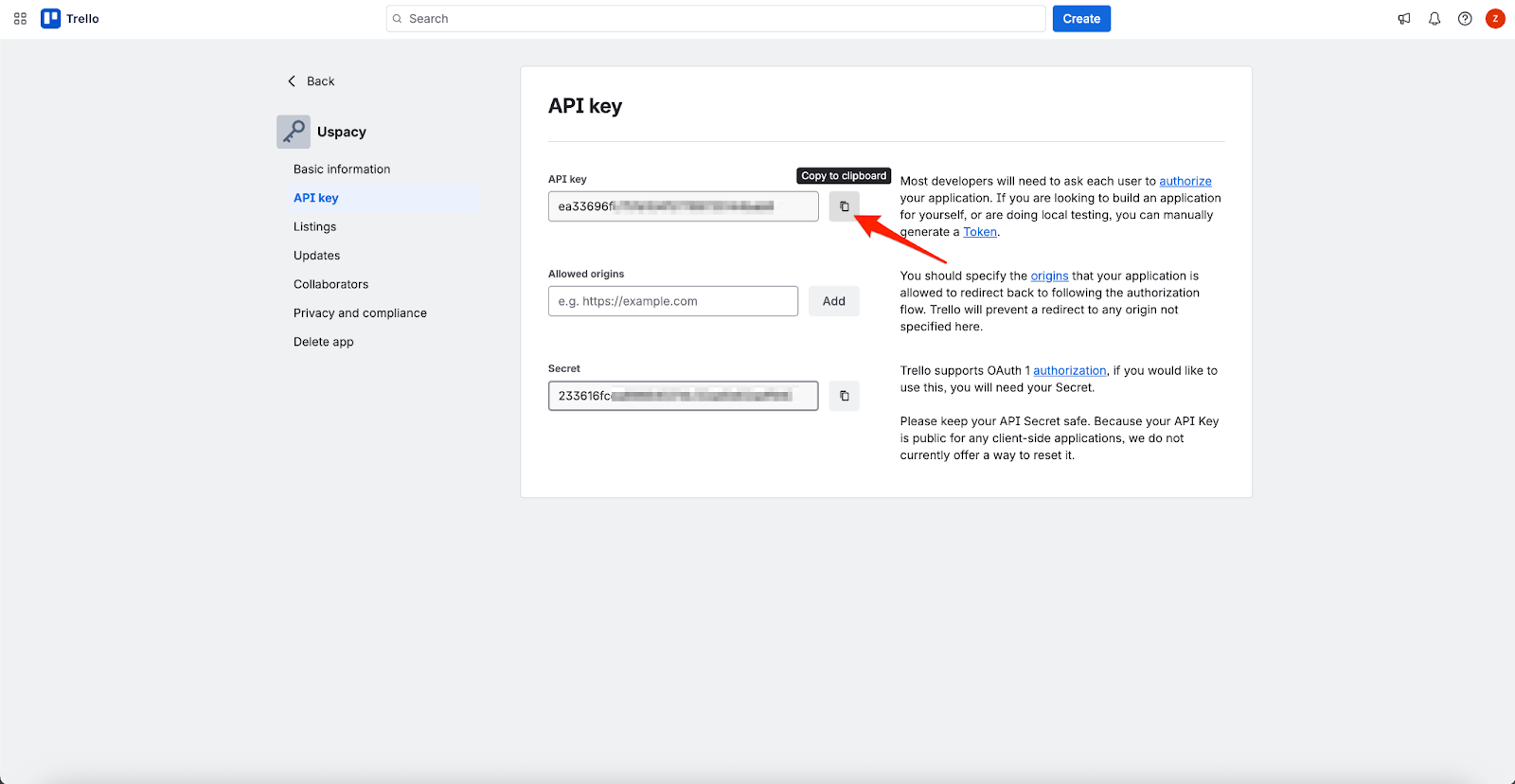
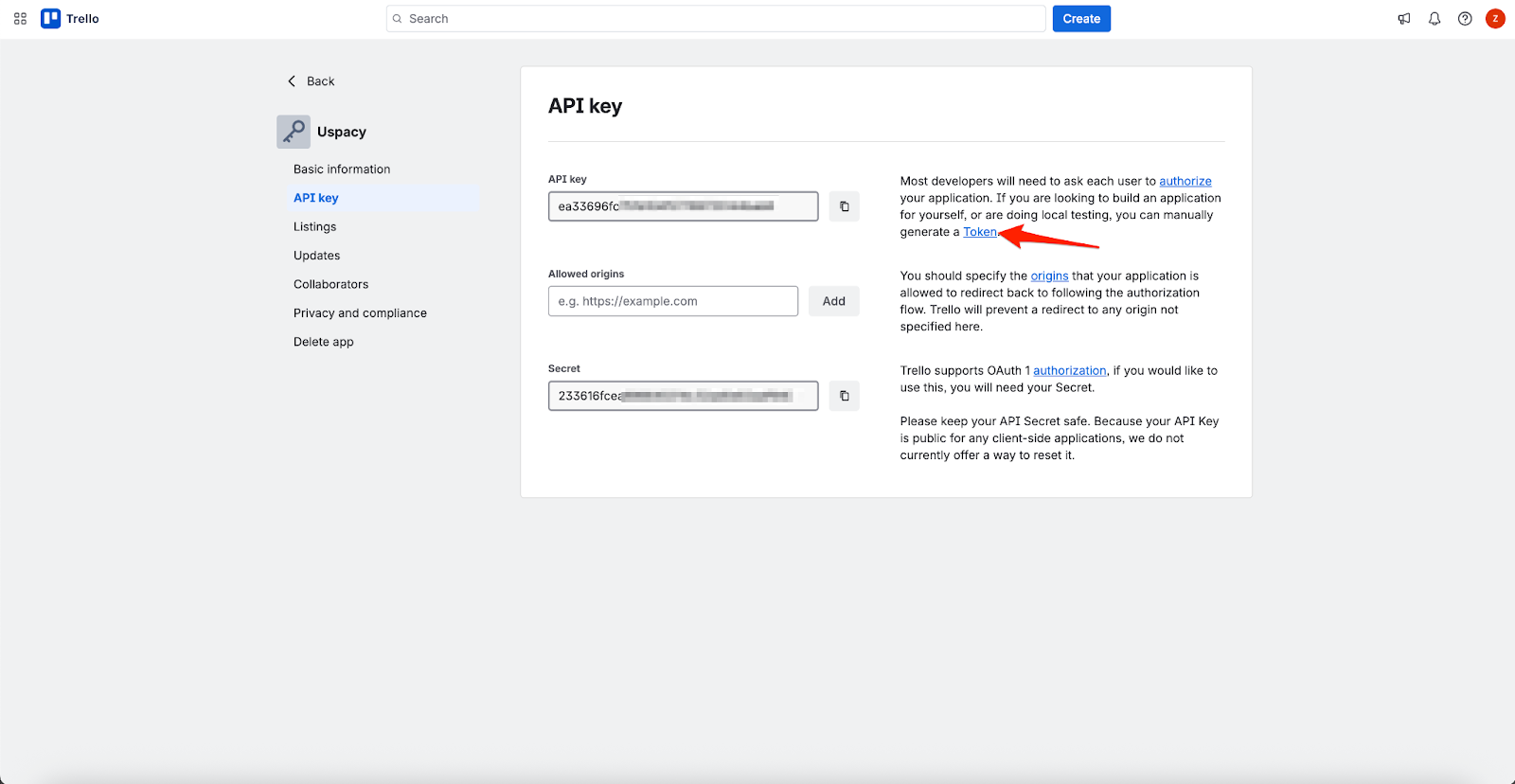
You will also need a Token. Click the provided link.
You’ll be redirected to a page where you need to grant your integration access to your account. This will enable data exchange between Trello and Uspacy.
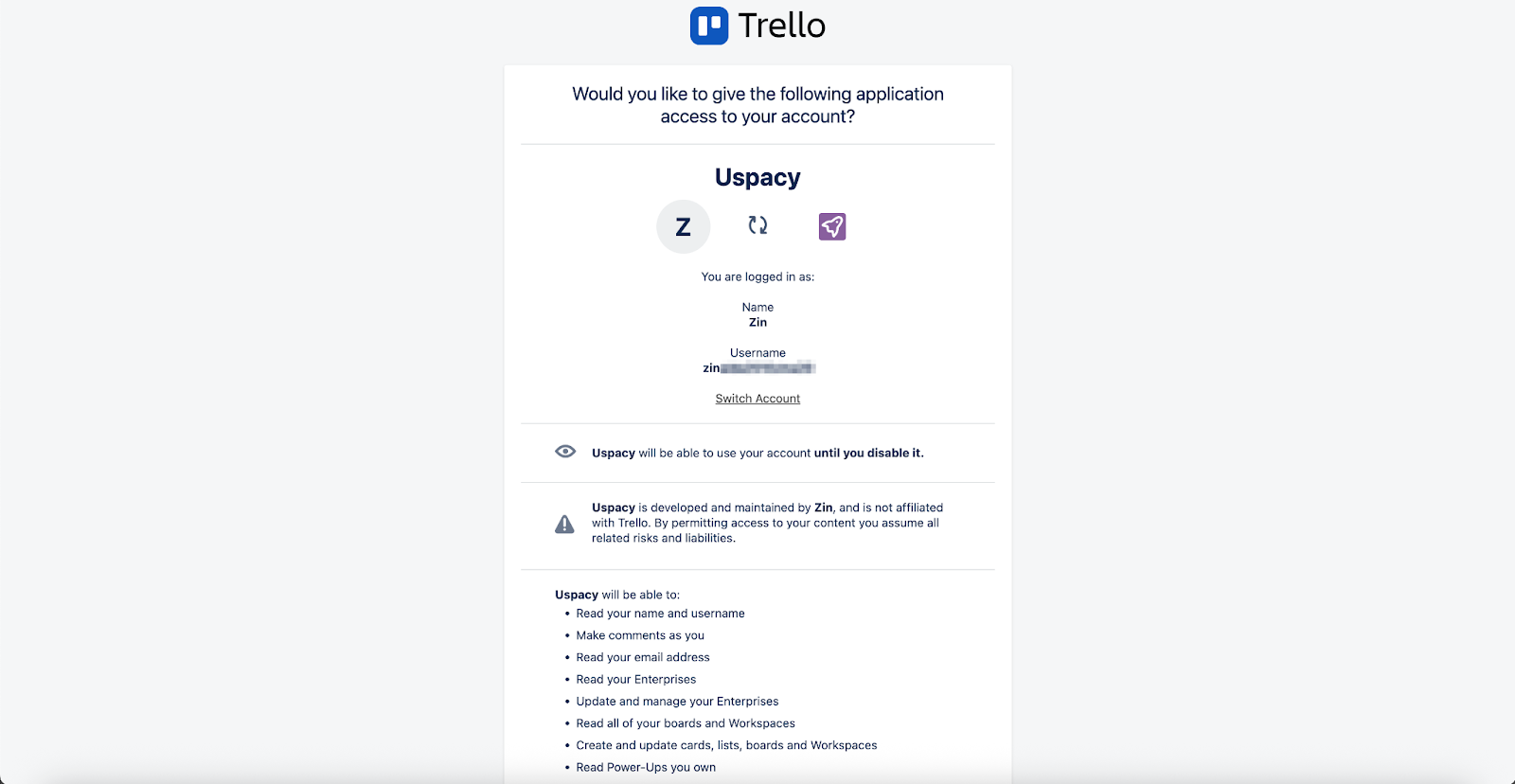
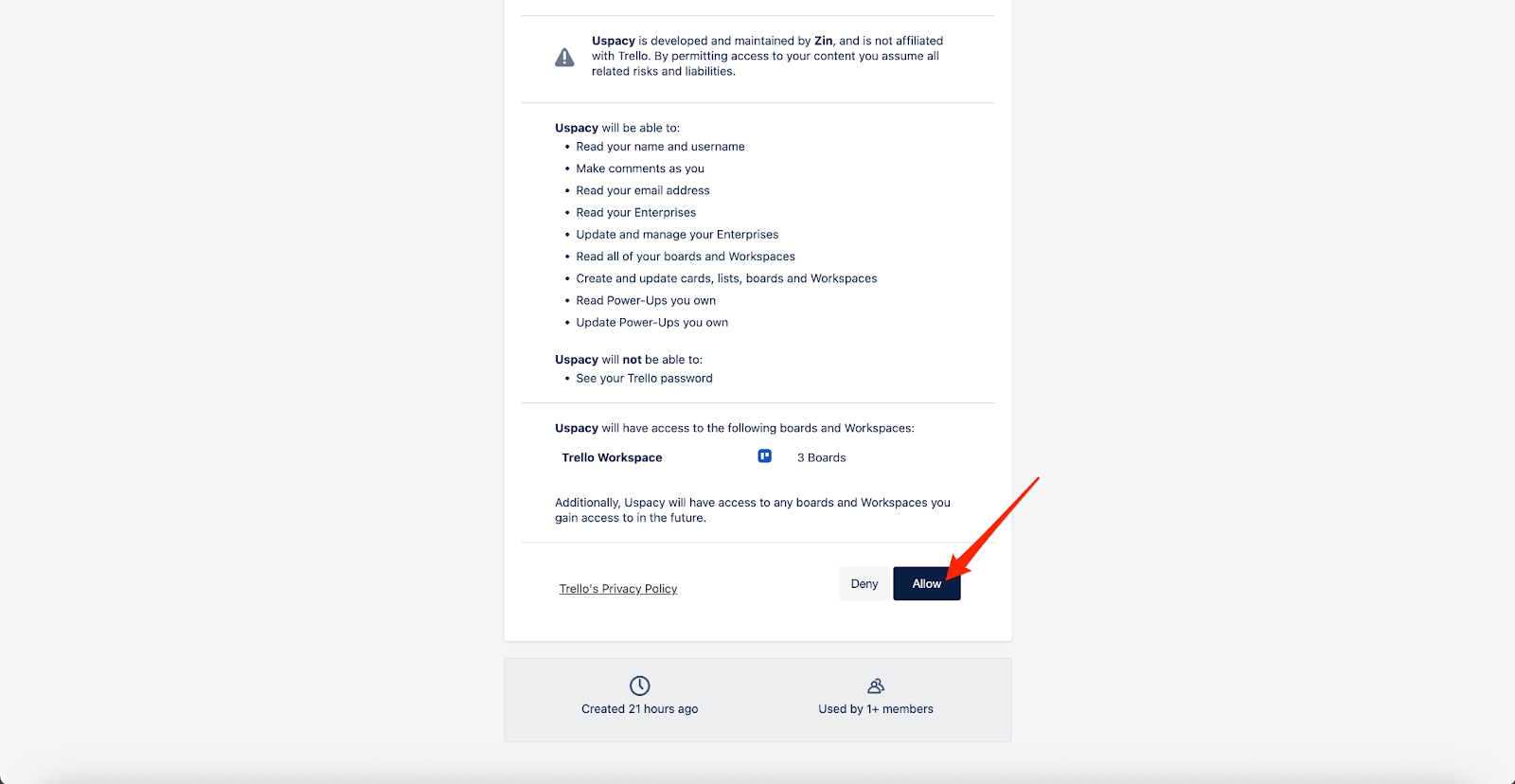
After clicking Allow, you’ll receive a token that you’ll need in the next step.
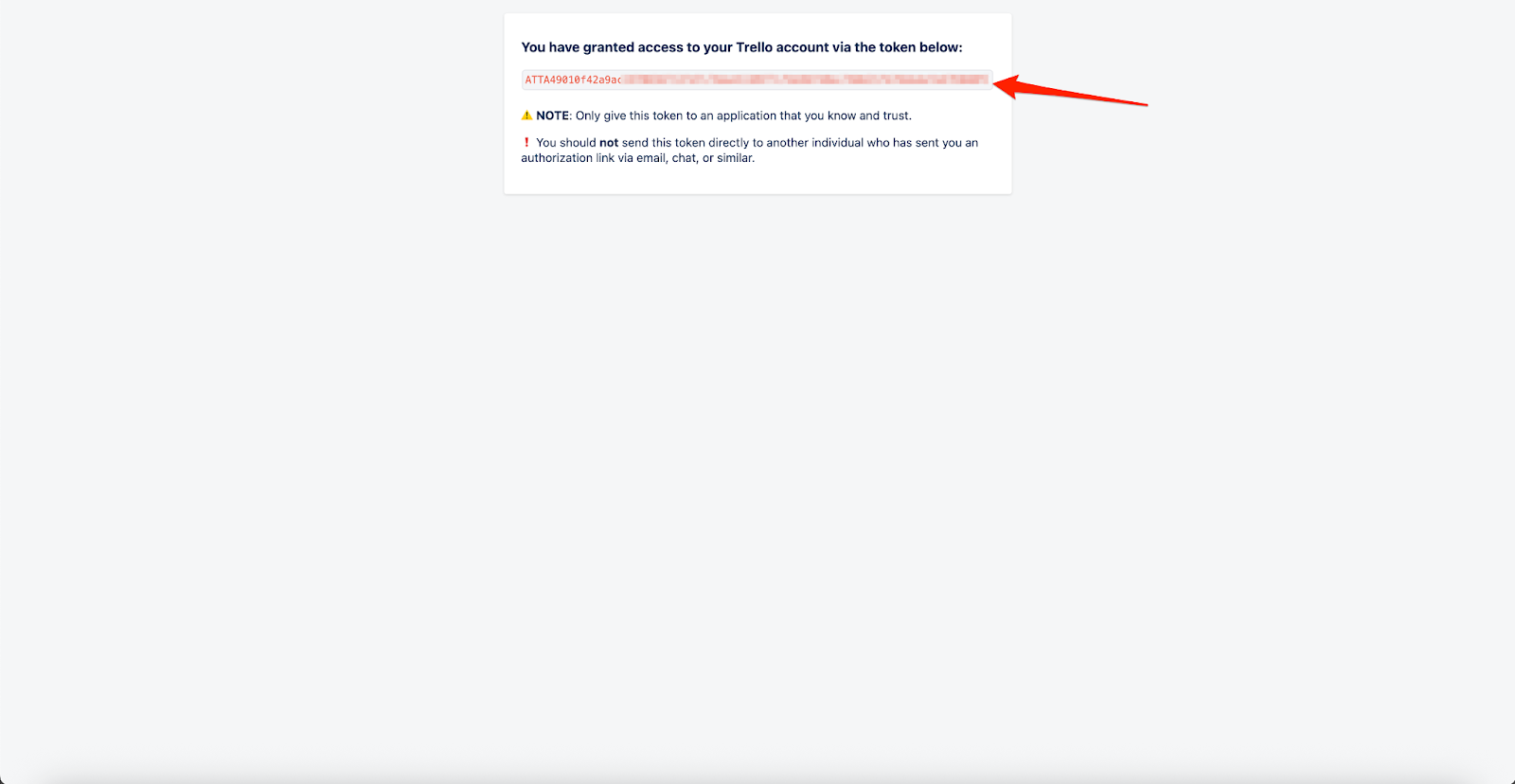
Step 2. Start the migration process in Uspacy
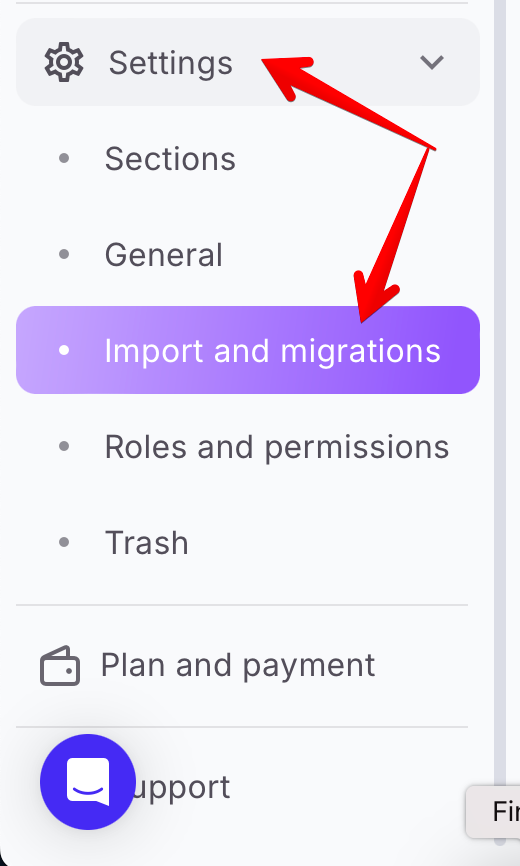
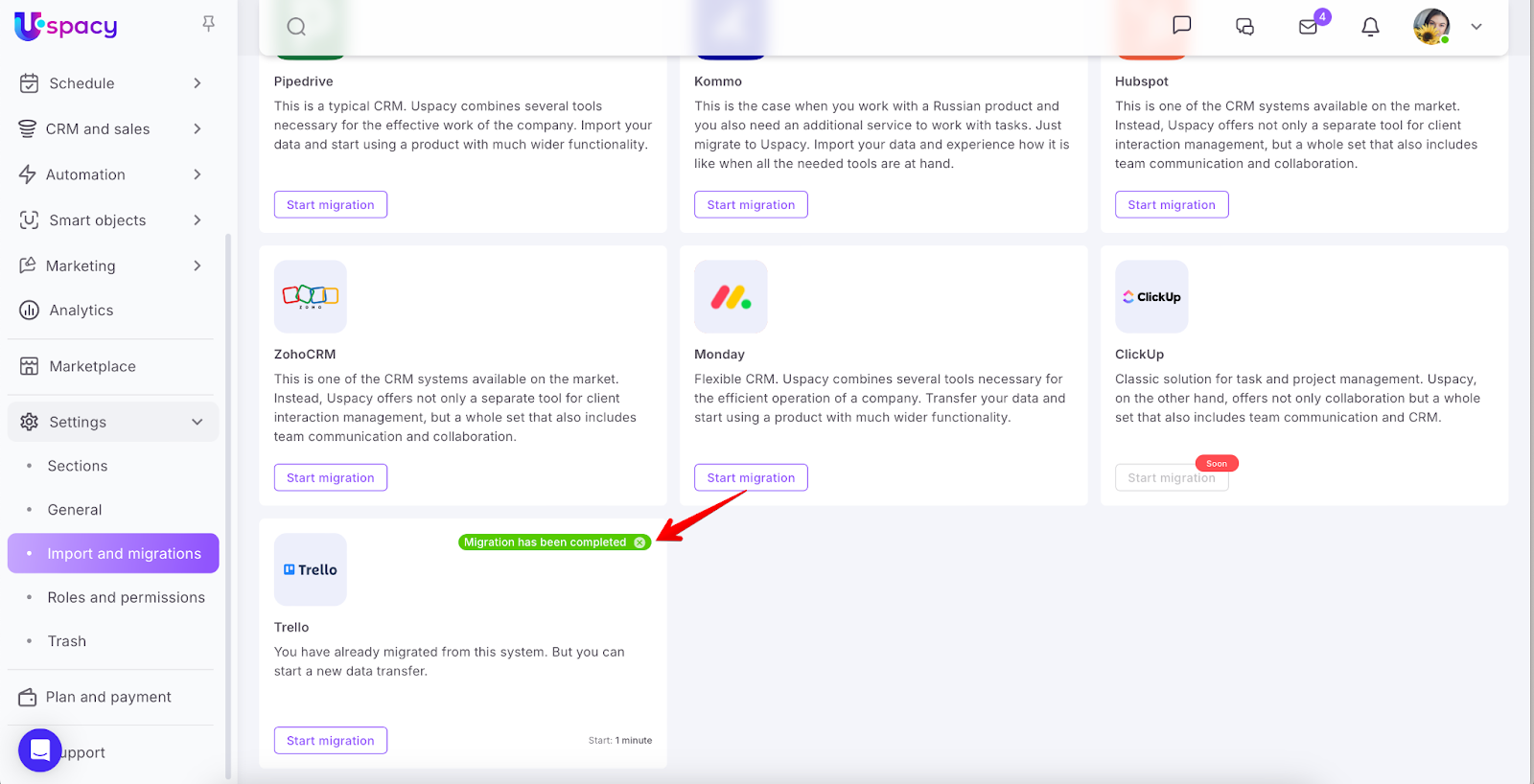
In your Uspacy workspace, where you plan to work with data imported from Trello, open the Settings section from the side menu and select Import and migrations.
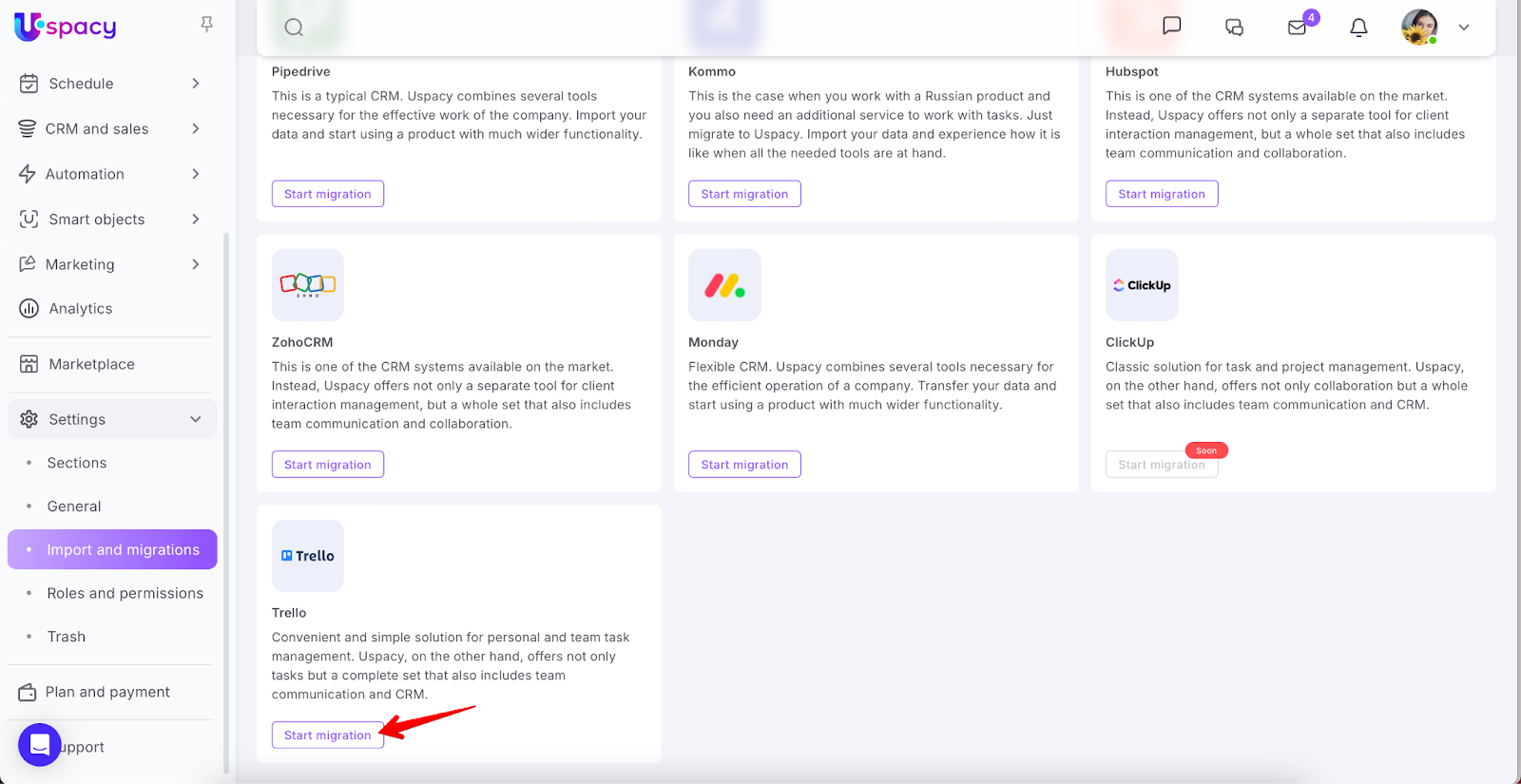
Among the available systems you can migrate from, select Trello and click Start migration.
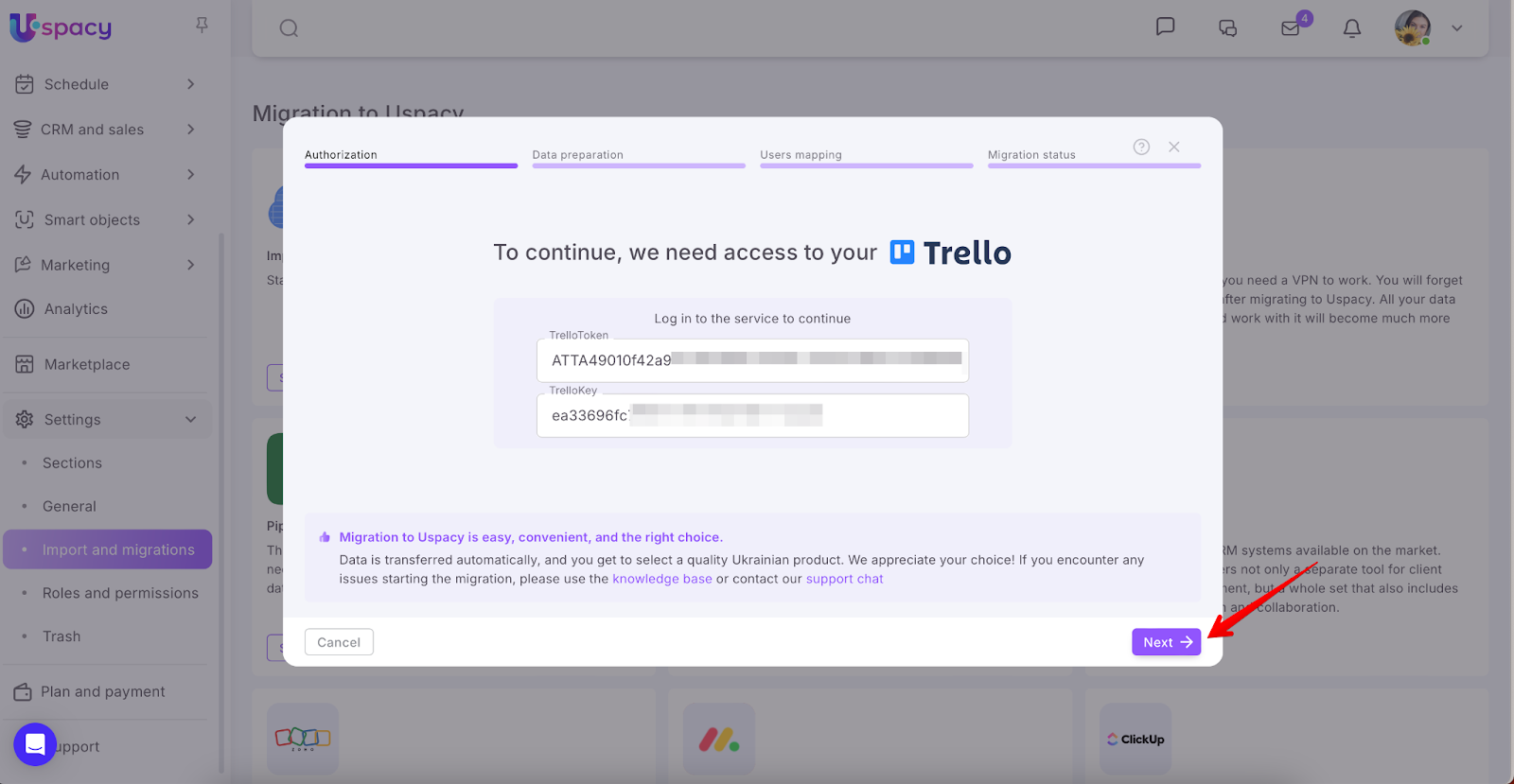
In the window that opens, paste the access Token into the TrelloToken field and the generated API Key into the TrelloKey field. Then click Next.
Step 3. Select the data to migrate
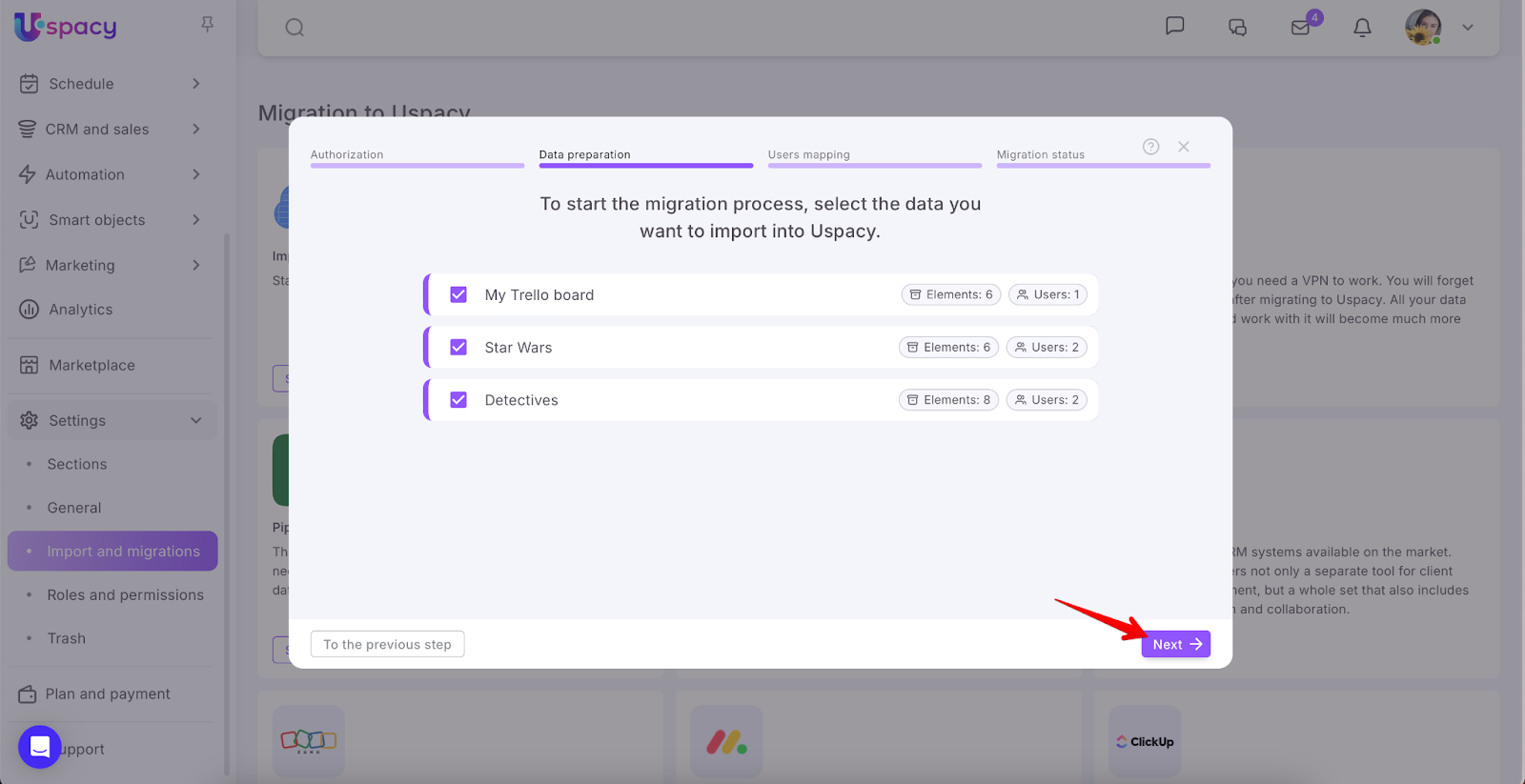
Next, select the data you want to transfer to Uspacy and click Next again.
Step 4. Map users
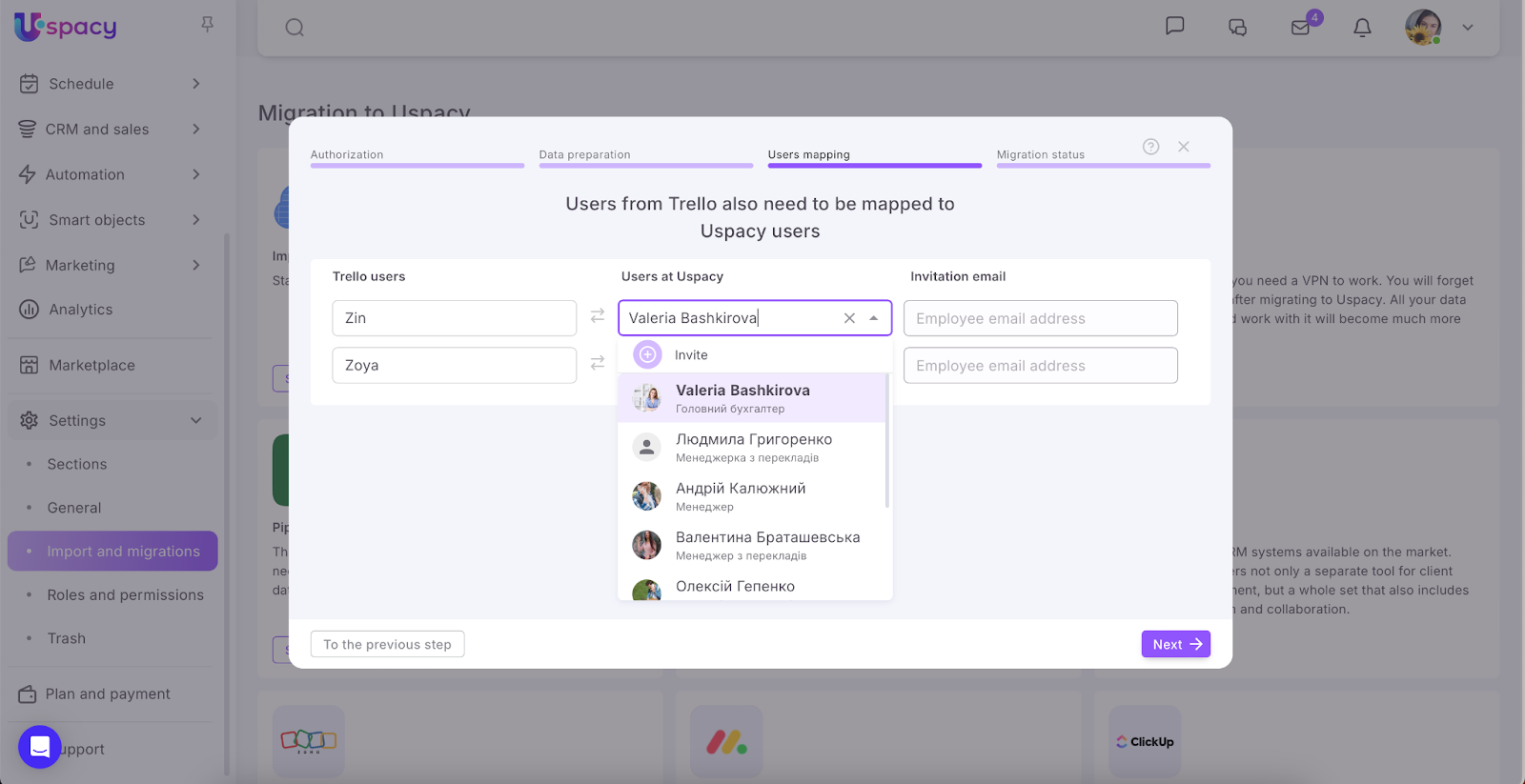
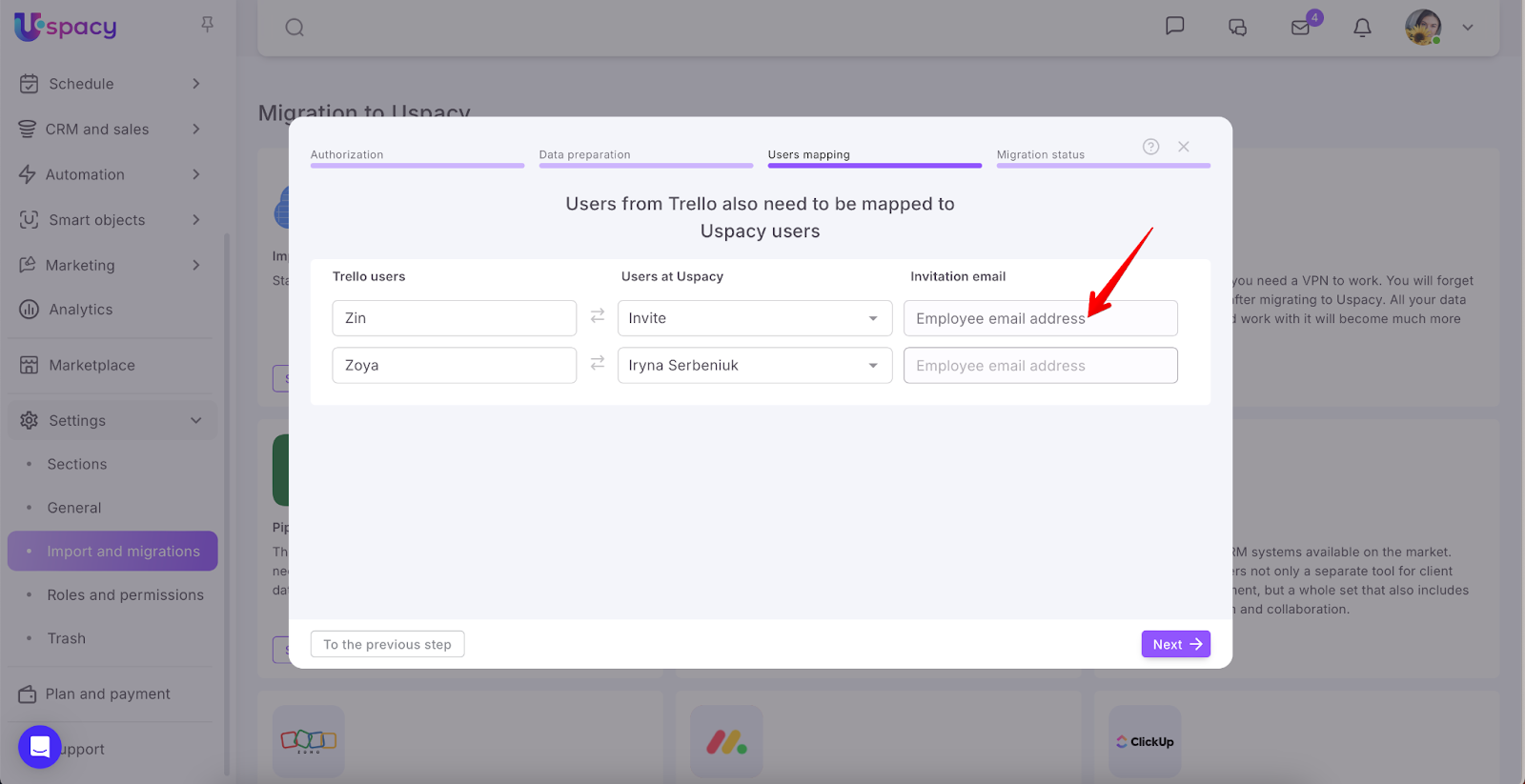
Then, map Trello users to the corresponding users in Uspacy.
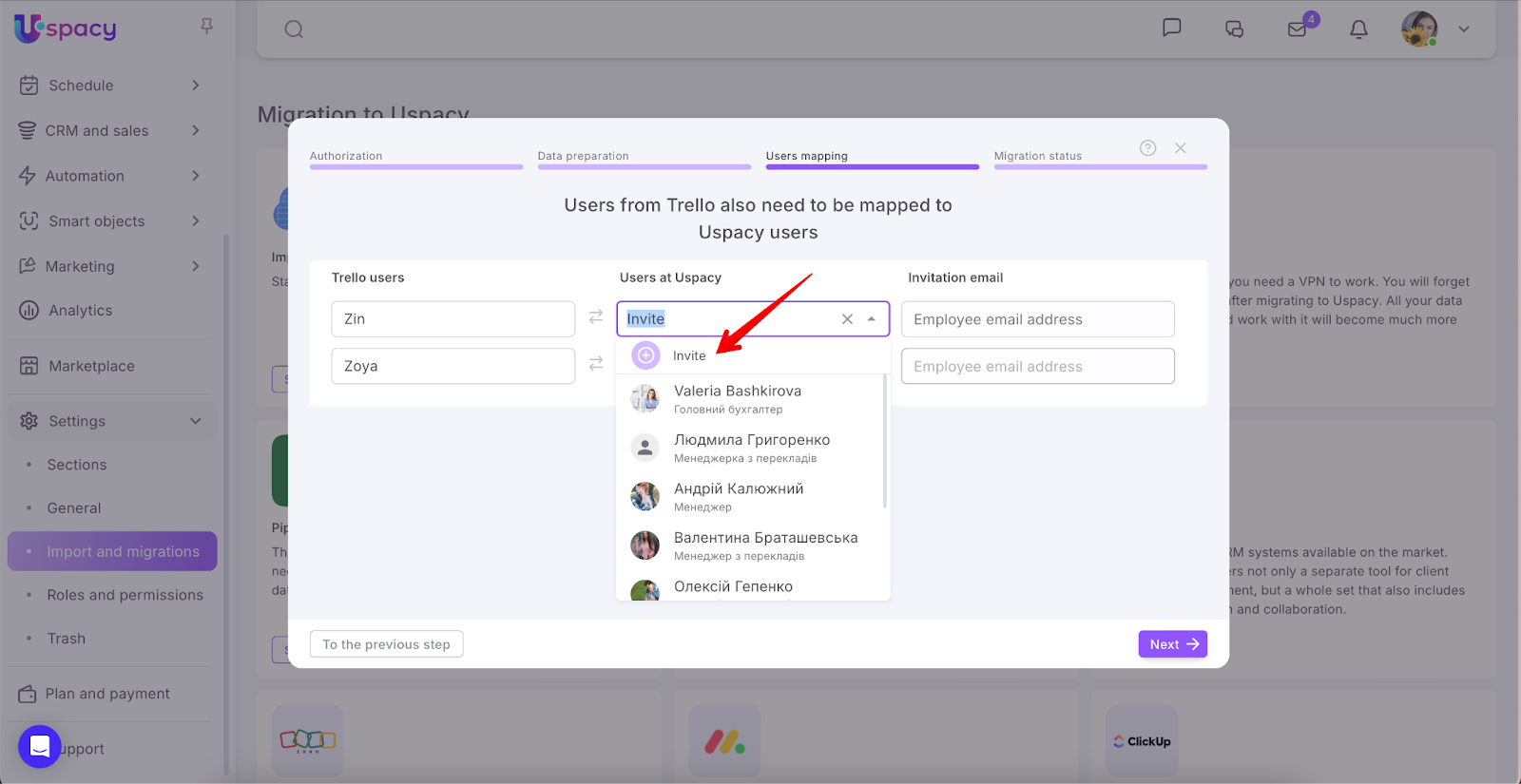
If an employee doesn’t yet have an account in Uspacy, you can invite them right away.
💡 Such a user will immediately become active in the Workspace. However, upon first login, they’ll need to reset their password, as described in the article about password recovery.
Step 5. Start the migration process
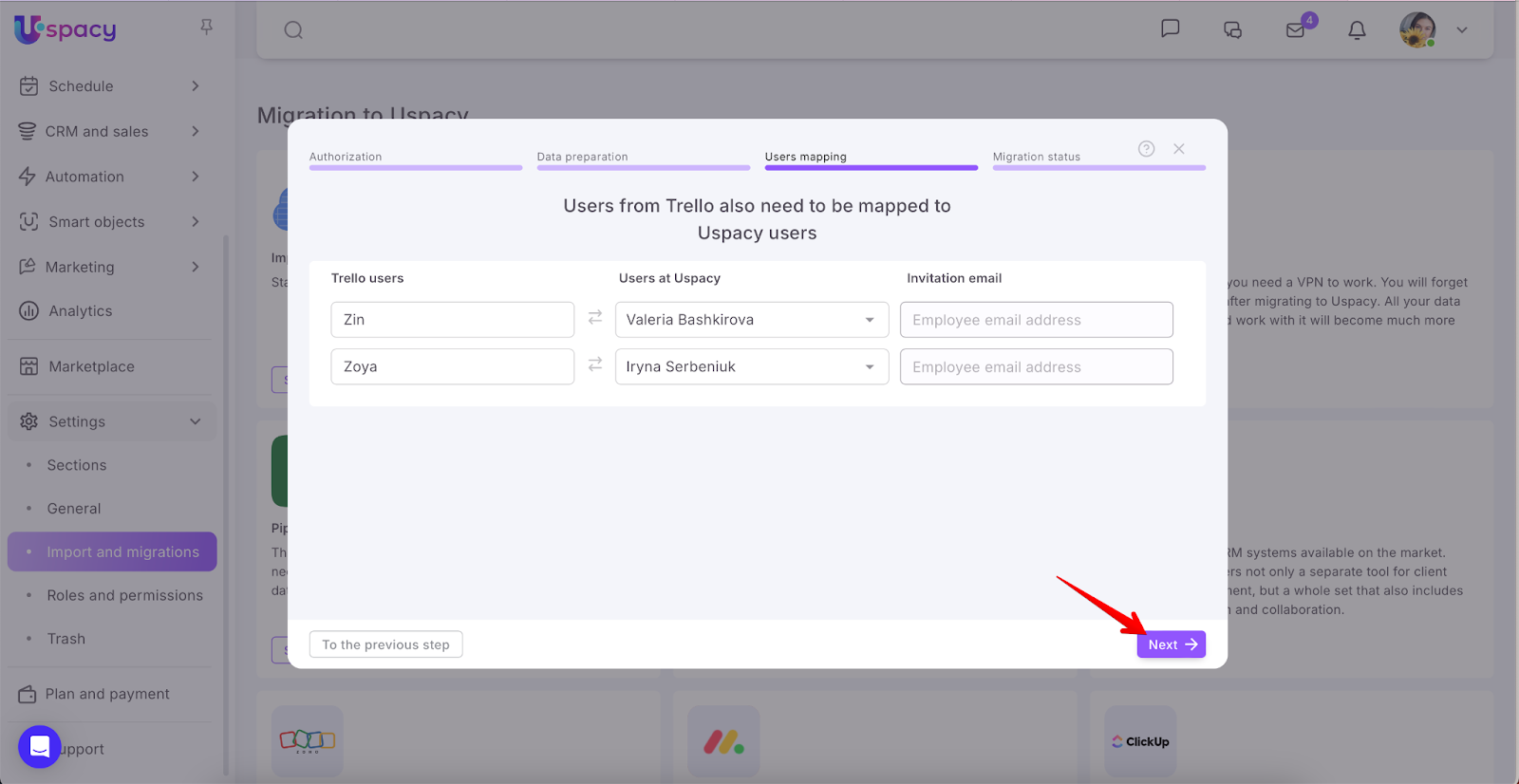
Click Next to start the data transfer.
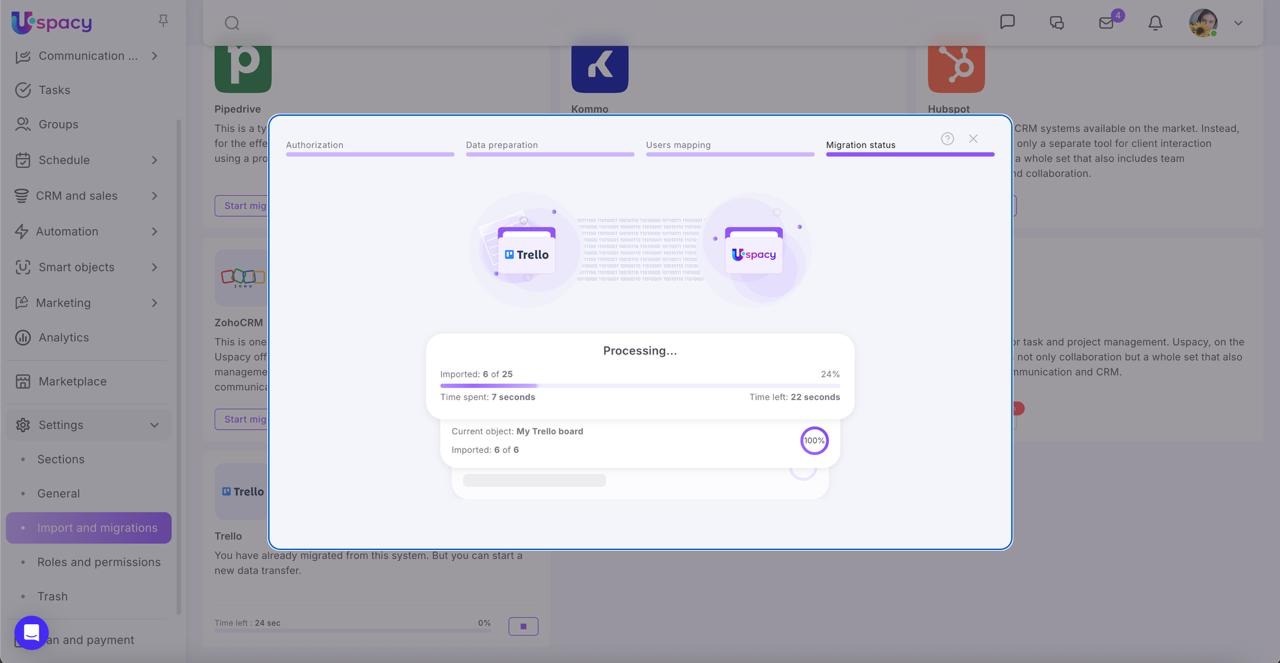
Once the migration starts, wait for the process to finish.
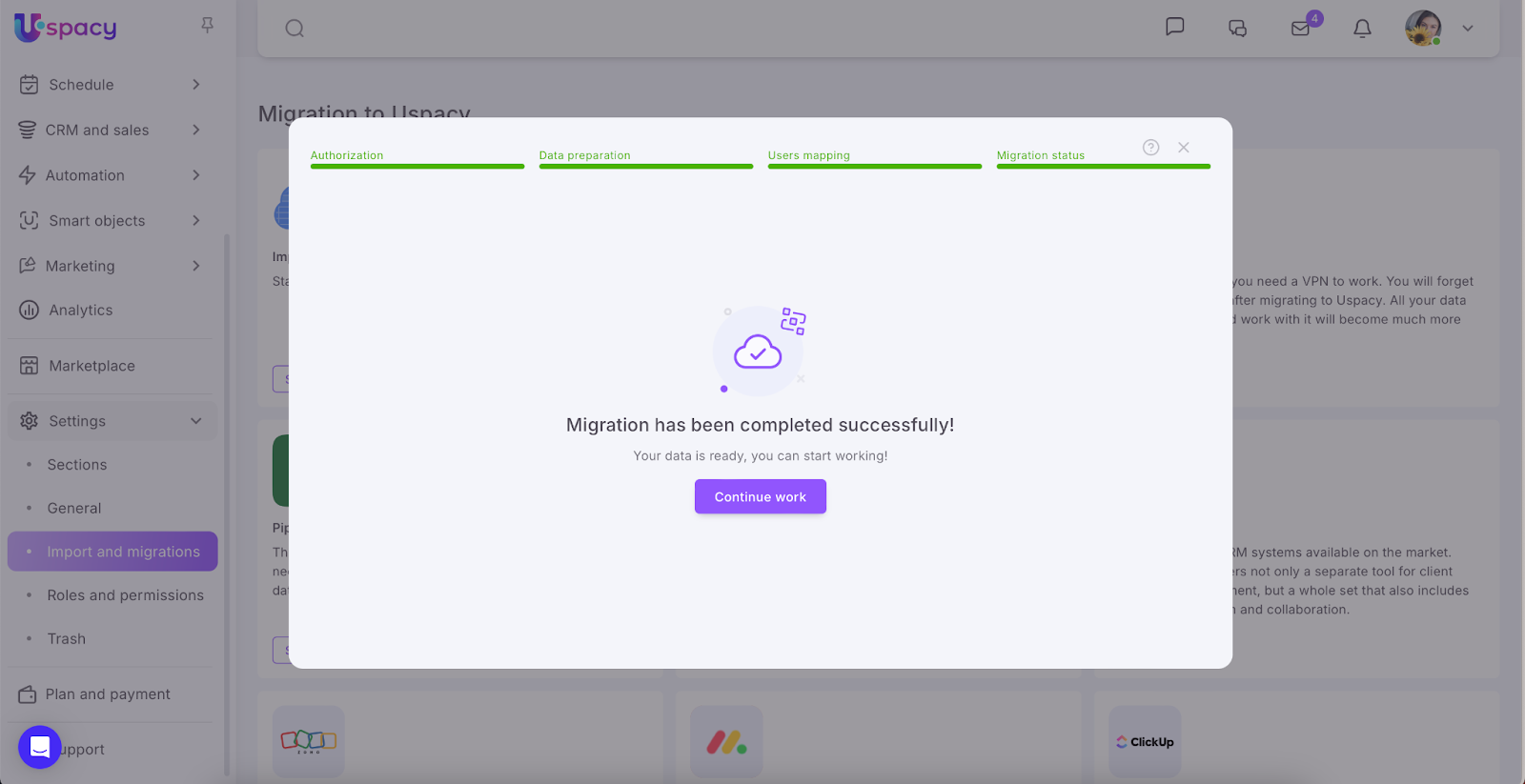
✅ Done! Continue working with your data — now in Uspacy!
If you have additional questions or you need to contact the support, send a request to this email [email protected]
Created: October 29, 2025