The Retrieve action helps you extract data from any entity (specifically: Leads, Deals, Contacts, Companies, Tasks, and custom Smart Objects) and pass it into the following steps of a conditional action.
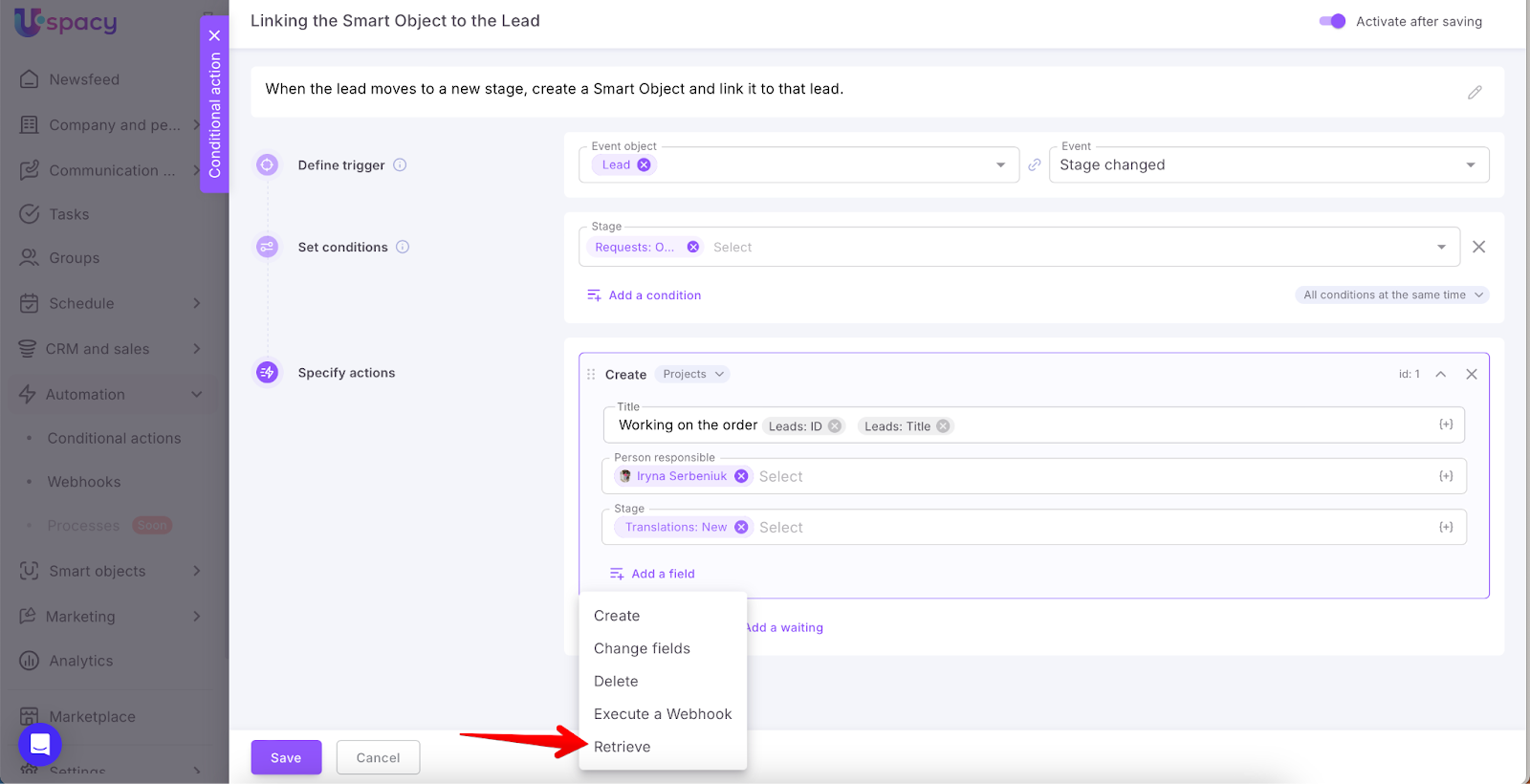
Let’s look at a common but useful scenario where the Retrieve action is used alongside Create and Change fields actions. That is:
- First, a new entity element is created — in our case, a custom Smart Object called Project.
- Then, we "retrieve" its ID.
- After that, we use this ID to link the newly created Project to a Lead.
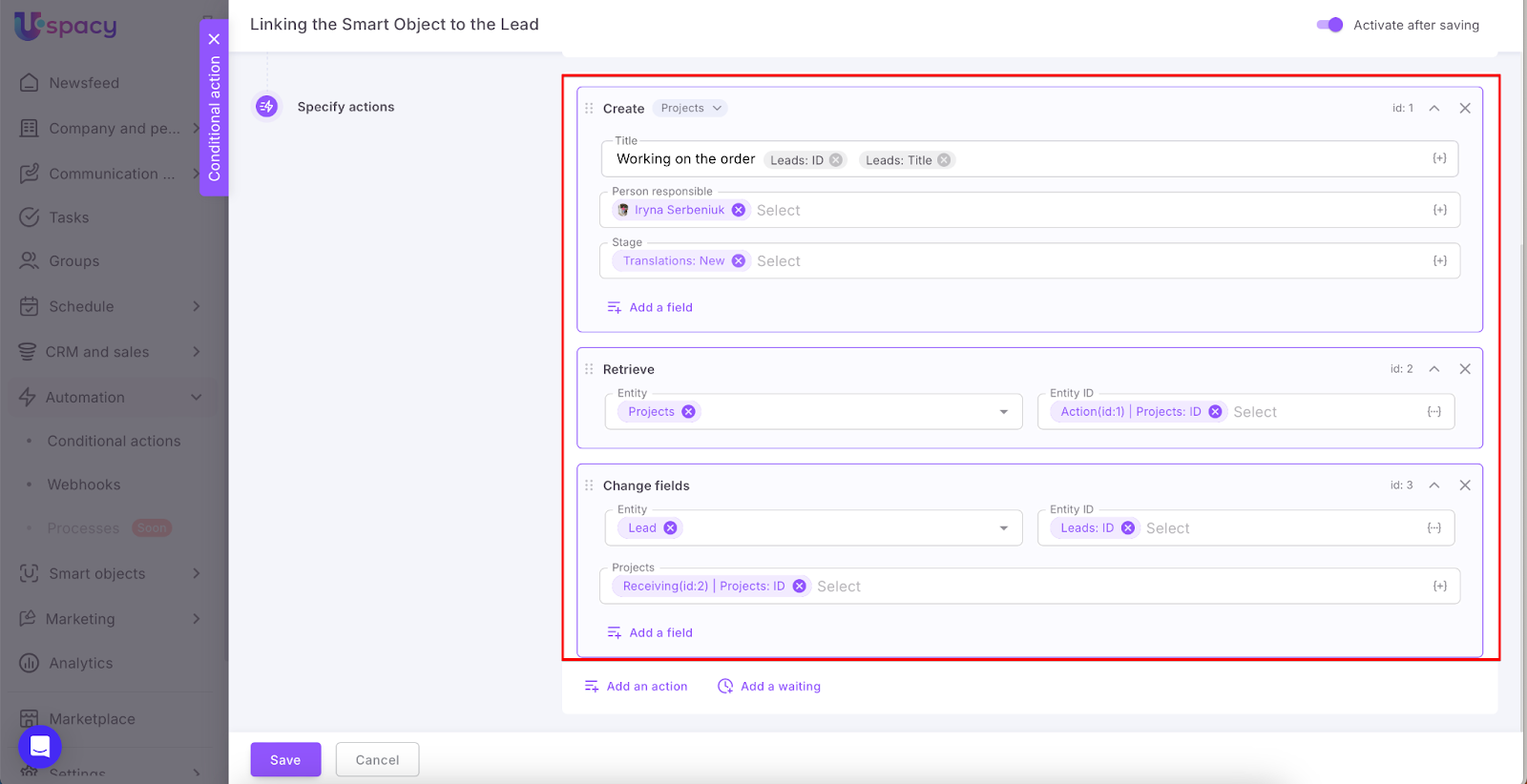
The step-by-step guide below ⬇️
Trigger and Conditions
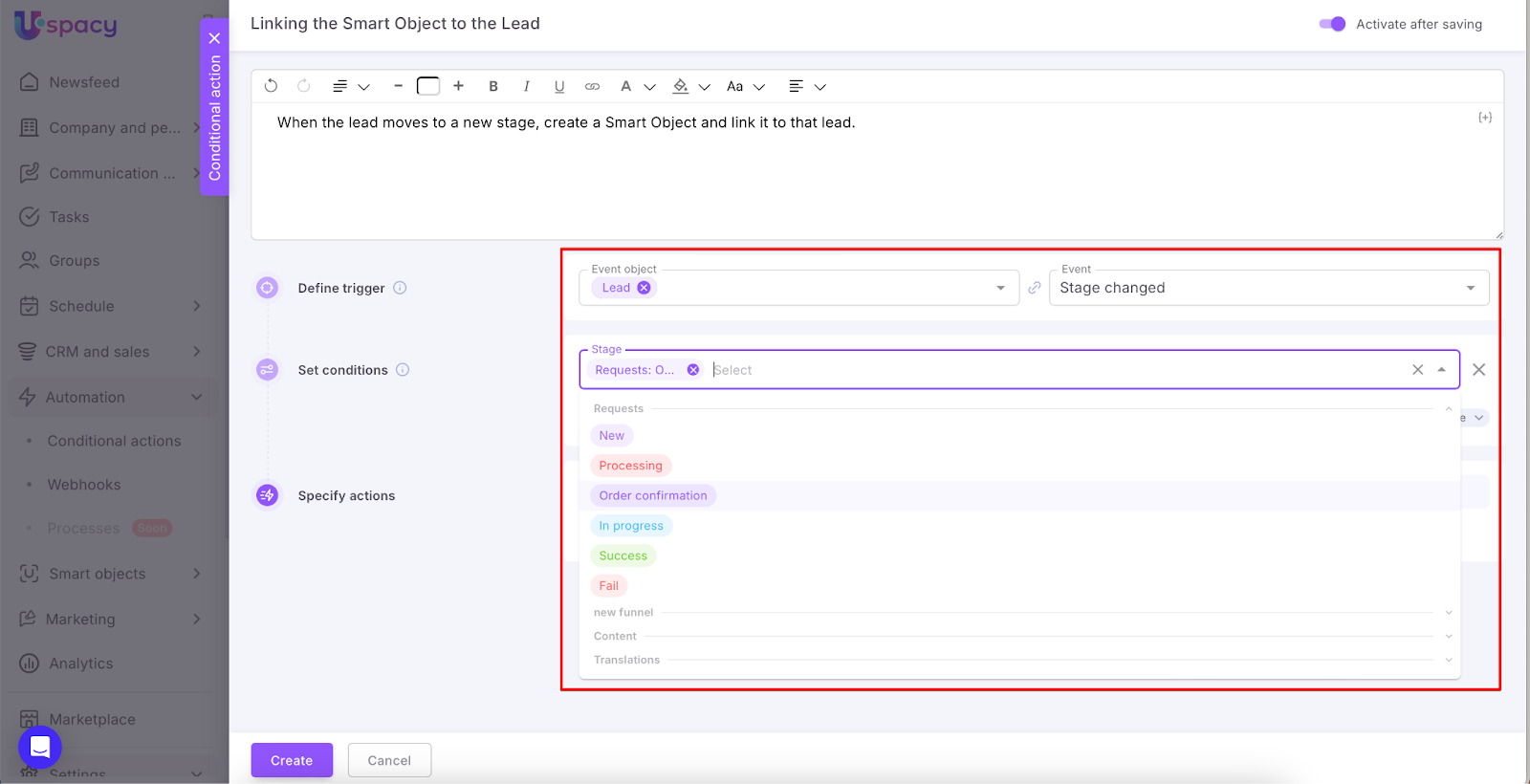
For our conditional action “Linking the Smart Object to the Lead”, the trigger will be the stage change to “Order confirmation”.
Assigning the actions
There are three of them:
Create
When the lead reaches the selected stage, a new Smart Object (a Project) should be created.
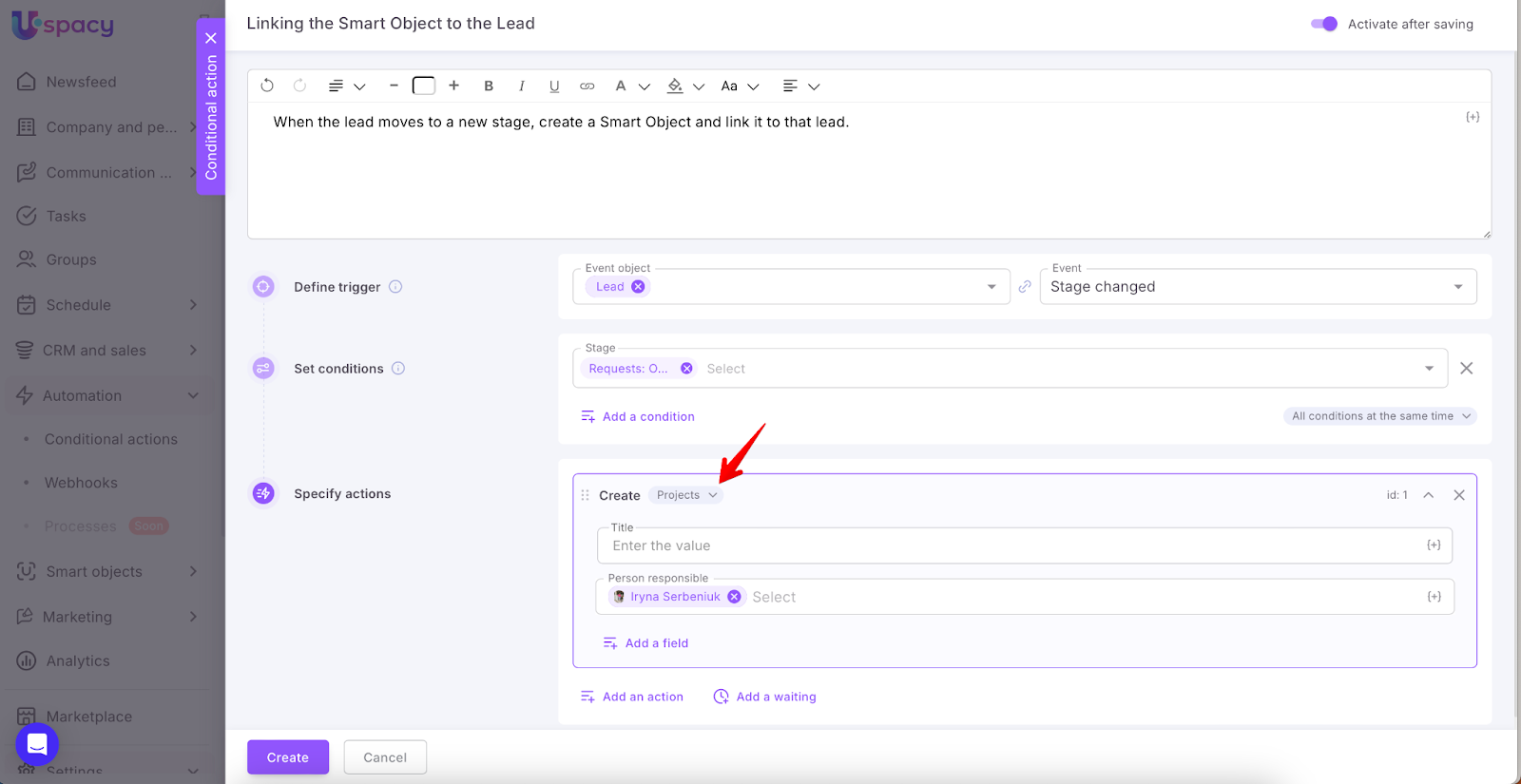
We’ll configure its title. Of course, we can also use the conditional action to fill out other required fields right away.
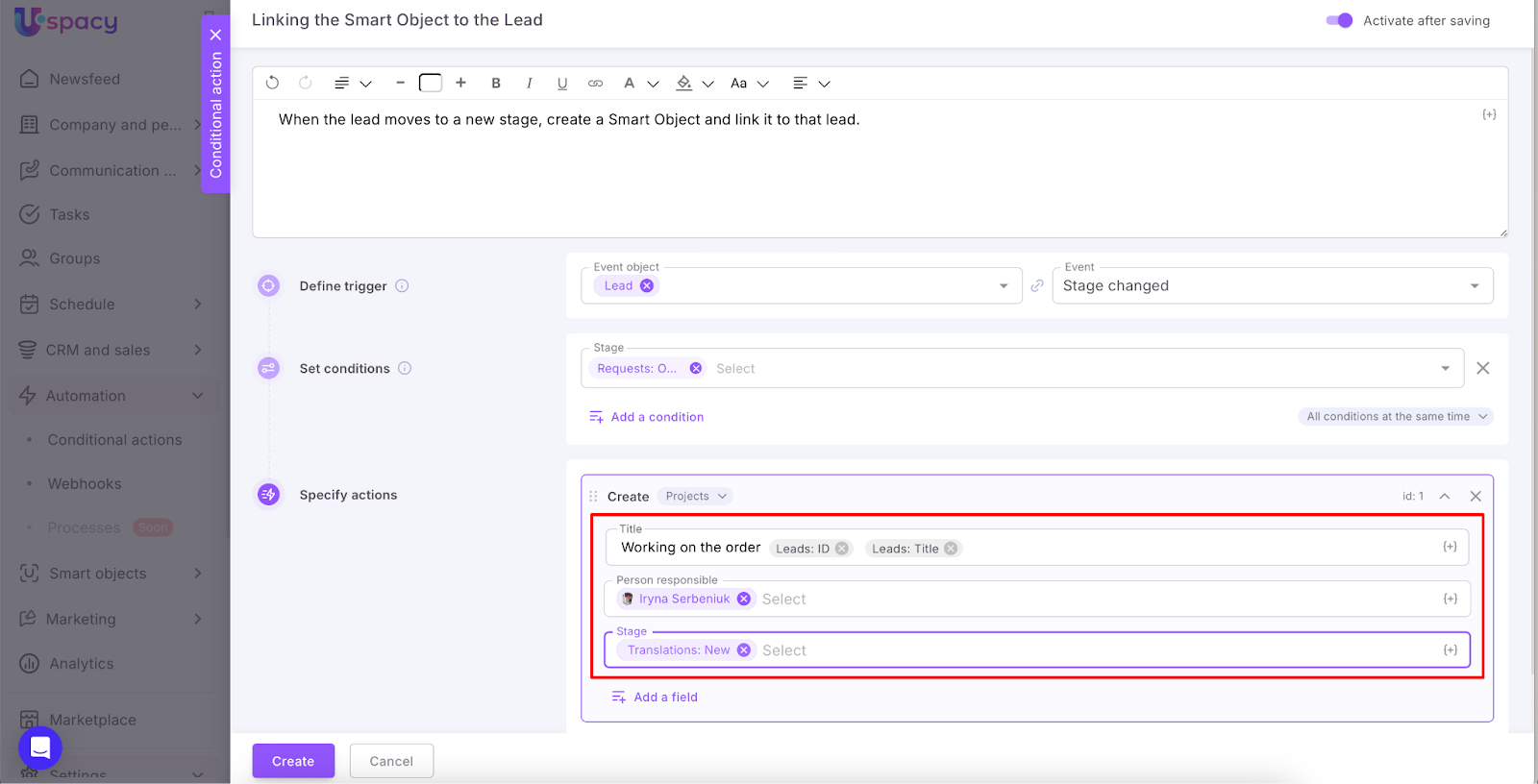
💡 This is the first action in the automation and will receive the ID tag: id:1.
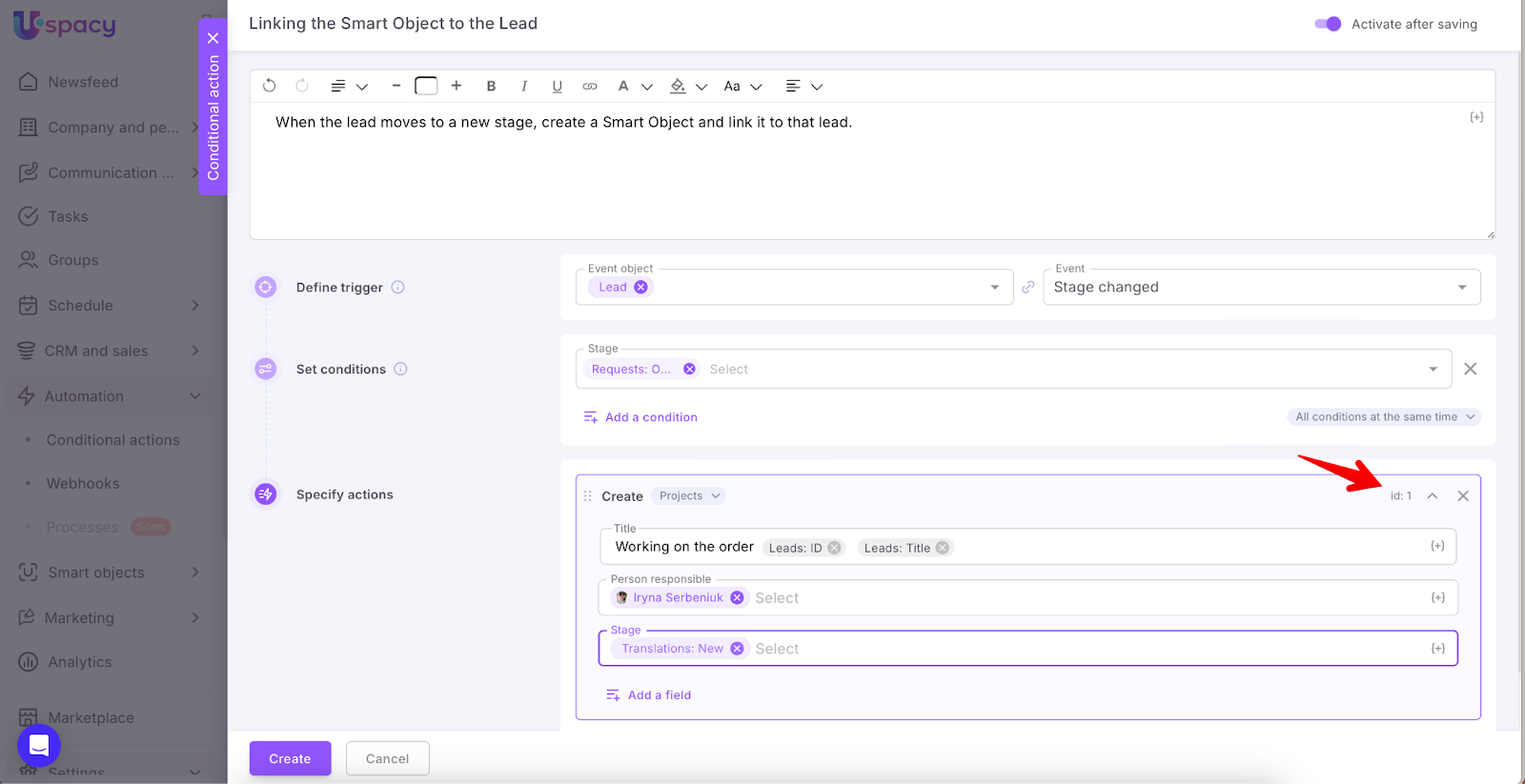
Retrieve
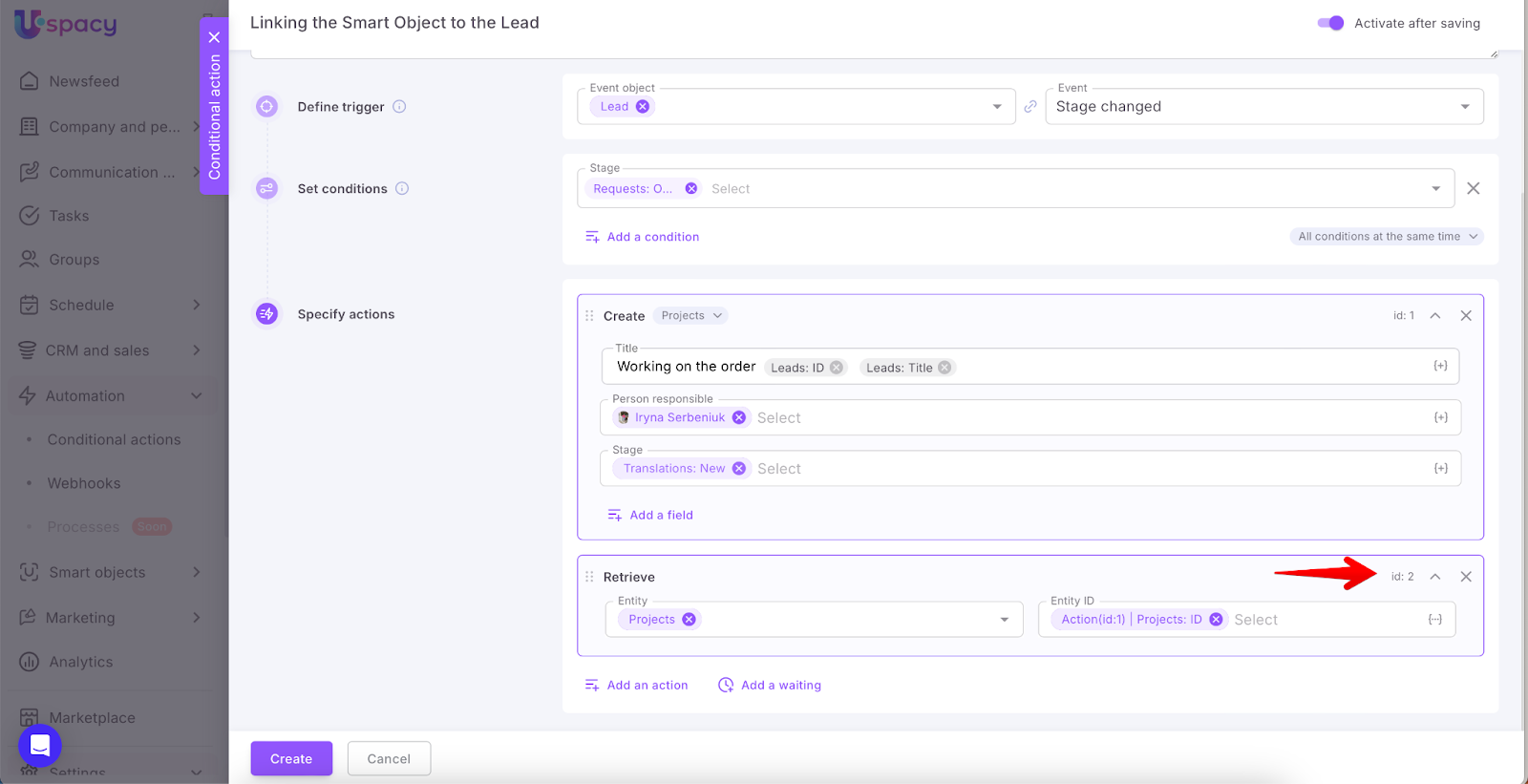
Next, we can retrieve data from the newly created Project. To do this, select Projects as the entity.
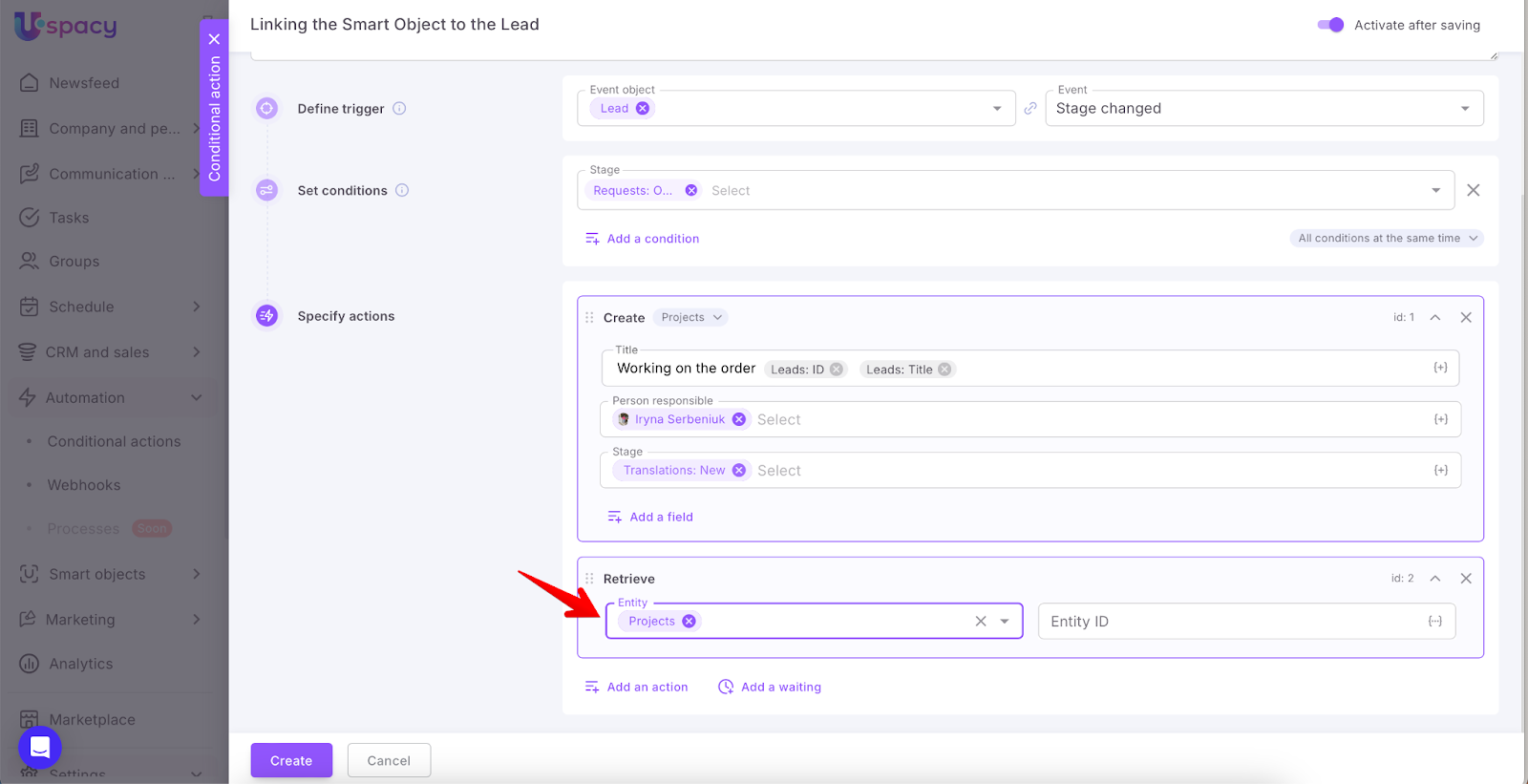
To make sure the conditional action pulls data from the project it created (like its ID), we specify this in the settings.
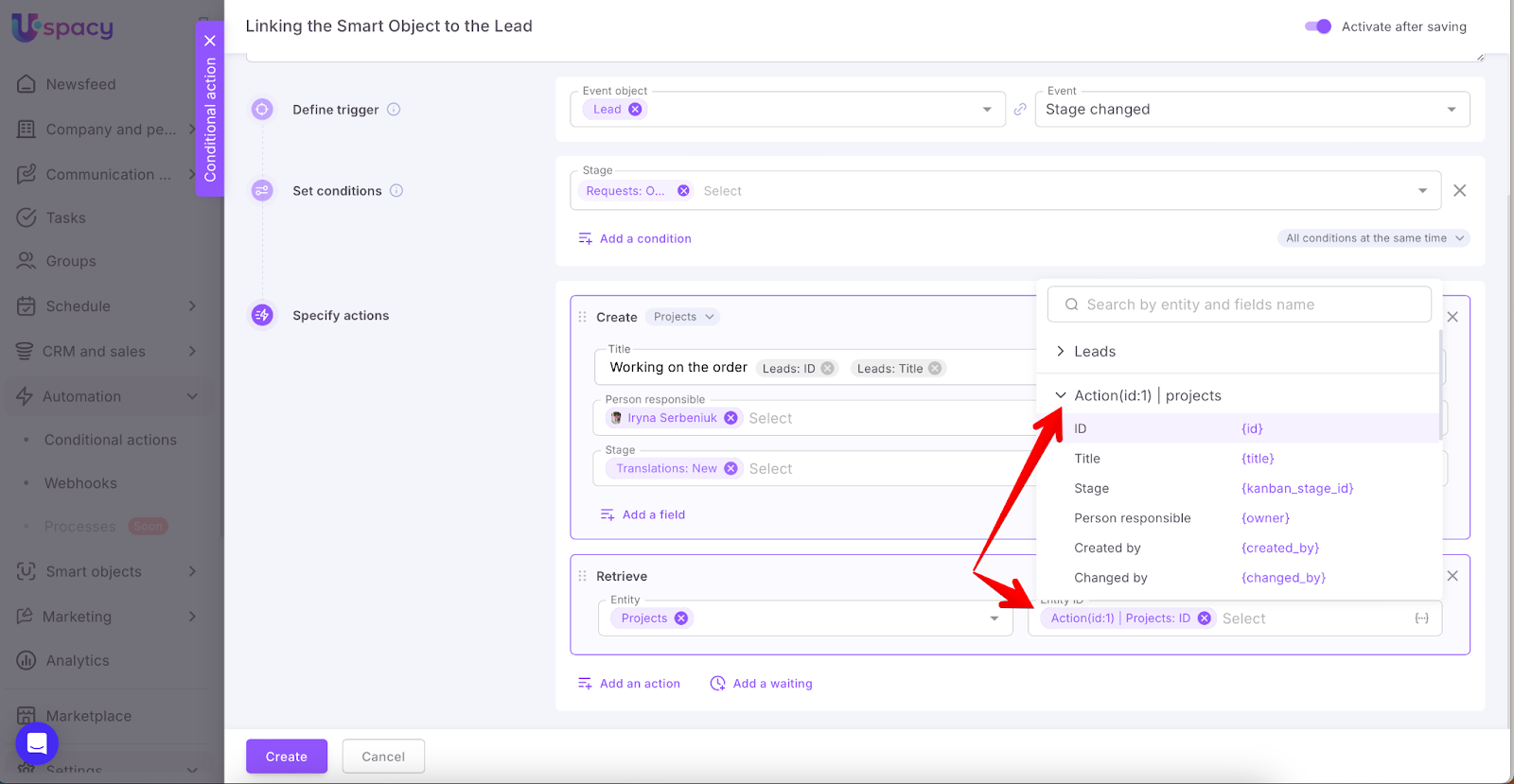
💡 This is the second action and will receive the tag: id:2.
Change fields
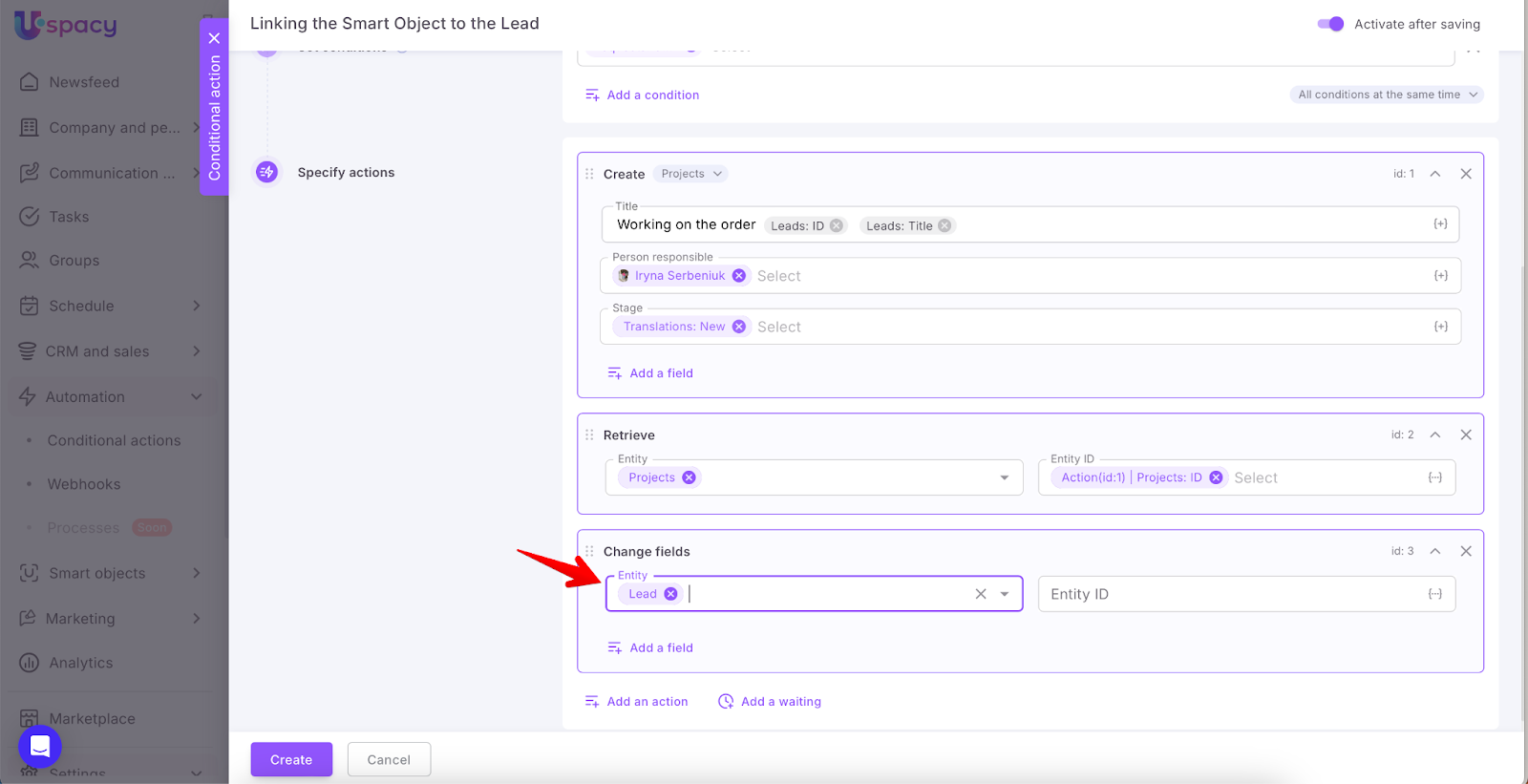
Now that we have the Project ID, we can link the Project created by the automation to the Lead. Set Lead as the entity where fields will be updated.
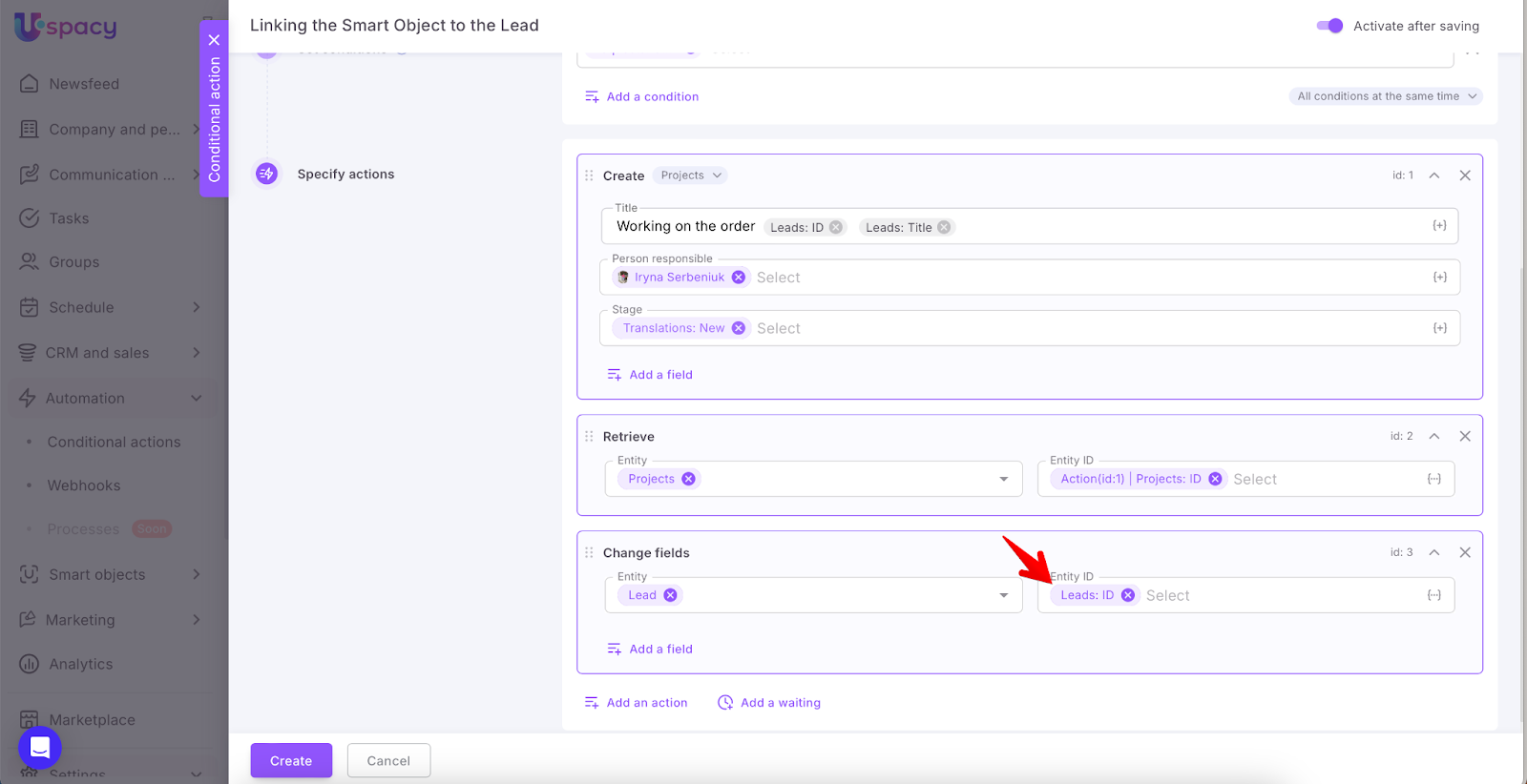
To ensure the system correctly identifies the source lead whose stage was changed (and which triggered the automation), we identify it by ID.
Then, add a custom field to the lead of the type: Link to Smart Object → Projects.
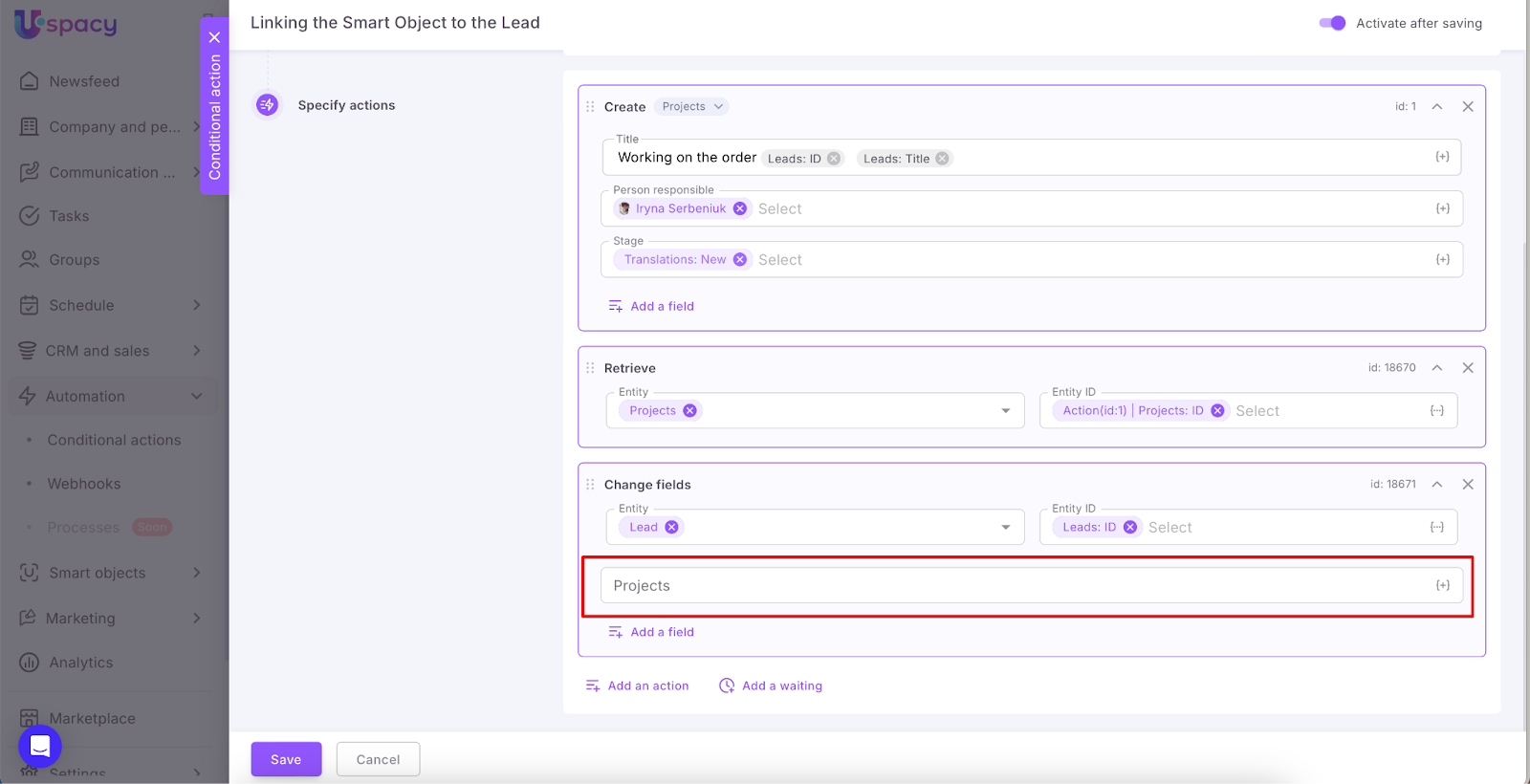
Here, we’ll specify that the conditional action should use the retrieved Project ID to auto-fill this field.
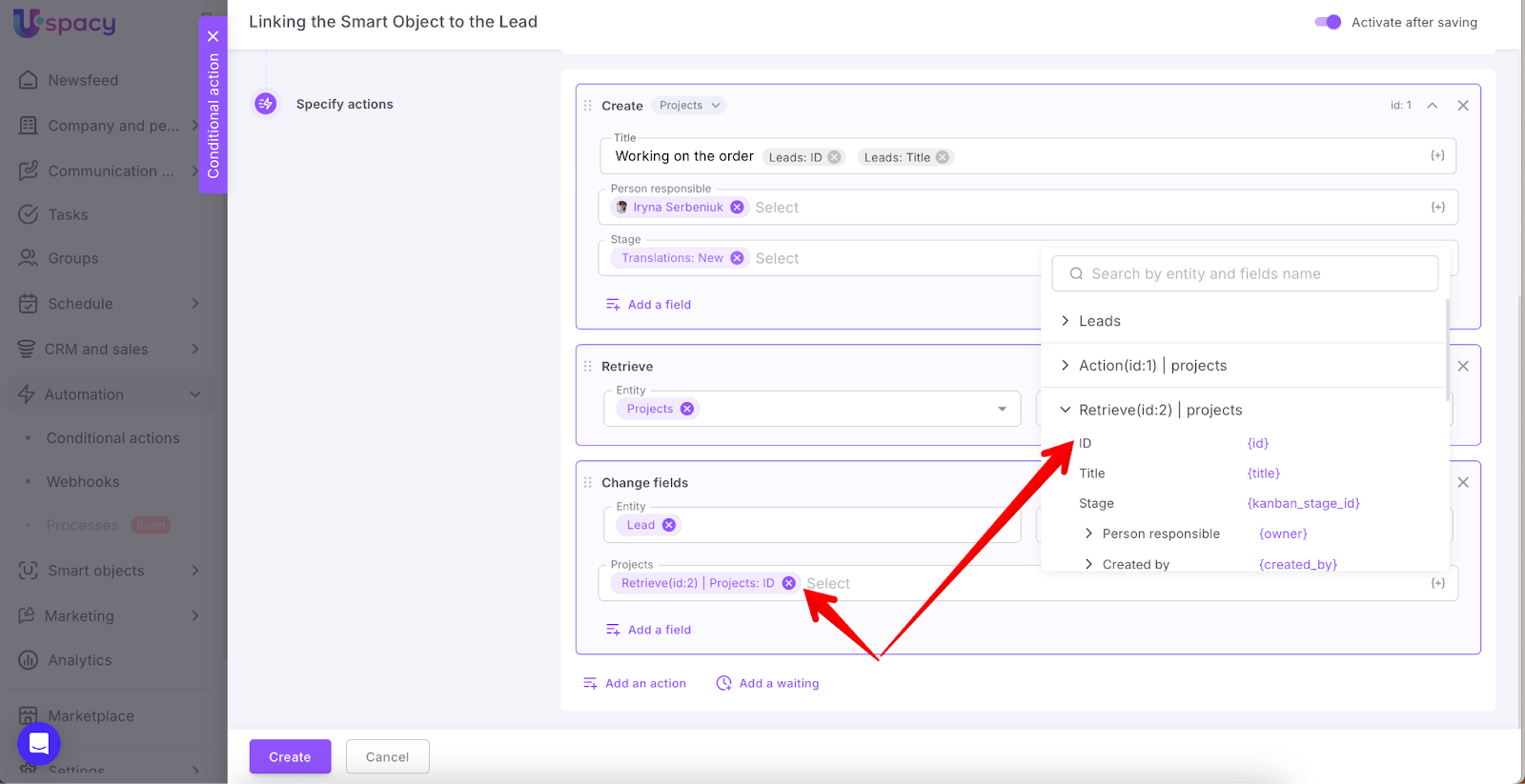
💡 This third action will be tagged: id:3.
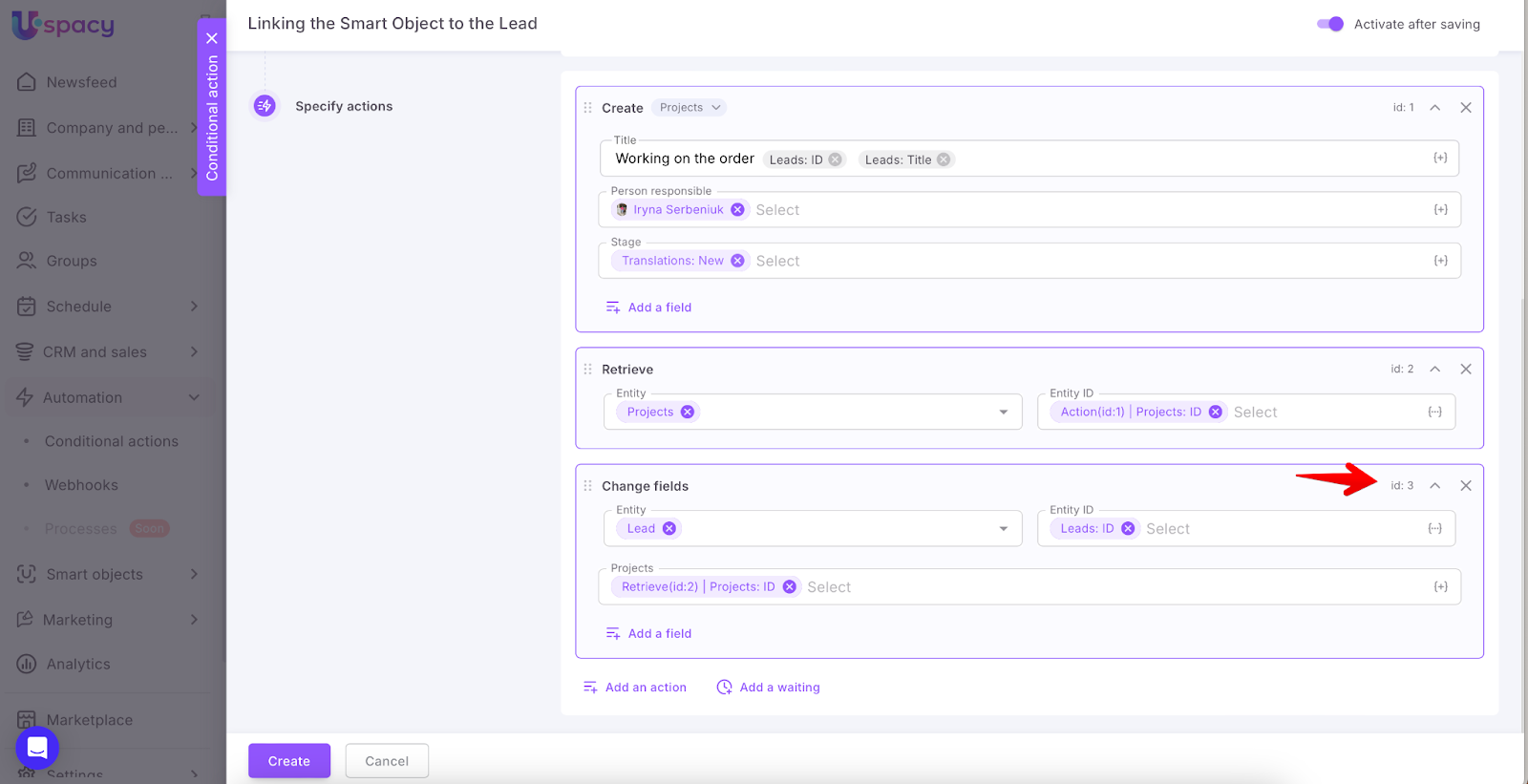
Why IDs and what do they mean? These ID tags (e.g., id:1, id:2) are internal step identifiers within the current conditional action. Every action block you add (Create, Retrieve, Change fields, etc.) is assigned an ID like id:N. This allows the system to clearly understand which step’s output to use when referencing variables.
Create (id:1) | projects → …
Retrieve (id:2) | projects → …
These indicate that the values are being pulled from the corresponding step (step 1 or step 2).
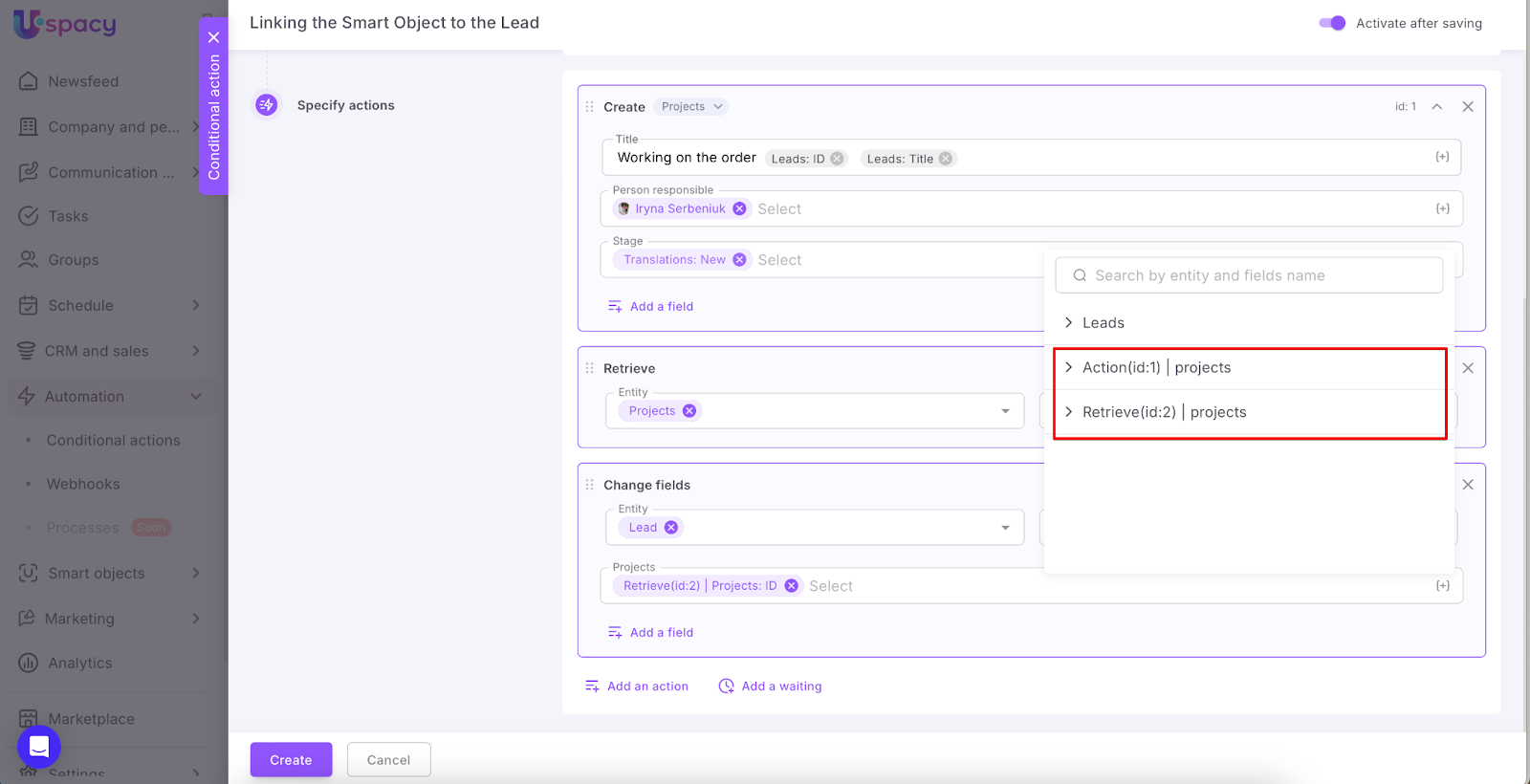
Example of reading step tags:
Action(id:1) | projects → ID {id} = the ID of the project created in step id:1.
Retrieve (id:2) | projects → Title {title} = the “Title” field from the element retrieved in step id:2.
Result
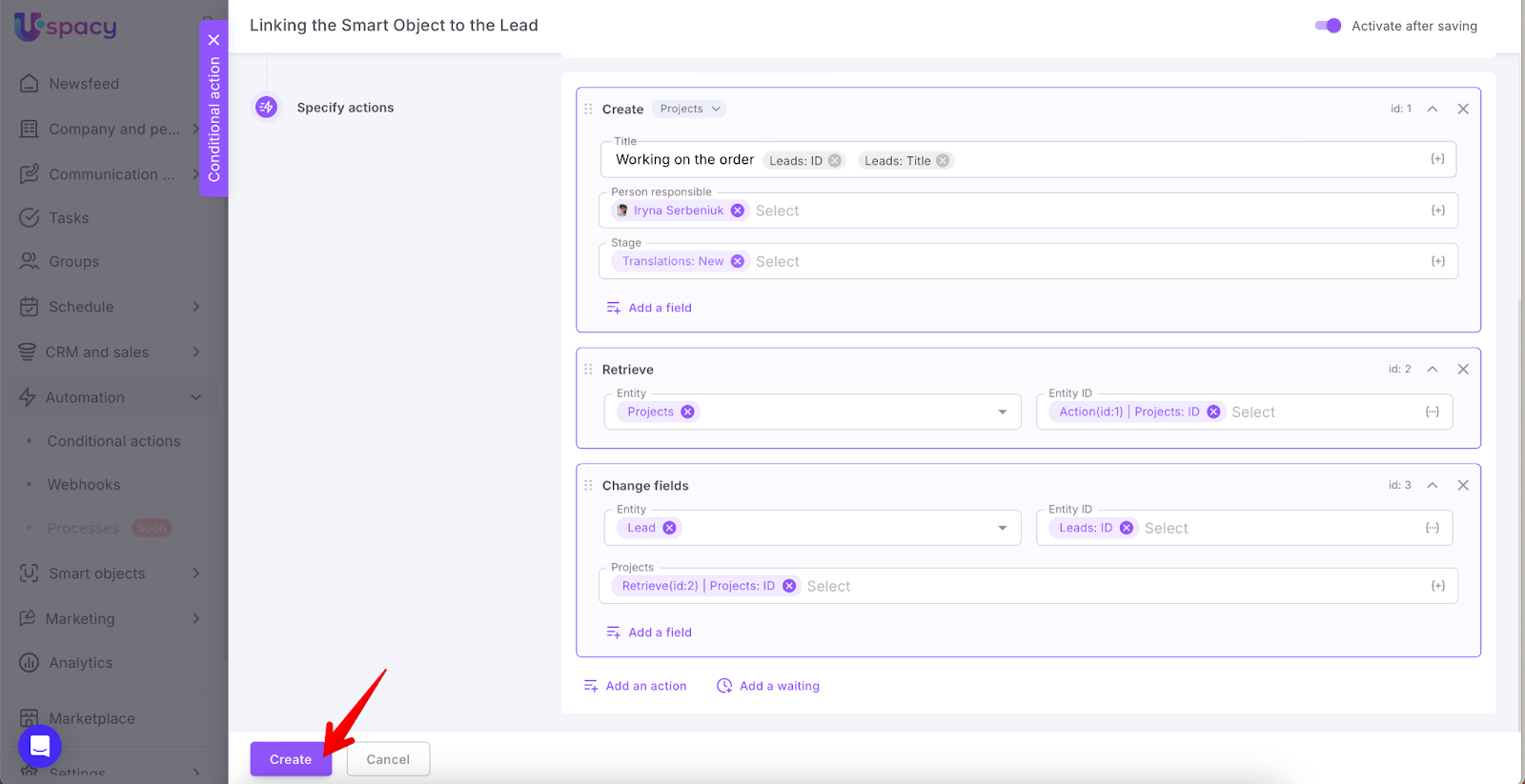
Once everything is configured, click Create to save the conditional action.
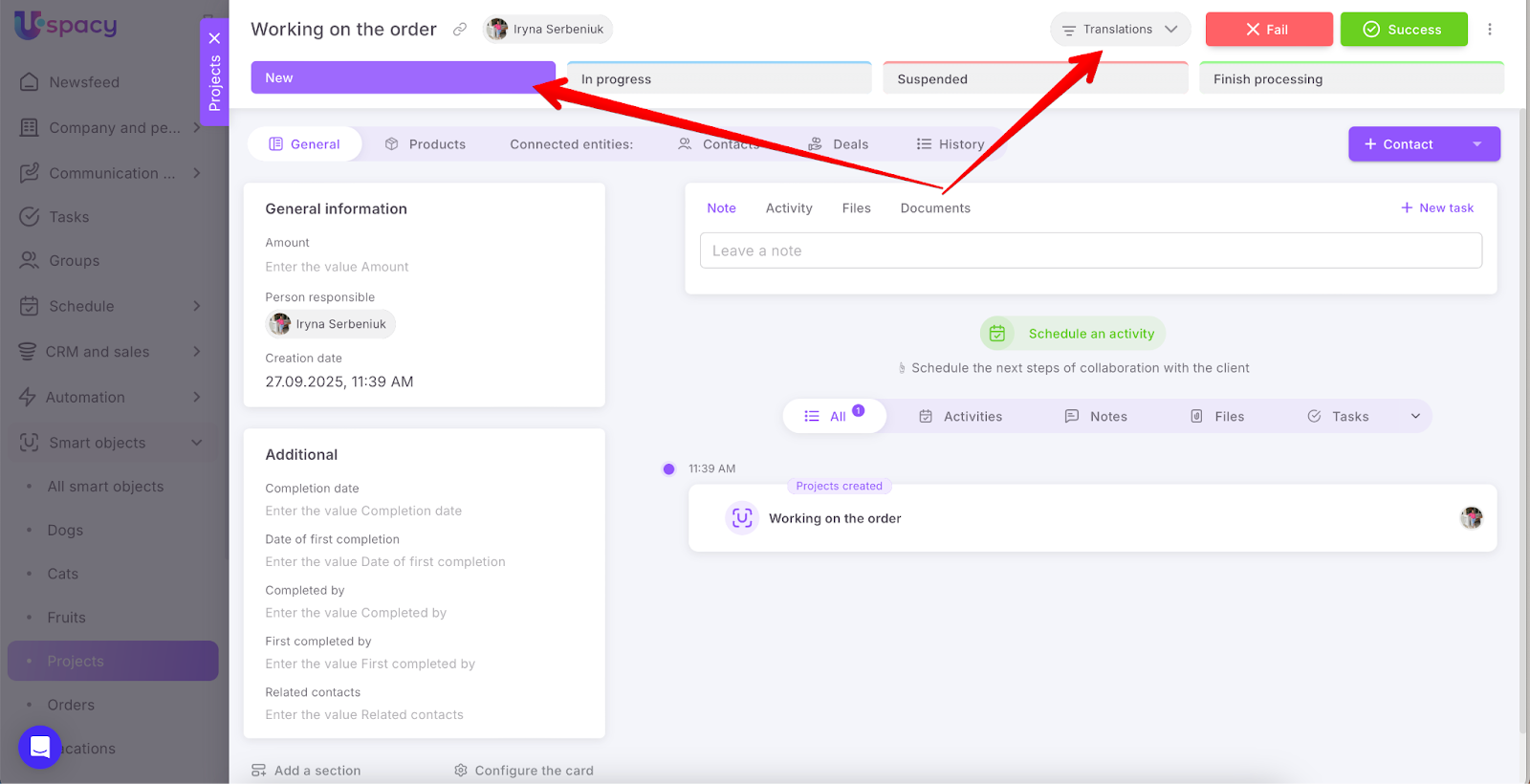
Then, go to the lead’s card and move it to the Order confirmation stage. Refresh the page and you’ll see a Project that was automatically created by the conditional action and successfully linked to the lead.
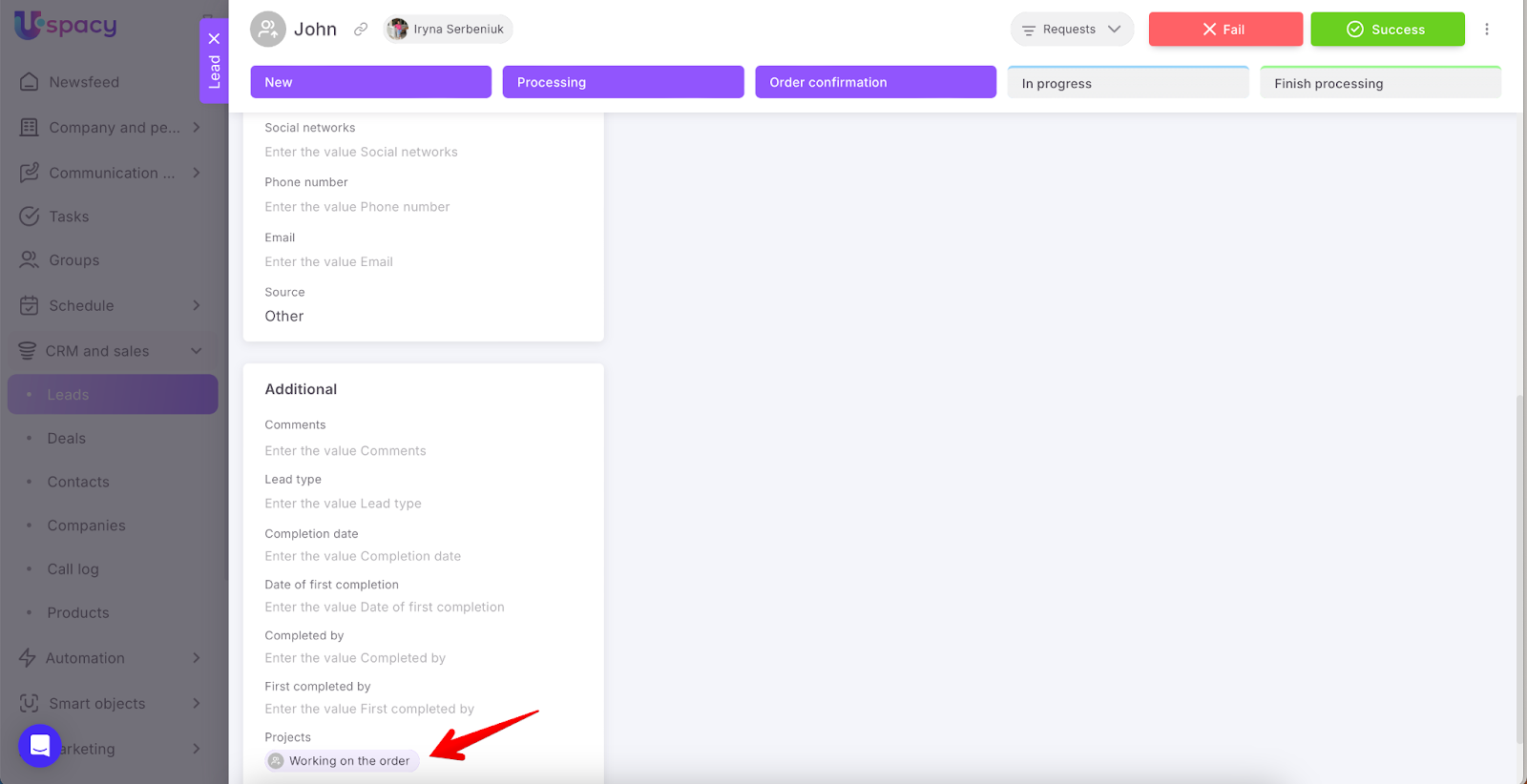
You can even open the project and check whether it was placed in the correct funnel and stage — according to your automation settings.
✅ Done!
The Retrieve action makes your automation scenarios more flexible. You can:
- Access field data from any entity element via ID
- Use those values precisely in the next steps
- Simplify linking and referencing processes
- Build reliable automation flows — without manual work
If you have additional questions or you need to contact the support, send a request to this email [email protected]
Created: September 25, 2025