
Task permissions determine which actions users with a specific role in the Space can perform on tasks. For each role, you can configure whether users can:
- create tasks;
- view tasks;
- edit tasks;
- delete tasks.
Previously, the actions available to a user depended largely on their role in a specific task—creator, person responsible, participant, or observer. Now, permissions can be configured more flexibly: you can define the scope of tasks available to each role in the Space and, for editing and deletion, optionally take the user's role in the task into account. For example, you can allow observers to edit tasks while preventing participants from doing so.

The Tasks permission matrix differs from the settings for other Space entities. Therefore, when you navigate to the Uspacy tab, Uspacy provides an additional notice explaining these differences.

How permission levels work
Depending on the permission settings, access can apply to different scopes of tasks.
For example, you can allow a user to work with:
1. all tasks;
2. only their own tasks;
3. tasks belonging to their department.

A user's own tasks are tasks in which the user is one of the participants. Their department level extends access to tasks associated with employees in the same department.
💡 The availability of specific access levels and the ability to configure them depend on your plan.
Permissions are also interdependent. For example, a user cannot have a broader level of access to delete tasks than to edit them. The system automatically restricts incompatible combinations.

Creating and viewing tasks
The Creating permission determines whether a user can add new tasks to the Space.
This setting applies everywhere in the Space where task creation is available. In other words, if task creation is disabled for a role, users with that role cannot create tasks from a list or board, from a chat, or from any other section.

The Viewing permission determines which task cards a user can open and whose details they can view.
For example, you can allow users to view only their own tasks or expand access to include tasks belonging to their department or all tasks.

How to configure editing and deletion based on task member
For editing and deletion, you can additionally take the user's role within the task into account.


This allows you to set separate rules for different types of members. For example, you can allow the task creator to edit a task while preventing an observer from doing so.
When this setting is enabled, Uspacy checks the following when determining access:
1. whether the user's permissions apply to the task;
2. what role the user has in the task;
3. which permissions are configured for that member type.
Therefore, simply being able to view a task does not necessarily mean that the user can edit or delete it.
For example, a user may have permission to view all tasks but be allowed to edit them only when they are the task creator.


The member-based settings for editing and deletion work together. They cannot be enabled or disabled independently: if you enable this setting for editing, it is automatically enabled for deletion as well, and vice versa.
Likewise, disabling one setting automatically disables the other. This ensures that deletion permissions do not conflict with editing permissions and maintains a consistent access model.


When Settings by member type is enabled for editing or deletion, the Allowed level is unavailable. In this case, permissions depend on the user's role in the specific task—creator, person responsible, participant, or observer.

If you want users with a particular role to be able to edit or delete all tasks regardless of their role in each task, disable Settings by member type and select the Allowed level.

Which actions are not affected by editing permissions
Disabling task editing does not prevent users from performing all other actions available for the task.
If a user is a relevant member in a task, they may, for example, use the available controls for managing the task's progress and status.
Edit permissions alone also do not restrict:
- time tracking;
- available actions related to task status;
- changing the task stage within a group, provided the user has the appropriate access to that group;
- independently joining a task as a participant or observer, if this option is available.
Therefore, when configuring permissions, keep in mind that editing task data and managing task progress are two different types of actions.
What happens if a user has multiple roles
If a user is assigned multiple roles with different task permissions, Uspacy applies the highest level of access granted through any of those roles.
In other words, a restriction applied to one role does not remove a permission the user has already received through another role.
The same principle applies when Settings by member type is enabled. If a user has multiple roles within a task—for example, they are both the task creator and a participant—the system applies the highest level of permissions available for those member types.
For example, if the creator is allowed to edit a task but a participant is not, a user who is both the creator and a participant will still be able to edit the task.
A similar principle applies when additional access to tasks is granted through a group.
For example, a user's general role permissions may not allow them to view certain tasks. However, if the user has access to all tasks within a group, they will still be able to work with those tasks within the scope of that group.
Working with task templates
Task permissions do not fully determine access to task templates.
A template in which a user is listed as one of the members may remain accessible to them even if their task-viewing permissions are restricted.
However, creating a new task from a template depends on the Creating permission. If a user is not allowed to create tasks, they will not be able to create a task from a template either.
Joining a task independently
If a user has permission to view a task but is not yet a member, they may be able to join the task independently, for example, as a participant or observer.
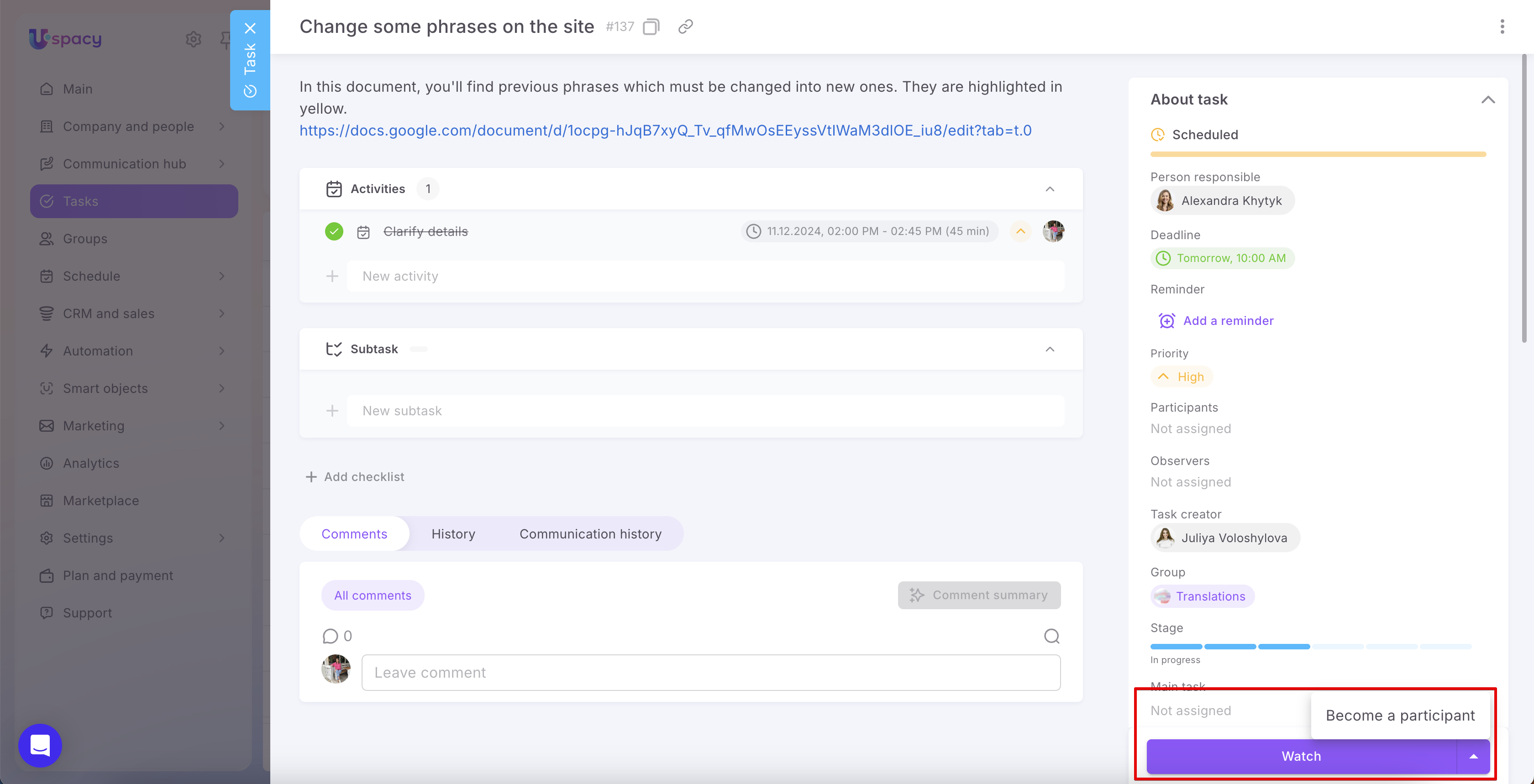
After joining, the user's task editing permissions are checked based on their new role in the task.
For example, if participants are allowed to edit their own tasks, the user will be able to edit the task after joining it. If editing is disabled for participants, joining the task will not grant the user editing permissions.
How to restore default permissions
If you need to undo your changes, you can reset the role's settings to their default configuration.


After resetting, the default set of task permissions for the selected role will be restored. For example, the default settings for the Employee role will look as follows.


This is useful when you need to quickly restore the original access model without changing each setting individually.
You can also use the Allow everything and Deny everything bulk actions. After applying one of these options, you can adjust individual settings manually as needed.

However, keep in mind that selecting either option applies the corresponding permission level to all tools and entities for which access settings are available for that role—not just tasks.


Plan limitations
The task permission configuration options available to you depend on your Space's plan.
🟣 Free plan: You can view task permissions, but you cannot configure them.
🟣 Standard plan: Basic permission configuration is available. However, you cannot use the User’s department access level or fully configure permissions based on the user's role within a task.

🟣 Professional plan: Full permission configuration is available, including the User’s department access level and separate rules for different task member types.

🟣 If advanced participant-based permissions were configured in the Space before the plan was changed, they will not be reset automatically. However, the ability to edit those permissions will depend on the Space's current plan.
If you have additional questions or you need to contact the support, send a request to this email [email protected]
Created: October 8, 2026 / Updated: October 9, 2026