Tax is a certain mandatory payment that is paid to the budget. Its rate and the taxation process itself are regulated by the legislation of our country.
In the framework of CRM and sales, we are talking about indirect taxes, that is, taxes on goods and services, which are added to the price or plan.
How to add tax?
To use tax when working with products in CRM, you must first add them to the system. To do this, you need to go to the section Settings - Sections - CRM - Settings, open the Products block and expand the Tax item.
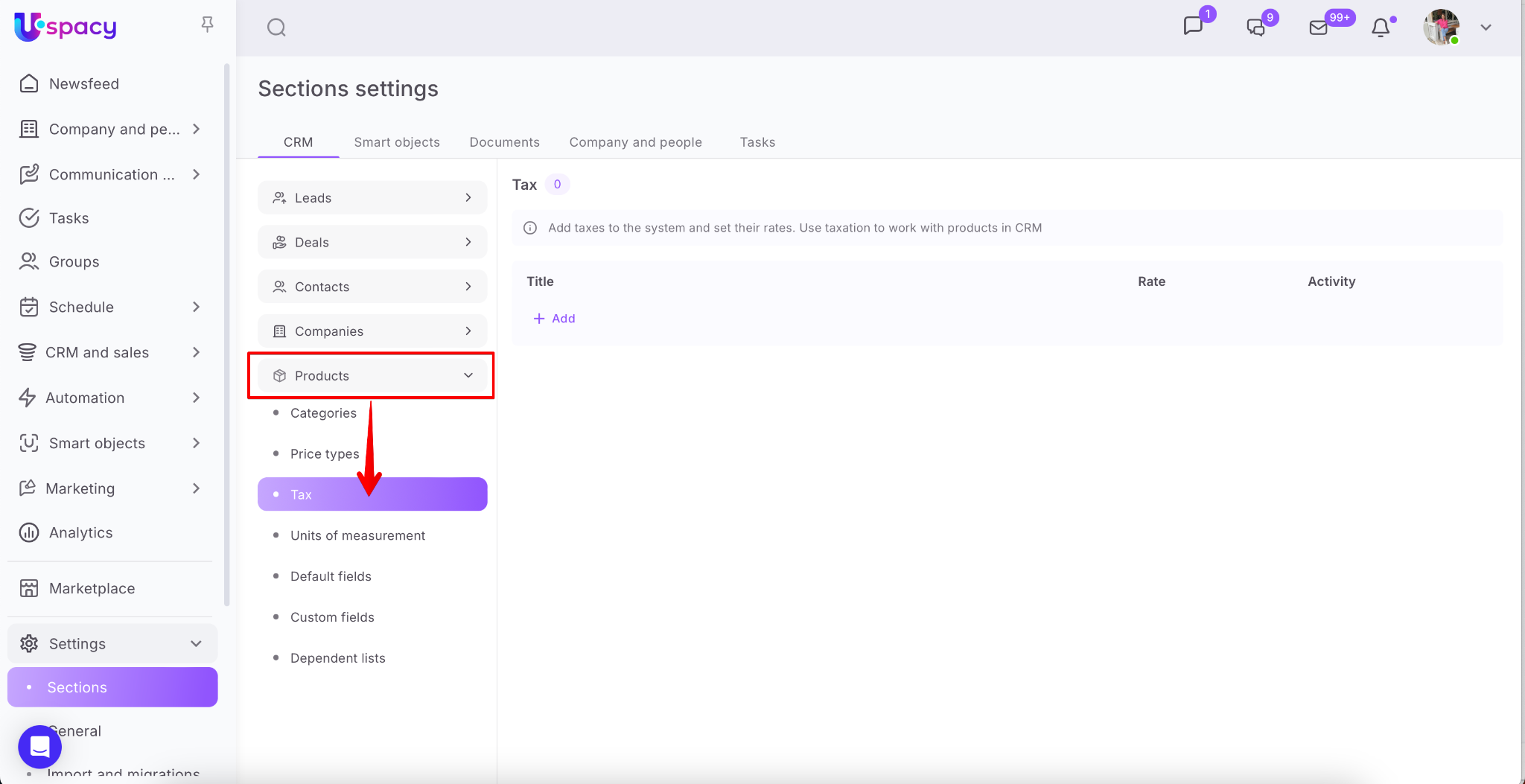
🌟 Only an administrator or a user with the appropriate set of permissions can add taxes. For others, it is only possible to use them in work with CRM.
On this page, click the +Add button.
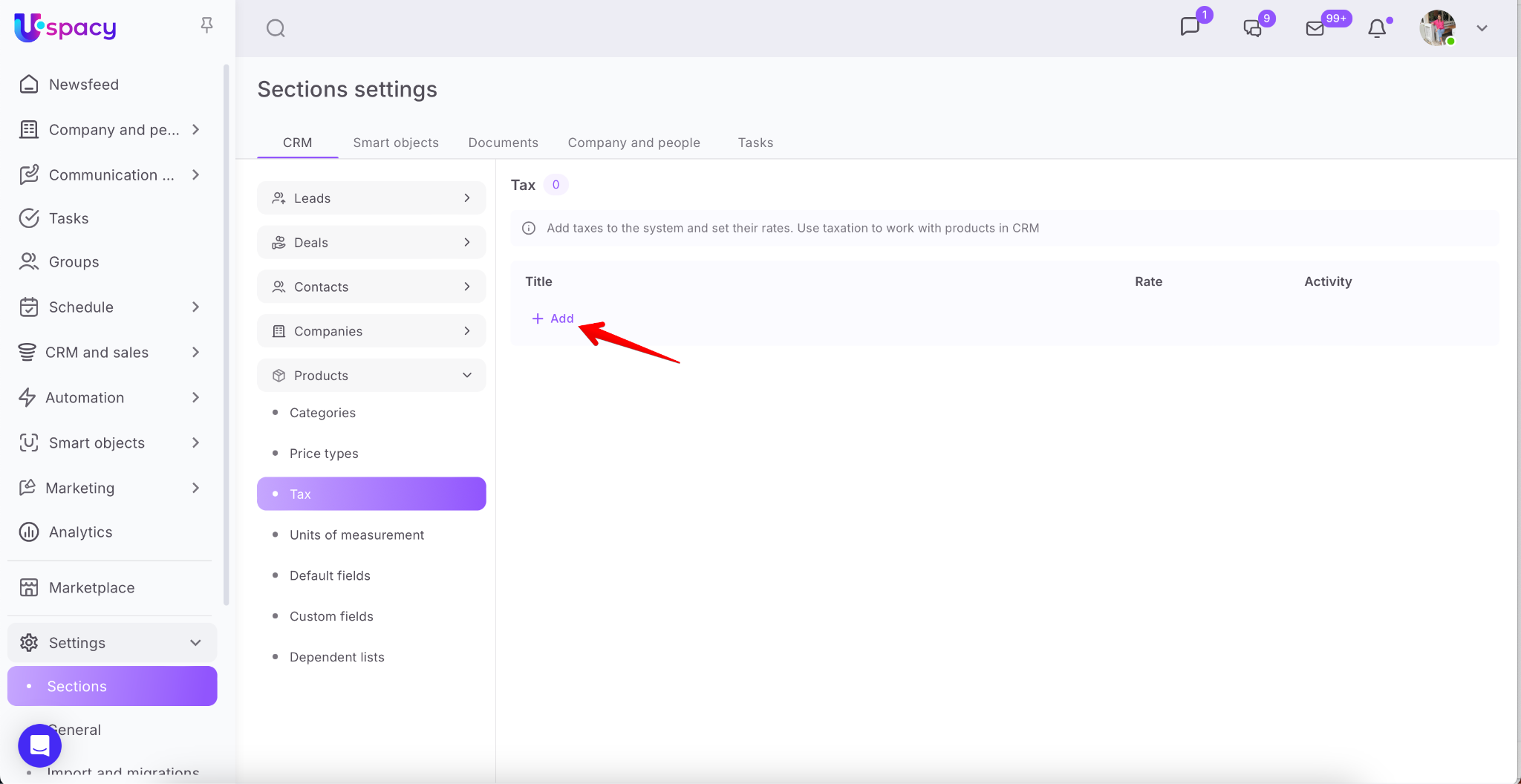
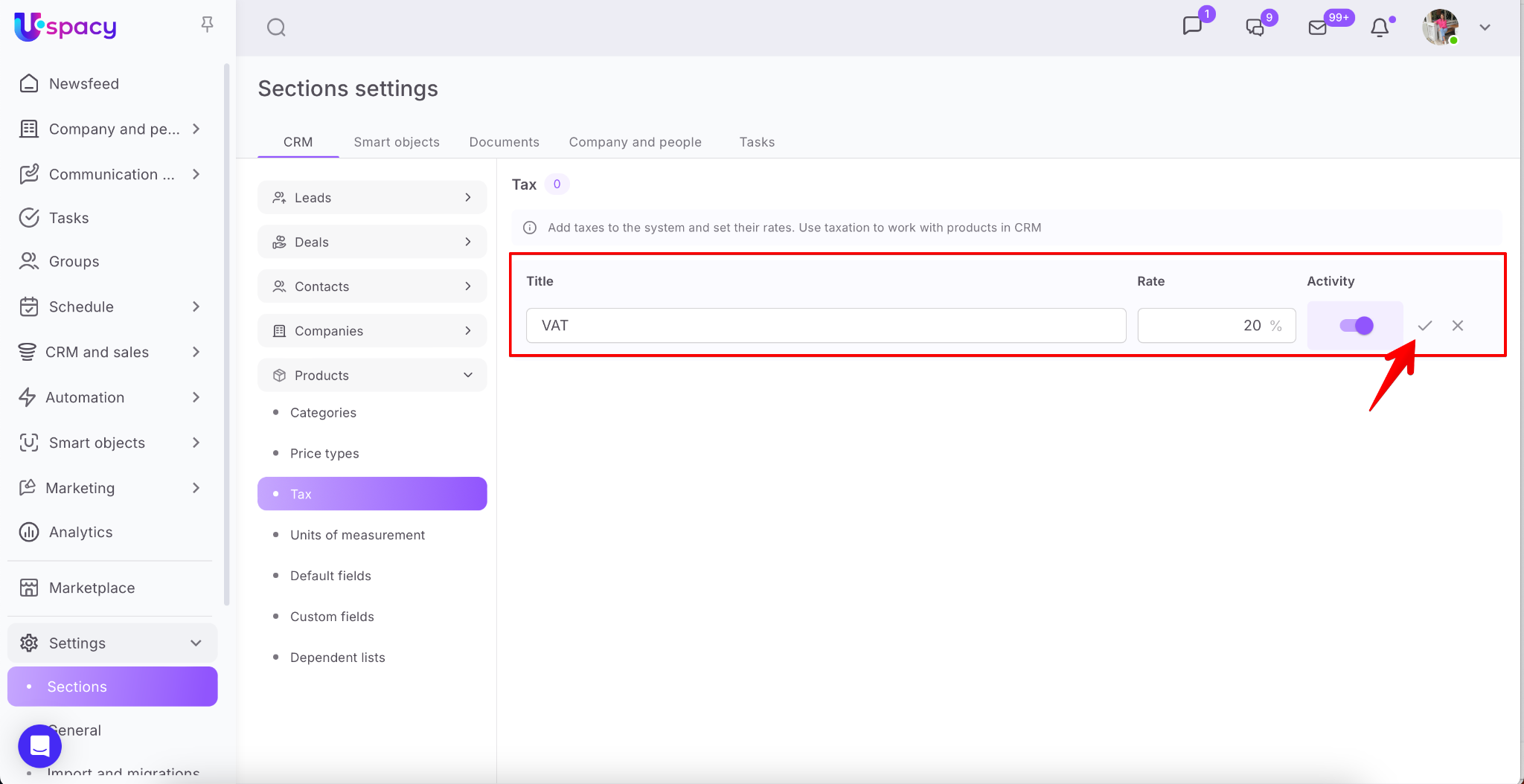
Next, enter the name of the tax, its rate, and also specify the activity. Click on the check mark to save. The tax will then be available for use in CRM.
💡 If you do not drag the slider of the toggle button, that is, if you do not activate the tax, then you will not be able to apply it.
How to edit or delete a tax?
To do this, go to Settings → Sections → CRM, then expand the Products block and select Tax.
🌟 Both adding, editing and deleting taxes is available only to an administrator or a user with the appropriate set of permissions. For others, it is only possible to use them in work with CRM.
Here you can edit both the name and the rate or configure the activity.
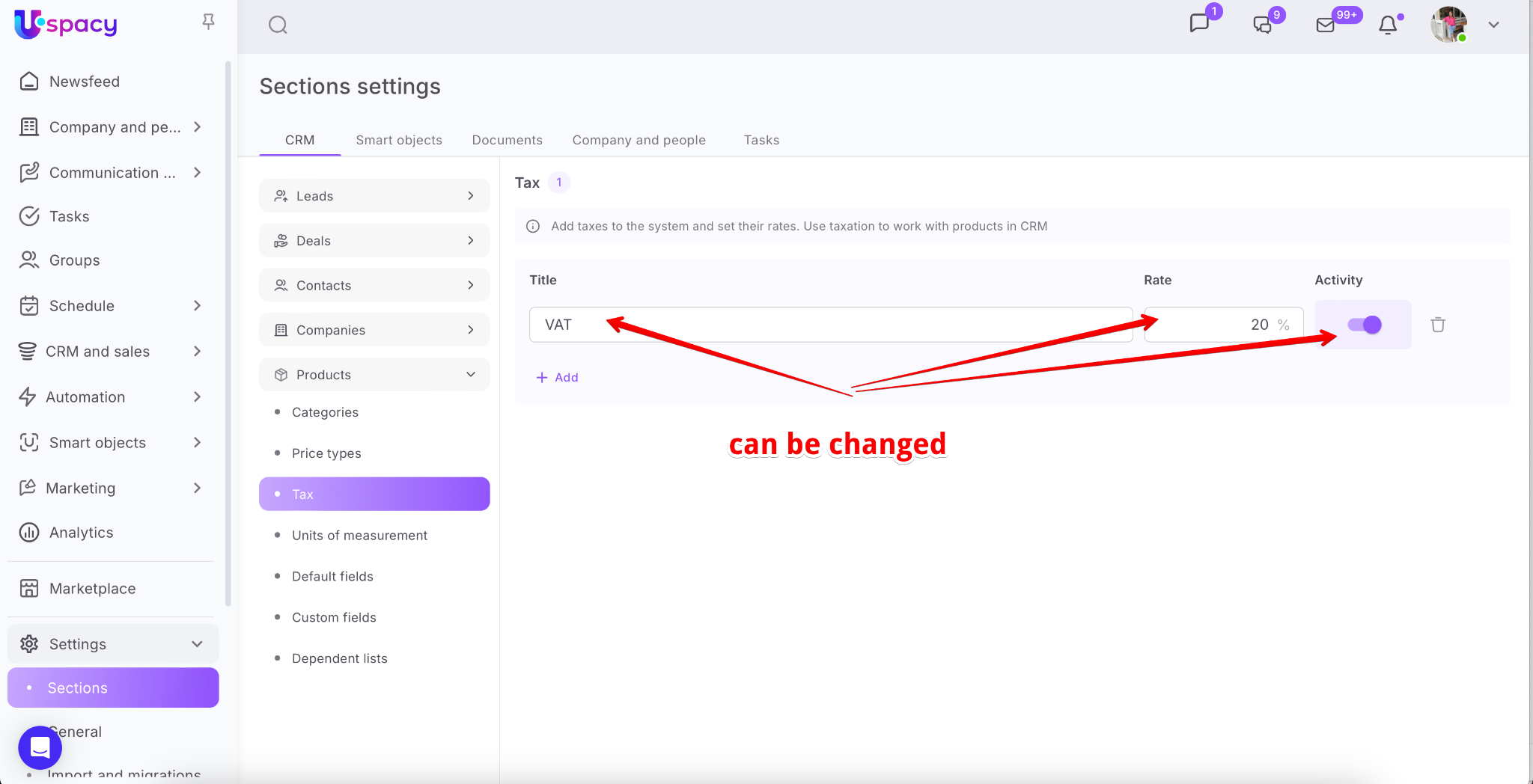
All changes in these fields are automatically applied at once. Just click with the cursor outside the editable field (name, rate) or drag the toggle (activity).
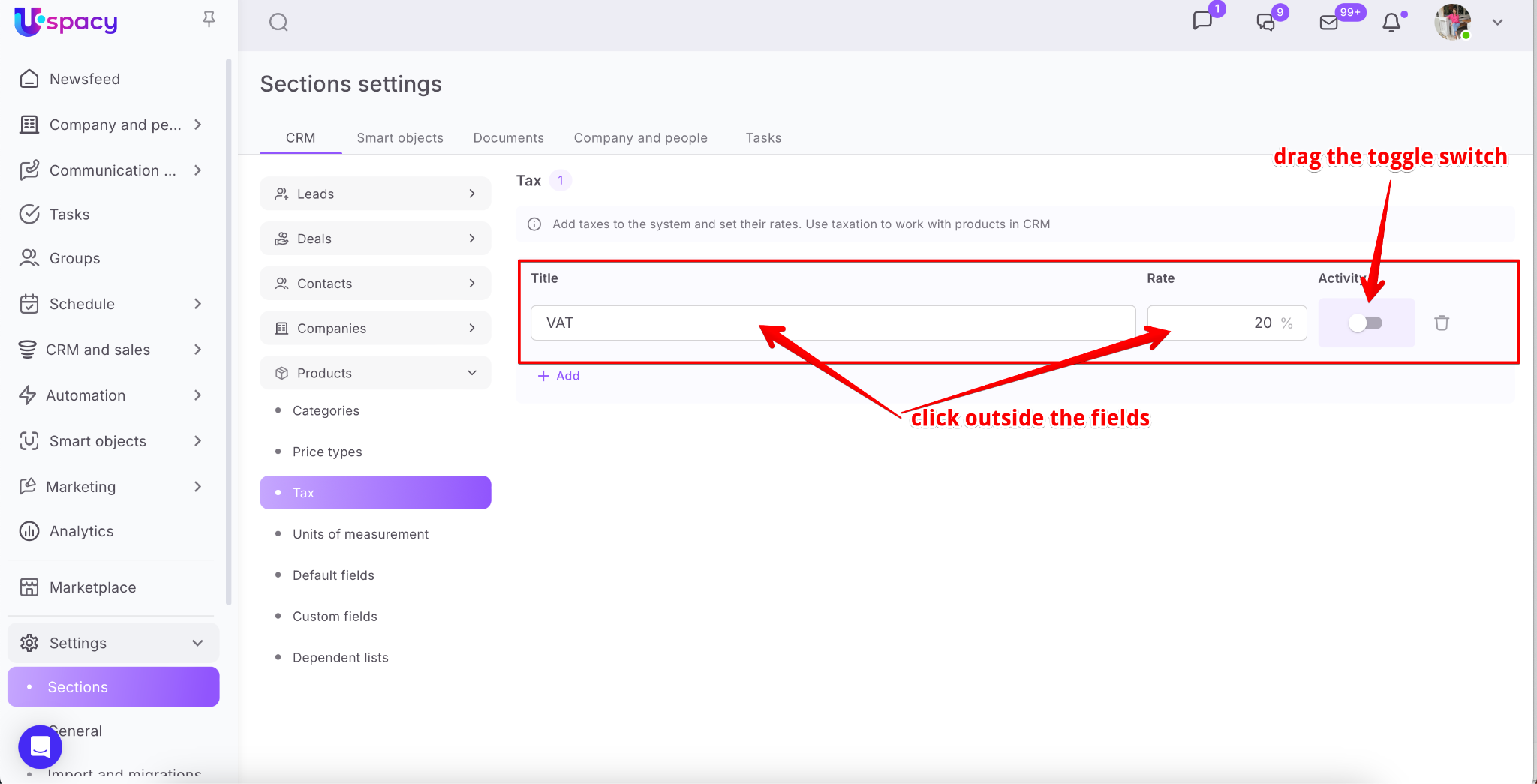
After editing the name and rate, the changes are automatically pulled into the cards of the products for which they were used. With a deactivated tax, you will no longer be able to work in CRM. But it will remain in all product cards for which it was previously applied.
To delete the tax, click on the trash icon.
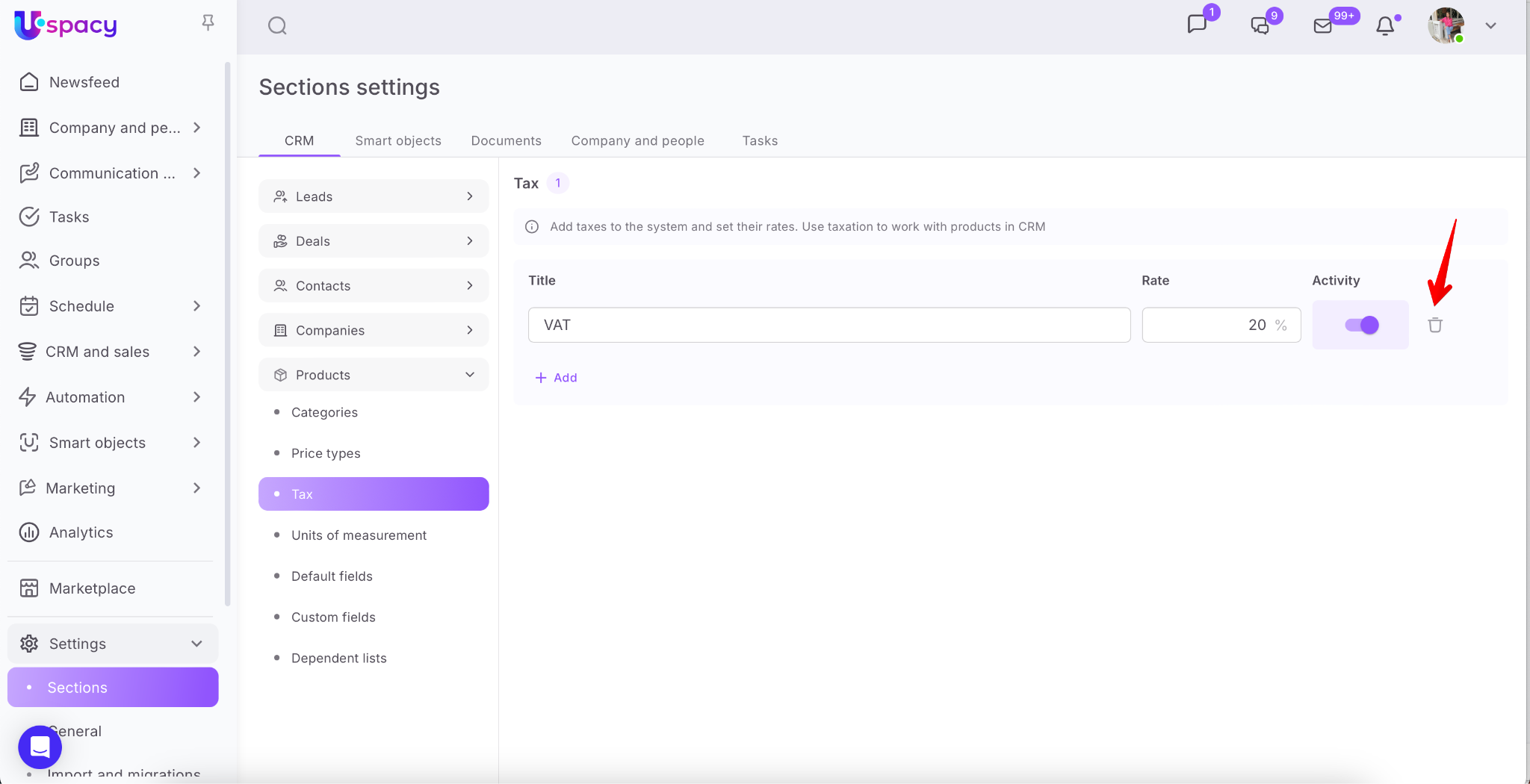
After that, the tax is removed from the system. It can no longer be applied in CRM, it will disappear from the cards of all products to which it was applied.
💡 But please note that removing the tax will NOT recalculate the amount of all current deals involving products with this tax.

How to apply taxes?
When the tax and its rate have already been added to the system, they can be used in CRM:
1. When creating or editing in the product card. Here you can specify which tax to apply.

Then specify whether to include it in the price of the product.

2. When adding a product from the catalog to the deal.
If the tax is specified in its card, then it is automatically pulled into when adding this product from the catalog.
💡The current value of the tax is contained in the product card. Therefore, it is always pulled into at the time of adding the product to the deal.
In addition, not only its rate is displayed, but also the amount in monetary equivalent.

The tax for the product can be changed even while working with the deal card. For example, you noticed that you have specified the wrong VAT rate. To change, click on the corresponding field and select the desired option from the list.

After that, the system automatically calculates the price of the product without tax, the amount of the tax itself, as well as the cost (amount) of the product.

💡 Please note that such a change will only apply to one specific deal. This will NOT set the similar tax amount for that product in the catalog.
This can be checked in the following way. If you select the same product from the catalog again and add it to the deal, you will see that the actual tax amount that is on the card will be pulled.

Therefore, to avoid incorrect taxation in the next deals, you need to edit the product in the catalog itself. Make changes to the Tax field in the card itself.

The same is with the tax including in the product price. For a specific deal, you can, for example, not do this. Just uncheck it. But when adding the same product to the deal, we will see that the setting from the card works.

💡At the same time, changing the tax in the card will NOT recalculate the amount (tax, cost) in all current deals where products with this tax are already used.
If you have additional questions or you need to contact the support, send a request to this email [email protected]
Created: August 23, 2023 / Updated: September 17, 2025