The user who has created the Space automatically becomes the Owner.

What does it mean to be the Space owner and the administrator of Space?
The owner has all possible and system-provided rights to manage and configure the Space. But the administrator also has the same wide range of access.
☝🏻But there is a difference in their rights:
- The Space owner is always the Administrator, but the Administrator is not the Space owner.
- Only the Space owner has the opportunity to grant rights to the Space.
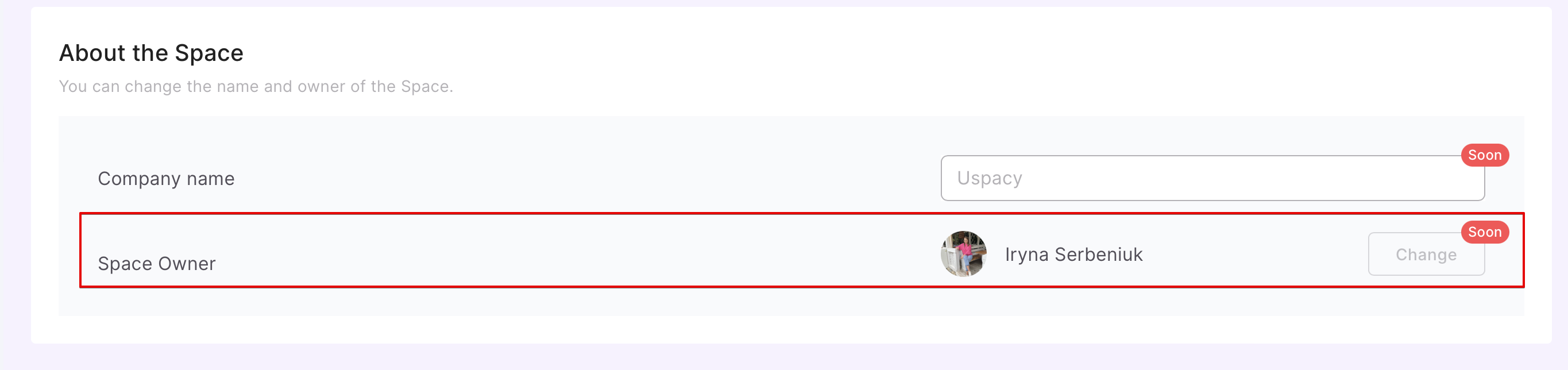
❗️This option is temporarily unavailable, but stay tuned for our updates😉
- The Space owner can assign a new administrator, but not vice versa.
- The Space owner does not lose access to the Space - he/she cannot be fired by another administrator (or a user with such rights), and he/she cannot be blocked automatically because of the plan reduction.
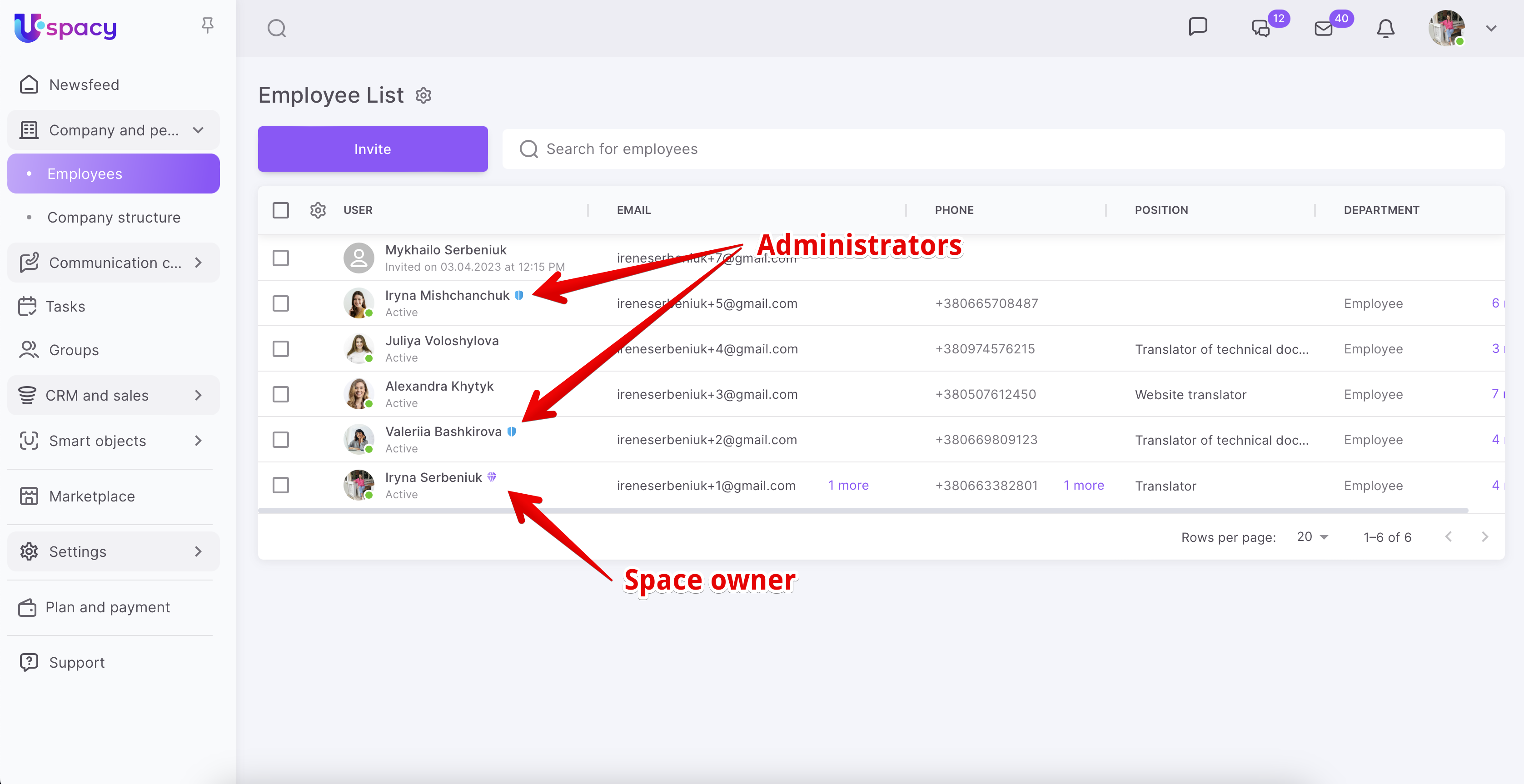
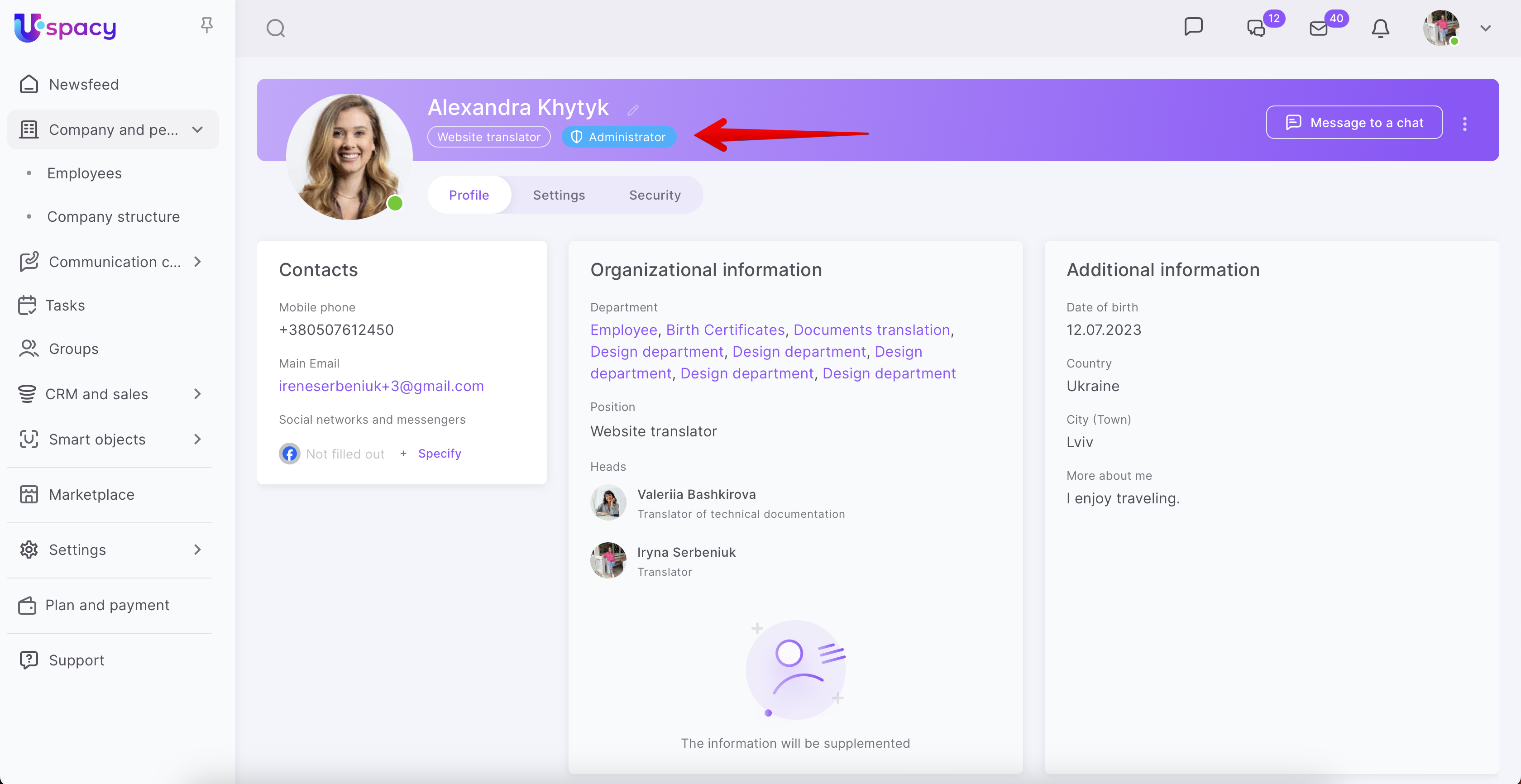
💡In the list of employees, you can find out who is the Space owner and who is the Administrator. Such users will have corresponding marks next to their first and last names.
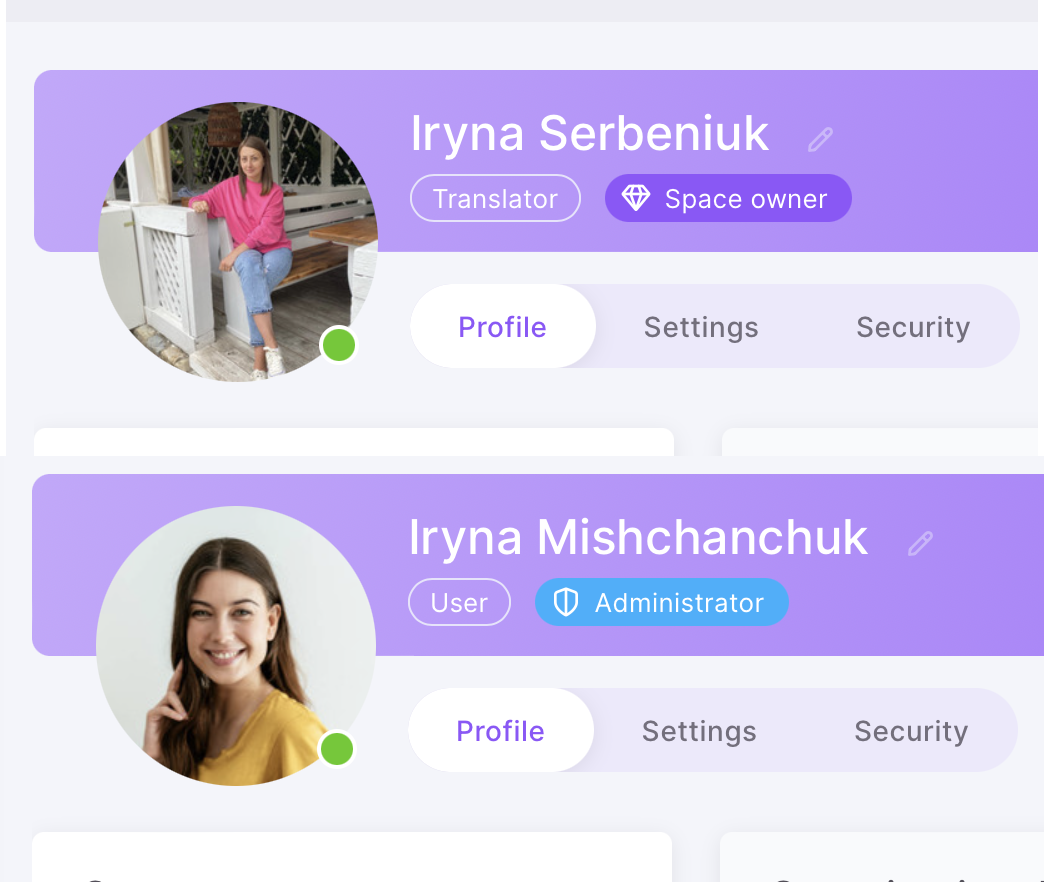
Also, information about the Space owner or the Administrator will be displayed in the profiles.
How to assign an administrator?
💡 Please note that the possible number of Space administrators depends on the plan.

To grant the user administrator rights, you need to select Assign as administrator through the interaction menu (both in the list of employees and in the profile).
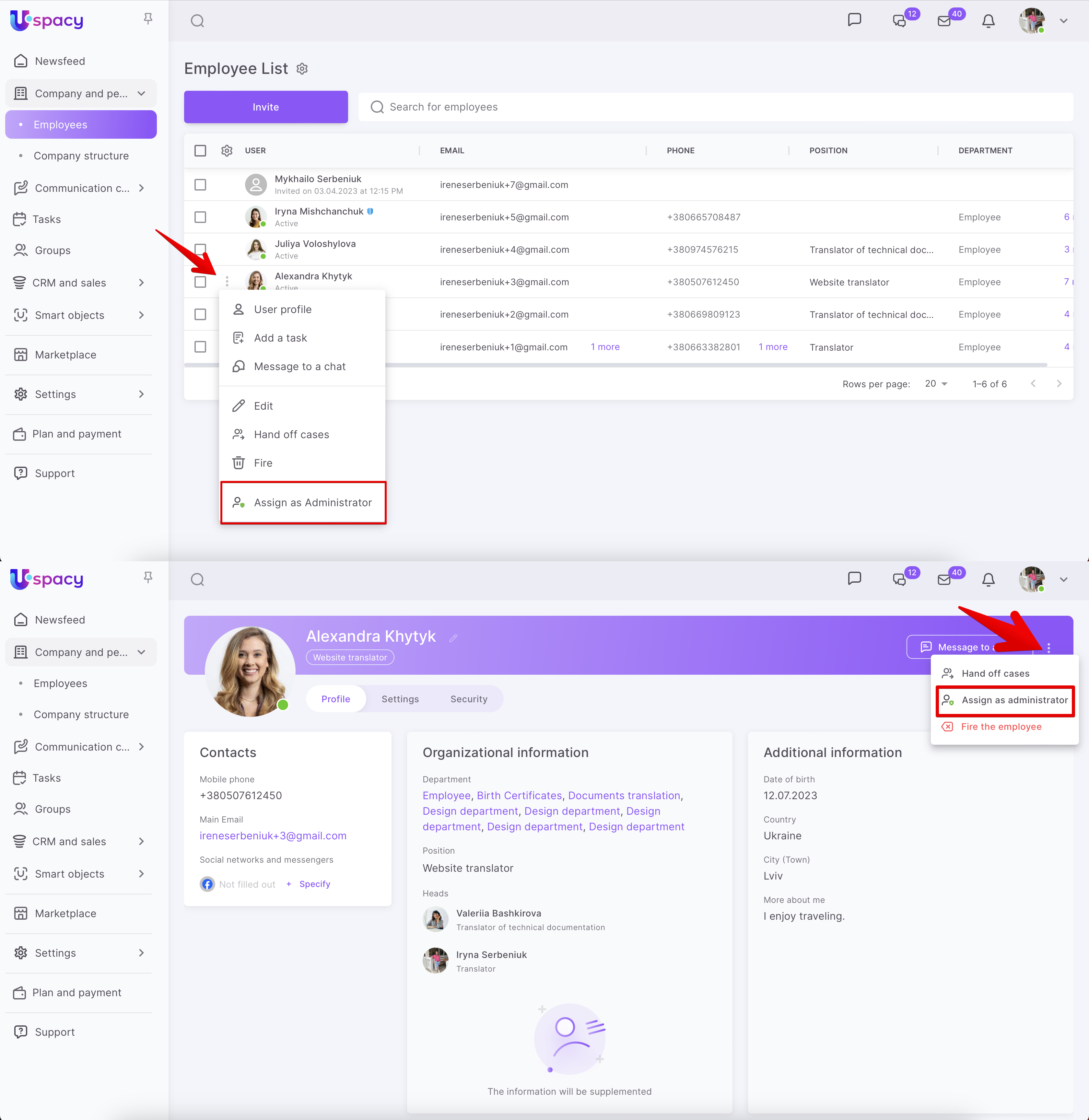
❗️ Only the Space owner and the administrator can see this item in the interaction menu with the user. It is hidden from ordinary users.
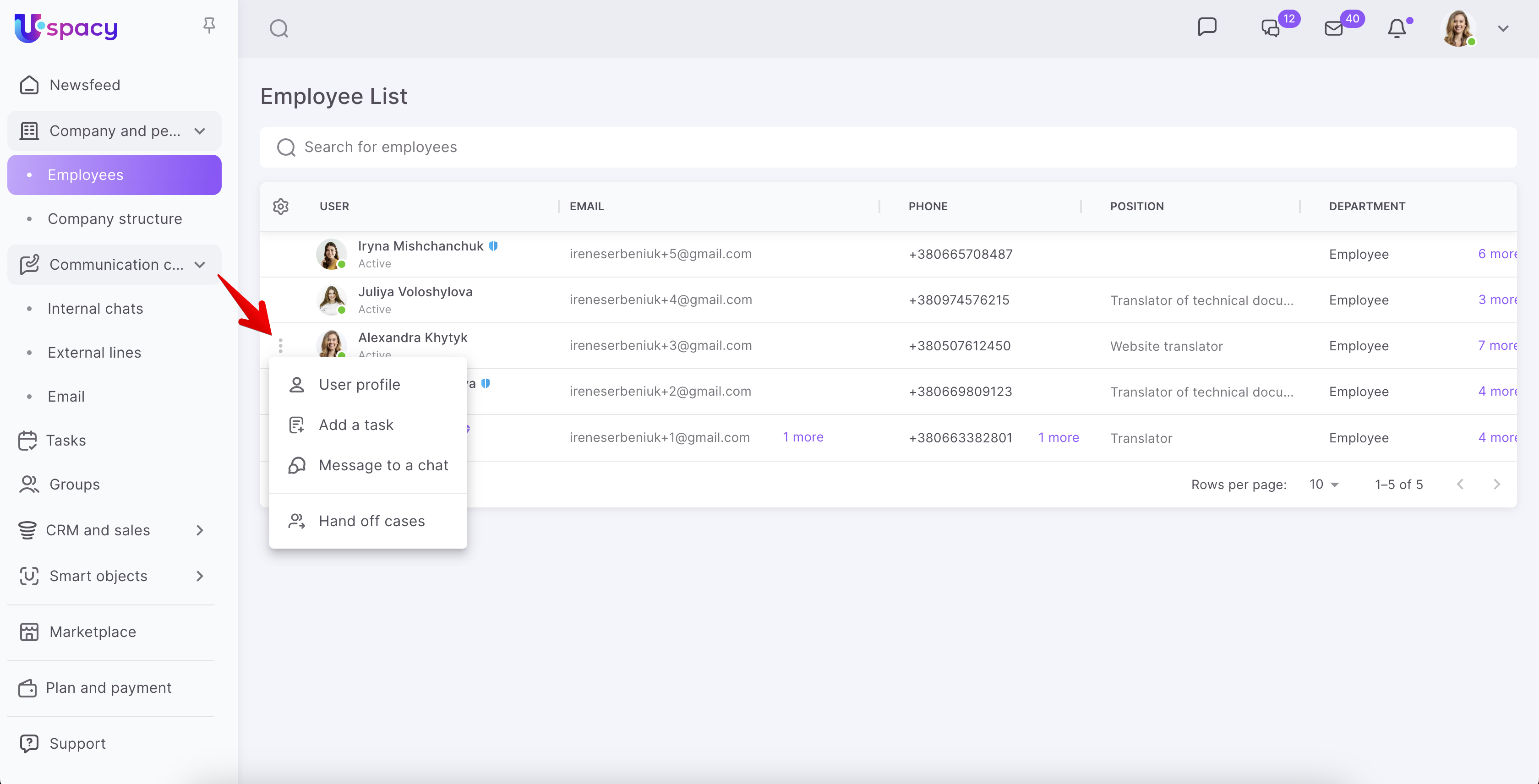
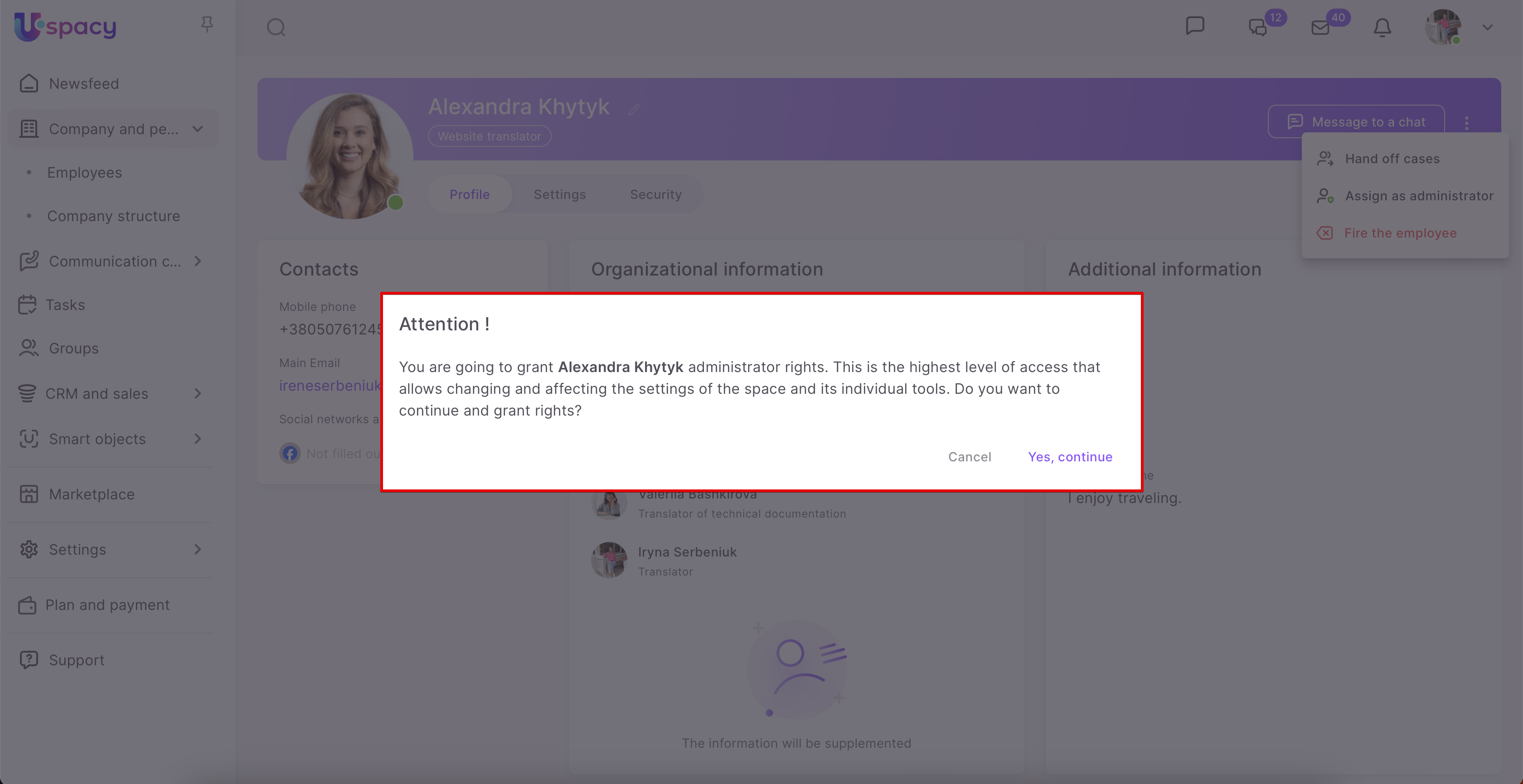
In the window that opens, you will be able to read information about the administrator's possibilities to influence the settings of the Space. And also here you need to confirm your actions.
As a result, the user receives administrator rights and a corresponding status in the profile.
How to remove administrator privileges?
When the user is already an administrator, the Assign as administrator menu item is replaced by the Remove administrator privileges item.
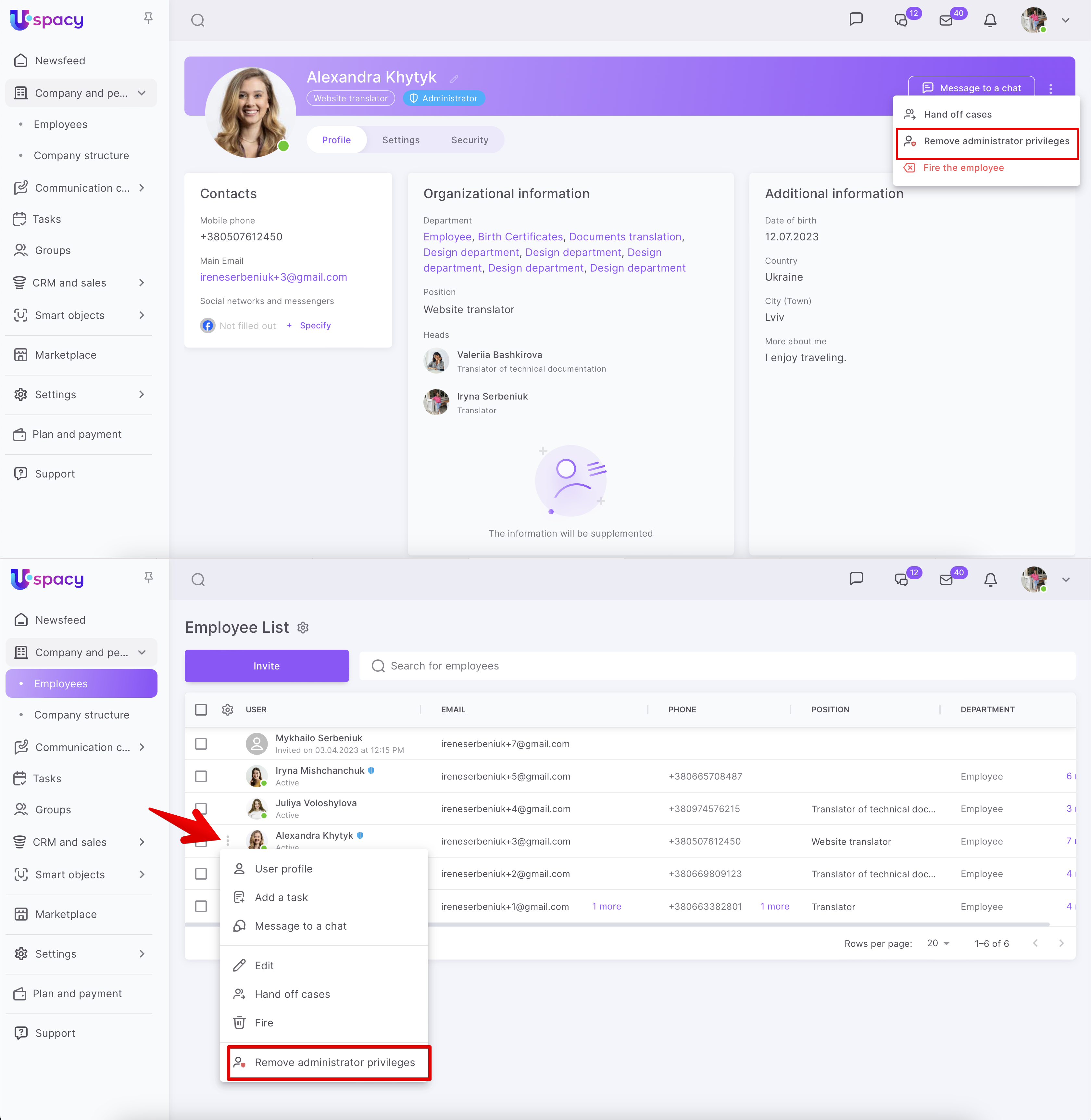
❗️Only the Space owner and the administrator can see this item. It is hidden from ordinary users.
In addition, the administrator cannot see this item in his/her own interaction menu and in the Space owner's menu.
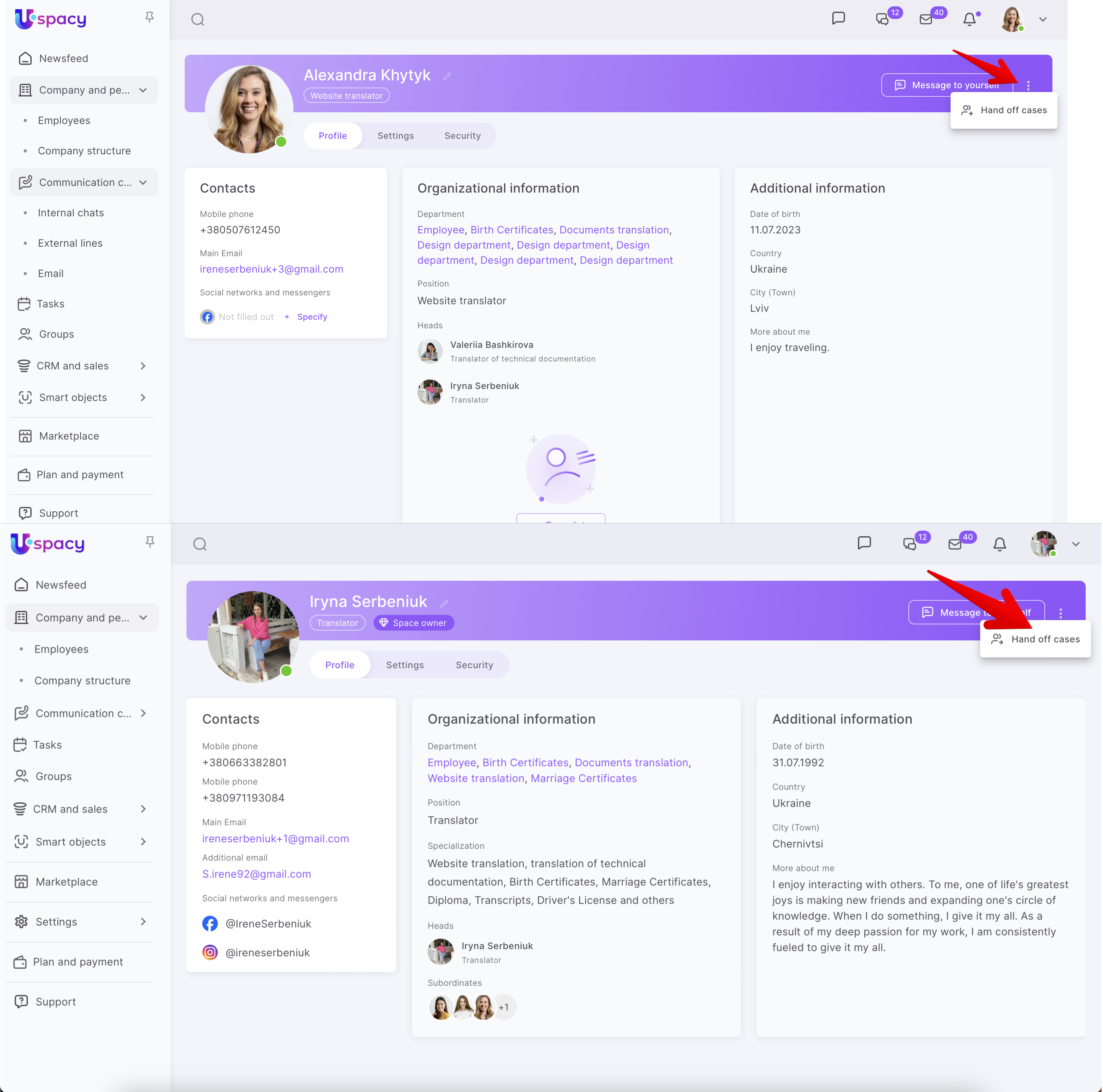
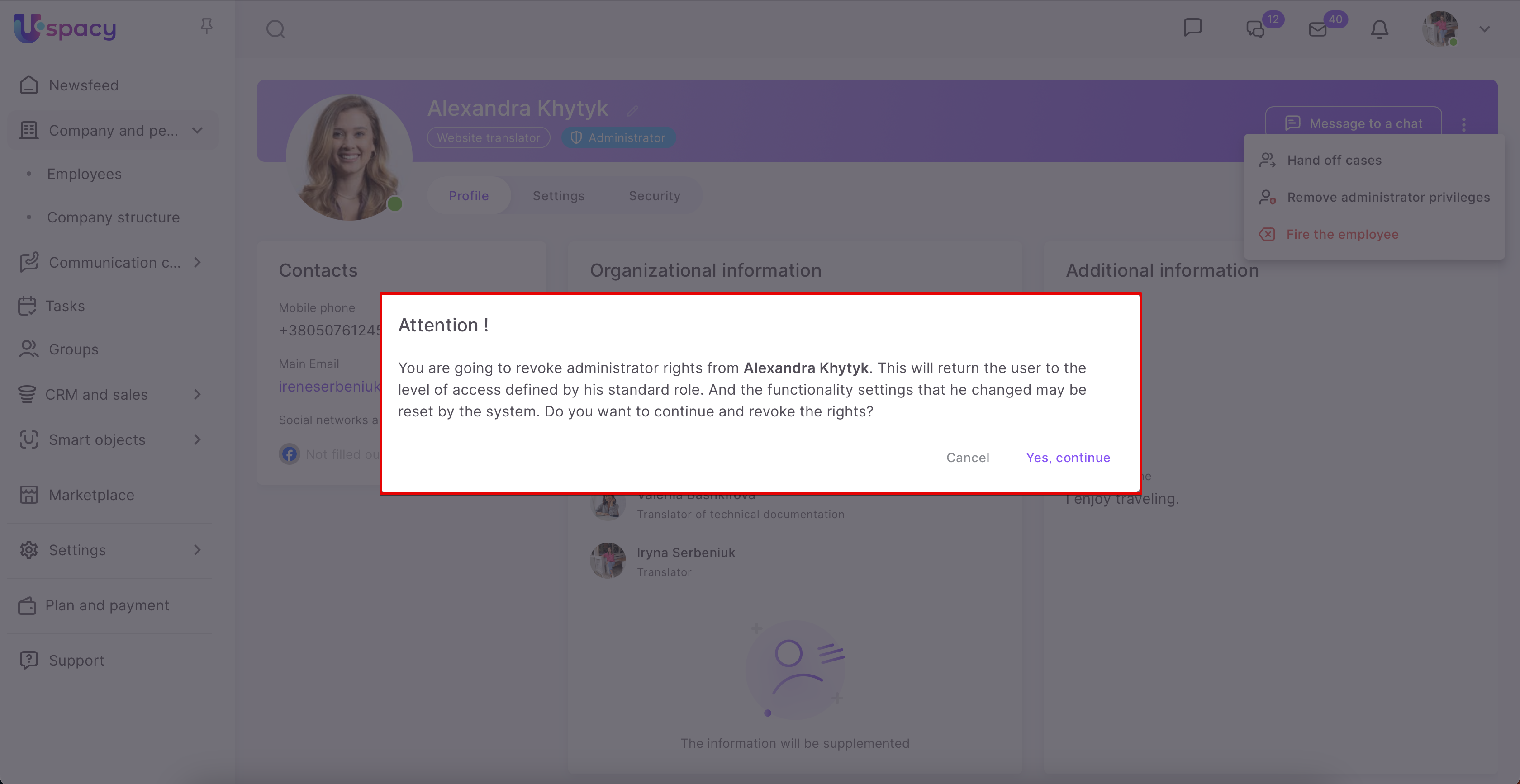
So, to remove administrator privileges, you need to click on the item of the same name. After that, a window will open where you can get to know about how this will affect the settings of the Space and the user's access rights. And also here you need to confirm your actions.
If you have additional questions or you need to contact the support, send a request to this email [email protected]
Created: March 29, 2023 / Updated: May 30, 2024