
Variables and constants in processes
Variables and constants allow you to store and use additional values while a process is running. They can be used to pass data between actions, populate fields with predefined values, store intermediate results, or reuse the same settings across multiple processes.
For example, a process can store an amount, status, message text, responsible employee ID, or any other value and then use it in subsequent actions.

What are constants?
Constants are values defined manually by the user. They remain unchanged throughout the execution of a process.
A process can use a constant as a predefined value, but it cannot modify it.
Examples of constants include:
- A fixed email address.
- A standard message template.
- A specific employee ID.
- A fixed amount.
- A department name or business unit.
Constants are particularly useful when the same value needs to be reused across multiple actions within a process.
What are variables?
Variables are values that can change while a process is running.
Unlike constants, variables can not only be used but also updated within the process itself. For example, a process can assign a new value to a variable after a specific action or modify it based on certain conditions.
Variables are useful when a process needs to:
- Store intermediate values.
- Transfer data between different process blocks.
- Change values based on process logic.
- Use the result of one action in subsequent actions.
Local and global variables and constants
Variables and constants can be either local or global.
Local variables and constants
Local variables and constants are available only within a specific process.
They can be used exclusively in the process where they were created and are not visible or available in other processes.
This option is ideal when a value is required only for a particular automation scenario.
Global variables and constants
Global variables and constants are available across all processes.
They are useful for values that need to be reused in multiple processes. For example, the same email address, standard message text, or field value can be defined once and used throughout different automations.
How are variables and constants created?
Variables and constants are created using the same approach as fields. The following properties can be configured:
- Name — a clear and descriptive name for the variable or constant.
- ID — a system identifier used to reference the value within a process.
- Field type — determines the type of value that can be stored, such as text, number, date, and so on.
- Multiple values— determines whether the variable or constant can store a single value or multiple values.
Unlike regular fields, variables and constants do not support a required setting.


Local variables and constants are created directly within a process. They are available only within that specific process and cannot be used in any other processes.


Global variables and constants can be created either while configuring a process or from the settings page in the processes module. Once created, they become available for use across all processes.


How to change a variable value in a process
To allow a process to update a variable's value, use the Variable changes action.

Within this action, you can select any available local or global variable and specify the value that should be assigned to it.

The mechanism works similarly to updating a field value when modifying a record. You can enter a fixed value, use data from other process blocks, or even apply mathematical calculations to generate the value dynamically.

Important: The Variable changes action can only be used to modify variables. Constants cannot be changed through this action.
How it works in a real process
Let’s look at a practical example of a process called “Calculate total apartment price.”
This process can be used to automatically calculate the cost of an apartment based on its area, agent commission, and the final total amount including that commission.
For example, an apartment record contains the property area and the price per square meter, while the process itself calculates:
- the apartment price based on its area;
- the agent commission amount;
- the total apartment price including commission.
To achieve this, both constants and variables are used.
What values are needed for the process?
In this example, constants are used for values that do not change during process execution. In our case, this is a global constant.
- agent commission (%) — the percentage of commission added to the apartment price. This value is manually defined and used by the process for calculations.

Variables are also required to store intermediate and final results.
In this example, the following variables are used:
- Apartment price — a local variable that stores the apartment’s calculated cost based on its area, excluding the agent’s commission.

- Agent commission — a global variable that stores the commission amount in monetary terms.
- Total price — a global variable that stores the final apartment price, including the commission.

💡 The local variable Apartment price is created directly within this process and is only available within its scope. The global variables Agent commission and Total price can be reused not only in this process but also in other processes where these values are needed.
How is this process configured?
As with any process, you need to define a sequence of actions that the system will execute automatically.
In this example, the process should start when a new deal is created in the CRM. It will then take the required data from the deal record, perform calculations, and store the results in variables.
The first block of the process is the Trigger, which defines the event that starts the process.
In this case, the configuration is as follows:
- Event object — Deal
- Event — Created
This means the process will be triggered automatically whenever a new deal is created in the CRM.
💡 The options Allow triggering by other processes and Allow triggering by other conditional actions can be disabled if the process should only run when a deal is created and not be triggered by other automation scenarios.

The first action in the process is Variable changes. It is used to store calculated values in a variable.
In this example, the first step is to calculate the base apartment price without the agent’s commission.
In the action settings, configure the following:
- Name — Apartment price
- Description — Apartment price calculation
Next, in the Variable changes block, click Add a variable and select the local variable Apartment price.
This is where the process will store the result of the first calculation.
After selecting the variable, you need to define the calculation formula. In this example, the apartment price is based on area and price per square meter:
Apartment area × Price per m² = Apartment price
To build the formula, include:
- the deal field Area (m²)
- the multiplication operator *
- the deal field Price per m²
As a result, the process will take the apartment area from the deal, multiply it by the price per square meter, and store the result in the local variable Apartment price.
After the process calculates the base apartment price, the next step is to add another Variable changes action. This will be responsible for calculating the agent’s commission.

In the action settings, specify the following:
- Name — Agent commission
- Description — Calculation of agent commission
Next, in the Variable changes block, click Add a variable and select the global variable Agent commission. This is where the process will store the calculated commission amount.

To build the value, you need to use data from variables and constants. To do this, go to the Variables and constants tab and select the required values.


In this example, the following are used for the calculation:
- Global constant: Commission — the agent’s commission percentage
- Local variable: Apartment price — the base apartment cost calculated in the previous step
The formula looks like this:
(Commission / 100) × Apartment price = Agent commission
In other words, the process takes the commission percentage, divides it by 100, and multiplies it by the apartment price.
As a result, the global variable Agent commission will store the commission amount in monetary terms.

The next step in the process is another Variable changes action, which calculates the final total: the apartment price including the agent’s commission.

In the action settings, specify:
- Name — Total price
- Description — Calculation of the total apartment price including agent commission
Next, in the Variable changes block, click Add a variable and select the global variable Total price. This is where the process will store the final calculation result.

To build the value, go to the Variables and constants tab and add the required elements:
- Global variable: Agent commission
- Local variable: Apartment price
Place a plus sign + between them.

The formula looks like this:
Agent commission + Apartment price = Total price
As a result, the process adds the calculated agent commission to the base apartment price and stores the final amount in the global variable Total price.

💡 Please note: when using monetary fields or variables in calculations, you must use their numeric values. This ensures the system correctly performs mathematical operations.
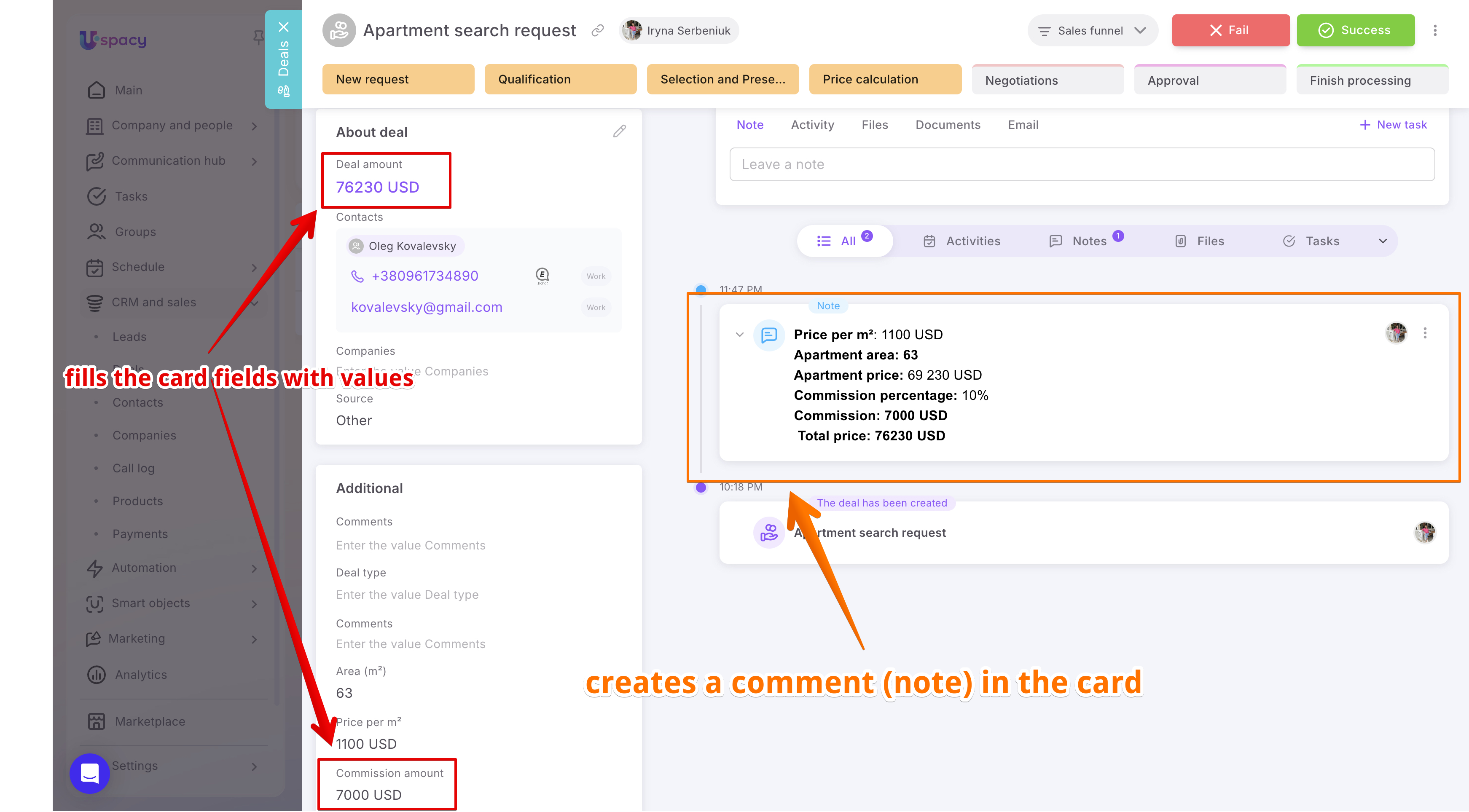
After the process calculates the agent commission and total apartment price, these values can be written back to the deal record fields. To do this, add the next action — Change fields.

In the action block, select the Deal entity, since its fields need to be updated.
Next, in the Entity ID field, specify Deal: ID. This ensures the process knows which deal to update. In our example, it updates the same deal that triggered the process after it was created.
Then add the fields where the results should be stored:
- In the Commission amount field, pass the value from the Agent commission variable.
- In the Deal amount field, pass the value from the Total price variable.

💡 If you are using variables of the Money type, make sure to select their numeric value. This ensures the system correctly transfers the amount into the deal’s monetary field.
As a result, once the process is completed, the deal record will automatically update the agent commission and the total deal amount including that commission.

After updating the deal fields, you can add another action — Create. In this example, it is used to create a comment (note) in the deal record with all calculation results.

In the action settings, select the element type — Comment.
Then fill in the main parameters:
- Entity — Deal
- Entity ID — Deal: ID
This ensures the comment is created in the same deal that triggered the process.
In the Body field, build the comment text. You can include both static text and values from fields, variables, and constants.
In our example, the comment includes the following data:
- price per m²
- apartment area
- apartment price
- commission percentage
- agent commission amount
- total apartment price

For example, the comment may look like this:
Price per m²: value of the Price per m² field
Apartment area: value of the Area (m²) field
Apartment price: value of the local variable Apartment price
Commission percentage: value of the global constant Commission
Commission: value of the global variable Agent commission
Total price: value of the global variable Total price
As a result, after the process is executed, a comment will appear in the deal record containing a full breakdown of the calculation. This makes it easy to verify the data and understand how the final apartment price was calculated.

After configuring all actions, save the process by clicking Save at the top of the page.
If you want the process to start immediately after saving, enable the Activate after saving toggle. In this case, once you click Save, the process becomes active and will run automatically based on the configured trigger — in our example, when a new deal is created.
If the toggle is left disabled, the process will be saved but will not run automatically. This is useful if you still need to review settings, refine logic, or activate the process later.

If needed, the process can be extended with additional actions or conditions. For example, if the calculation should not apply to all deals, but only to specific funnels or stages, you can add a Filter block after the trigger.
In our example, the process can be limited so that it runs only for deals in the apartment sales funnel. To do this, set a condition in the filter, such as the stage Sales funnel: New request.
In this case, after a deal is created, the process first checks the condition. If the deal matches the filter settings, the system continues executing the steps: calculating apartment price, agent commission, and total amount. If the condition is not met, the process does not proceed further.


After activation, the process will execute the configured workflow: calculating apartment price, agent commission, total amount, updating deal fields, and creating a comment with a full breakdown of the calculation.

Variables and constants make processes more flexible and easier to configure. Constants store fixed values that can be reused across different actions, while variables allow the process to dynamically work with data — modify it, transfer it between blocks, and use it in subsequent automation steps.
If you have additional questions or you need to contact the support, send a request to this email [email protected]
Created: June 1, 2026 / Updated: June 2, 2026