It is impossible to imagine our life without online communication. Due to various messengers and social networks we can keep in touch with people important to us.
But we must confess that the messages we write every day are not only something personal, but also an integral part of our work routine. Modern business cannot make do without online communications. We write messages to clients and, most important, communicate with the team, at the same time solving work tasks and planning their completion.
Uspacy makes it possible to concentrate all the company's activities in one single place. Therefore, when we have an important work issue, it is very convenient to discuss it without using additional messengers or social networks. And at Uspacy, one of the tools for such purposes is internal chats.

How to go to chats?
There are two ways to do this. The first is to click on the chat icon in the Top Menu. If the user has unread messages, the system will also show their number.

The second way is to click on the appropriate section in the Left menu.

As a result, the chat window will open.

And to go to the chat with the desired user, you can use the Message to a chat button in the short form of the profile.

Or directly from the profile page.

Appearance of chats
The open chat window looks like this. It can be divided into two parts. The first is a list of active chats and contacts, and the second is a field containing the chat itself after opening it.

To find a colleague or group chat and start communication, you can use the search field. Just start typing the user's first name, last name, or chat name and the system will display the results you need.

Next to the search bar there is the button to create a new group chat.

🔍 You can read more about creating group chats and working in them in the following article.
If a user has an unread message, the chat containing it will have a corresponding mark.

You can also see the total number of chats which contain unread messages.

After opening the chat, the field for writing messages is activated.

It contains the following components:
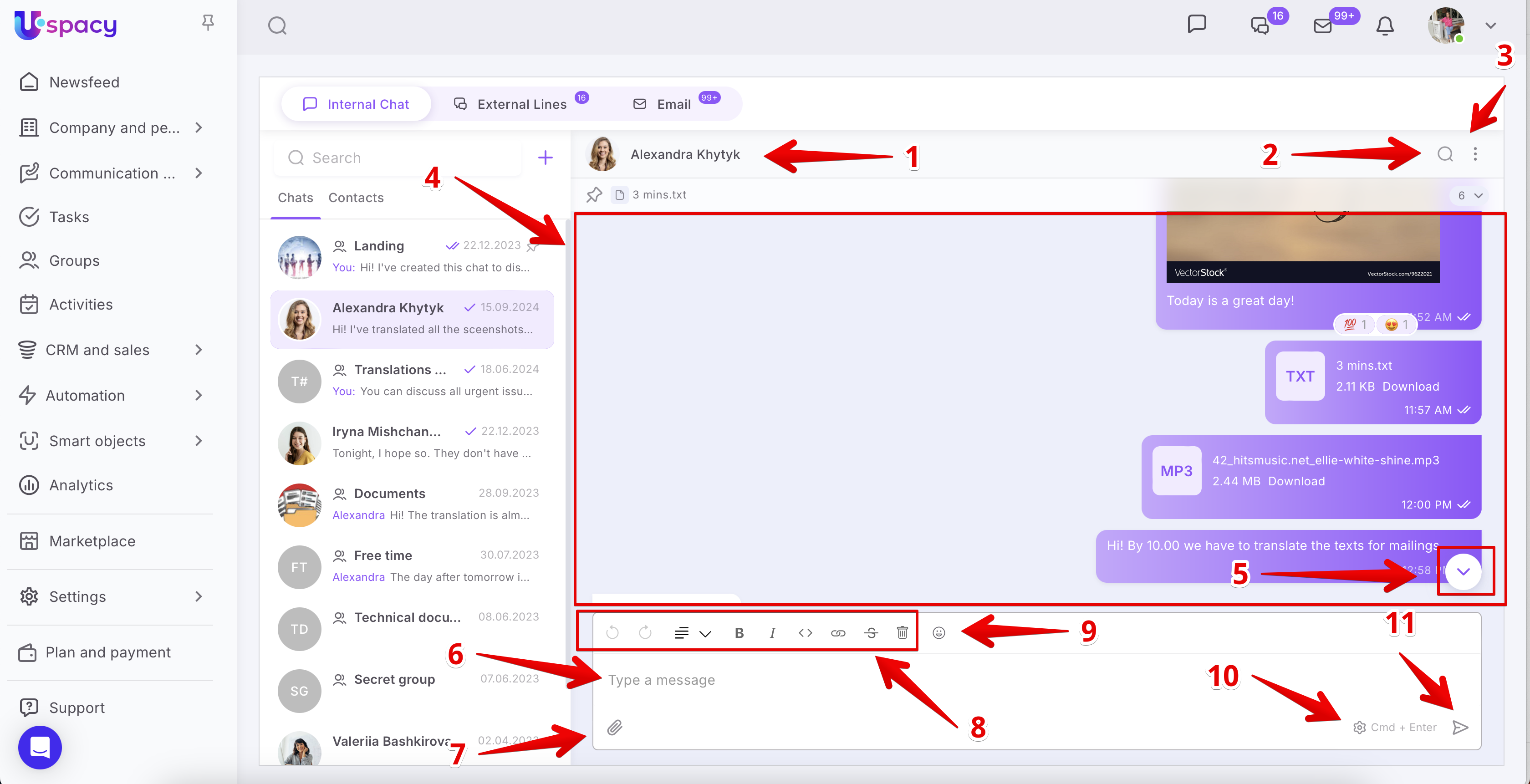
- the first and last name of the user or the name of the group chat.
- a button for calling the search bar;
- a button to call the chat interaction menu;
- all chat messages;
- a button to go to the last chat message;
- text input field;
- file attachment option;
- text editor options for formatting message text;
- panel for adding emojis;
- keyboard shortcuts for sending messages in the chat;
- button for sending messages.
💡 If the user goes to a chat where there are unread messages, they will be separated from the general ones.

The chat itself will be highlighted as active, that is, the one that is currently open and used for exchanging messages.

So that important chats are always at hand, you can Pin them. To do this, you need to call the interaction menu and select the appropriate option.

❗️You can pin both personal and group chats.
As a result, such chats will receive a corresponding mark and will always be at the top of the list.

Of course, you can Unpin a chat at any time.

To find a specific message, file or link among all chat messages, use the search field.

Start typing the keywords that you had in your text, file name, or link.

If you found what you were looking for, just go to the right place in the chat. To do this, click on the arrow.

Or you can download the file immediately or go to the found link.

💡 If you need to specify a date for the search, then first enter a keyword and then use the calendar.

Communication in chats
After opening the desired chat, you can start messaging with colleagues.

🔍 You can read more about communication in chats in the following article.
How do you receive notifications of incoming chat messages?
When colleagues write to us in private messages or in group chats, of course we want to know about it.
A visual notification of a new message can be seen on the chats icon in the Top Menu.

But in order not to miss anything, you also need to enable sound notifications and push notifications.
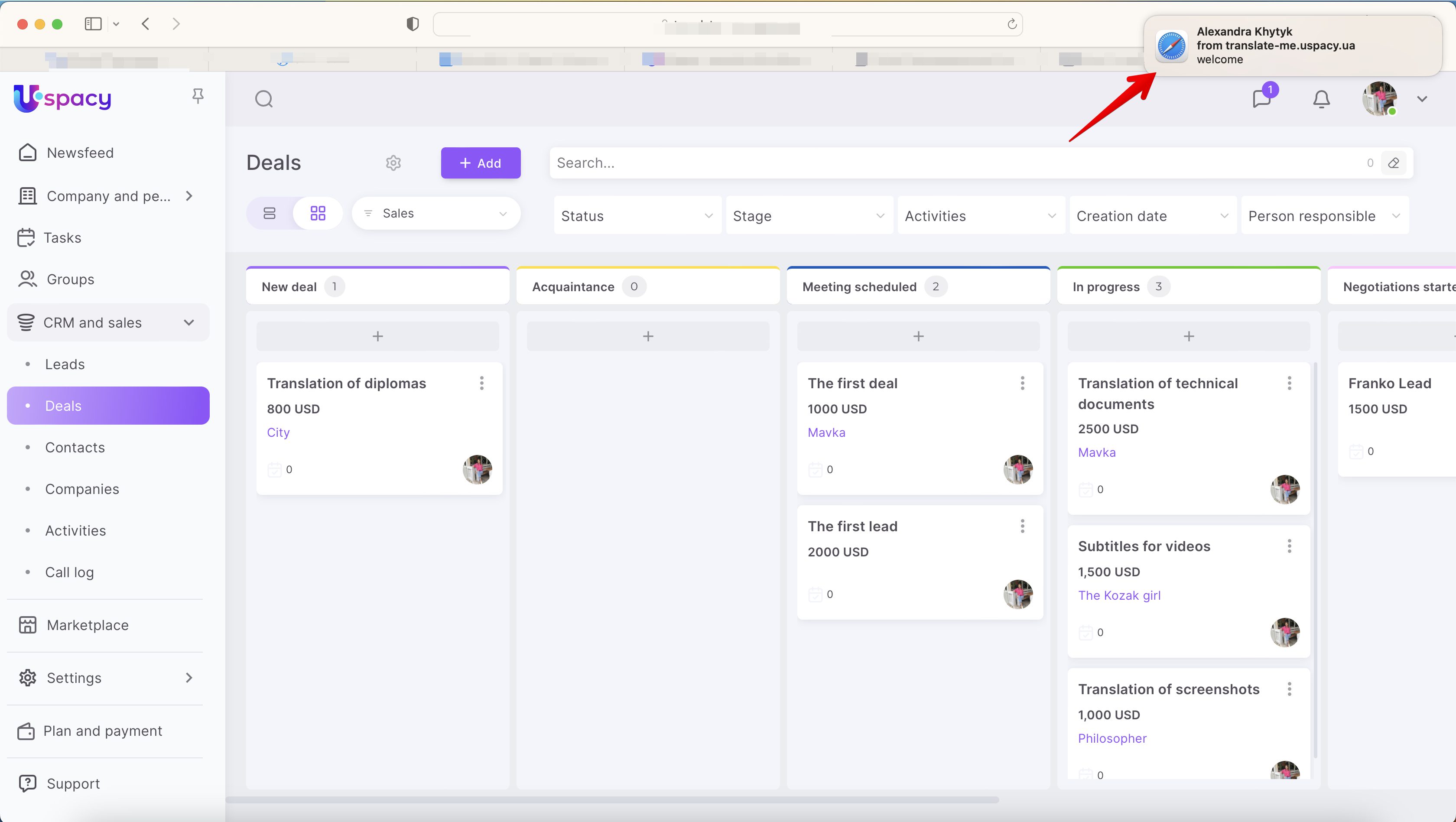
🔍 You can read more about what you need to do to receive notifications about new messages in chats in the following article.
Do not notify mode
If you need messages from a specific personal or group chat not to bother you, you can use the Do not notify mode.

The system will not send sound and visual notifications for the selected time, even if there are new messages in this chat. There will also be a corresponding mark next to the name of the chat where this mode is activated.

If you have additional questions or you need to contact the support, send a request to this email [email protected]
Created: February 28, 2023 / Updated: October 17, 2024