
In Uspacy forms, you can configure URL parameters to pass data through a form link. This allows certain fields to be populated automatically before a user begins filling out the form. You can also pass information without displaying it on the form and store it directly in the corresponding CRM record.
🌟 URL parameter configuration is available only on paid plans.
What are URL parameters and how do they work?
URL parameters are additional data passed through a form link and used to populate designated fields.
For example, if you send a client a feedback form, you can include their name, phone number, or order details in advance. When the client opens the link, the corresponding fields will already be populated. All they need to do is provide their feedback and submit the form.
URL parameters can also be used to pass internal information that users should not see, such as the manager responsible for a lead or the advertising source that generated it.
Uspacy supports two types of URL parameters:
- Visible fields — These fields appear on the form and can be automatically populated with values from the link. Users can see the data and interact with the corresponding fields.
- Hidden fields — These fields do not appear on the form. However, values passed through the link are saved in the corresponding CRM fields when the CRM record is created.

How to configure URL parameters?
You can configure URL parameters when creating a new form or editing an existing one. On the Fields and elements tab, expand the Parameter parsing section.

Here, you can add URL parameters for both visible and hidden fields. Each type has its own tab, and the number of configured parameters is displayed next to the tab name.
Configuring visible fields
Visible URL parameters are used to automatically populate fields that have already been added to the form.
To configure them:
1. In the Parameter parsing section, select the Visible fields tab.
2. Click Add parameter.
3. In the Form field, select the field you want to populate from the fields already added to the form.
4. In the URL parameter field, enter the parameter name that will be used to pass the value through the link.For example, you can assign the parameter name to the Name field.

For example, you can assign the parameter name to the First name field.
Configuring hidden fields
Hidden URL parameters allow you to pass additional information without displaying the corresponding fields on the form.
To configure them:
1. In the Parameter parsing section, go to the Hidden fields tab.
2. Click Add parameter.
3. In the Parameter field field, select the CRM field where the information should be stored.
4. In the URL parameter field, enter the parameter name that will be used in the link.

For example, you can assign the parameter title to the Title field.
💡 Note: Hidden URL parameters can also be used with User and Binding to entity field types. In this case, the link must pass the ID of the relevant user or CRM record rather than the person's first name, last name, or record name.
This ensures that Uspacy can correctly identify the user or associated CRM record.
How to add parameter values to a form link?
Once you've configured the URL parameters, you need to add the values you want to pass through the link.
Use the following syntax:
- ? — Placed before the first URL parameter.
- & — Used to add each subsequent parameter.
- = — Separates a parameter name from its value.
For example, suppose you've configured two parameters for a webinar registration form:
- name — A visible parameter for the First name field.
- title — A hidden parameter for the Title field.
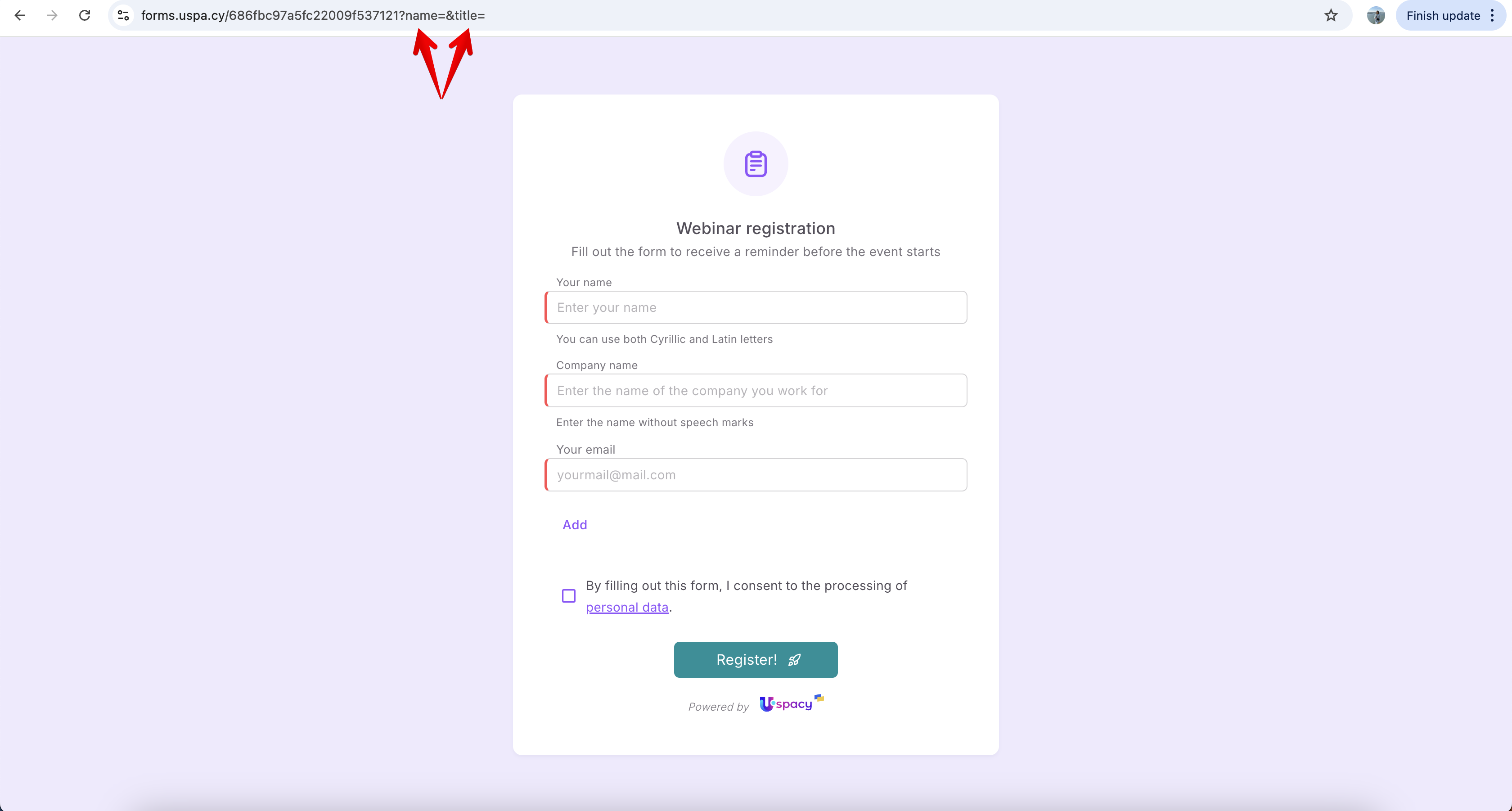
In the browser's address bar, append the parameter names and their corresponding values to the form URL, using an equals sign (=) to separate each name from its value.
In this example, the parameters would look like this:
?name=Iryna&title=Webinar
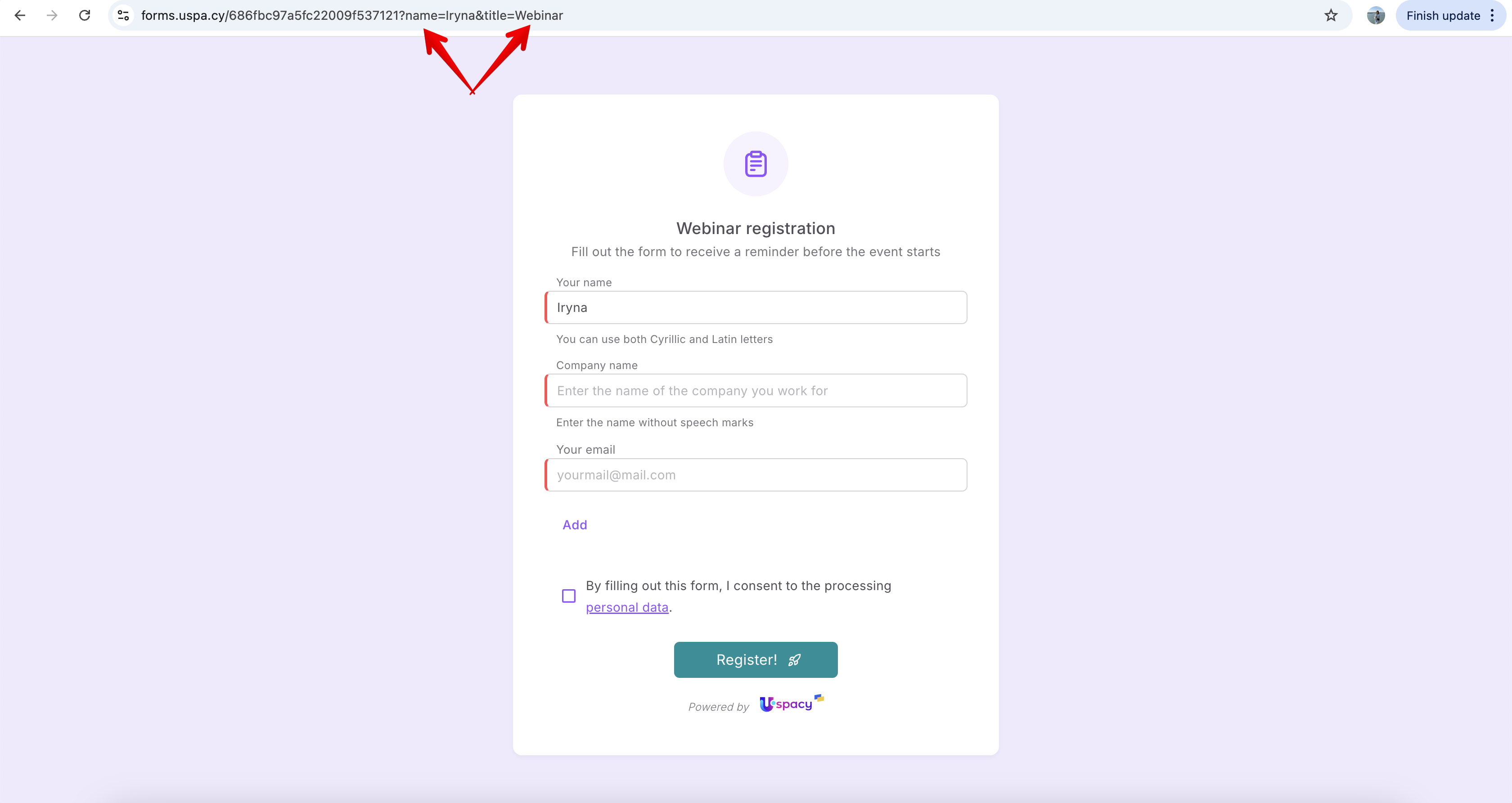
When a user opens this link, the Name field will already contain the value Iryna.
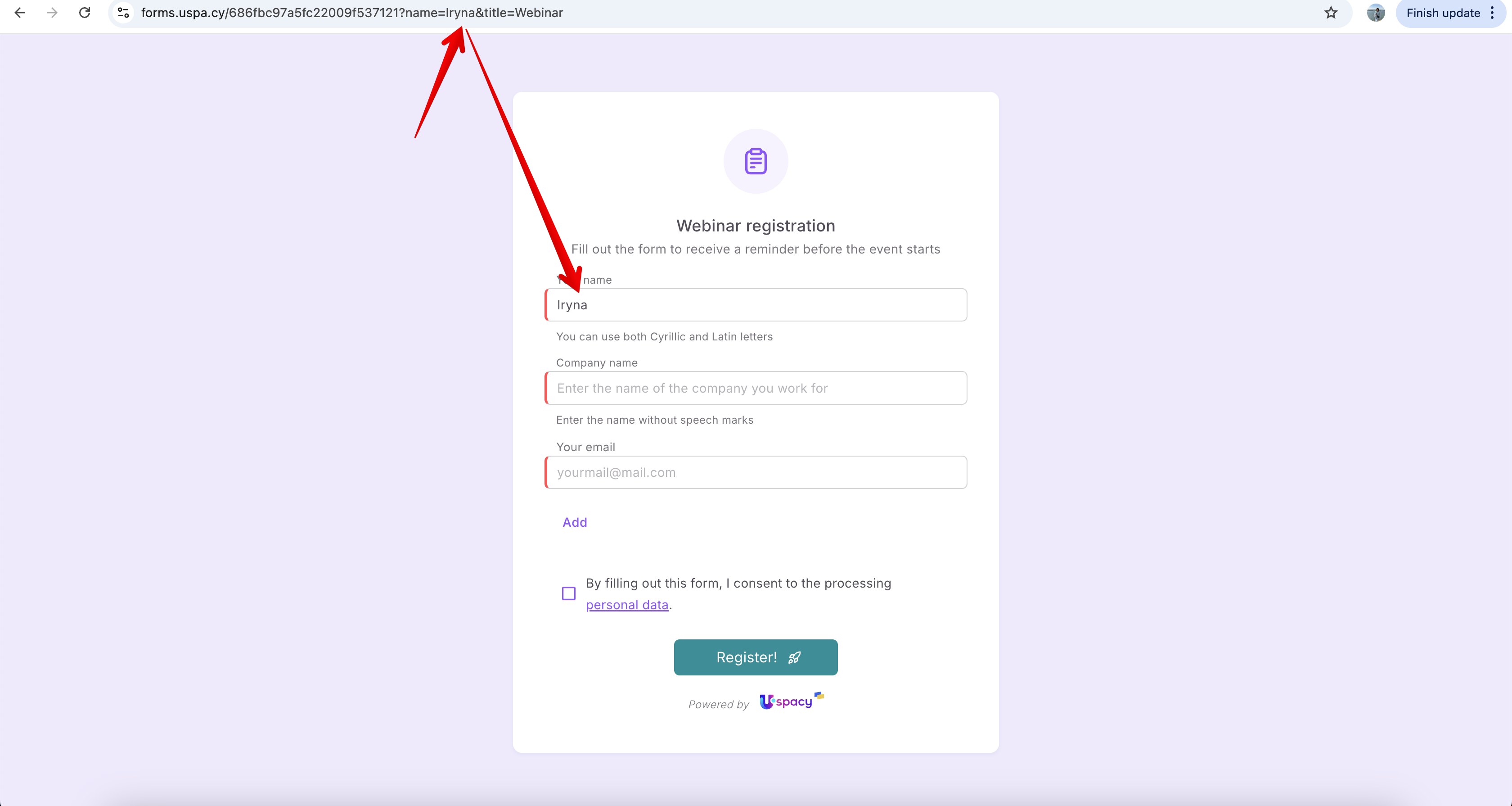
At the same time, the value Webinar will not appear on the form. However, after the form is submitted, it will be saved in the Title field of the newly created CRM record.
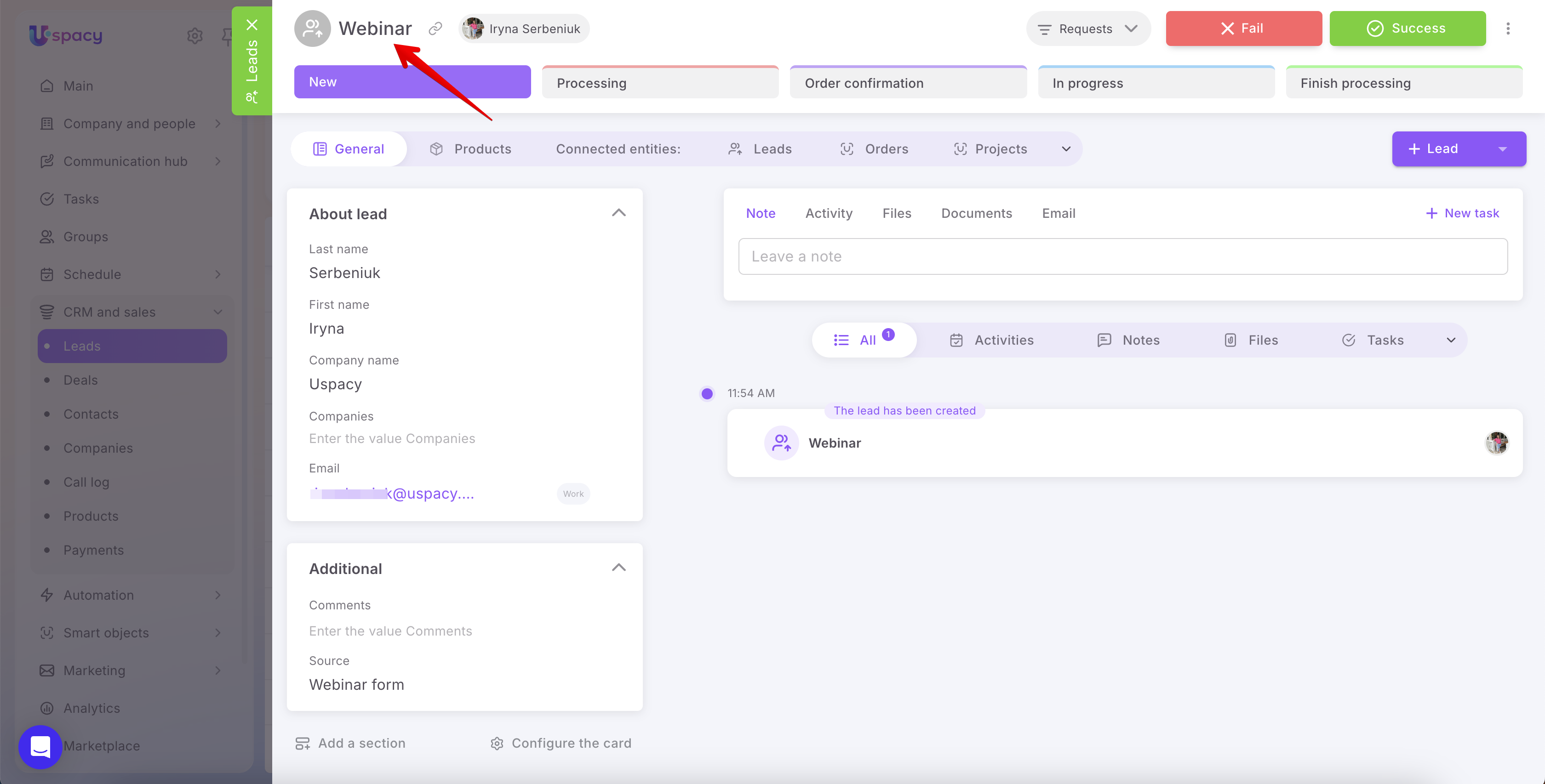
URL parameters make Uspacy forms more convenient for clients and help automate data transfer to your CRM. Visible parameters let you prefill fields, while hidden parameters allow you to pass additional information without displaying it to users.
Simply configure the mapping between form fields and URL parameters once, then reuse the form link with the appropriate values. This reduces manual data entry, ensures important information is stored in CRM records, and helps you analyze incoming leads more effectively.
Created: October 16, 2026 / Updated: October 19, 2026