In CRM, you can use not only predefined fields in the element cards, but also add your own.
💡Custom fields are available for leads, deals, contacts, companies and products.
If you do not have enough predefined fields for work, then just create your own.
❗️You can work with custom fields using Standard and Professional plans. Learn more about plans ➡️ HERE.
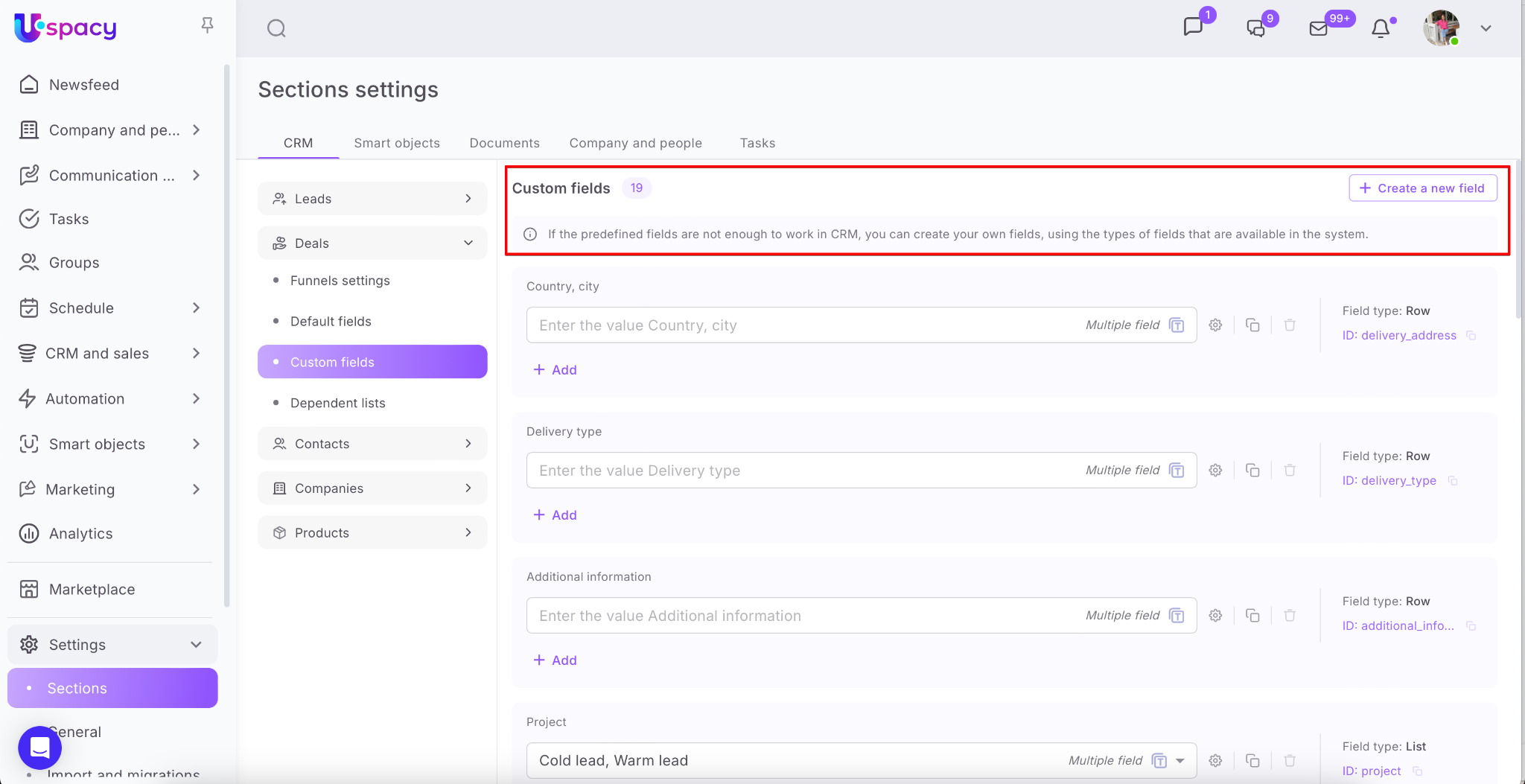
Where to create and configure fields?
❗️Only the administrator and Space owner have access to creating and configuring custom fields.
You can do this on the Settings - Sections - CRM page. Select the entity for which you want to create or configure your own custom fields.
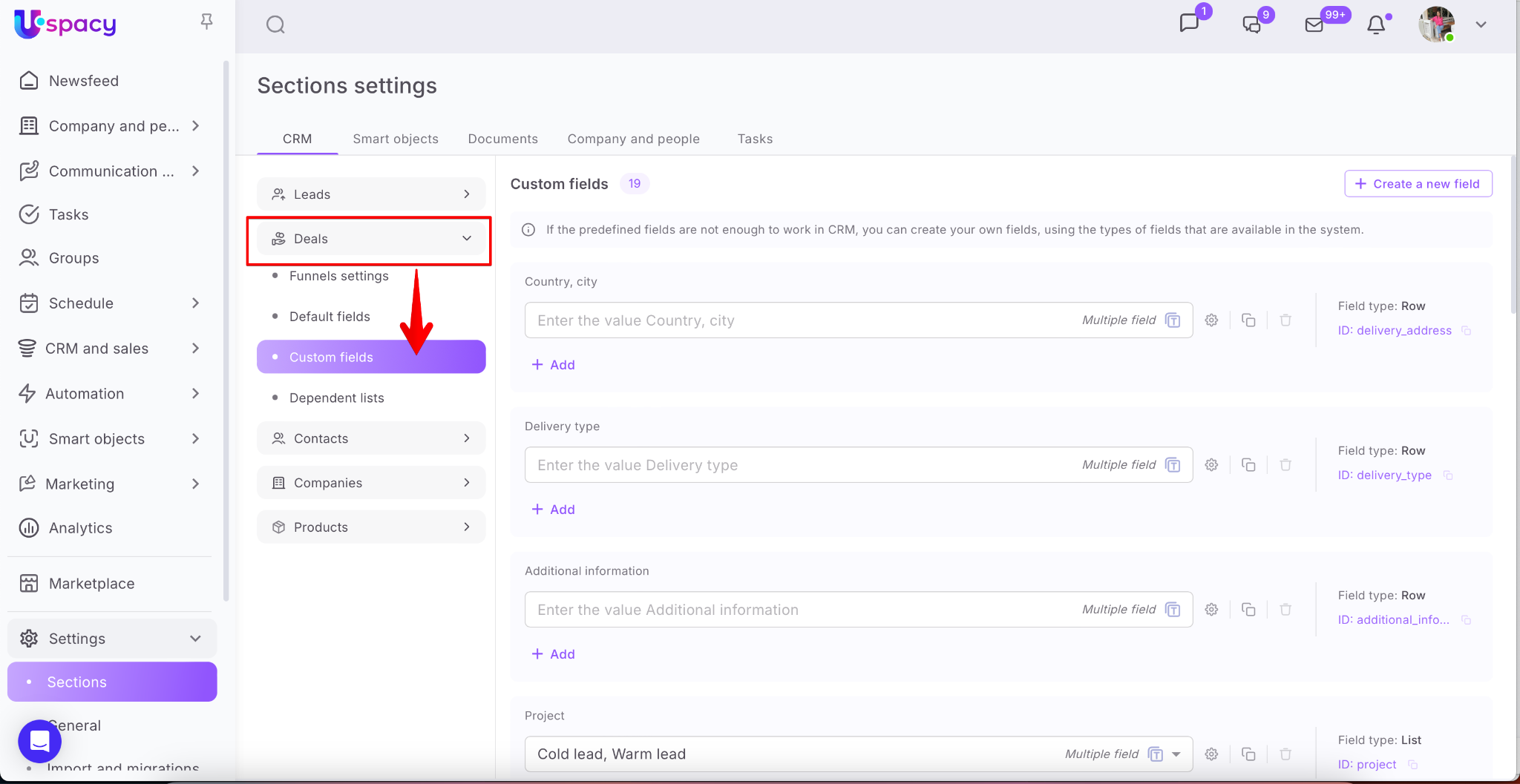
💡 The creation of custom fields is also available in the element cards of any CRM entity. For leads, deals, contacts, companies when configuring them. For products when editing the card.


How to create and configure?
Whether you add a new field through the settings page or directly in the CRM, you need to click on the Create a new field button.
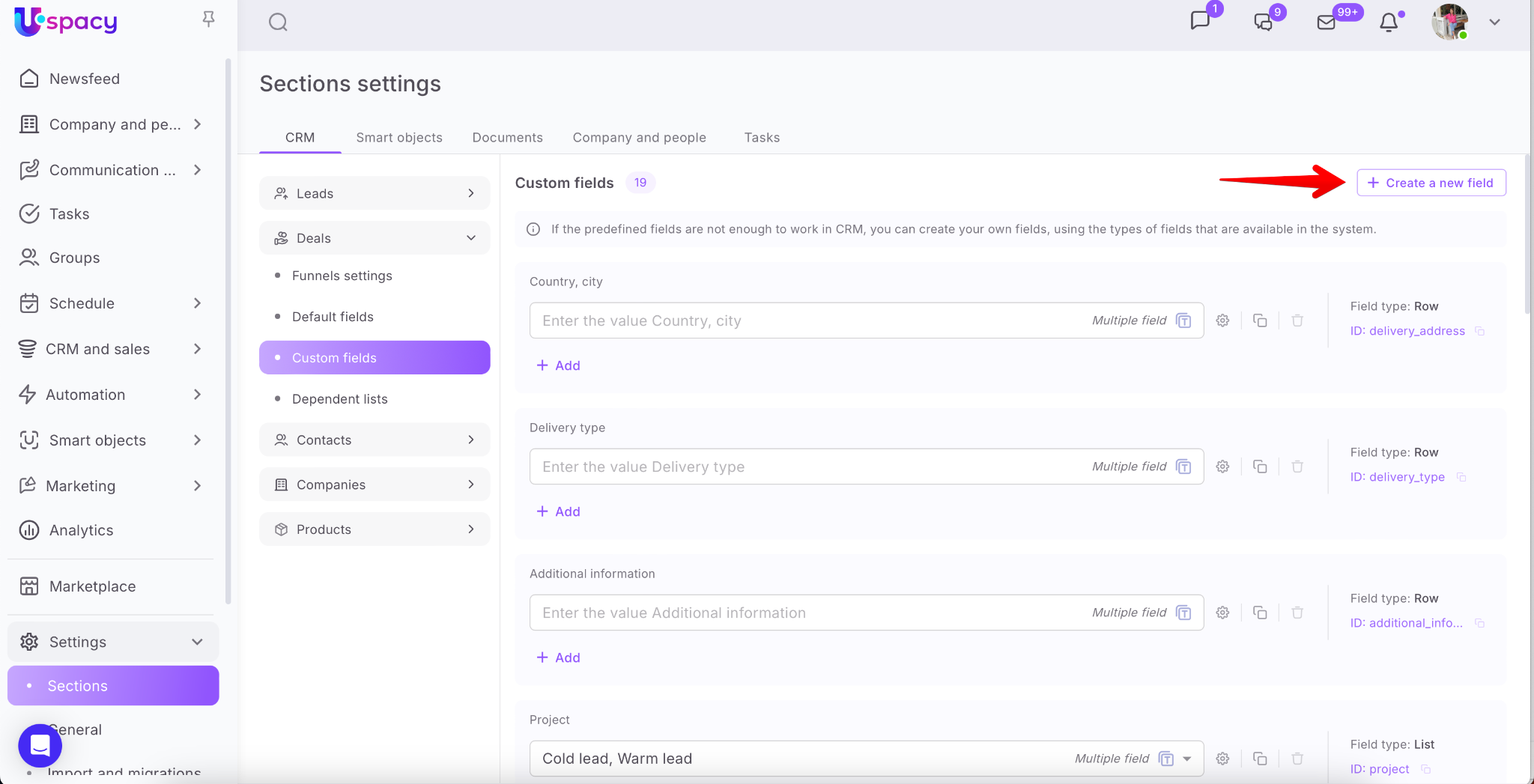
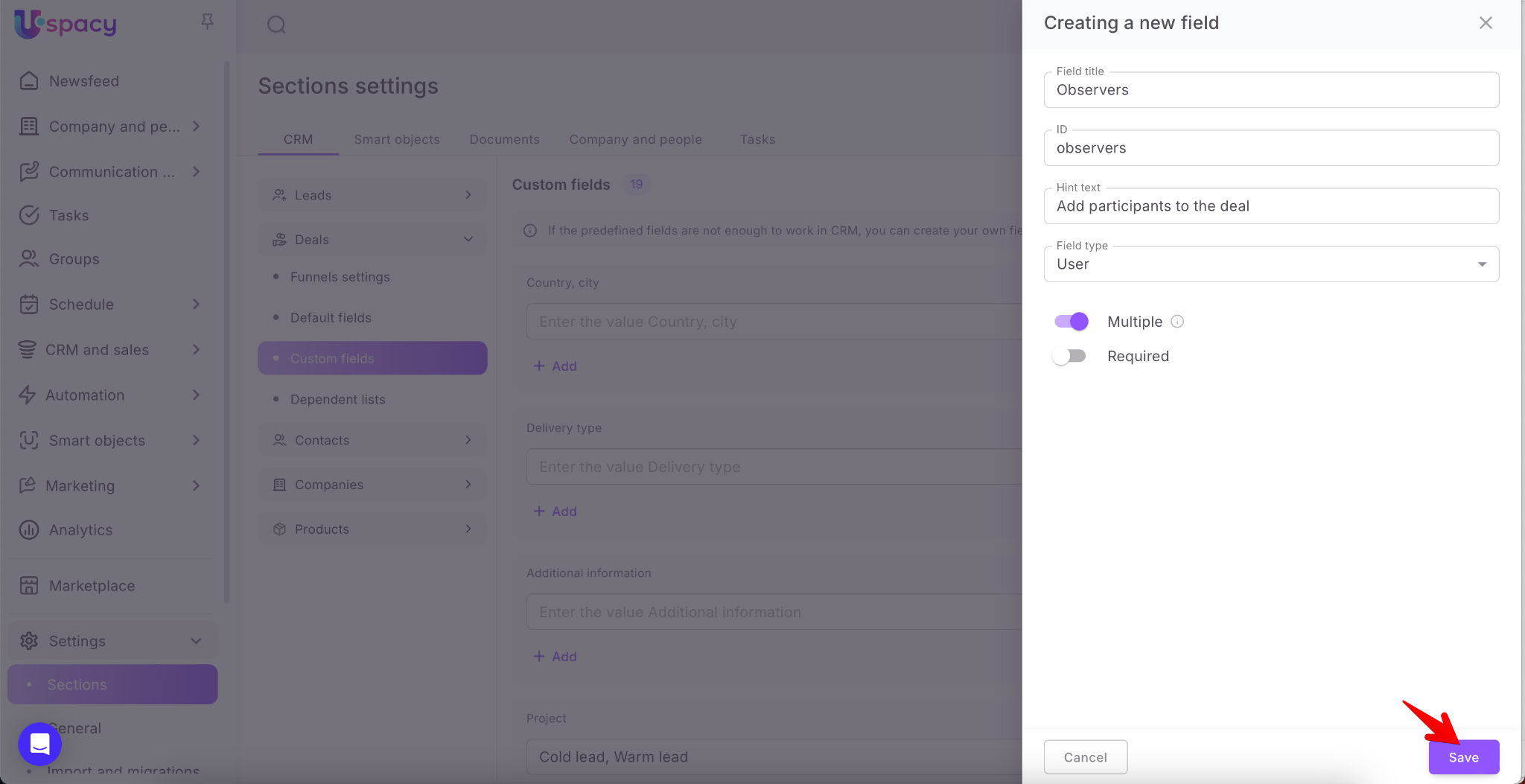
The form for creating a field will open. First, be sure to give the field a name.
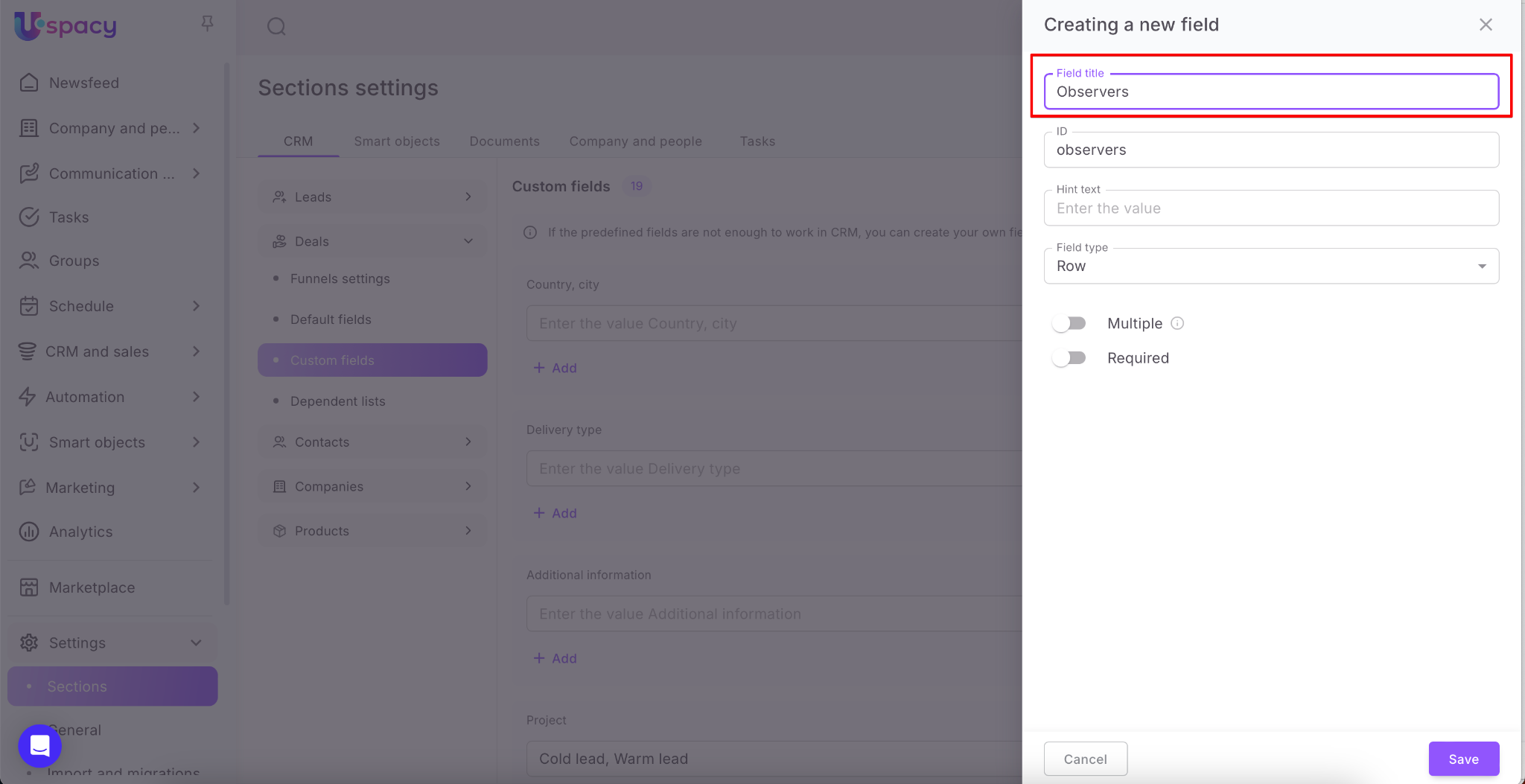
Next, you can change the ID. This parameter is automatically filled out by the system - it is transliterated into Latin. But you can write your own value.
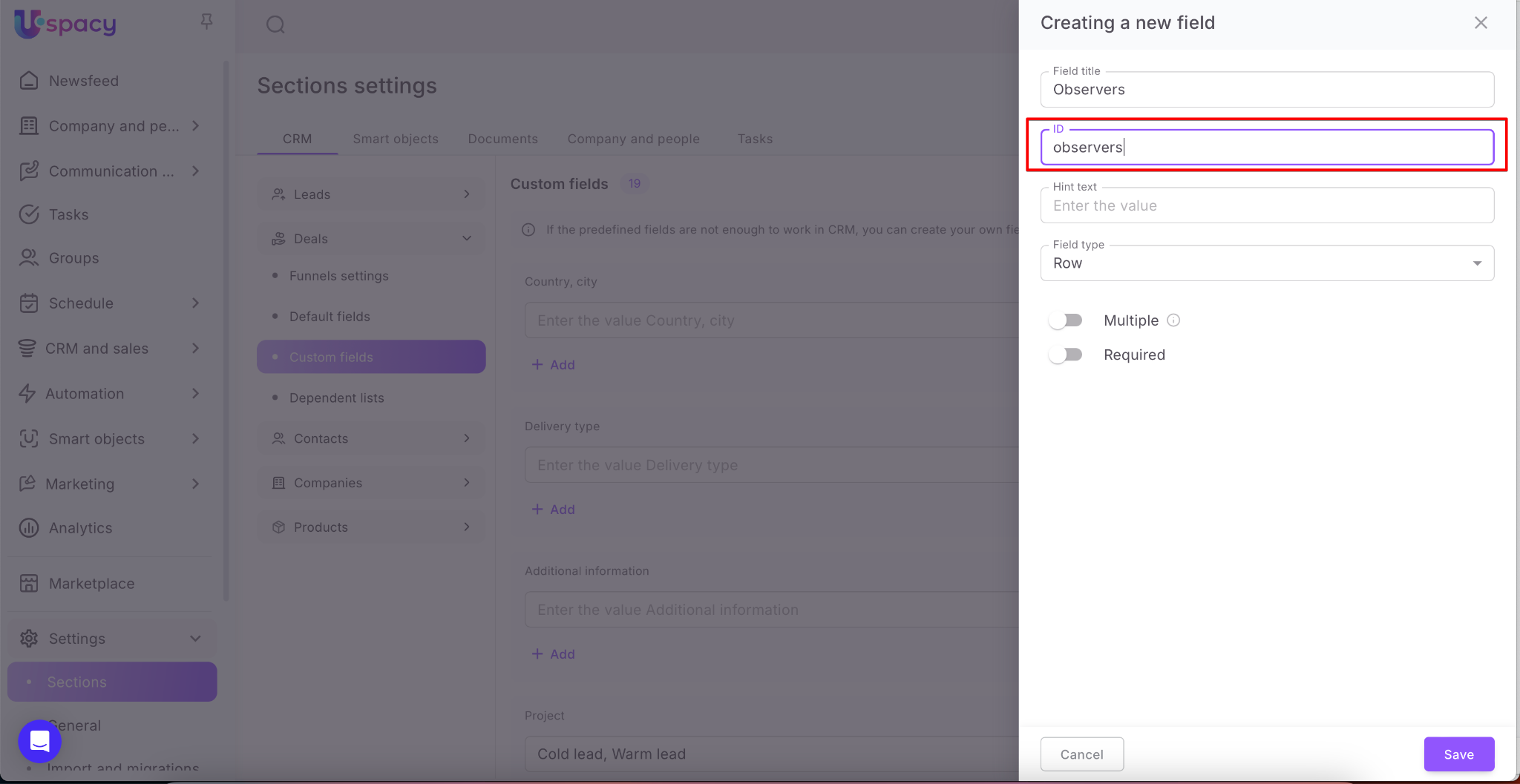
❗️Please note that the ID must contain only Latin letters.
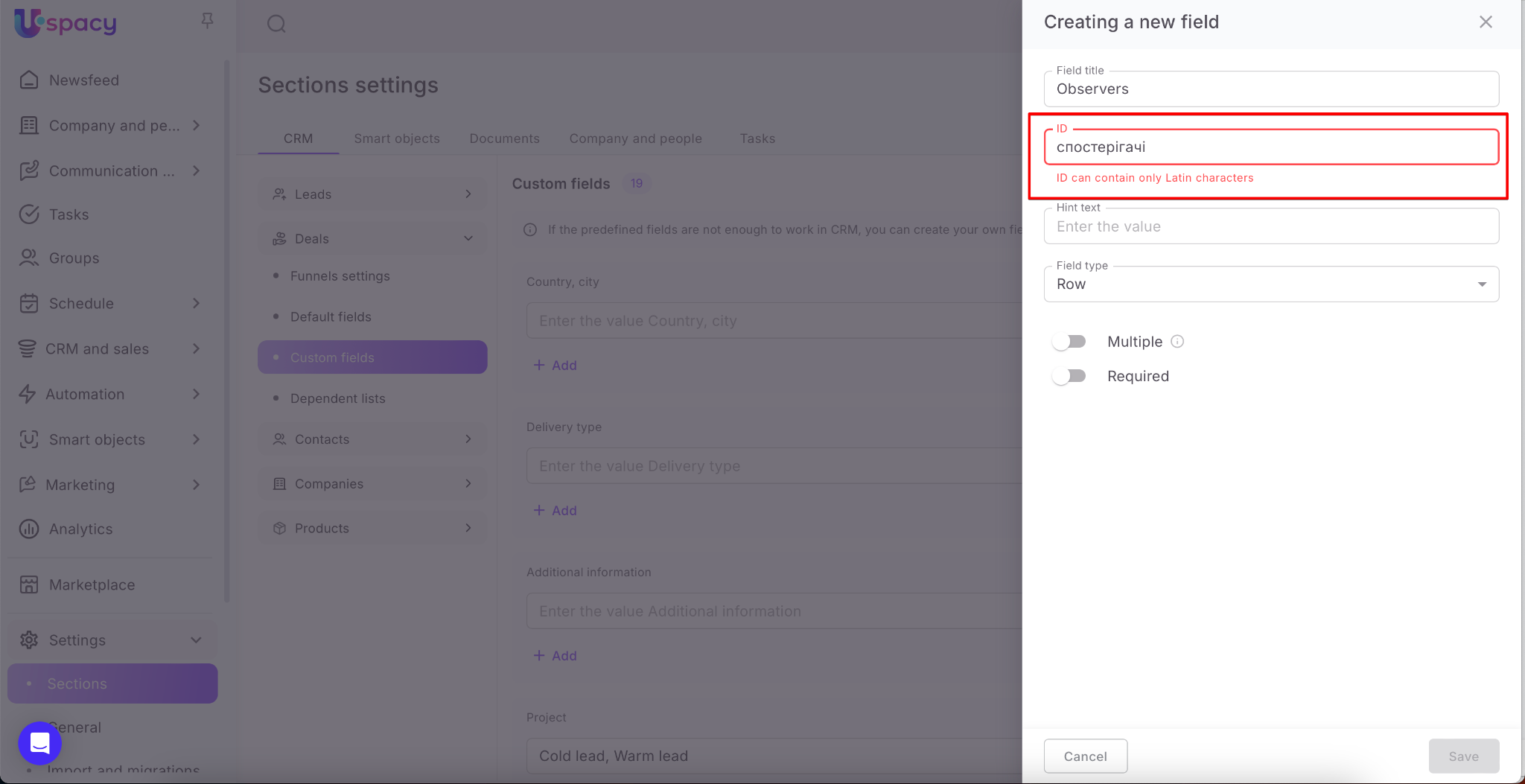
Then come up with a Hint text. This is an additional phrase that guides the user when filling out the field in the element card.
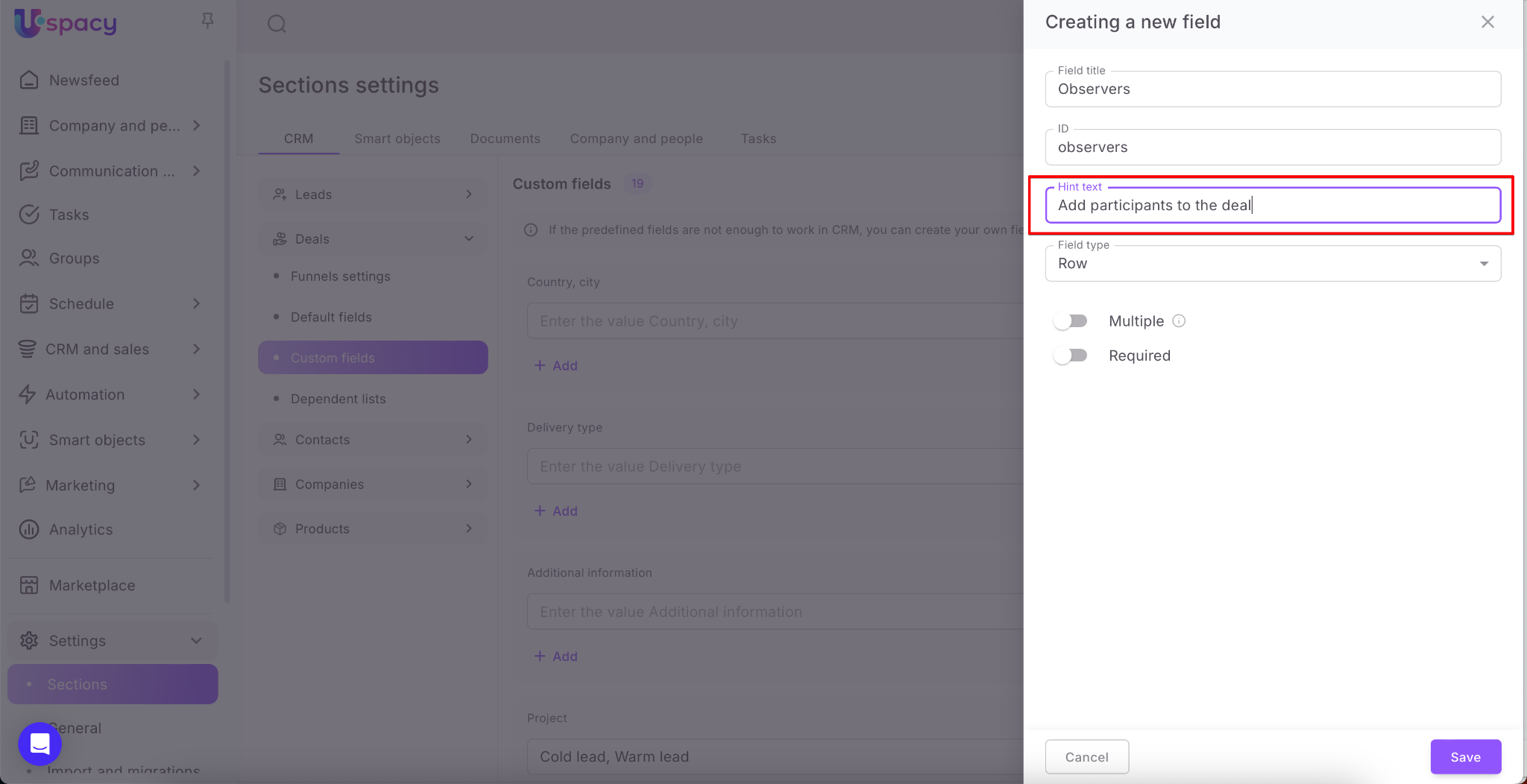
💡As a result, it will look the following way.

If you do not specify your text for the hint, the system will automatically paste this one: Enter the value N (where N is the name of the field).

Next, select the desired Field type from the list.
❗️Pay attention! Once created, the field type CANNOT be changed
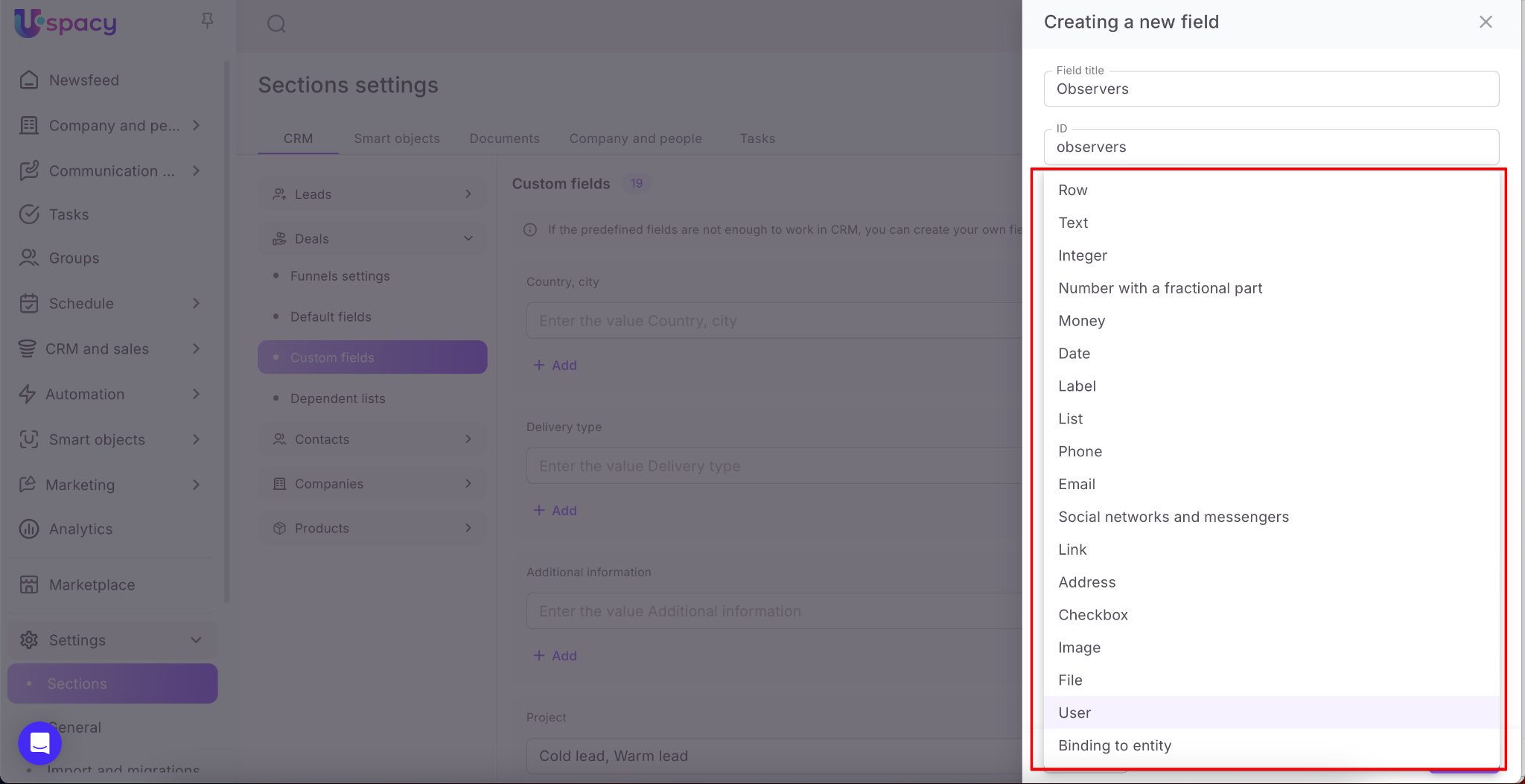
❗️The same list of field types is provided for all entities. But for products it is different. You can NOT create a Social networks and messengers type field for them (it will not be available for selection from the list).
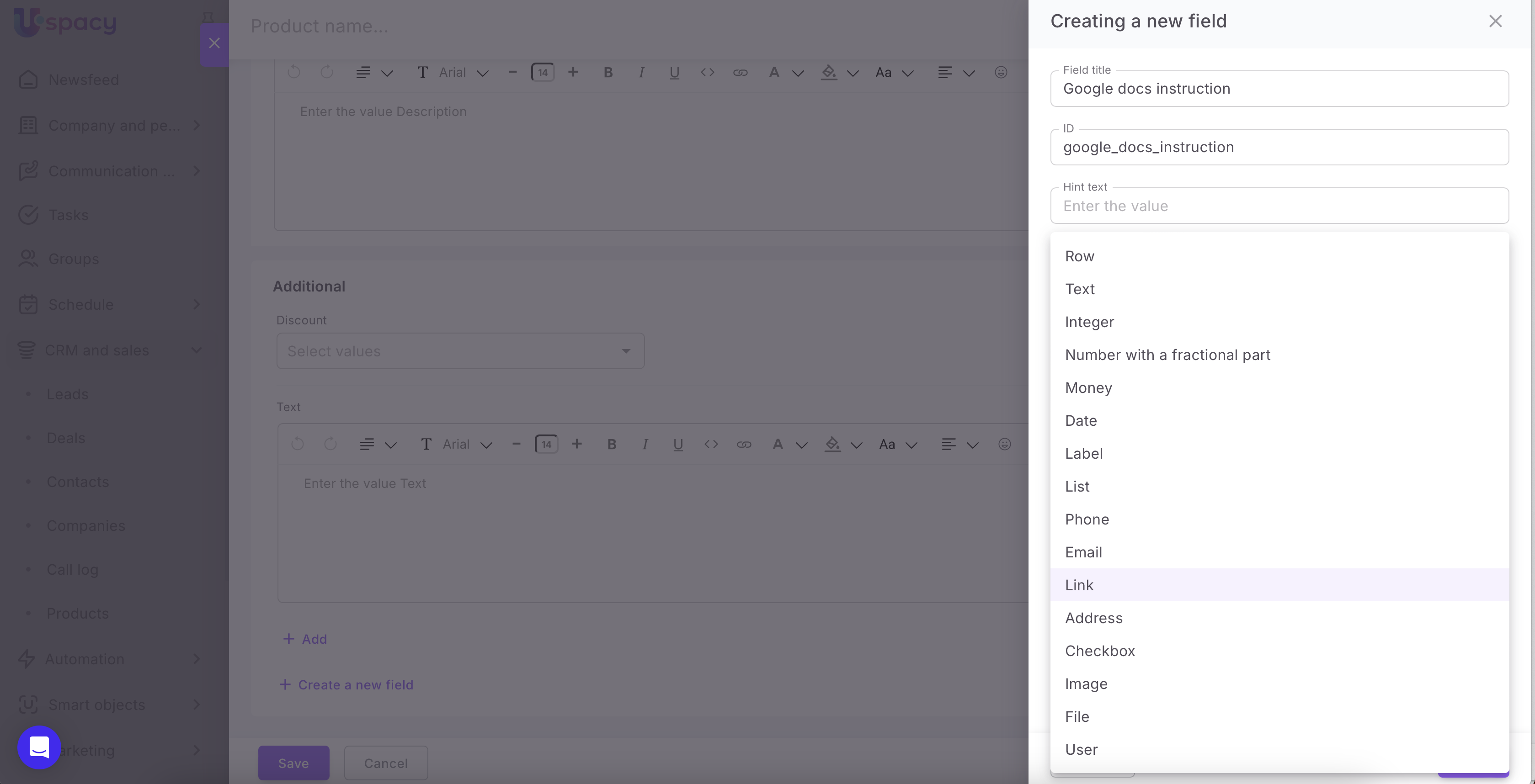
🔍 Learn more about all field types in a dedicated article.
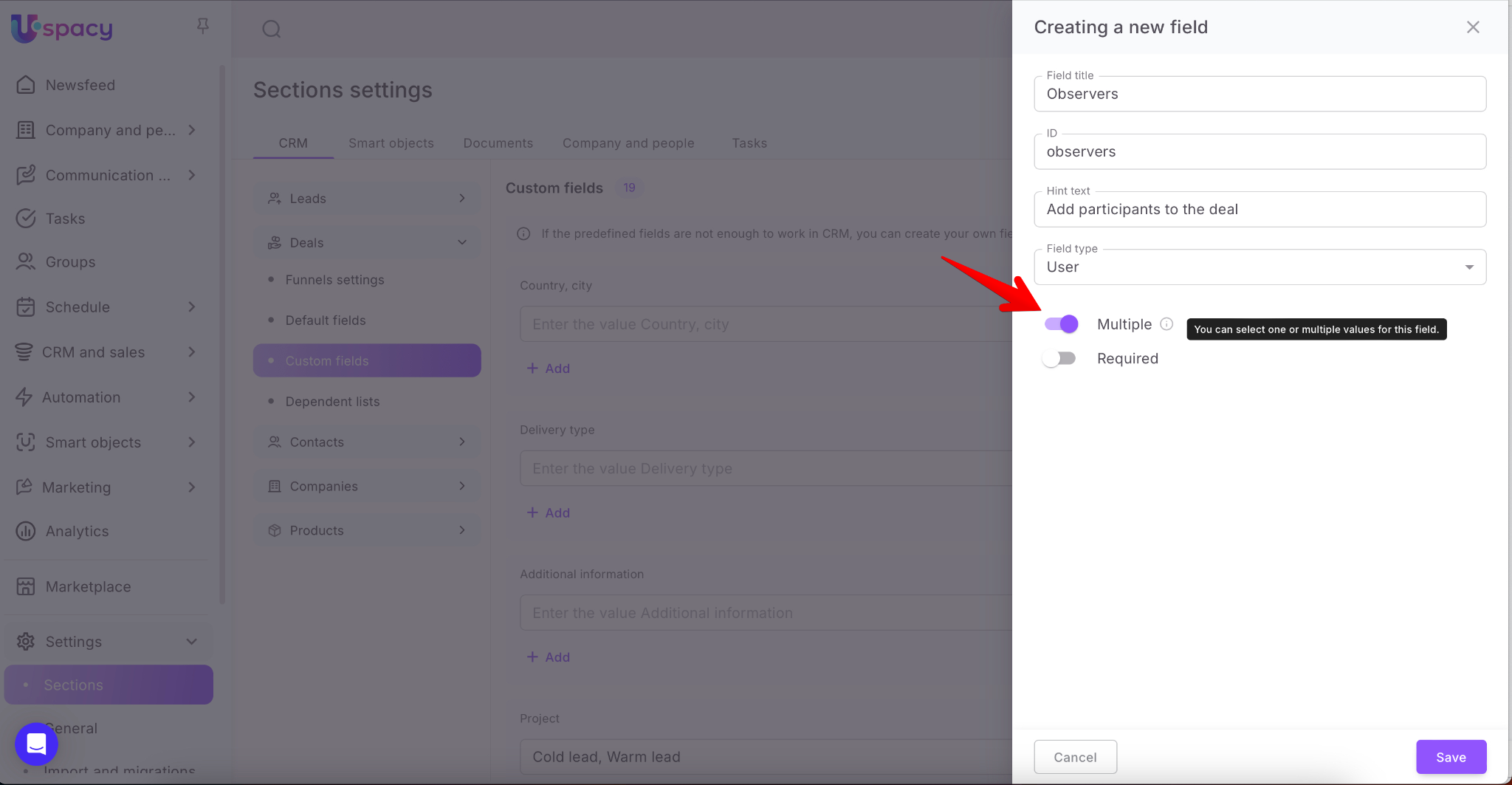
And finally, mark whether the field should be multiple (you can select several values for it) or not.
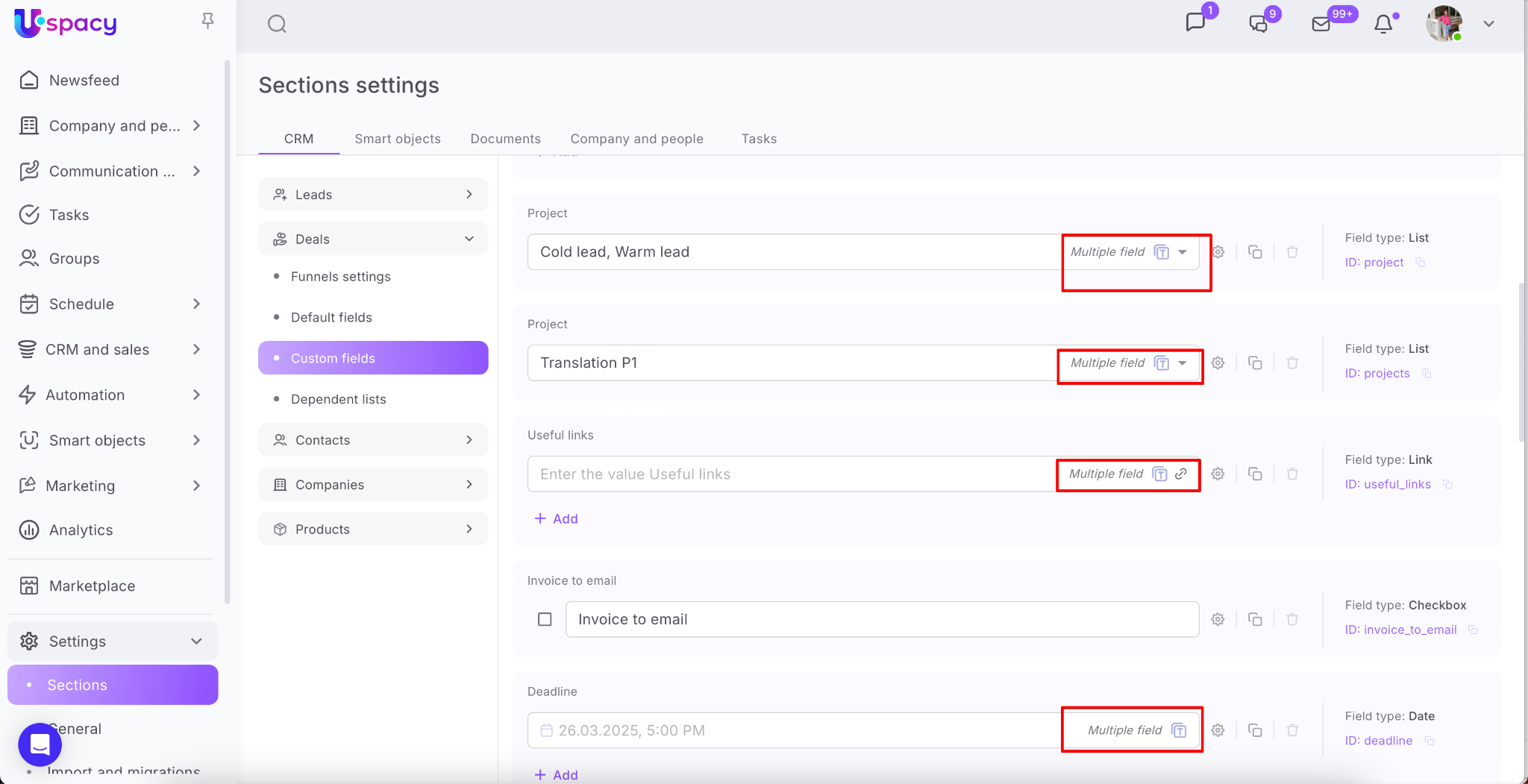
💡For ease of work, multiple fields have a special mark.
Finally, determine whether the field is required — meaning it must be filled out before saving changes to the element card.
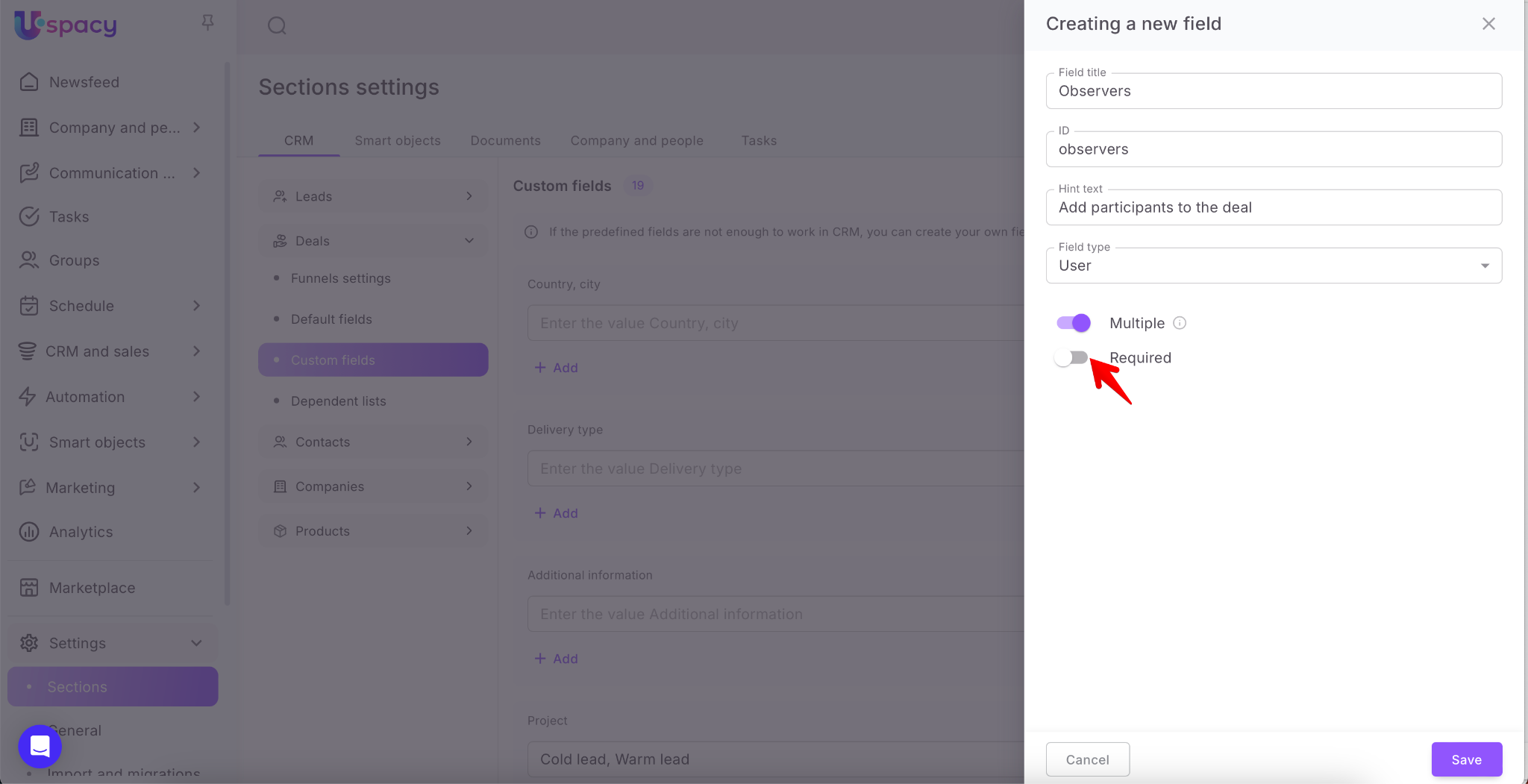
🔍 For more details about required fields in the CRM, refer to this article.
When all parameters are set, click Save.
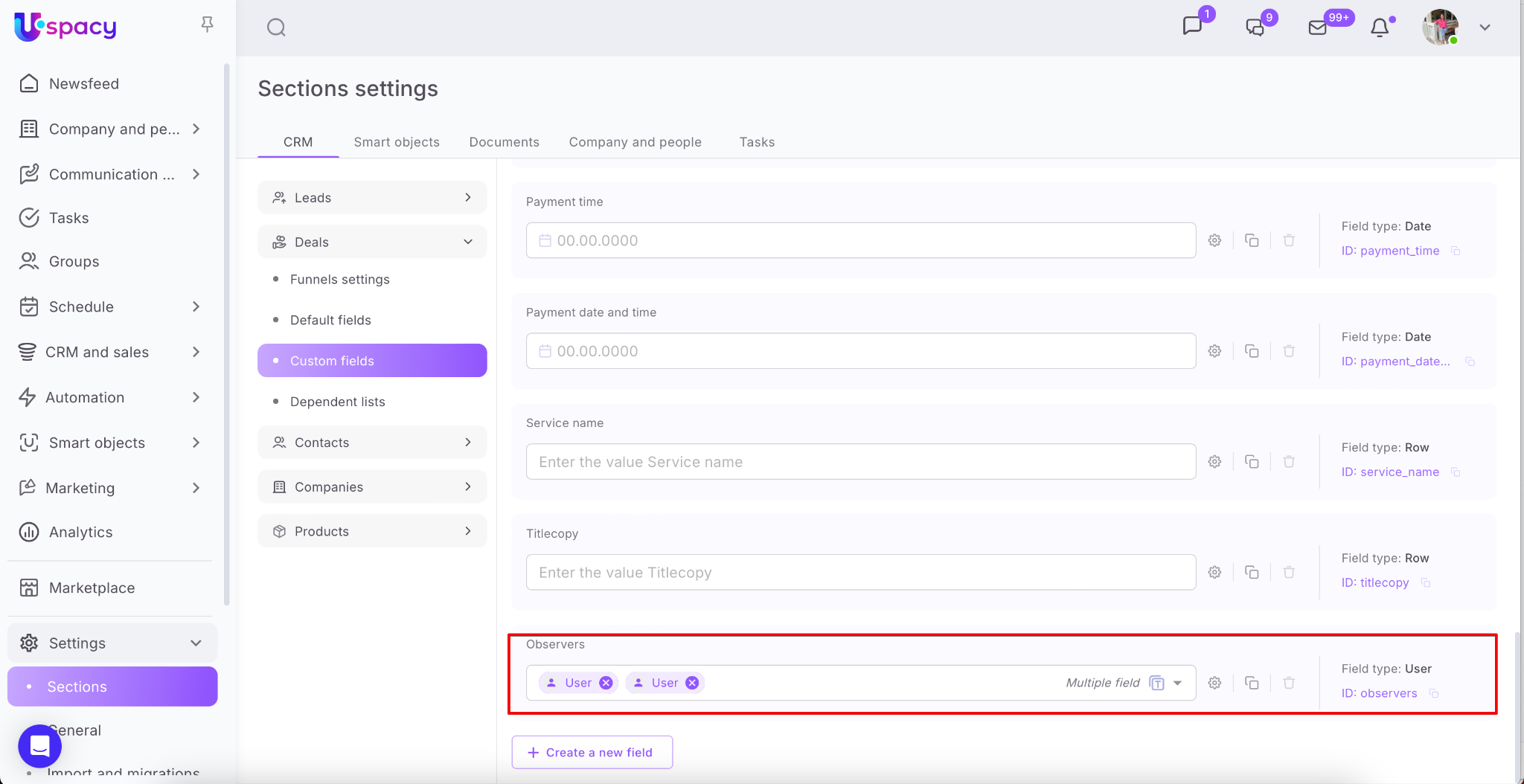
The created field will be displayed in the list of custom fields.
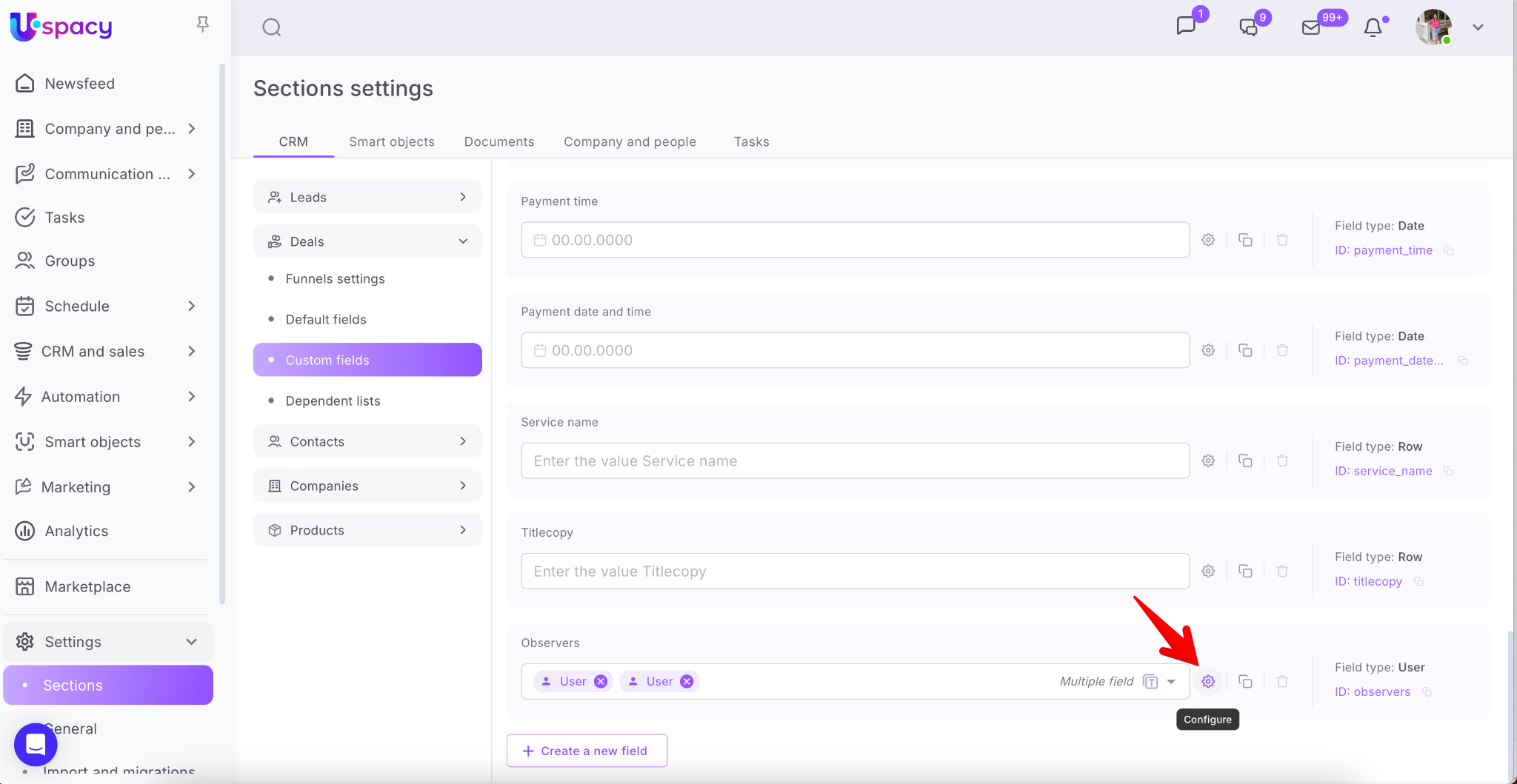
If necessary, you can go to the field settings any time.
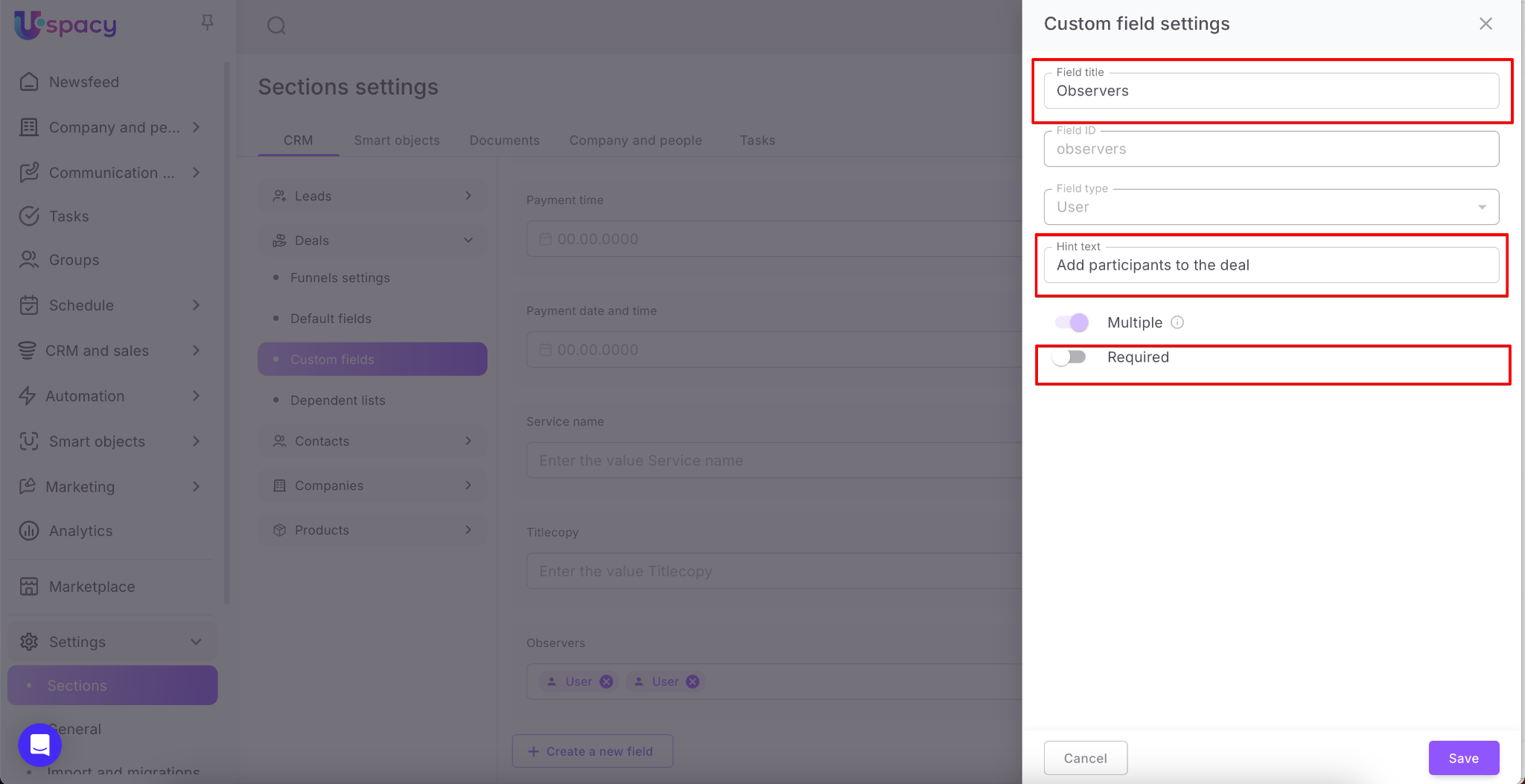
Make changes to its parameters. That is, edit its name, hint text or make the field required.
You can also duplicate the field.
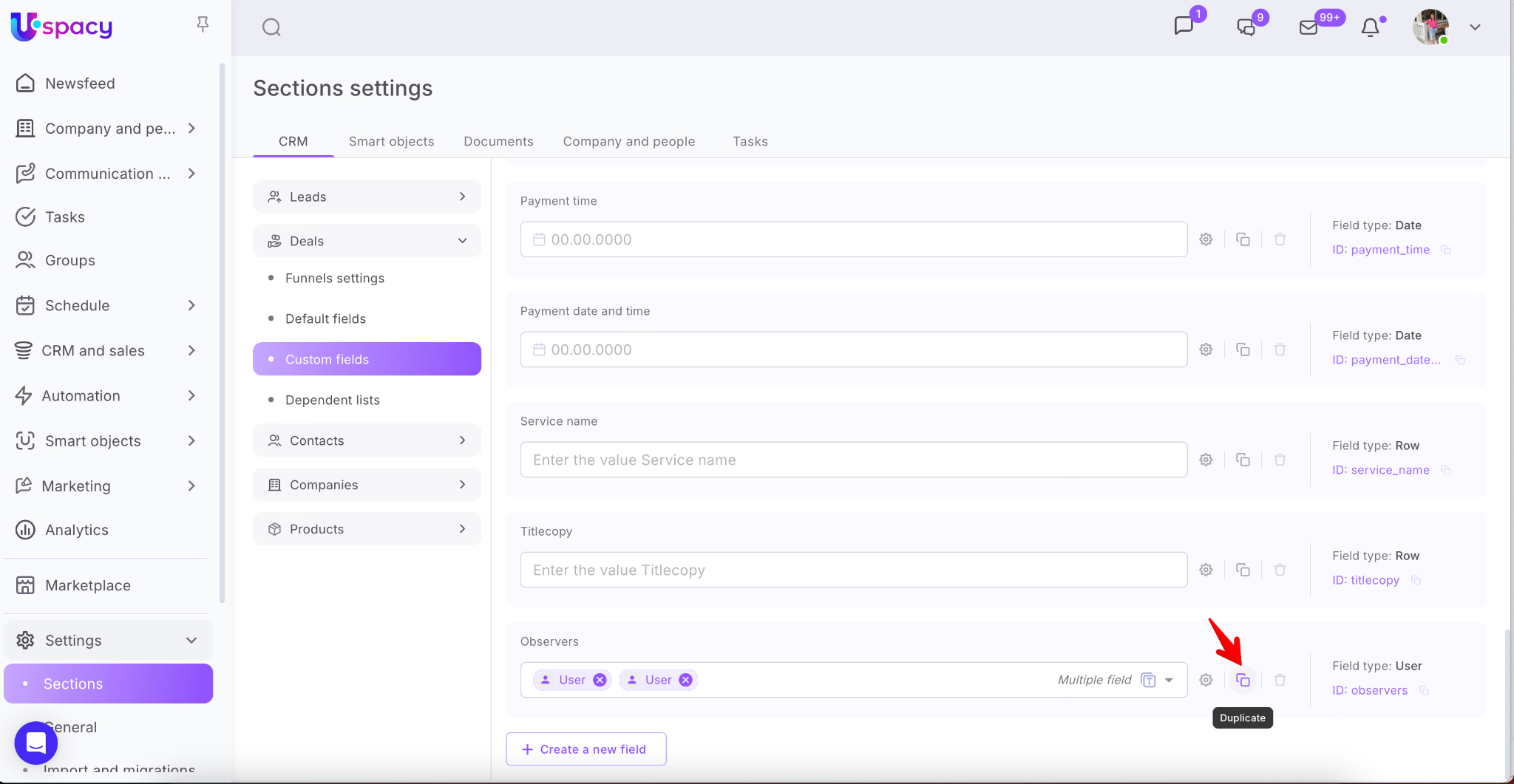
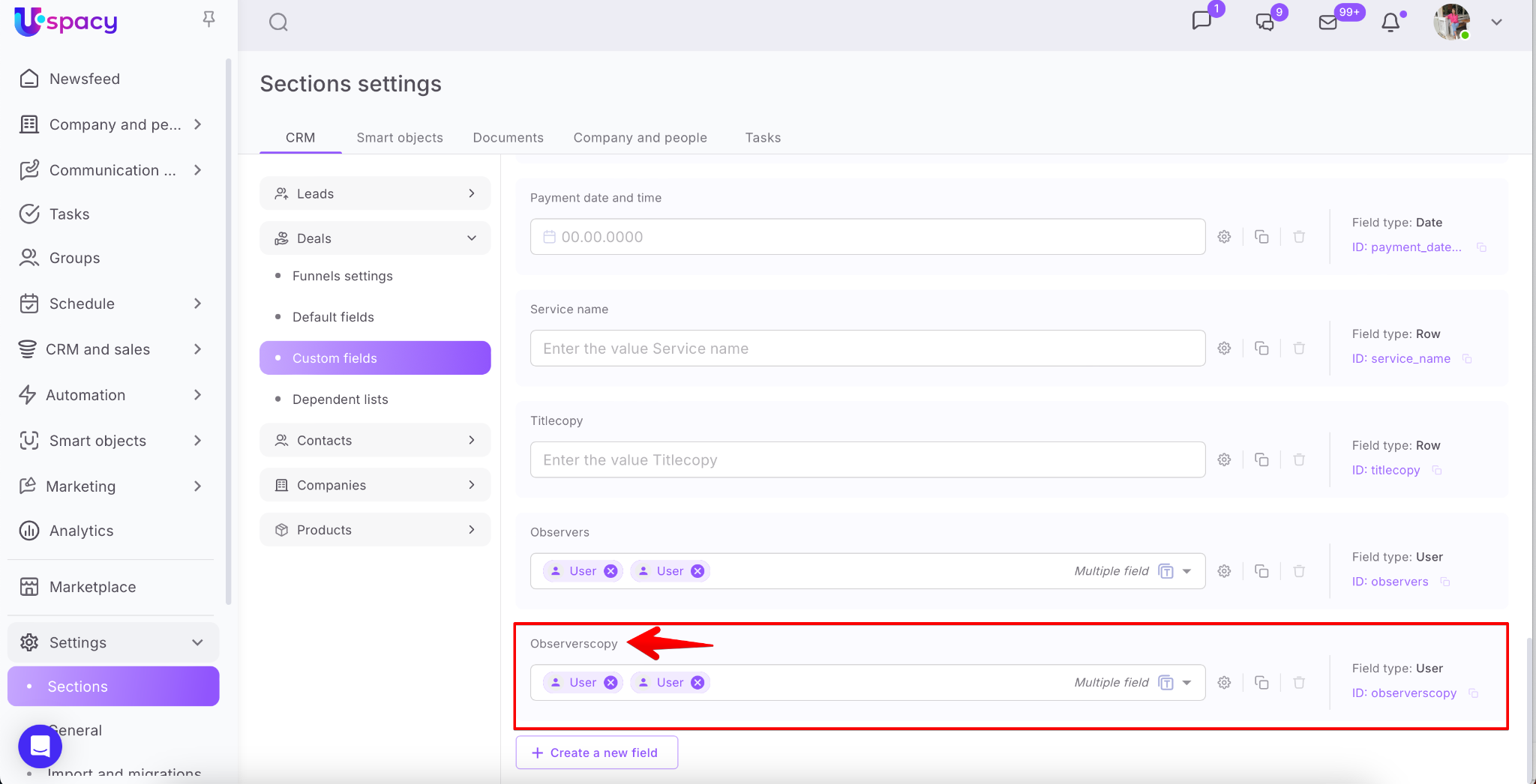
Its duplicate will appear in the list marked copy at once.
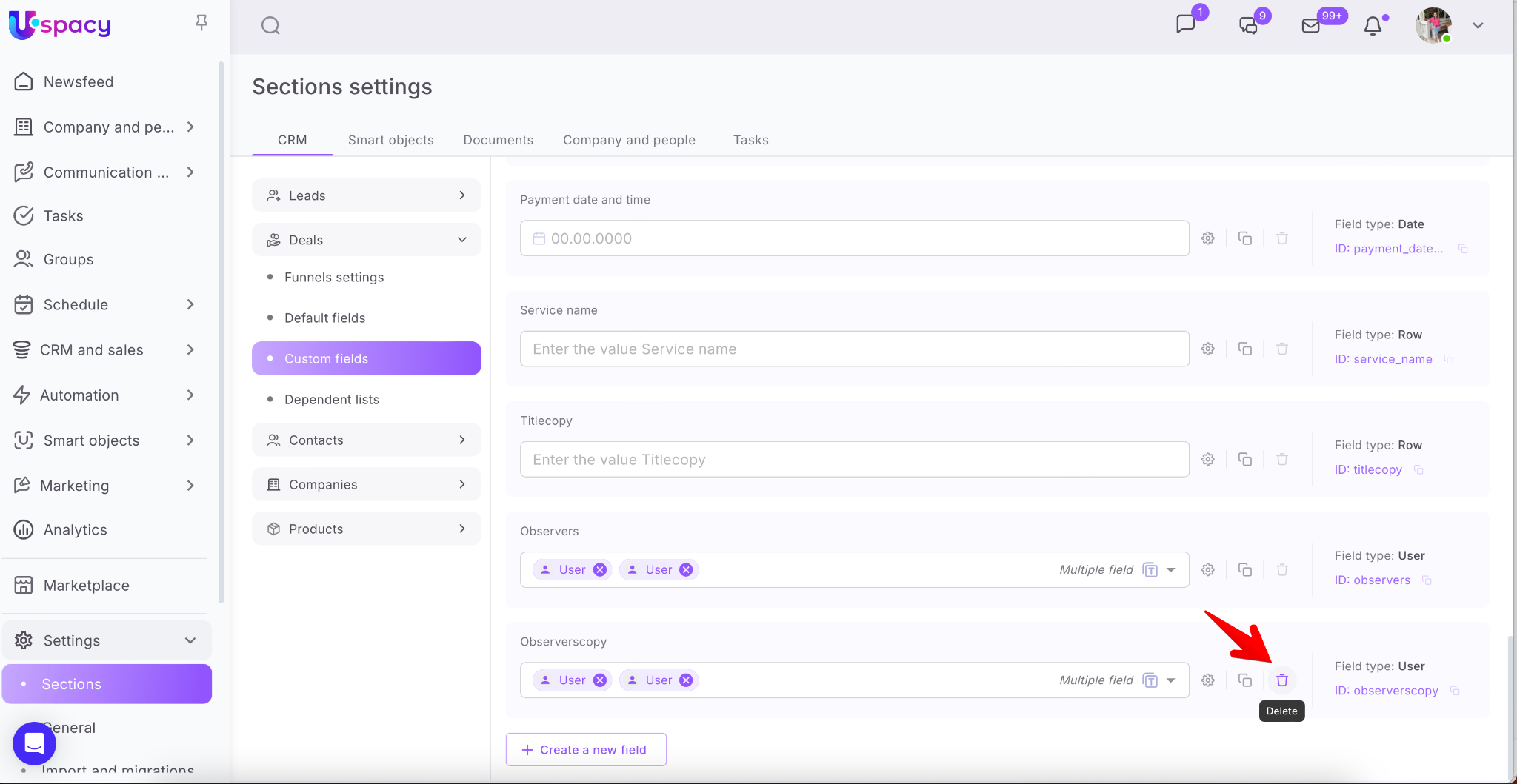
Unlike default fields, custom fields can be deleted. To do this, just click on the trash bin icon. The field will disappear from the list.
Display in the CRM card
Custom fields must be filled out to appear in the deal, lead, company, or contact card. To do this, you need to go to editing mode.

Select the section and click the Add a field from the list button.

Then select the desired field.

After that, save the settings for the card.

The field will be added to the section and ready to be filled out.

🔍 You can read more about CRM card settings in the following article.
In the product card, custom fields are displayed immediately after being created in the Additional section. You don't need to do any additional actions other than switching to editing mode when filling them out.

If you have additional questions or you need to contact the support, send a request to this email [email protected]
Created: June 9, 2023 / Updated: January 12, 2026