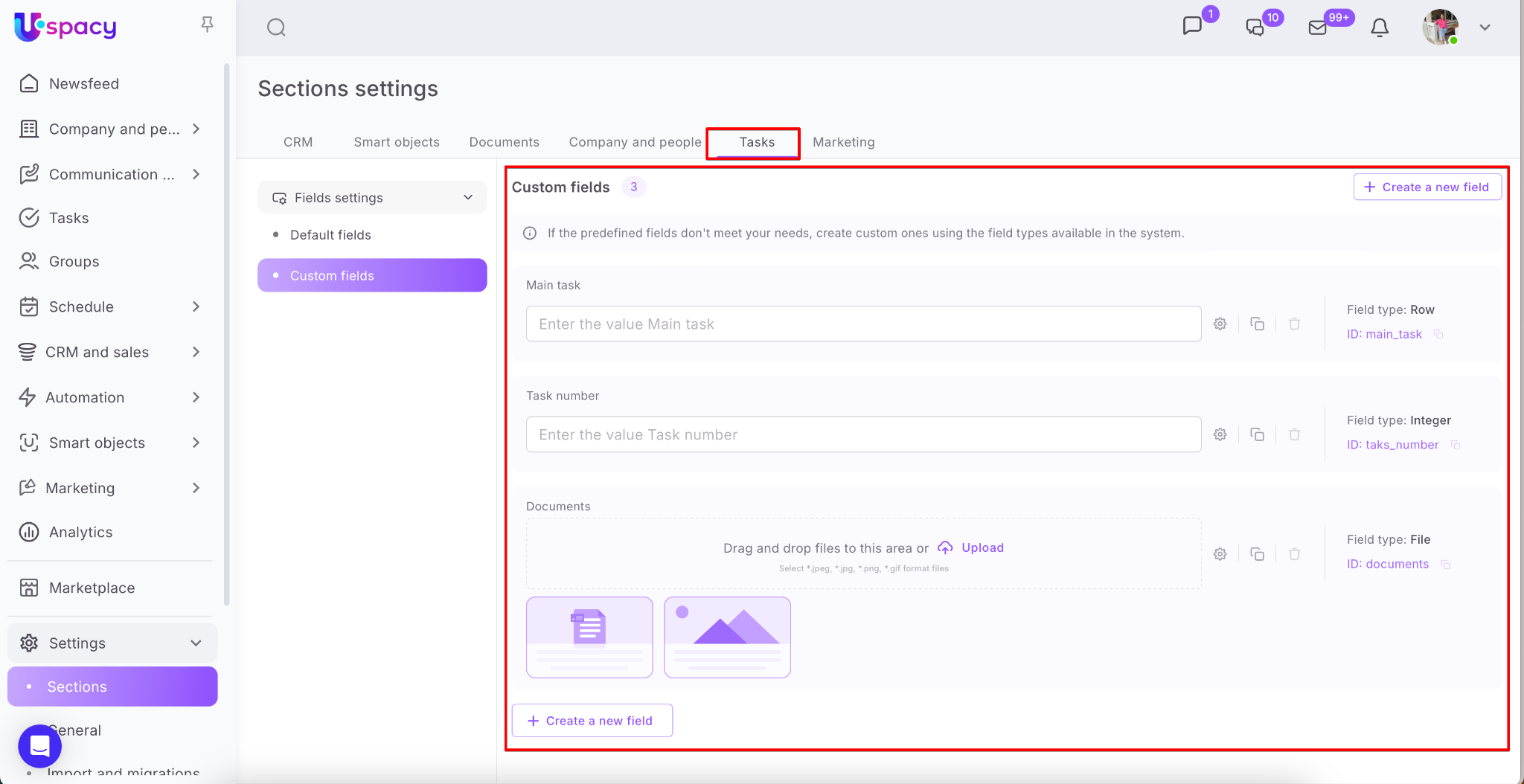
In Tasks, you can use default fields and also add custom ones. So, if you’re missing a specific field — simply create your own!
❗️Custom field functionality is available on Standard and Professional plans. Learn more about plans and their features ➡️ [HERE].
Where to create and configure fields?
❗️Only administrators and Workspace owners can create and configure custom fields.
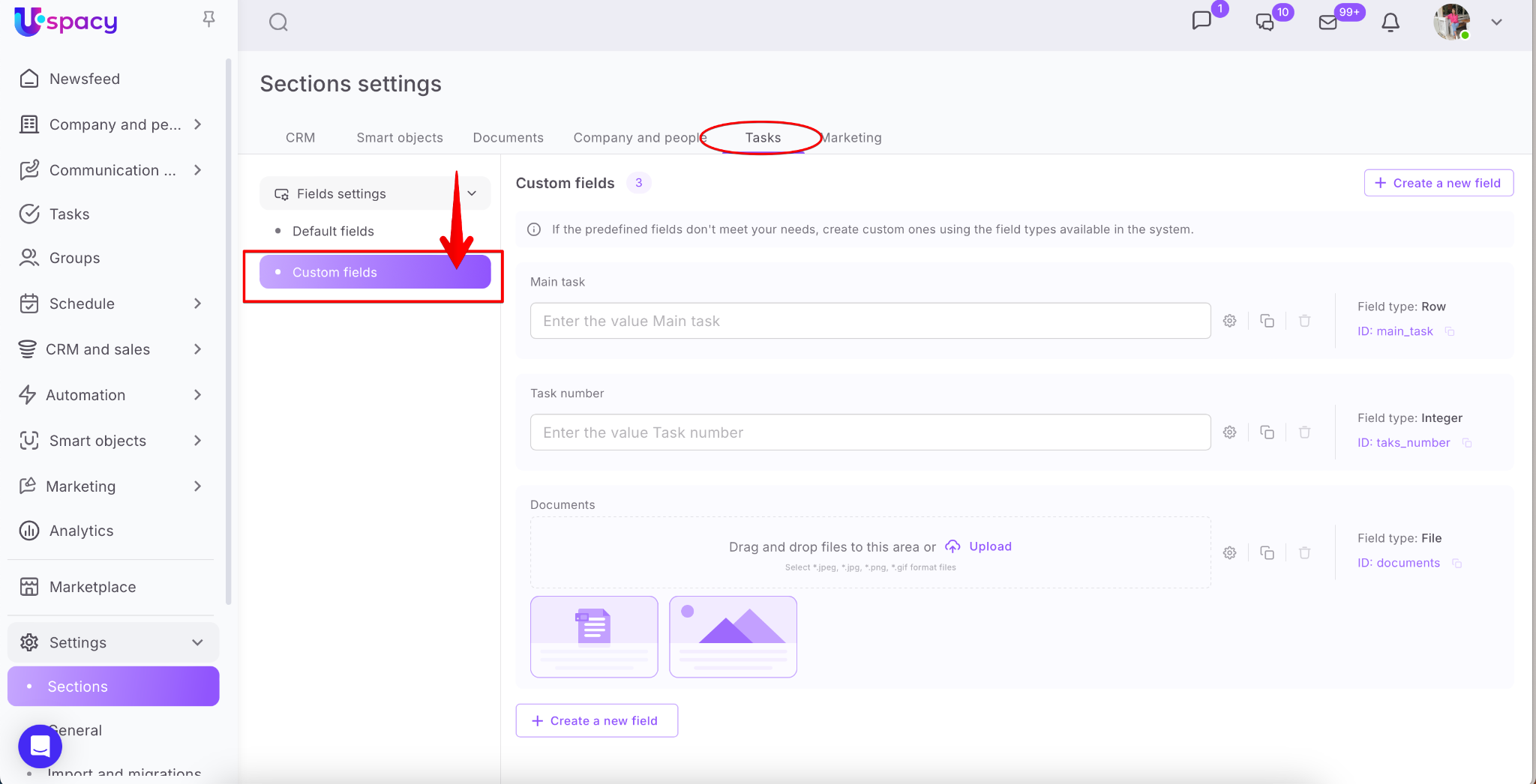
You can do this on the Settings – Sections page. In the Tasks tab, expand the Fields settings block and select Custom fields.
💡 Custom fields can also be created directly within the task card during customization.


How to create and configure a field?
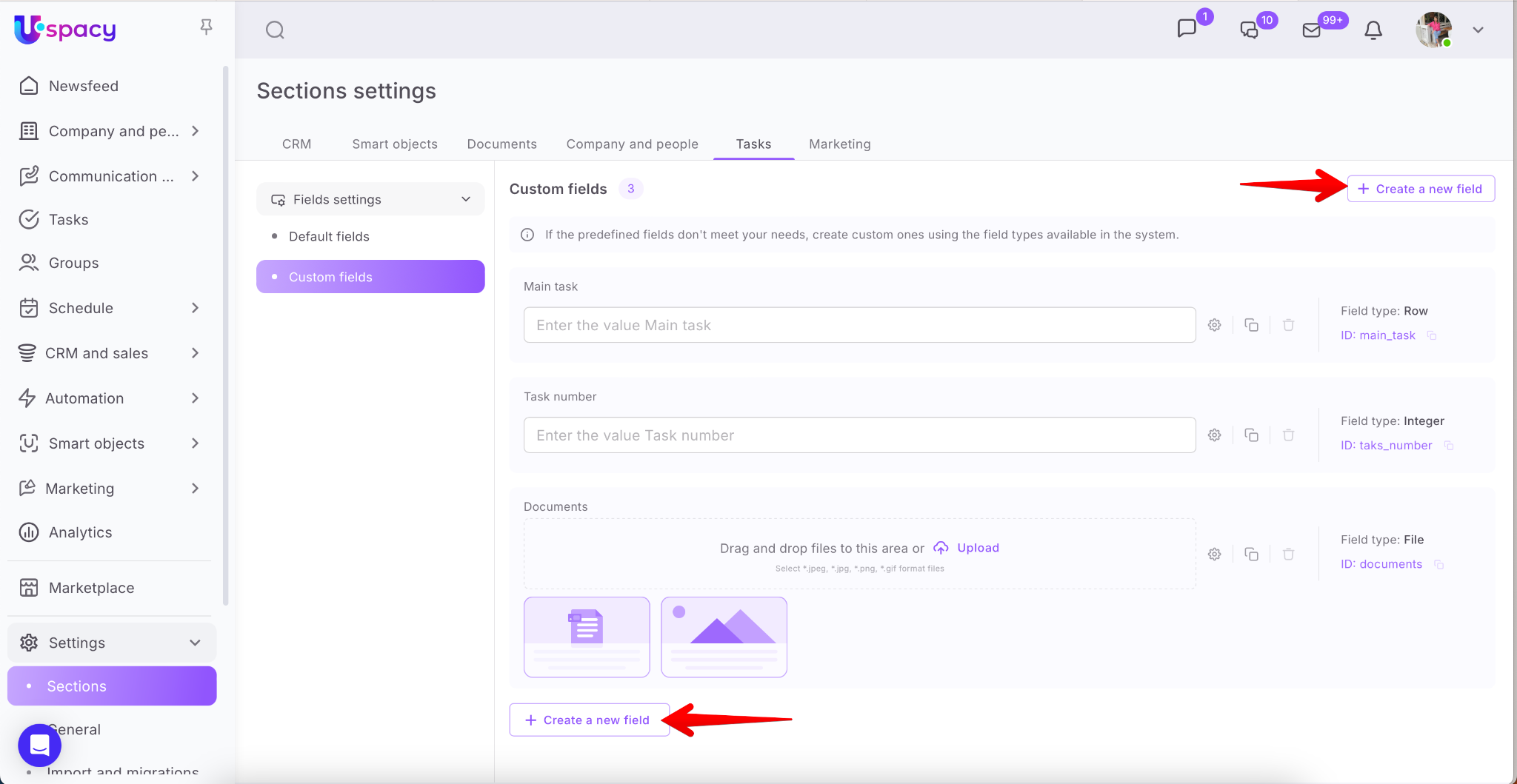
Whether you're adding a field from the Settings page or directly in the task card, start by clicking Create a field button.
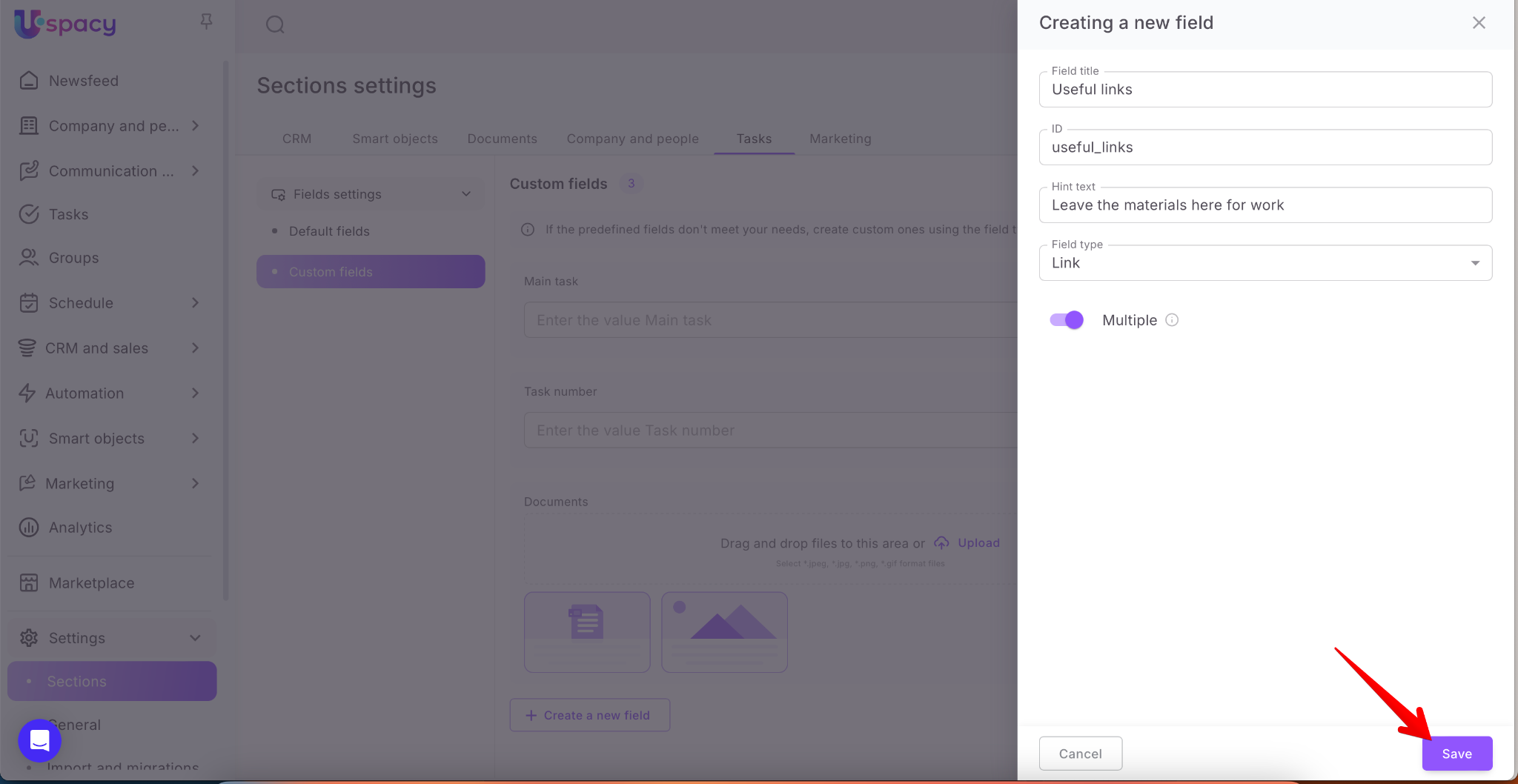
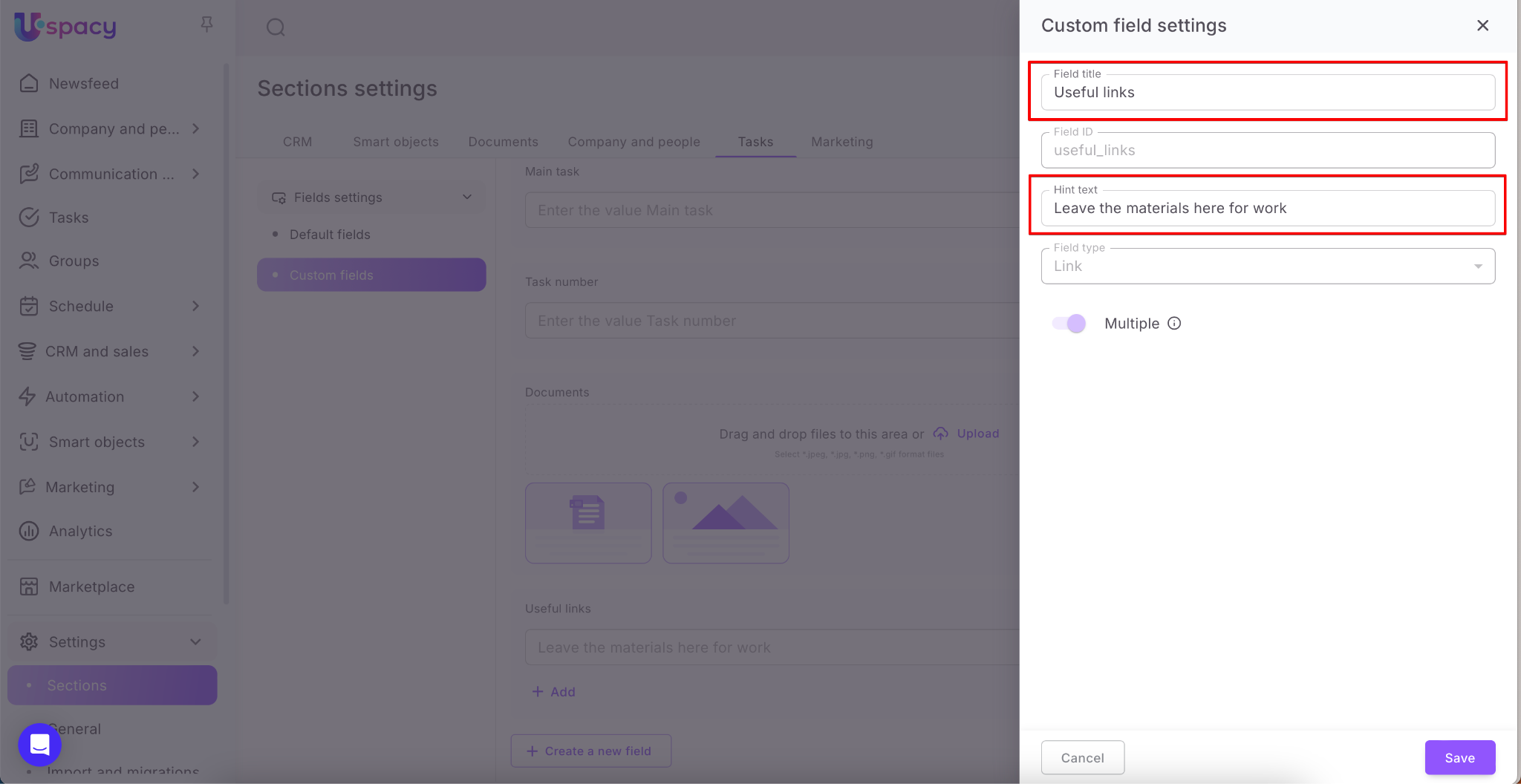
A creation form will open. First, give the field a title (required).
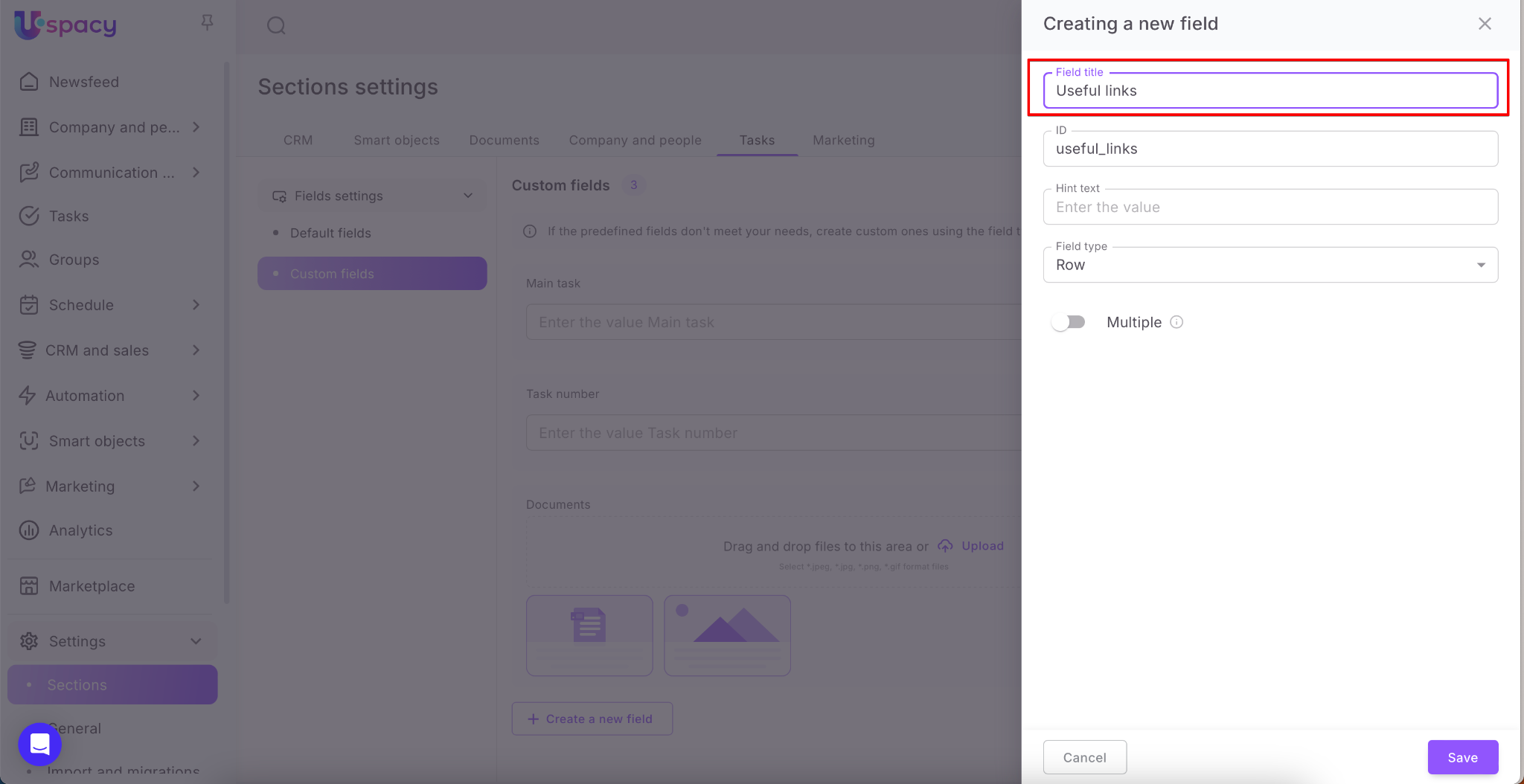
Next, you may edit the field ID. The system will auto-generate one using Latin characters, but you can enter your own.
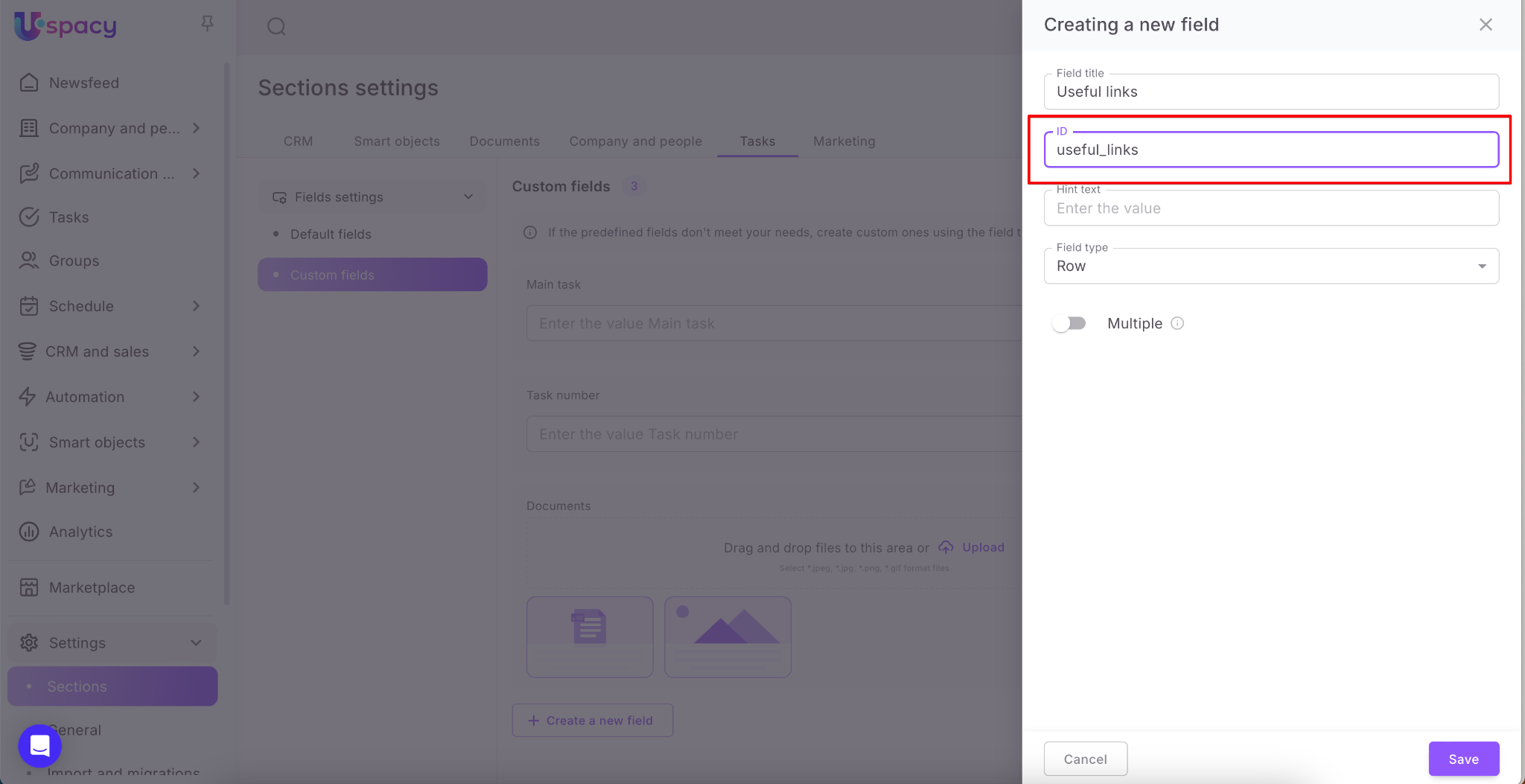
❗️Note: The ID must contain only Latin characters.

Enter a Hint text – a short help message for users filling out the field in the task card.
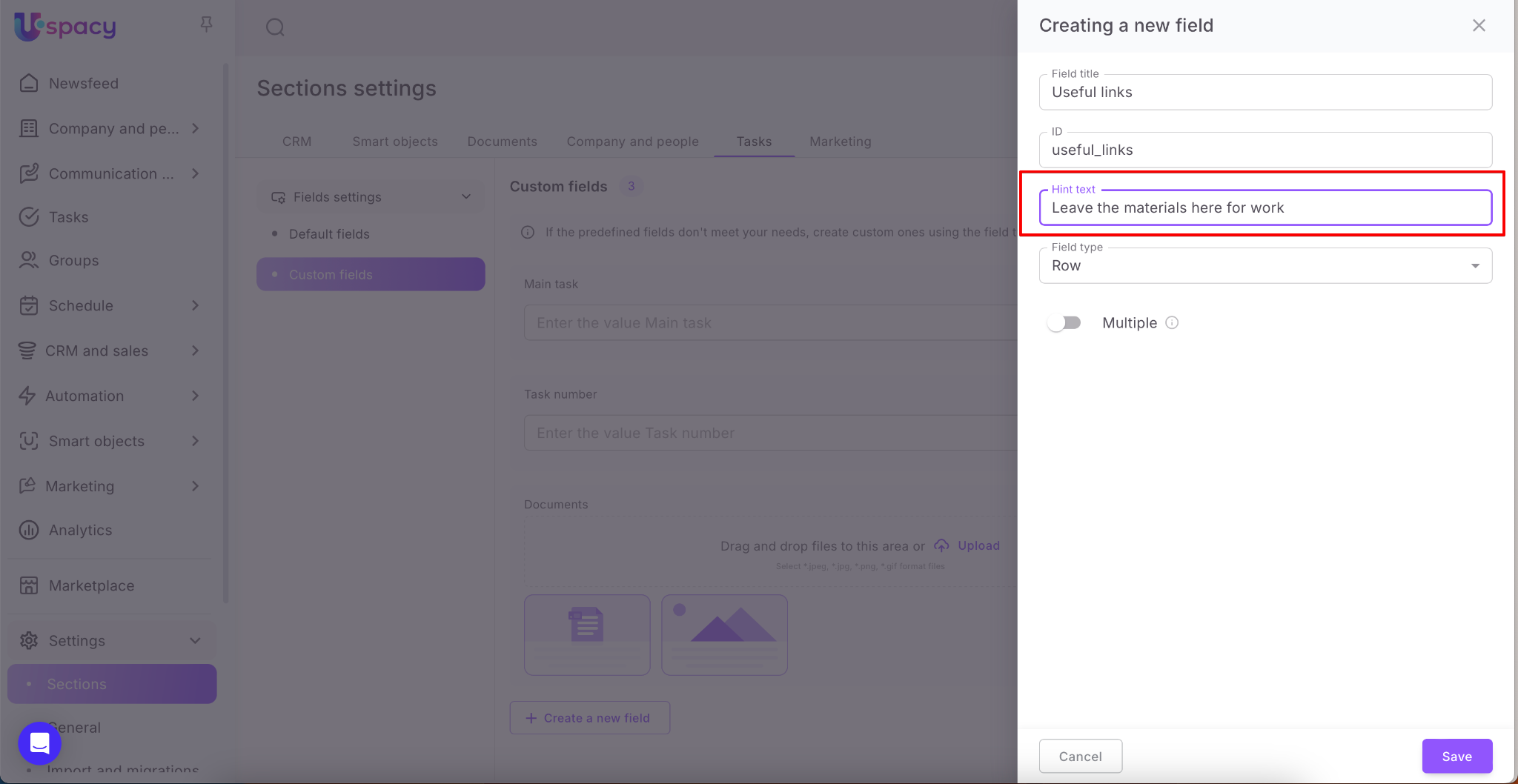
If no custom text is entered, the system will use a default like:
"Enter a value for N" (where N is the field name).


Select a Field type from the list.
❗️Note: After creation, the field type cannot be changed.
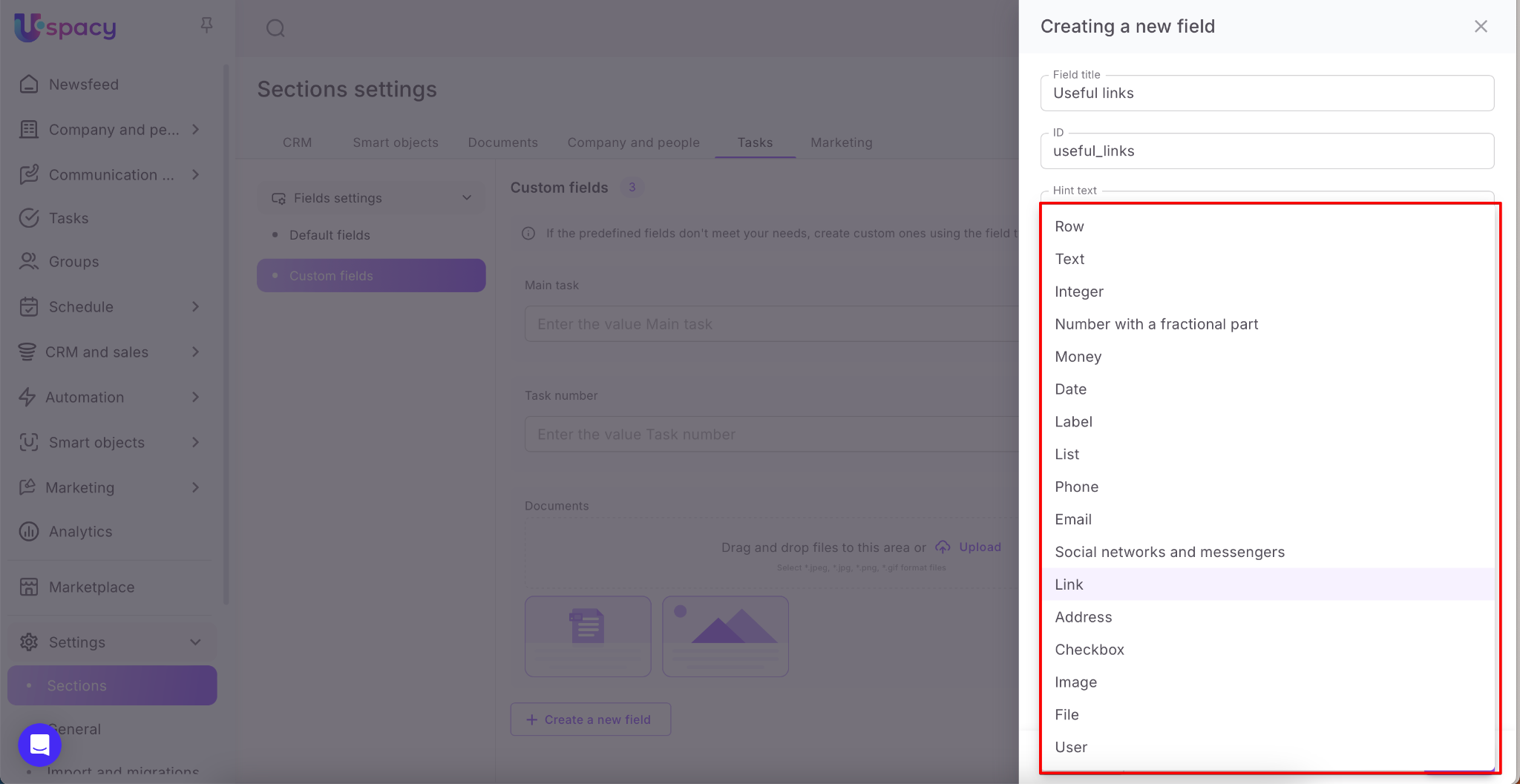
💡 The available field types are similar to those in CRM, except for "Binding to entity", which is not available in Tasks.
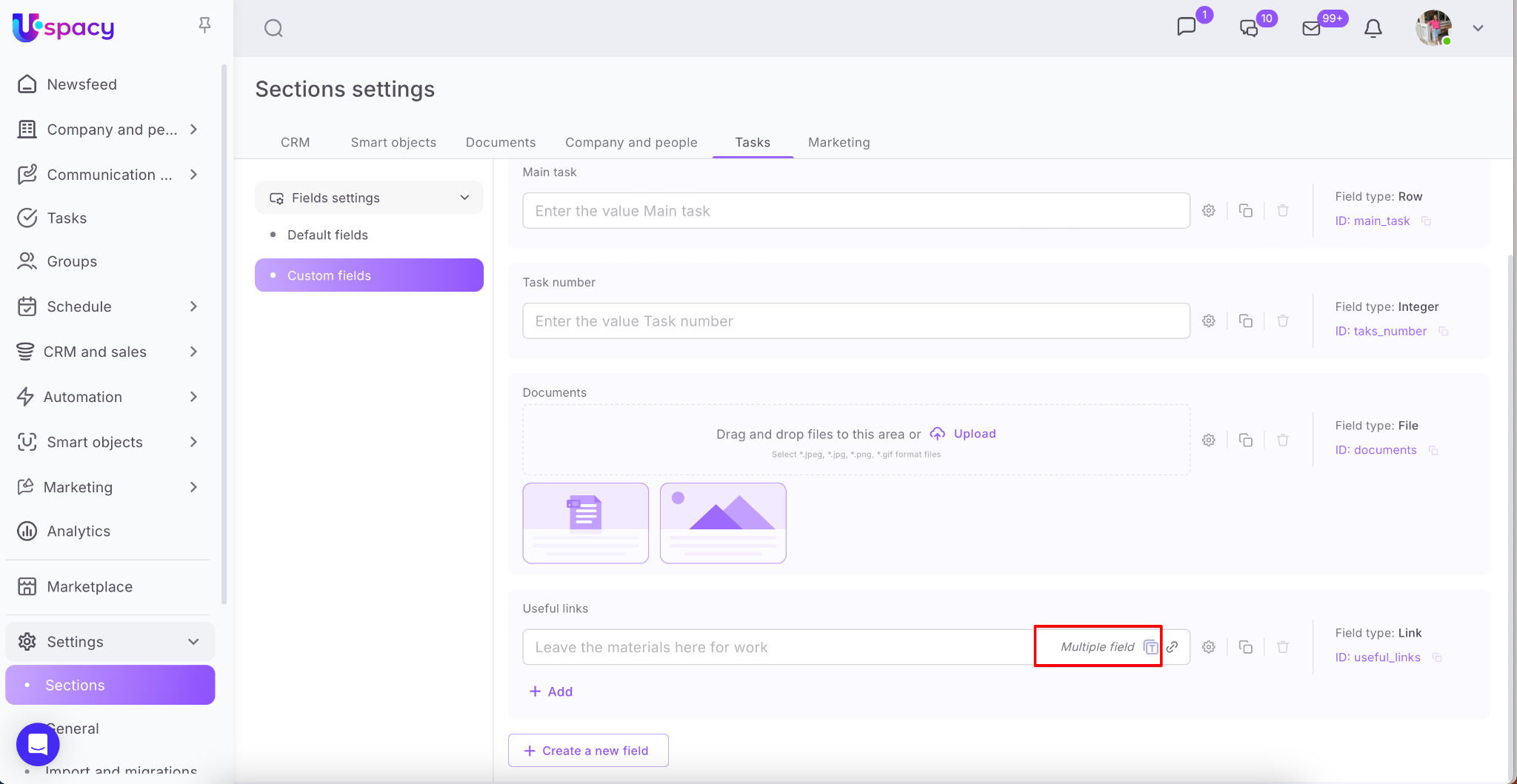
Select whether the field should be multiple-choice (i.e., allow selecting multiple values).
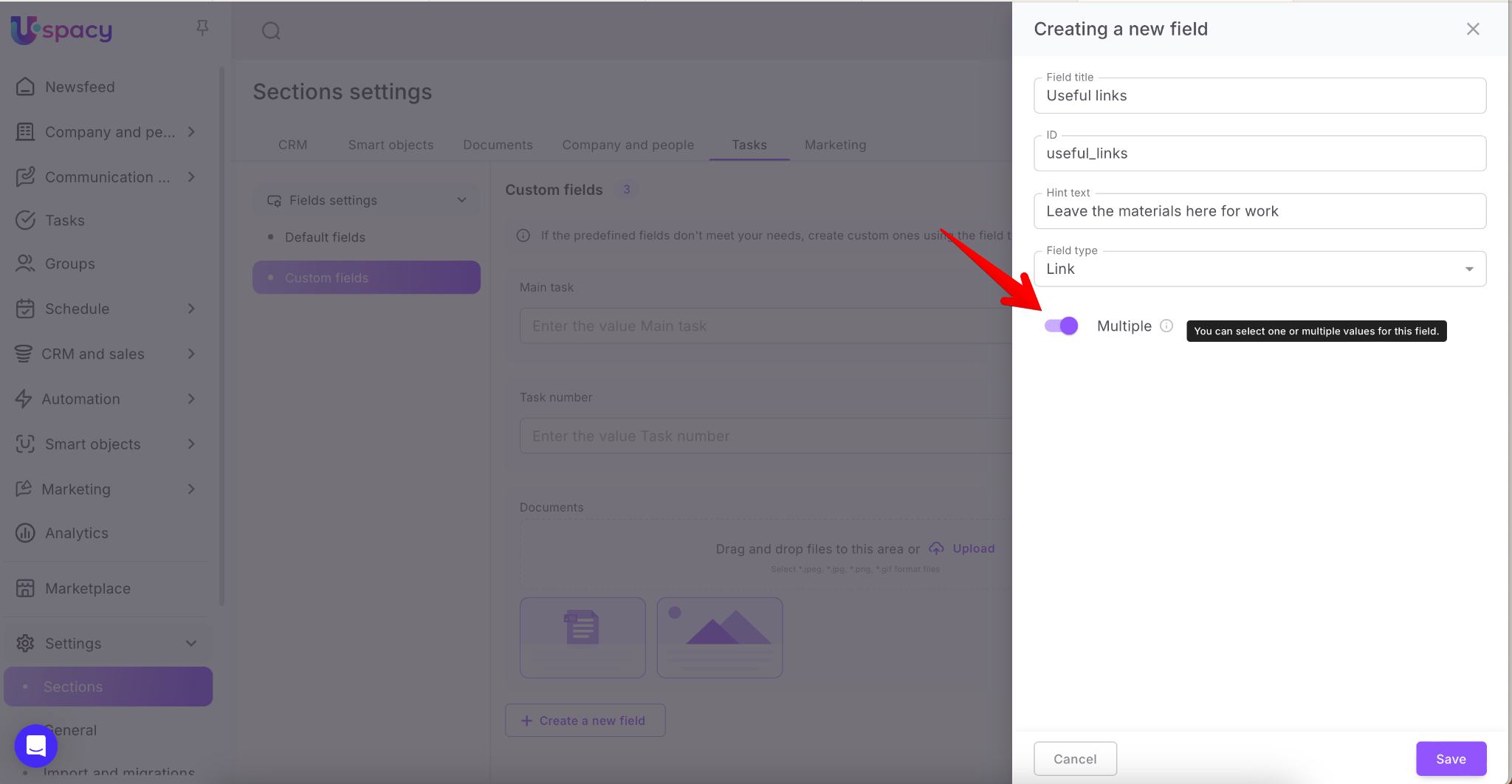
💡 Multi-select fields will be marked with a special icon for easier identification.
Once all settings are filled out, click Save.
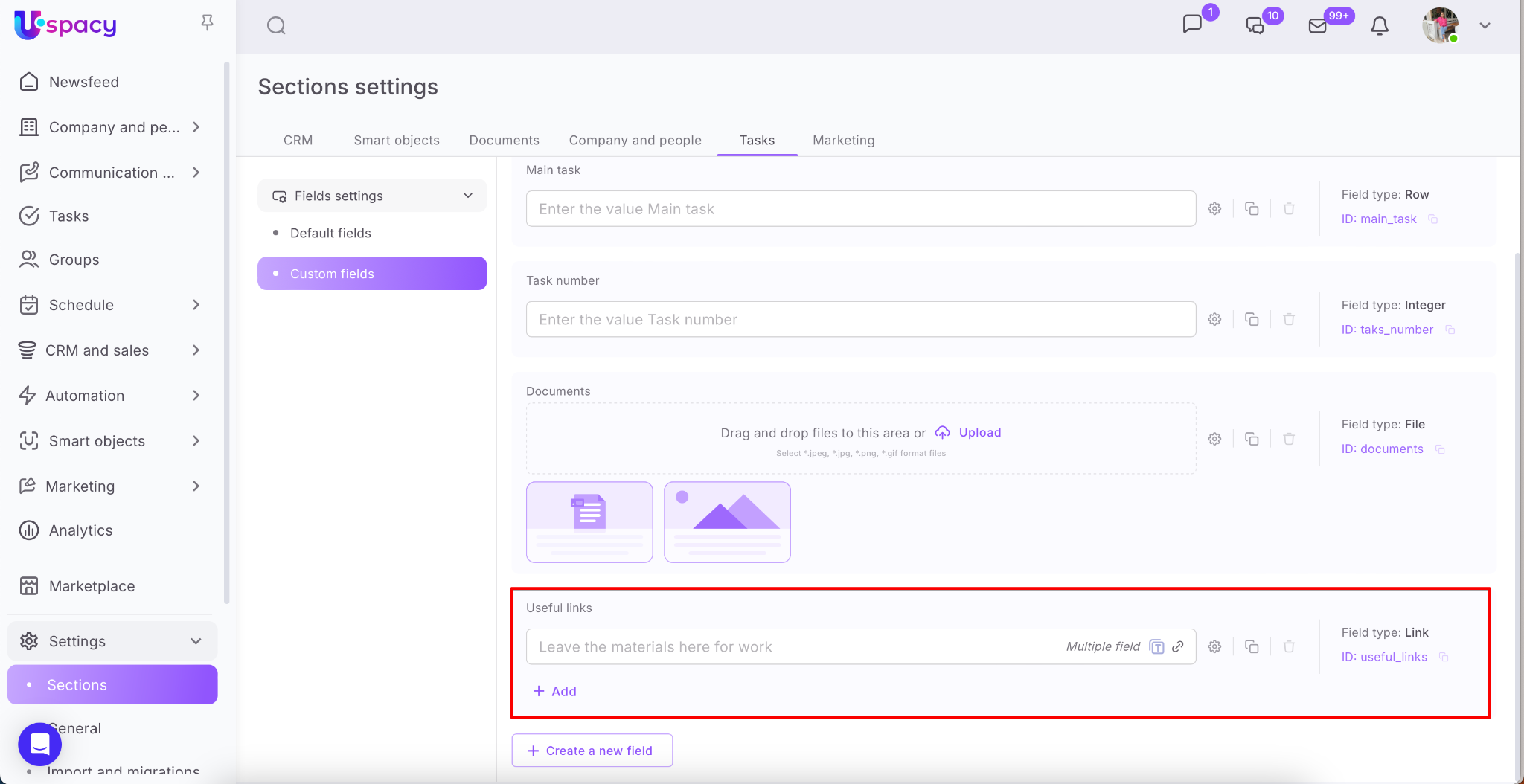
The created field will appear in the list of custom fields.
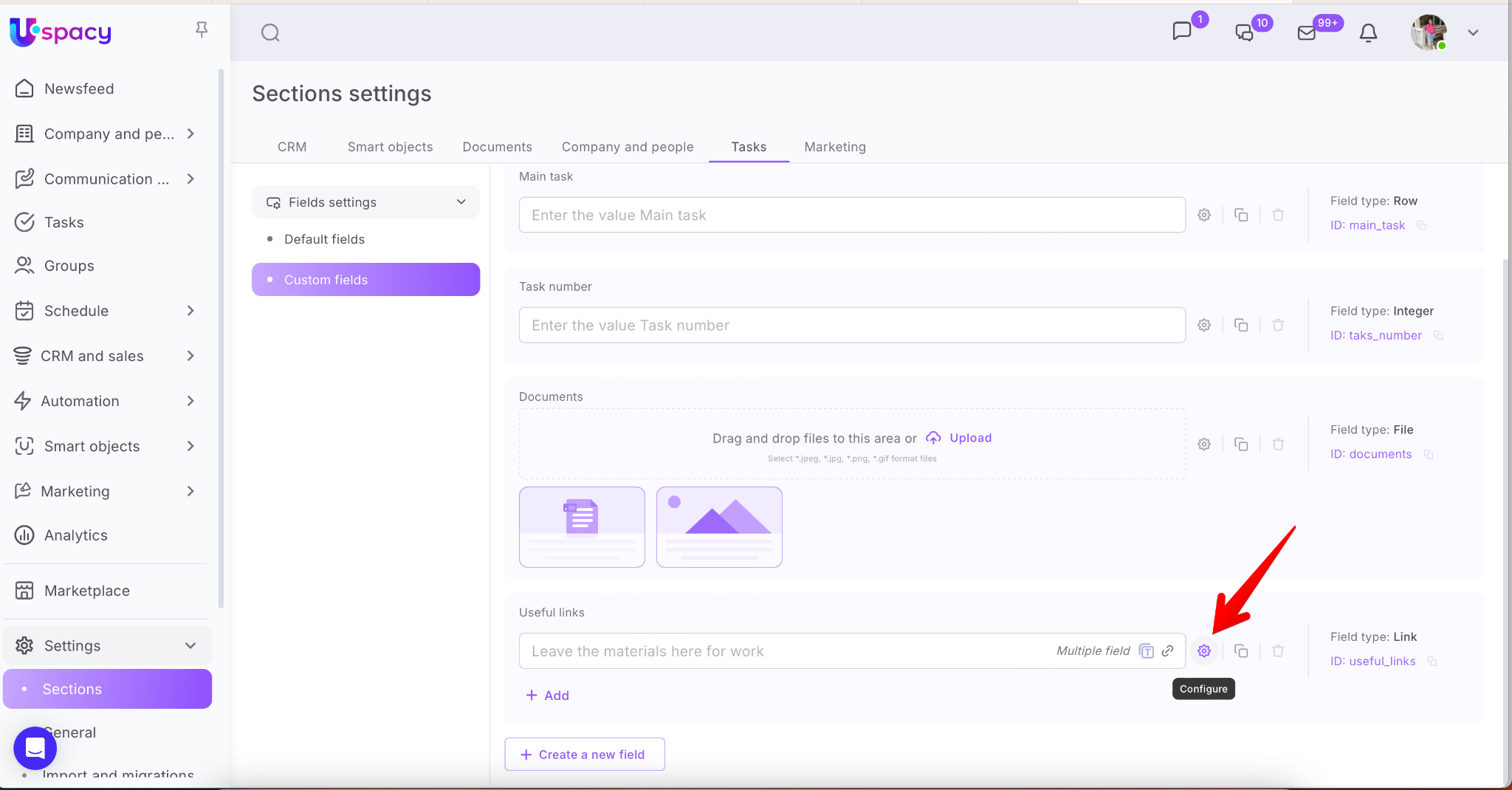
You can always edit a field (e.g., rename it or update the hint text).
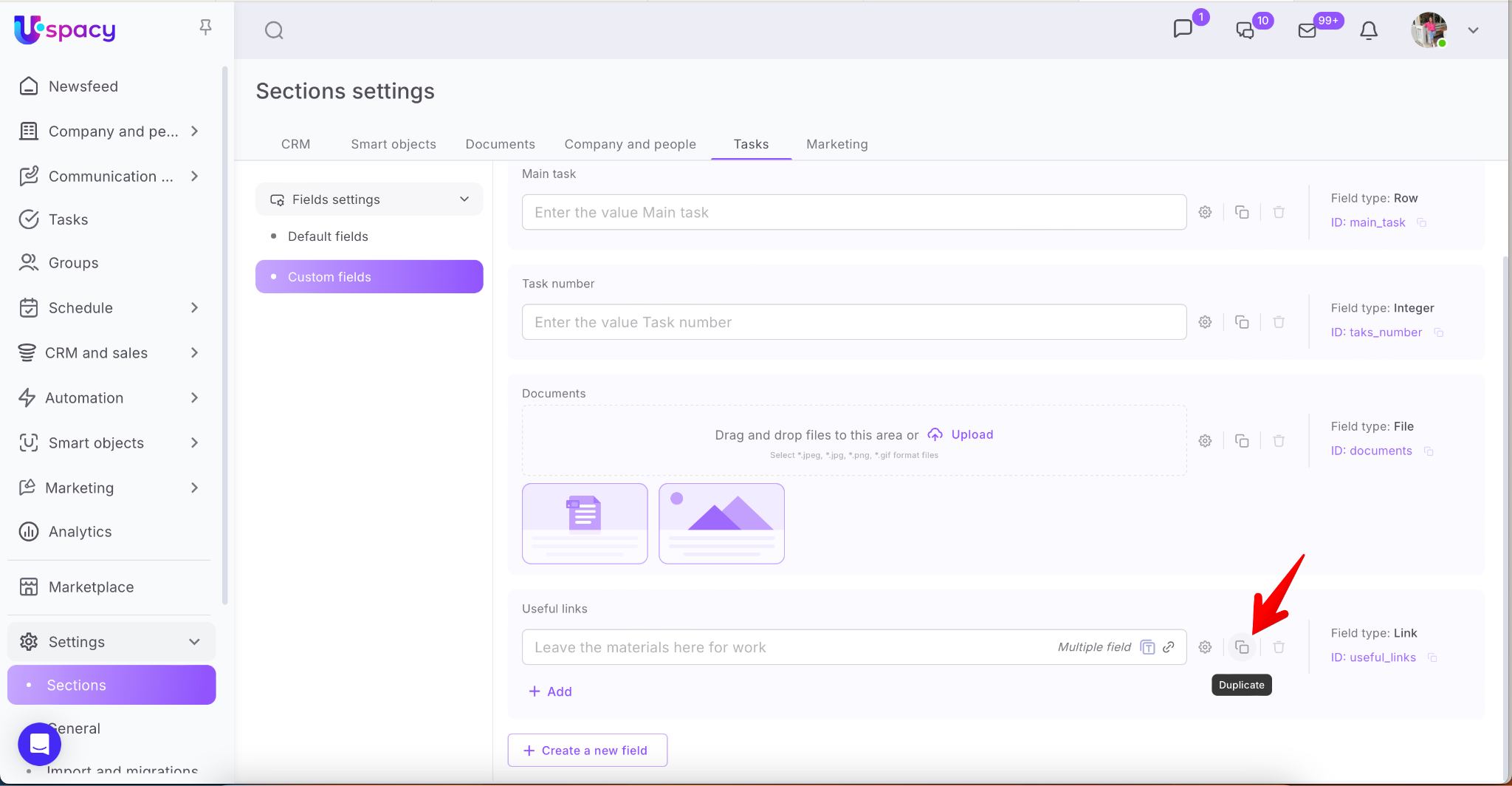
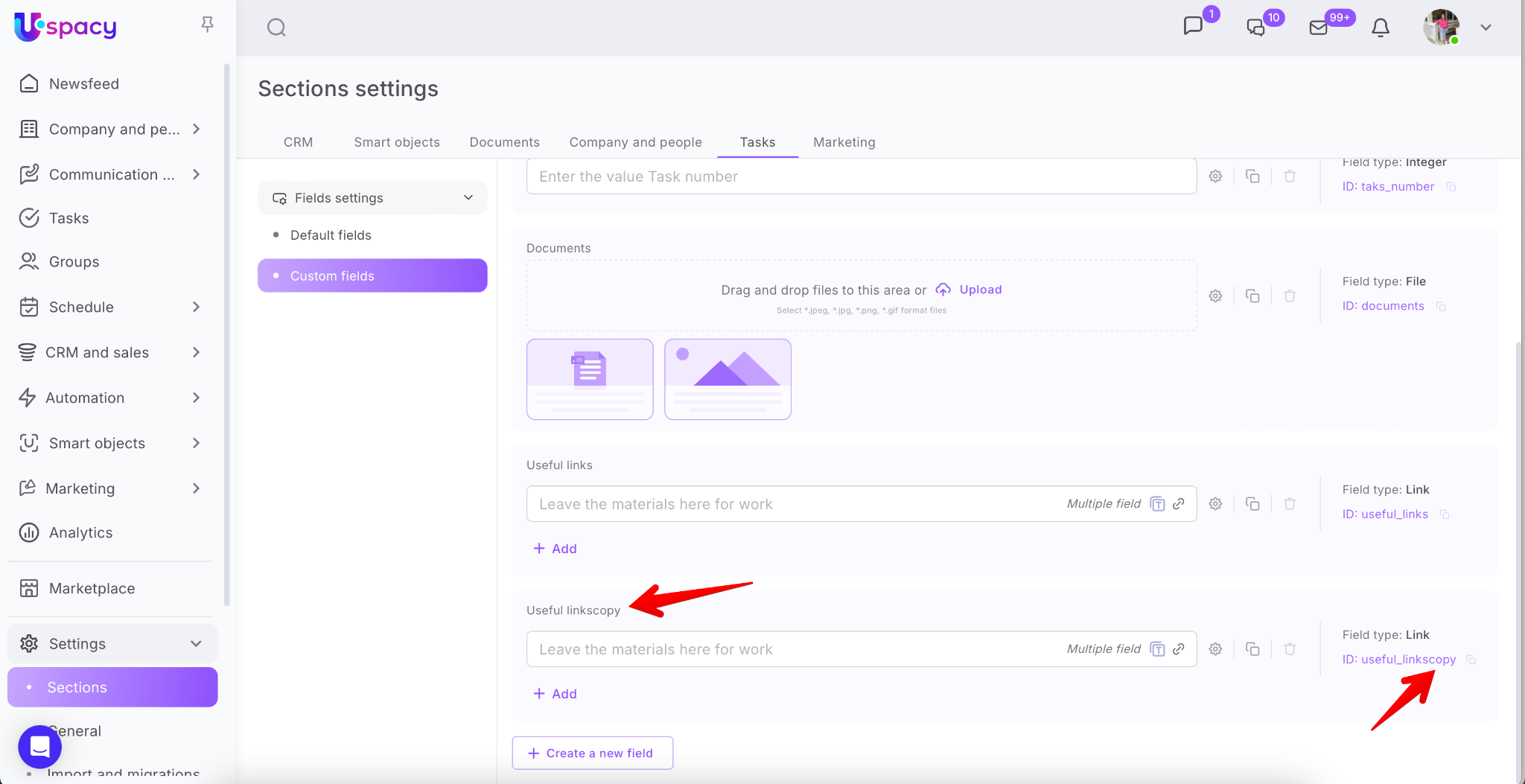
You can also duplicate a field — the copy will appear with a "copy" tag.
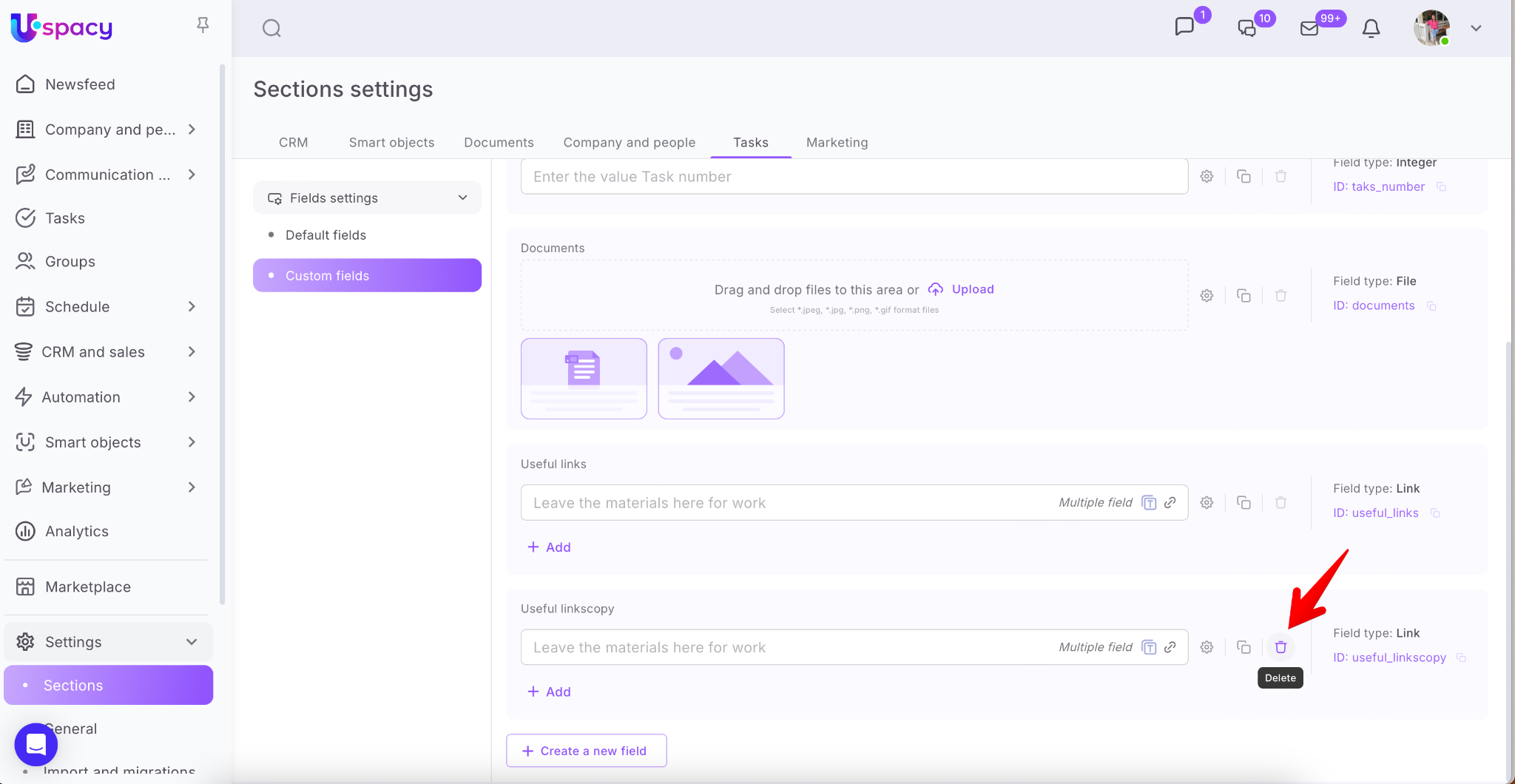
Unlike standard fields, custom fields can be deleted by clicking the trash icon. The field will be removed from the list immediately.
Displaying custom fields in the task card
To make custom fields visible in a task, go to the Configure the card settings.

Select the section where you want to place the field and click Change the field set.

Select one or more custom fields from the list.

Click Save to apply the changes.

The fields will now appear in the selected section, ready to be filled out.

🔍 You can read more about customizing the task card in this article.
If you have additional questions or you need to contact the support, send a request to this email [email protected]
Created: July 30, 2025 / Updated: October 8, 2025