With the help of the External channels functionality, you can communicate with clients directly in your Uspacy while they are messaging you on third-party services, for example, on Facebook.
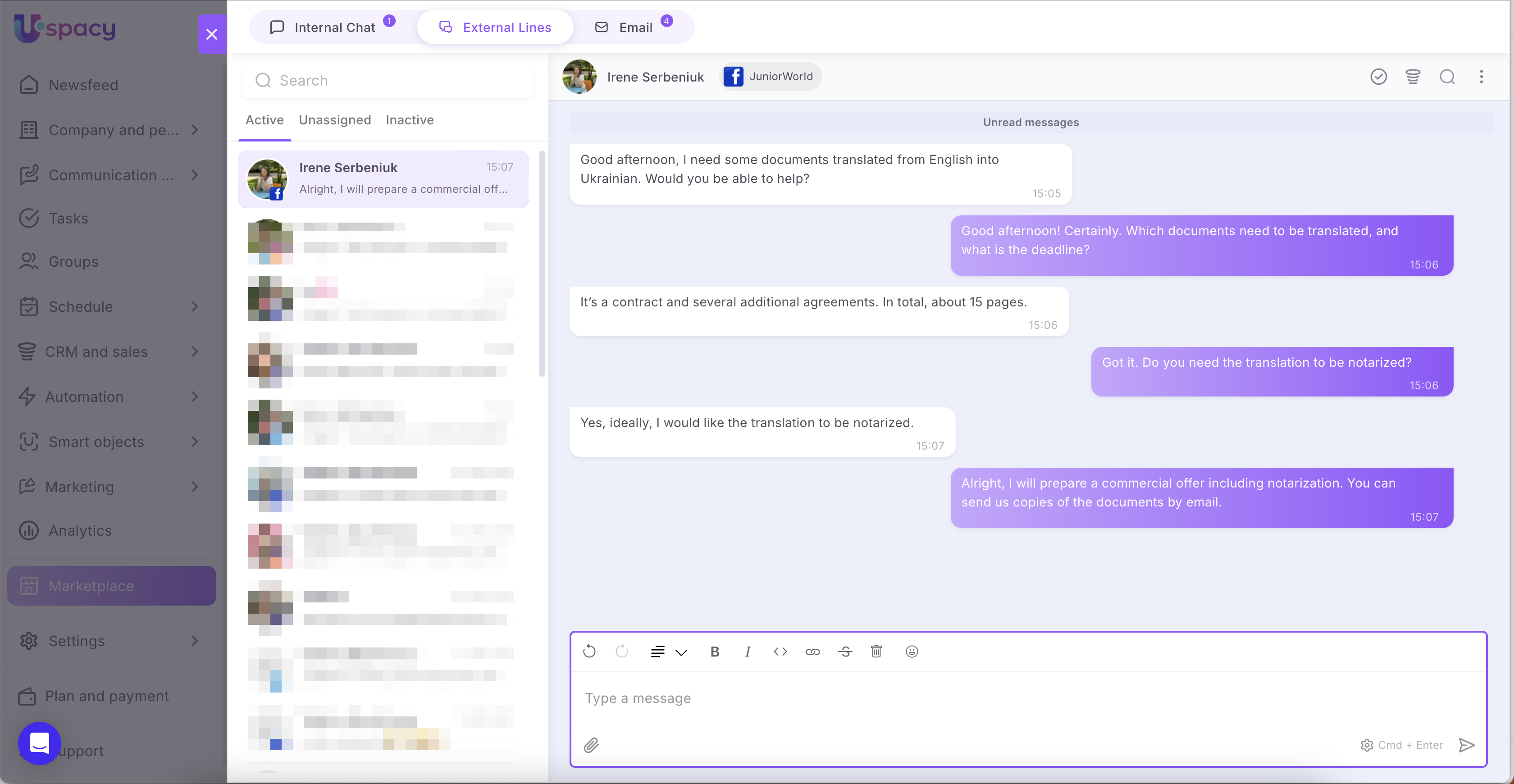
To do this, just connect and configure the integration to make sure you get messages in your Space.
Features of work
At Uspacy, the functionality of external lines is implemented through integrations with specialized services.
In the Marketplace section there is a free application, which, after its installation and configuration, will allow you to work with client requests in the Uspacy chat.

Therefore, for correct operation of Facebook, you will need to perform preparatory actions, and then configure the connection at Uspacy.
About everything below ⬇️
Preparatory actions
- Create a Facebook business page. More details here.
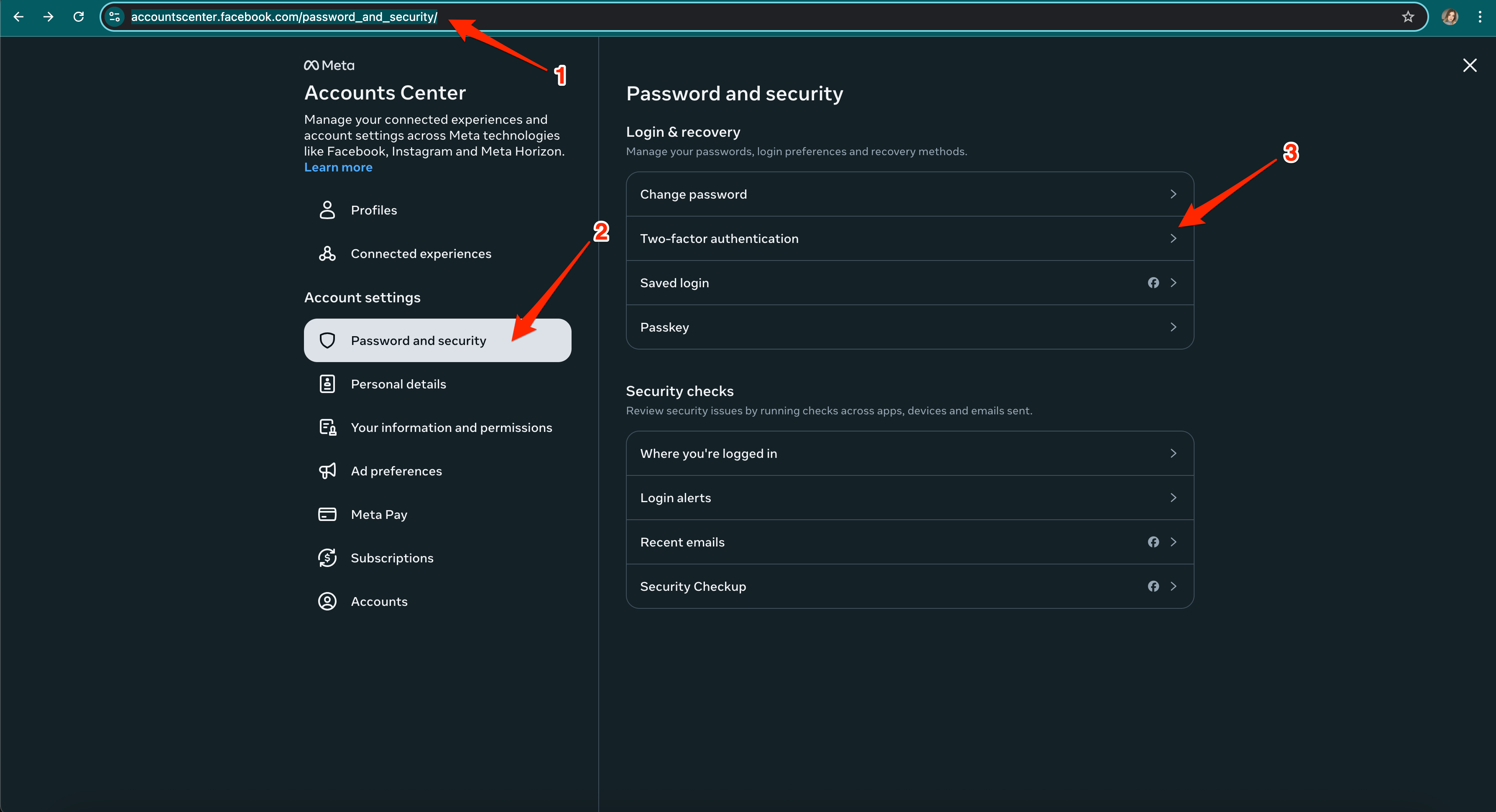
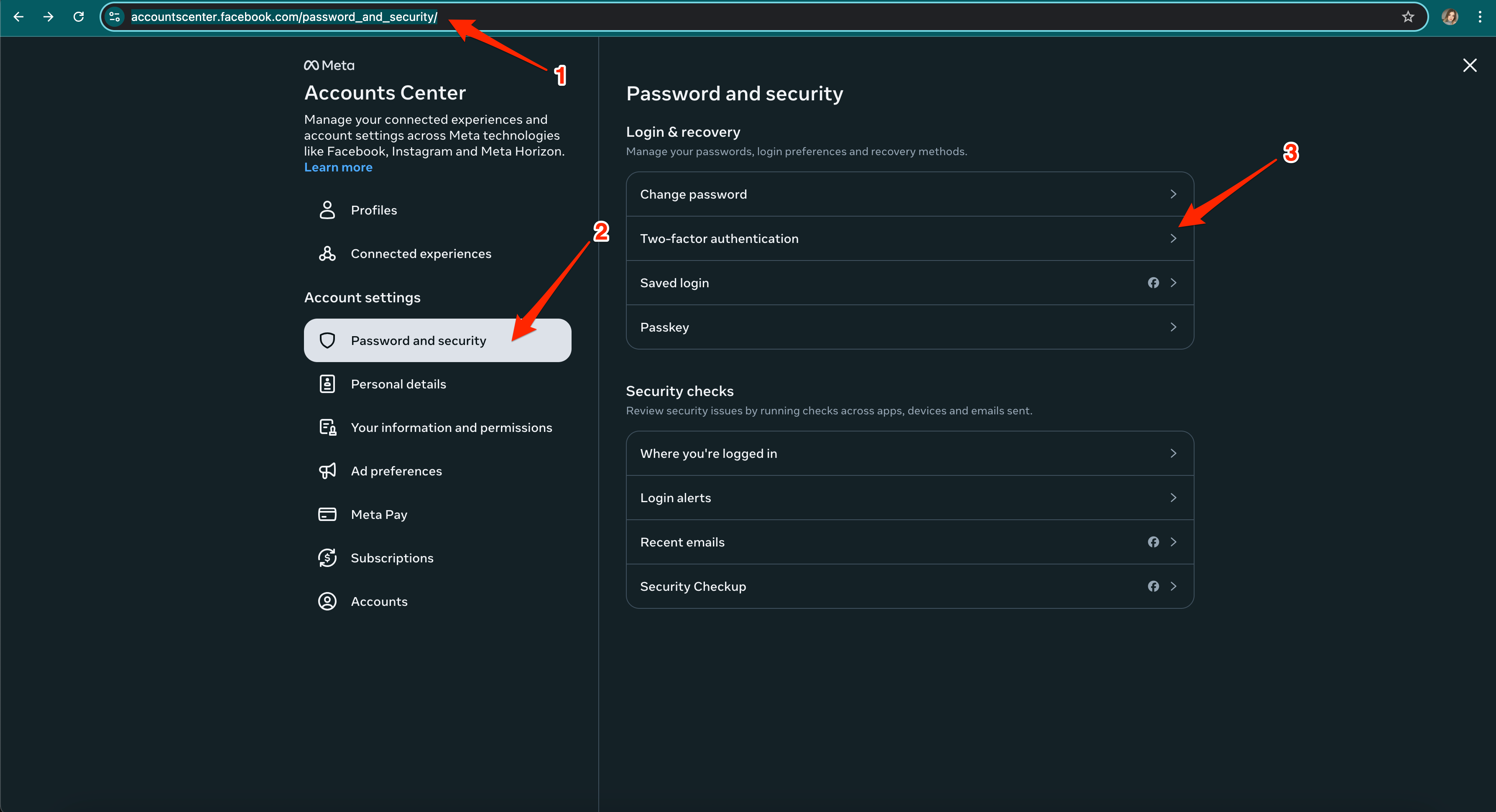
- Activate two-factor authentication for the account that manages your Facebook business page here.
3. In the browser, log into the Facebook account through which you manage the business page. This action is optional as it is possible to log in already at the stage of connecting the integration to your Space.
Connection
First, you need to install the free app to integrate Instagram with your Space. Go to the Marketplace section and click on the Get button.

When the app is installed, open its settings.

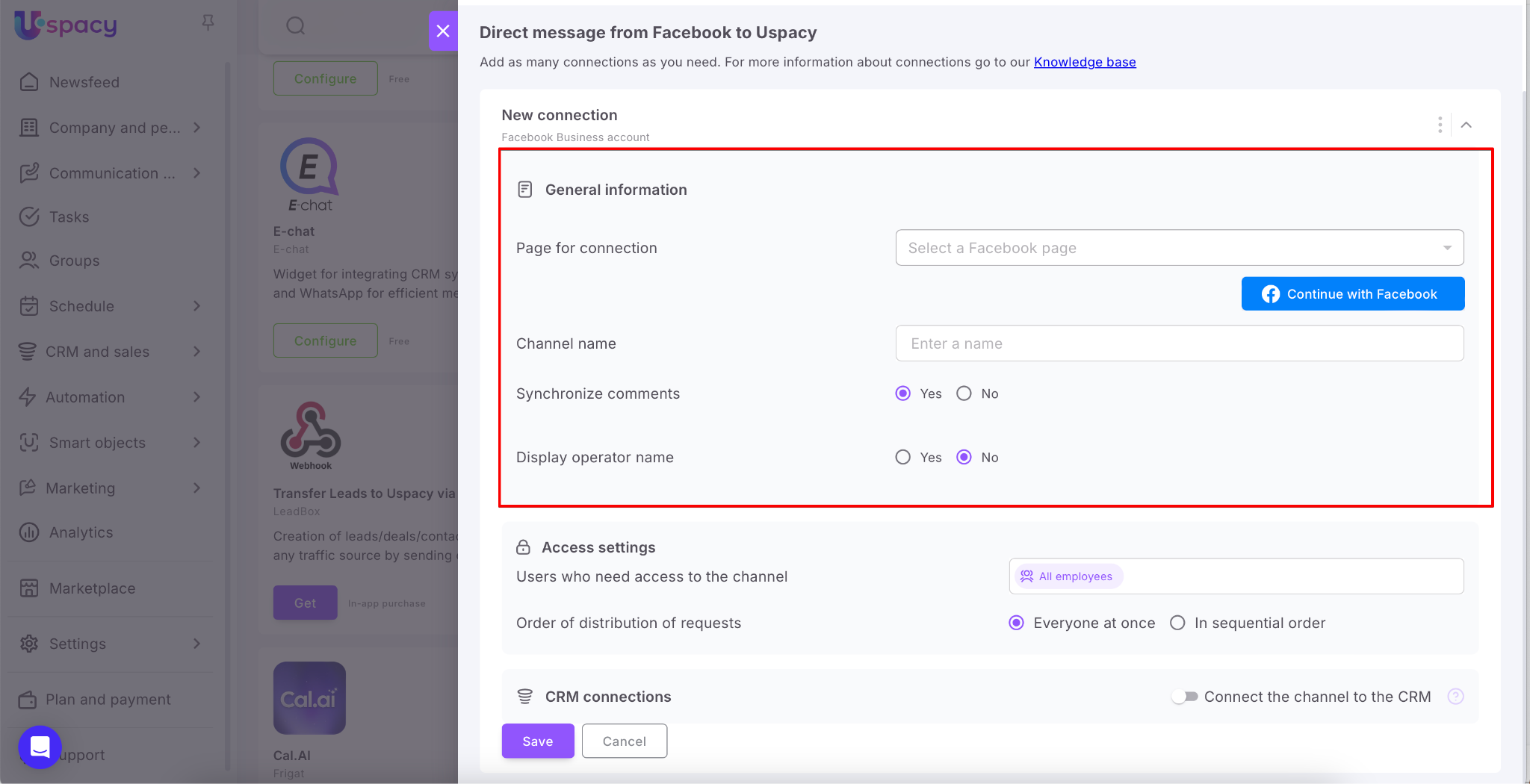
Here you need to set the parameters of the new connection.
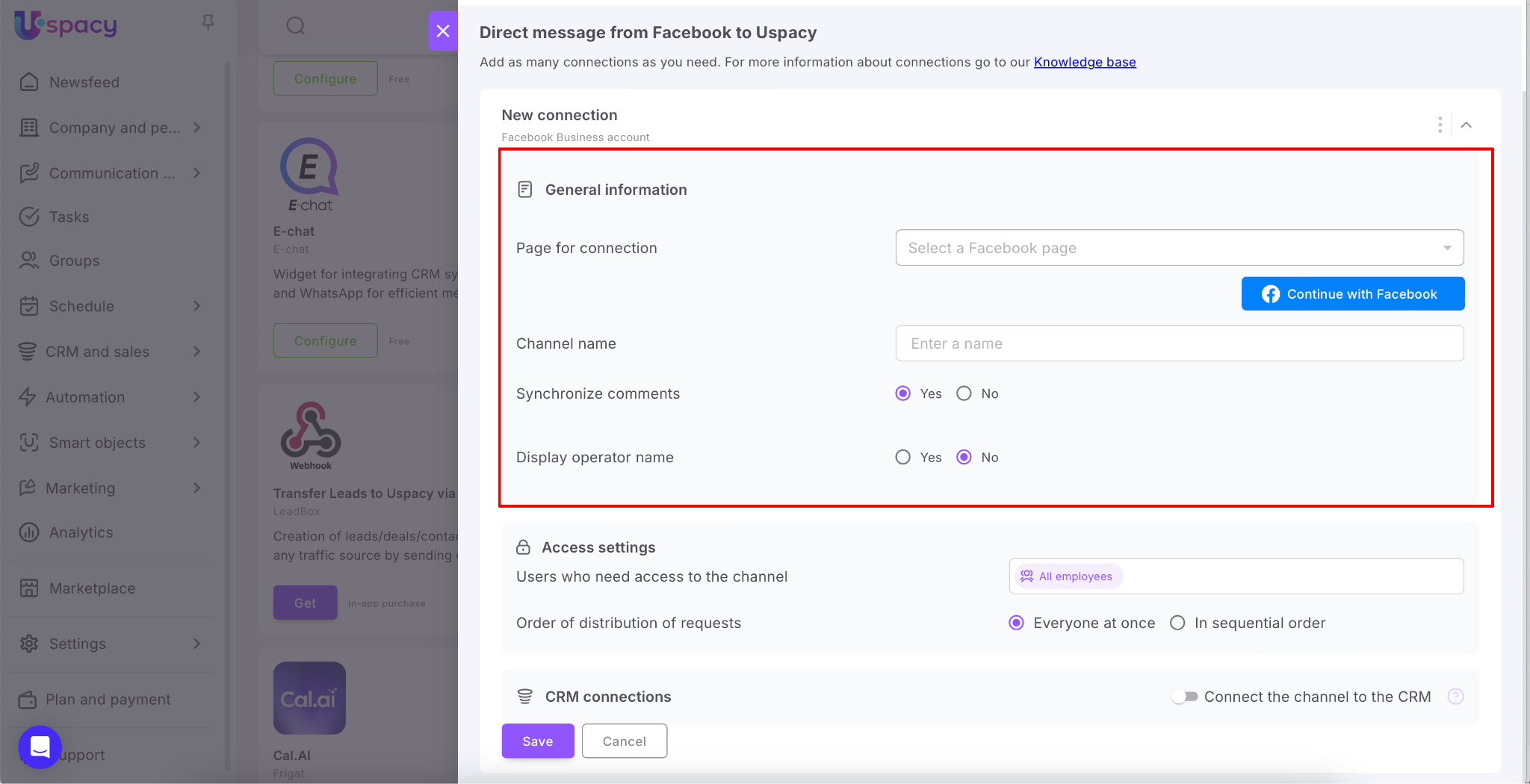
💡 After connecting your Facebook account to Space, the Add a new connection button will appear in the settings. If you have several business accounts and want to connect them all, you can easily do it.
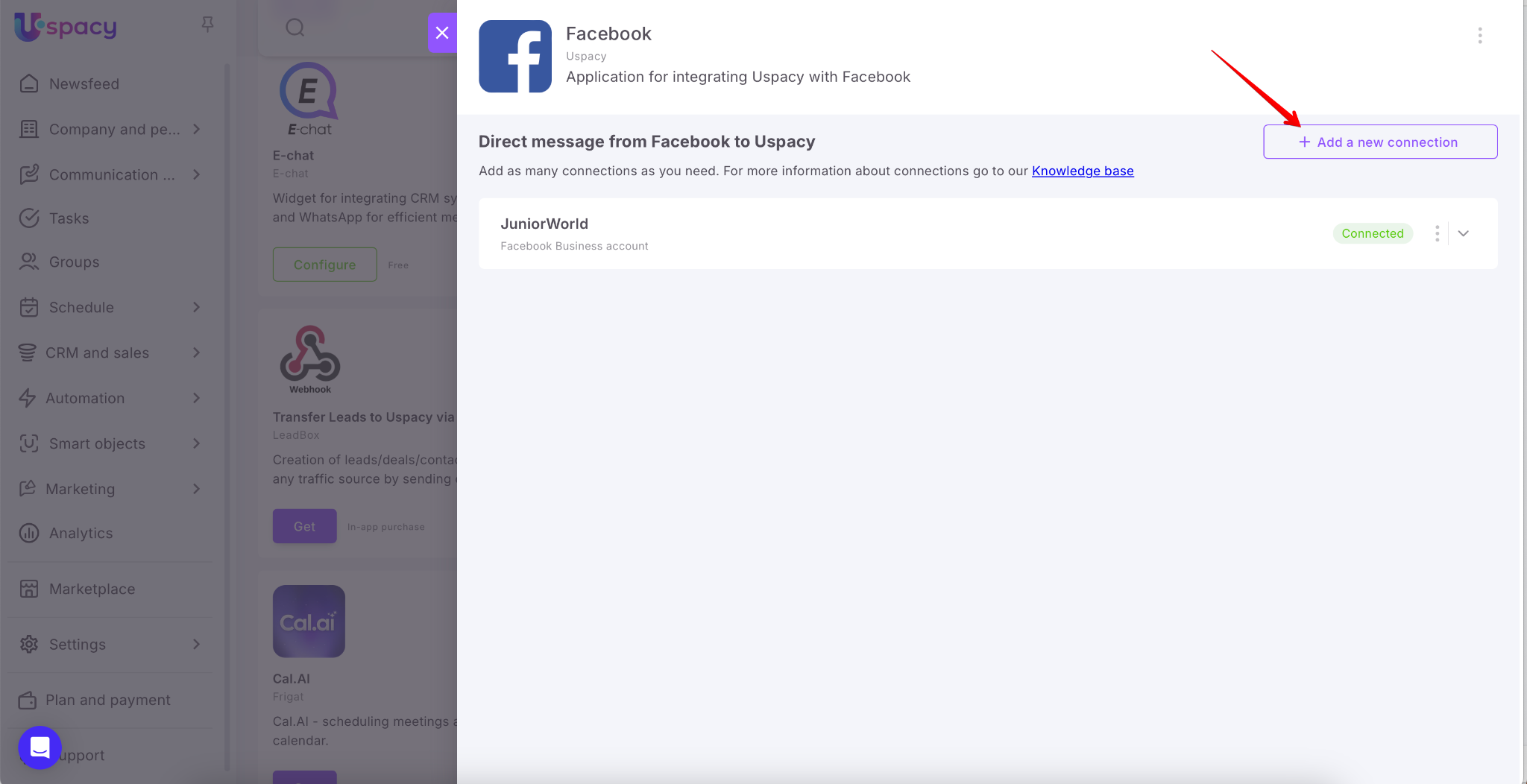
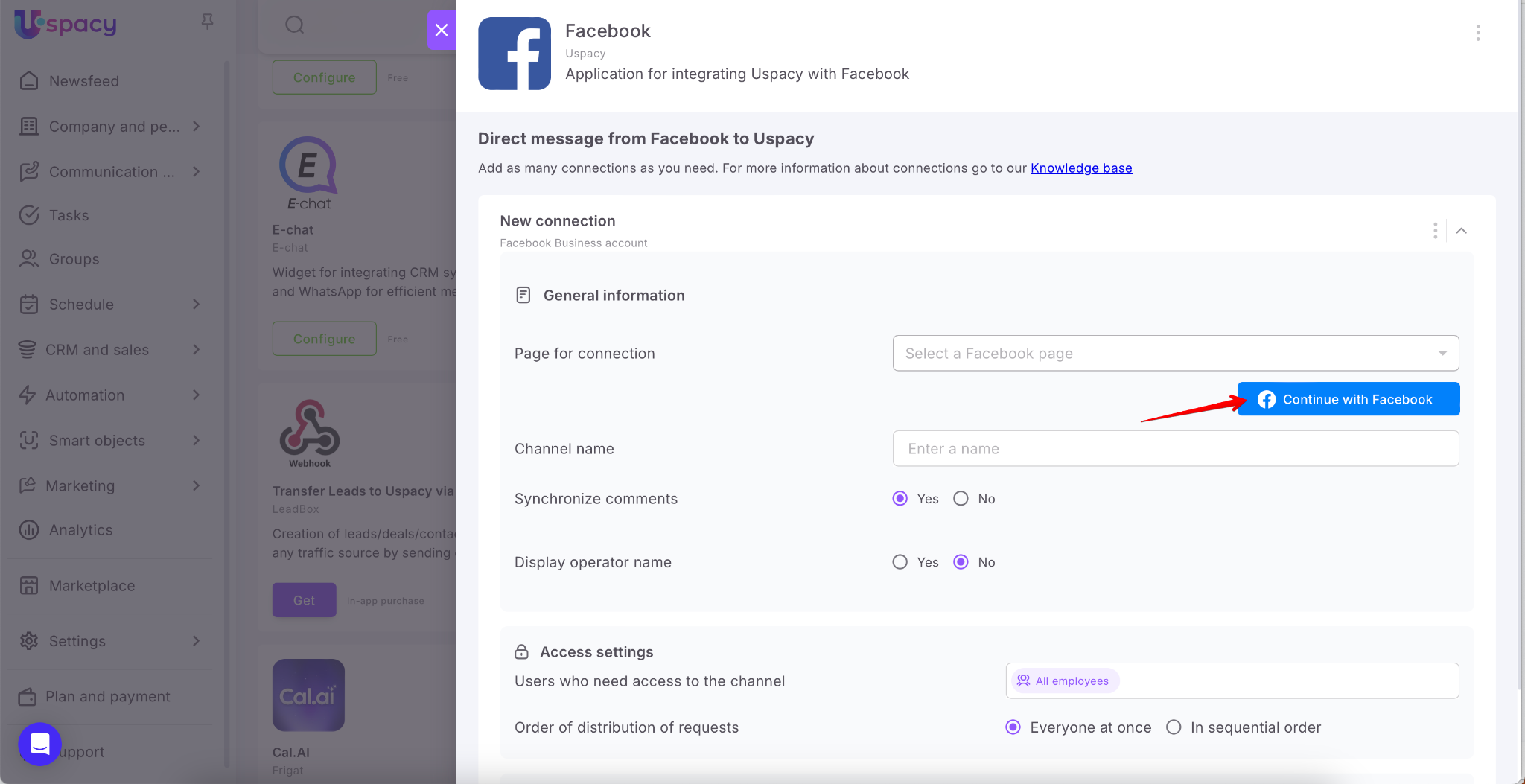
First, connect to Facebook. There is a special button for this.
💡In order to connect them successfully, you need to be authorized in the Facebook account through which you manage the business page. This can be done in advance in a separate browser tab.
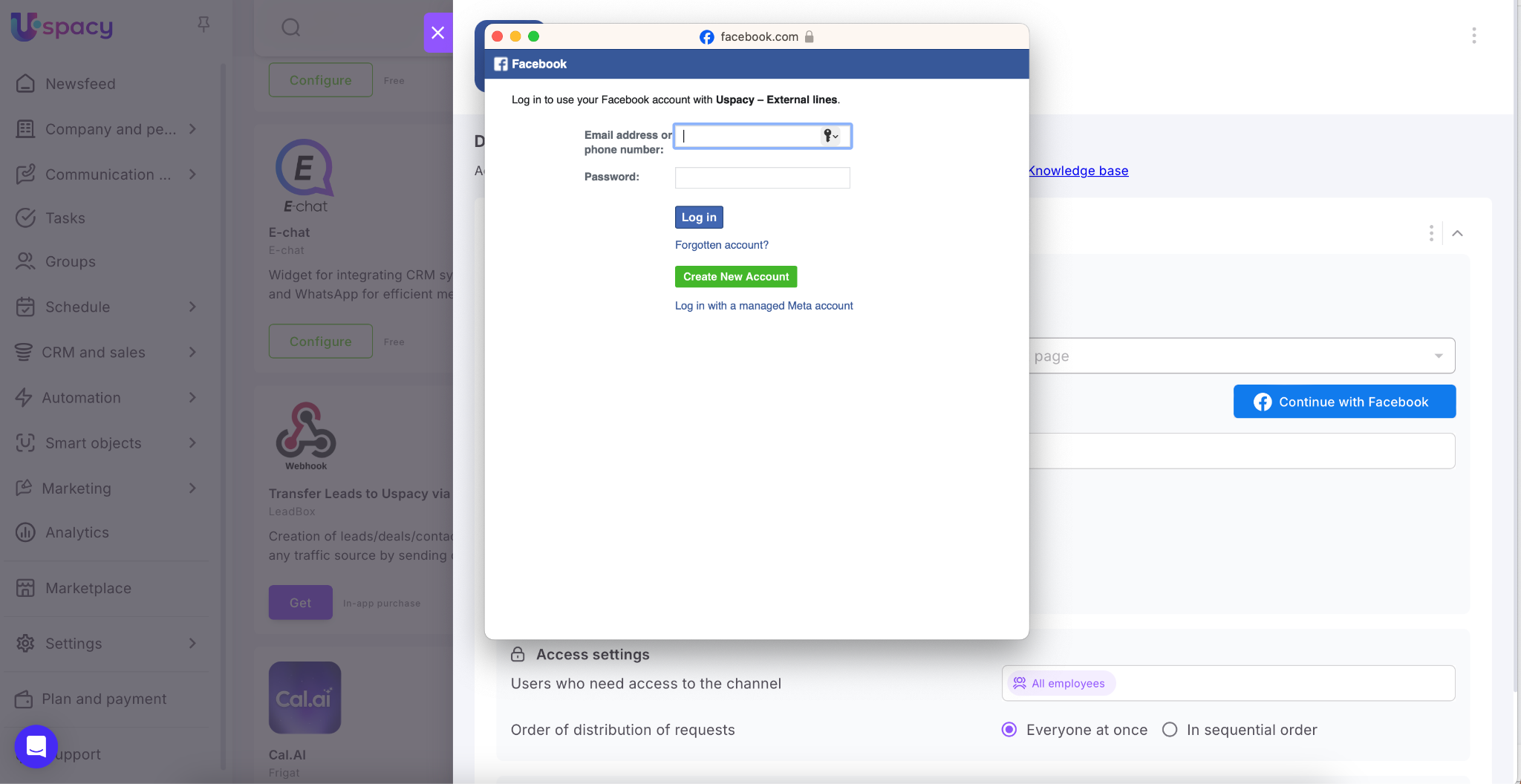
If you have not passed such authorization, then log in in the window that opens.
When the connection is established, select the business page you want to connect. If you have only one account, then it is filled out automatically.
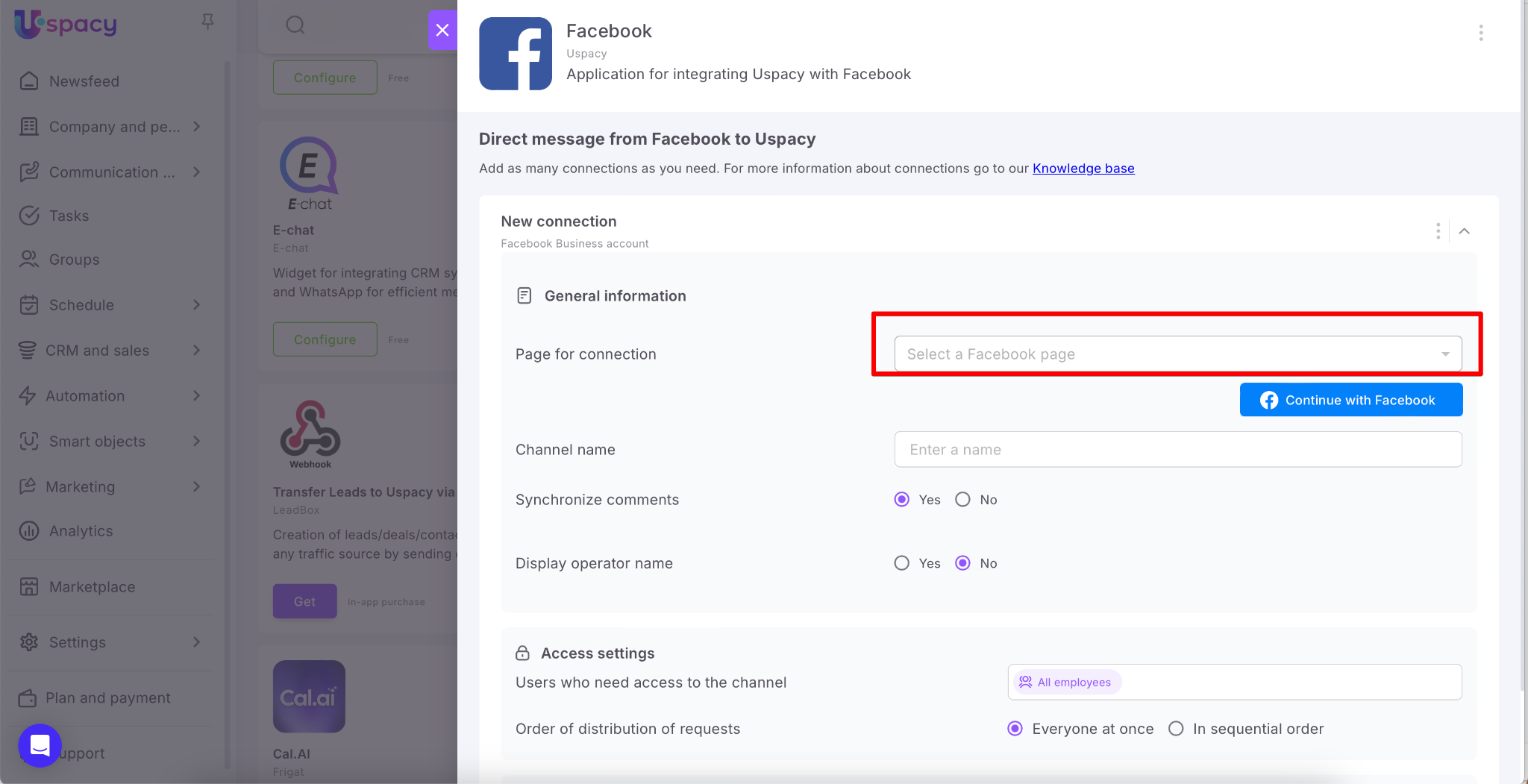
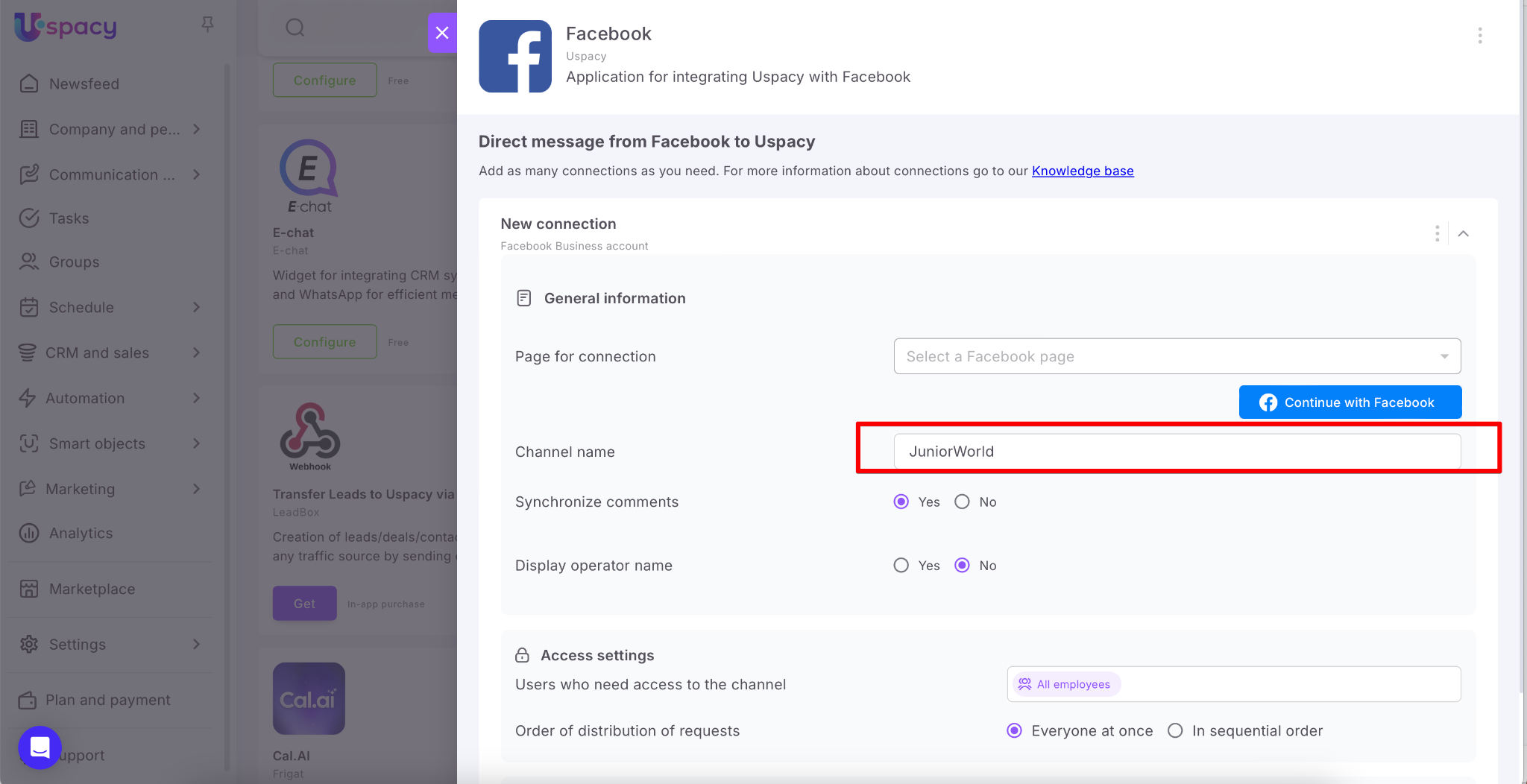
Next, specify the name for your channel.
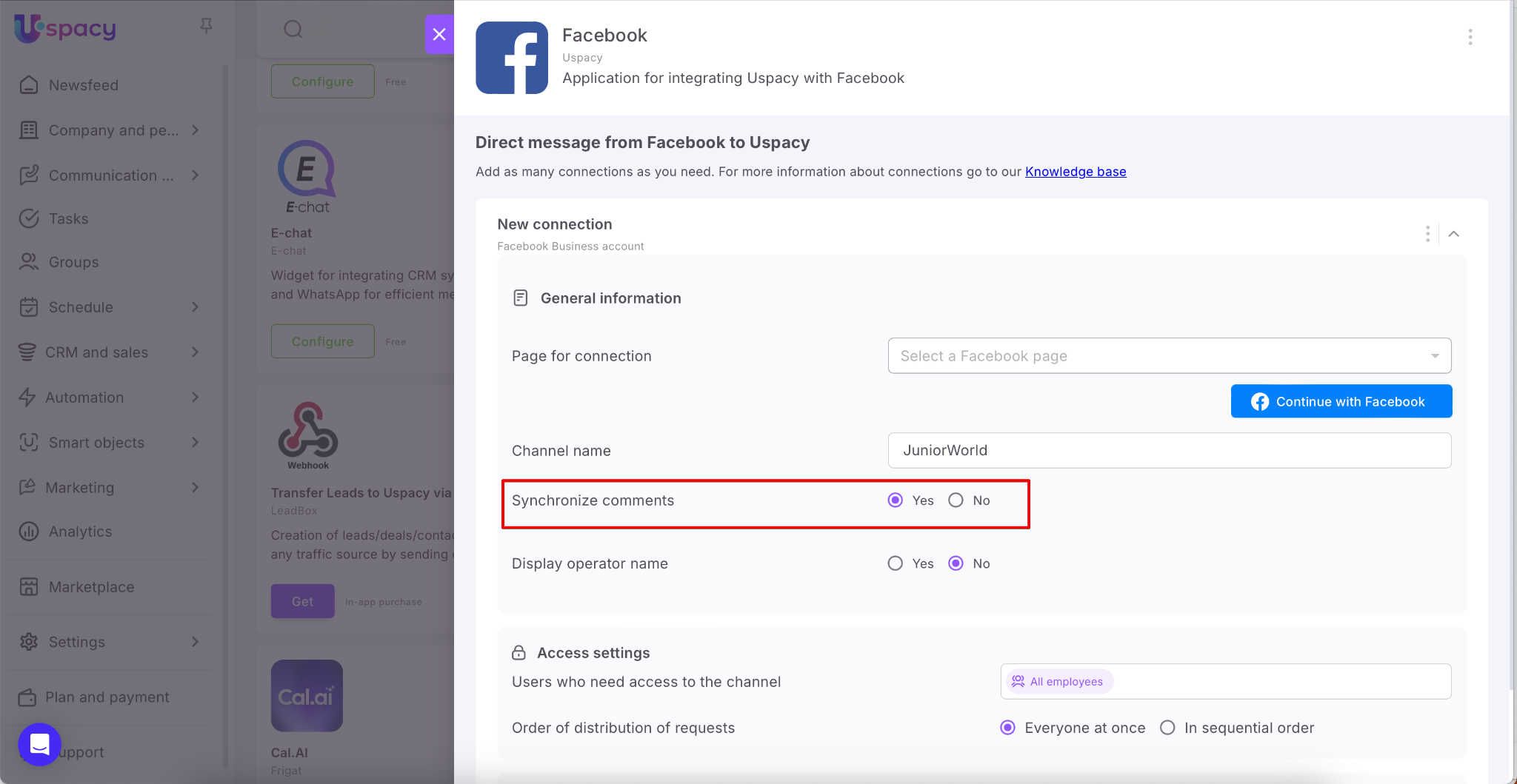
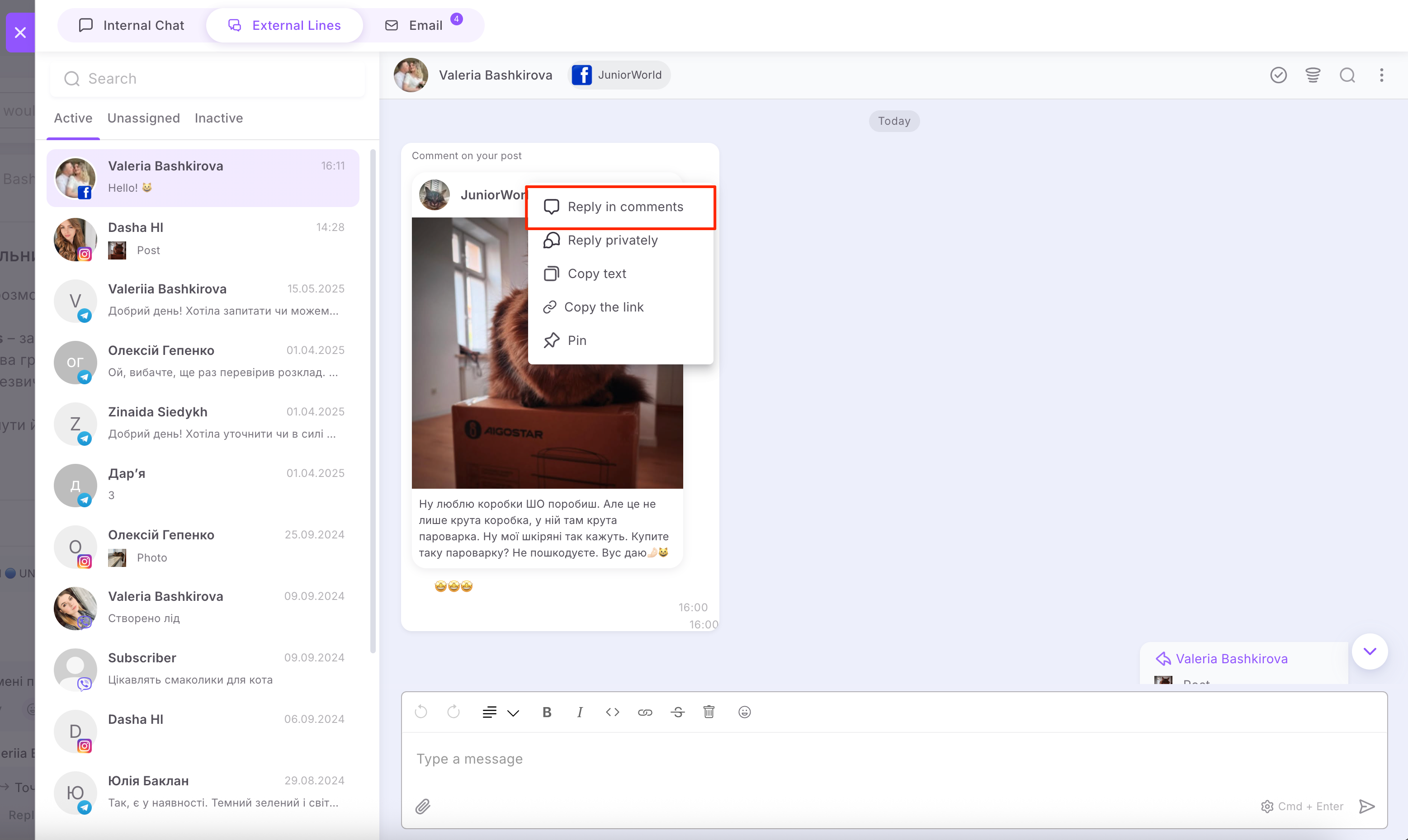
Finally, check the Yes option if you want comments on posts or Reels videos to be sent as messages to the chats of the external lines of your Space.
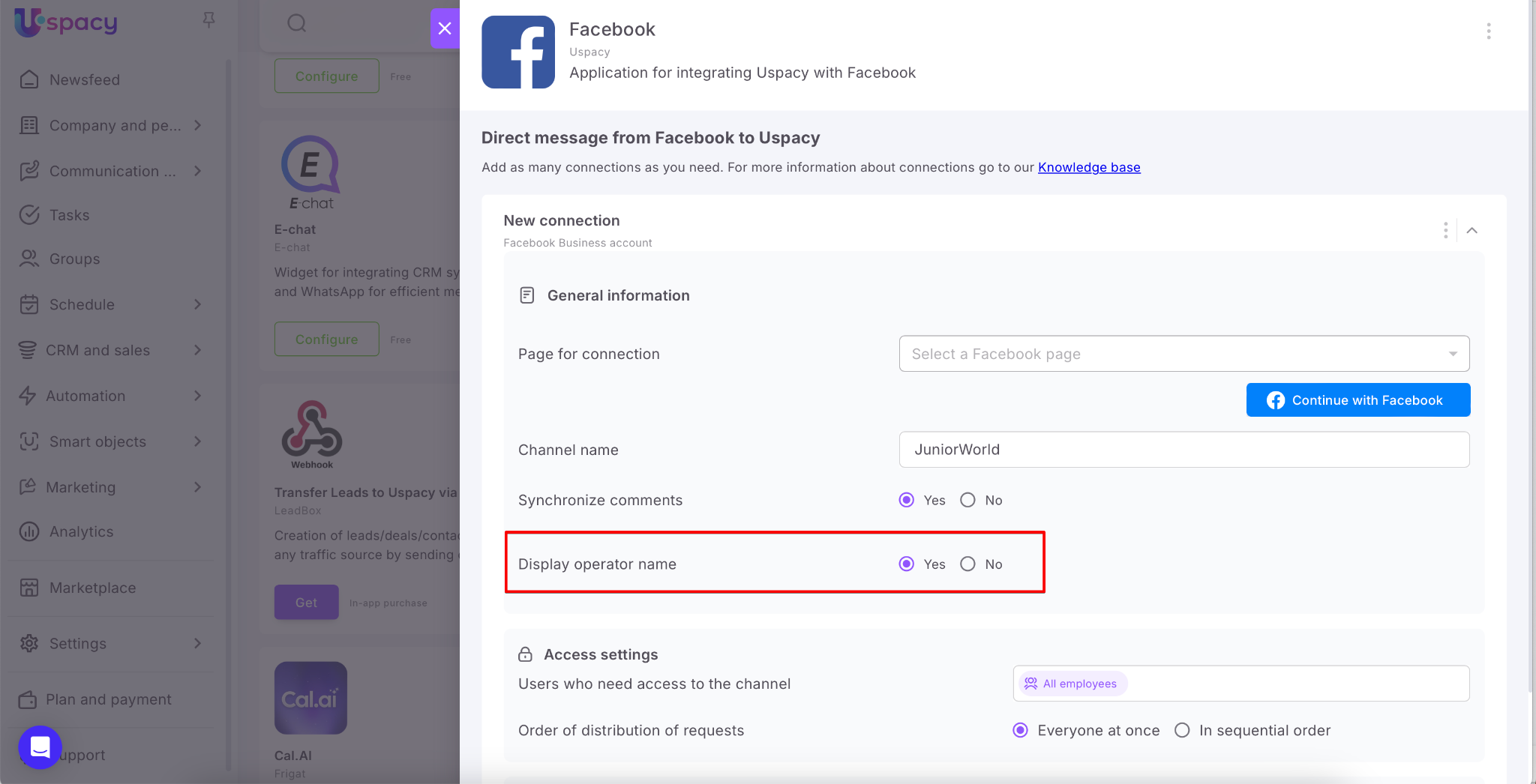
You can also enable the “Display operator name” option. This way, clients will be able to see which manager is responding to them.
When everything is ready, click Save.
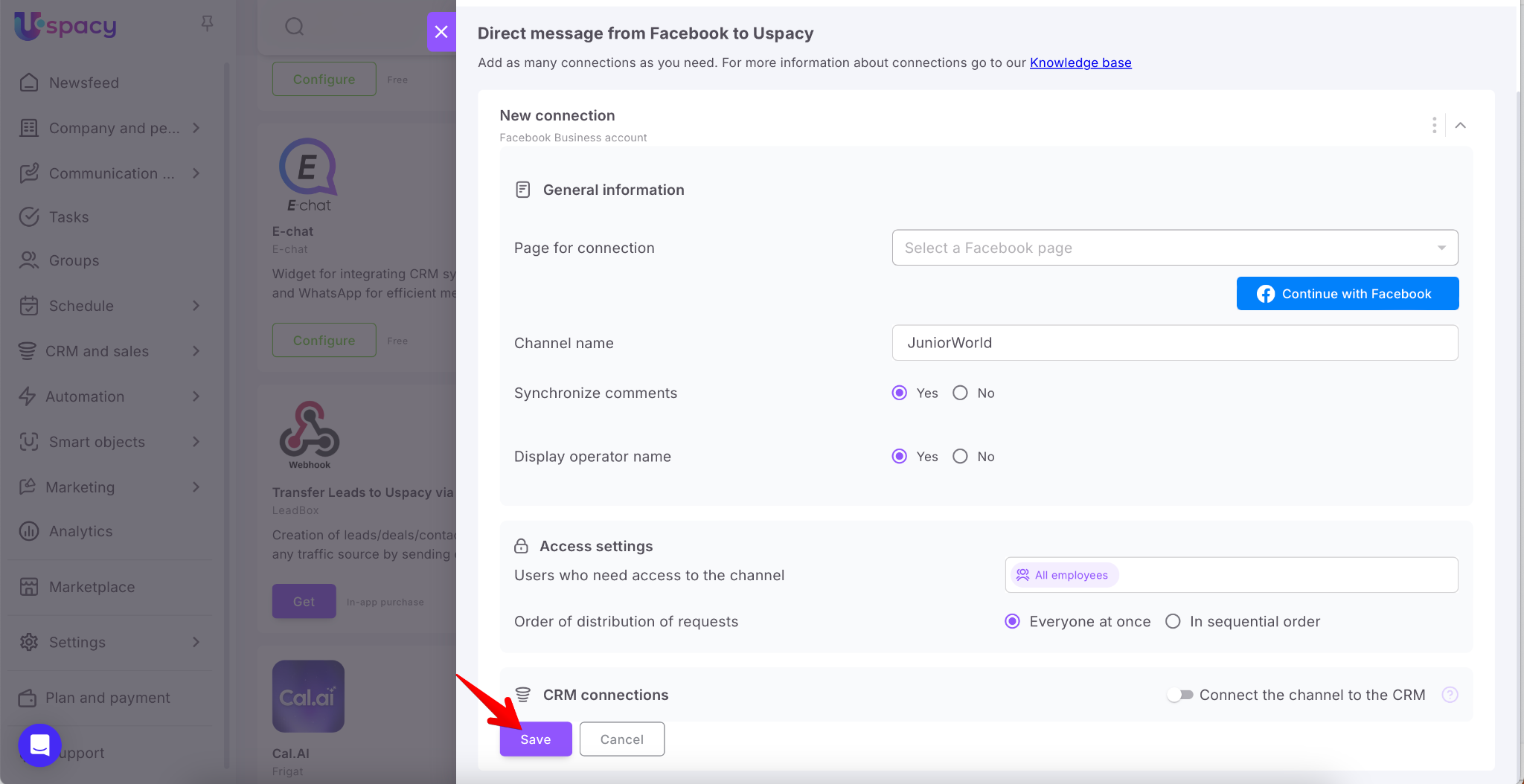
💡Additional parameters during connection setup include Access settings and CRM connections.
If you don’t need to specify which employees can work with chats from this channel, or how those chats should be distributed, you can leave the fields in this block unchanged.
Similarly, if you don’t need to link incoming chats to CRM elements, just leave the CRM connections block inactive.

If you do need to configure these parameters, you can read how to do it and how they work in the following articles:
If it was connected successfully, it will be immediately displayed in the status and the connection will appear in the list.
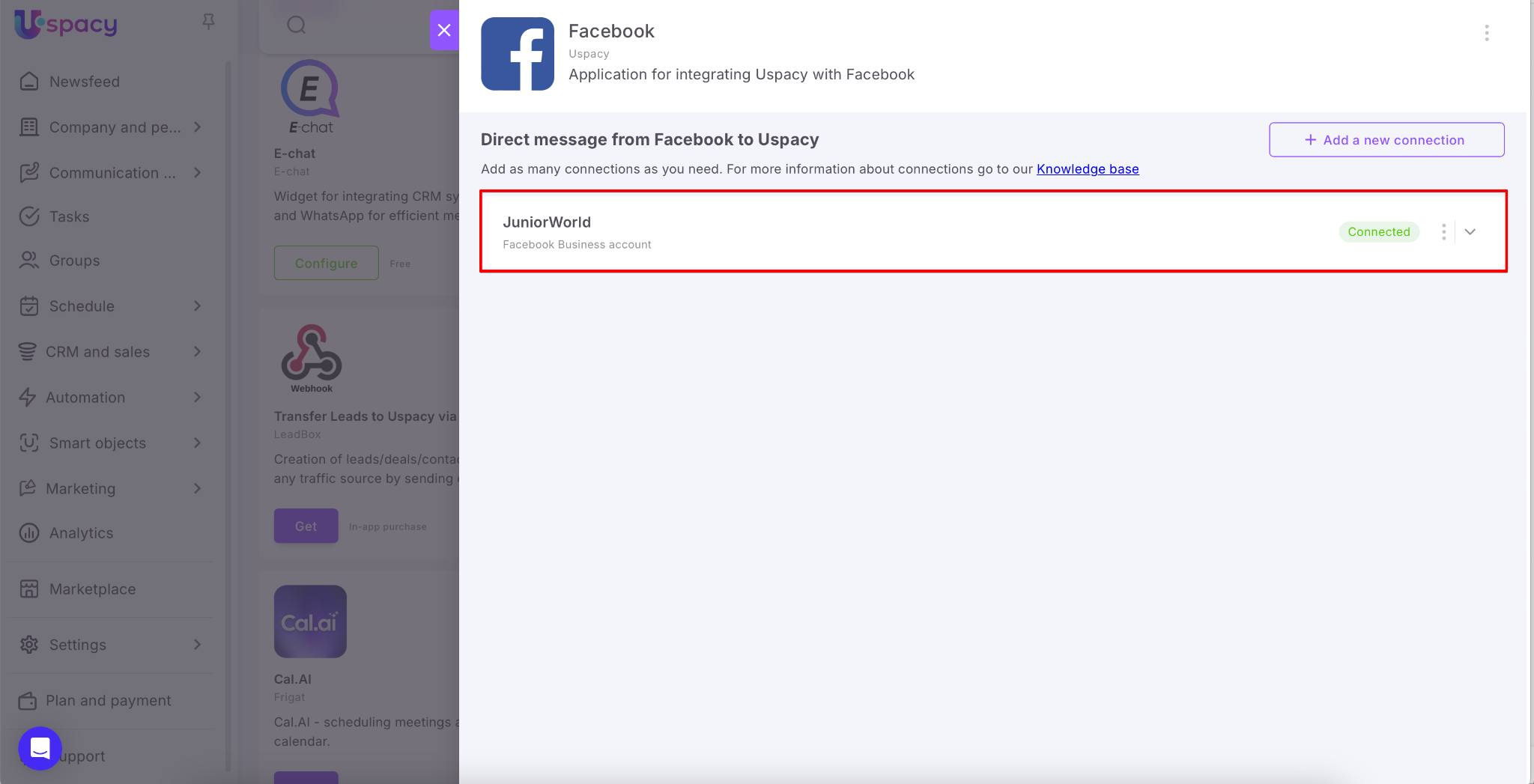
How does it work?
A client contacts you via your Facebook business page — for example, by leaving a comment under a post or Reel, or by sending a private message in Messenger.
💡 Please note that you have a response window of 7 days to reply to the client. This time frame starts from the moment of their inquiry.
In other words:
🟣 If 7 days have passed since the last message from the client, your response will not be delivered to them.
🟣 If you do not respond to the client's initial message and do not interact with the chat within 7 days, any responses will be delivered.
🟣 If the client messages again after the 7 days have expired, a new chat will be created in the Space.
It’s better to respond at once, ideally within 24 hours.
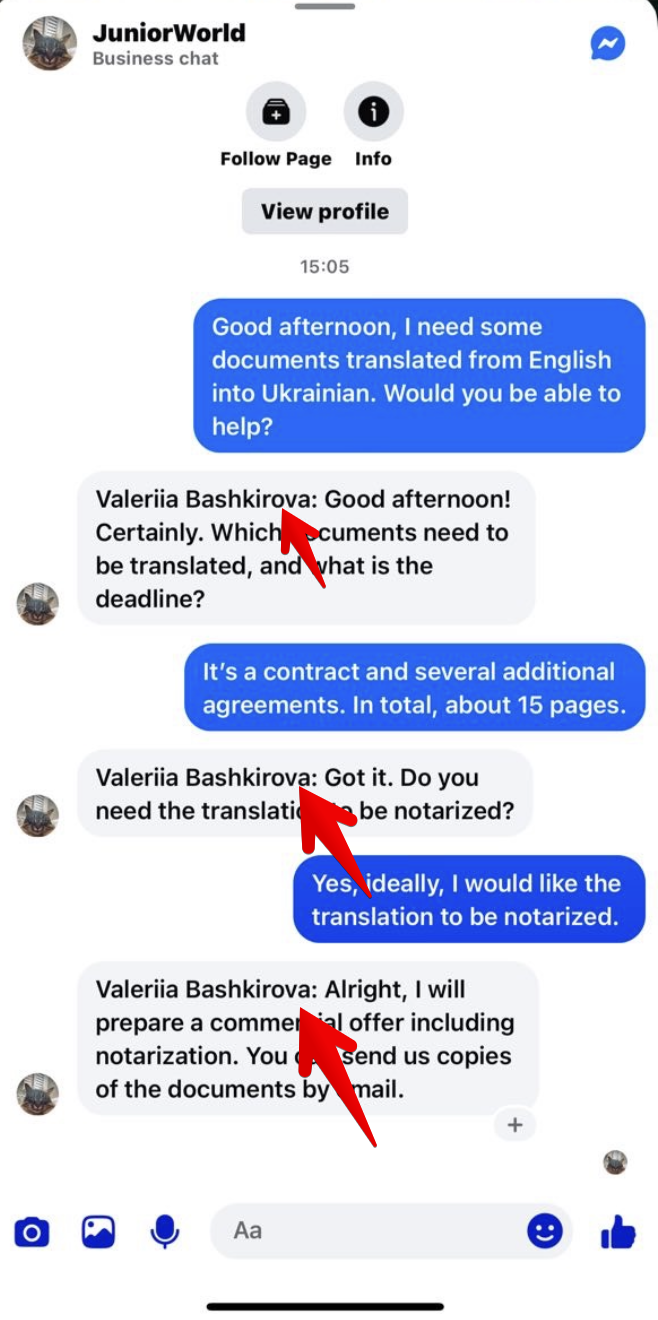
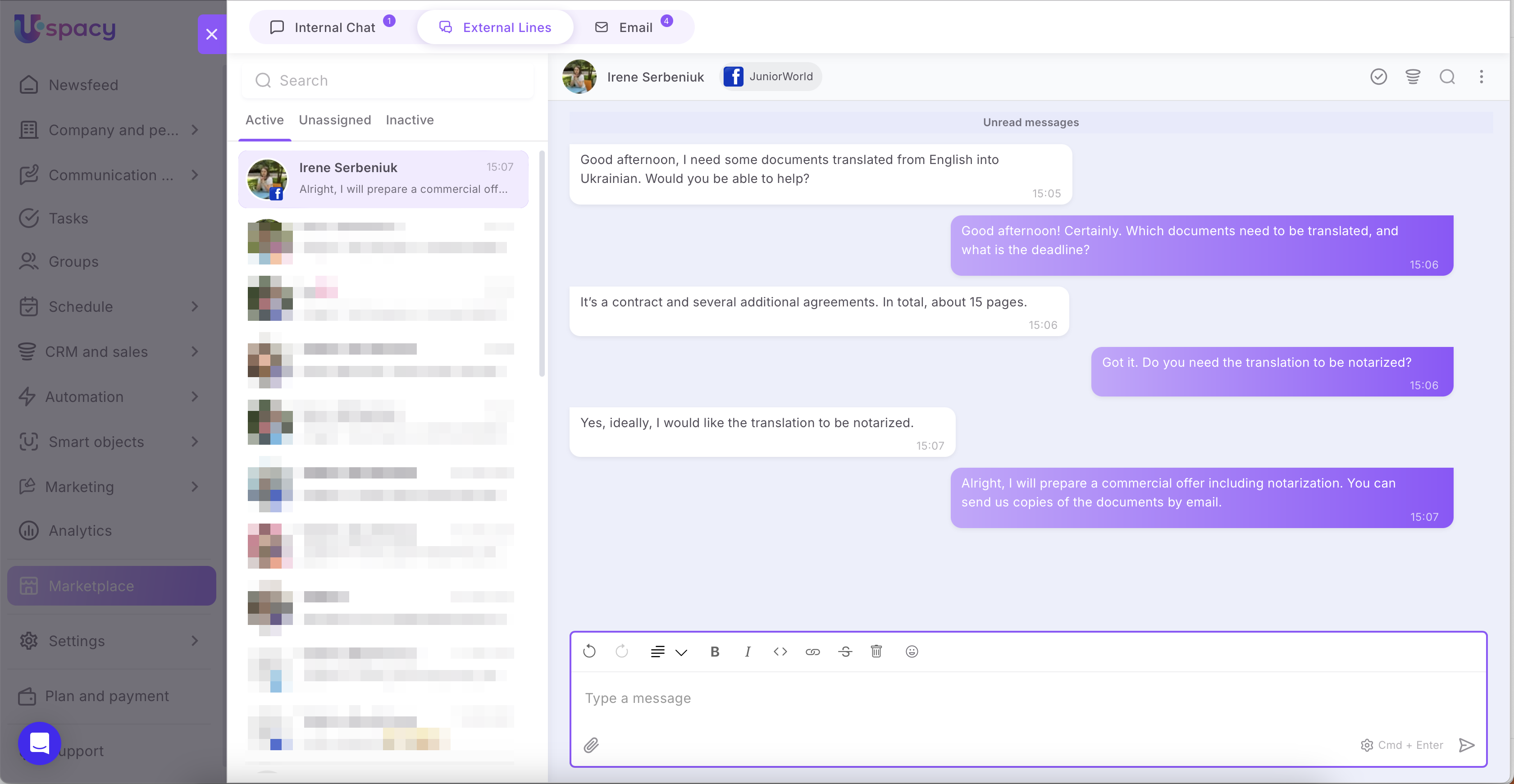
Their messages will be redirected to External channels and you can easily communicate with them directly in your Space chat.
🔍 You can read more about how to work with chats in external lines in the following article.
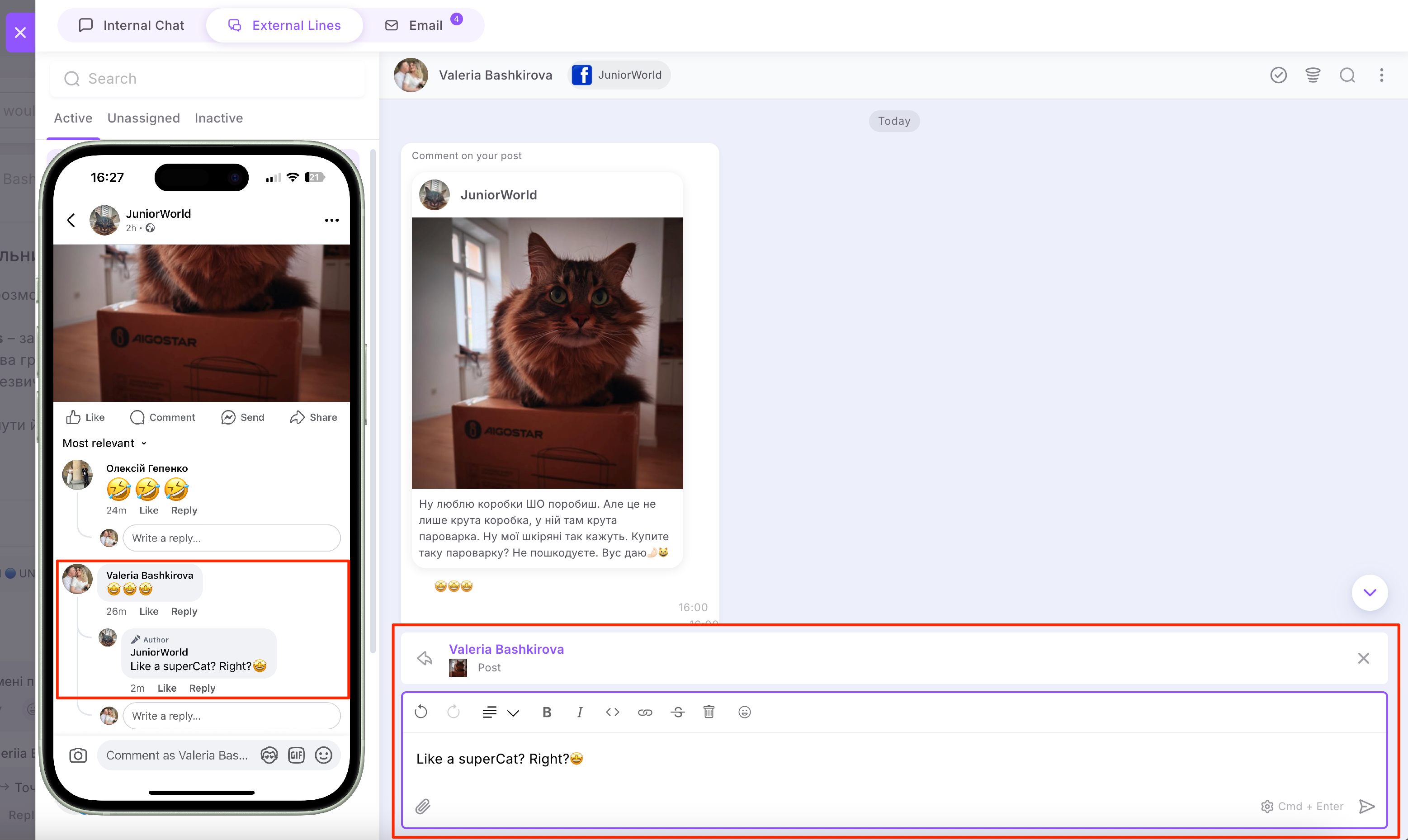
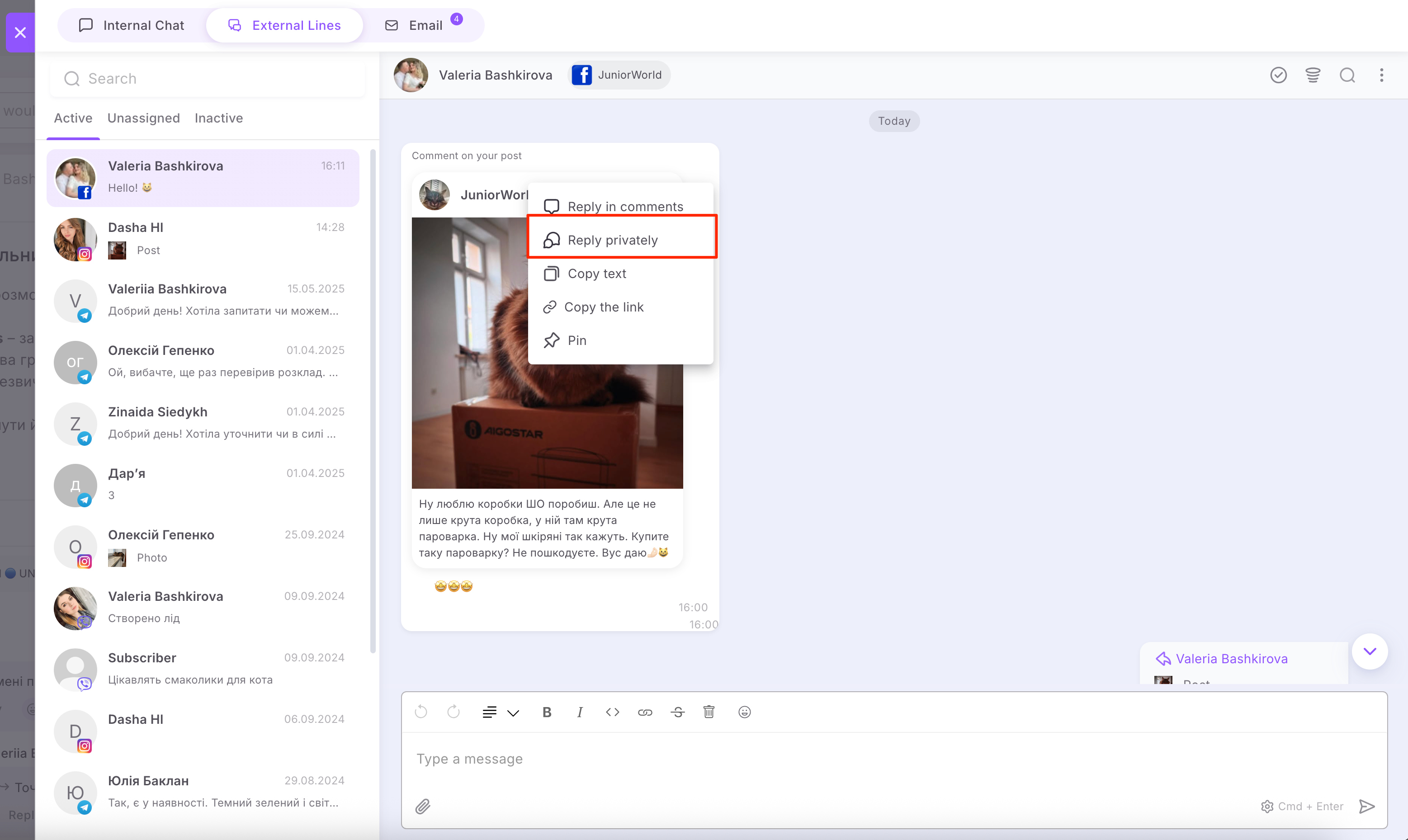
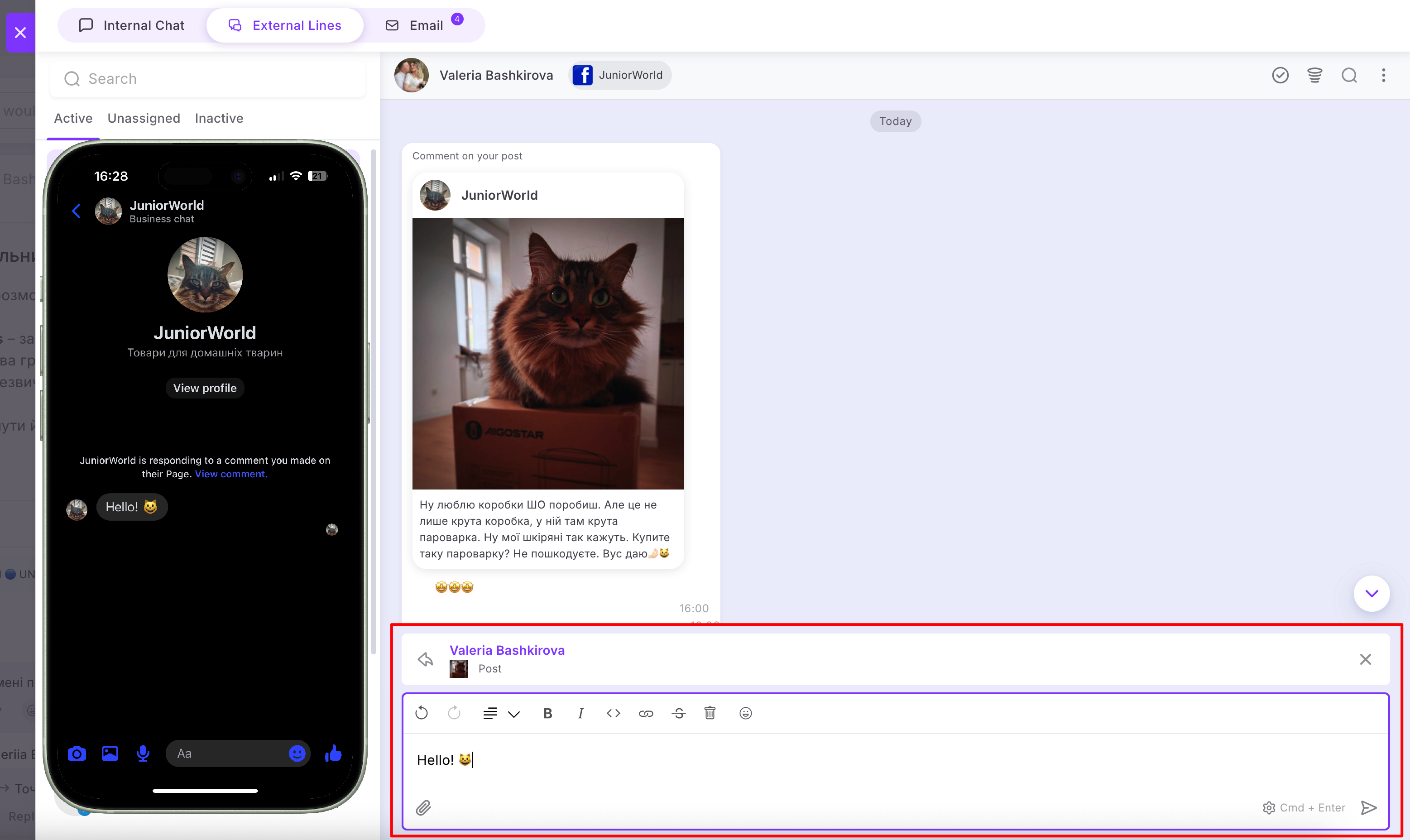
If someone leaves a comment on your post, Reels, or ad, you can reply:
Settings update
An Update connection button has been added to the Instagram app settings.
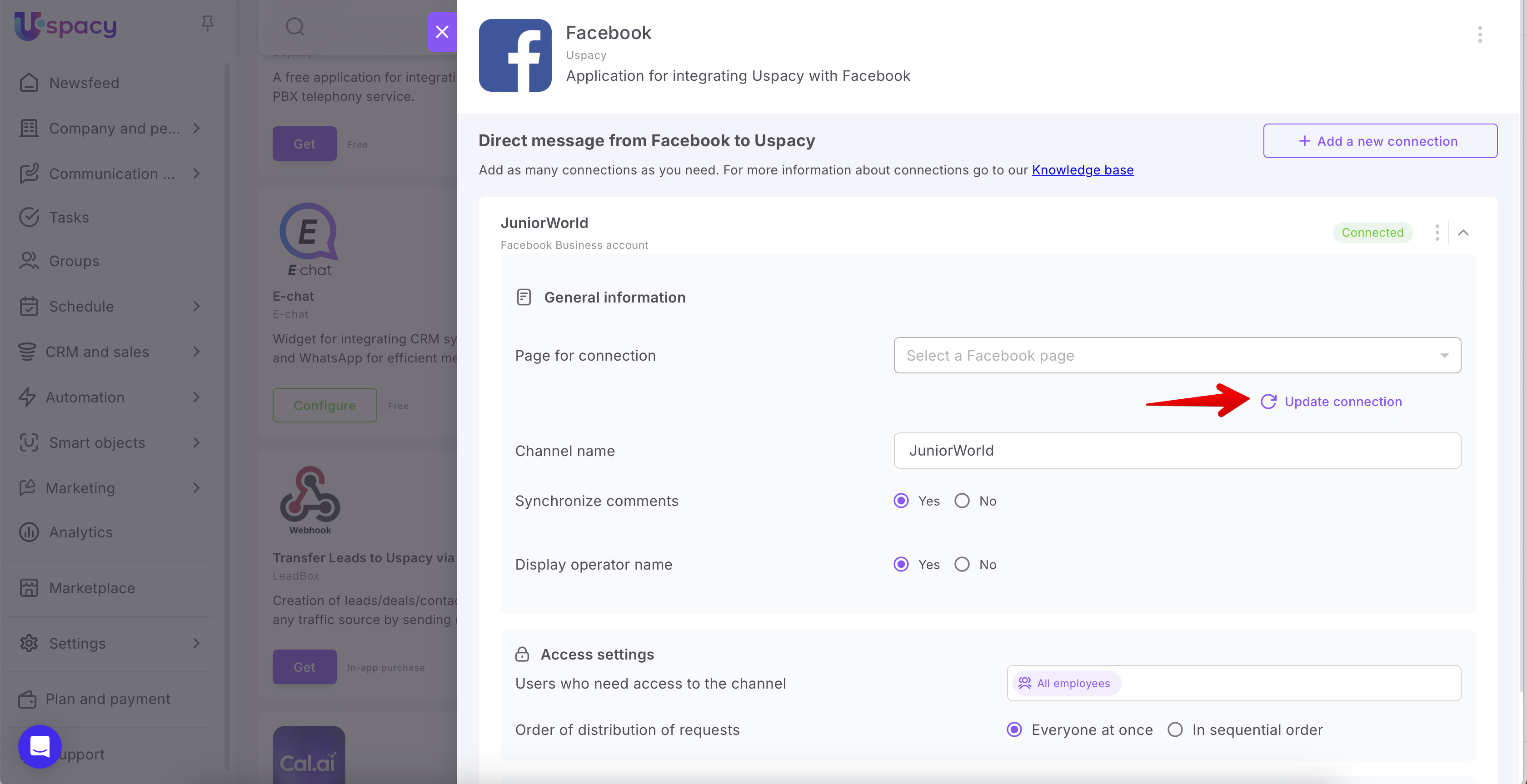
After clicking it, you will need to reconnect. This will update the necessary permissions for the app and the access tokens.
For everything to work correctly after updating the settings, you need to activate two-factor authentication for the account that manages your Facebook business page (if you didn’t already do this during the connection process).
FAQ
If you have additional questions or you need to contact the support, send a request to this email [email protected]
Created: May 22, 2024 / Updated: February 4, 2026