With the help of the External channels functionality, you can communicate with clients directly in your Uspacy while they are messaging you on third-party services, for example, on Instagram.
To do this, just connect and configure the integration to make sure you get messages in your Space.
Features of work
At Uspacy, the functionality of external lines is implemented through integrations with specialized services.
In the Marketplace section there is a free application, which, after its installation and configuration, will allow you to work with client requests in the Uspacy chat.

Therefore, for correct operation of Instagram, you will need to perform preparatory actions, and then configure the connection at Uspacy. In addition, the integration with Instagram is implemented through the link to Facebook.
About everything below ⬇️
Preparatory actions
- Switch your personal Instagram profile to a professional one. More here
- Create a Facebook business page. More here
- Connect your Instagram account to a Facebook page you manage. More here
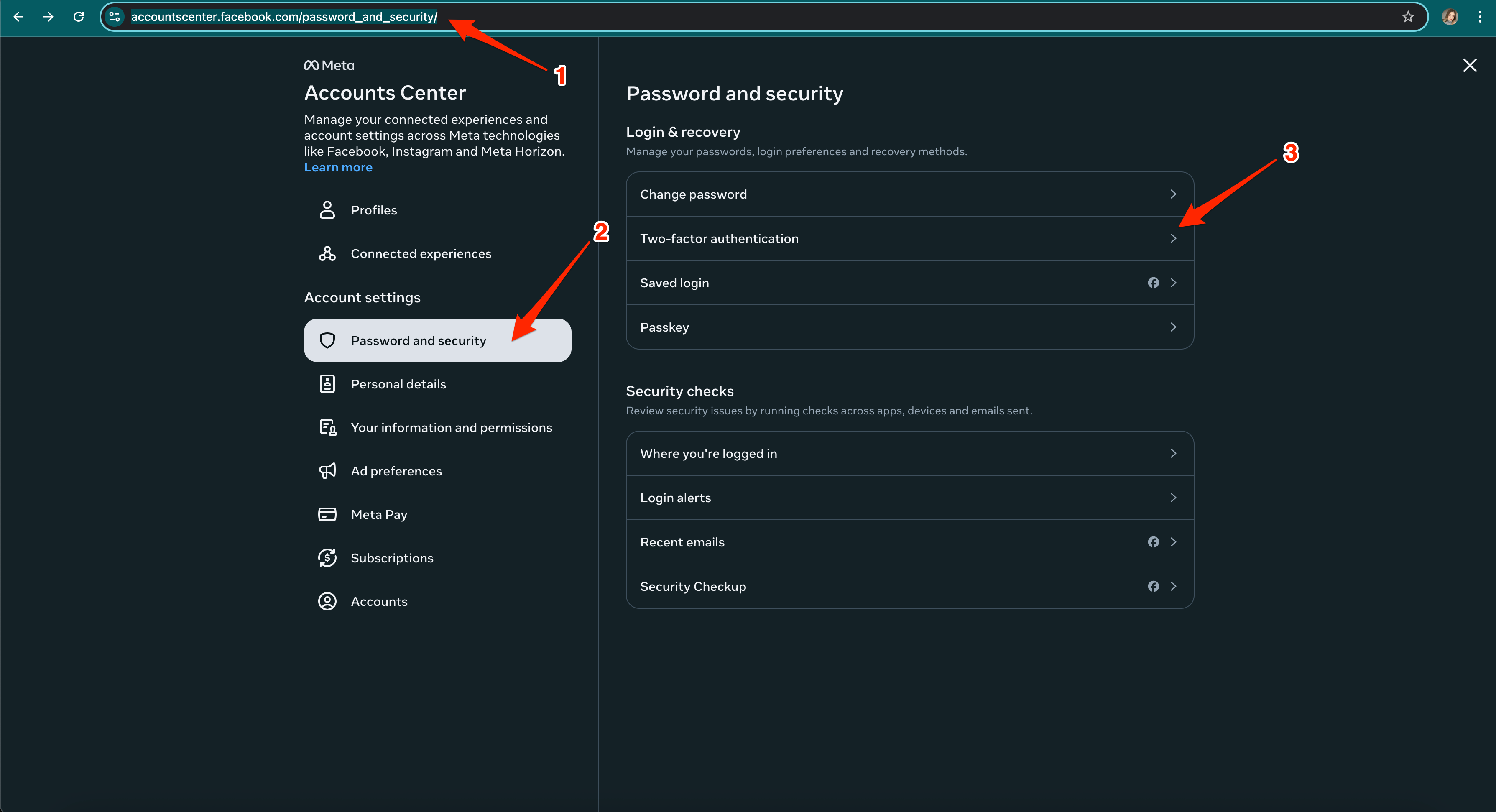
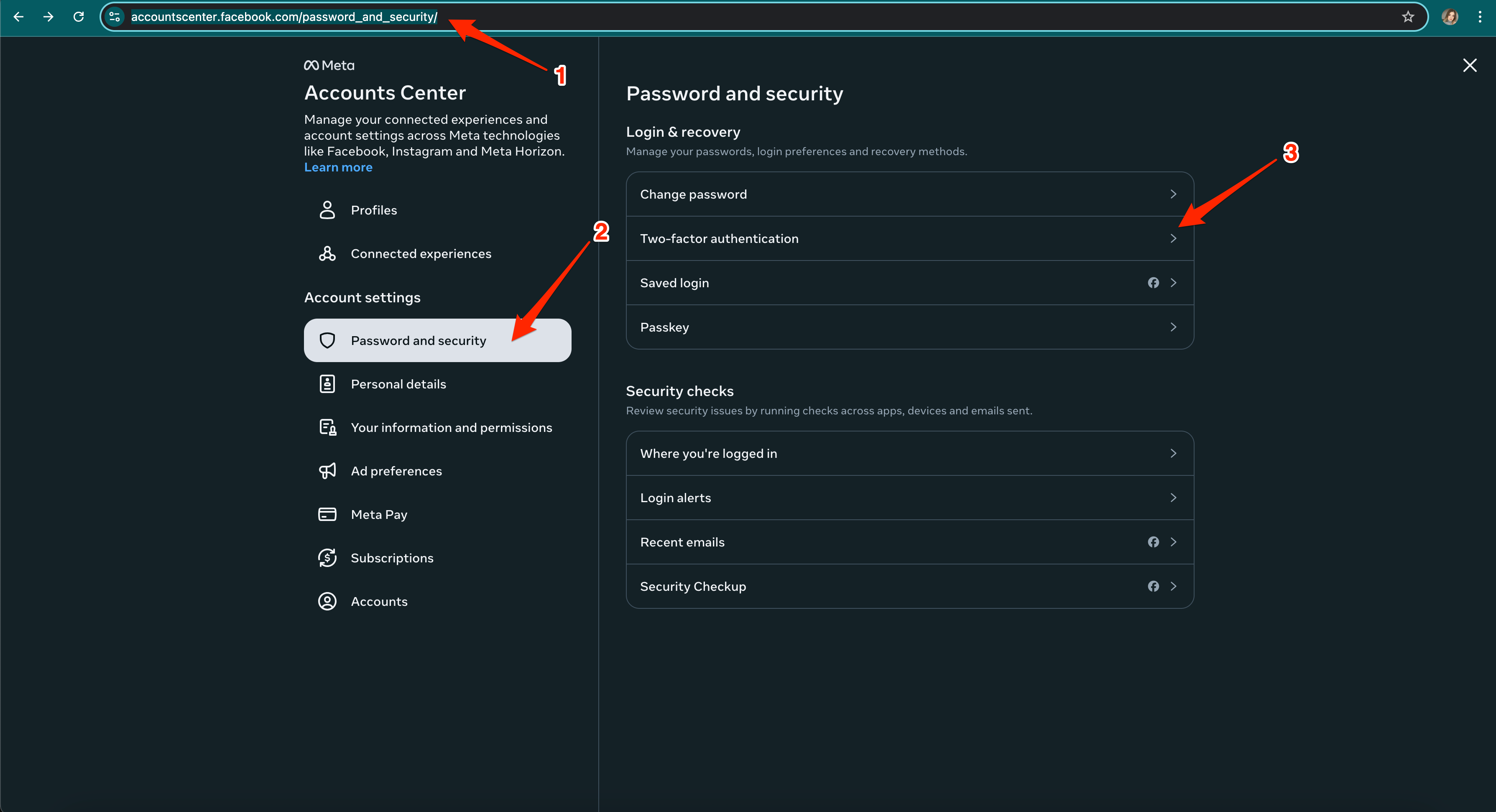
- Activate two-factor authentication for the account that manages your Facebook business page here
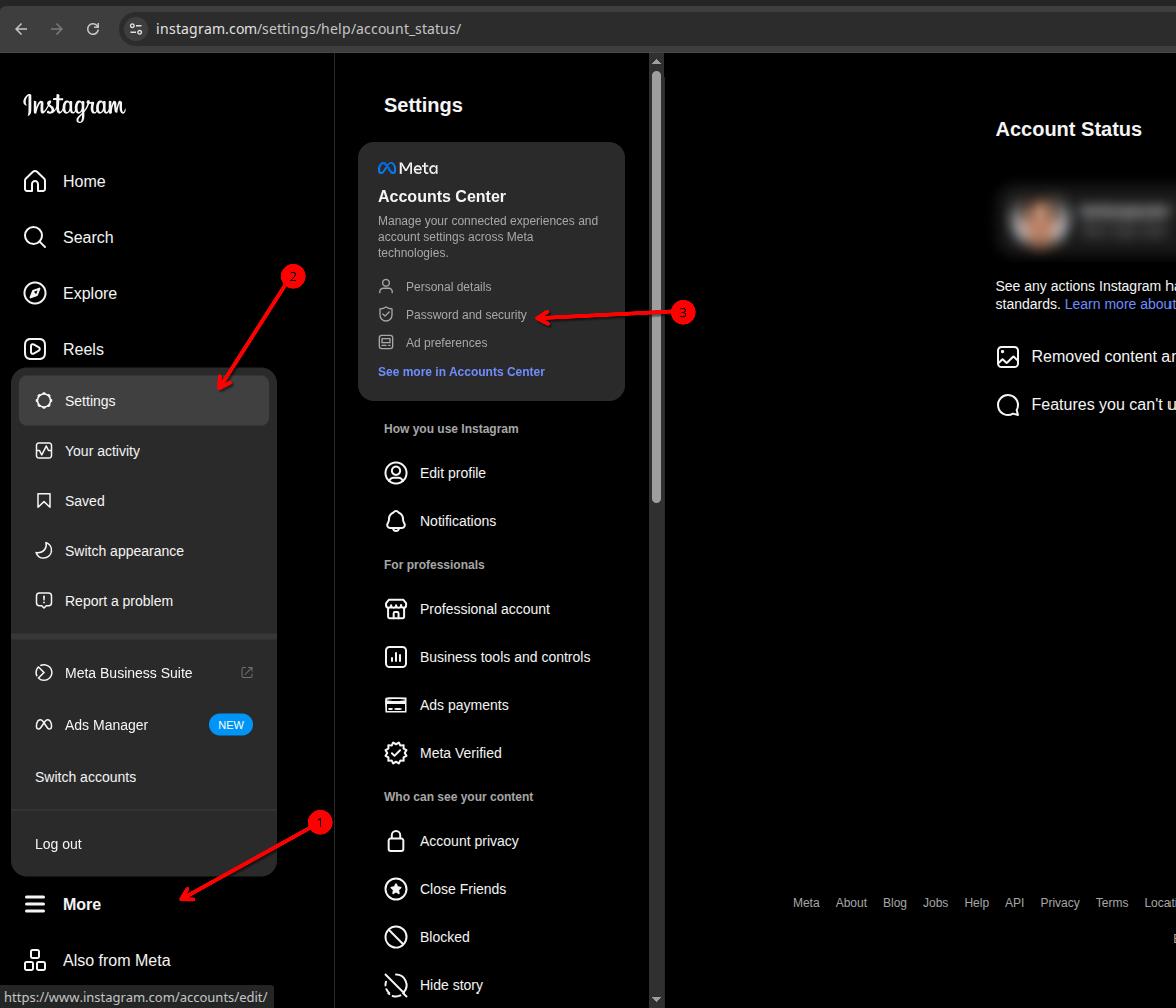
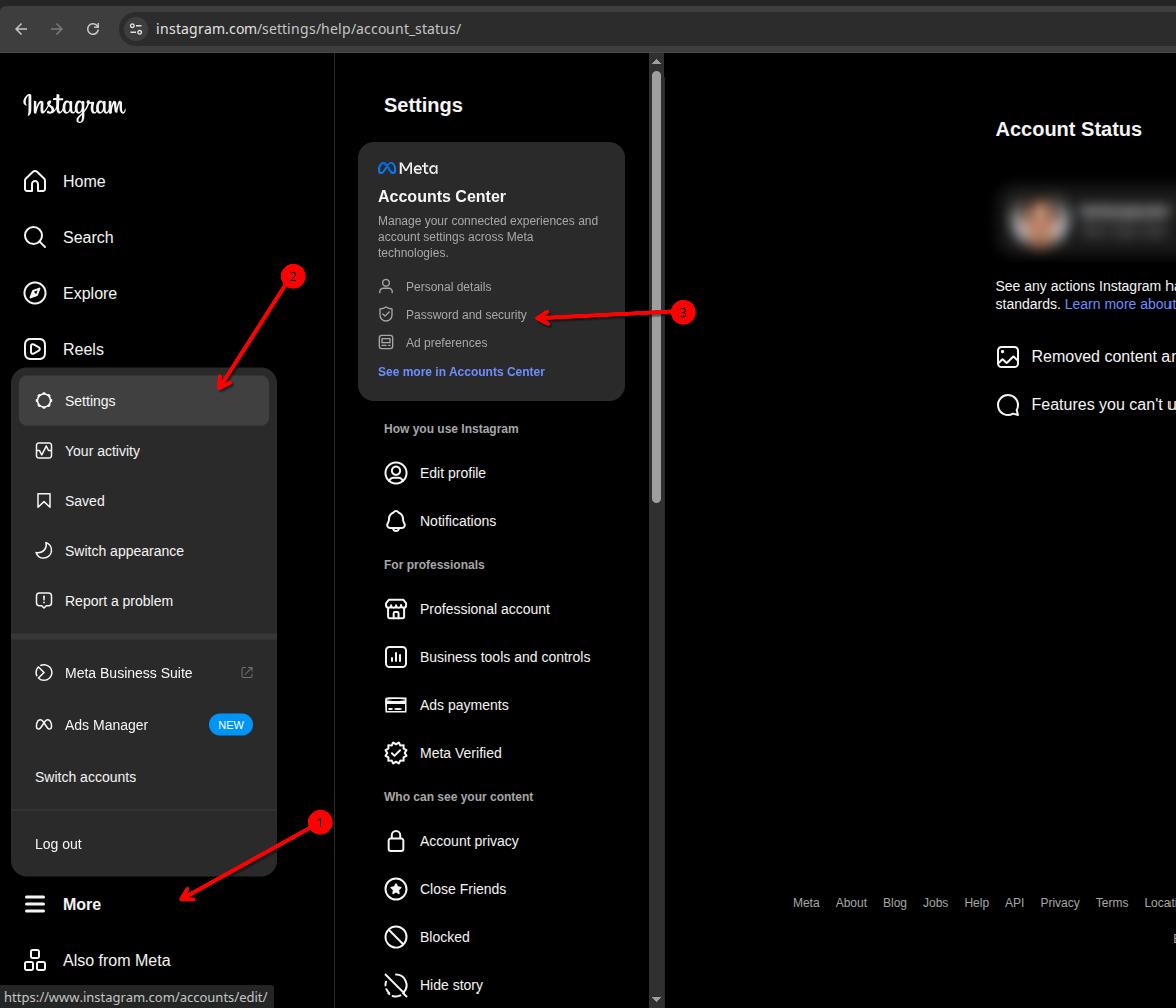
And you also need to activate two-factor authentication for your Instagram profile here.
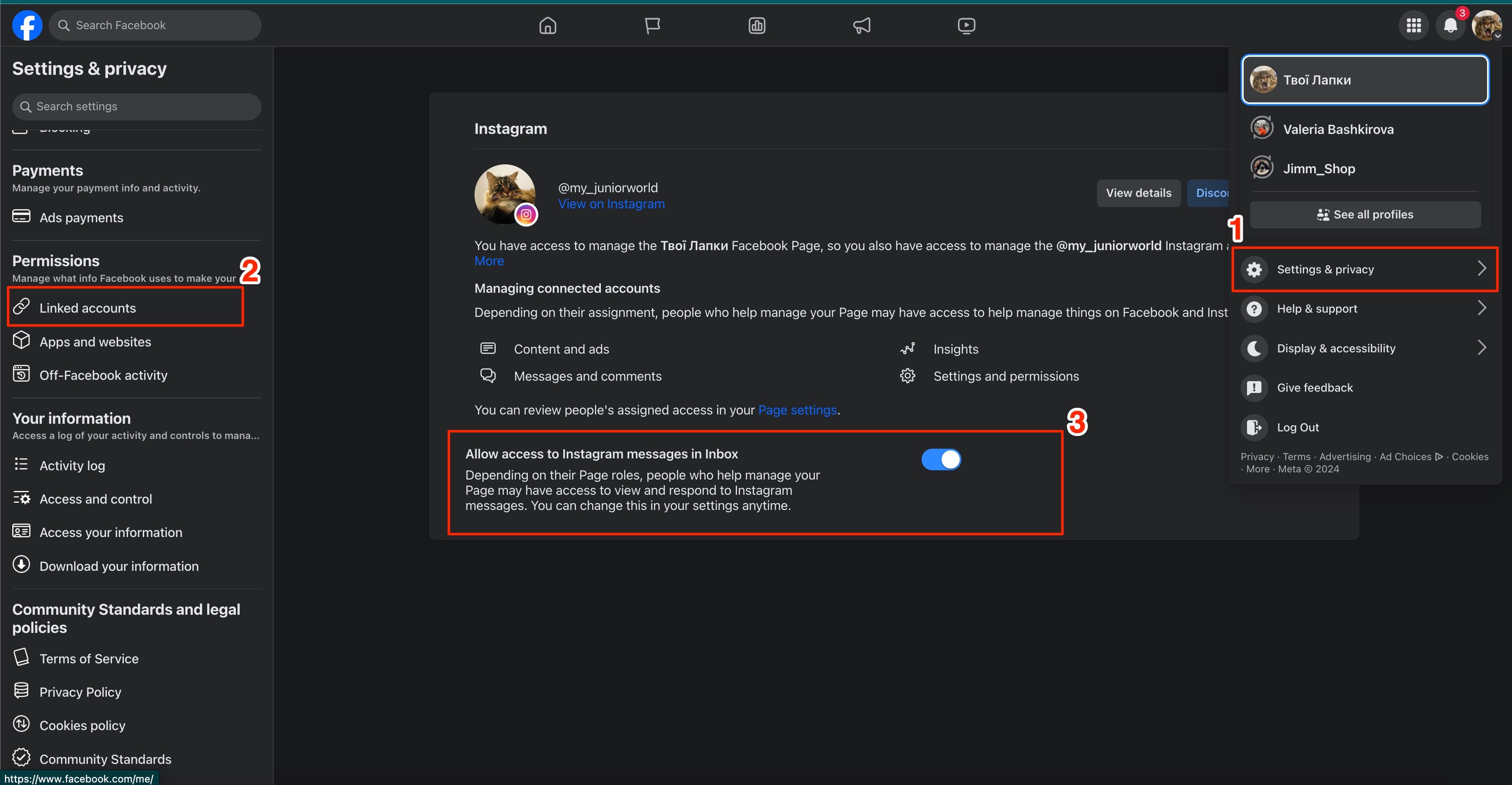
5. In the browser, log into the Facebook account through which you manage the business page to which your Instagram is connected. This action is optional as it is possible to log in already at the stage of connecting the integration to your Space.
6. Also, be sure to give this Facebook business page access to your Instagram inbox.
Connection
First, you need to install the free app to integrate Instagram with your Space. Go to the Marketplace section and click on the Get button.

When the app is installed, open its settings.

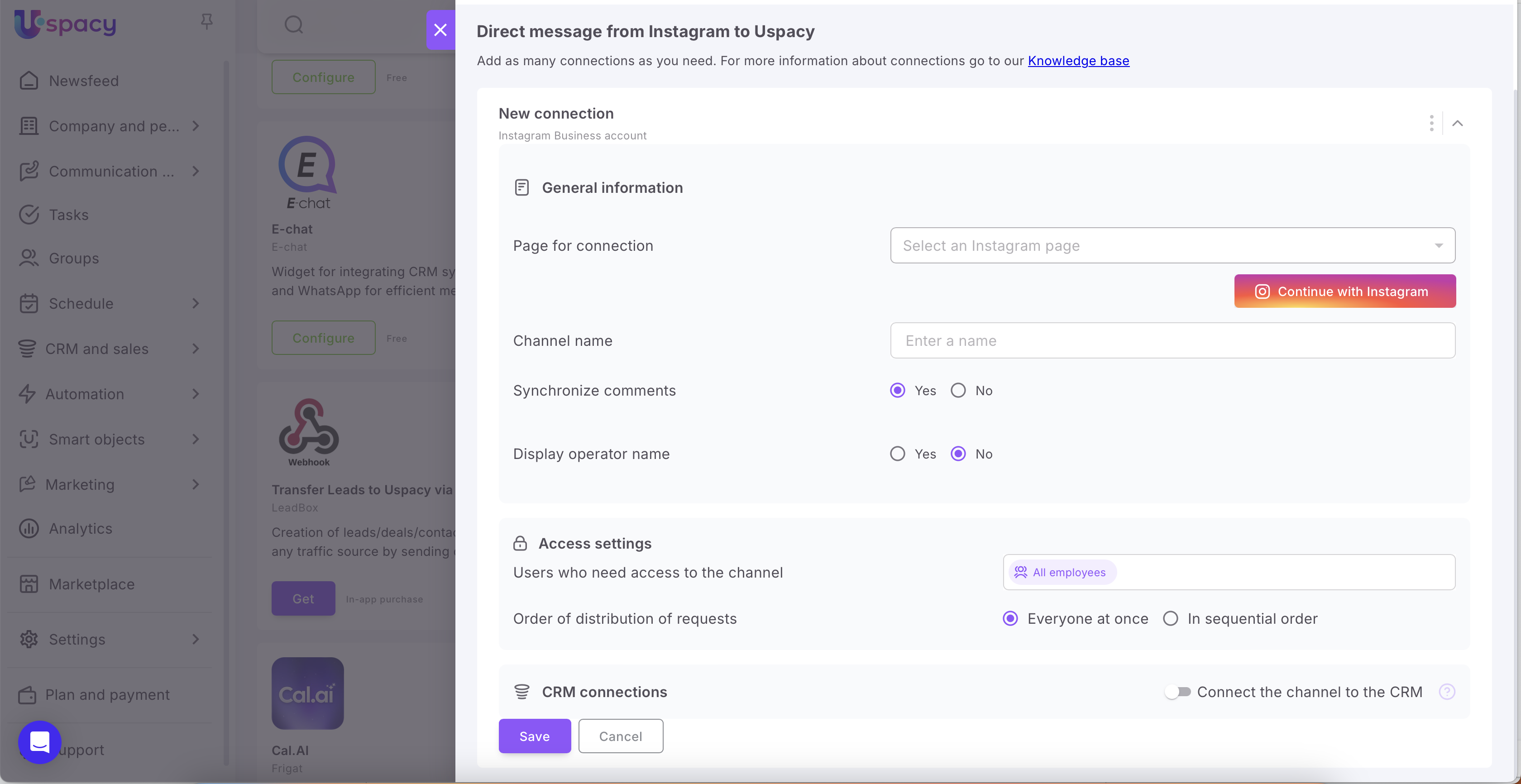
Here you need to set the parameters of the new connection.
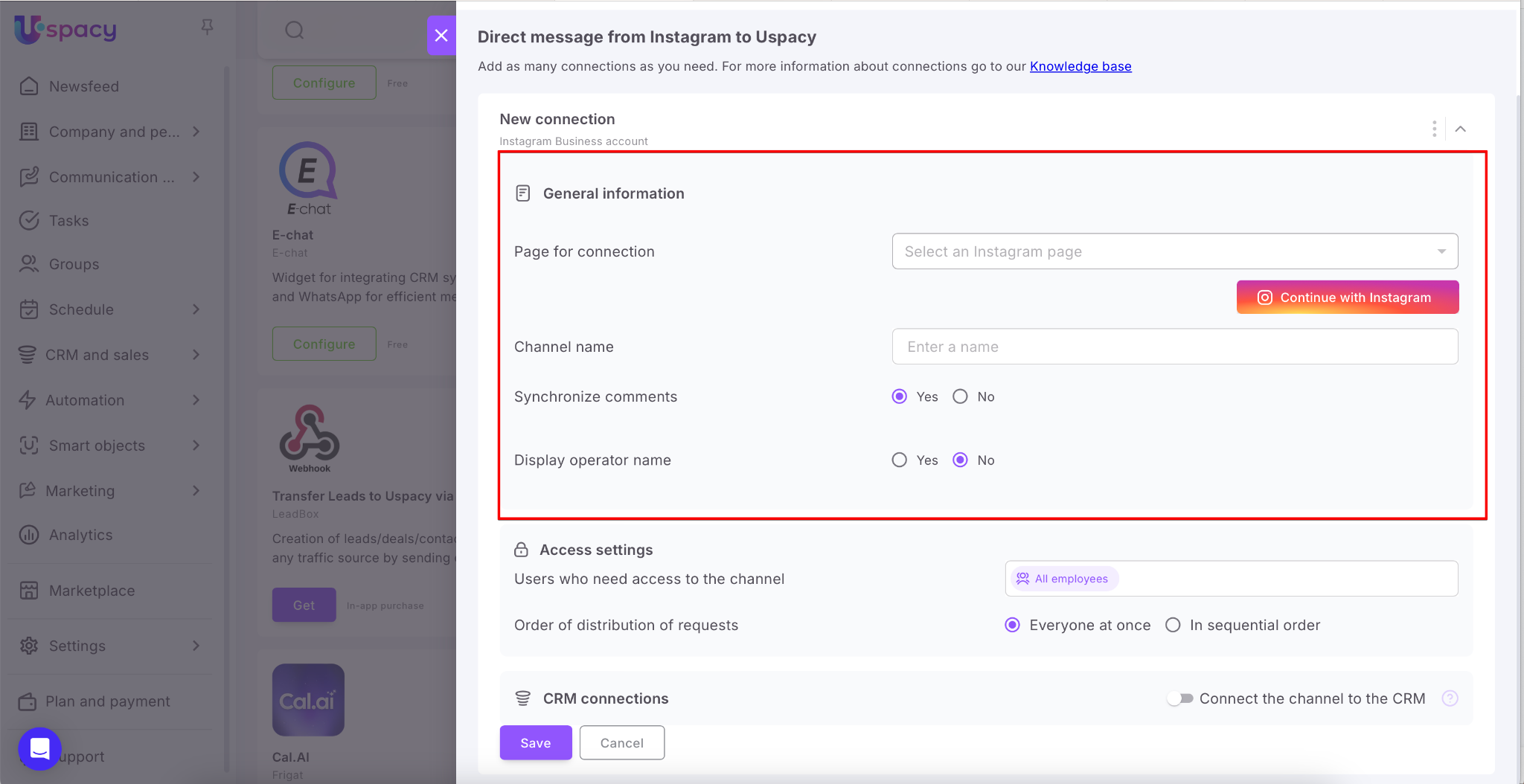
💡 After connecting your first Instagram account to Space, the Add new connection button will appear in the settings. If you have several Instagram accounts and want to connect them all, you can easily do it.

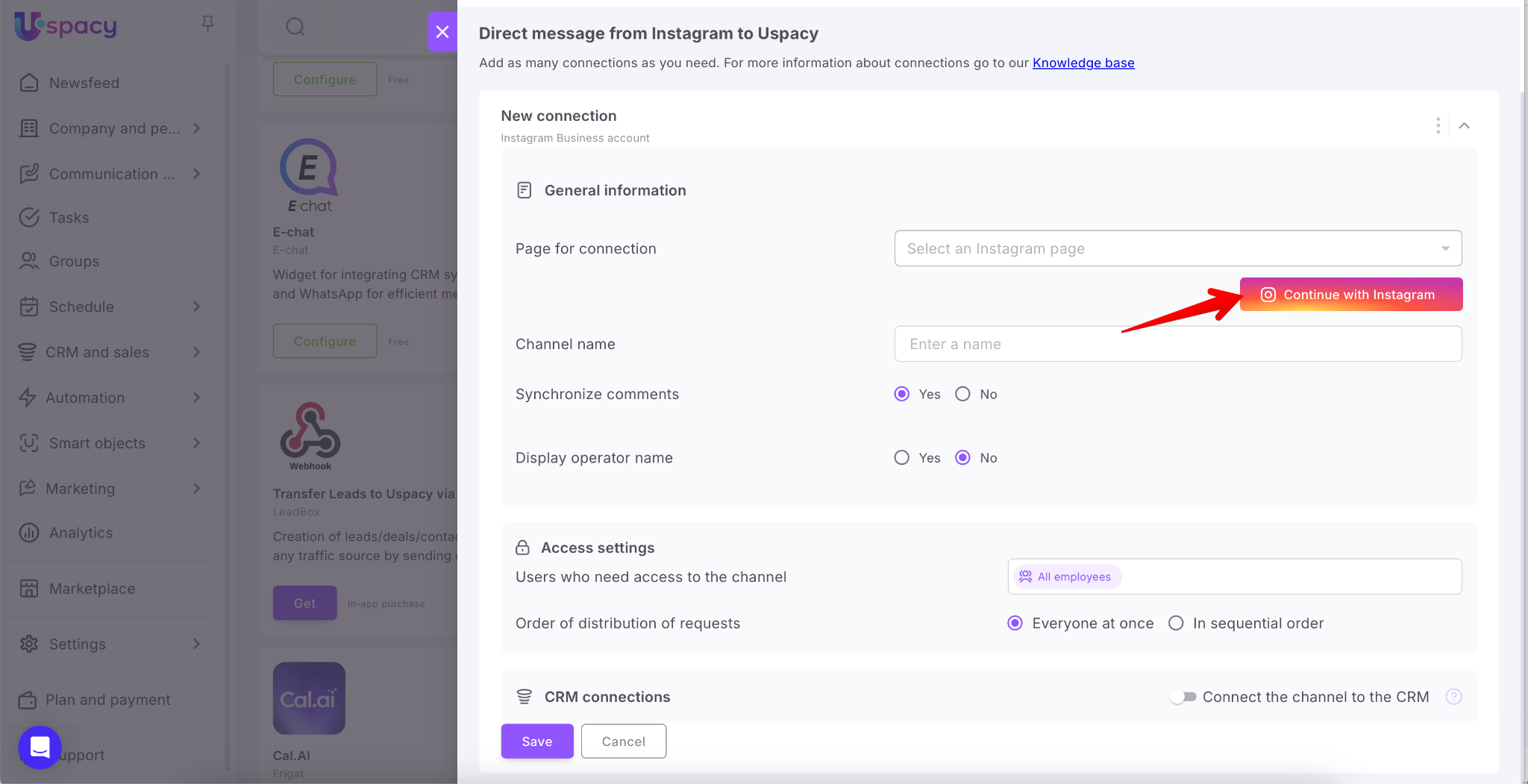
First, connect it to Facebook. To do this, use the special button Continue with Instagram.
💡In order to connect it successfully, you need to be authorized in the Facebook account through which you manage the business page to which your Instagram is connected. This can be done in advance in a separate browser tab.
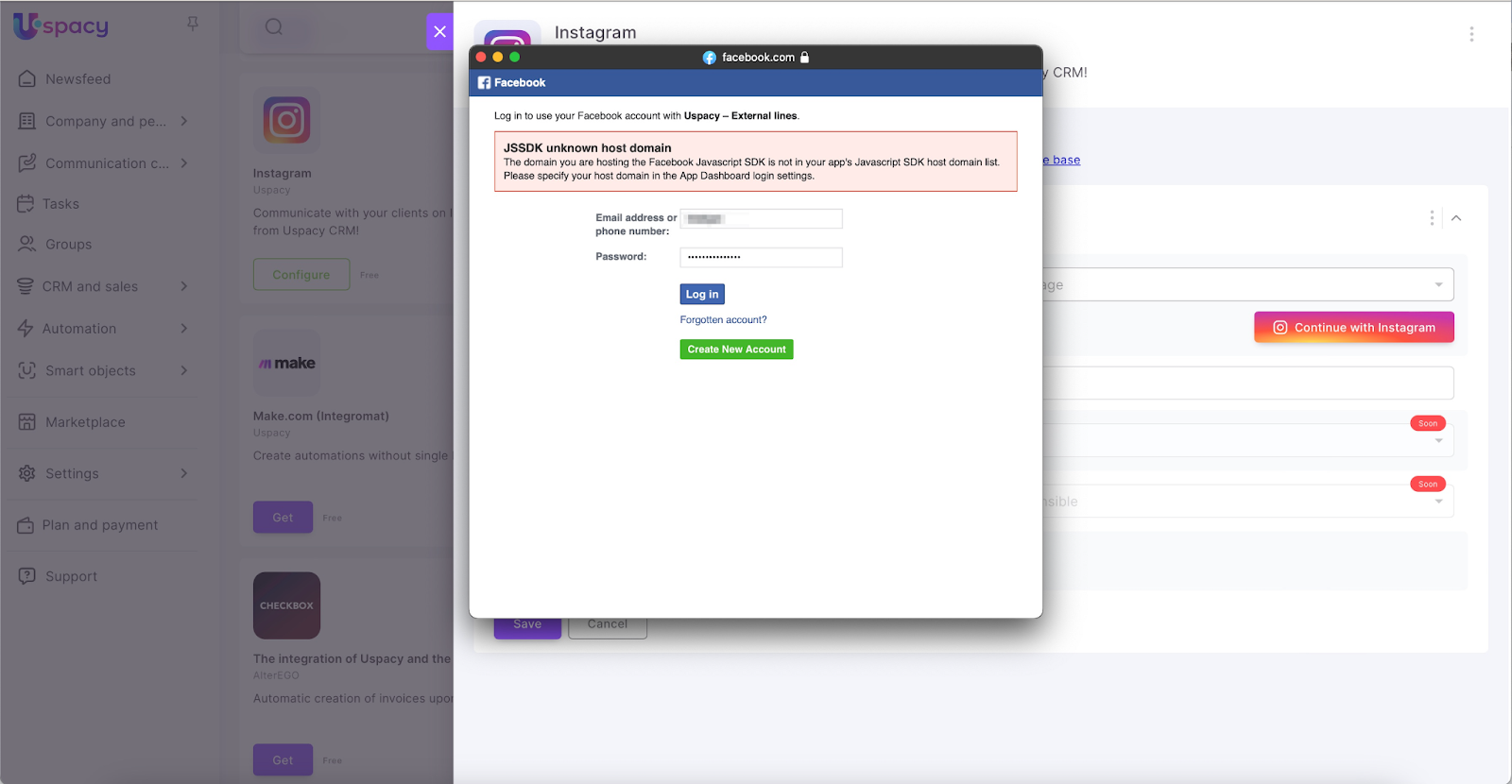
If you have not passed such authorization, log in the window that opens.
When the connection is established, select the Instagram profile to connect. If you have only one account, then it is filled out automatically.
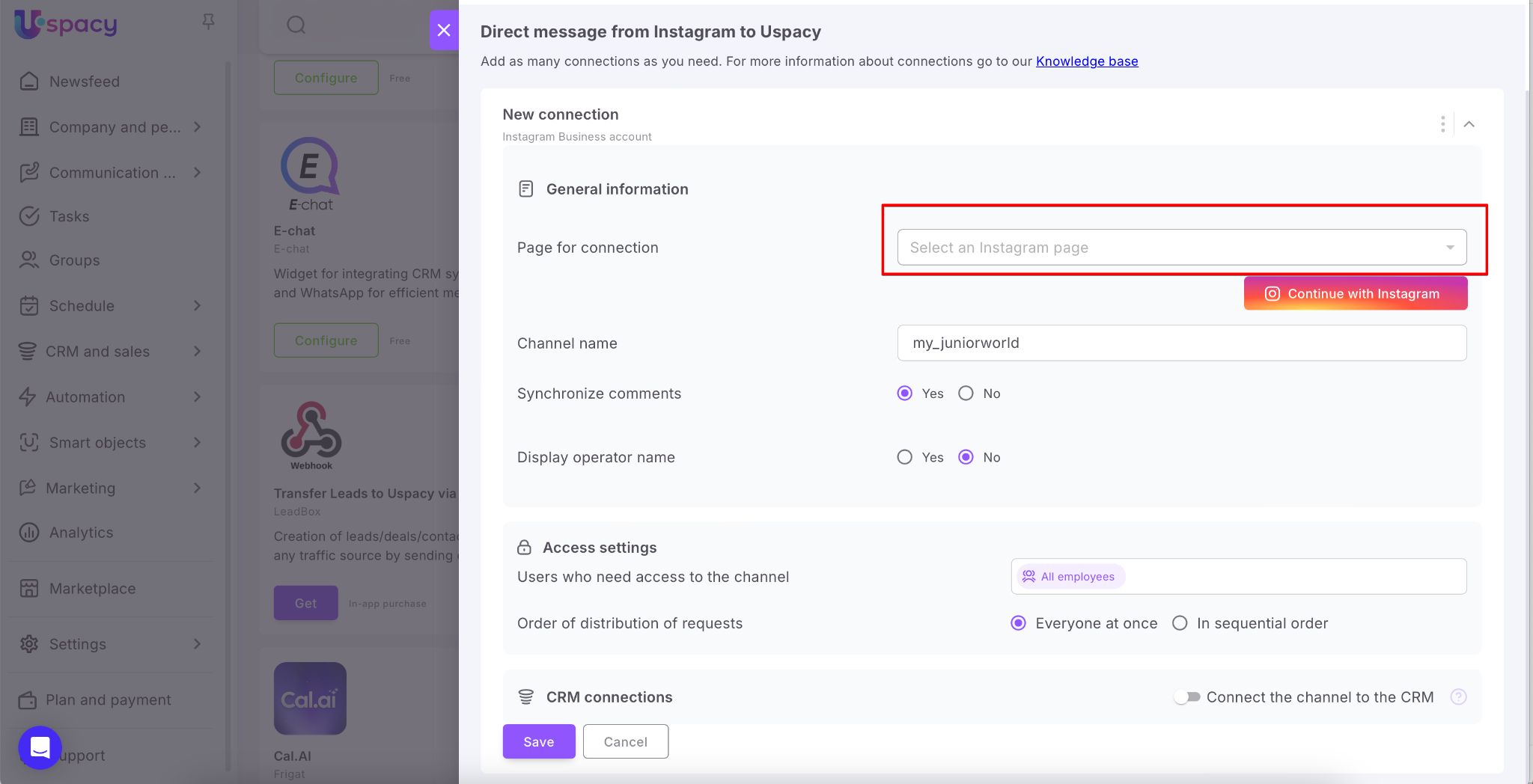
Next, specify the name you would like for the channel.
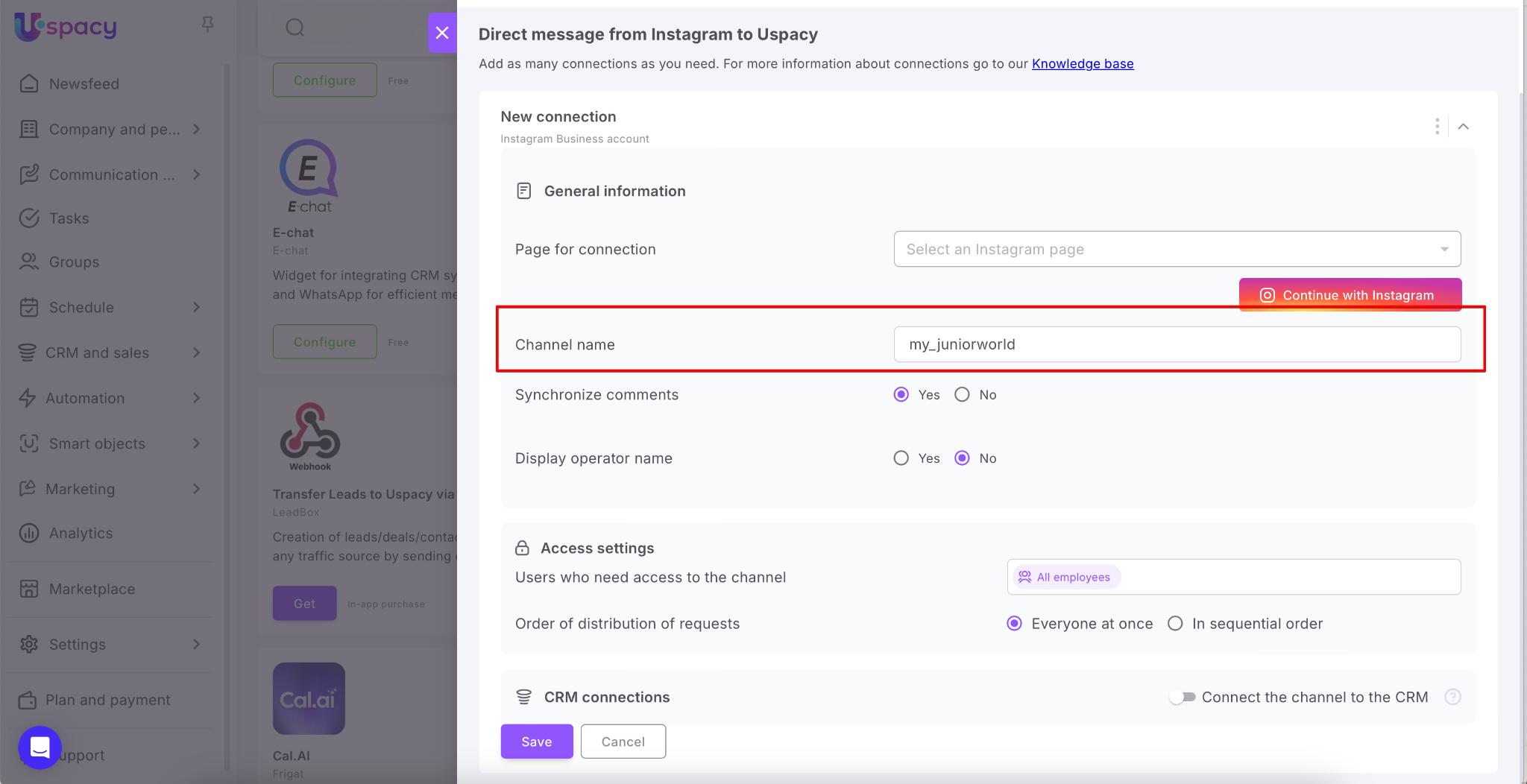
Finally, check the Yes option if you want comments on posts or Reels videos to be sent as messages to the chats of the external lines of your Space.
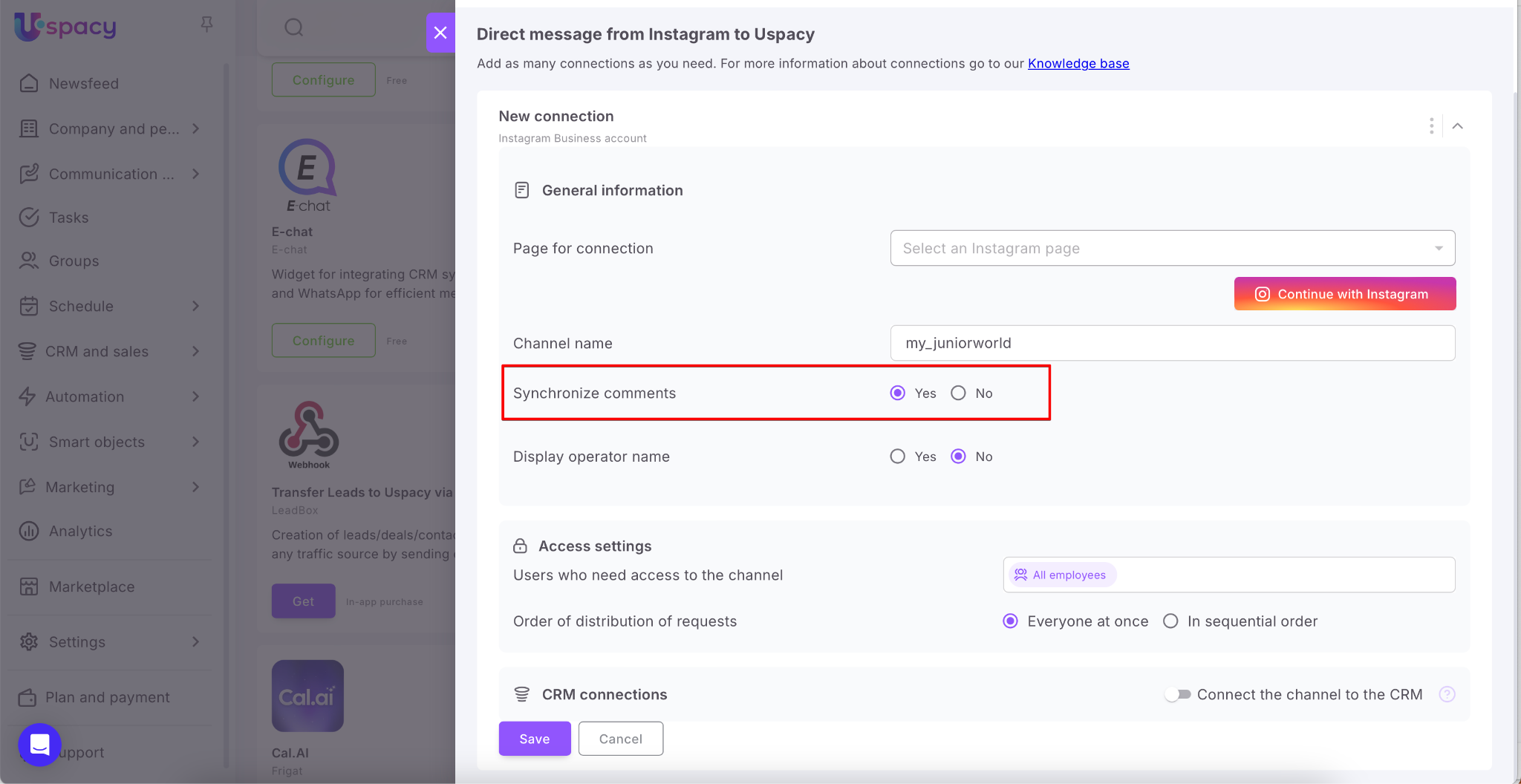
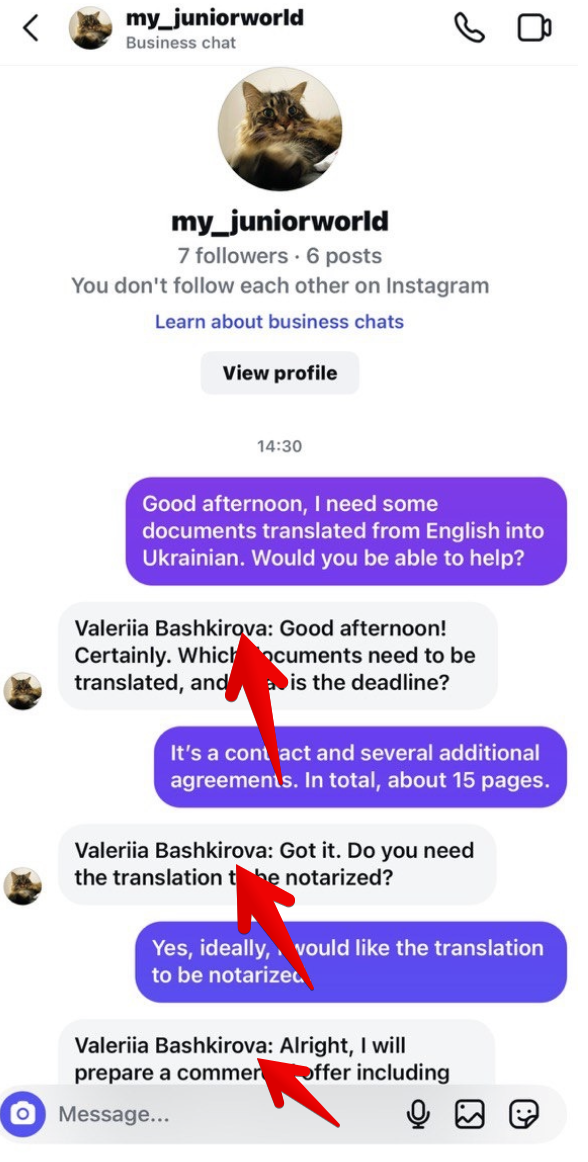
You can also enable the “Display operator name” option. This way, clients will be able to see which manager is responding to them.
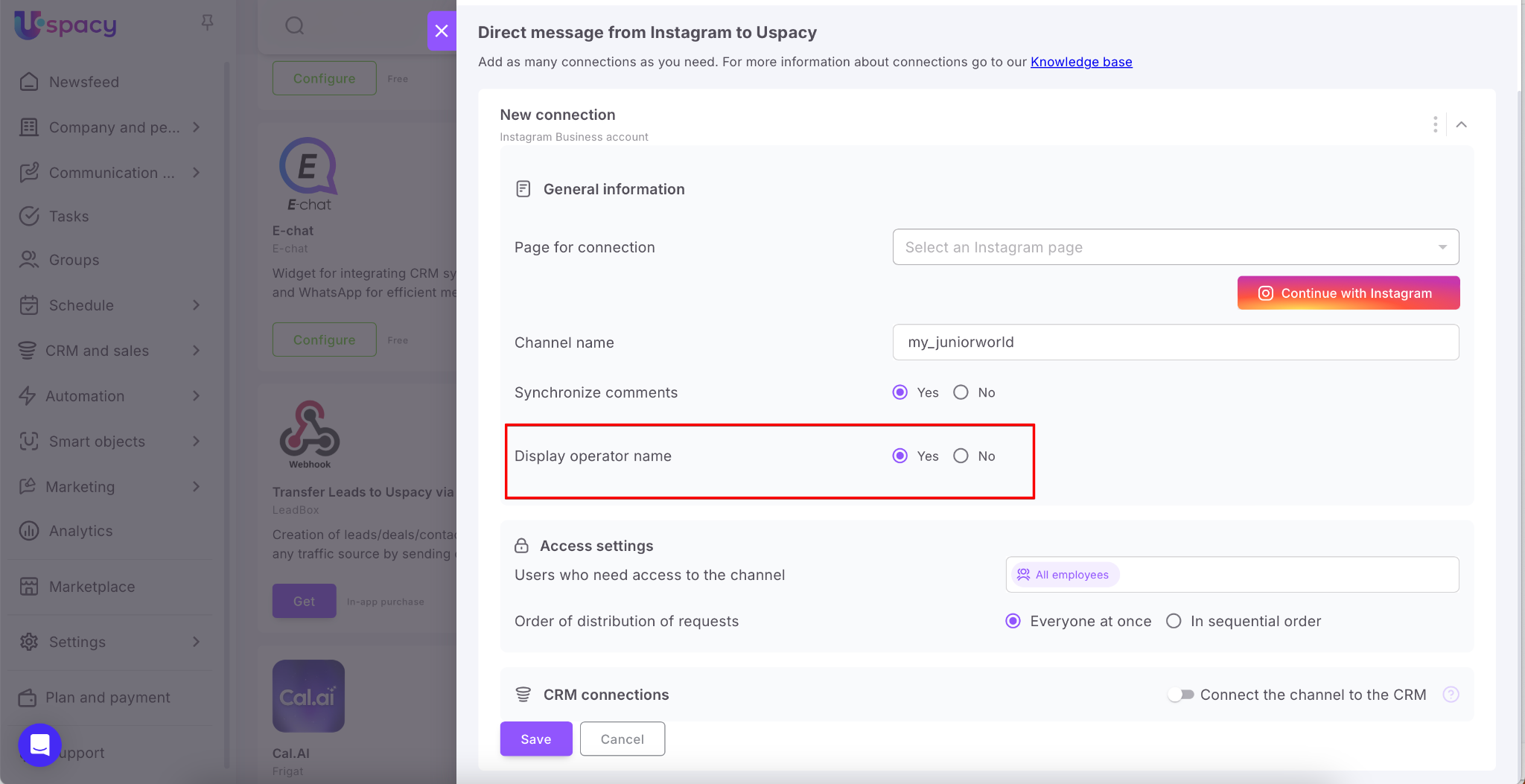
When everything is ready, click Save.
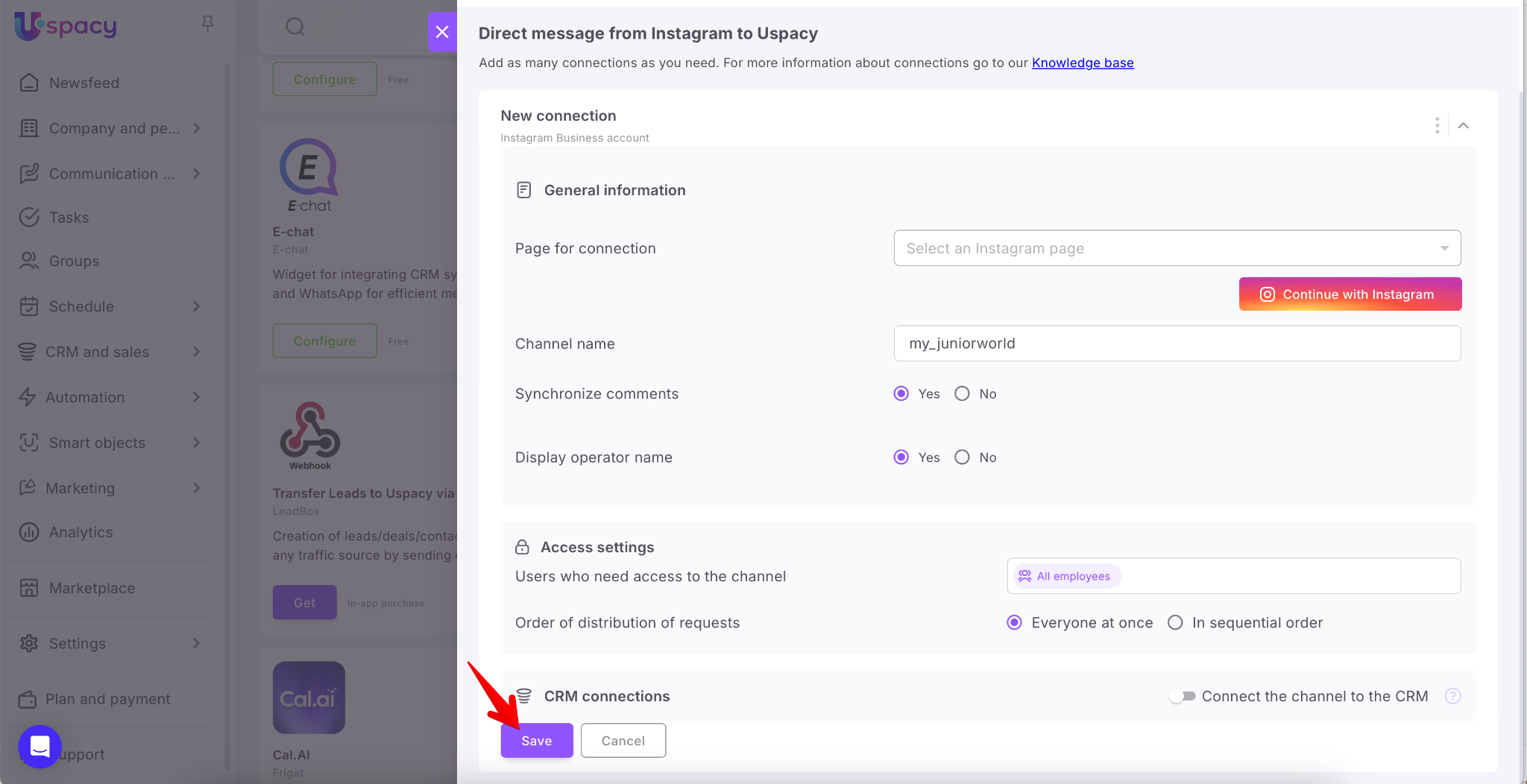
💡Additional parameters during connection setup include Access settings and CRM connections.
If you don’t need to specify which employees can work with chats from this channel, or how those chats should be distributed, you can leave the fields in this block unchanged.
Similarly, if you don’t need to link incoming chats to CRM elements, just leave the CRM connections block inactive.
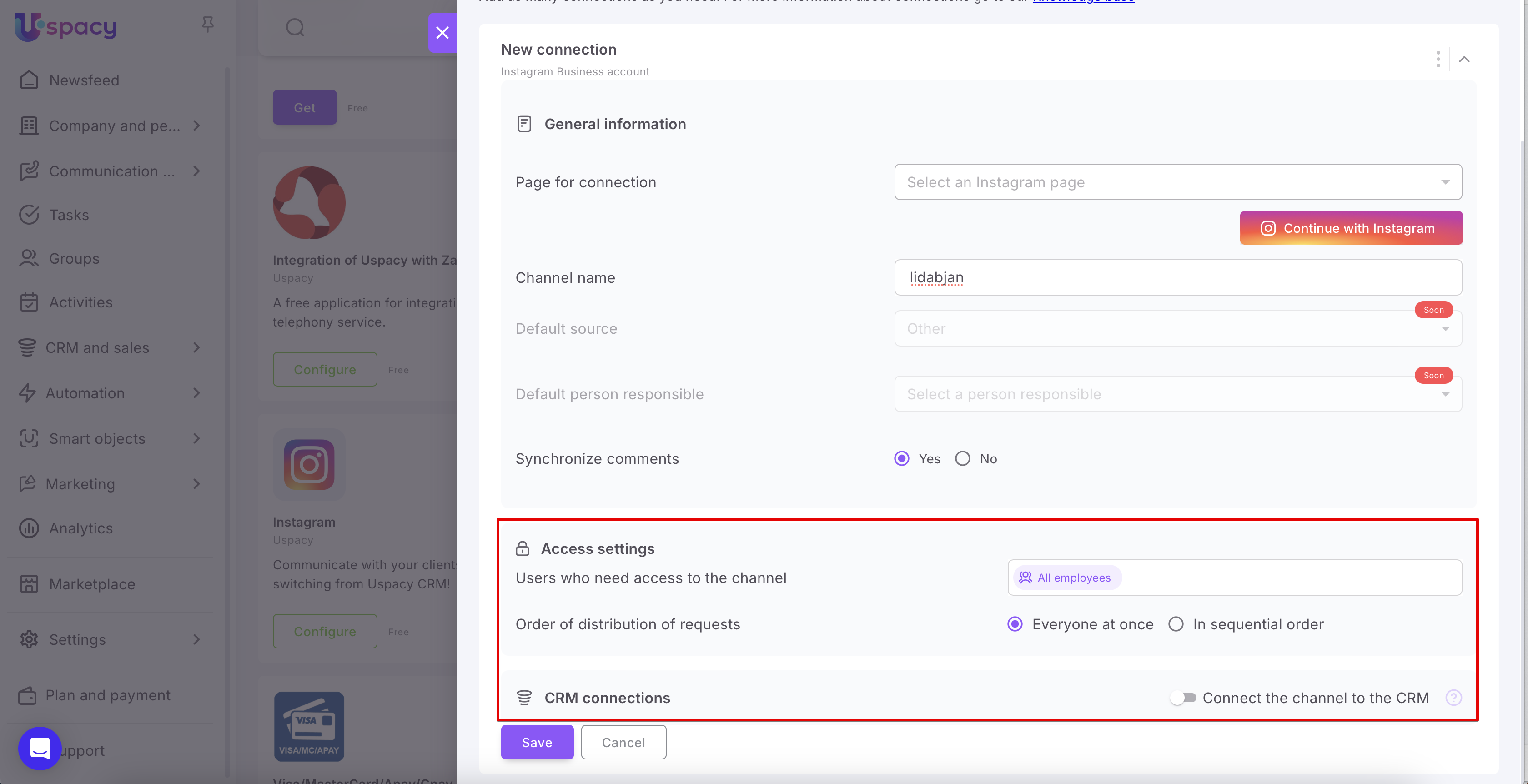
If you do need to configure these parameters, you can read how to do it and how they work in the following articles:
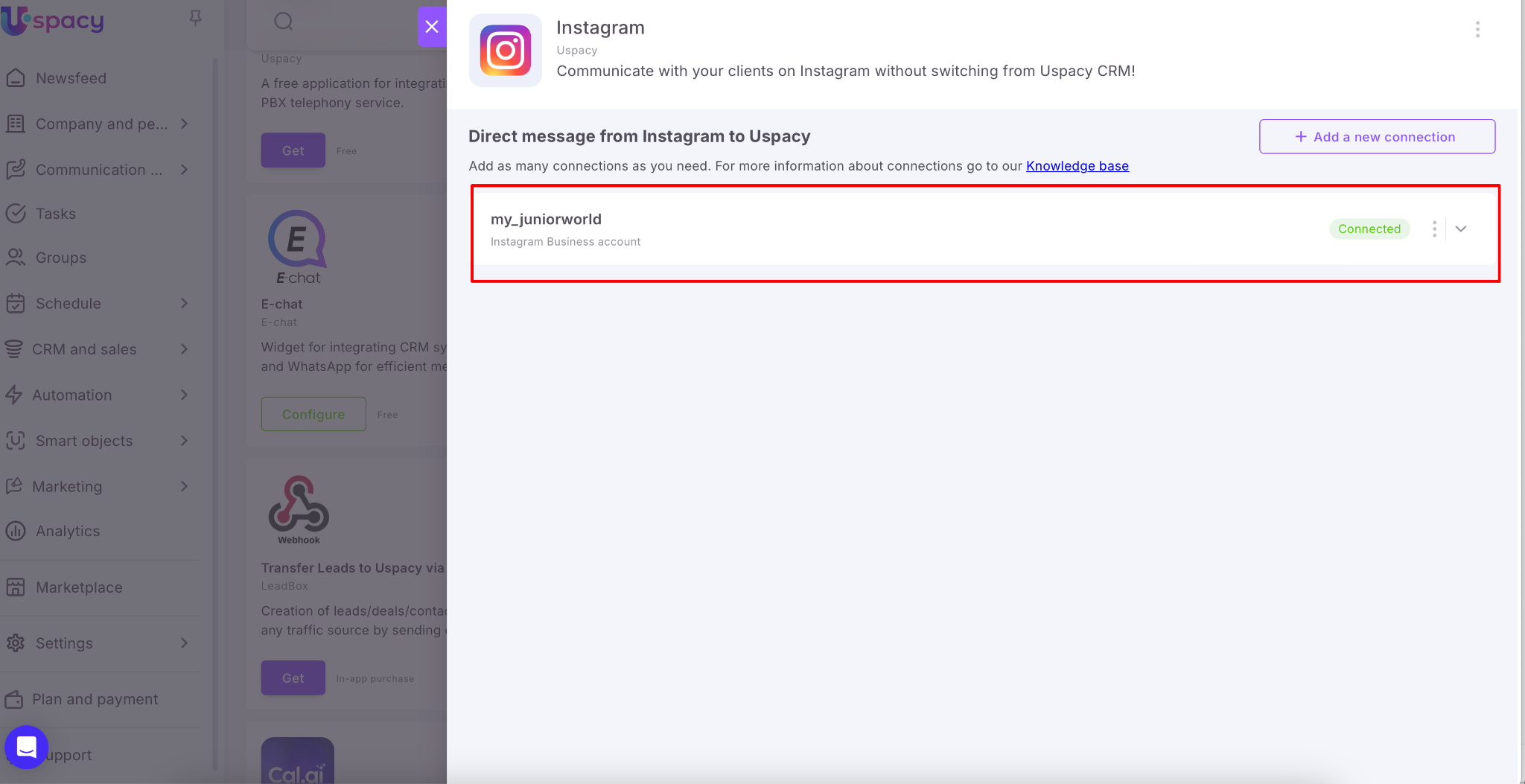
If it was connected successfully, it will be immediately displayed in the status and the connection will appear in the list.
How does it work?
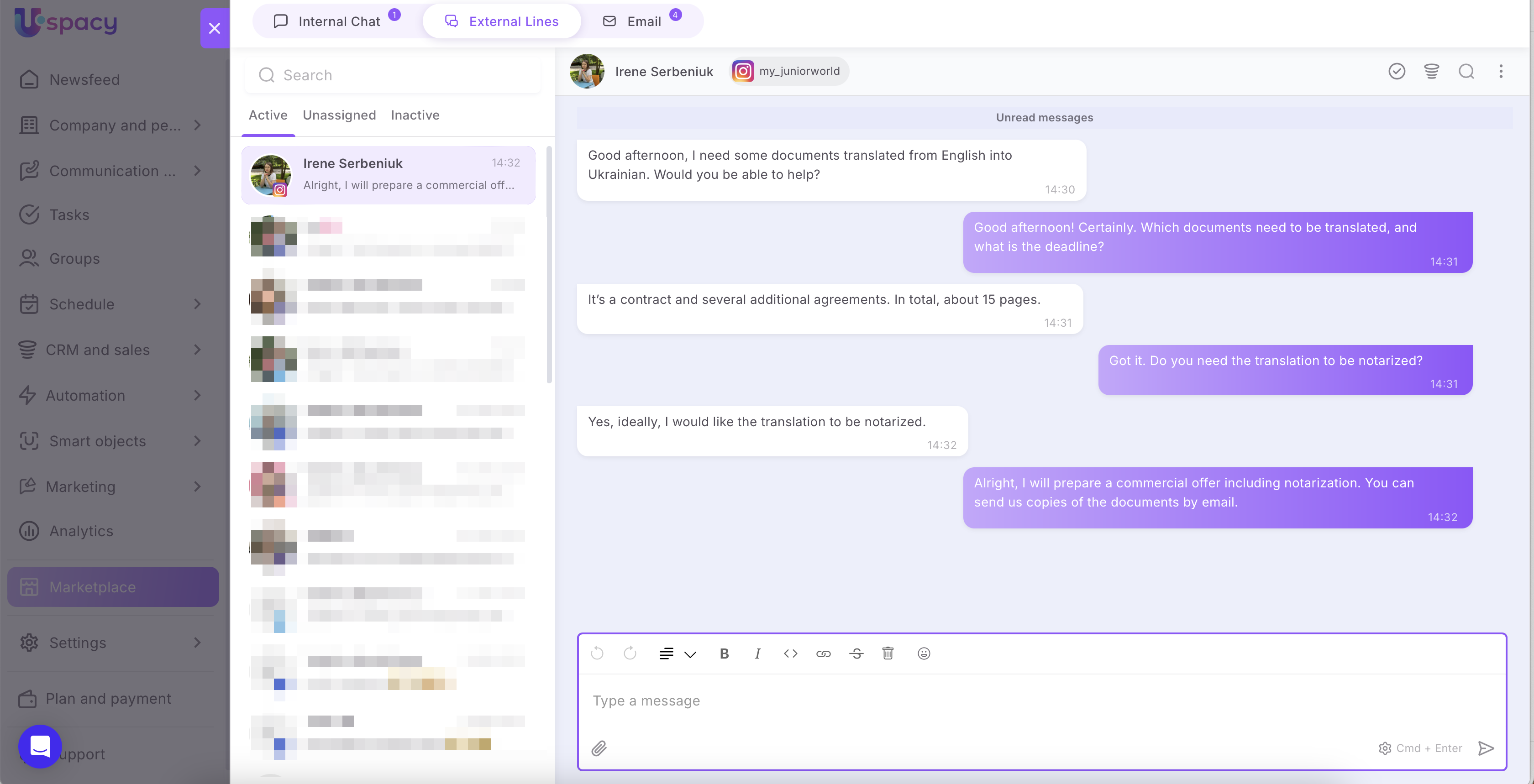
A client contacts you via your business Instagram account — for example, by leaving a comment under a post, a Reel, or sending a message in Direct. If the “Display operator name” option is enabled, the client will be able to see which representative from your company is responding.
🟣 Sometimes, Instagram might hide messages in Direct, as it classifies them as messages from an unknown account. So, clients will find your first reply in private messages in Direct under Requests, specifically in the Hidden requestsfolder.
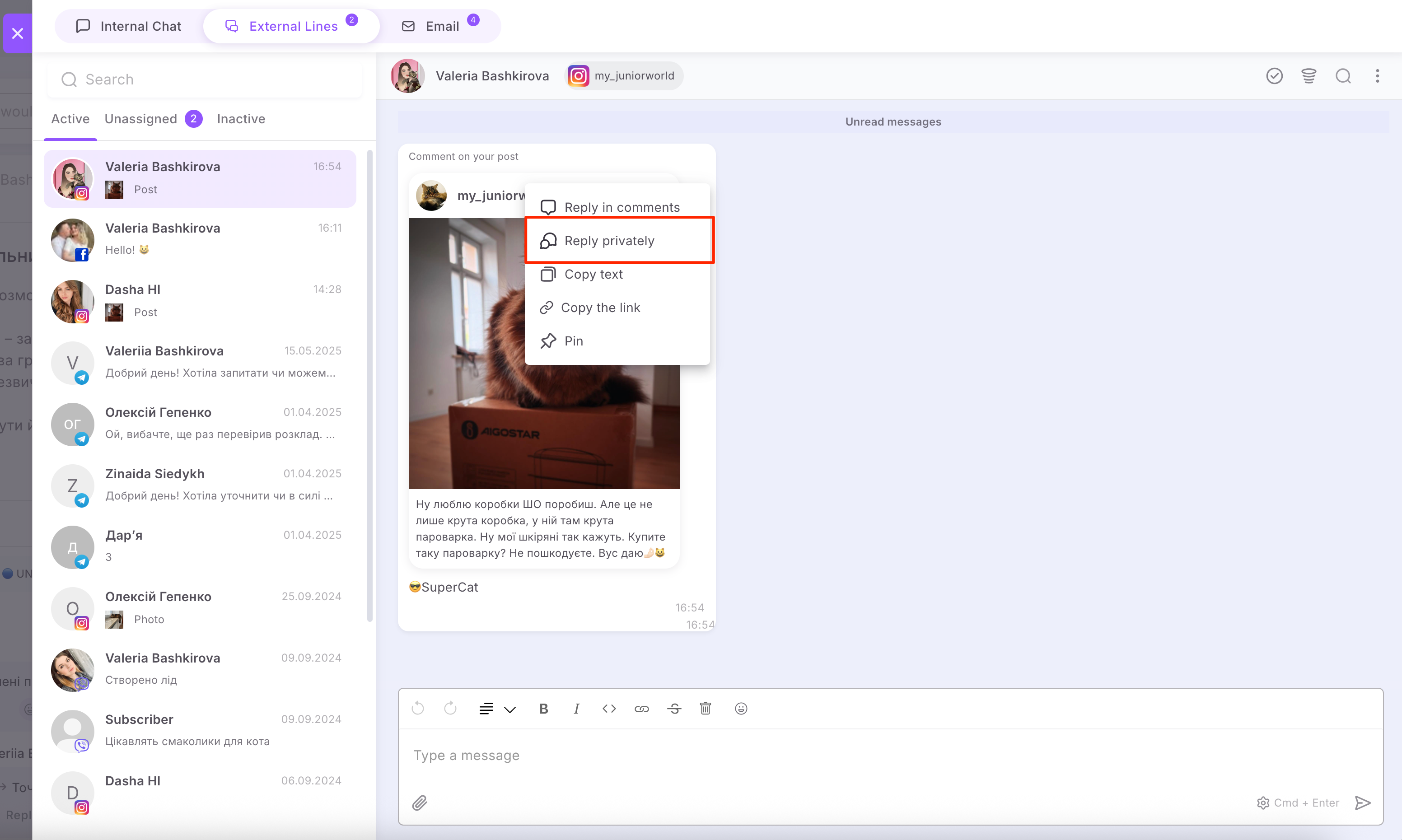
🟣 If someone leaves a comment on your post, Reels, or ad, you can reply:
📲In the comments
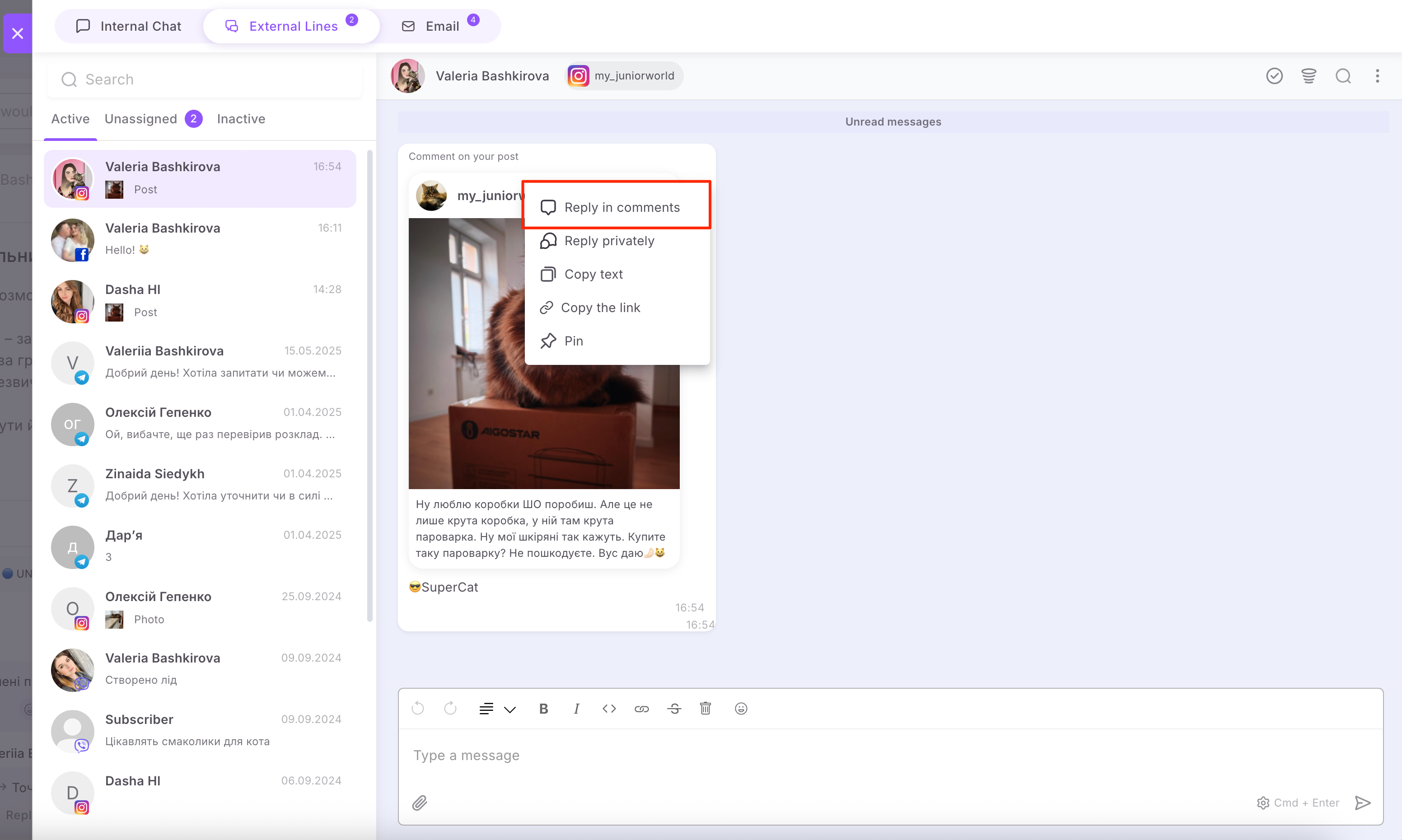
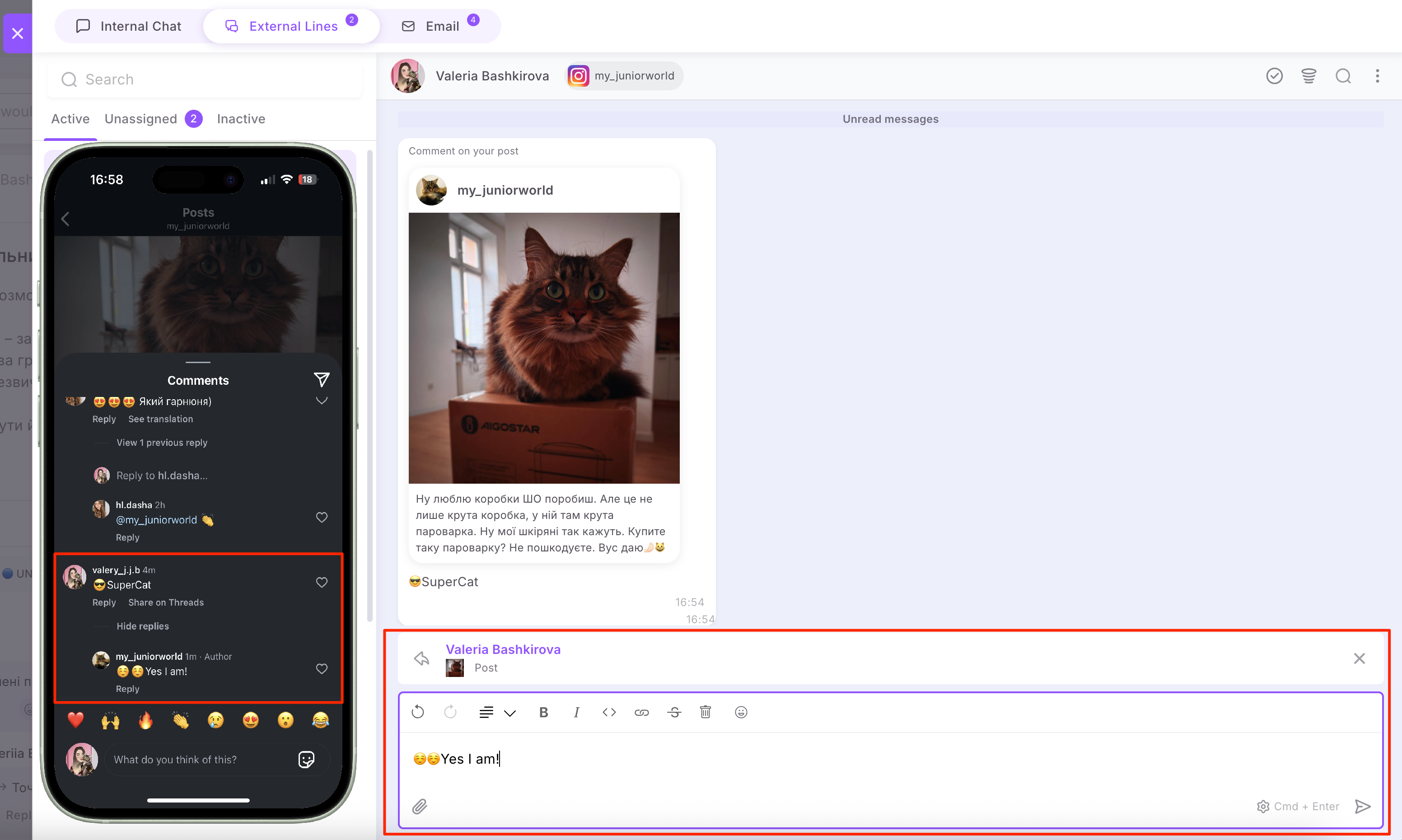
📲In the private messages (Direct). This can be convenient for managing chats when you don't yet have a dialog with the user. According to Meta's platform policy, you can't initiate private messages with them first. This option, however, provides that capability, so use it if needed.
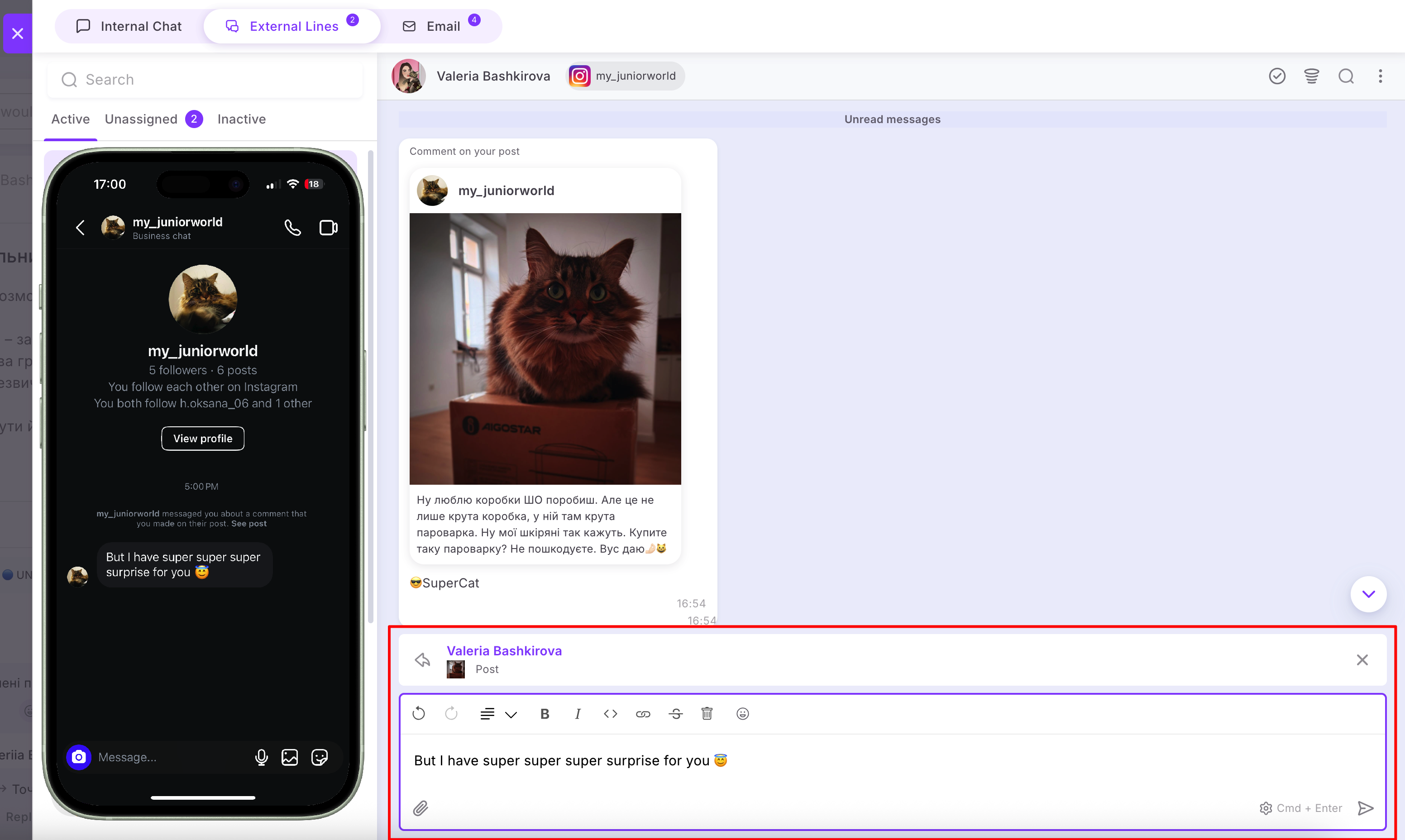
🟣 Also, if a conversation with a client started from a comment on a post or Reels, you can only send one message from the platform as your first private reply to them. After that, you need to wait for the client to reply. Once they do, you can send subsequent messages one by one, and all messages will be delivered in the order they were sent.
What to do if you ignore these tips? The client will receive your first message. As soon as they reply, all the messages you sent afterward will be received.
Their messages will be redirected to External channels and you can easily communicate with them directly in your Space chat.
🔍 You can read more about how to work with chats in external lines in the article "Work with dialogs in External Lines".
Time limits for replies
After a customer sends a private message in Direct an operator must reply within 24 hours. If the reply is sent on time, the conversation can continue manually within an extended 7-day window.
These 7 days are counted not from the operator’s reply, but from the customer’s most recent private message. Each new message from the customer in Direct restarts the countdown.
In other words:
🟣 If more than 7 days have passed since the customer’s latest private message, a reply sent from the Space will not be delivered.
🟣 A comment under a Post, Reel, or Ad does not open or renew either the 24-hour or the 7-day window.
🟣 If the customer leaves a comment after the allowed period has expired, you will not be able to send them a private message from the Space. To resume the conversation, the customer must send a new private message in Direct.
🟣 After the customer sends a new private message, a new chat with them will be created in the Space, and the reply window will start again.
For example, if a customer sends a message on Monday at 10:00 AM, the operator should reply by Tuesday at 10:00 AM. After a timely reply, the conversation can continue manually until the following Monday at 10:00 AM. If the customer sends another message during this period, the countdown will restart from that new message. A comment under a post does not affect the countdown.
💡 In some chats, a message may still be delivered after the 7-day period has ended. This can happen because Meta may determine the time of the user’s last activity differently in some cases or allow messages to be sent outside the standard window. These situations are rare and depend on the platform’s internal algorithms, which Uspacy cannot control.
Settings update
An Update connection button has been added to the Instagram app settings.
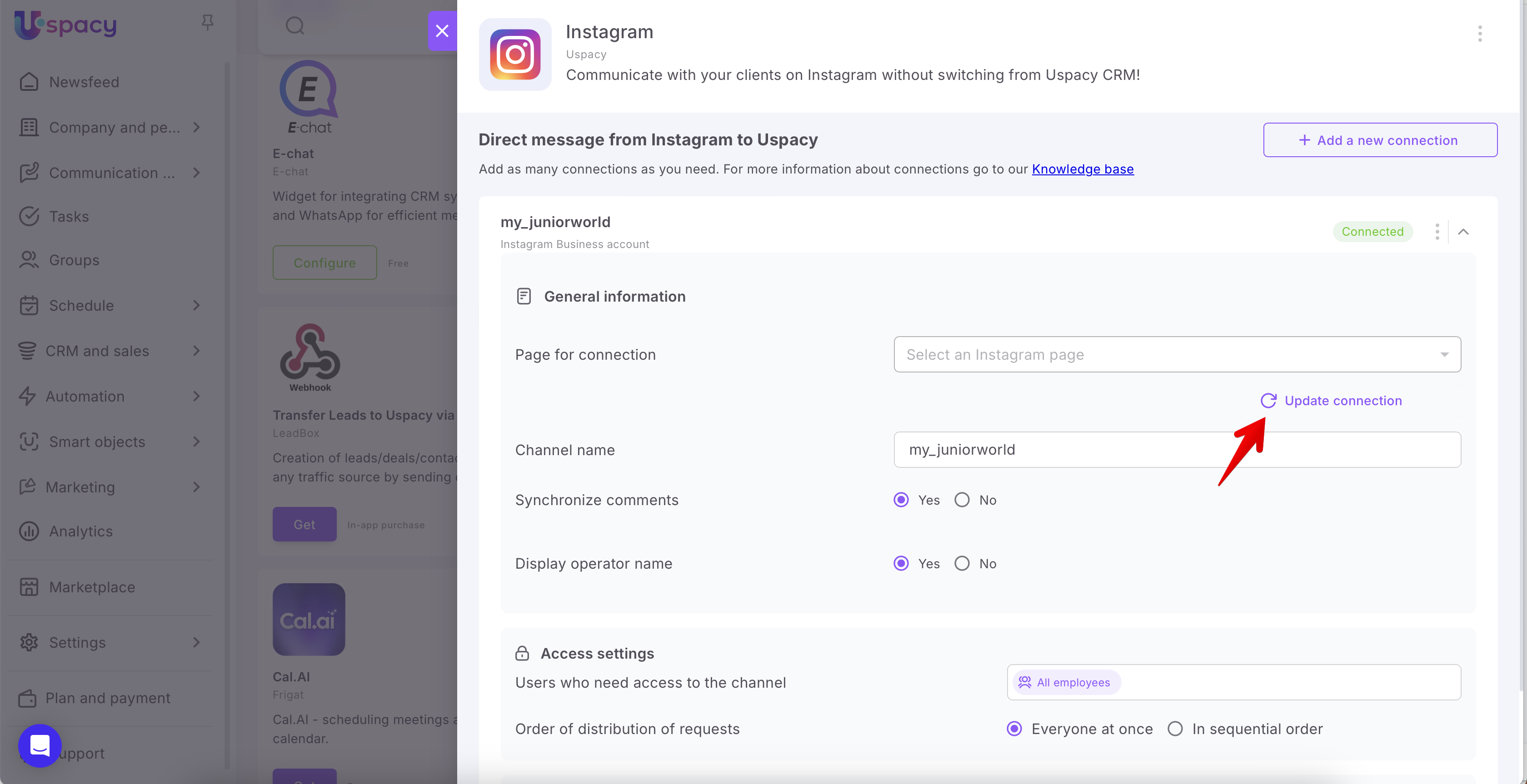
After clicking it, you will need to reconnect. This will update the necessary permissions for the app and the access tokens.
For everything to work correctly after updating the settings, you need to activate two-factor authentication for the account that manages your Facebook business page (if you didn’t already do this during the connection process).
You also need to activate two-factor authentication for your Instagram profile.
If you have additional questions or you need to contact the support, send a request to this email [email protected]
Created: May 22, 2024 / Updated: December 1, 2025