With the help of External Lines, you can communicate with clients directly in your Uspacy while they write to you in third-party messengers, for example, in Viber.
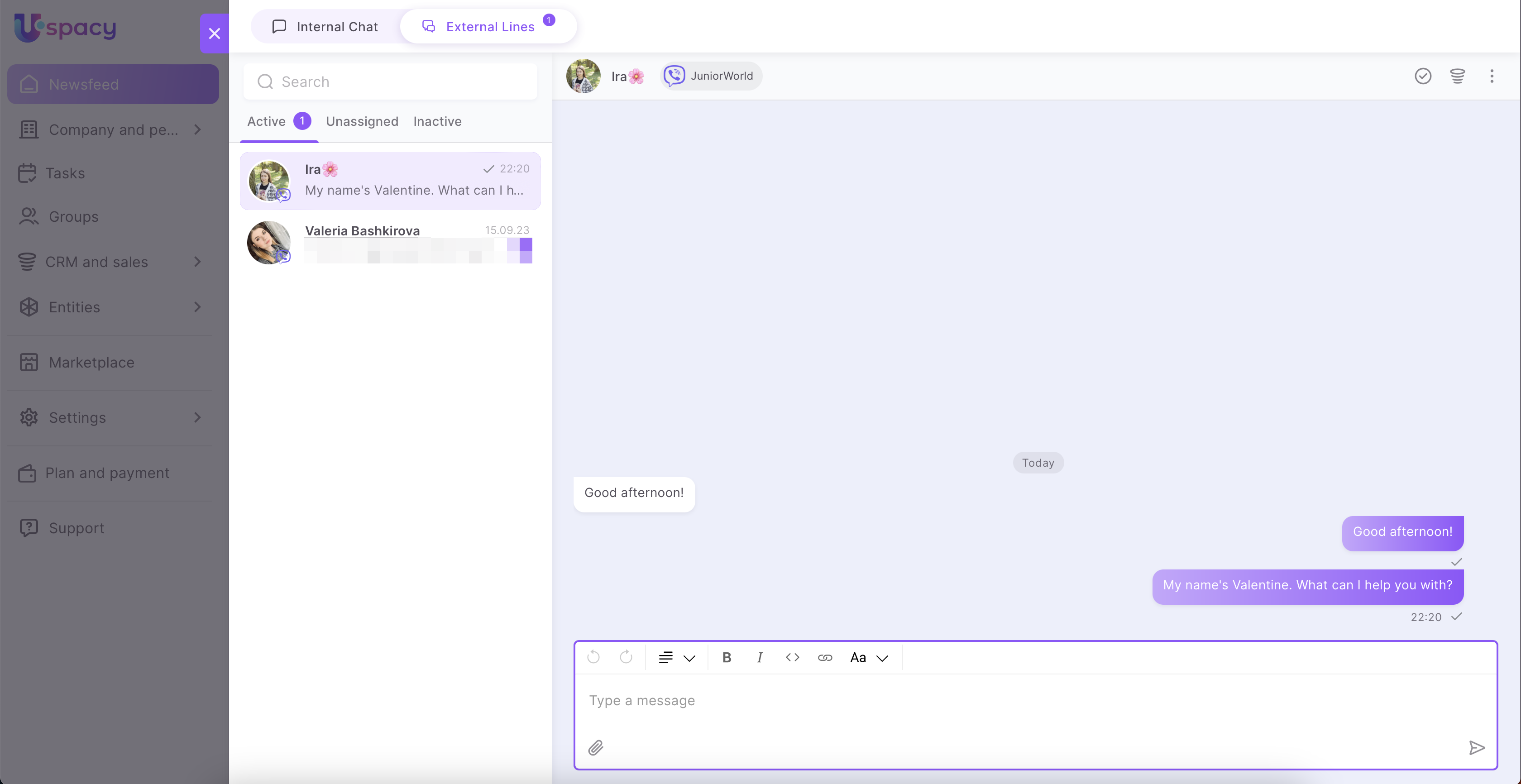
To do this, it is enough to connect and configure the integration, which will ensure that messages are sent to Space.
Features of work
At Uspacy, the functionality of external lines is implemented through integrations with specialized services.
In the Marketplace section there is a free application, which, after its installation and configuration, will allow you to work with client requests in the Uspacy chat.
💡To connect Viber to your Space you need a special bot.
Therefore, for correct work, you will first need to configure Viber settings. Namely, create a bot and get the Auth Token (private token) parameter.
If you already have your bot, you can easily configure it to work in your Uspacy. Just use the Token to connect to the Space.
About everything below ⬇️
Create a new one or customize an existing Viber bot
Since February 2024, Viber has introduced a new commercial model for creating and using chatbots. You can read more about the conditions in this article.
If you created a bot before February 2024, you can use it under the terms of the previous commercial model. For more details, go to the following article.
Let’s consider the these situations:
If you already have a Viber bot
You can use it and connect it to Uspacy Space or create a new one, but according to the terms of a new commercial model from Viber for chatbots.
First, you need to go to the Viber Admin Panel website. Enter the phone number to which your account is registered in this messenger and log in.

Viber will send you a message with an authorization confirmation code.

You need to enter it and click the button to continue.

As a result, you will go to the administrative control panel - on the page where you can directly manage the settings of existing chatbots or submit applications for the creation of new ones.

🟣 Getting the Auth Token parameter and managing the settings of an existing bot
To do this, you must first go to the Info tab. In the Token field, you will find this parameter and can use it to connect to Space.

If you need to change the data in the fields that you filled out when creating the bot, you can do it through the Viber mobile application. To edit, scan the QR code on the page.

The account of your bot in the mobile application will open. Here, click on Change data. Edit the required fields and click the Done button.

☝🏻 Please note that your bot can be found by searching in Viber, activate this option, that is, publish your bot.

🟣 Sending a request to create a new bot
To do this, click Request Bot Account.

Then fill out the form and click Submit. The Viber support team will then review your request and contact you to discuss the next steps.

💡When your new chatbot is created, you can also go to its settings and find the Auth Token option to connect to Space.
If you don't have any Viber bot yet
You will have to create a new one in accordance with the commercial model from February 2024. When you try to log in to the Viber Admin Panel site using the phone number to which your account is registered in this messenger, you will receive the following warning.
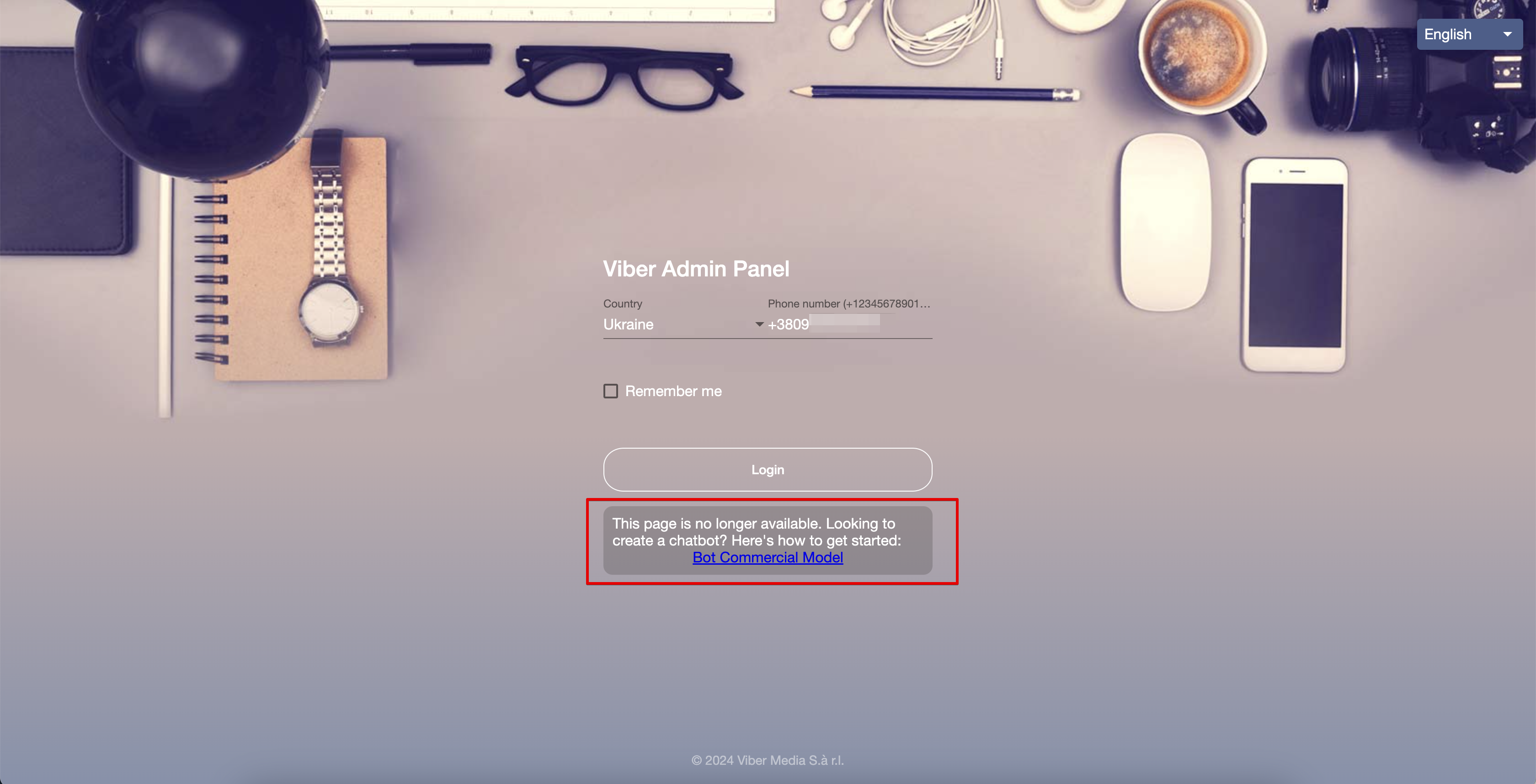
So click on the Bot Commercial Model link. Here you can learn more about new rules and send a request to Viber support to create a bot.
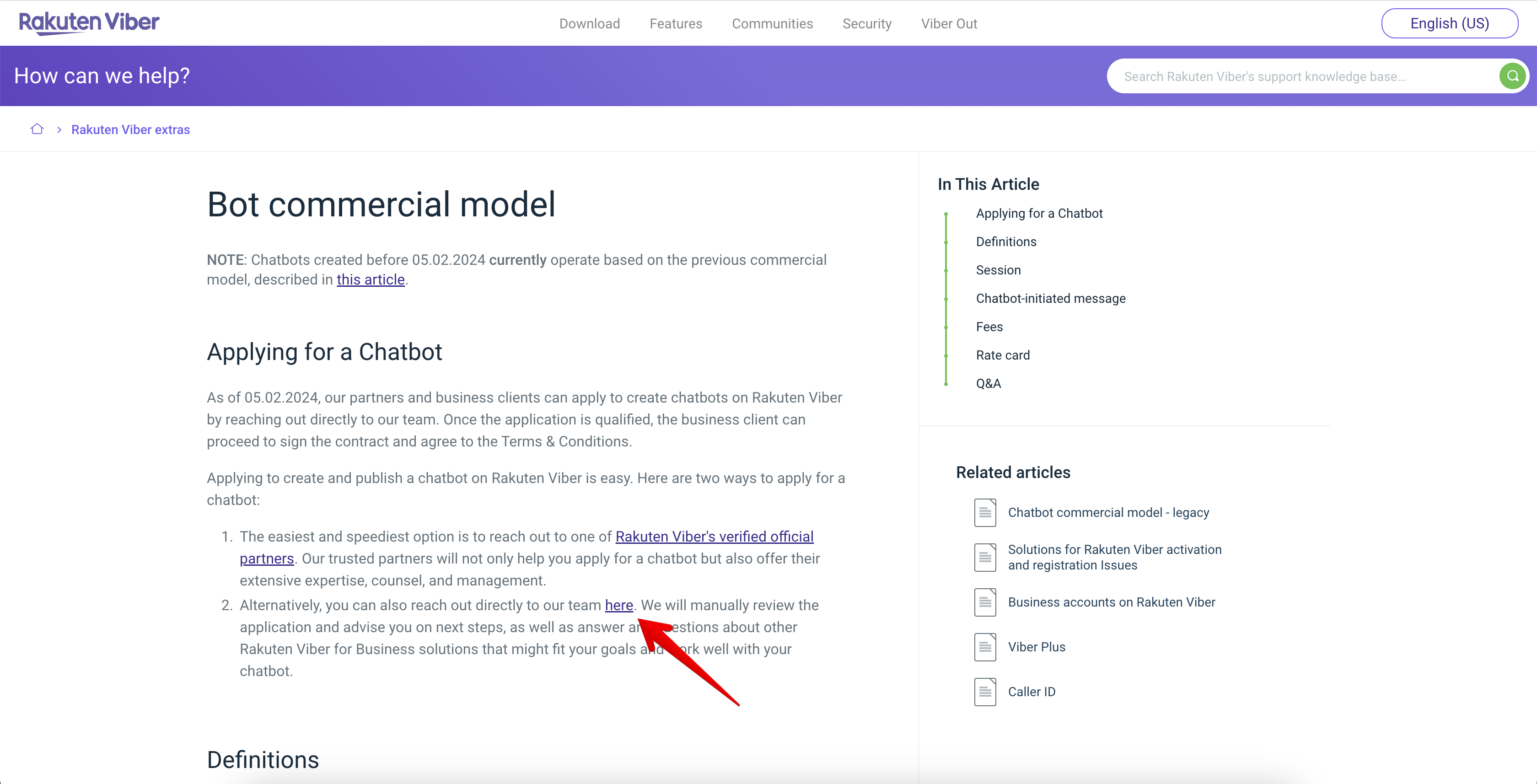
The Viber team will review your application and contact you to discuss next steps.
💡When your new chatbot is created, you can also go to its settings and find the Auth Token option to connect to Space.
Connecting the Viber bot to Space
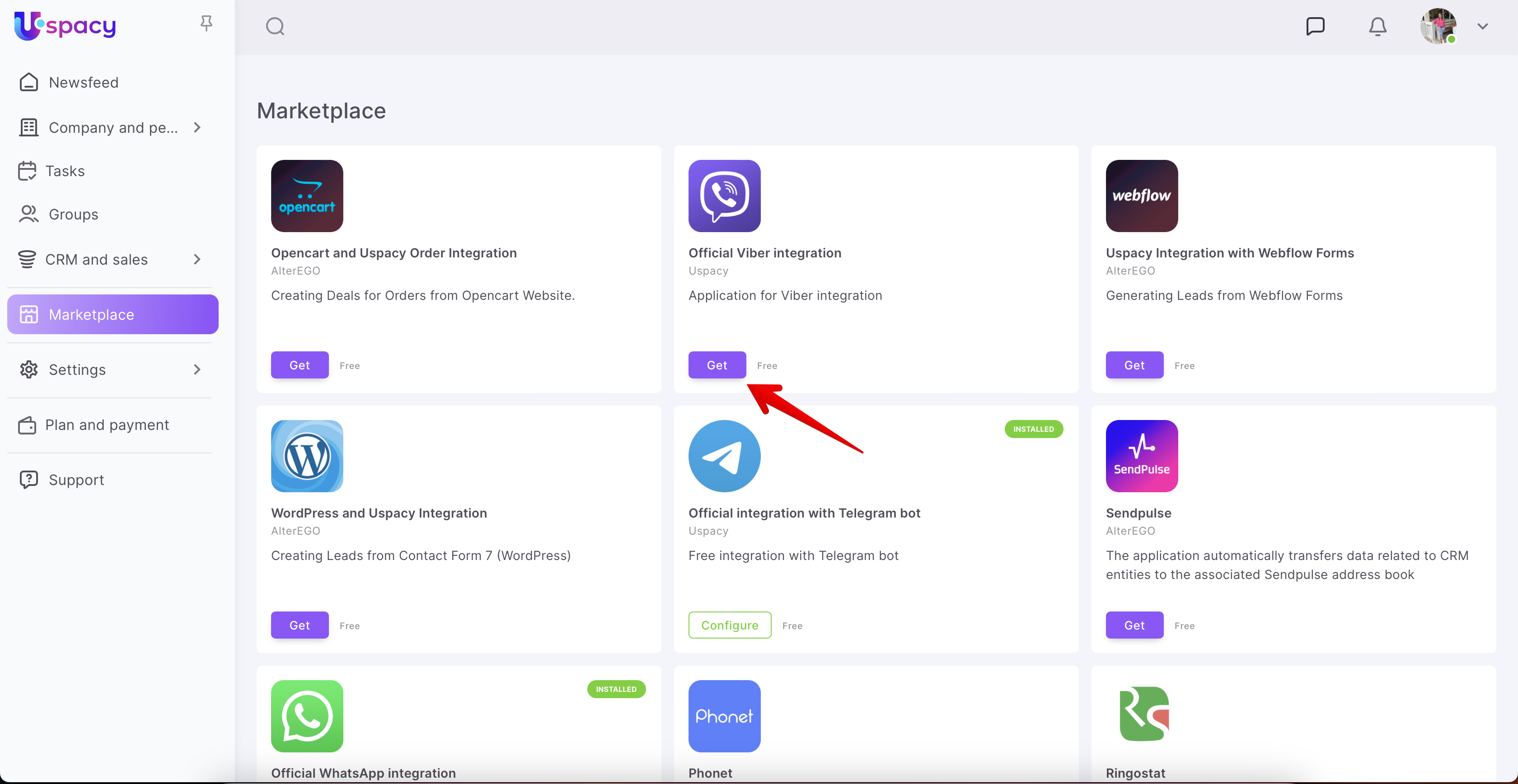
First, you need to install a free application to integrate Viber into your Space. To do this, go to the Marketplace section and click on the Get button.
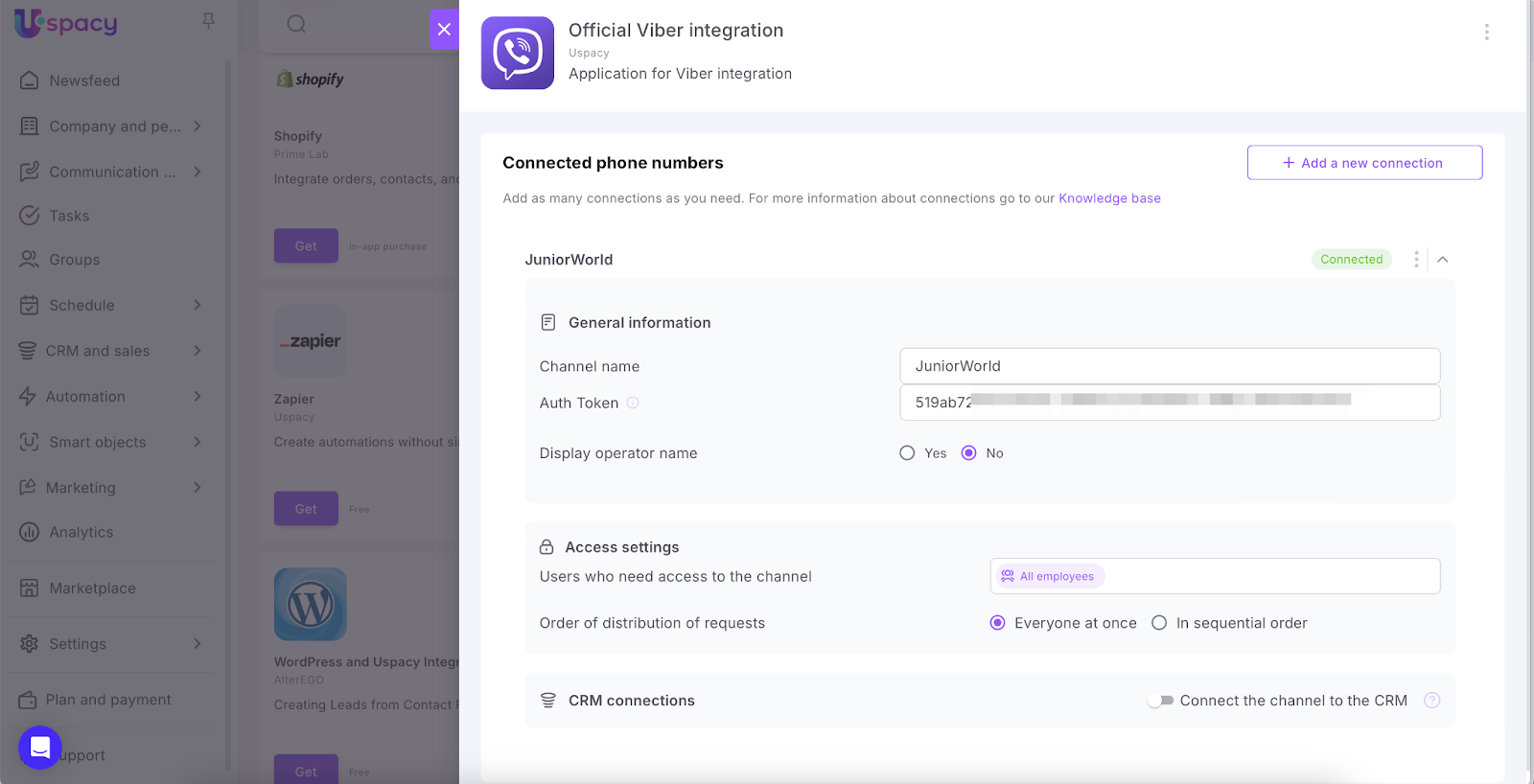
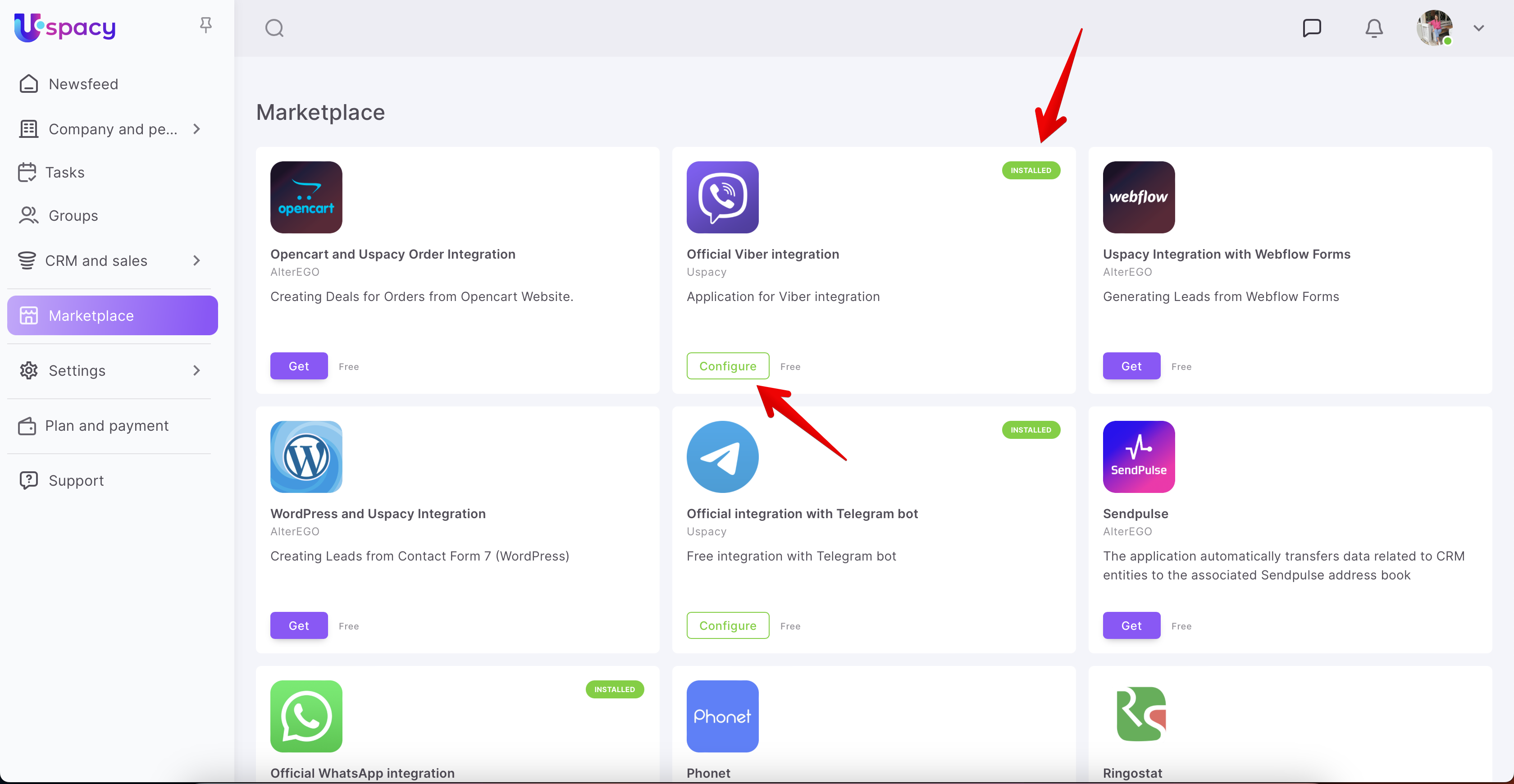
After installing the application, go to its settings.
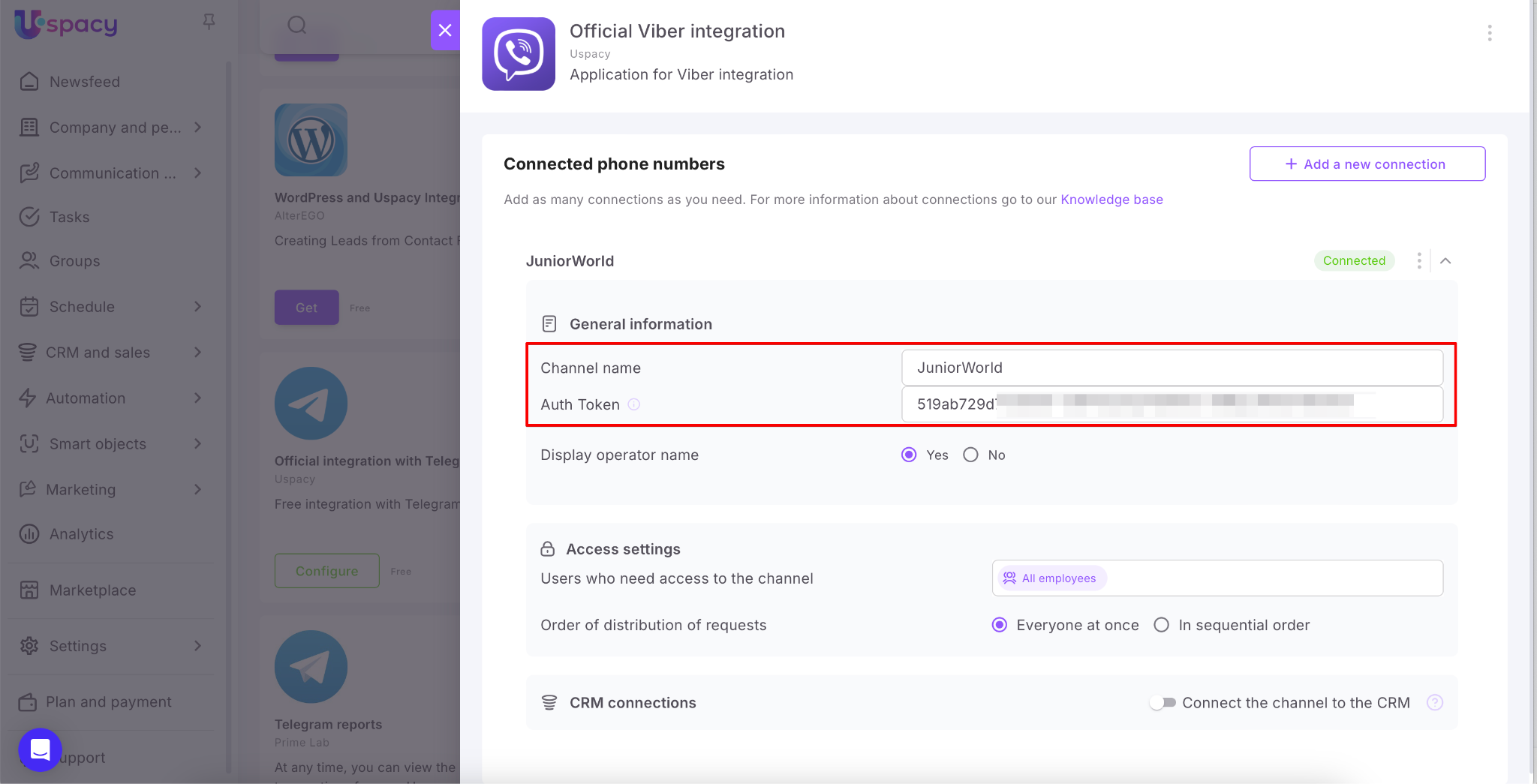
In order for everything to work correctly, fill out the fields with the necessary parameters:
- The name of the channel can be any you like. For example, the same as the name of the bot that you specified when creating it.
- Auth Token – private token of your Viber bot (new or existing).
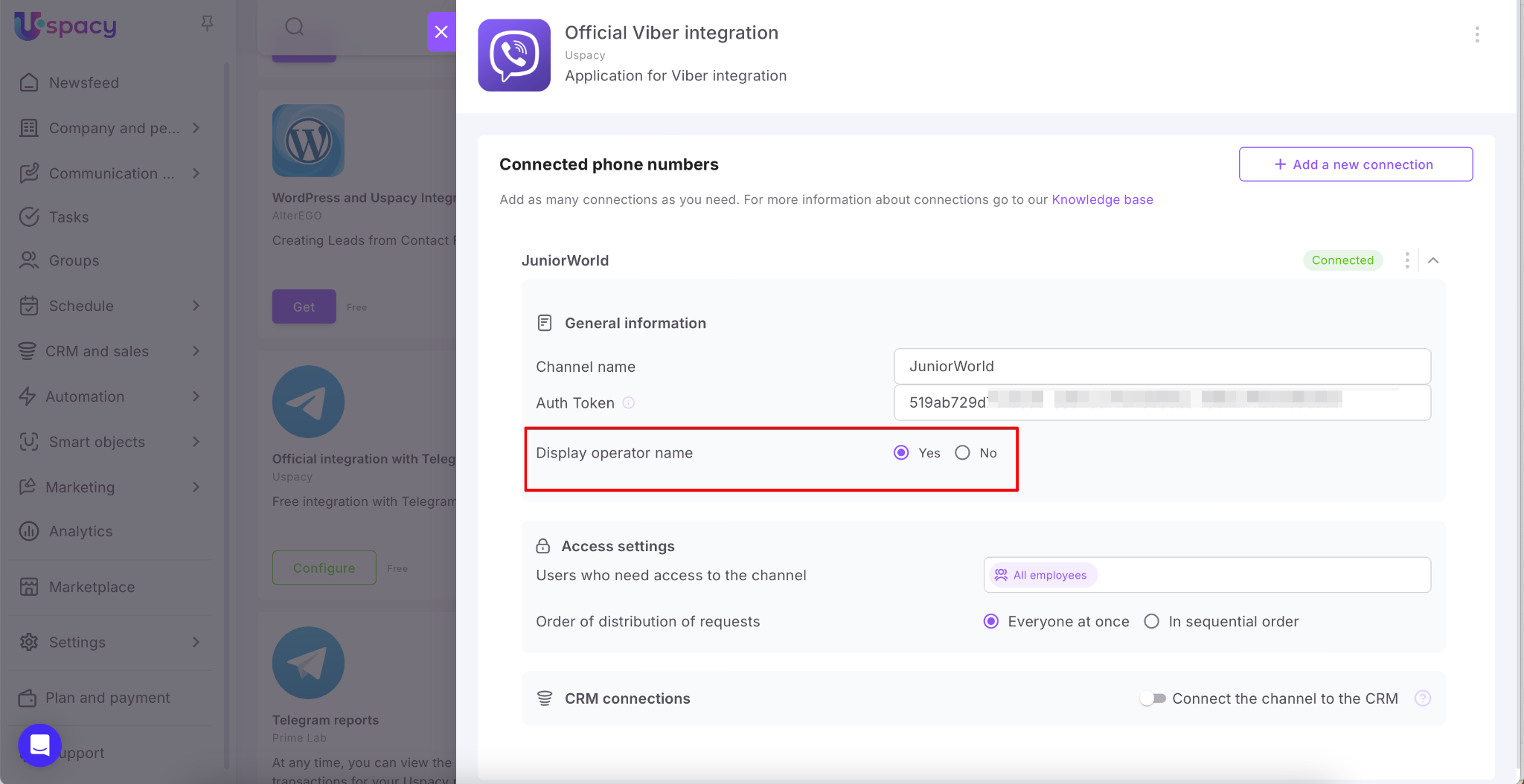
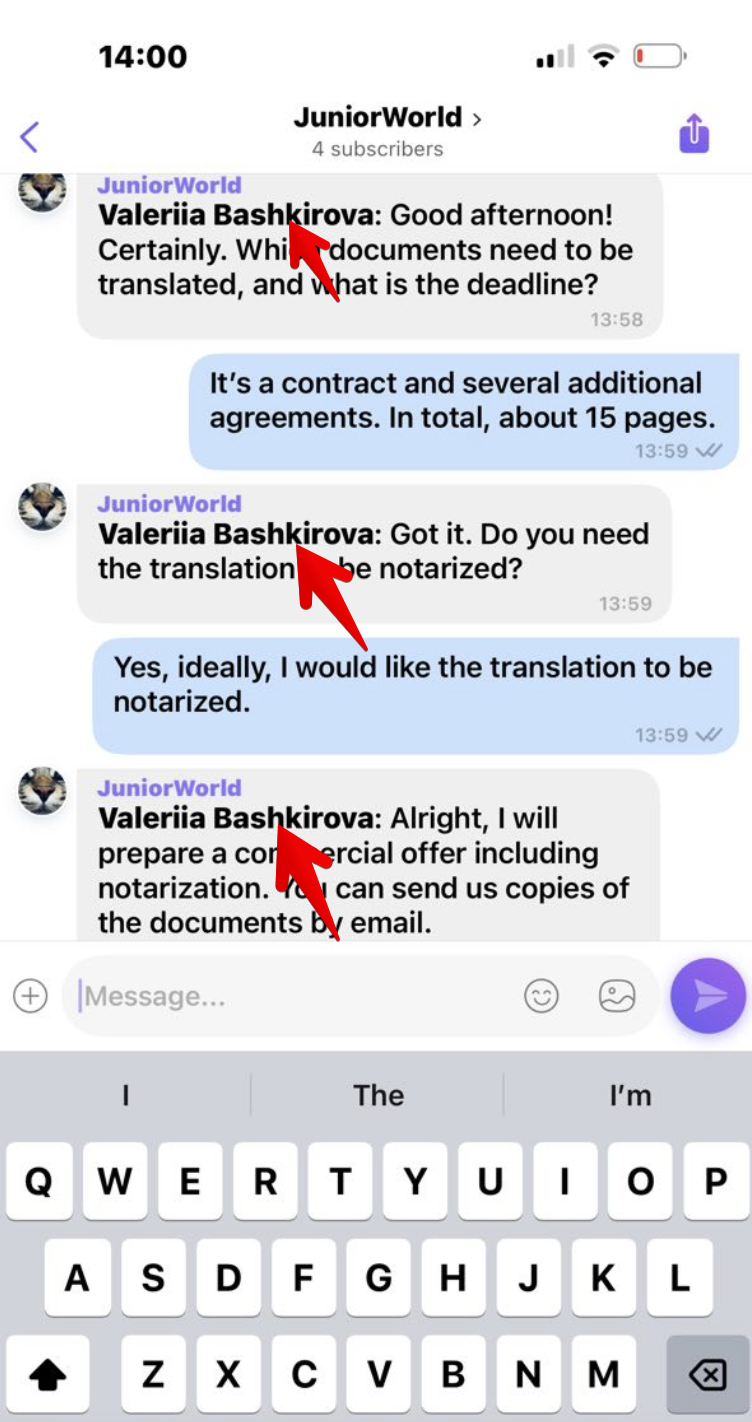
You can also enable the option to Display the operator's name. This way, clients will be able to see which manager is responding to them.
And click Save.
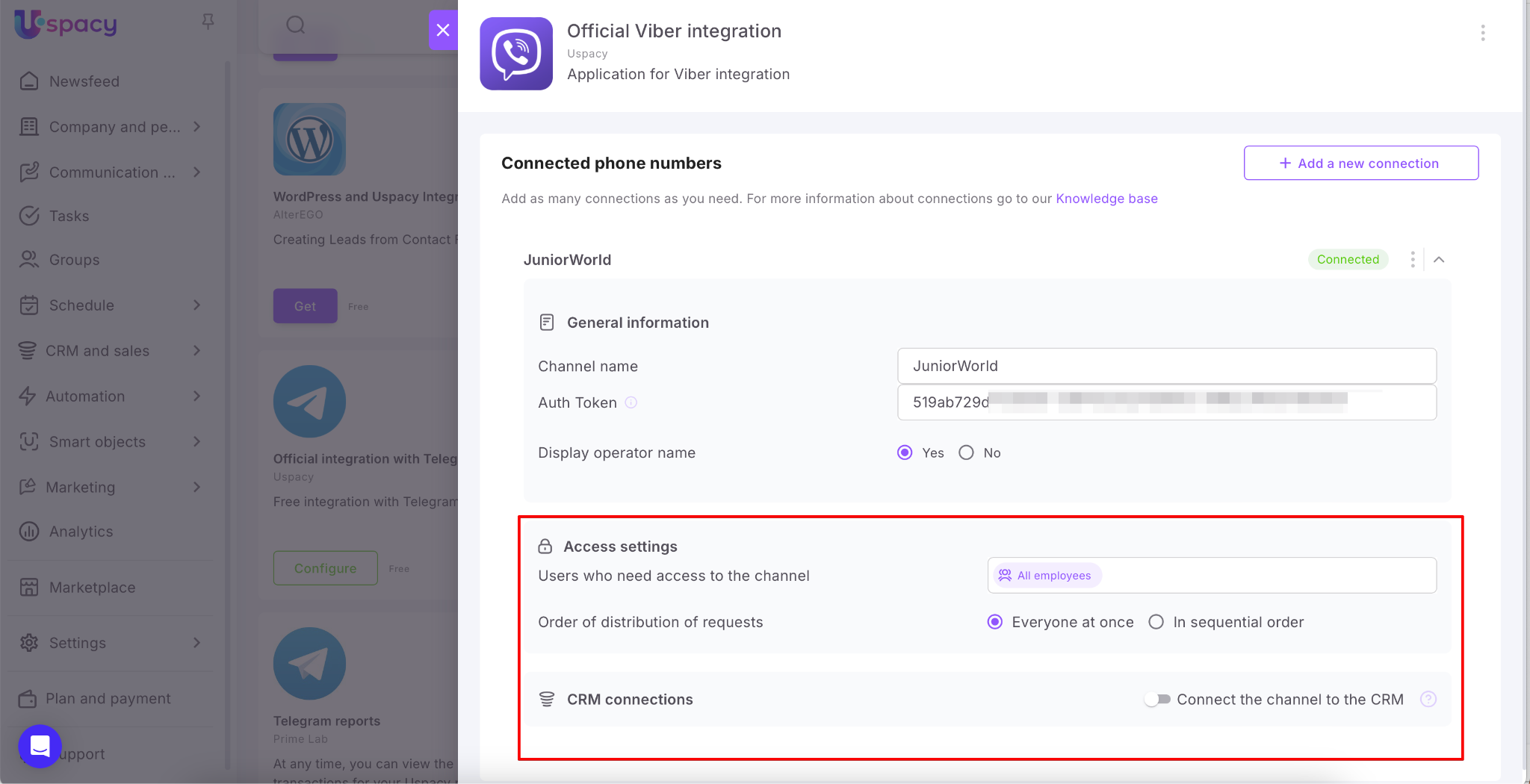
💡Additional parameters during connection setup include Access settings and CRM connections.
If you don’t need to specify which employees can work with chats from this channel, or how those chats should be distributed, you can leave the fields in this block unchanged.
Similarly, if you don’t need to link incoming chats to CRM elements, just leave the CRM connections block inactive.
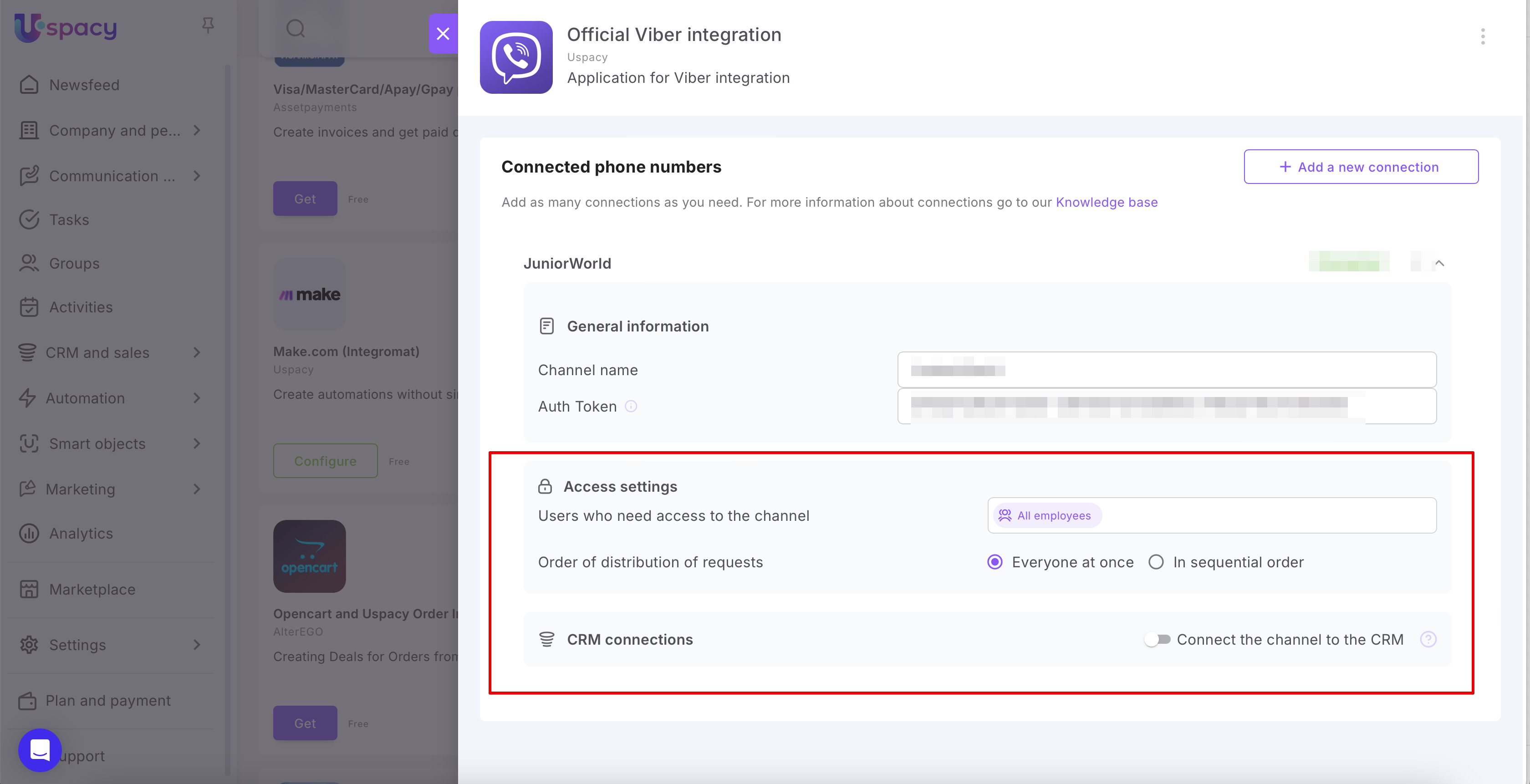
If you do need to configure these parameters, you can read how to do it and how they work in the following articles:
If all the steps were successful, it would be displayed in the status at once.
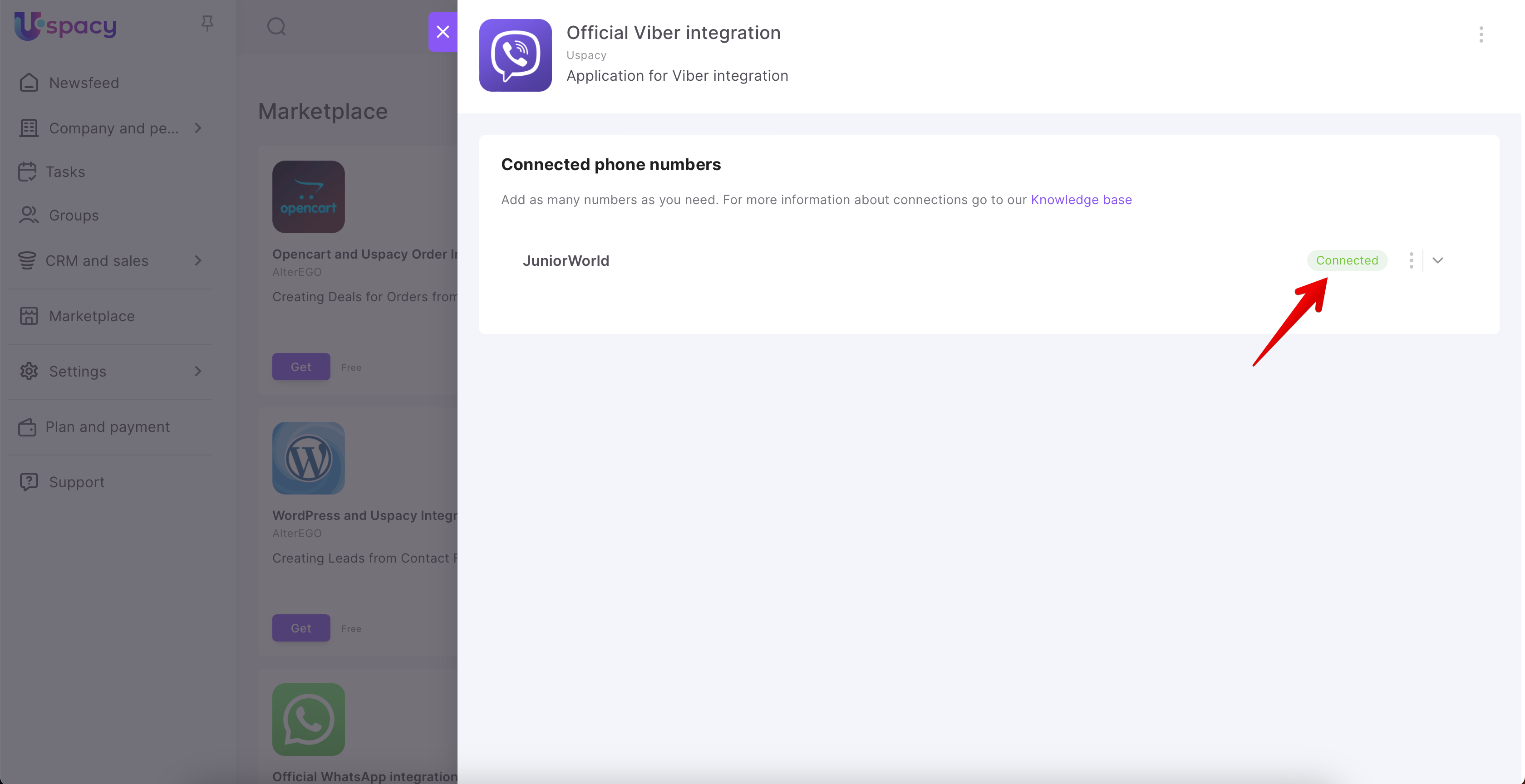
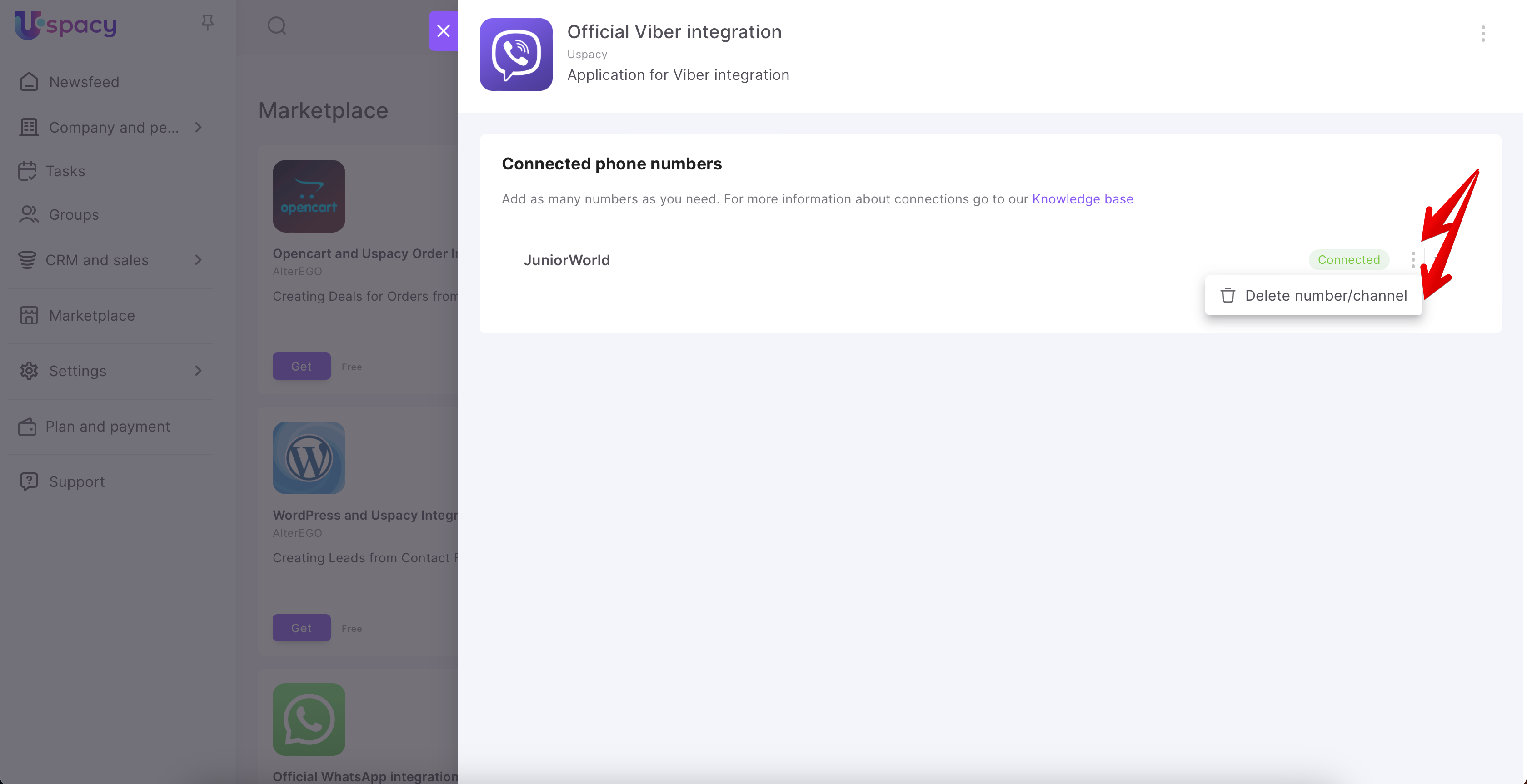
If necessary, you can either Add a new connection or Delete a number/channel that has already been configured.
How does it work?
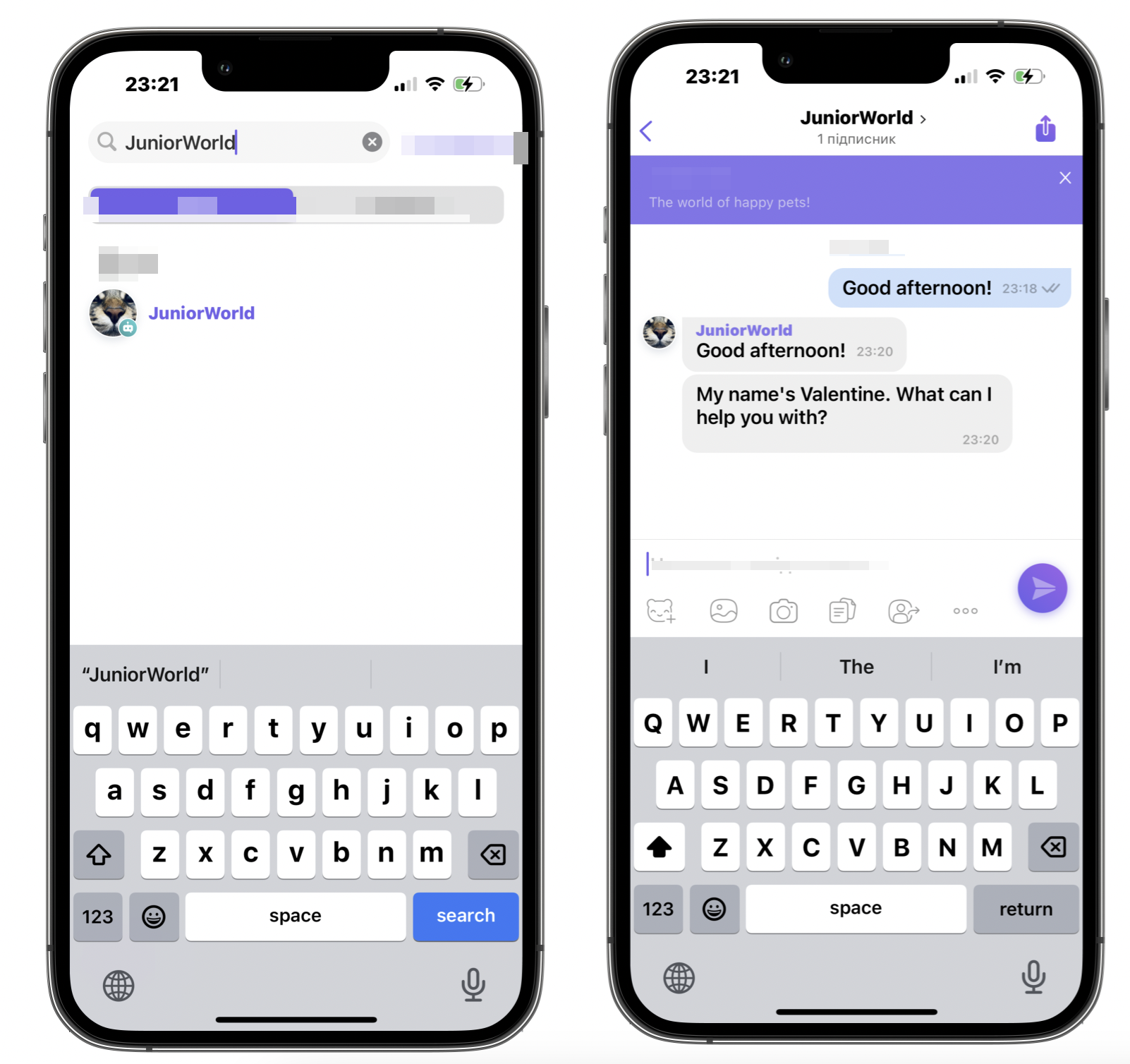
The client can find your Viber bot using the name search or follow a direct link. When the bot has been found, the client can start writing to it.
🖇When chatting, you can also send images, gifs, videos and files in formats supported by Viber itself.
💡If the “Display operator name” option is enabled, the client will be able to see who from your company is communicating with them.
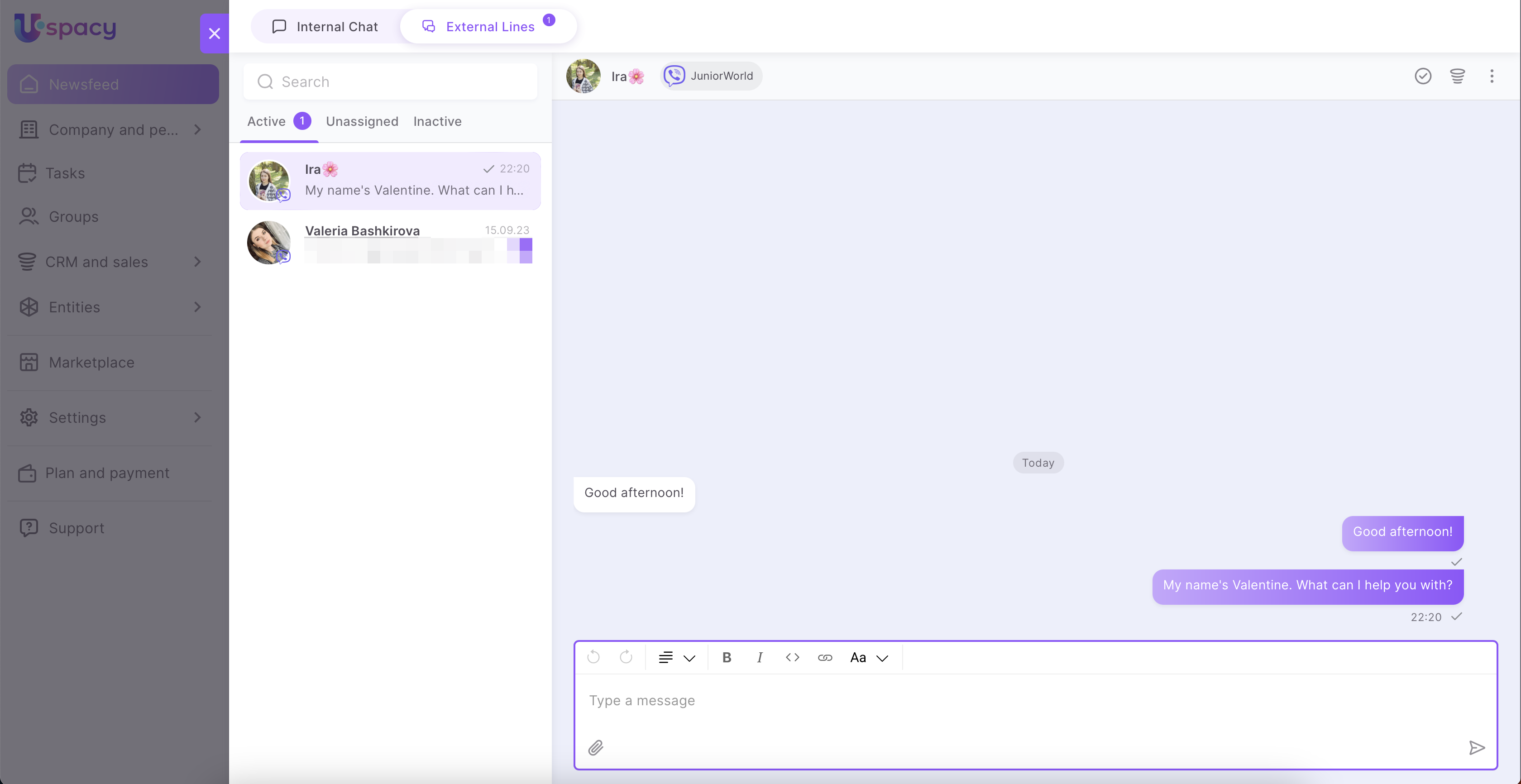
You will receive the client’s message in the External Lines and you will be able to communicate with him/her directly in the chat of your Space.
🔍 You can read more about how to work with chats in external lines in the following article.
If you have additional questions or you need to contact the support, send a request to this email [email protected]
Created: September 5, 2023 / Updated: September 2, 2025