Conversion is the processing of leads, as a result of which they can be turned into other, basic elements of CRM, for further work with them. In this way, you form a client base, taking into account real buyers, in order to sell your products and services to them.
How does conversion work?
In CRM, you work with the lead according to certain stages. Finish processing is the logical end of work on it. And also the beginning of conversion of the lead to other elements of CRM.
You can finish processing of the lead using the scale of stages.

So, as a result, you need to select how to mark the lead in your base.

Qualified lead will turn into your client, to whom you can sell a product or service.
Deals, contacts and companies can be created based on such a lead. You just need to decide which elements and in which combinations you need them.

Unqualified lead will not become your client and will not be added to your clients base. For such a lead, you can outline the reason why it happened. For example, there was an untargeted appeal, incorrect contact details, no response for 3 days, selected a competitor or something else.

💡 You can also add your reasons. In the Settings - Sections - CRM - Leads section, in the Funnels settings tab, for the stage that defines the lead as Unqualified, click the Add button.
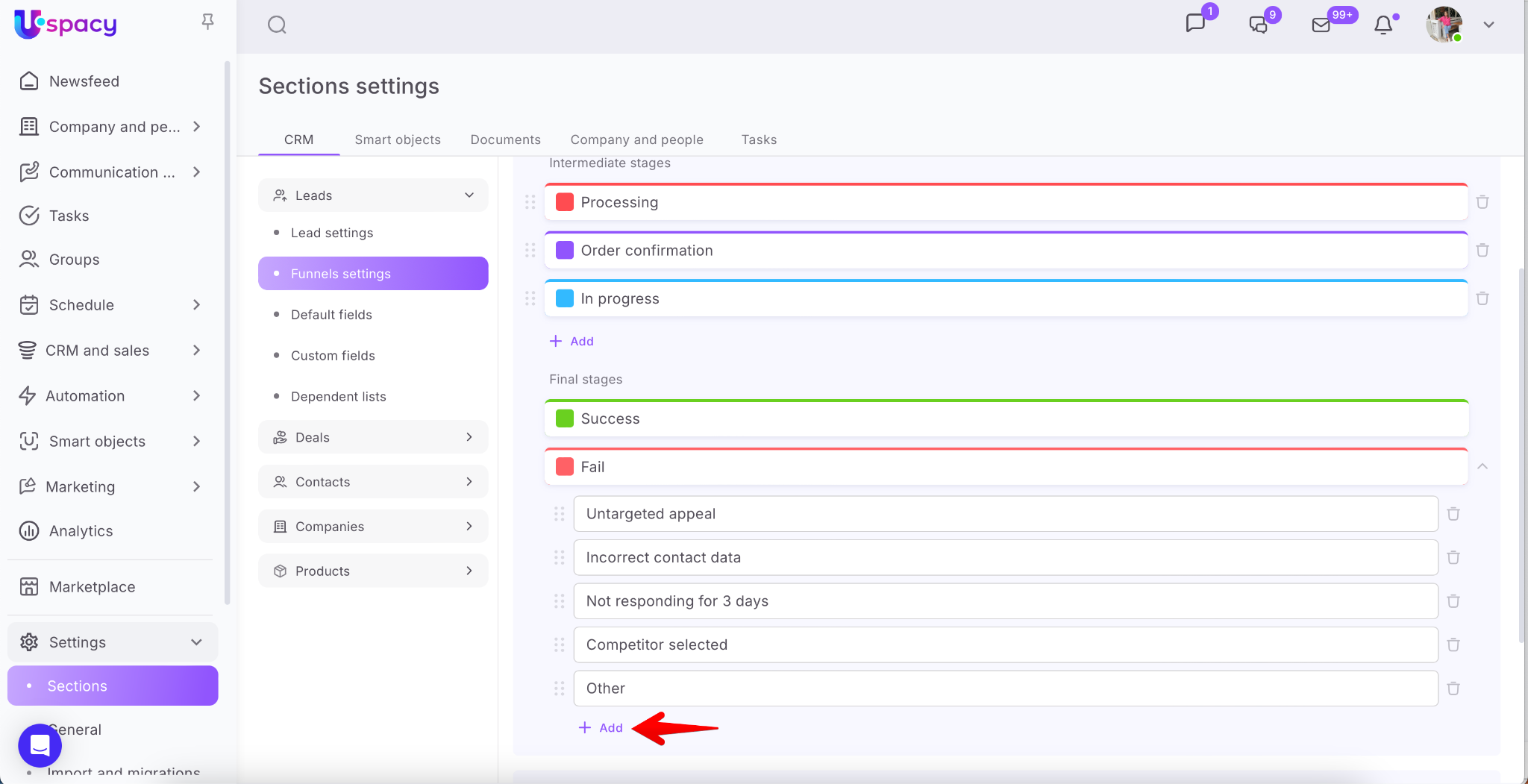
Enter the reason and Save.
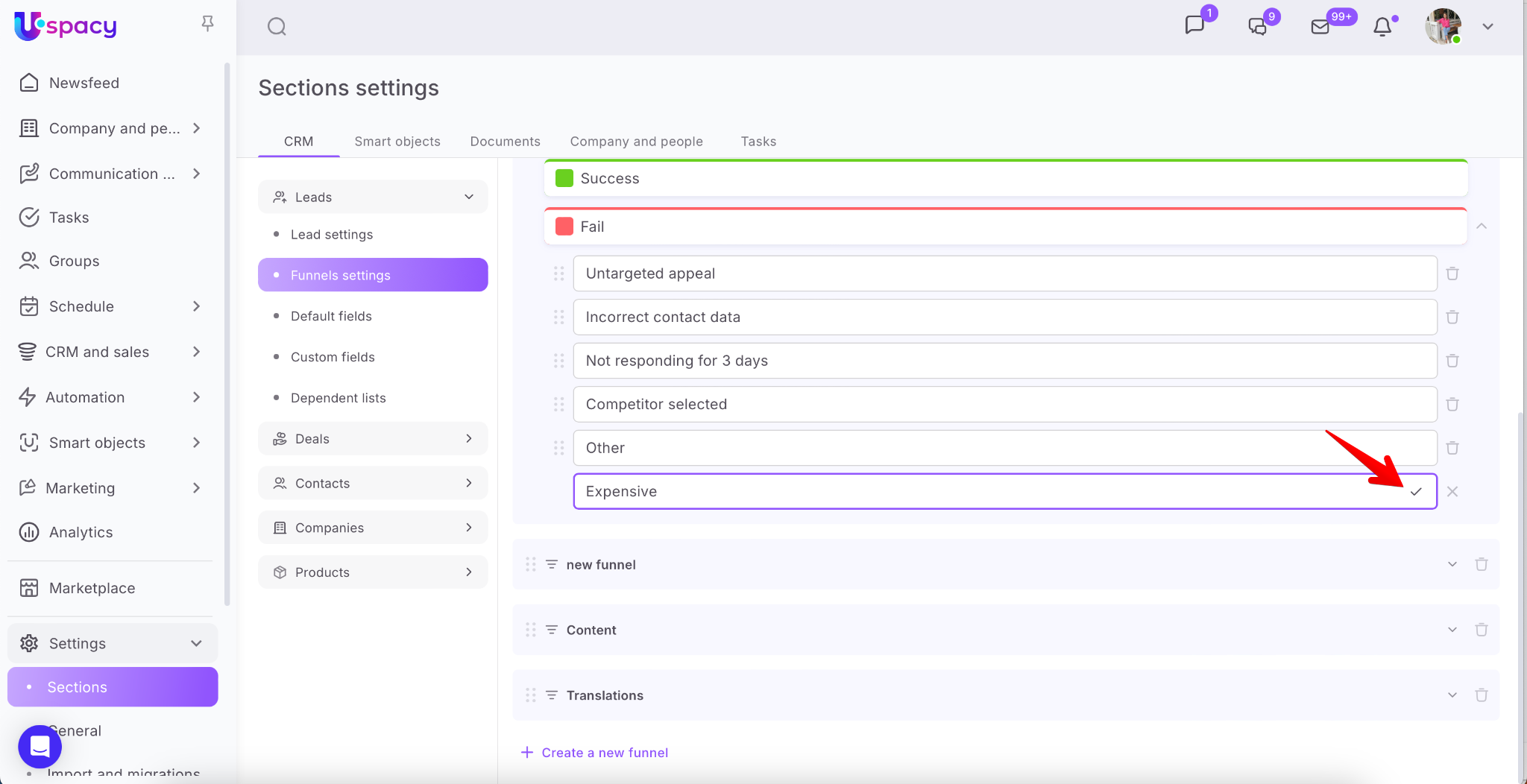
After that, at the end of processing the lead, if it is unqualified for your base, you can select a newly created reason.

Buttons for evaluating the quality of the lead are also available directly in the card. That is, you can also use them. Select the way of working with lead that you like best😉

After processing an unqualified lead, its card will look the following way.

Elements created on the basis of lead
So, we have already said that deals, contacts and companies can be created based on a qualified lead. When converting, you need to specify which elements and in which combinations you need them.
Uspacy offers the following options:
- Deals + Contacts + Companies
- Deals + Contacts
- Deals + Companies
- Contacts + Companies
- Deals
- Contacts
- Companies

❗️When converting, you cannot select a combination that contains an entity for which the user does not have rights to create. You can learn more about access rights in this article.
❗️When converting, you cannot select a combination that contains an entity that is already bound to a lead.
For example, let's consider the most complete conversion option - Deal + Contact + Company. We have all the fields filled out in the lead card and there is enough data to create new CRM elements based on them.
So, first the conversion into a deal takes place. You will need to select the funnel for the deal.

And also specify its stage.

Data in the remaining elements (contacts, companies) will be transferred automatically, without additional settings.
The newly created deal duplicates the name of the lead.

Its card will display related contacts and companies if they are also created by using conversion, as shown in our example. Otherwise, these fields will be empty and can be filled out manually at any time.

Also, as a result of converting a lead into a deal, the comment and source are transferred to the card in case they were specified in the lead.

The newly created contact will have the first and last name specified for the lead in the title.

The card in the About contact block will contain personal data transferred from the converted lead. Such data includes first name, last name, middle name, position, social networks, phone number and email address.
The card will also display the companies connected with the contact if they are also created by conversion, as shown in our example. Otherwise, this field will be empty and can be filled out manually at any time.

The comment and source are also transferred to the contact card in case they were specified in the lead.

The newly created company will duplicate the company name that was specified in the corresponding field of the lead.

The card in the About the company block will contain data transferred from the converted lead. Such data includes name, social networks, phone number and email address.
Also, the card will display a contact connected with the company, if it is also created by conversion, as shown in our example. Otherwise, this field will be empty and can be filled out manually at any time.

Also, the comment and source are transferred to the newly created company in case they were specified in the lead.

Features for custom fields
As a result of the conversion, you can transfer the information from the custom fields of the lead to the newly created elements. How to do it correctly?
🟣 Create the required field in the contact, company or deal, which will fully correspond to the field from the lead. Namely, it will have similar parameters:
1. Field ID
2. field type and value of options for selection (if the settings require it, such as, for example, for the List type)
3. multiplicity of the field
💡 Please note that if at least one of these parameters does not match, data will not be transferred to such a field during conversion.

🟣 Next, just convert the leads according to the procedure.

And get the necessary information in the corresponding fields.

If you have additional questions or you need to contact the support, send a request to this email [email protected]
Created: April 25, 2023 / Updated: September 17, 2025