In Uspacy, you can link tasks to each other. Define the main task and add subtasks for it. This can help, for example, to organize work on a large and diverse project that requires the involvement of employees from different departments.
Since the subtasks in the main task are grouped as list items, you can see their number and estimate the overall scope of the work that is planned to be performed. And also to understand what the employees are responsible for and to whom to contact in case of need.
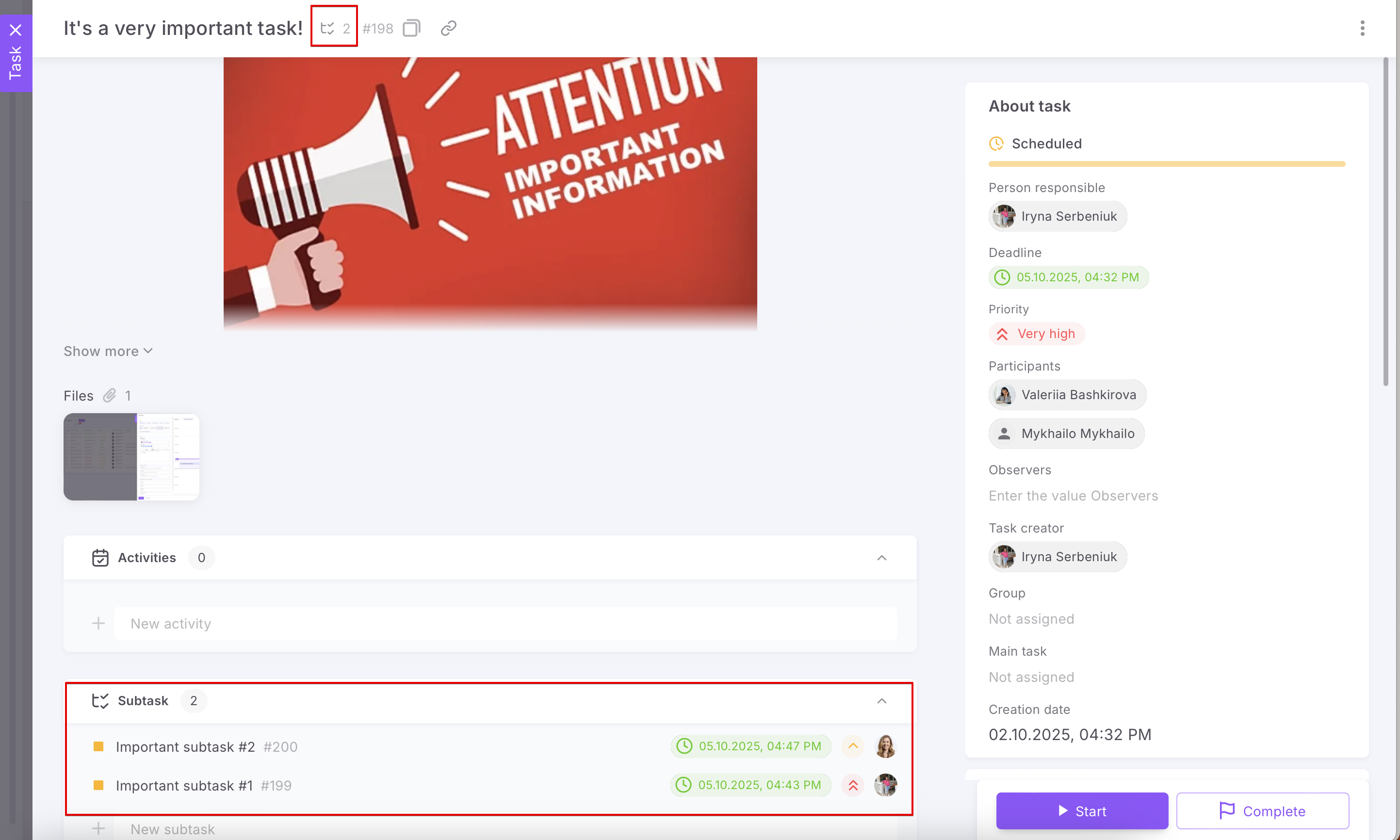
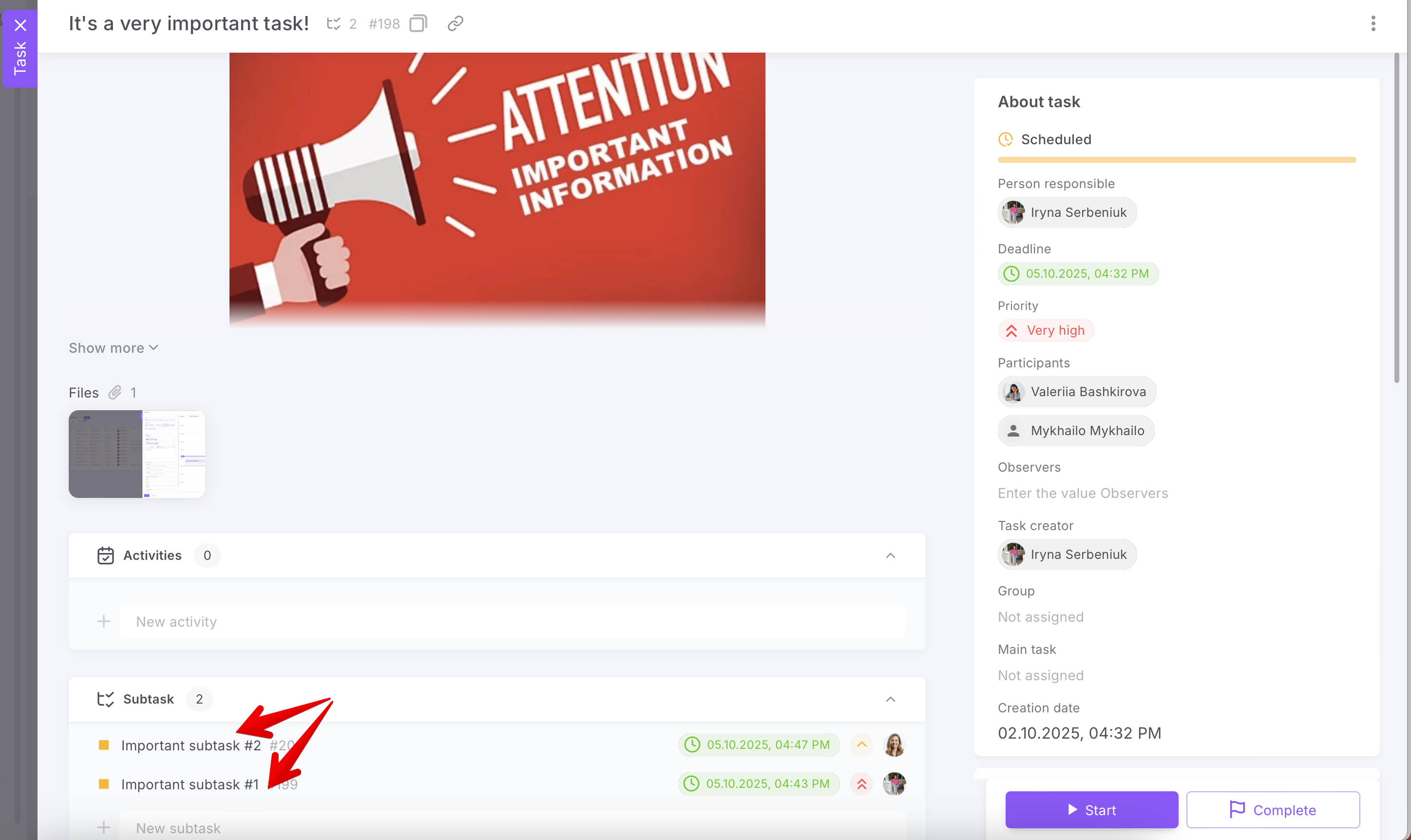
However, each subtask is also a separate element. You can easily access it by clicking on its name.
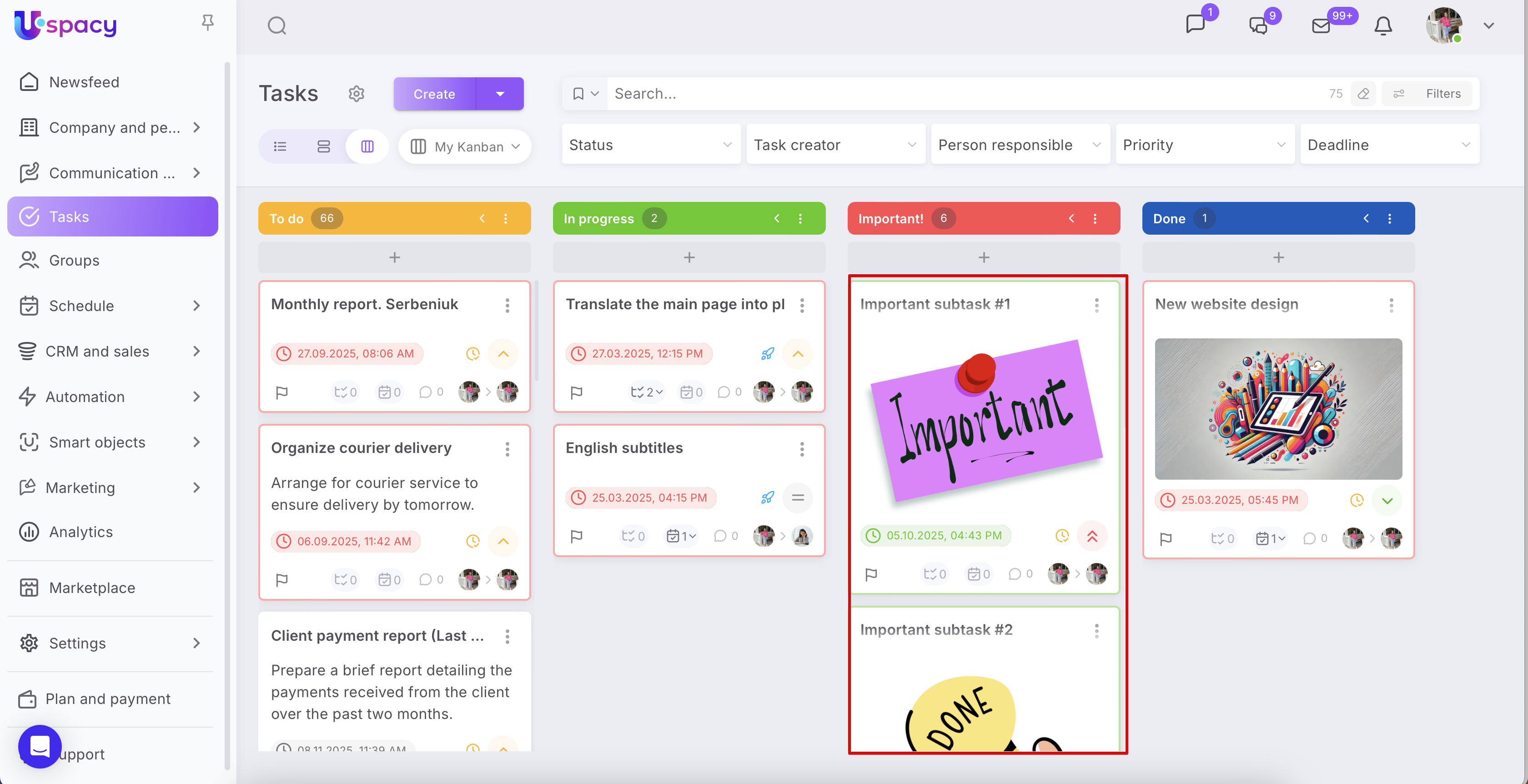
In addition, subtasks are displayed in the list and on the board.
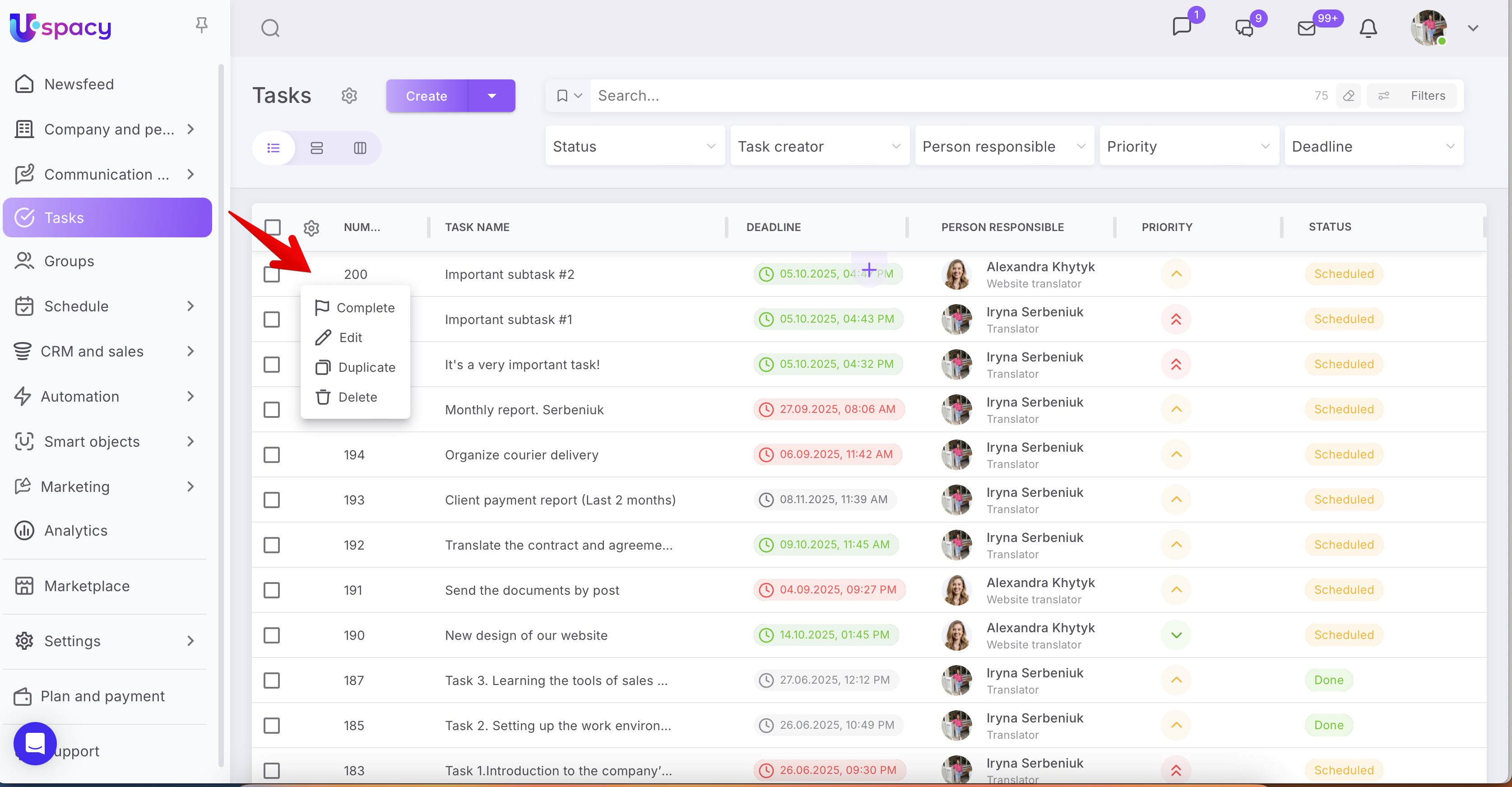
It can be interacted with as a normal task.
How to create a subtask?
This can be done in two ways. Select the one that seems more convenient to you 🙌🏻
Method 1. Full creation form
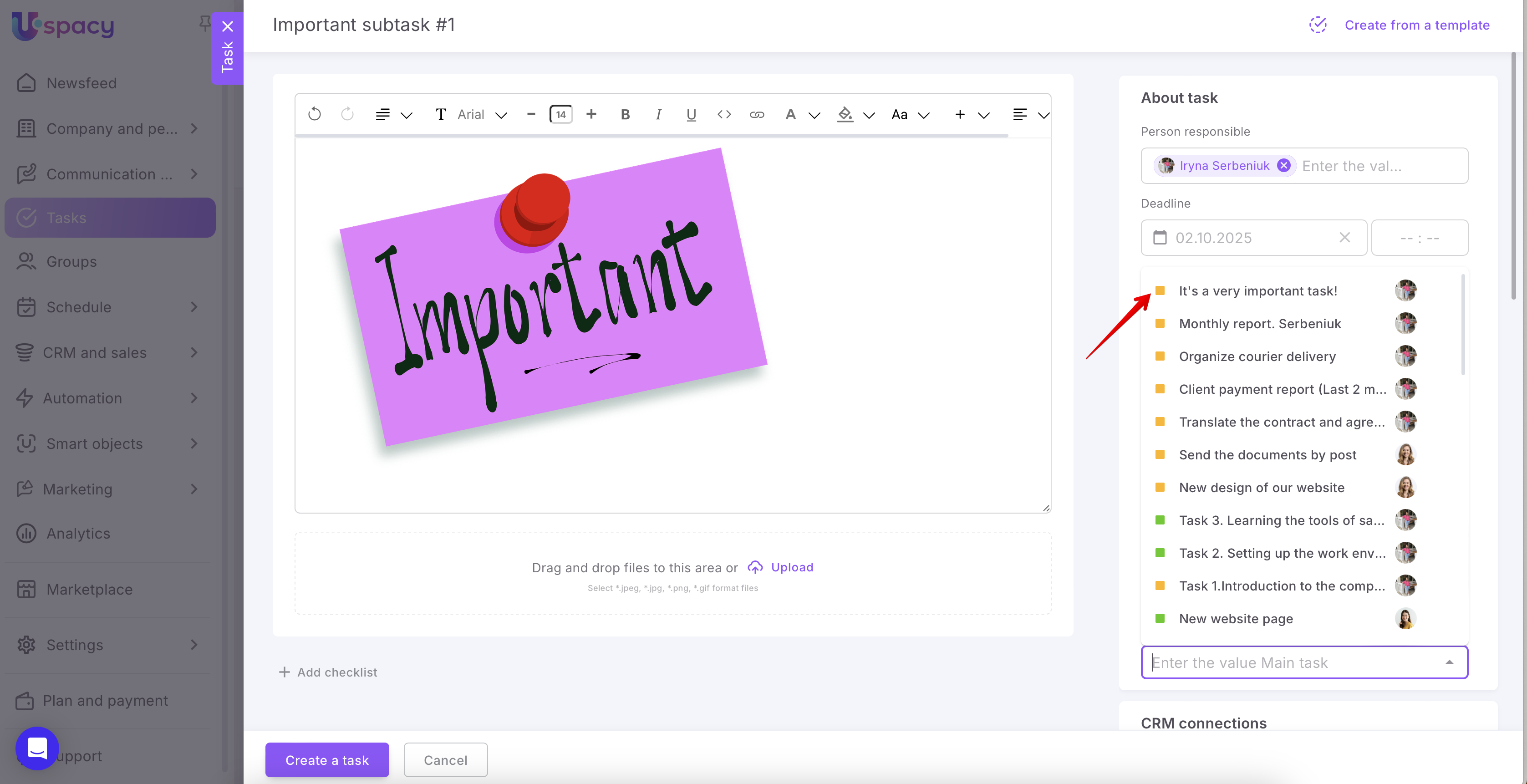
This method involves linking through the Main task field.
So, here we need the general scheme of creation by using the full form.
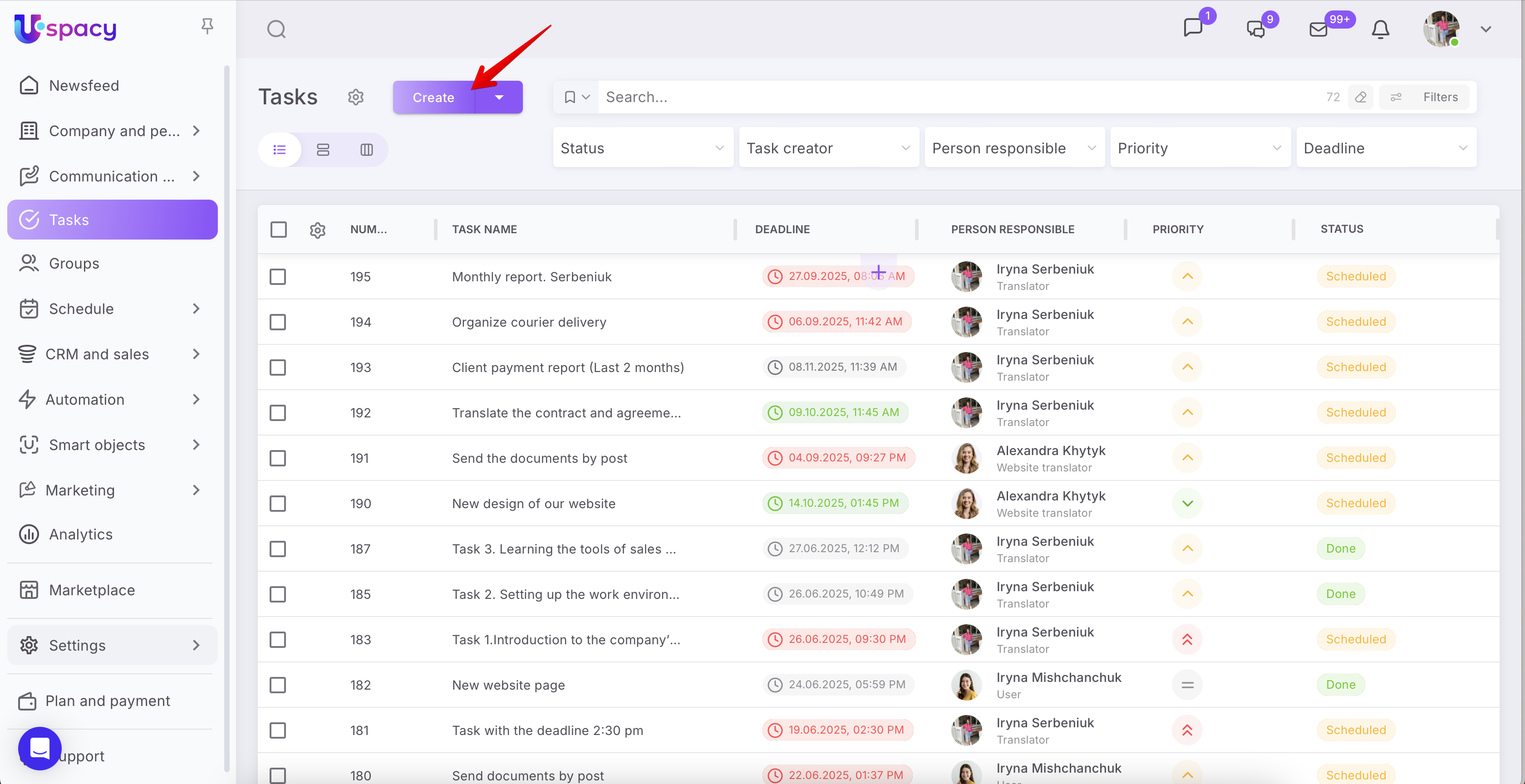
🔍 You can read more about this here.
Fill out all the necessary fields and be sure to determine which task will be the main one.
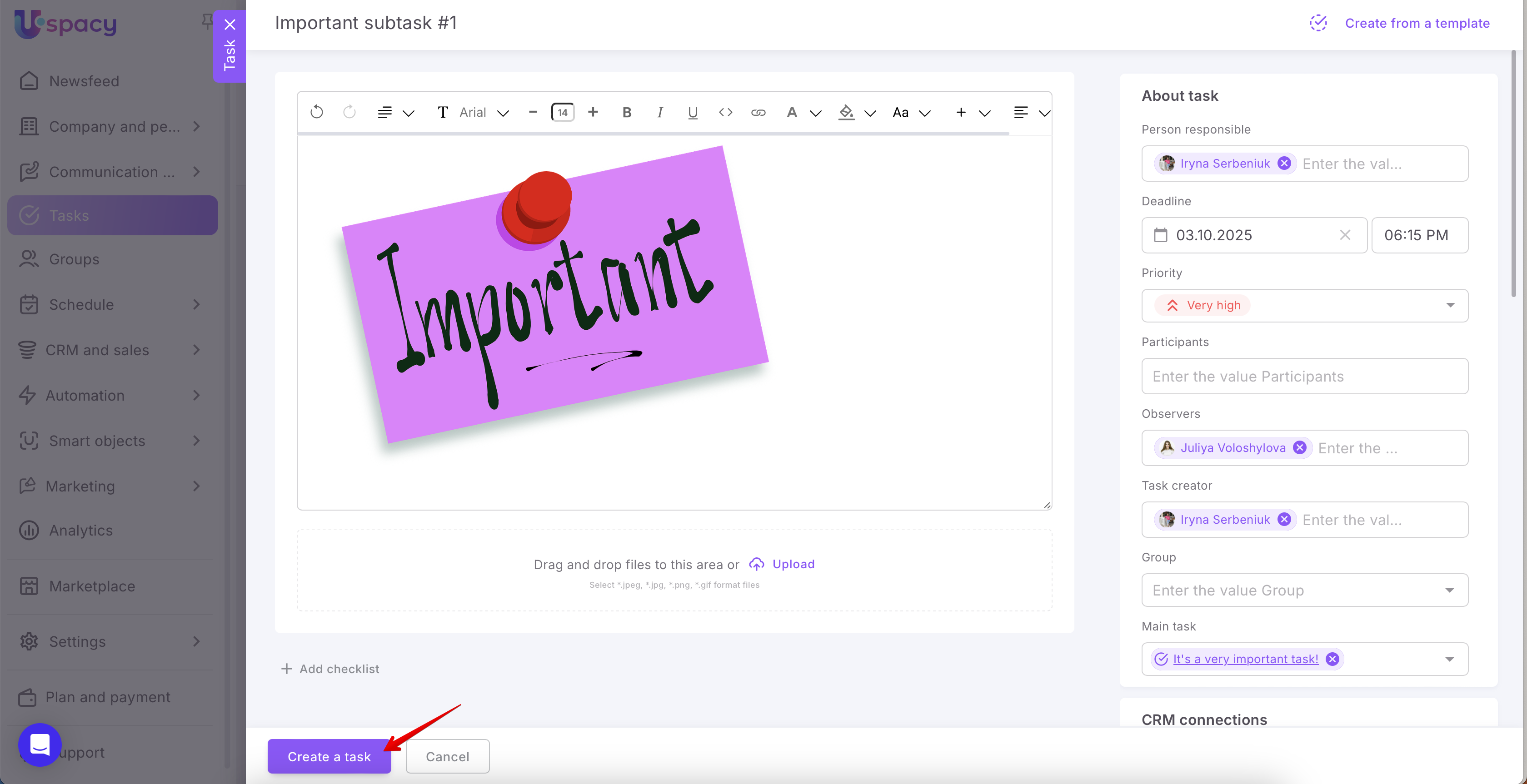
In this way, we turn our task into a subtask of another already existing task and establish the connections we need. Don't forget to click on the create button.
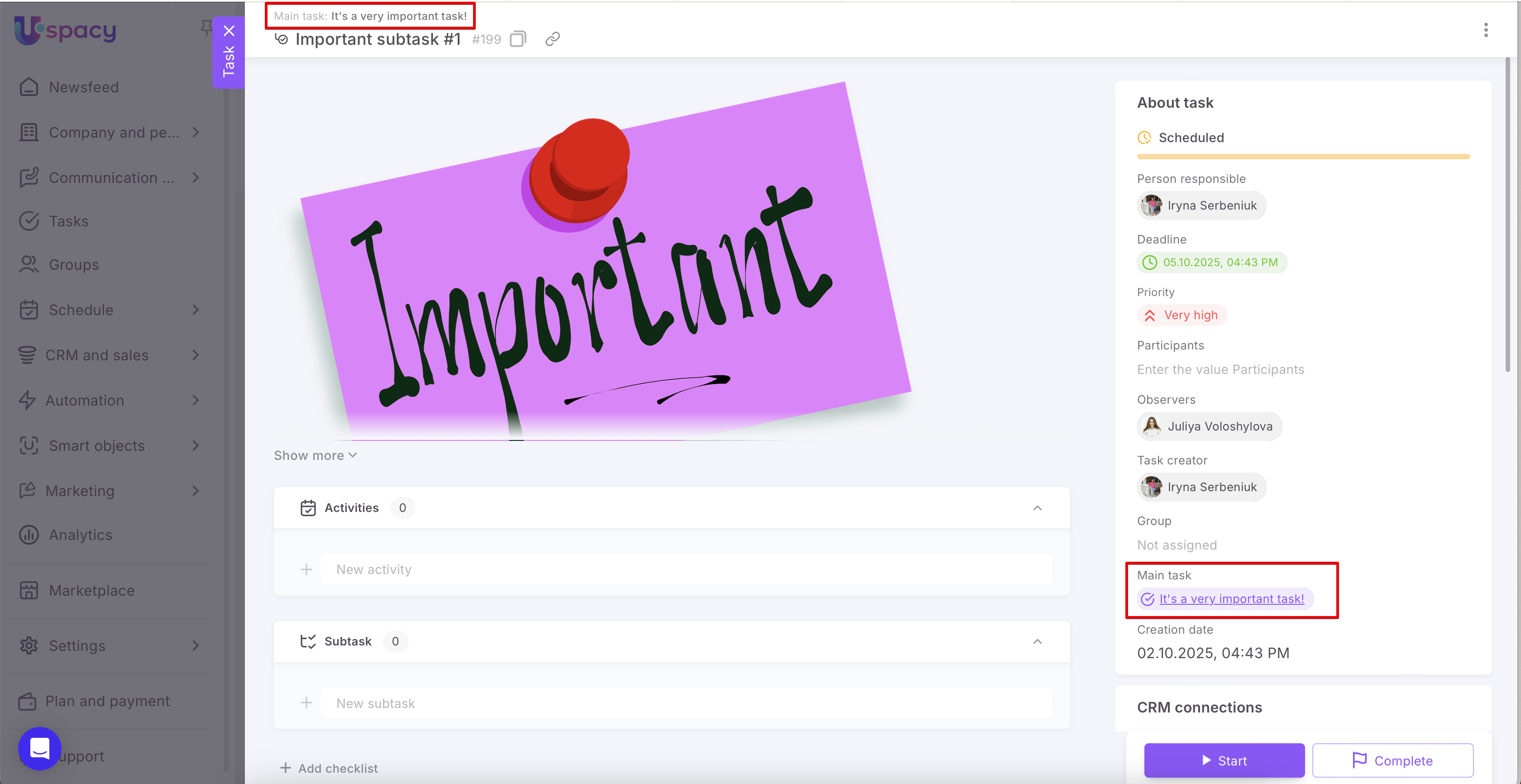
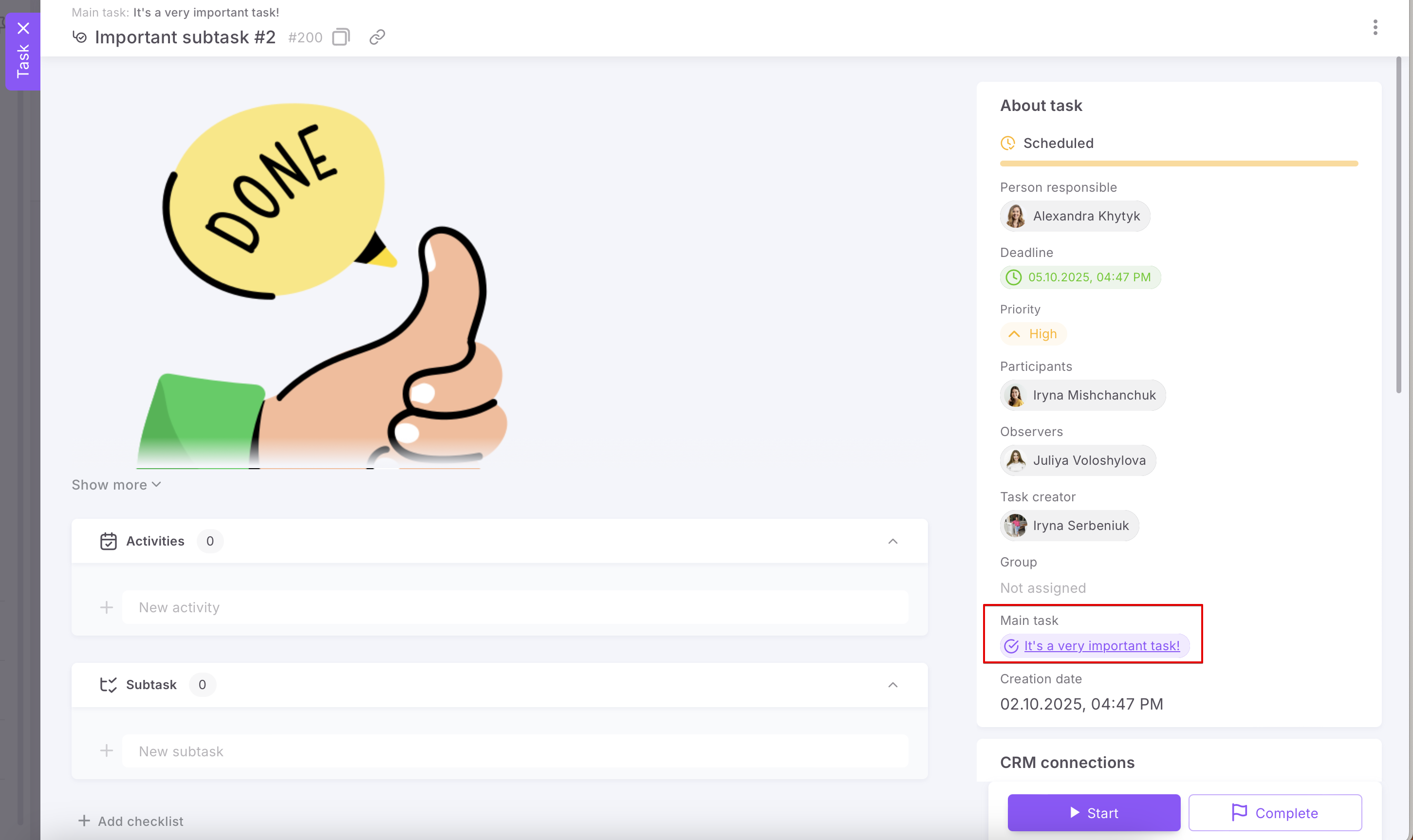
As a result, we see the connection we need in the corresponding field in the view card. So, this is how we understand that we created the subtask itself.
Method 2. Quick creation form
This method involves working on the task card, which will become the main task, and creating subtasks as list items.
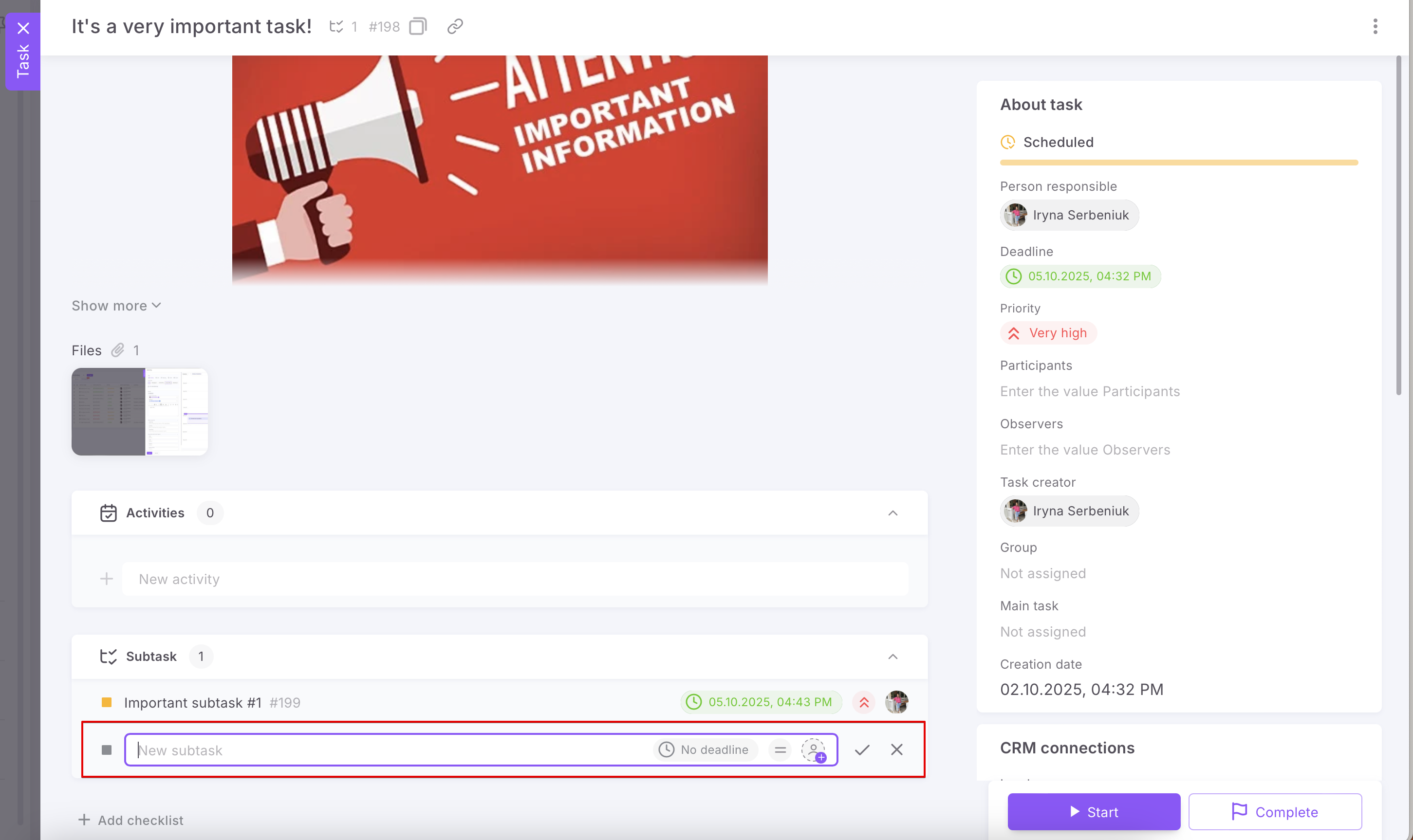
In each subtask, in addition to the name, it is possible to specify the deadline, priority, and person responsible. After filling out this data, you need to click the checkmark to save and create.
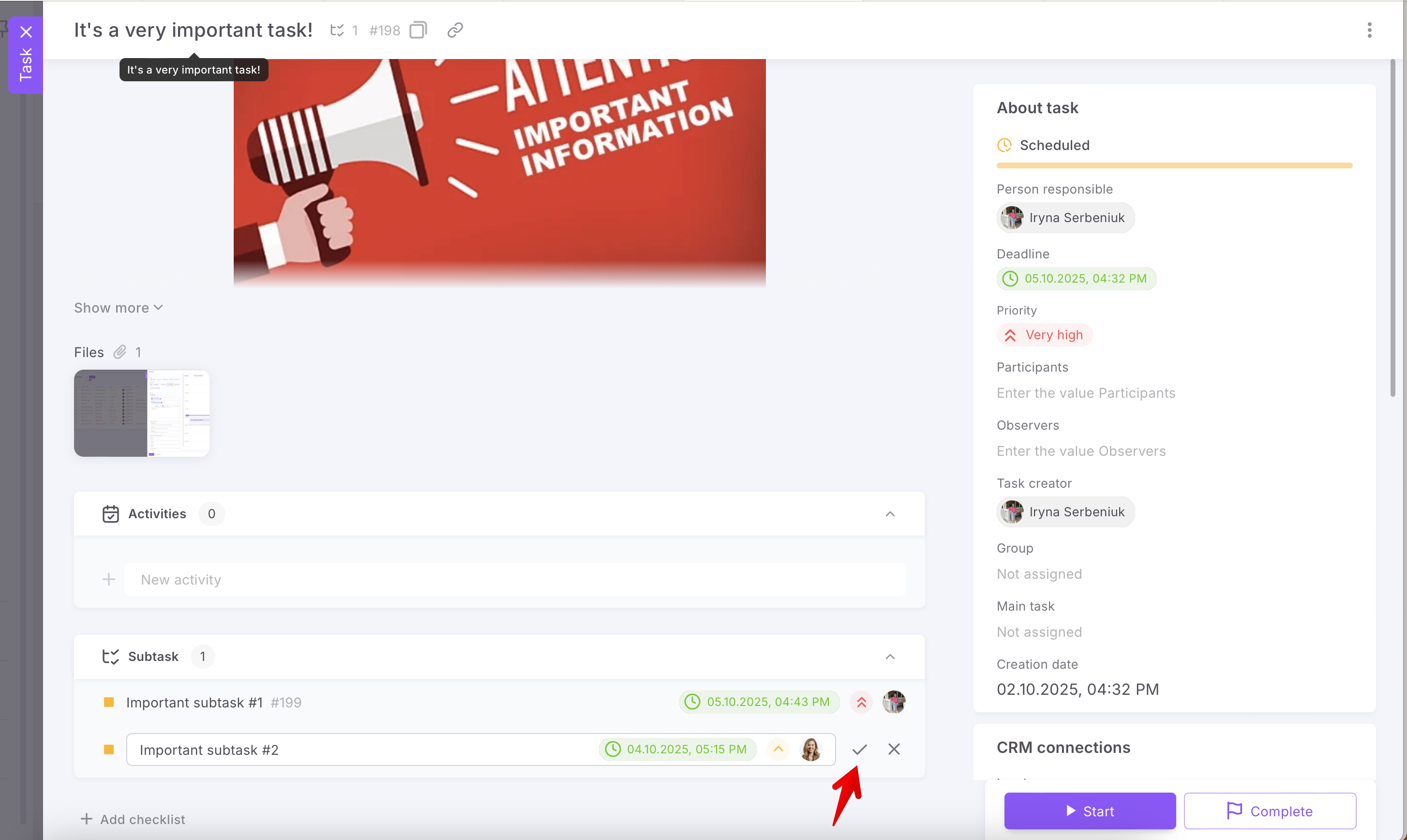
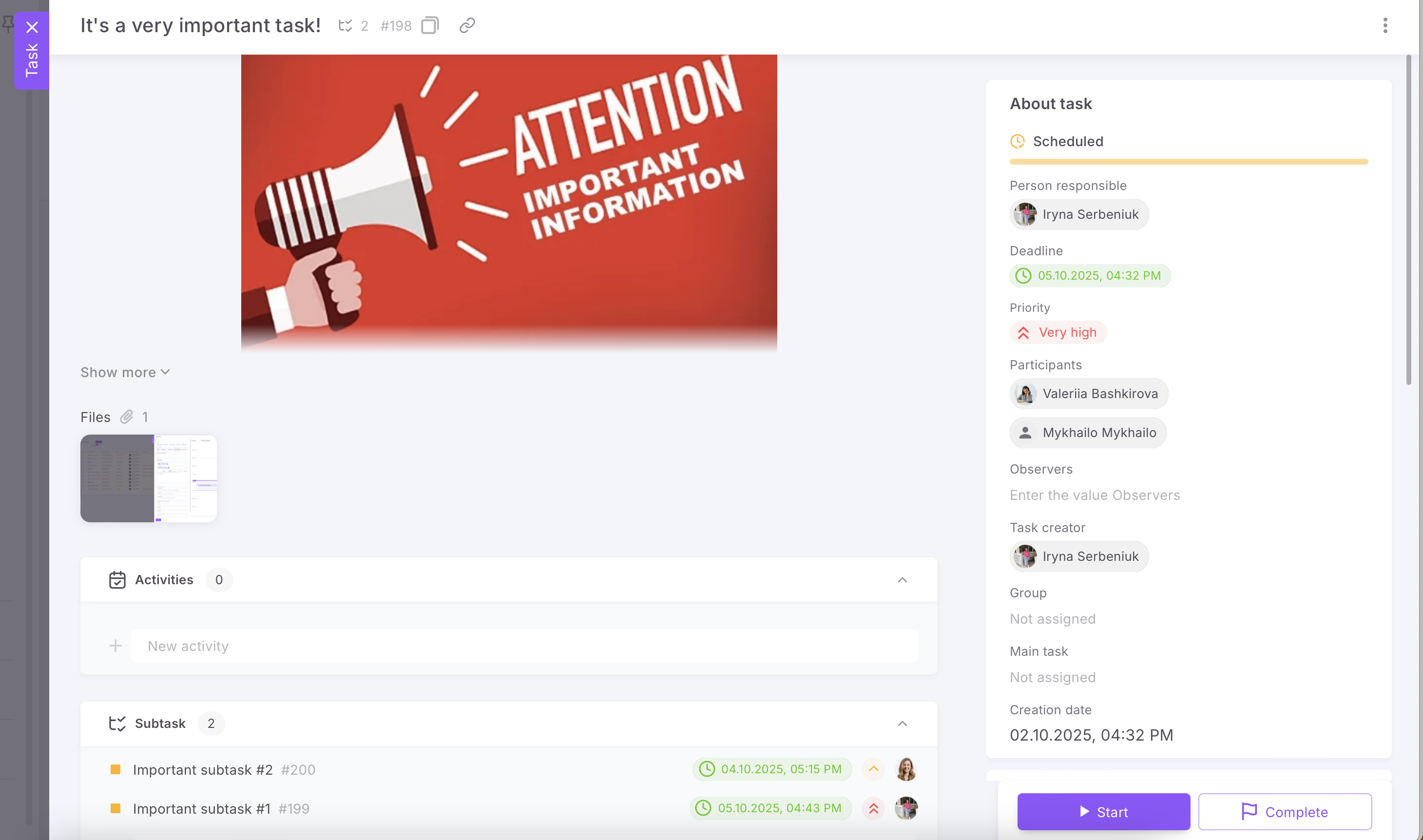
In this way, the subtask is added as a separate list item.
Since this method of creation is a kind of short form, of course it will be necessary to add or clarify some data. Therefore, you can go to the required subtask from the main card, make some changes and save them.
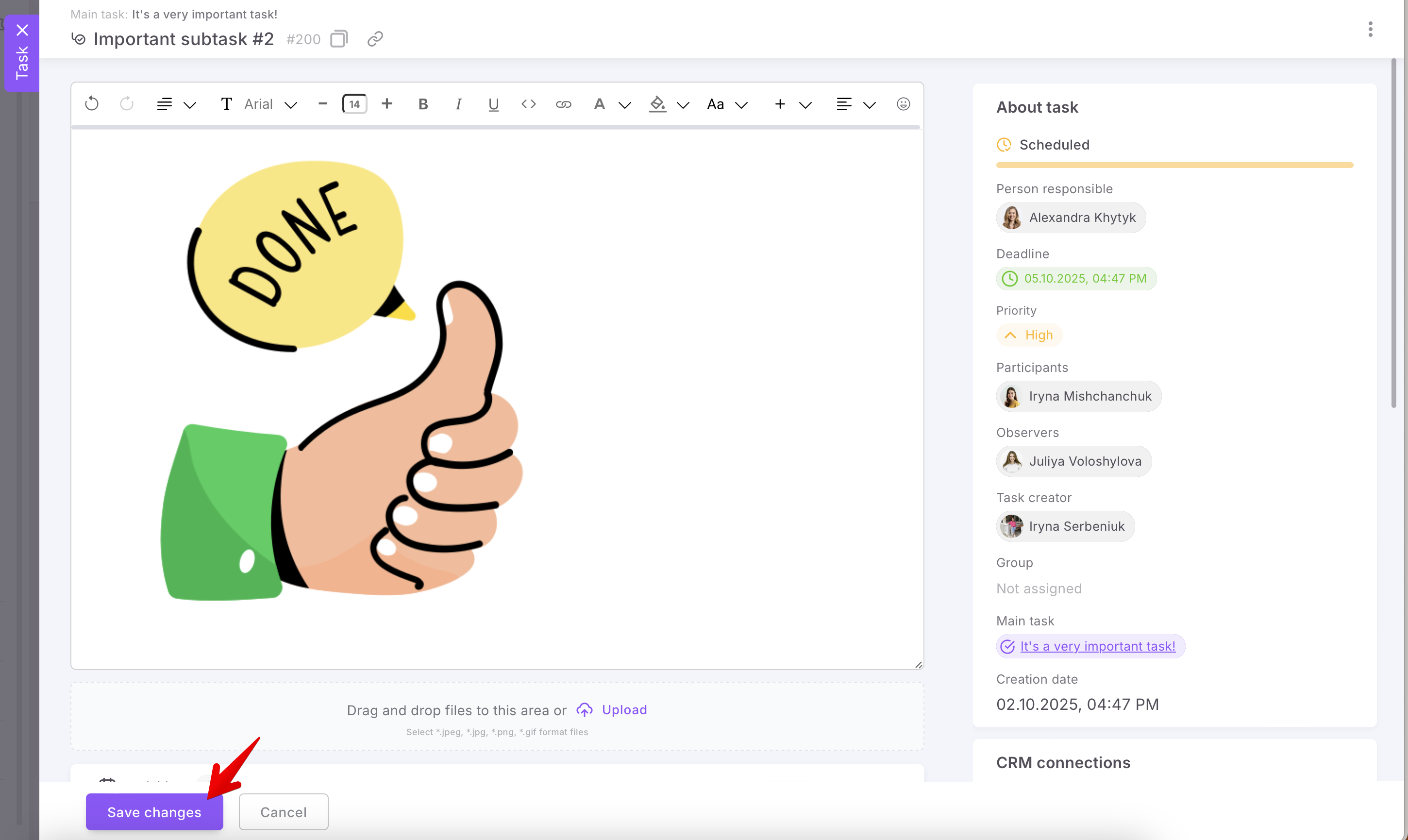
And see that the connections we need are established. The Main task field will display the one in which we created the subtask as a list item.
How is the subtask related to the main task?
Since a subtask is a separate element, you need to work with it like a regular task.
The start of work on the main task does not mean the start of work on subtasks. And vice versa.
And the completion of the main task does not mean that the subtasks will be completed automatically. It works the other way too. Even if all subtasks are completed, the main task will not be completed automatically.
❗️But note that the situation is different when deleting. If you delete the main task, all subtasks will also be automatically deleted by the system.
If you have additional questions or you need to contact the support, send a request to this email [email protected]
Created: April 6, 2023 / Updated: October 2, 2025