When clients reach out via messengers, it’s important not only to respond quickly but also to record agreements — call back, prepare a proposal, clarify details, or forward a request to a colleague. That’s why Uspacy makes it easy to work with chats from External Lines (channels) directly in the Communication hub — you manage the conversation within the Workspace without switching between multiple services.
To ensure no inquiries are lost and context is always preserved, Uspacy lets you link chats from external channels to CRM elements, so the conversation history is available in the client’s card.
After a dialogue, next steps usually emerge. If it’s a quick action at a specific time (call back, schedule a meeting, send a message), it’s convenient to record it as an activity linked to the client in the CRM. If the work is more complex and requires structure (description, checklist, subtasks, multiple participants), you can link it to Tasks.
This way, inquiries from external channels become a controlled process, and the team knows what’s already done and what still needs to be completed. That’s why Uspacy allows you to link a chat to a task—so next steps aren’t lost and the conversation context is always at hand.
How to link a chat to a task
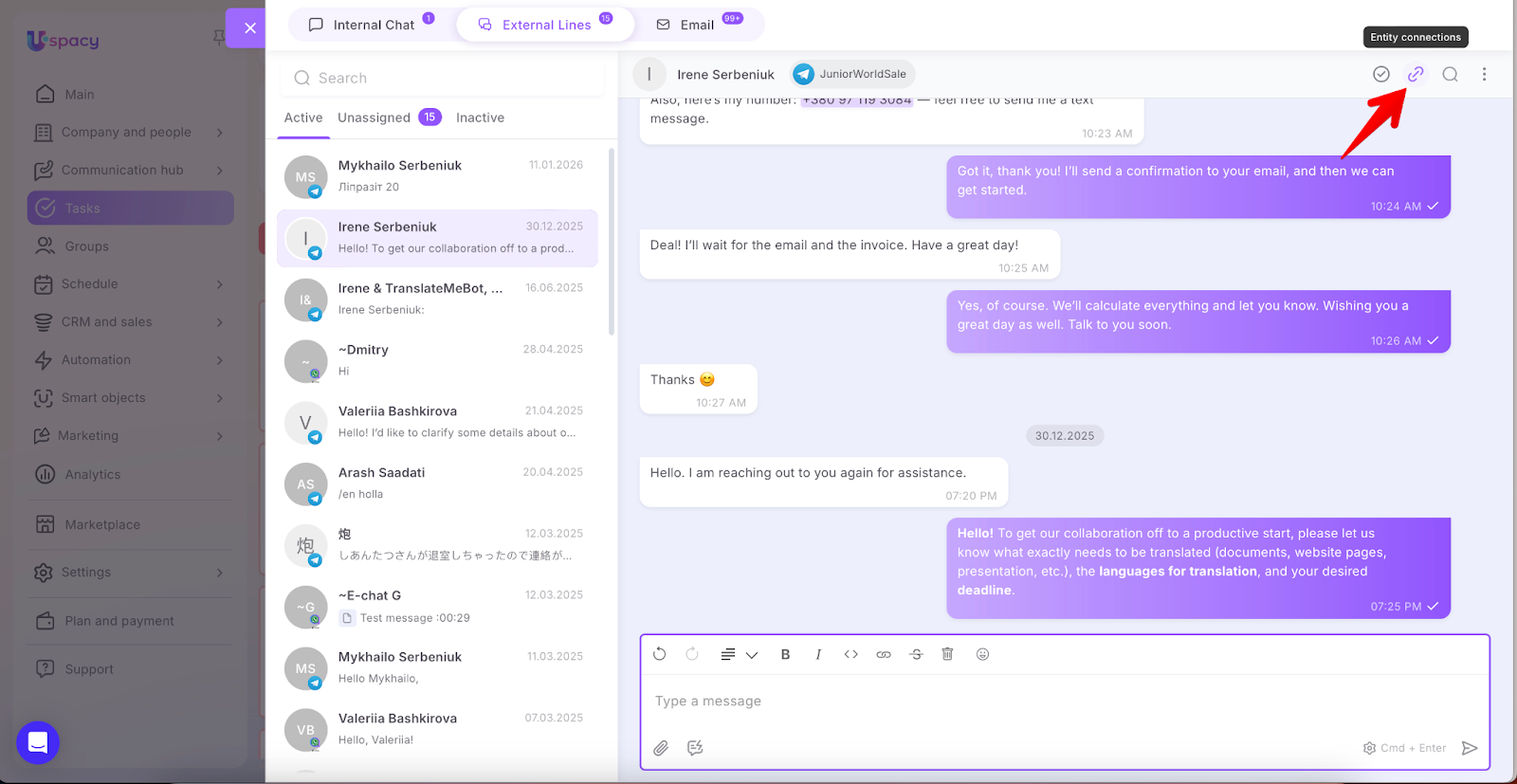
Click Entity connections in the top-right corner of the chat. The CRM connections panel will open on the right (the CRM tab is active by default). Switch to the Tasks tab.
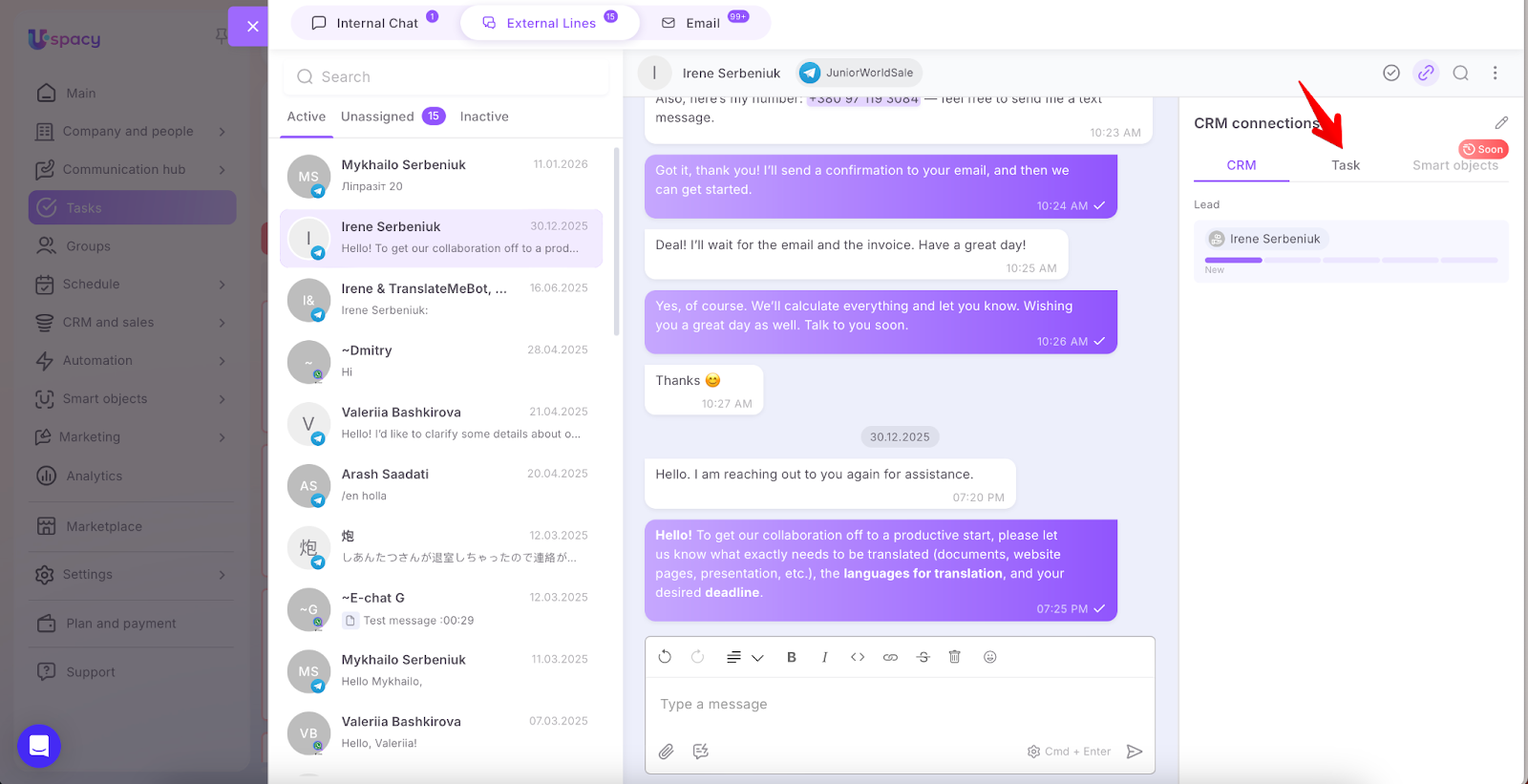
Click Add.
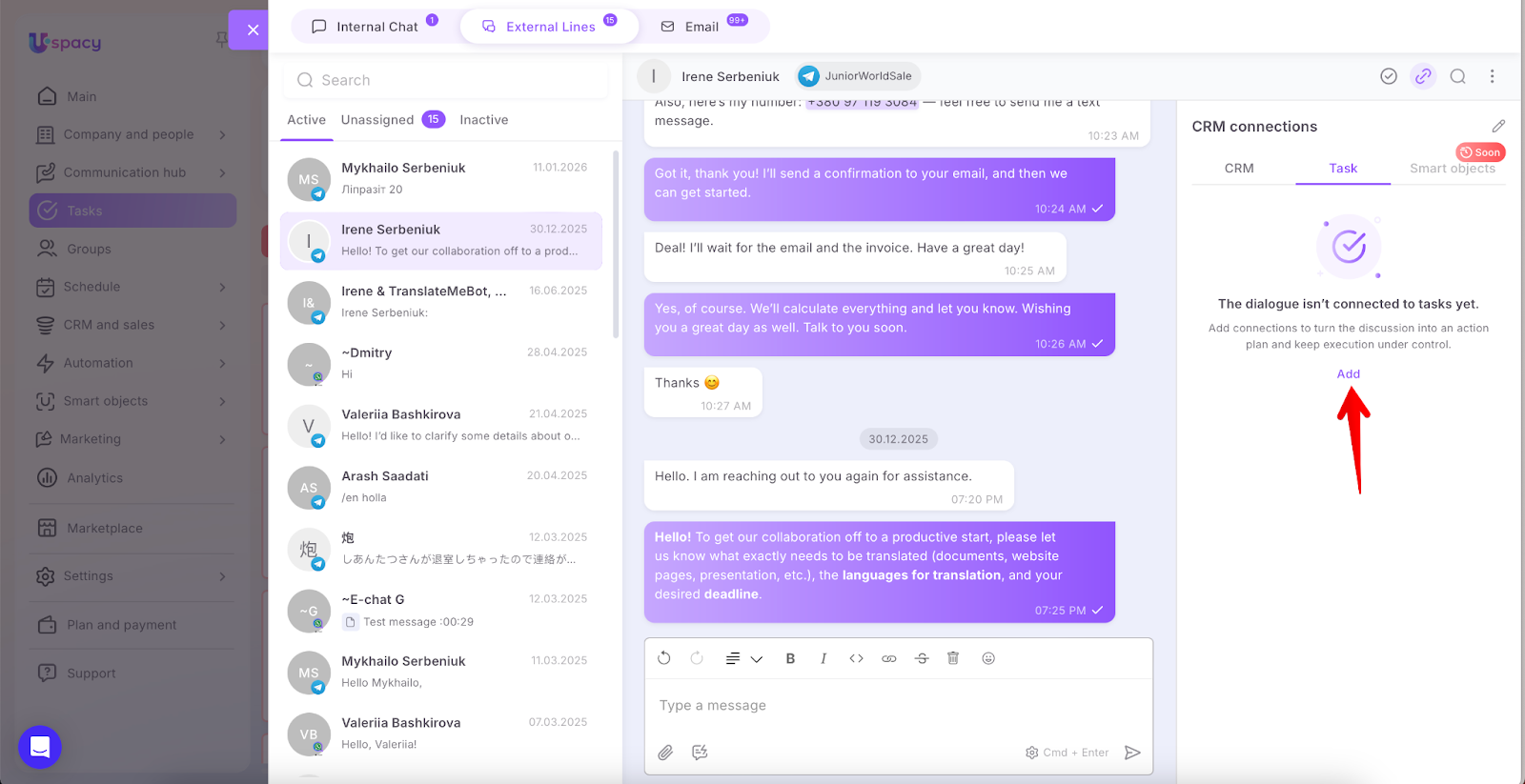
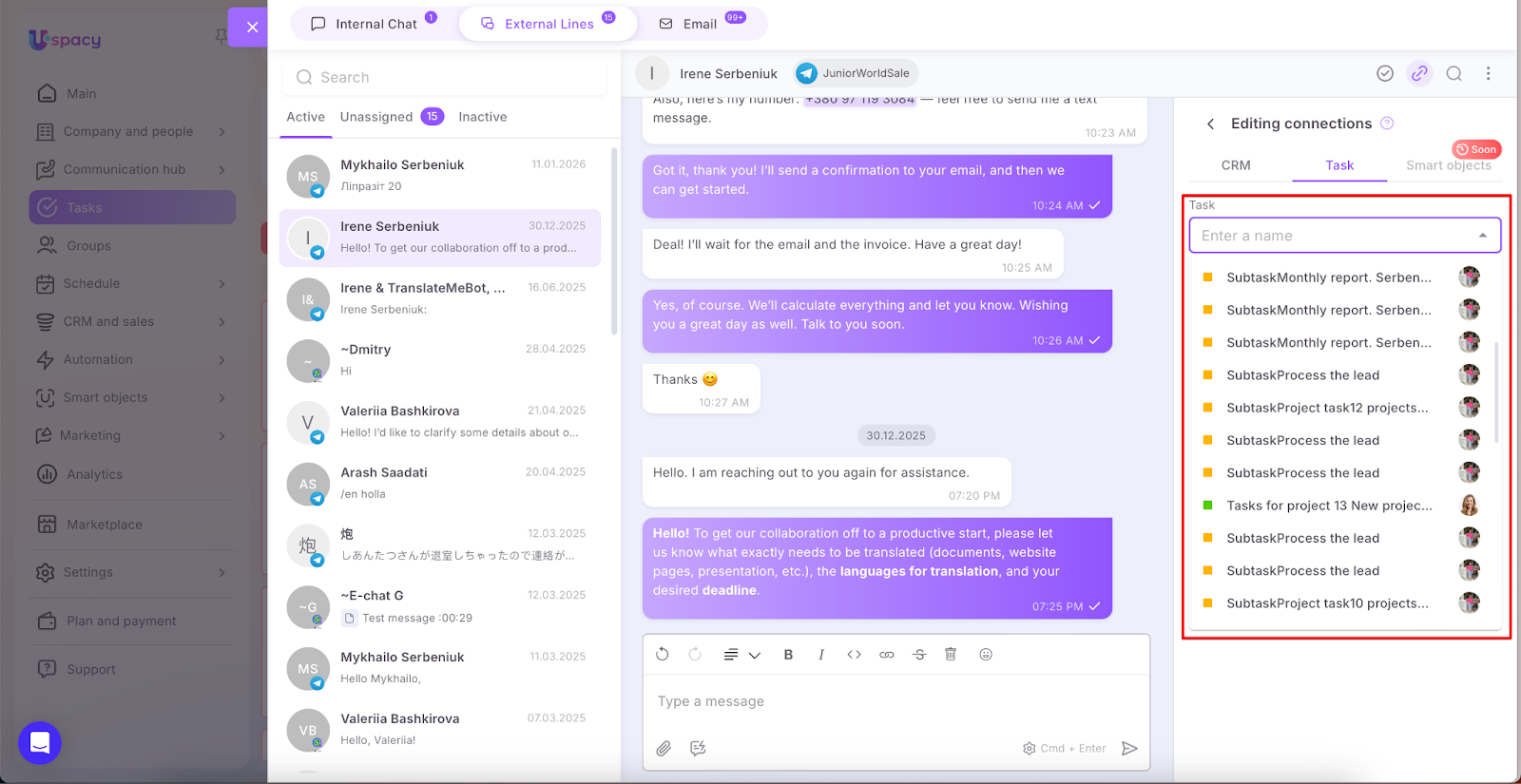
You can now link the chat to an existing task or create a new one.
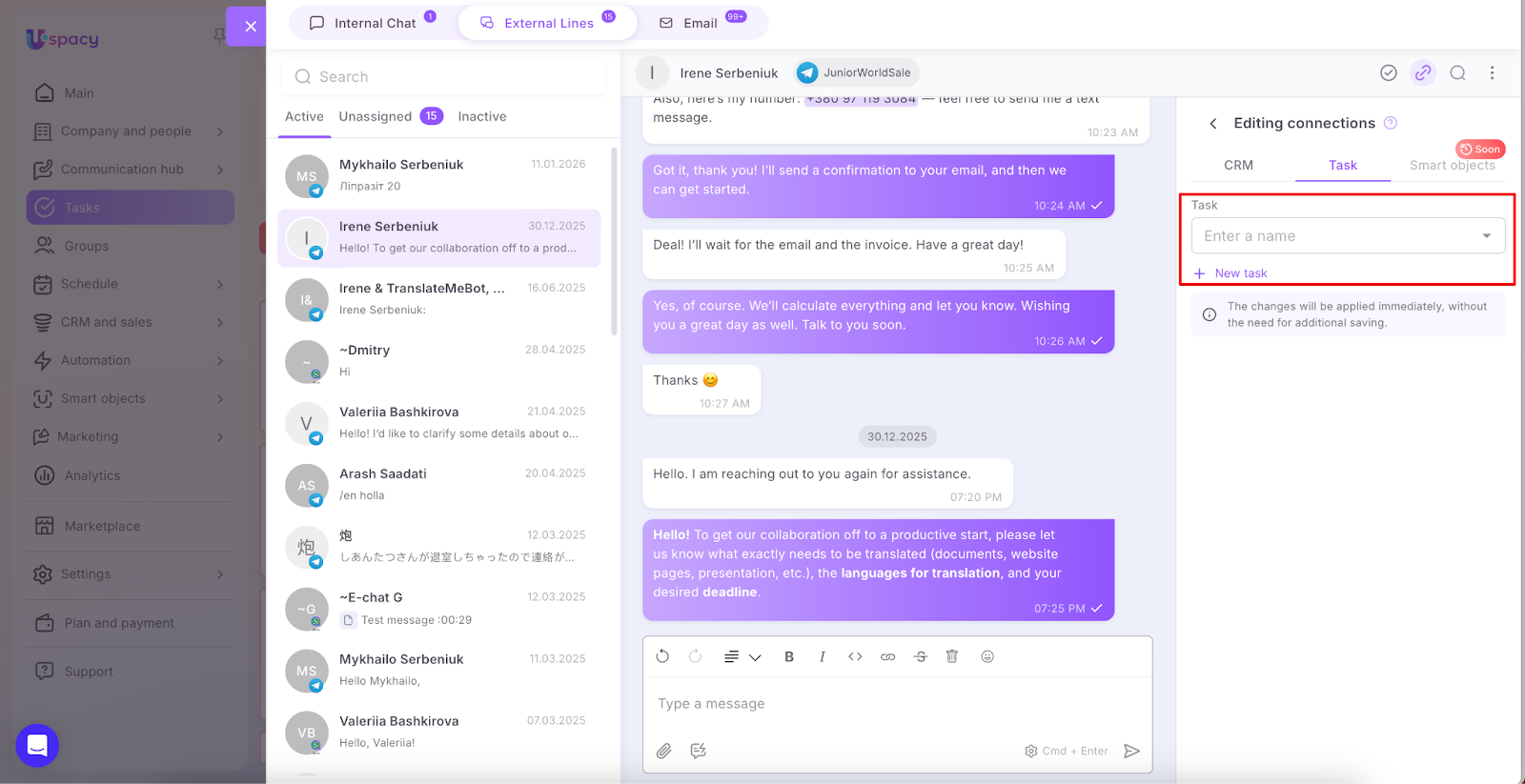
If the task already exists in the Workspace, find it in the list.
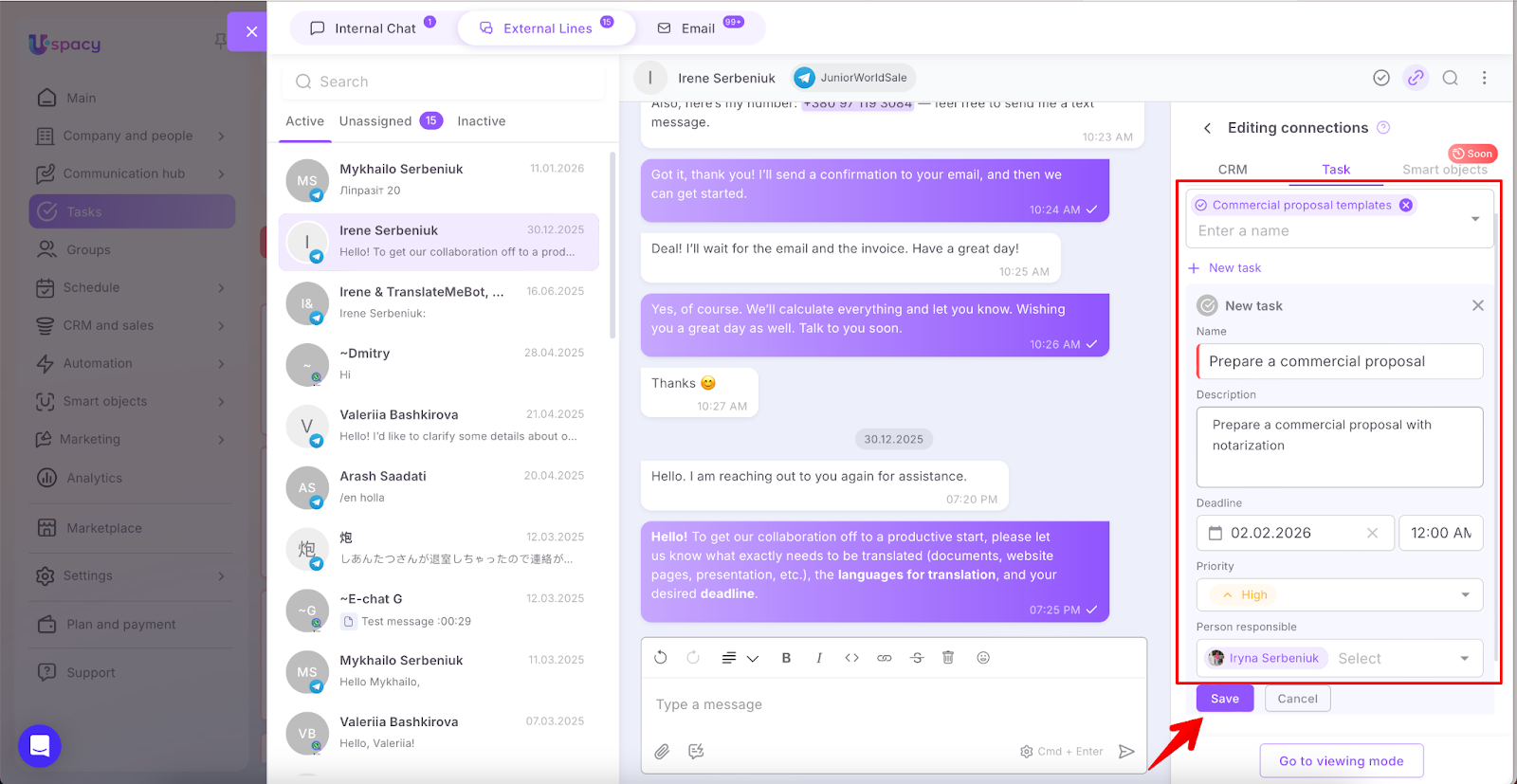
Or click + New task, fill out the short form, and click Save.
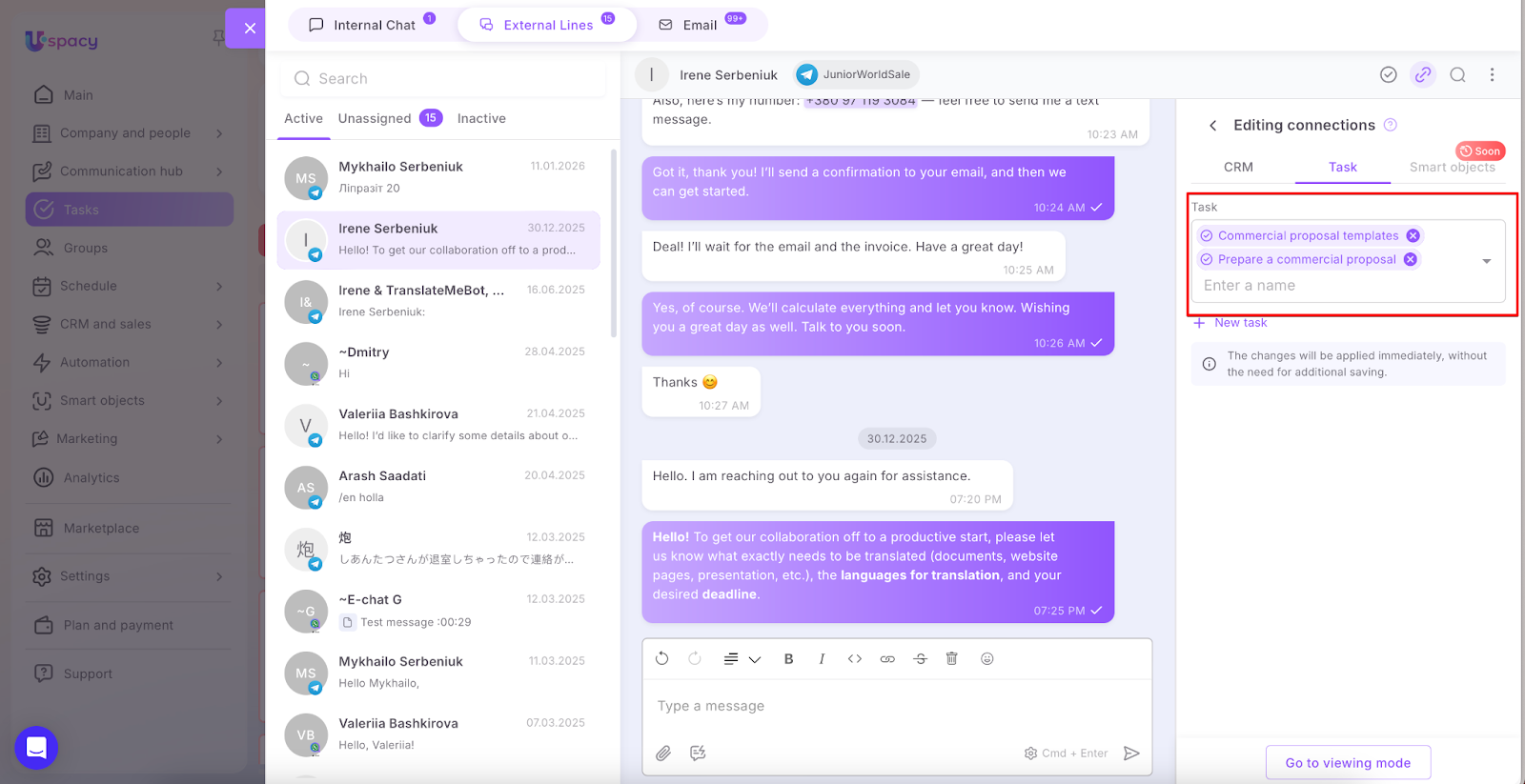
Done ✅
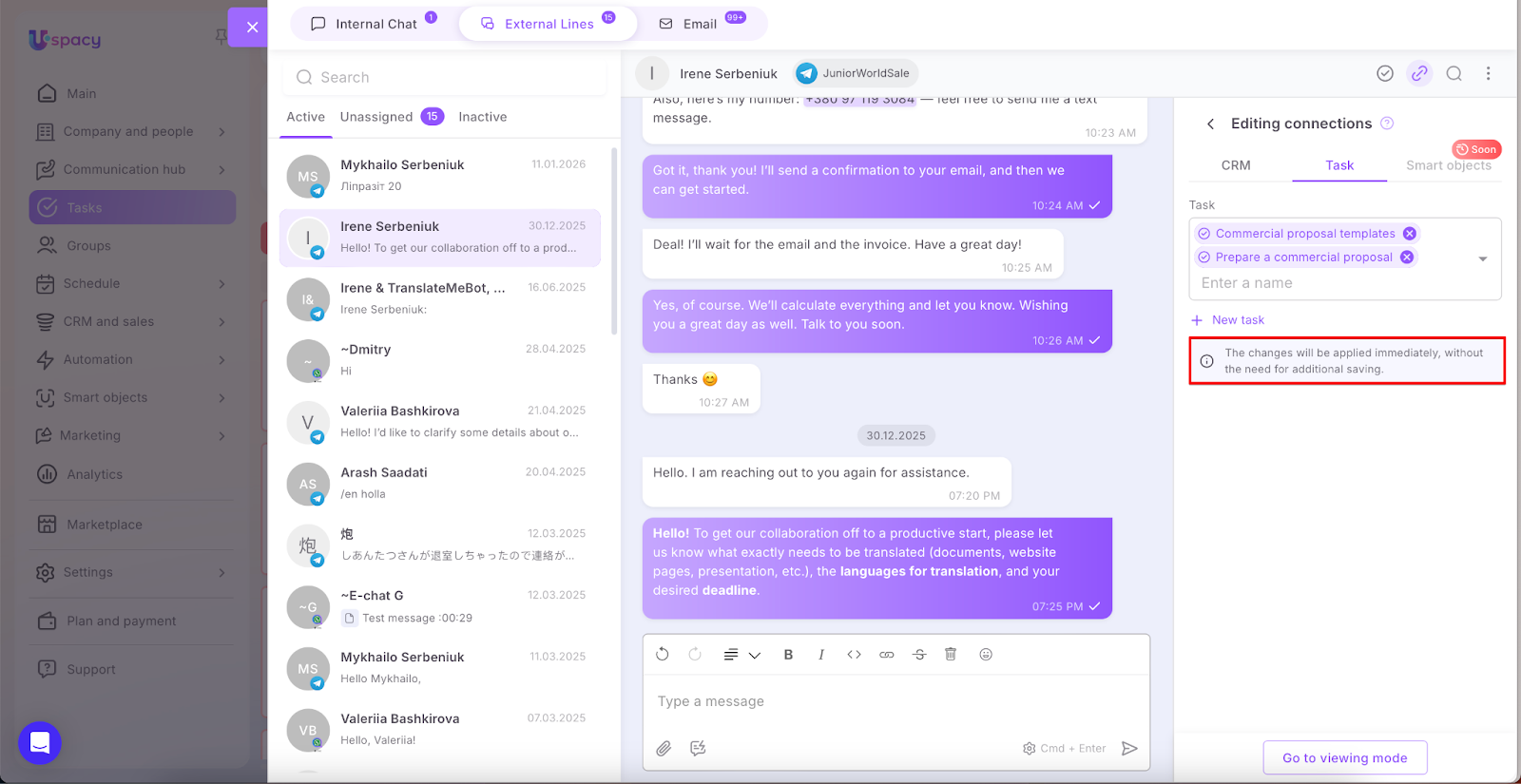
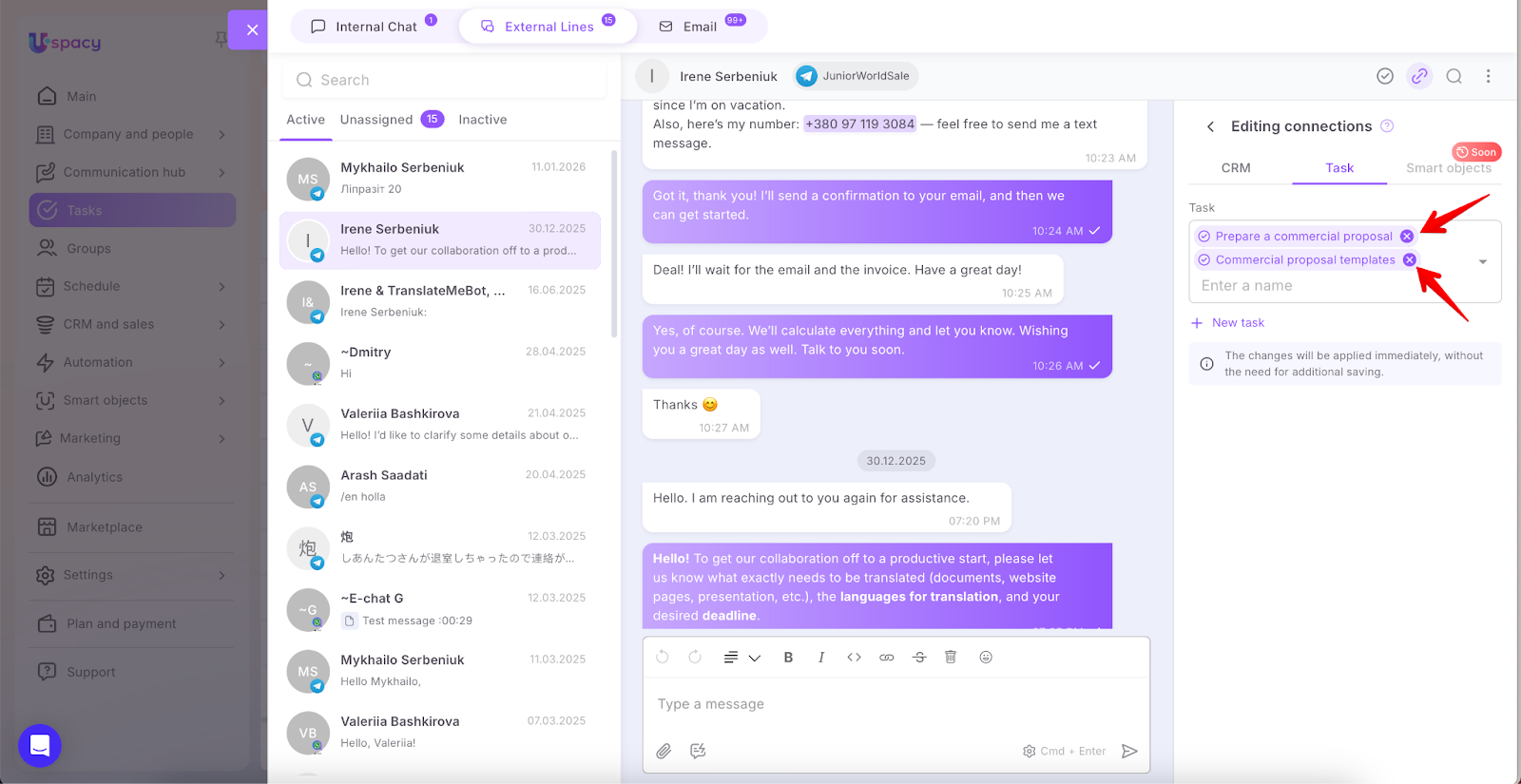
💡 All connections you set will be applied immediately—no additional saving required.
Click Go to viewing mode to see the final result.
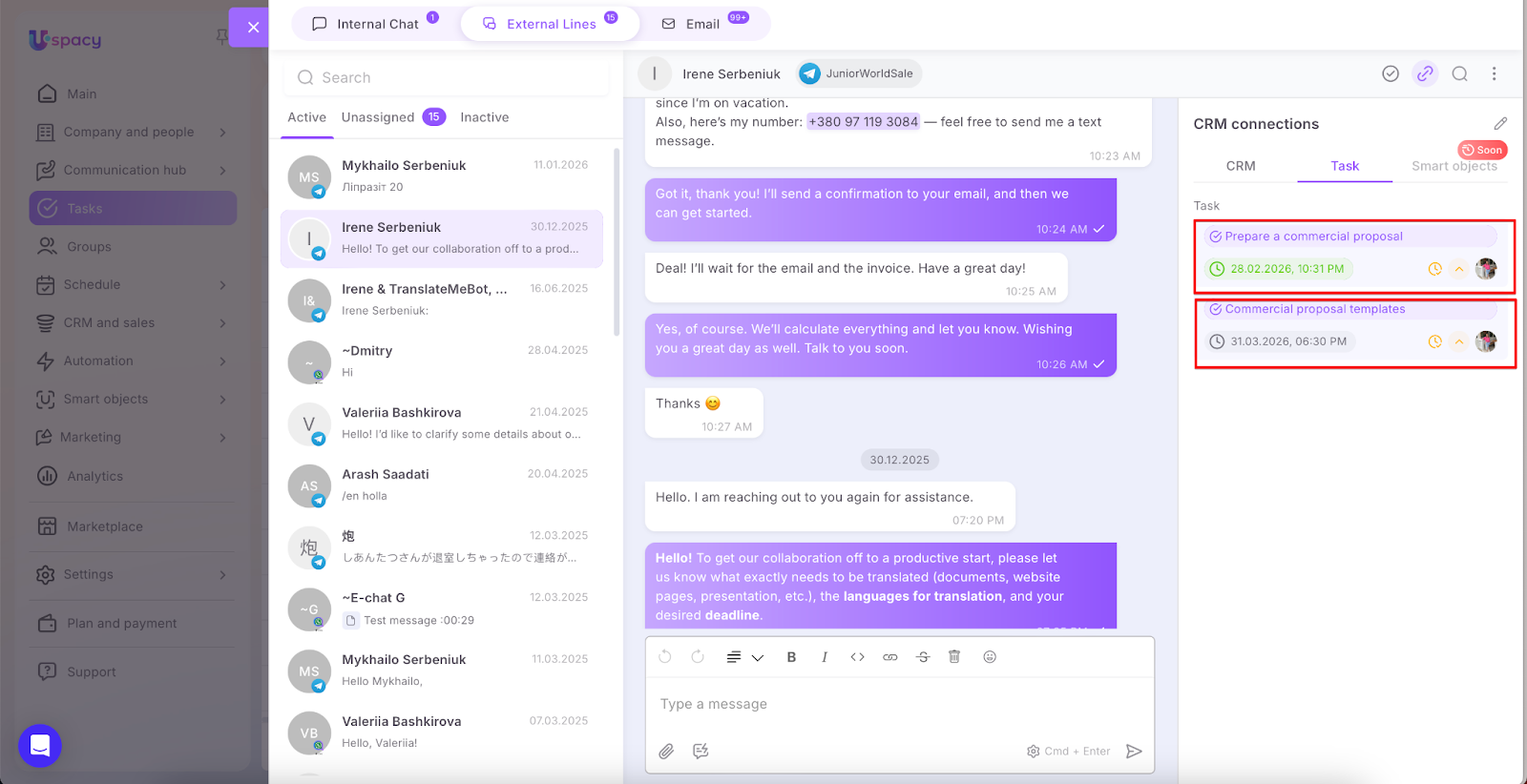
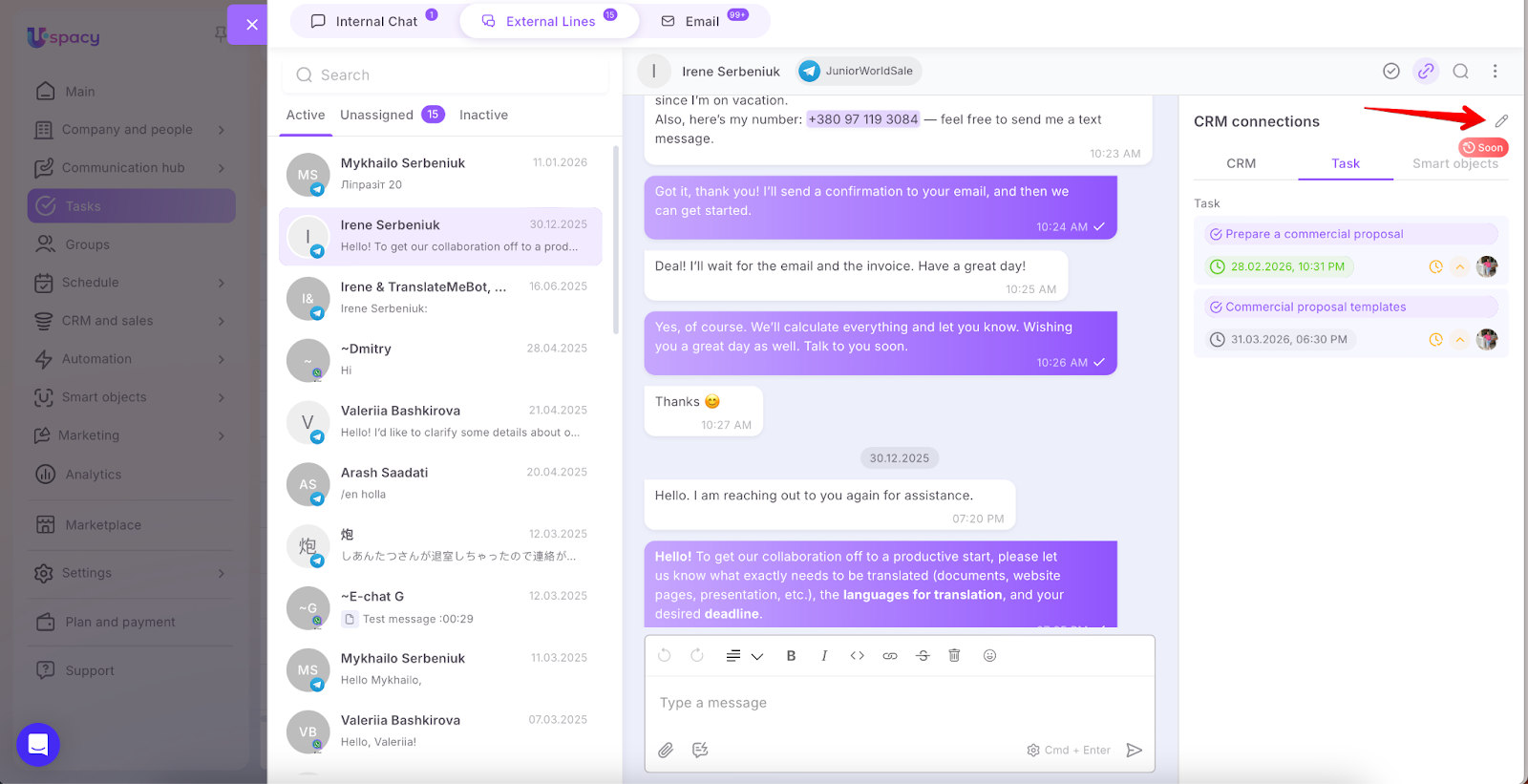
At any time, you can edit the established connections. Click the pencil icon to add new connections or remove existing ones.
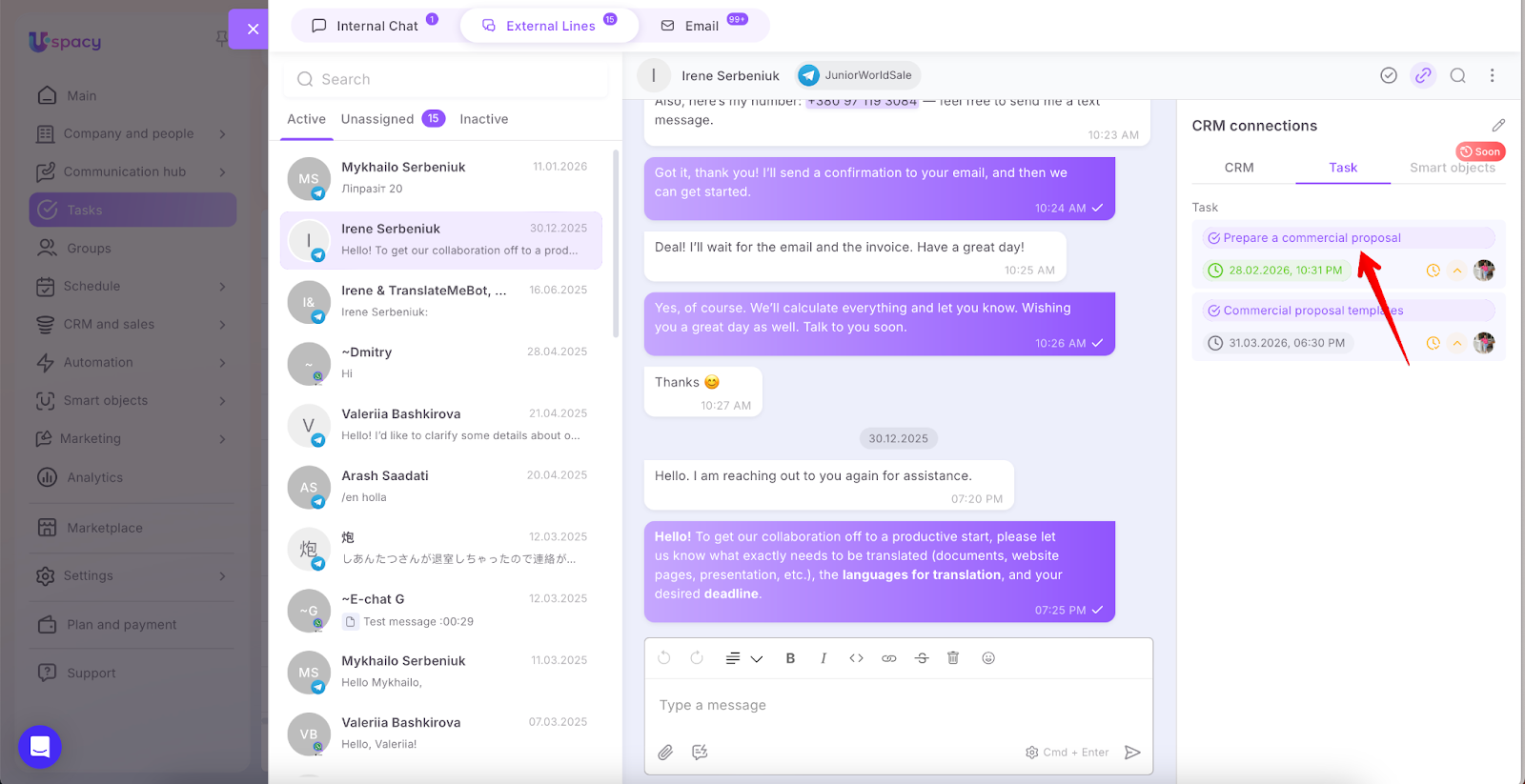
To go directly to a task card, click on its title.
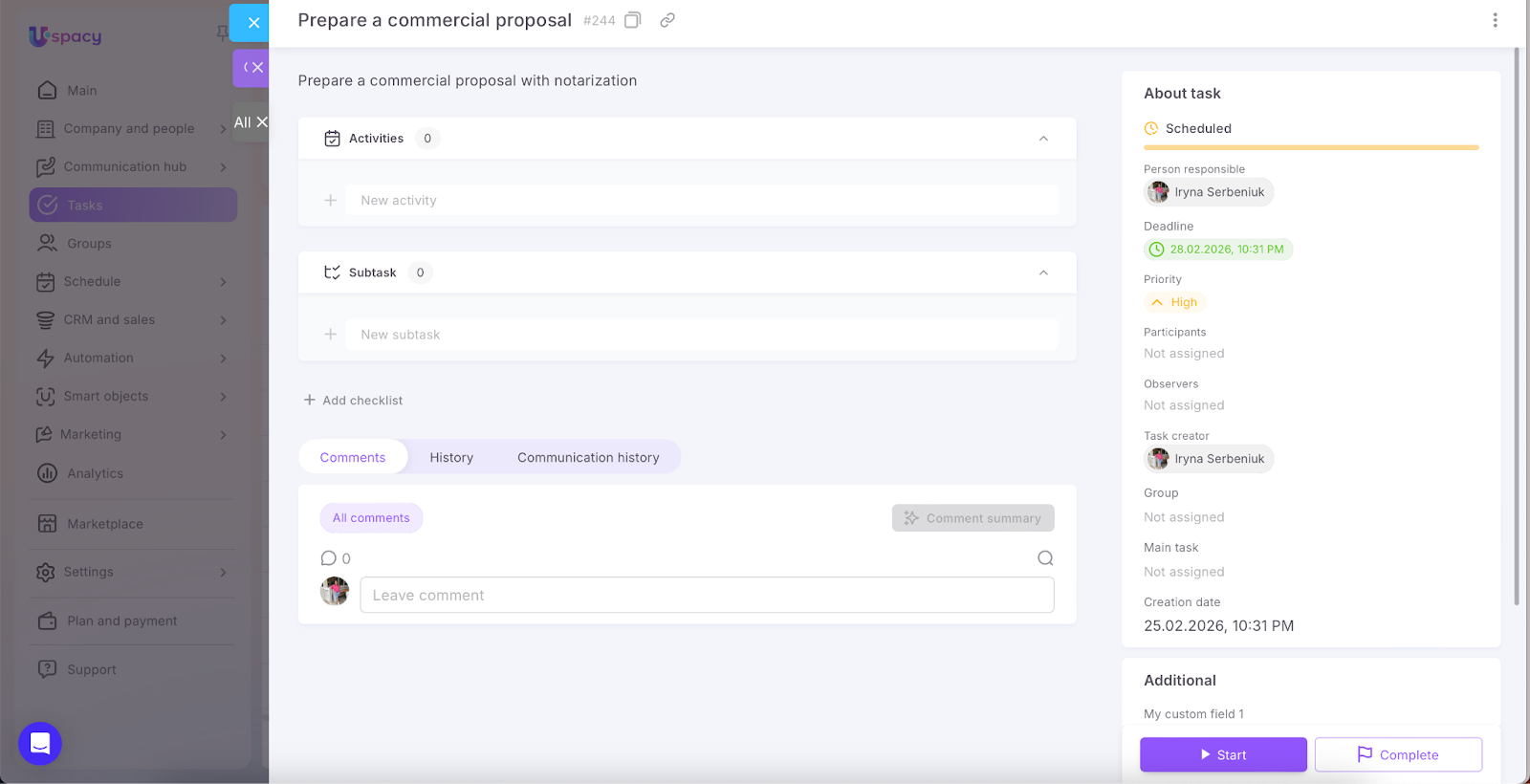
Key points for linking a chat to a Task
- Editing permissions are not required. Linking a chat to a Task works even if you do not have permission to edit that task (unlike connections to individual CRM entities, which may require edit permissions).
- You need to be able to see the task. If you are not a participant in the task, it will not appear in the list, and you won’t be able to link it.
- Linking is only available from the chat. You cannot add a link from the Task card itself—linking can currently only be done within the chat via Entity connections.
If you have additional questions or you need to contact the support, send a request to this email [email protected]
Created: February 25, 2026 / Updated: March 3, 2026