Work with Phonet IP Telephony in your Uspacy CRM. Organize work processes and solve business challenges. Use the capabilities of Phonet telephony to improve the quality of consultations and client service, as well as to increase sales.
Features of work
At Uspacy, telephony works through integrations with specialized services. In the Marketplace section there are free applications that, after installation and configuration, will allow you to call or receive calls from clients.

💡Payment for telephony services is made on the service side.
You can get to know more about Phonet plans and prices here.
For the successful work of Phonet telephony, it is necessary to perform initial settings both at Uspacy and Phonet. After that, you need to install a softphone for making calls.
About everything below ⬇️
Phonet settings
Uspacy settings
In the Marketplace section, there is the free Phonet application, which after its installation and additional settings will allow you to call clients or receive calls from them.

Softphone
To make calls, you need to use a softphone or have a landline IP phone.
Softphone is a special application that provides IP-telephony communication. It is installed on a work computer and requires an Internet connection.
Phonet has its own configurator that speeds up the setup of softphones for users.
💡In addition, you can use not only a softphone or an IP phone, but also an ordinary mobile device to make calls.
On the Help page you can find a list of available softphones for making calls.

Which softphones are recommended for use depends on your operating system or device (Mac, Windows, Linux, IP phone, Android or iOS mobile phone). You can find instructions on how to install and configure them here.

🔍 You can read more about how to configure softphones to work with Phonet in their knowledge base ➡️ HERE.
Work with telephony
After that, you can start working with Phonet directly at Uspacy - make calls and stay in touch with your current and prospective clients.
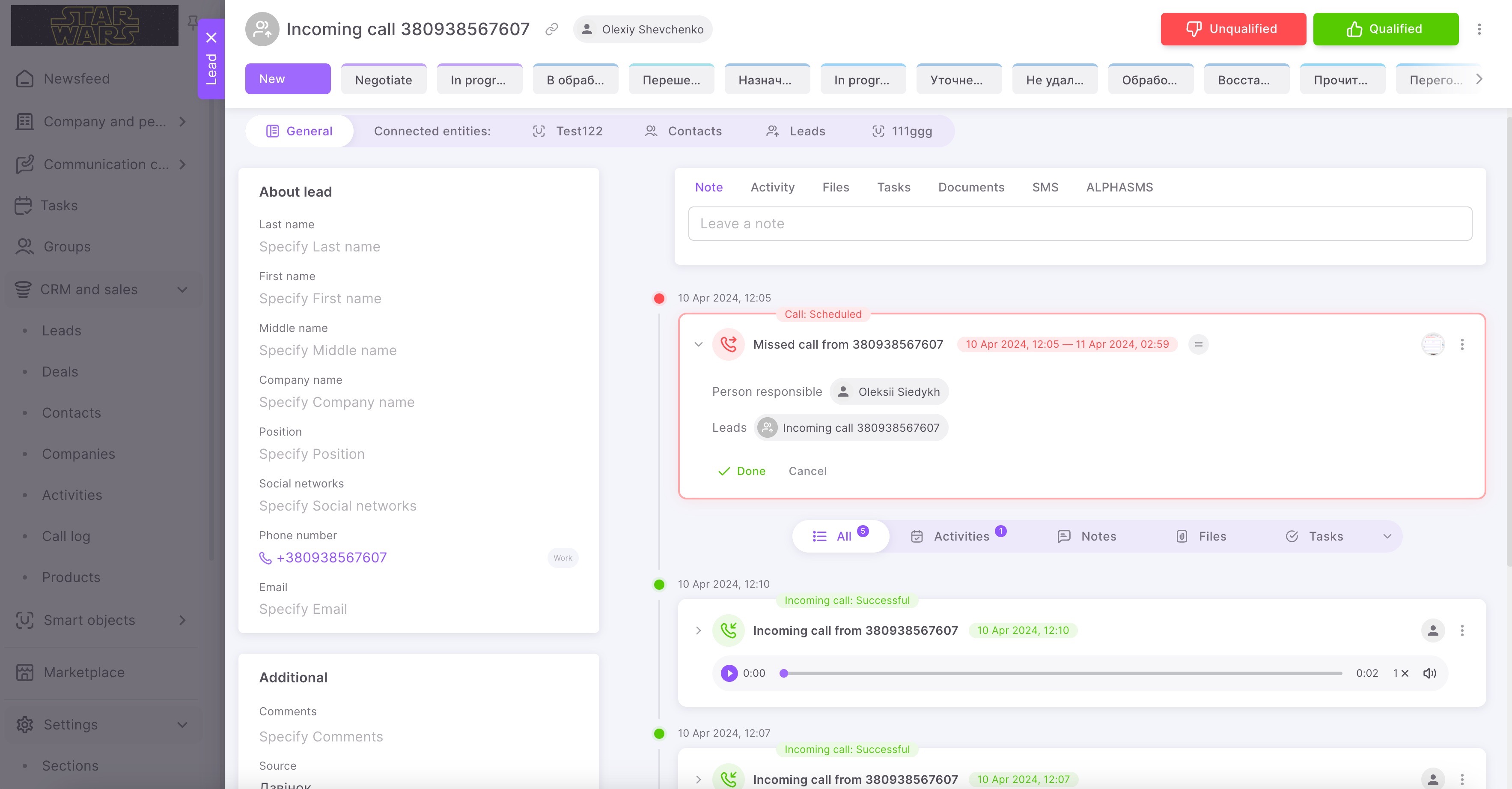
☎️ All calls (incoming, outgoing and missed) will be saved on the Call log page. Here you can process calls, for example, listen to recordings of conversations or go to the card of the related CRM entity.
💡It is available only on commercial plans.
On the call log page, you can immediately process calls, for example, listen to the recordings of conversations or go to the card of the related CRM entity.
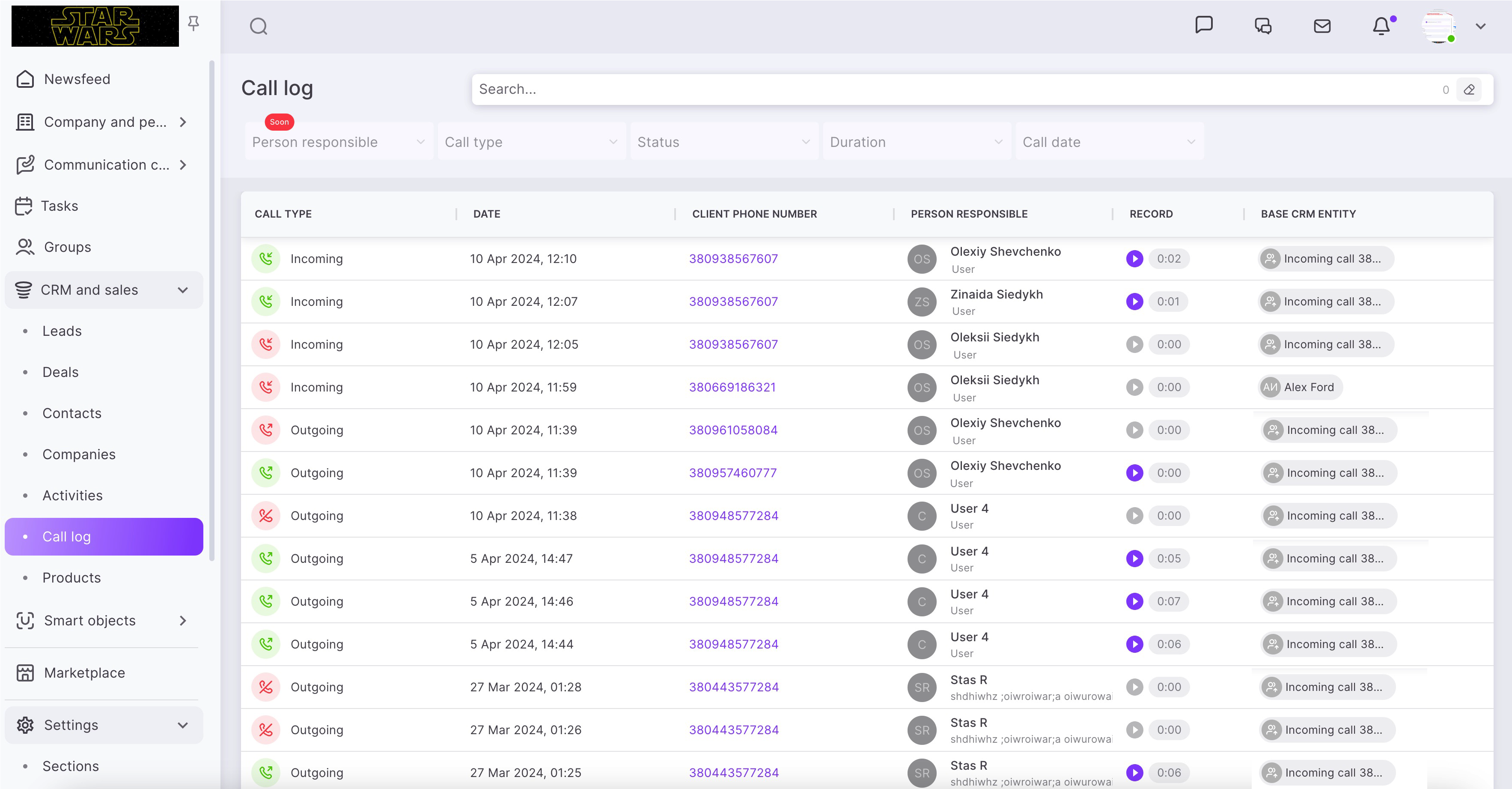
🙌🏻 Please note that conversation recordings are usually added with a delay of 10-15 minutes. If the call was long, the delay may be a little longer.
Conversation records will be contained in the CRM card as well, in its right part, under the activity filter, where the history of interaction with the element is displayed.

If you have additional questions or you need to contact the support, send a request to this email [email protected]
Created: June 20, 2023 / Updated: January 22, 2026