Uspacy Knowledge Base
All materialsScheduleActivities

Scheduling video meetings at Uspacy

Scheduling video meetings at Uspacy

In this article, we will explain how to integrate video services to create and join calls directly from your Uspacy Workspace.

Integrations with video communication services – convenient online meetings with just a few clicks!

The modern workflow requires fast and easy communication, so Google Meet, Zoom, or Teams are ideal solutions for business communication. With integrations, you can schedule calls, create links, and join video meetings directly from your Workspace.

💡Currently, Google Meet and Zoom can be connected. Support for Microsoft Teams will be added in future updates.🚀

AD_4nXc8gm6awe_CnxYsF0QTIO9aY3cDpl63qq-XC74r7JqjOYS8R11uRdcKayMGWZf807A5nGHRoIVjVXg5tTidvcQE9BJNWTS9QEwuUvKVgnzZtpJtn5itQmslUm8y_cmj2TY5UQqv8Q

How to connect and integrate Google Meet?

Go to the Activities section. Then click on the gear icon and select Integrations with video services.

AD_4nXdiTp78pte86KzpGN_-UVAyTk5zoSD5FU1RrCj8ZI8AlTg5Mc8flqxyN1Fjsh-owz2H60Fz9EMK_UVW7i3V51IgpW-F4g7iYAb9vijSRYY1vlFZG1xQZF3Jvd4-YGyj_qAcCUryfQ

🌟 Video service integration is available for users on commercial plans.

For more details on pricing and their features, please visit this page of our website.

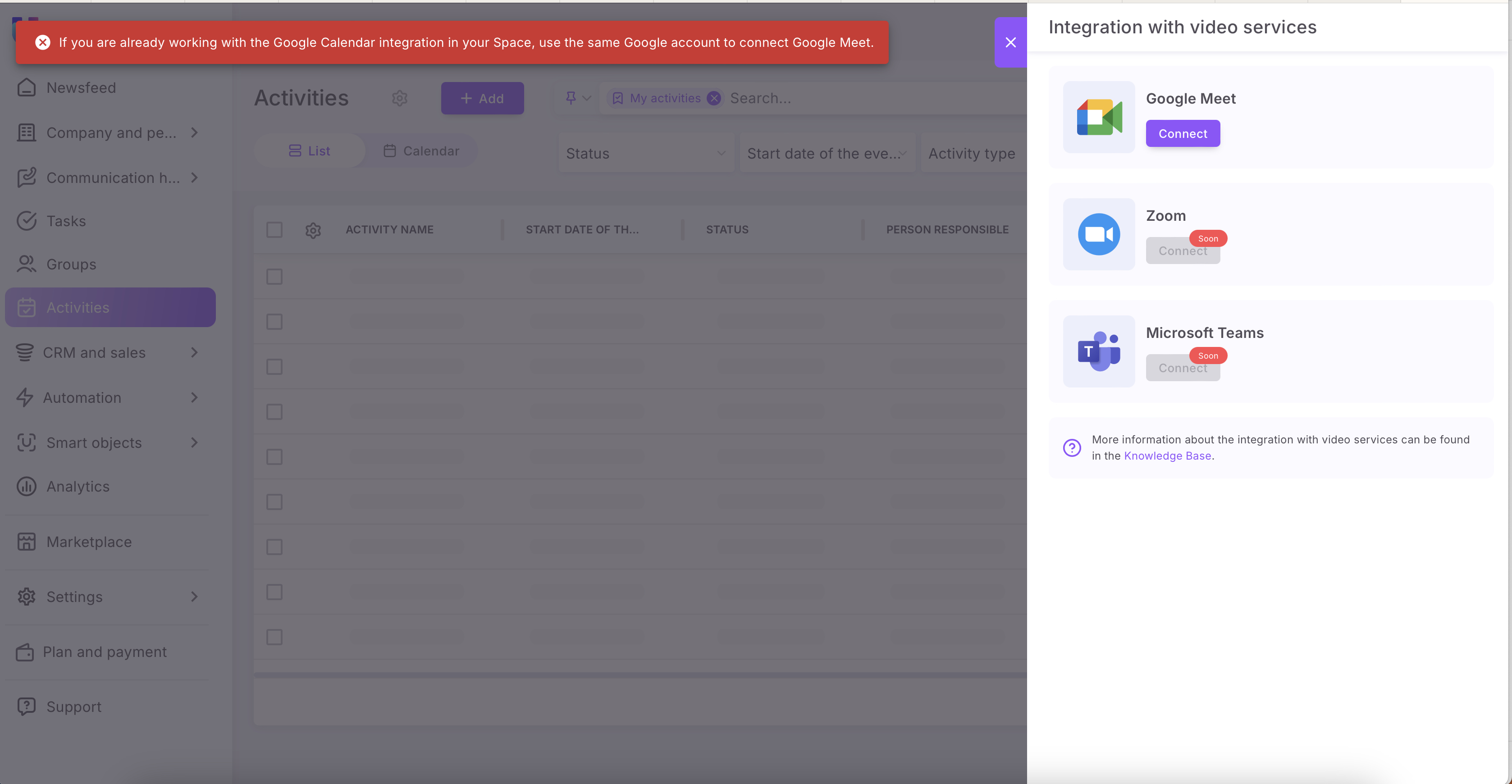
In the window that opens, in the Google Meet section, click the Connect button.

AD_4nXe6zKk5G7GmTp6aqJg-DH7eQYBaSeb8HsKDUhV8pW2YDjN2QCei1KwOXeaFZ6LFSMveR_kTo0Fg3-12vt16X2xd6JMoWXzobqEmRSoKdxuxRjzXHXhi6iScek6CgatNMfc-0f49

You will be redirected to an external page to select the necessary Google account. Log in to the account that your browser recognizes.

AD_4nXdAmroPmugjLw3NUOdOqpdjCu2sYu95j2JyhfNeCaGp9UIAlUmrCrs7wBSsNqG-q5Y9Ii3BB9odYMkSVX2Muzk_cZprcua2QVuCjaLyFWlRBaV2_FXIHocrrD846N1v78eZnFMI0w

Alternatively, you can use another account.

AD_4nXcV7Zx6TCnu-FZ6lSGP73bQtIBjey3cOpuCUI5rvM4K7ievVWAKysbVQxKVhBqltWaDCsgzh7SqtZDsWF2oqb4oKYJ2H07GM0wq2BcJJPMO_mMhfVYM97xwd-KbiOiwFiDWokdcdg

💡If you are already using Google Calendar integration in your Workspace, use the same Google account to connect Google Meet.
Monosnap+Uspacy+—+єдиний+робочий+простір+для+організації+щоденних+процесів+компанії+2025-03-11+14-52-36.png

Then, provide the necessary consent to continue.

AD_4nXf86Wf4h3E-OJt56m5YprHpNacdQTL1cfwKJuIE4NfgPVQaFh9tvS-o4MlBlAJmEp5L2qLed7vpatswbKd-dMHj12ZSrVFhh3rQjIAOV05RTeik7omhHrpw64ZrZgqNqBLjK51TWg

Be sure to check the checkbox. This will allow the exchange of necessary information between the services.

AD_4nXfvd737nB6fTCEhMsWX2ivFfvh7xI8P5Y4Zp45fOKoOD5FXYP_sZ2lQOrSbPl-3TPGiUPK8v7uq2Sx3rO-oVMRzjVWXbxmAVYF-ApALnW7QpC2HPWdJAM_Z8nUf19Oou6gDVCZorQ

☝🏻 If permissions are not granted (you didn't check the box), Uspacy will not receive any data from Google, and you WILL NOT be able to use the service to create meeting links in activity cards.

AD_4nXfTLb0h-SynWGUAKbYKEJNTGrU6jn9gdG0Kz5QuLBSIwdF241IcE4MynrpathJ2f5WvkTFL1EaDB2DR8MpUa6RTdHbKsTBQ4YmV7FKyETntPjfq3lJH4um1Jf2wSpHaeN93cL9lhQAD_4nXdRKqH-gDfYEPXrCYlAoTopcTTfqhudakf_sDjdu3aBI7p3wUjxxXinv4_pnoh7CnmlSMXVtHuiiss5fF5d1uJ9zdoN2Y4e0JxSzxHGJsGUg1vbZEysVVypVyOWlxYm6BEU4pPbrw

☝🏻 If you have already connected Google Calendar to your Uspacy, no additional checkboxes or permissions are needed.

AD_4nXdLmJCqwKgV_xMe-5Bb7bUNJc2GHMDNp6YzZyagbfGXZsx7Rq1nnbo-8RUCwXQJHMNeHKwljxqEZFJ70Xeyylx74MHsKHkR5eT2zaXstGcgrR4xZJeLfbPa7Y-EsXjfGGbbMBA

After that, you will be redirected back to your Workspace. The connection and integration are complete. You can now use Google Meet and create video meeting links directly in activity cards.

AD_4nXc7VG6FuhjPSaa8lYdhXAUbNIzR-GFaoQsrjGxw1e86mNLoBwI4j8b6Av9LyRdwYYrlhMwSQywtJjblsyh14MhLyDg1WEX6sJqFjBHG25dDLTBtb2BMwjxX38d1mpv43-L2OOhlxg

How to disconnect the integration?

At any time, you can remove the connection from your Workspace. To do this, click the trash can icon in the Google Meet block.

AD_4nXfGMulkLiJioj-9_xIAb54wJxjFCFb-AavlP_XUqFds67pqhXBCXee5-dYzMtnexBzmYaI8-gI3PCaA5vC_H_nXQOW1gmQH_mxJKU_G2TbTu0docNqCy94JUMHi8mPPsg2K7DCDlA

Confirm your action.

AD_4nXfJpkKUYv5ZbD0EIIuJGp8etS813iFtWc59suHCqrCxjDuFcQd-gOxPdkbgKl0wZiCCrrI_bpbGRoziIijP6gKgIaq6MZaxUVABKqTrToBvJqYeG48Bn-mt0Sv3XaEPKlCoJNFj

As a result, you will NO longer be able to use Google Meet to create new meeting links directly in the Workspace. If you try to do so, the system will open the integration connection window.

AD_4nXf10R7JVFrJ3O9-l7BkwdvvpmrjIHzFMufzTyckdnxduD_VTzeU_08cV4PGGbpaCqfh2UV8aijCUWMQOWhreALCCLrWihWy0cGa9ScBntfgaIcqxZQ5nfIXKZfN599qYVoim-FhHwAD_4nXfEO35mtA5-Em8KrT9G_lFoMB_1Q0B74nWZ-TTZSP2dpK_rMeNo6FuL351cwyFpnNbm_EiYOjxE9xt1_tpIZBGhKnWKlGv_rInBTJ25qBV1cEQFOtI1KQeuOAEeAE6tmD2myVIJmQ

However, the links already created will remain in the active cards (i.e., those that are not completed or canceled).

AD_4nXfuhn7d4zDu26qotHE3koskz0SNmyE4oEsk84C91TWtHxxvJPVbV_NAi2K1q0GkU6sTeg6LTFP0CxIo4uCBYoaHW4VNHVuFskXBQcOfq5zmFWBr2UMhb9gKJmKPv7JVLpRk5hMd_A

Open the activity card of an existing scheduled activity. The Schedule a meeting in Google Meet button will already be available in it.

AD_4nXeBPQyfZBOJx9svSENUlP673J0fRhxklsIw3u_jj9K-EelfqZcCfCQvunWBvOs4UnMHUVPeec-FEcUd_gNi5jC7WHBaF280xzg4AifMqDjOOECl9H76uG433vcnh8gO_MswPXtGrA

💡 The same button is also present in the form for creating a new activity or duplicating an existing one.

AD_4nXfa-8PM1gz1sk1mJ_zrMFZNINj5gemkfOg0XmbzlJP3YZnaIB-aptU2JAcfMlgZFIEePvix36wKpyutiJ3O4E4Em1G02w32vrDhdvhqM56ck3vVH6CqxJBrq89phhKsT2NCJFpyjQAD_4nXcxs46KhFRQc0oJJNsIxEIH0DgZQaqLqqPiROQtNMjw-xF06vQldoCKDlfcLTAdYrZ6rrunhySN3U5dm4Dq3xhaet0o7VyLvfAIrb10vPM_yTbGB2CrQU0794W2G3dIW4D-lE85xg

After clicking it, a link to the video meeting will be generated.

AD_4nXdiB4ZHqtfTbuu-r_54xBUPvYUYTg2iDEWA6nyG9qq2j3_a-Z_w9xgAq3xJ3PPR47t0Mn5FmUNvCV2MyC-6fmoomIaTUKz7UtJusFKyHDv3yCRhvZUX0ErQhK2ajn5AdQDtNQEGwA

You can copy it and send it to the client.

AD_4nXcjSs4fXgBPlw3huoA_dS2SxIlY32aonMEYhl8HfFsTKMPsO9jtACtFiuWuxWniVqz39vNqpqJqhirRdB4IPfy1v9bFXvfEsGeH6YUw56tTEsplfIkC6Wx6stc0jL9g9n-Haf4O

At the scheduled meeting time, click Join to start the conversation.

AD_4nXcOU53YAL0npJZS62A9cklIx5YJE2XOitWLnsWT23rXg6fMLir7iKOJHuf1QY2YaOInauFlAkusSv79Ym1AqvFlYBbb44h4MOUeG7i0Gu606Cv04xYMD3Q6vDVyXfVJk2i3XOSR

You will be redirected to a separate Google Meet page.

AD_4nXeLF8DVQ-JkPkAhO8vOrjqyaBRB8To7Zn2Q4K-opE6g50Z3hbxJ4TeSx4Eg1qyuk3wx5PM2WzRWxni2IdnLA82w6wqWLpg8oZB2rckj0SlivurKNgPuZ8KTKG-I82XxsGwyuosWgg

After confirming the connection, the call window will open.

AD_4nXfduCnzUKtp4zGG8EsBBEYBAK7Qz2tMWtqk-i3rYKlcOIxEg2QYmfaxVJv3Nsa1B46W5aGJc_FMscnTVxqQ7TncDnGac0fj4D2orQU4WfebXHvKktVdvMIWVzf6T0thZd-gkKwh

Now, just wait for your colleagues and clients to join.

💡Note that after you complete or cancel the activity, the Google Meet link will disappear from the activity card.

AD_4nXfN-AJIg03G3tan-LGx-N9fXc3o01ekZTjuf3weTXWIE4dQn9emHHqCF3zDDgbjptudbE8nABzFm2rijGhcr0zDLOvI20COIxfM0GwhI7RZy3HVL-POKwDzoYdfcArBzR4P2r-h

How to connect and integrate Zoom?

Go to the Activities section. Then click on the gear icon and select Integrations with video services.

AD_4nXfrYmsQXXv4S9LH7OPHIs4CUj9rpHFG3wQqJjJTq_CcybcFUNfu3gdLKWhXtbrH9xcMQKj3eQPksf9AAm2bFeKmwrlX26qREEZ0JFGMavVLjkKzJIMCKJDUdRaH6mr_FkQMALzfqg

In the window that opens, click the Connect button in the Zoom block.

AD_4nXdHxv2IMPpxx_O0lQ1uPl728HodUzQYbDfBIGd2KKd-E9l2MJCHeGEQeF4caJk4uq7fIOM0K3YL4MxQp1ZWadAs_VKooVnoDPz8QlI0PU3pBqFcnEca8uCfFcg_ZNzf7mQ3TflyJA

You will be redirected to an external page to sign in to your Zoom account via the browser if you're not signed in yet.

AD_4nXf5dRwZeO03IQfB91CrnBghPTpxQmYPY0zOWJ5IlPmVAHHEeYfOO7pceGoCOtD2llXg3S6JL8ALoy8_OkeAkE8punbt9XEfXkmdNan9WZDtsF9OAlshu5fPFnfYIpW1wEr2-Zq8

After that, provide the necessary consent to continue by clicking Allow. This will enable the exchange of required information between the services.

💡 The option Allow this app to use my shared access permissions is NOT used for the integration, so you can leave it unchecked.

AD_4nXfFvty-wD0sDPf6FnOiqz02_LrxE1m3kbs-HKivDFj-2gu2FxipZ7HQmTI25x4-faupjkxlRcfTqO6SsljXFVy0tvRCZrZT_QxW3GTcenZKokUzmOfOk4D1A5nlTG7l_vcLhTbNKA
AD_4nXc8HQIgNGCgmfViAOW7pG5RMZY_uAxwWtfPcXlbZJ97CMleTTa1mI9x4lwud5pvHVUkhI3CFWgUEqWdFq7A5J5Q0rmbElXQCoXQEQtaSxn5Ujrbw4ehYhSP3rEWvieCmQmgLBwn

You will be redirected back to your Workspace. The connection and integration are complete. Now, use the Zoom service and create video meeting links directly in the activity cards.

AD_4nXejq7kB36OSgtskMCr7BEJSXpLG-i4HJza8E2Xp42NMulKsChYKSt3p6izjEmKA-wUL5k3nELFtIH3Of8a1xALIYcOCG5_0Qo0d7BgZsWQG8W5Vg6WCwwf9h11fbYTuqrncI_tEEA

How to disconnect the integration?

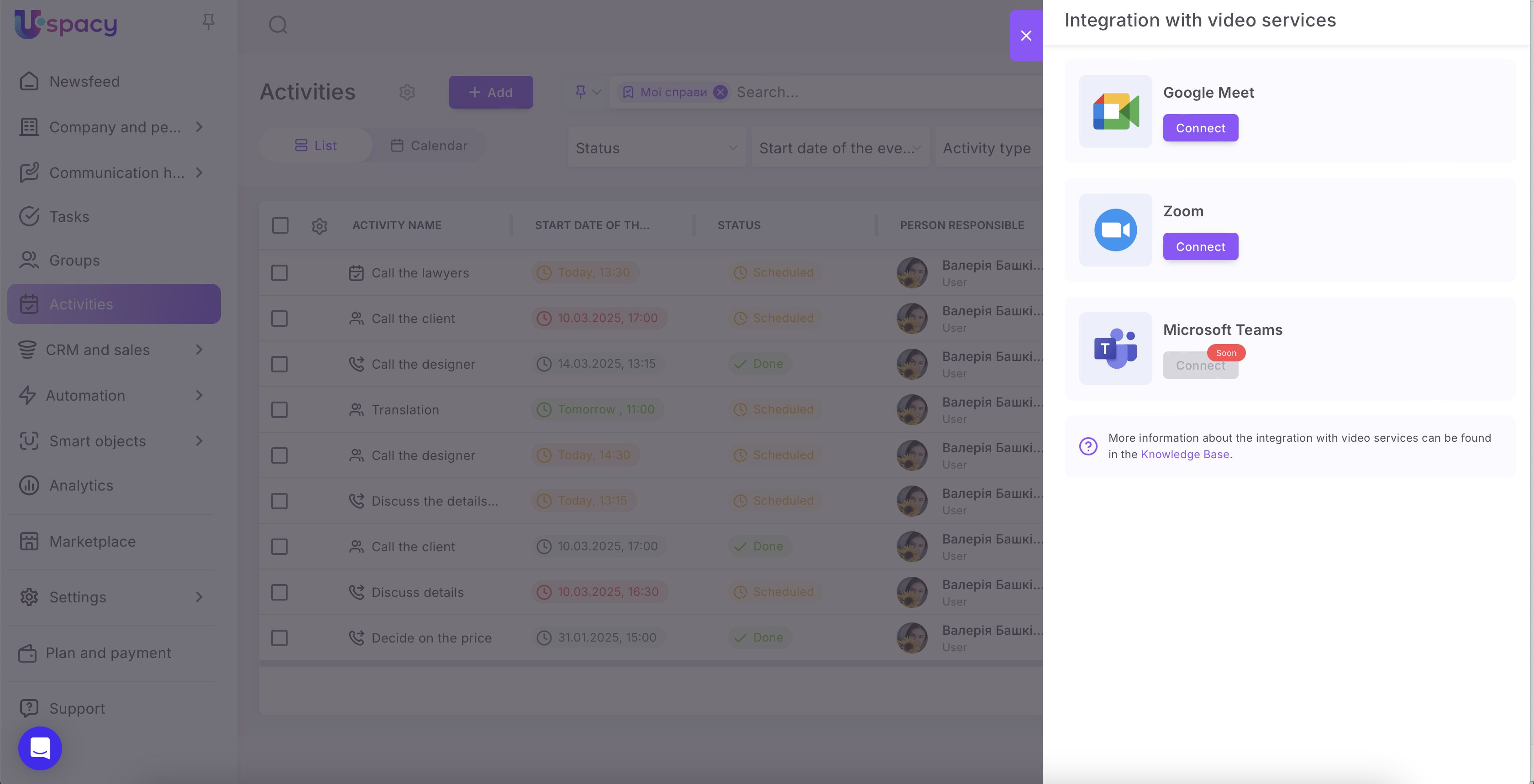
At any time, you can remove the connection from your Workspace. To do this, click the trash can icon in the Zoom block.

AD_4nXe3bGEkj5TpL2iN_SsAsKGZvFTSuCvAaPiiF96DhpVJSntP8DZujUY9Vq0mt8rQqo5-xqhgkPQf7xgWstdp0P-zw9lGm184R8k3-HBBmXBwgsfy9D1hDXpxI-eT_kzQGQADTsJc

Then, confirm your actions.

AD_4nXcbsMHqx6rtUJU5fHLPNnmNIyj8nG23qkKQLw8RBRMf-JyXSwDcWUPkqXznt8kno38fXf8TfAjN4n2aV4AkaYkpc_-KuTkp74c1oWKOQ2YtlwwveEPOCzzprncRxkwtYPtOpu22sw

As a result, you will NO LONGER be able to use Zoom to create new video meeting links directly in the Workspace. If you try to do so, the system will open a window for reconnecting integrations.

AD_4nXcd4SXWHuNKu0UtyCNNjYhmedsHkQDQS3POpwKtmiHbF9sfvRH2VtfanvaCYDbQlwqzWS-cf7e8Jdn8Ie_hdxRNQ4tkTfAHxp4nxbKBDioujBtdsr_pDKjpe3it3Z-lHhzP5GtkFAMonosnap+Uspacy+-+a+single+digital+workspace+2025-03-11+13-57-32.png

However, previously created links will remain in the active activity cards (i.e., those that are not completed or canceled).

AD_4nXdJwLfzSpAwt9H4q-MB4Gw1B7lICqsWYfFMxENHBnXxB_hgySCAucPqG_slbP-VcMltgkJyXSKsdRUwnabUDPlu_z7lkCjMctQVJflDSnGgAHisfI9i9GvRsG44pkU9DL3Pwg8l7A

Open the card of a scheduled activity. You will see the Schedule Zoom meeting button.

AD_4nXc60eFQ8UFjcrLIYWOGv-T3NptqHs5onTyMt35ZigPzDg_rqRKaTtNb8ID2wErbwYHdX18drZnnxj1ZUrpAXCsTOUq-m853hM-iRnFJzHcCuq0wgfV-s4p57ZUeSdaSAGMKx5z_

After clicking it, a video meeting link will be generated.

AD_4nXeRgJd0rcNaXxmIDelnu6MJt2UgNKrd8hsTUc1XwtU-s4QmEO-9ETPD-PblsR1zqde2f8rywggtv8VMwys_D3KgEiHZM1vnYpOBo-GHgMV8yI2nX1HdKbNyRC6DPAXzBrC1NoL-

You can copy it and send it to the client.

AD_4nXf5vgiPB6t6bjOywwgcGn6nLy8hjmM9_CvNHrIT4-ILBQafp0HQHSGb2ML5fAYVHdO71EkxkumXV3iHl6n91WkNWnvRWsYUvhPYbdQNxvqWRxJ3OJ-N900Xx1TQPxE6gs0YMyAhKA

At the scheduled time click Join to start the meeting.

AD_4nXfFAeRRPE-1HIRvgj0TcQVx_enXK2plo8414irxYoKv41UrIGQ_CZ2eQsGuekBXTCSj4Pe1XS1x2OFKoBaHP1P3EMH1z04WWye0Ud4xCncxJs6zy90TDjoXbCYzME5stqrZmONSQQ

After clicking the link, you will be redirected to a browser page, from which you will be directed to the Zoom application installed on your computer.

AD_4nXfj4jTBAAcy5zLq2U33VhBf1P8BXhdmFoRvkJpnr9FwQXdGyfBsHxlOqprFsJjmcY3MPg1cCVy6sOlQkkySpndnI-PgUwe9x1Y1RfdtfhRa8oDYiiizcDjIs3EbQcuD11phU7IqsQ

After that, the call window will open. You just need to wait for your colleagues and clients to start the scheduled video meeting.

AD_4nXcTlMzS0JPEPScPdMA0GUk5bDLXGSMSFwkrwq_Pal8RTTJXIzqNz8WGWf6drBdl-YWAqJAJHU2SCQWyTWk68ac8Z64UOq8iTLeG5fTY2CtWZw6u0hFeaMH80GX4p_j3WkibwXDM

💡 Please note that after completing or canceling an activity, the Zoom link will disappear from the card.

AD_4nXeL7z--ElRY1bKEemxvfDlCOc2PPceUBOIxfITVPjV40pX3ue13HH86neWRddg5_O70ksWWJ8vQZcB42lcSFaWTFMZd_giwCiBRBbPhyY_cciUgj1fYs8NAcS6PBr9IhcZkPf1bpA

If you have additional questions or you need to contact the support, send a request to this email [email protected]

Created: February 19, 2025 / Updated: August 7, 2025