
The left menu is the primary navigation element in Uspacy. It allows you to quickly go to any section or tool within your Workspace, as well as customize the menu structure to fit your workflow.

Sections and tools
The left menu brings together all essential Uspacy tools. Some are displayed as individual items, while others are grouped into collapsible sections.

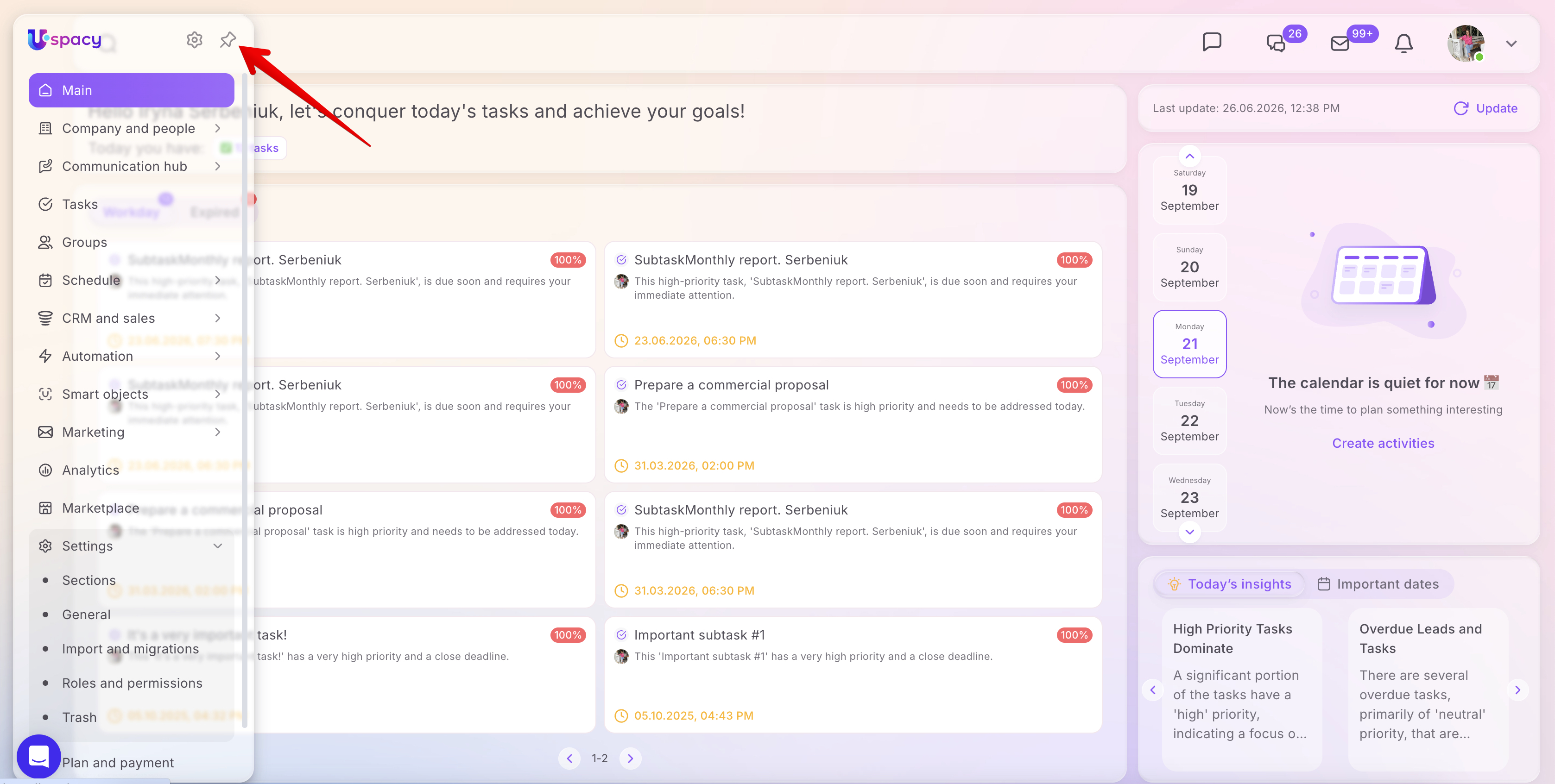
Depending on the features enabled in your Workspace, the menu may display the following main sections:
- Main — a smart dashboard featuring real-time updates on tasks, leads, deals, activities, and other activities;
- Company and people — employee management and organizational structure;
- Communication hub — Newsfeed, Internal Chats, External Channels, Email, Request log, Quick replies, and Live chat for website;
- Tasks — direct access to task management;
- Groups — a collaboration tool for teamwork and shared context;
- Schedule — Activities and Meeting booking;
- CRM and sales — Leads, Deals, Contacts, Companies, Call log, Products, and Payments;
- Smart Objects — custom entities tailored to your business needs;
- Automation — Conditional Actions, Webhooks, and Processes;
- Marketing — Forms, Templates, and Email campaigns;
- Analytics — access to analytical reporting;
- Marketplace — apps and integrations to extend your Workspace capabilities;
- Settings — section parameters, general settings, import and migration, roles and permissions, Trash;
- Plan and payment — information on your current subscription plan and billing management.
❗️💡The set of available sections and menu items may vary depending on your plan, configured access permissions, and tools enabled for your account.
To open a tool, click its name. The active item will be highlighted.
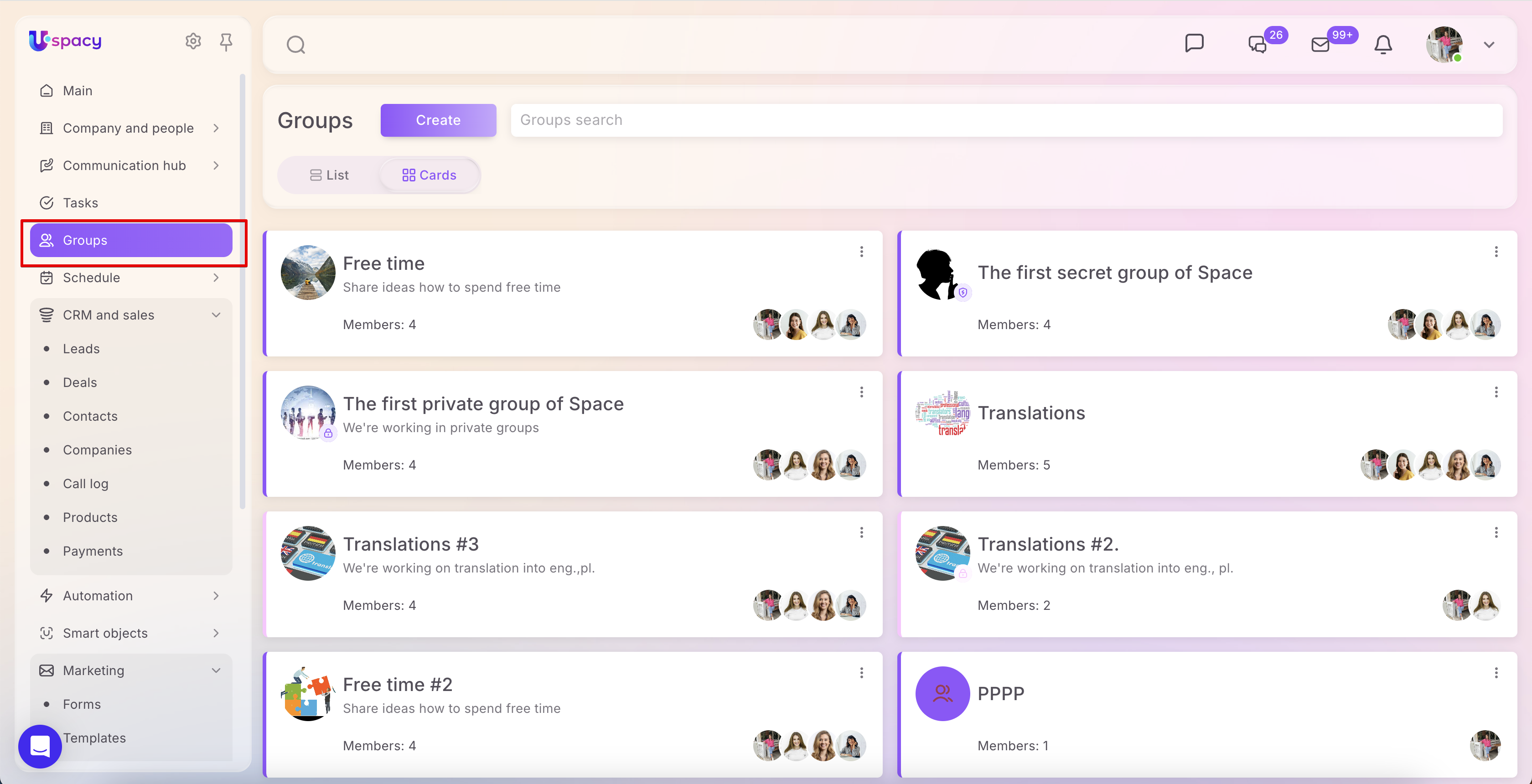
If the tool you need is located inside a section, expand the section first, then select the item.
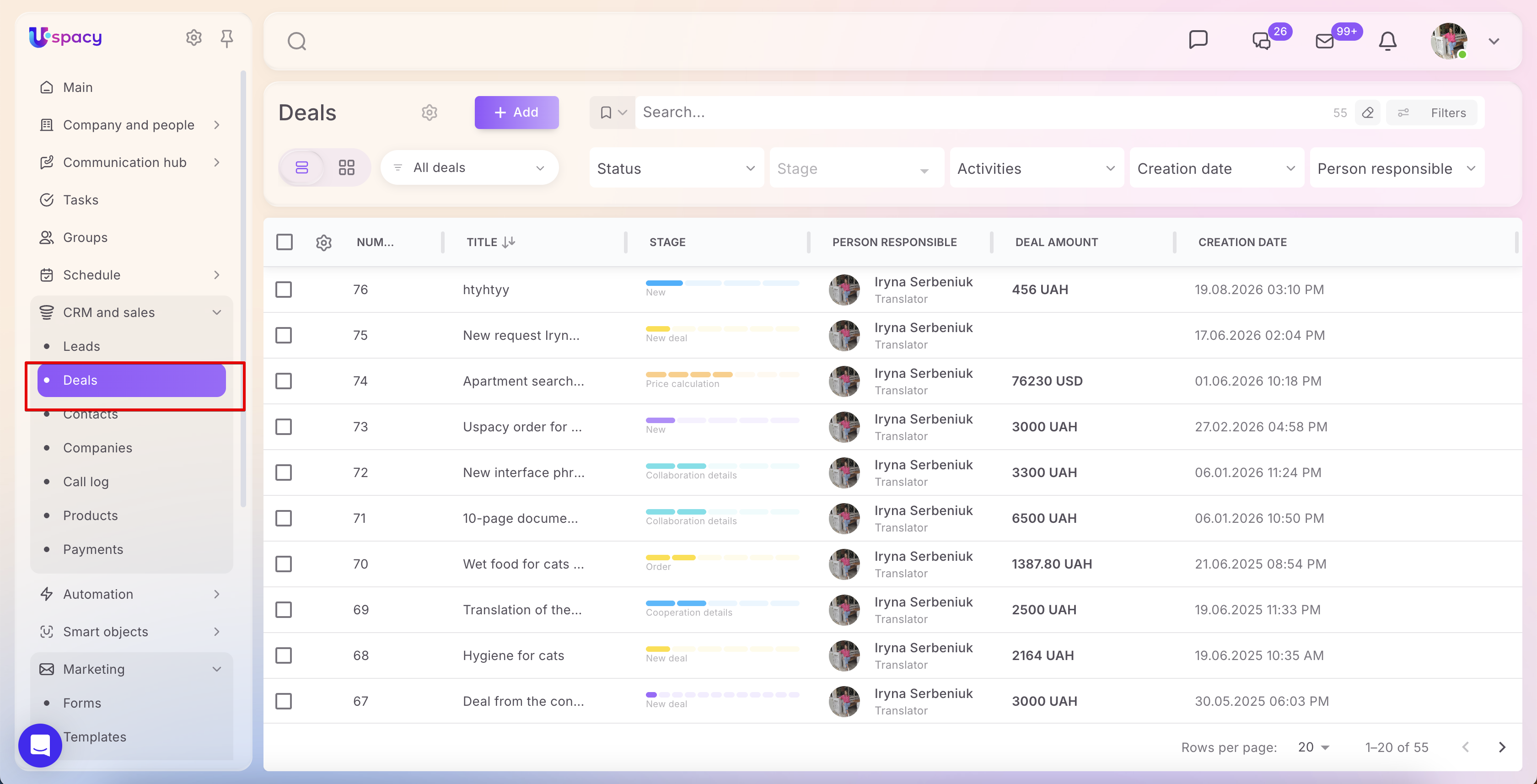
💡 Individual Smart Objects can also appear in the left menu as standalone items if configured in their settings.
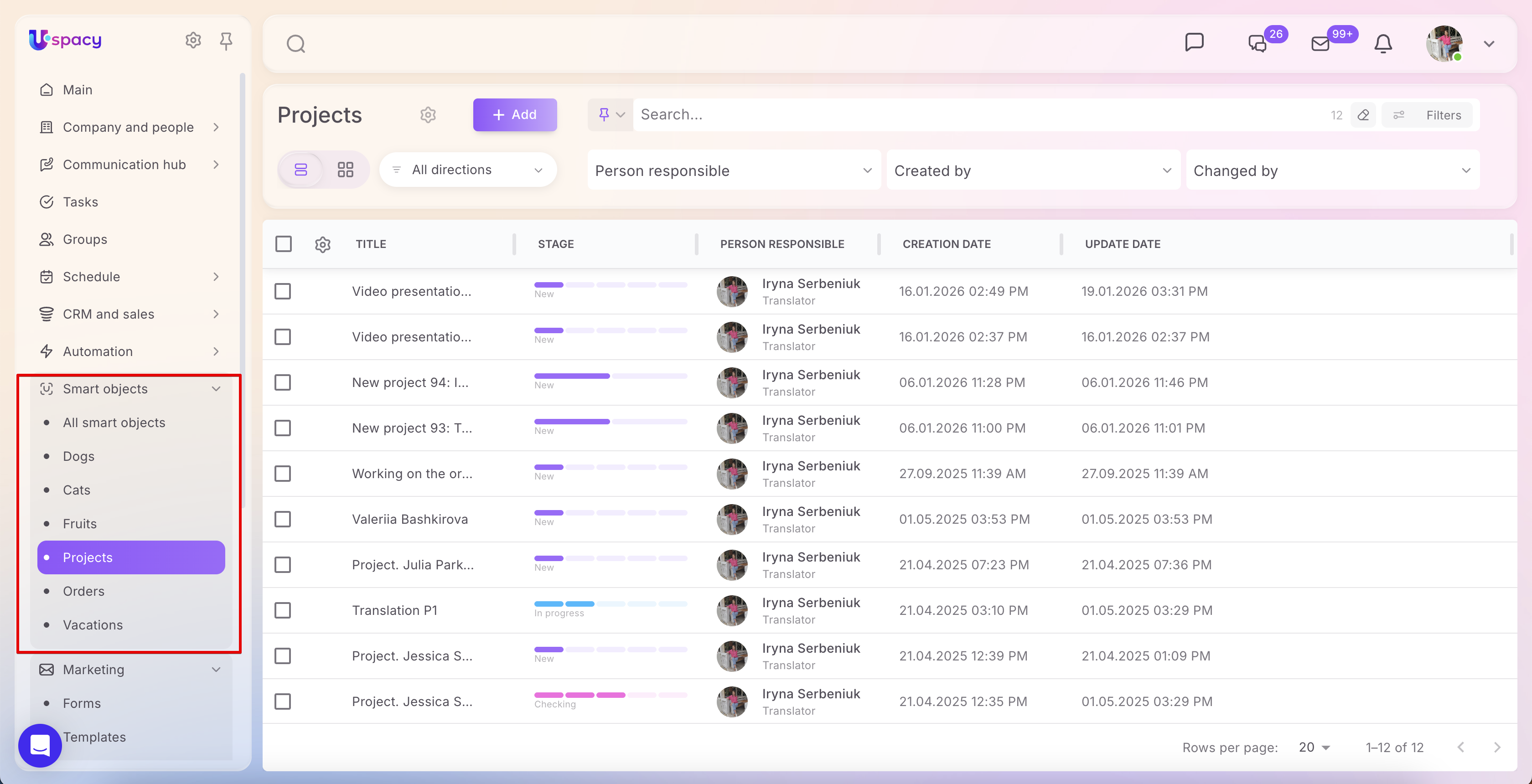
The Uspacy logo at the top of the left menu also serves a navigation function. Click it to quickly return to the Workspace Main page.

🔍 You can read more about the Main page and its components in the article "Main page of the Workspace – A smart dashboard".
Support
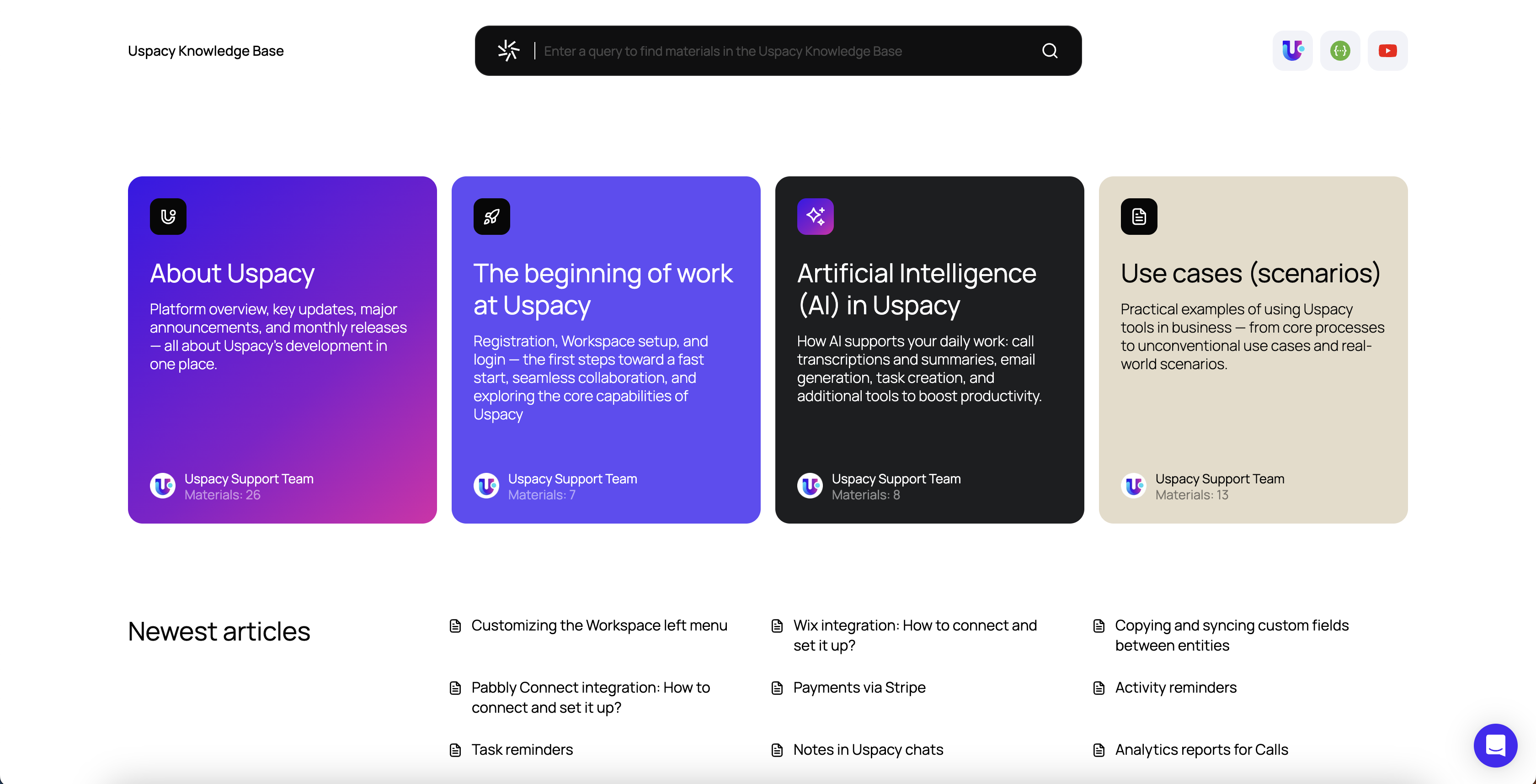
At the bottom of the left menu, you will find the Support option.
It provides quick access to resources where you can find answers regarding Uspacy functionality and get assistance whenever questions arise. Using the widget, you can also reach out directly to our support team for personalized assistance.

Left menu settings
You can adapt the left menu structure to match your workflow. For instance, you can move frequently used tools higher up, hide unused items, or group essential tools into custom sections.


Depending on your subscription plan, you can:
- reorder sections and menu items;
- hide and reactivate elements;
- move items between sections;
- create custom sections;
- add custom menu items with links to external resources.
Each user can customize the menu for their individual needs, while a Workspace owner or administrator can apply a unified menu structure across the entire team if needed.
🔍 For detailed information on capabilities and restrictions across different plans, read the article "Customizing the Workspace left menu."
Menu appearance and variations
By default, the left menu opens in an expanded view, displaying both section and item names.
To free up screen space for your workspace, you can unpin the menu using the pushpin icon at the top. Once unpinned, the menu will collapse.


To temporarily view the full menu, hover your cursor over the left edge of the screen.
To pin the menu back into a permanently expanded view, click the pushpin icon again.
The left menu helps you seamlessly navigate Uspacy tools, while its customizable structure ensures that the exact sections and features you need for your daily work are always right at your fingertips.
If you have additional questions or you need to contact the support, send a request to this email [email protected]
Created: May 30, 2023 / Updated: September 18, 2026