Does your business require more than just leads, deals, contacts or companies? You need your own entity that will meet your specific needs. No problem! At least because you use Uspacy, where work with your own entities - smart objects is already available.
So, smart objects are entities that are created by users themselves and have a certain configurable set of parameters. They can be used if the predefined, i.e., default CRM entities, do not fully meet the specifics of work and business needs.
For example, you can create universal entities such as Warehouse, Projects, Models or Brands of cars, References of technical information, etc.
🪄 Pay attention that in the first release of our product, we named this tool Universal entities. But now you can see changes in its name in your spaces. From now on this tool will be known as Smart objects.

How to do it?
🌟 Please note that only the administrator and Space owner can create new smart objects.
It can be done in two ways. The first is to click the Add button in the Smart objects section on the All smart objects page.

The second is through the Settings section. On the Settings - Sections page, select the Smart objects item and click the Create a new smart object button.
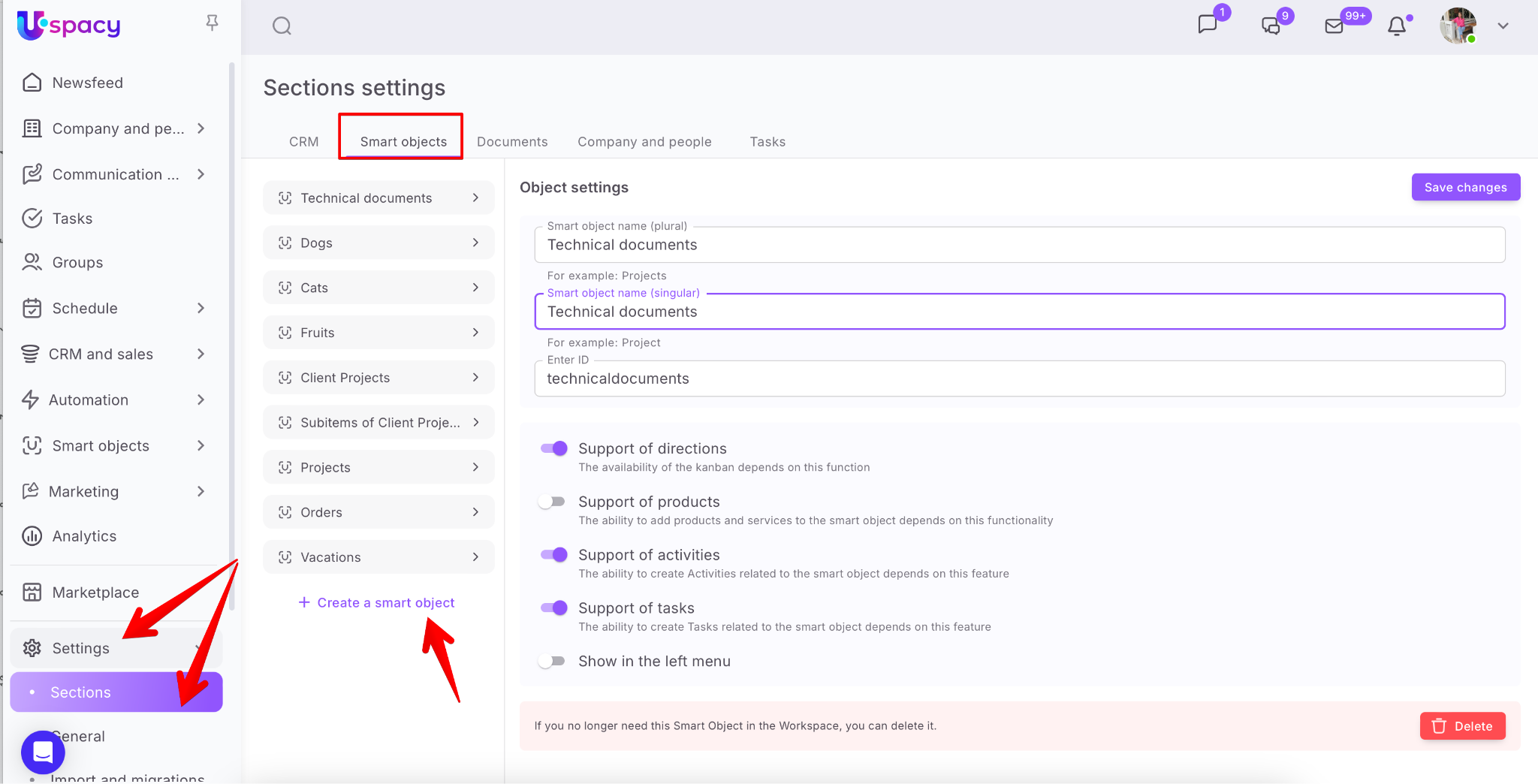
Next, the window for creating a smart object will open.

Here you need to configure the parameters for the new smart object.
🟣 Give it a name both in the plural and in the singular.

🟣 Enter smart object ID. This parameter is automatically filled out by the system - it is transliterated into Latin. But you can enter your own value.

❗️Please note that the ID must contain only Latin letters.

🟣 Activate or deactivate the support of directions.

It depends on whether the new smart object will support work with the Kanban board.

🟣 Activate or deactivate the support of products.

It determines whether the option to work with products in the cards of the smart object's elements will be available for the new smart object.That is, the Products tab will appear.

Therefore, after switching to it, a product or service can be added to the smart object's element.

🟣 Activate or deactivate the support of activities.

It depends on whether the new smart object will support work with activities. Namely, the ability to create activities in the entity element card.

Or to bind the elements of the smart object to the activity. In the form of its creation, the appropriate block will be available.

🟣 Activate or deactivate the support of tasks feature.

It depends on whether your smart object will provide work with tasks. Namely, the possibility to go from the form of task creating to the element card of a smart object.

Or bind elements of a custom entity to a task. The corresponding block will be available in the form of its creation.

🟣 Provide the possibility of display in the left menu for the new smart object.

If you activate this option, the smart object will be a separate menu item in the Smart objects section. When you click on it, you can go to the page of this smart object at once.

When all the parameters of the smart object are configured, all that remains is to Save it.

As a result, it will immediately appear in the list on the All smart objects page, as well as in the left menu, if it was specified when creating it.

After creation, the entity is automatically NOT accessible to everyone. This means that only the Space owner or administrators can work with it.
In order for other users to have access, you need to separately configure permissions for each existing role to work with the elements of the newly created smart object.

☝🏻 To view the entity and access the page for working with it, users must reauthorize in the system. This is because changes have been made to the role settings, and they need to take effect.
If you have additional questions or you need to contact the support, send a request to this email [email protected]
Created: October 13, 2023 / Updated: September 24, 2025