External lines are a convenient tool that allows to communicate with clients in Space chats, while they are writing to you in third-party messengers.

🔍 Uspacy can be integrated with:
Clients can contact your company via this messenger, for example, using a contact button on your website or a widget. You will be able to work with these messages in the chat of your Space by going to the External Lines tab.

How to work with external chats?
The start of work with dialog
All client requests first go to the Unassigned tab. This means that no employee is working with chats from this list yet. But they can be seen by everyone who has permissions to External Lines.
To start working with a specific dialog, it is enough to click on the Reply button (1). Or open the chat first and click this button already there (2).

After that, the dialog will be moved to the Active tab. It contains chats with which a specific employee works. This is a list of dialogs with which the employee is working and for which he/she is responsible.
In addition, a text input row will be available in the chat. To send a message, click on the special button.

💡 For external lines, it is also possible to format the text using the built-in editor, as well as attach files.

Connections in CRM
In addition to the ability to communicate and consult clients in chats, external lines help connect requests and sales. They provide access to your CRM in the active dialog window at once.
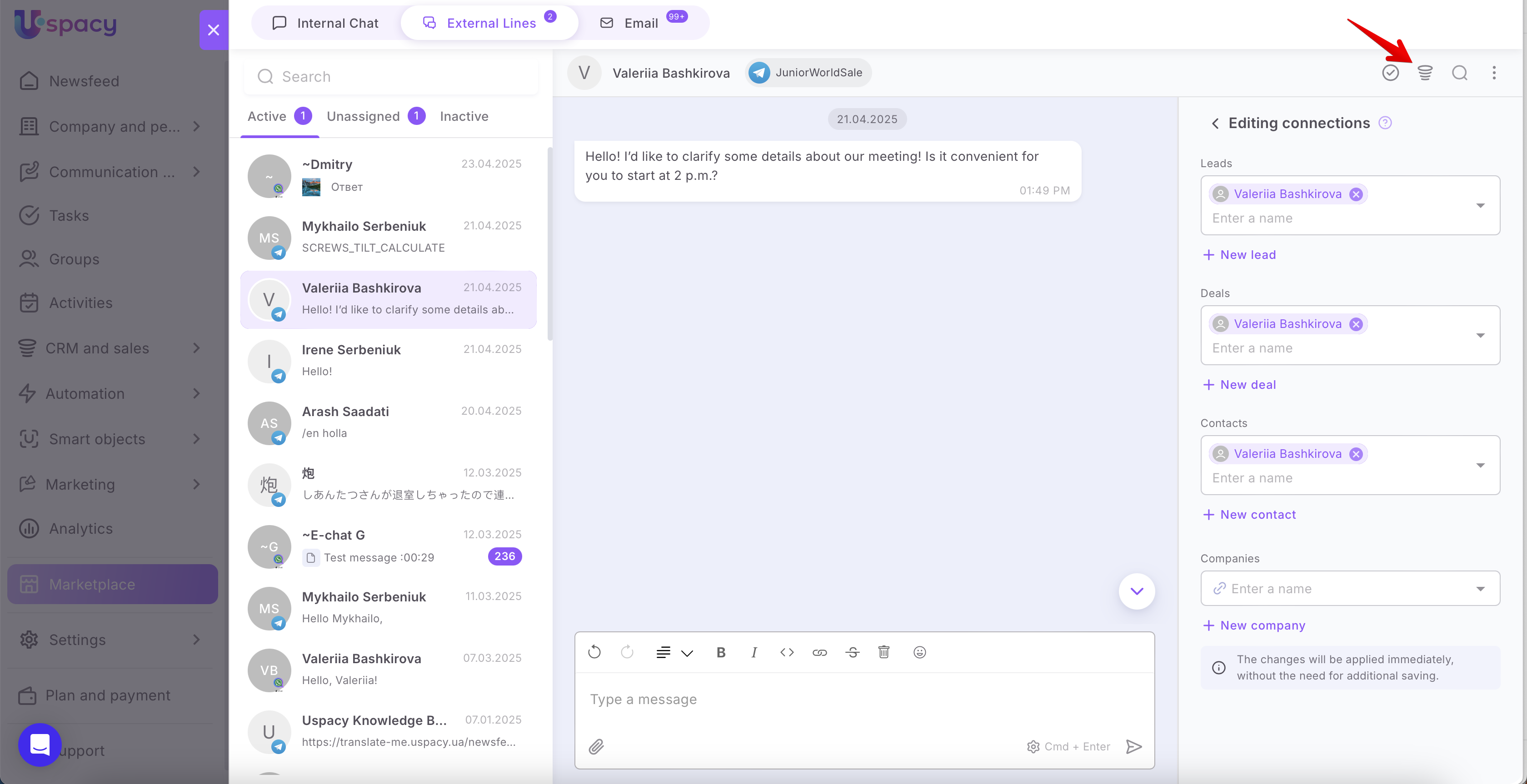
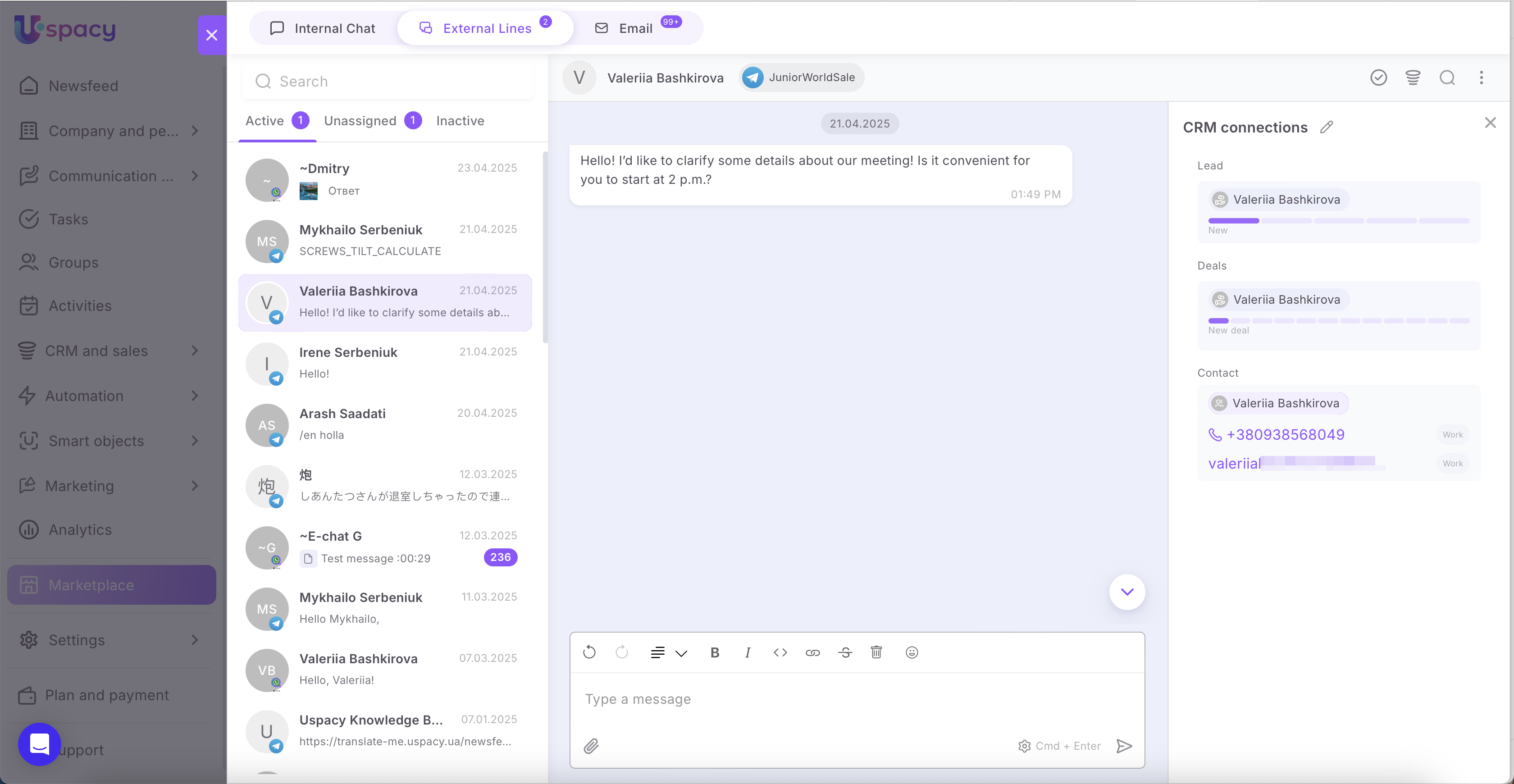
🔍 You can read more about setting up CRM connections and how they work in the following article.
How to go to the dialog from the CRM card
After starting communication with the client and creating a lead based on the dialog, a block of going to the chat automatically appears in its card.
💡This block will also be pulled up and displayed in the contact or company card that is added to your database as a result of the lead conversion.

To go to dialog, you must first call the interaction menu by clicking on the three dots. Then select the corresponding item. In addition, you can close the dialog here.

In the dialog block, you will see the last message that was left by you or a client. If you click on it, you can go to the dialog as well.

A chat window will open where you can continue the conversation.

💡If another user is working with the chat, then you can also go to this chat from the card of the bound element, in case you have access to leads (or contacts) in CRM.
To do this, click on the last dialog message in the block .
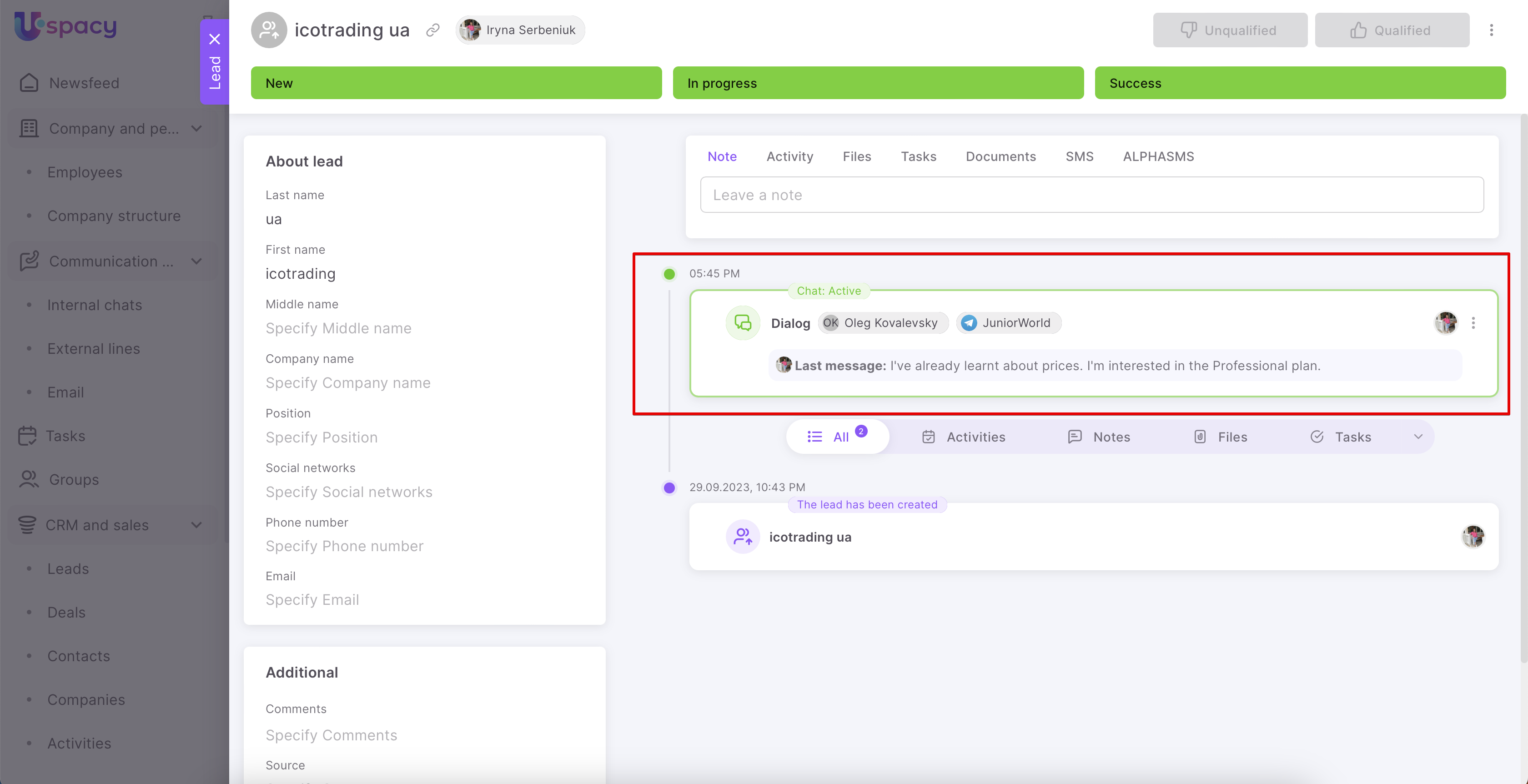
Next, a chat window will open. But you won't be able to write a message yet. First you need to Join the dialog.

After that, you will also be able to communicate with the client and the dialog will be marked as Active in your chat list.

When opening an element card, you will have a chat interaction menu with a related dialog. You can immediately close it without opening the chat window.

There are situations when a client saved in your database as a lead or contact writes to you in the bot, and you recently reinstalled the integration with the messenger, then another chat will be displayed in the CRM card.
💡The same will happen when you have just connected another bot and now you can message there too. That is, a new lead will not be created, since the system recognizes a person by account. Only a new chat will be created.

The dialog which contains the latest message, moves to the top of the list.
☝🏻Please note that the time marked next to the chat block does not mean the time of creation of the dialog, but the time of the last message in it.

In addition, the field External lines appeared in the cards of CRM elements created on the basis of external chats. It specifies the account of the client who wrote to the bot. The type of messenger is indicated as well.

☝🏻This field can be displayed in your list of leads, contacts and companies.

If you click here, a chat with the client will open.

The chat where the latest message was sent will open in Space.

Interaction with dialog
You can add other managers (Space employees) to the chat at any time. For example, if you need to solve issues that your colleagues know more about.
To do this, click on the special button for calling the interaction menu (three dots) and select Add to dialog. In the list, select the required users by checking them and click Add.

💡When more than one responsible manager participates in the chat with the client, the option to Leave becomes available for each of them.

Also, if necessary, you can redirect the dialog to another manager (Space employee). To do this, use the Redirect item. Select the desired user from the list and click Add.

The dialog with the client can be renamed. To do this, click on the name of the chat above. Then the viewing form will open.
💡By the way, you can also add other managers to the chat here..

Click on the pencil icon.

Enter the desired name and, if you want, you can also upload an image. After that, click Save.

Changes will be displayed in both the dialog box and the chat list.

How to end the dialog?
After the client's question has been resolved, you can close the chat ✅
For this, it is enough to click on a special button.

Confirm your actions by clicking End dialog button.

💡 If you check the Do not show this window again option, there is no need of additional consent to end the dialog.

The dialog that was ended goes to the Inactive tab at once. It contains those external chats that have already been processed by the manager.

But if necessary, you can work with them at any time. To do this, select the desired dialog and click Start.

After that, the chat will be moved back to the Active tab. You can communicate with the client there again.

If the message to the external line was not targeted and contained insults or some unwanted information, you can mark the chat as spam and close it.

After that, the dialog, just like the usual one, is closed and goes to the Inactive tab. It can also be restored again if necessary and you can go on working with it.
If you have additional questions or you need to contact the support, send a request to this email [email protected]
Created: August 30, 2023 / Updated: April 24, 2025