
The website chat widget can include not only an online chat but also additional communication channels. For example, Telegram, Viber, WhatsApp, Instagram, Facebook, LinkedIn, phone, email, or any other channel through which clients can conveniently contact your company.
Contact options make the widget more flexible: a website visitor sees the available channels, clicks the desired button, and is redirected to the most convenient way of communication.
🌟 This feature is available only on commercial Uspacy plans.


To configure communication options, go to Communication hub → Chat on the site and create a new widget or open the settings of an existing one.
In the widget creation or editing window, open the Contact options in the widget tab.

On this tab, you can configure:
🟣 How additional communication buttons are displayed on the website. In the Select the option placement section, select one of the available layouts: Vertically or Horizontally.

If you select Vertically, the communication buttons will be displayed one below another. This option works best for most websites and is suitable for both desktop and mobile devices.
If you select Horizontally, the buttons will be displayed in a single row. However, this mode does not work on mobile devices, so it should only be used when you specifically need a desktop-only layout.

🟣 Which communication channels are shown in the widget. By default, the Chat on the site channel is already included. It represents the main online chat and is configured automatically.

In the Chat channel settings, the value is set to Automatic. This means no manual link or additional configuration is required, as everything is handled by the widget itself.

For example, the icon for the Website chat channel is assigned automatically based on the widget’s appearance settings.
To add another communication method, click the corresponding button.

A new row will appear in the list. In this row, select an icon, a channel, and add a link where users will be redirected after clicking the button in the widget.
To select an icon, click the icon image in the new row. The Select icon window will open.

In the Library tab, you can select from ready-made icons for popular channels: Phone, Email, Telegram, Facebook, WhatsApp, Instagram, Viber, X, LinkedIn, TikTok, YouTube, Threads.

You can also switch to the Create your own tab, where you can design your own icon by selecting background color, icon color, and the symbol itself.

After selecting an icon, click Save.

💡 If you first select the channel, the system will automatically assign the appropriate icon. For example, Telegram will automatically get the Telegram icon.
You can still change it manually by selecting another icon from the library or creating a custom one.
However, if you select only an icon first, the channel will not be filled in automatically. In that case, the Channel field must be filled in separately ⬇️
Next, fill in the Channel field. You can select it from the list or enter it manually. Available options include Telegram, Viber, Instagram, Phone, Email, WhatsApp, Facebook Messenger, X, LinkedIn, and more.

Then fill in the Link field. This is the address where users will be redirected after clicking the button in the widget.
The placeholder shows an example format for each channel to help you enter the correct link.
For convenience, you can use the following formats. Replace {username} with your account, page, or channel name:
➢ Telegram — https://t.me/{username}
➢ Viber — viber://pa?chatURI={username}
➢ WhatsApp — https://wa.me/{username}
➢ Instagram — https://instagram.com/{username}
➢ Facebook — https://www.facebook.com/{username}
➢ X — https://x.com/{username}
➢ LinkedIn — https://linkedin.com/in/{username}
➢ TikTok — https://tiktok.com/@{username}
➢ YouTube — https://www.youtube.com/@{username}
➢ Threads — https://threads.net/@{username}
For example, if the Telegram username is company_support, the Link should be:
https://t.me/company_support

To continue with Telegram as an example: first find the username in Telegram by opening profile settings and copying the value from the Username field.
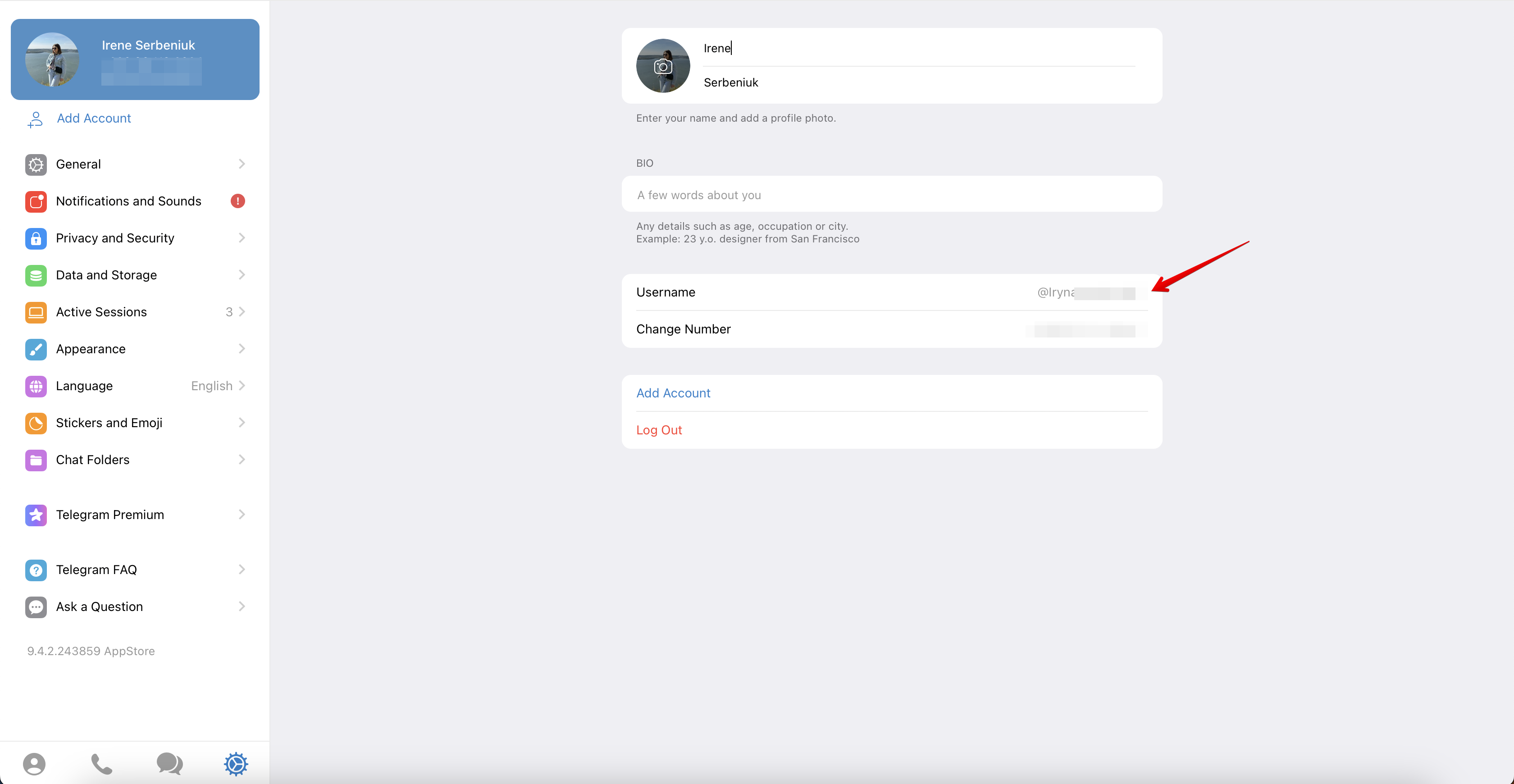
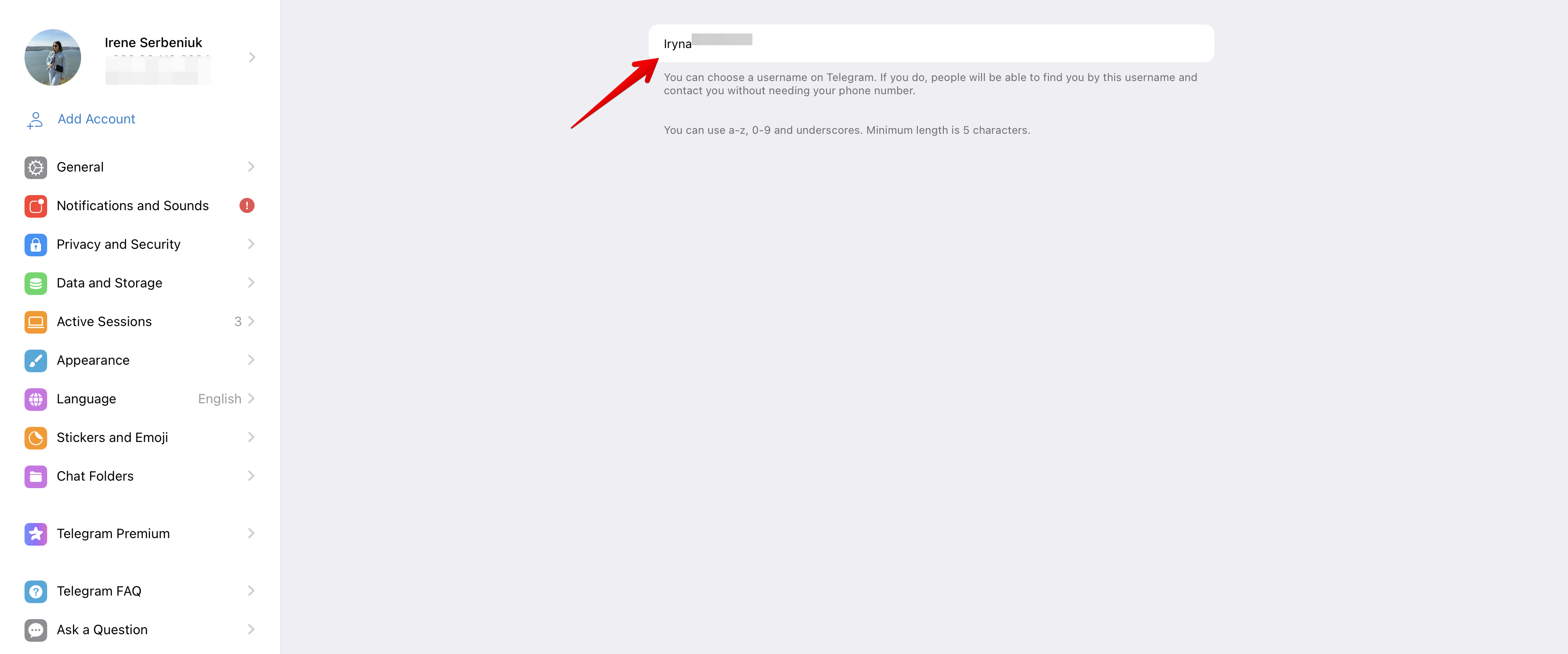
Then return to Uspacy widget settings and enter:
https://t.me/

After the slash (/), add the Telegram username. The final format should be:
https://t.me/username

On the right side of each channel row, there is an activation toggle. If enabled, the channel will be displayed in the website widget. If disabled, it remains in settings but is not visible to users.

There is also a delete icon next to the toggle, which removes the channel from the list.

You can also reorder channels by dragging them using the handle on the left. The order in settings determines how buttons appear in the website widget.

You can add up to 10 communication channels in the widget. The counter on the right shows how many are already added.

🌟 The number of available channels depends on your plan. The Free plan does not support this feature. The Standard plan allows up to 5 channels, and the Professional plan allows up to 10.
After configuring all channels, click Save and generate the code.
Or simply Save if you are editing an existing widget.

If the widget is already installed on your website, the updated communication buttons will appear automatically after saving. For example, if you added Telegram, a separate Telegram button will appear next to the online chat button.
When a user clicks a channel button, they will be redirected to the link configured for that channel — whether it is a messenger chat, social media page, email, phone, or any other communication method.
Contact options in the widget make client interaction more convenient and flexible. You can add the channels most used by your audience: messengers, social networks, phone, or email.
This helps visitors quickly find the preferred way to contact you, while your team gets more opportunities to communicate directly from the website.
If you have additional questions or you need to contact the support, send a request to this email [email protected]
Created: July 1, 2026