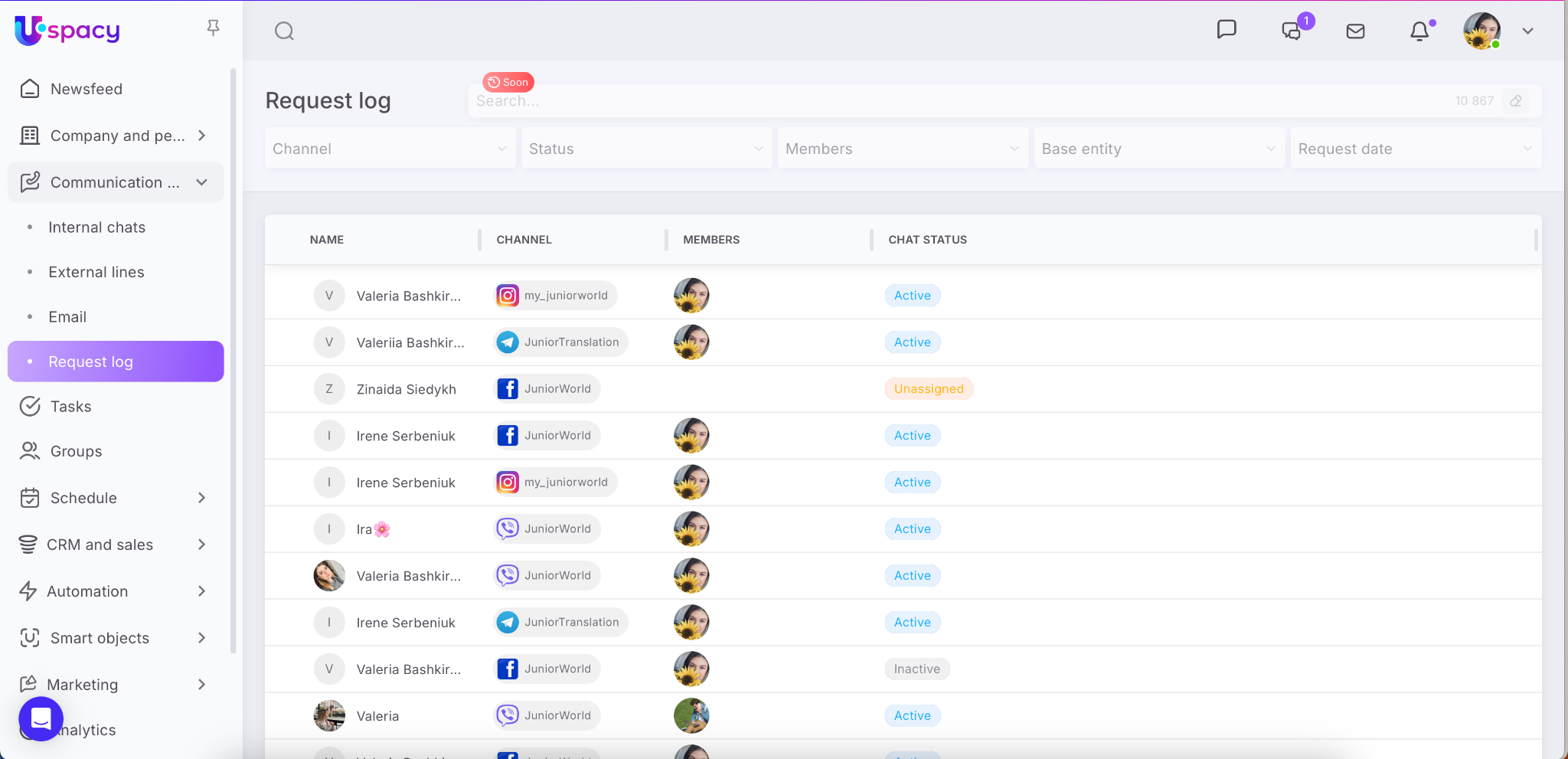
For those who administer the Workspace, the Requests log saves time: it displays all chats from connected channels in one place and automatically brings the most relevant conversations to the top.
Since access is granted to the Workspace owner and administrator, they can quickly open chats, join them, and guide the team’s communication.
🌟 The Requests log is available only on commercial plans. Learn more about plan features ➡️ on the pricing page.
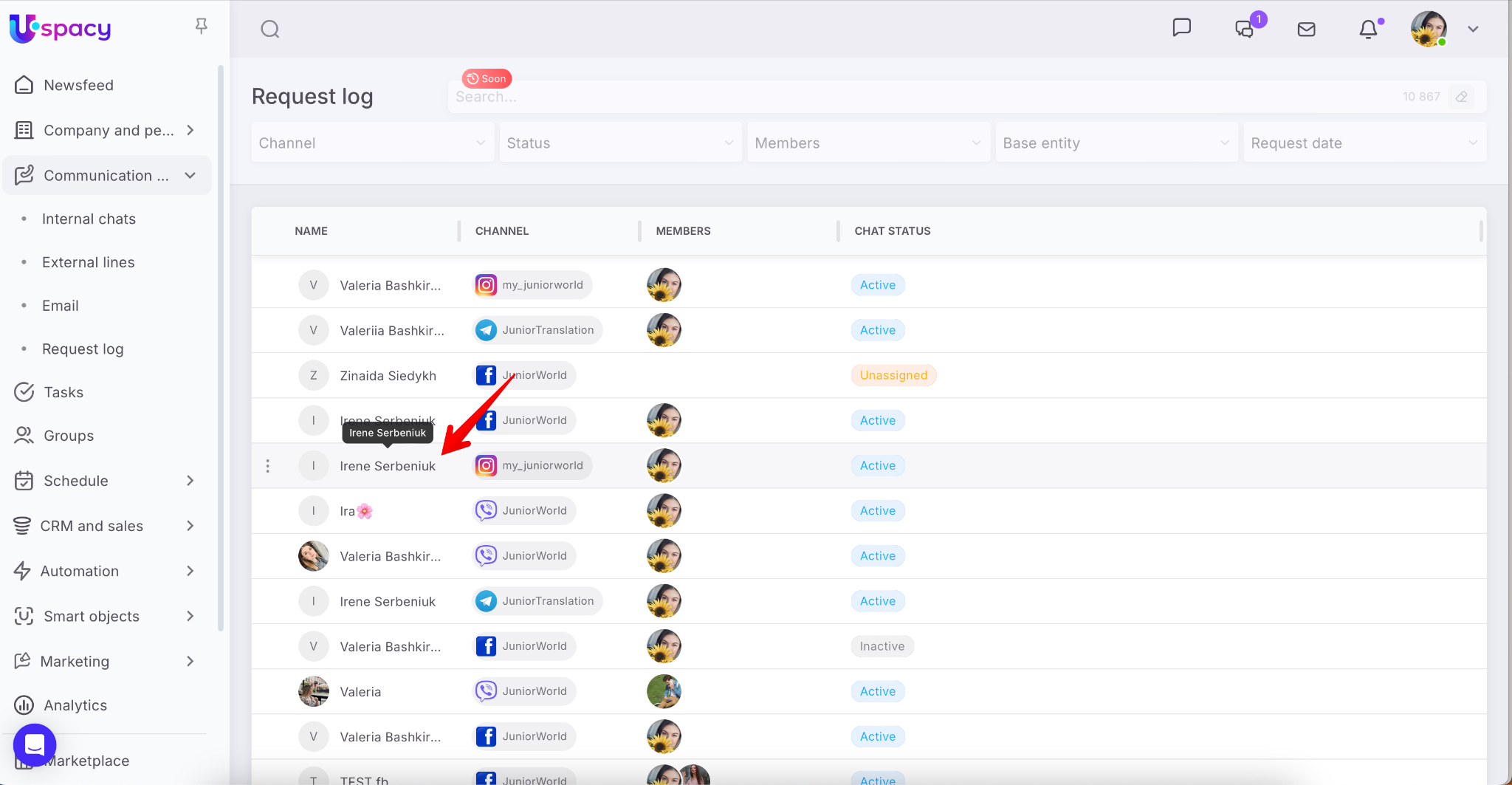
So, the Requests log is a separate page in the Communication hub section, where a unified list displays chats from connected external lines (channels), such as Telegram, Viber, Facebook, Instagram, etc., as well as those conducted with clients via chat widgets on the website. It helps you quickly understand where the message is coming from.
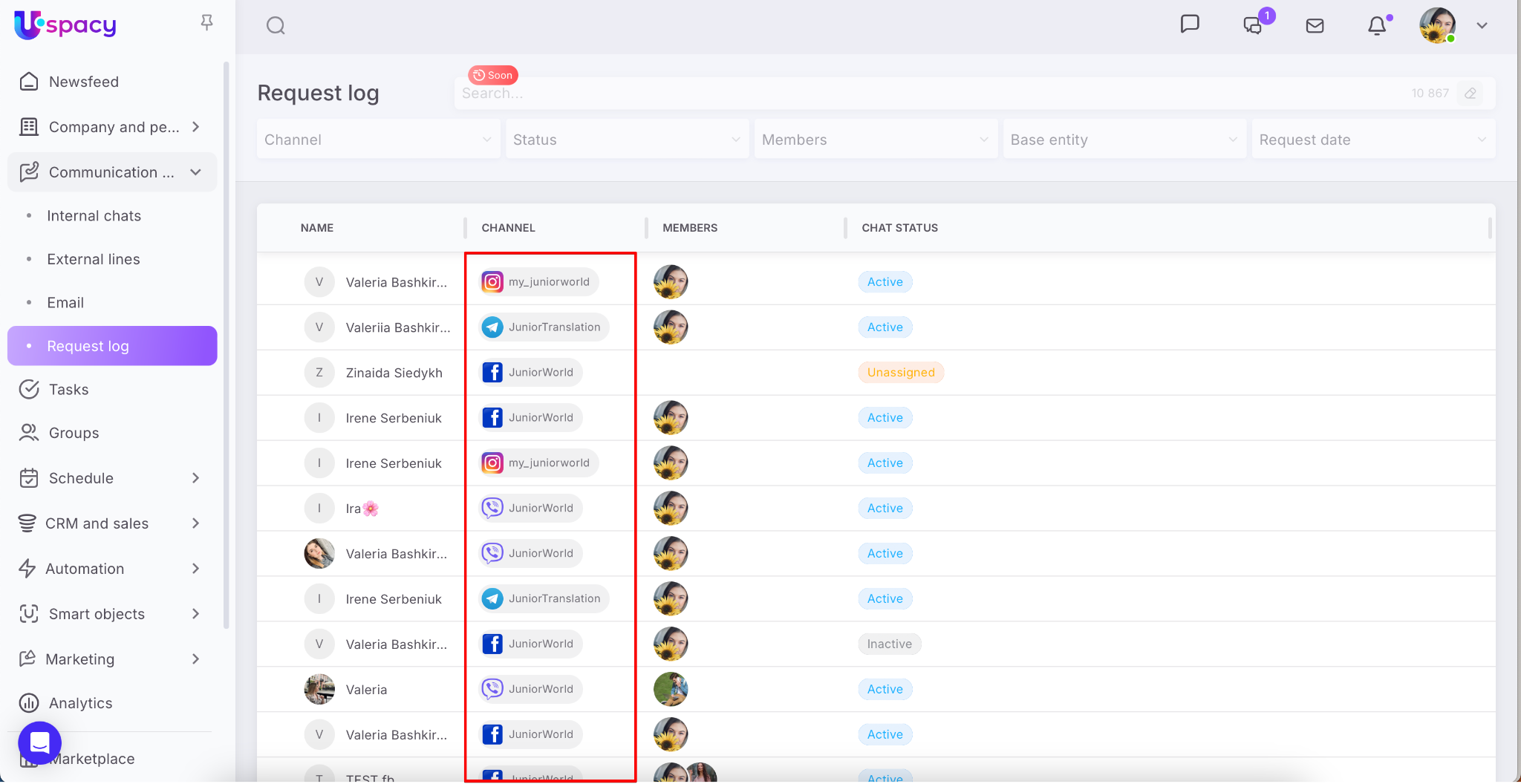
🔍 Learn more about messengers and social networks available for integration with Uspacy in a separate section of our Knowledge Base.
🔍 Learn more about the website chat widget ➡️ at this link.
You will also see the Chat name, which is the client’s name (or nickname) from the connected social network or messenger. For website widget chats, the name will be the request number (by ID).
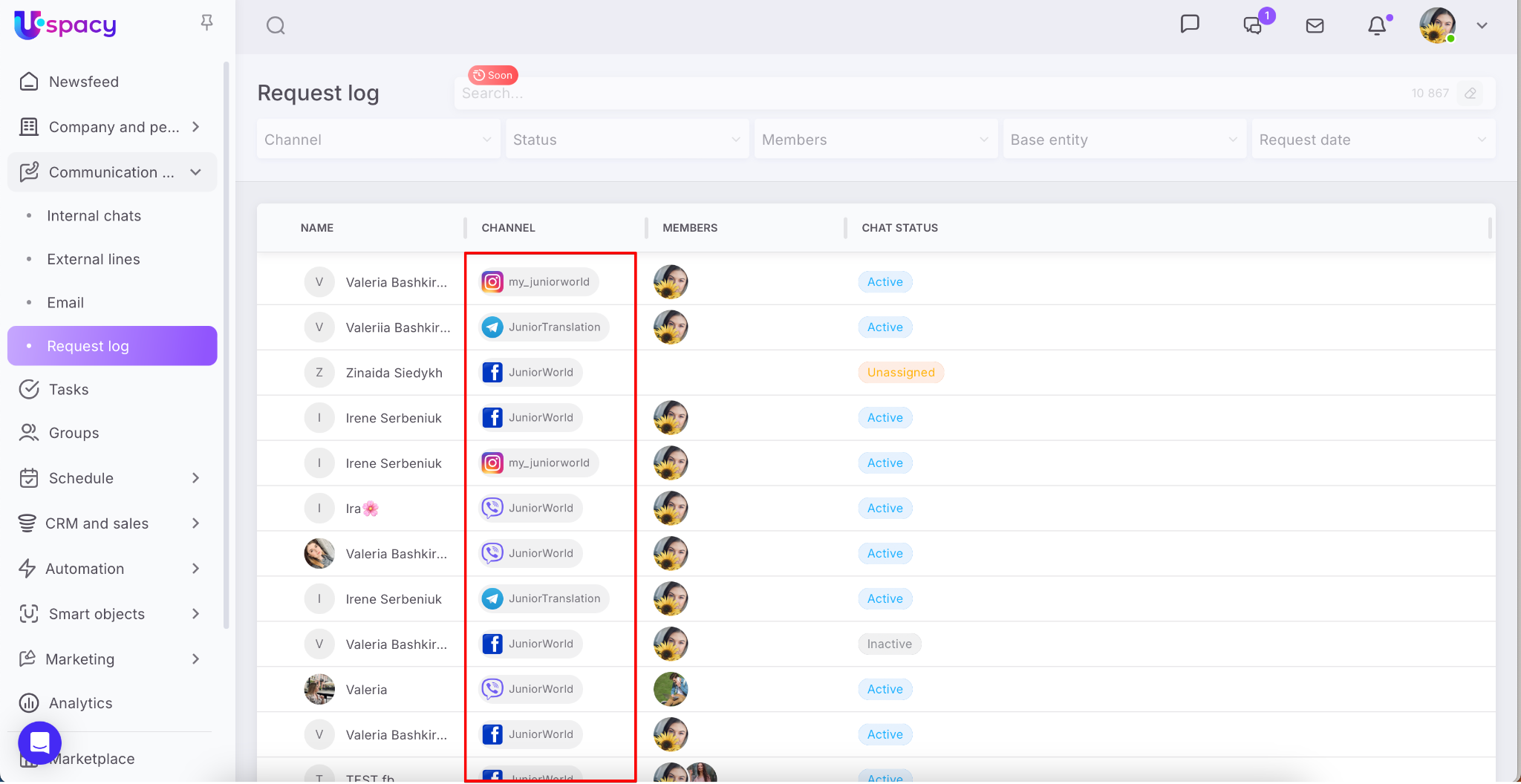
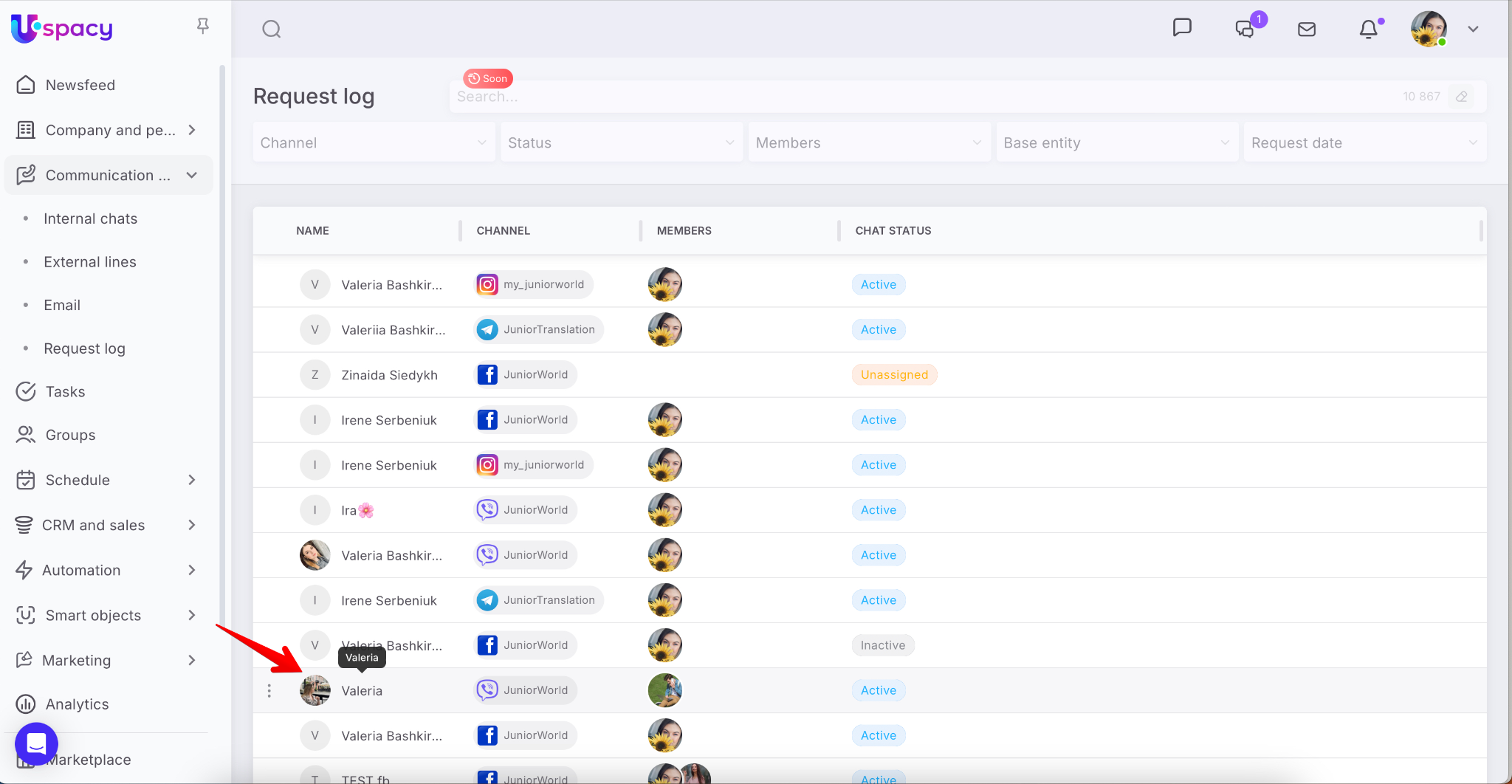
To open a specific chat, click on its name.
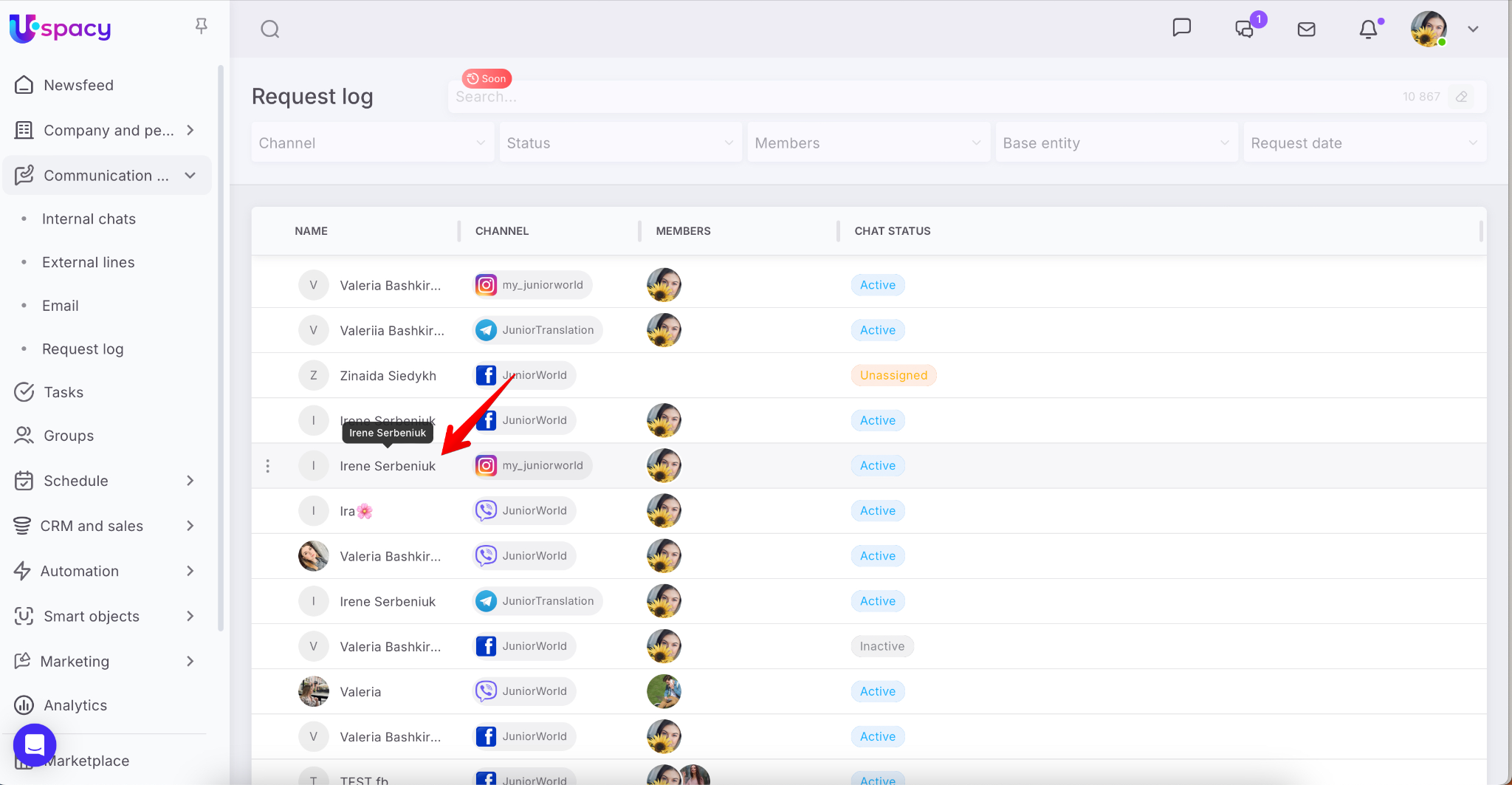
If the chat belongs to you, you can interact with it as usual.
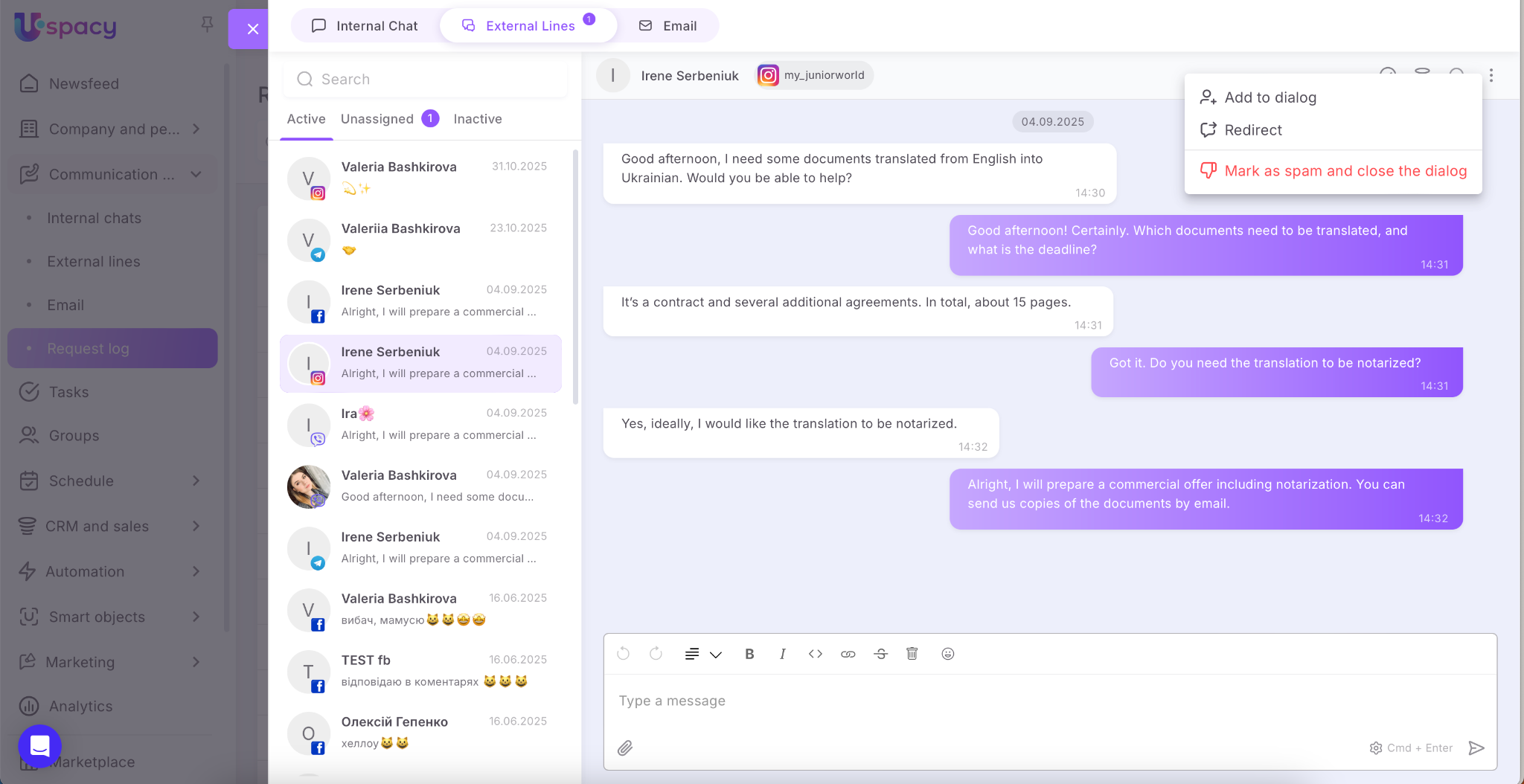
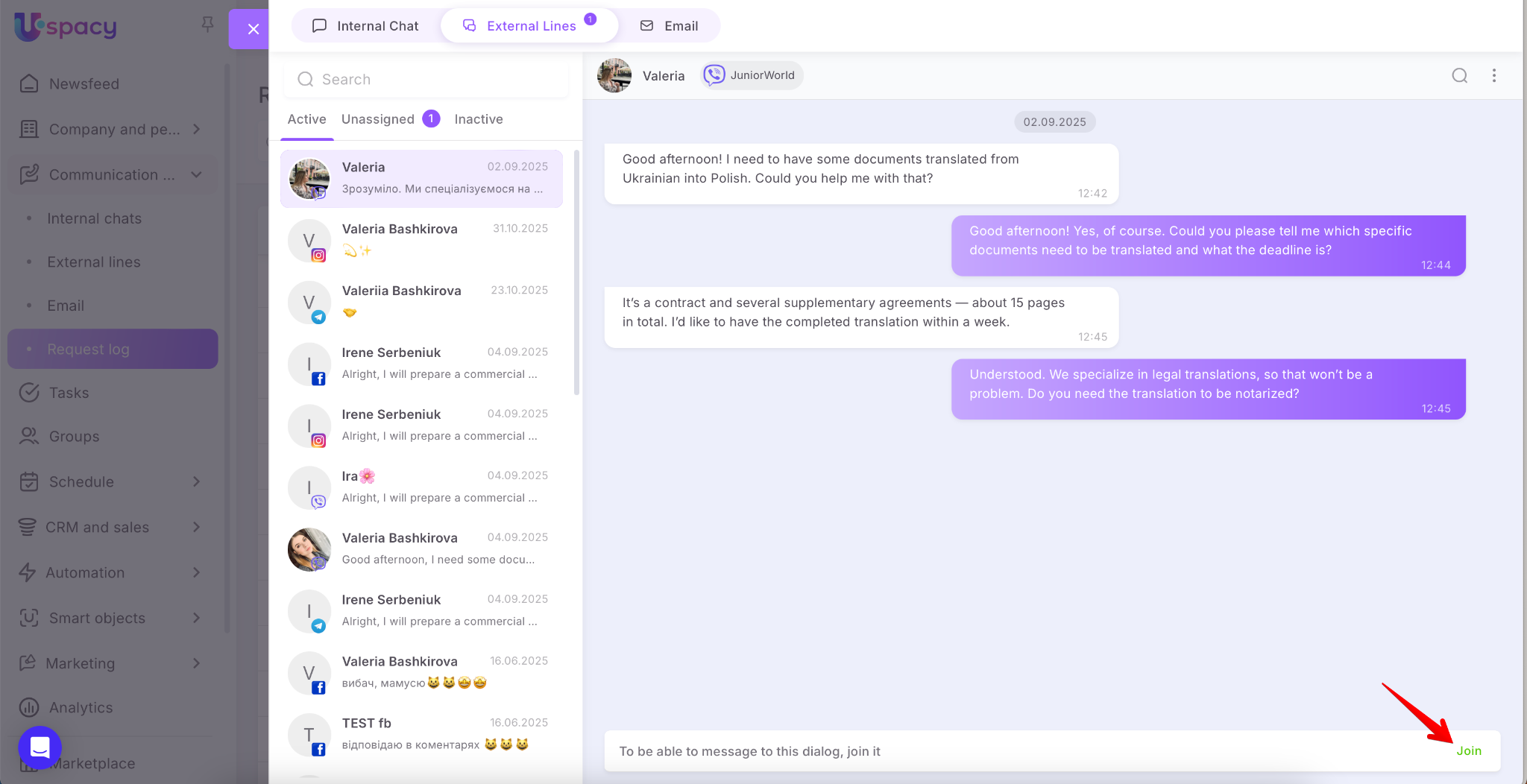
If it doesn’t belong to you, there will be a Join button.
If the chat hasn’t been taken into work yet, a Reply button will be available.
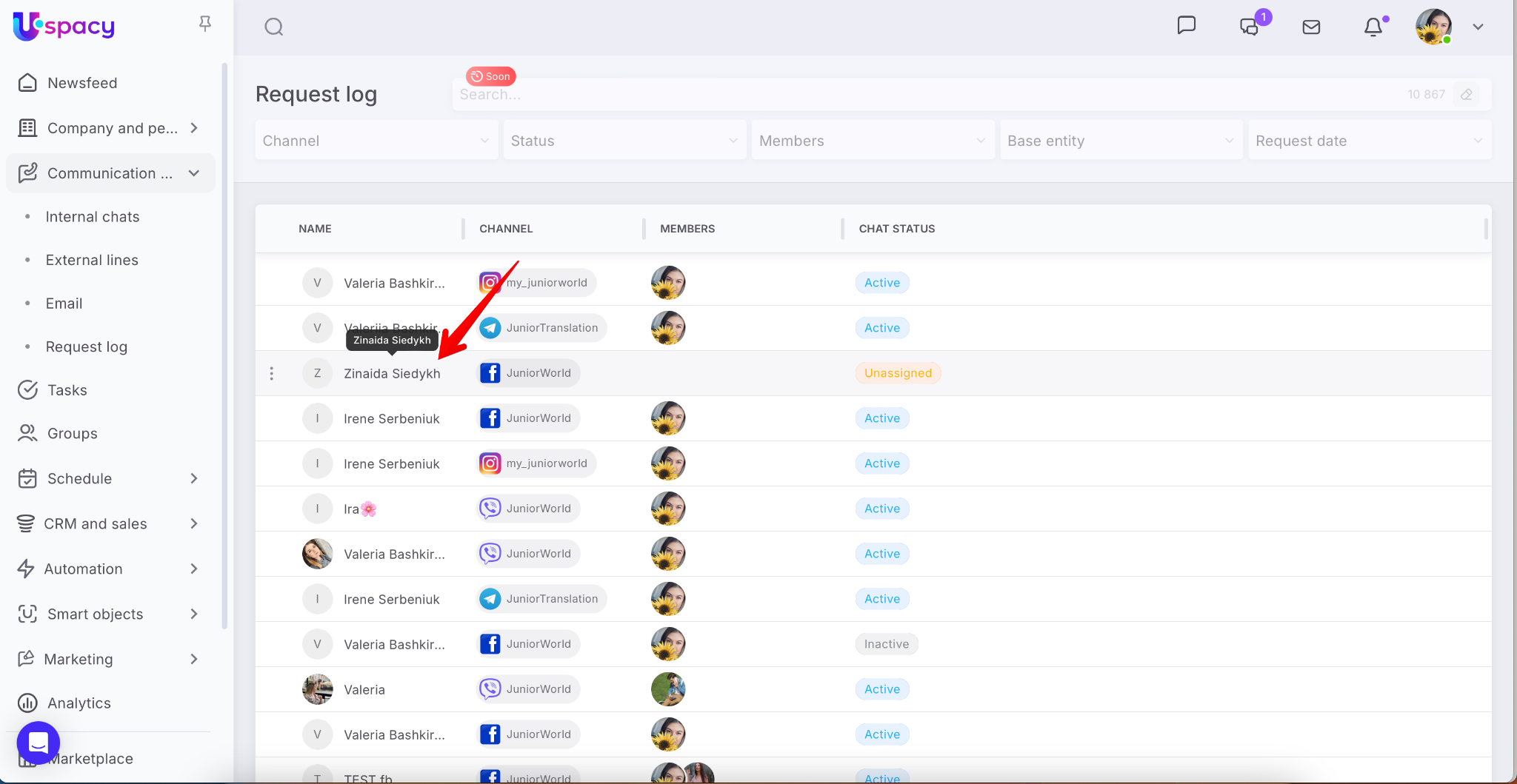
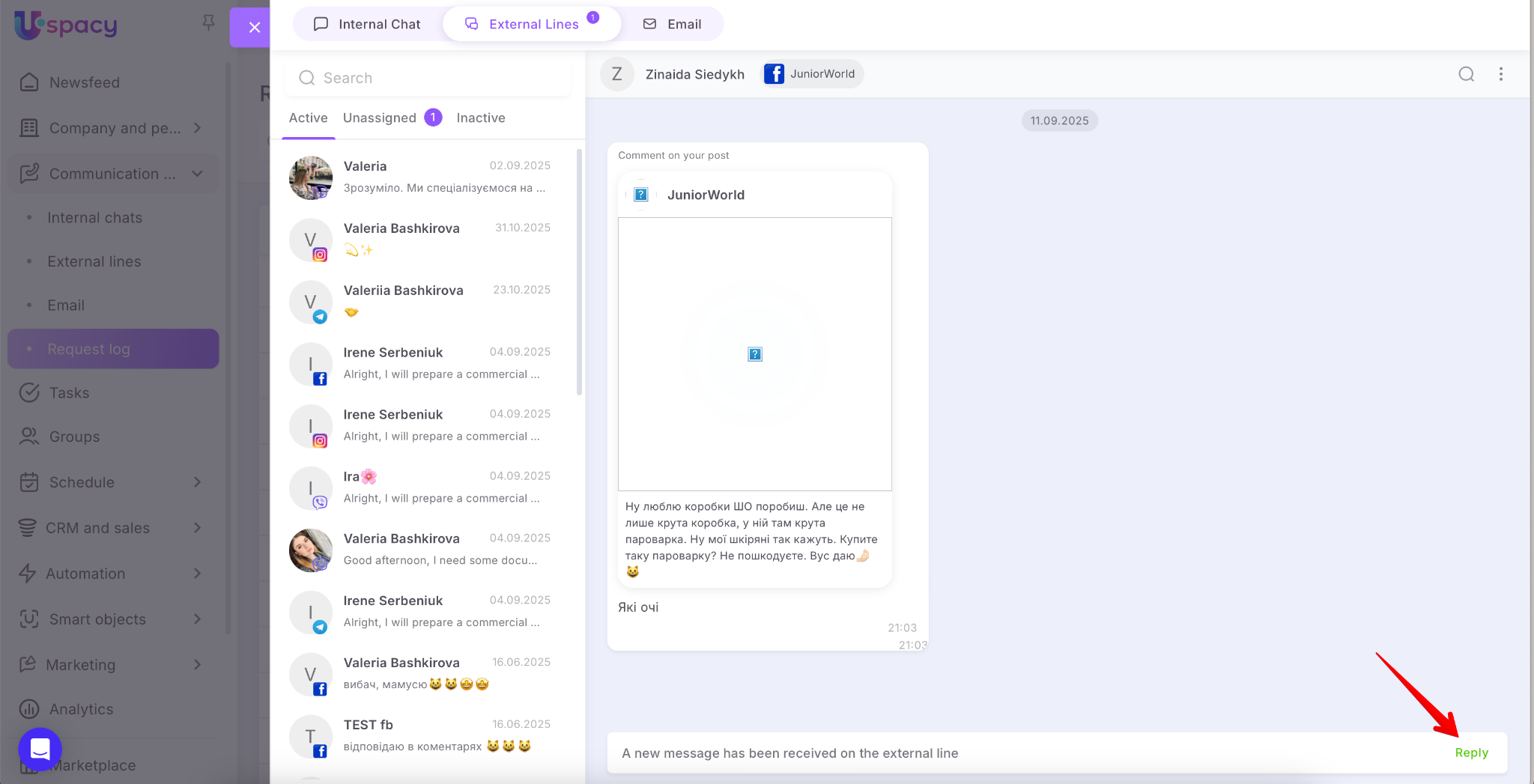
🔍 Learn more about working with chats from external lines in this article.
The Members parameter allows you to quickly see who is involved in the chat and responsible for it.
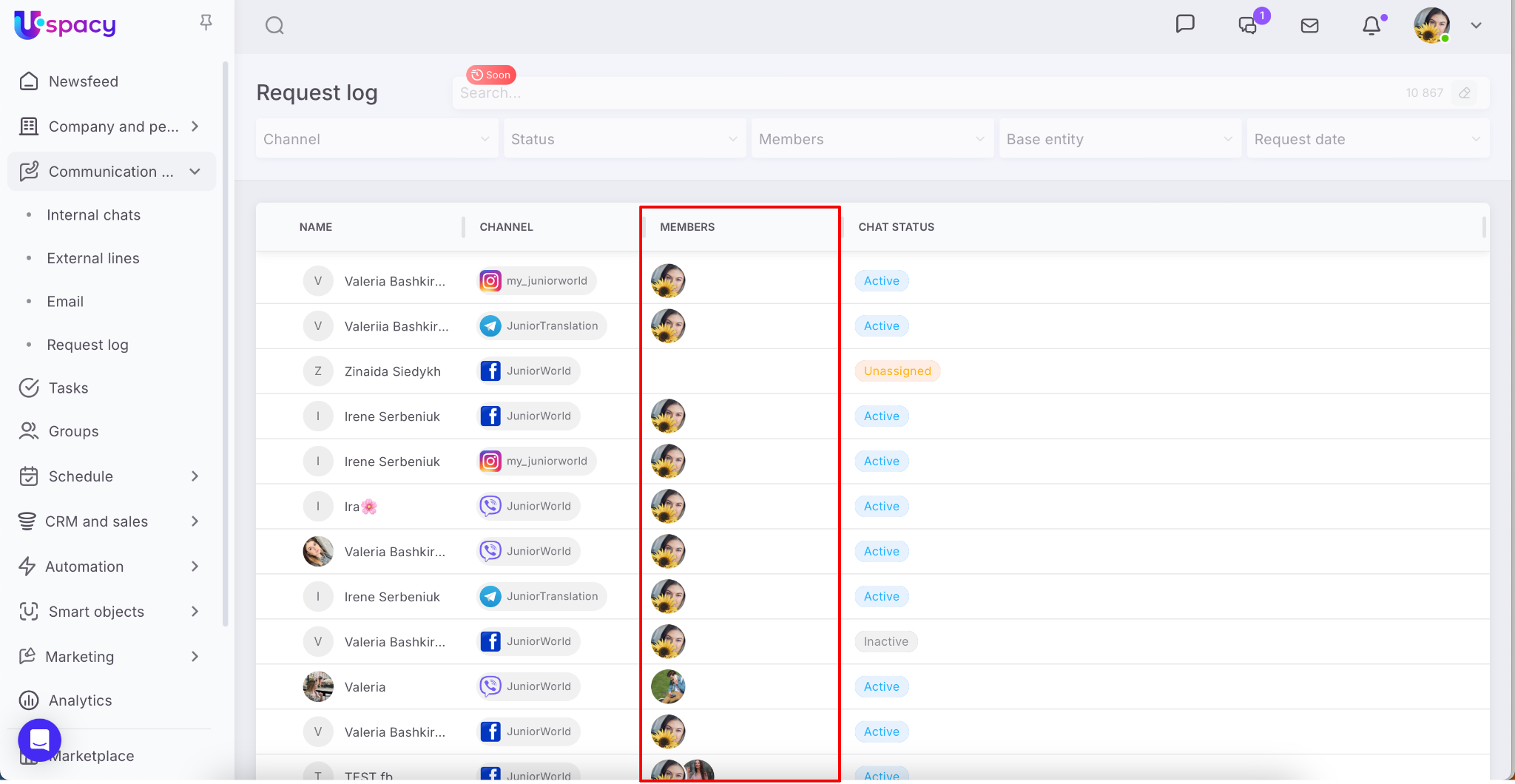
Using the Chat status characteristic, you can determine its current state in the system:
- Active – the conversation is ongoing, and the chat has not been closed by the manager.
- Unassigned – no employee has yet taken the chat into work.
- Inactive – the conversation has been completed, the dialog has been processed and closed.
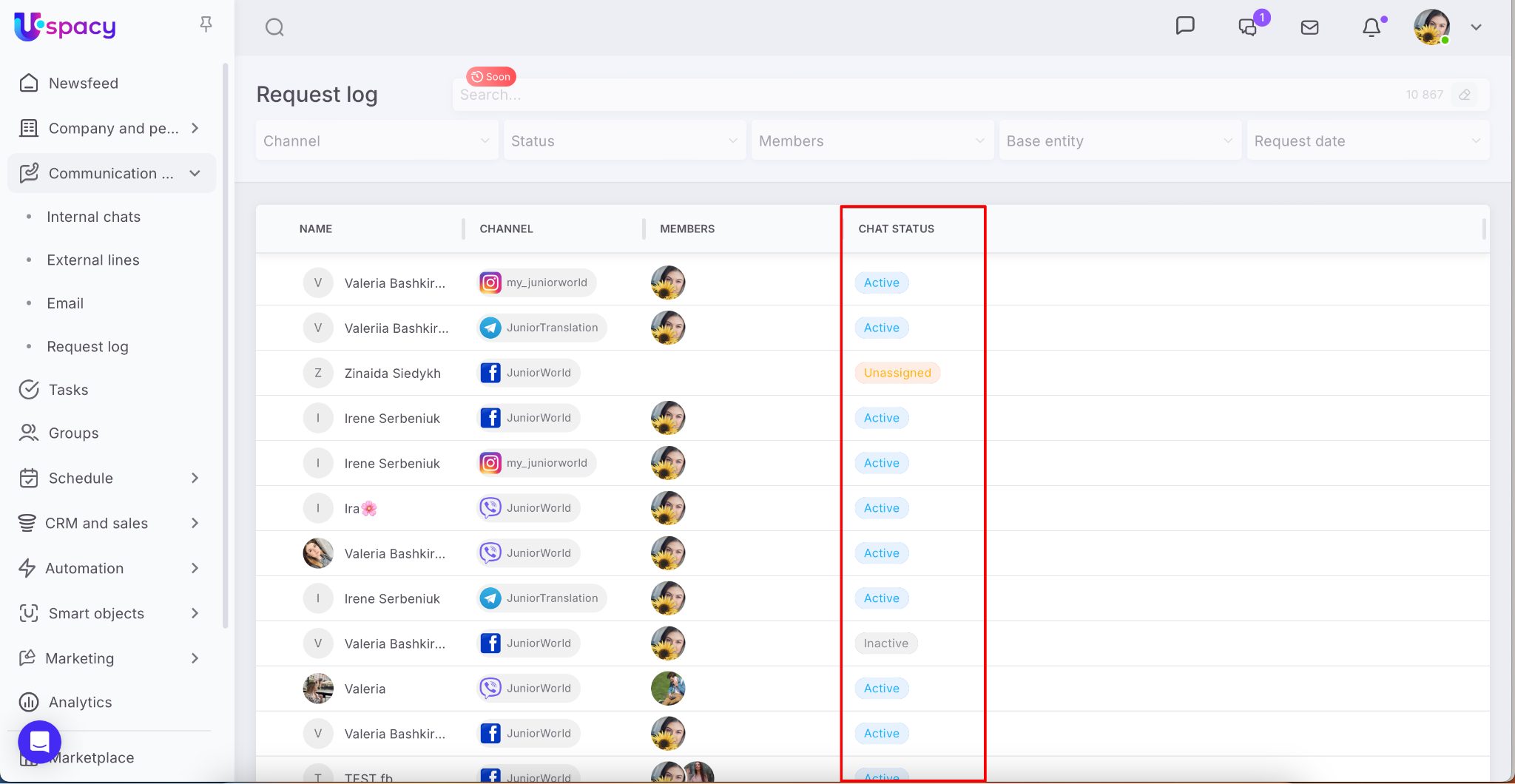
💡 Note that the list updates automatically and displays the most recent chats at the top.
In short, the Requests log consolidates all client chats from connected channels in one place, automatically highlights the most relevant conversations, and allows you to open a chat to join or redirect it. It provides a real-time overview of workload, showing which chats are active, which are pending, who is handling each conversation, and where additional support is needed.
If you have additional questions or you need to contact the support, send a request to this email [email protected]
Created: November 6, 2025 / Updated: November 24, 2025