After connecting your mailbox or even several 😉, you can start working with them at once.
That is, now you do not need to constantly switch between different browser tabs to view the new inbox as well as answer them.
🔍 You can read more about how to write emails directly from the Uspacy Space in the article "How to write and send emails directly from the Workspace?".
You can process emails directly at Uspacy, because your mail is now inside your Space!
Folders with emails
Each box you connect has its own folders that can be transferred to Space during synchronization. Some of them will be transferred necessarily, and some only at your request.

To go to the desired mailbox folder, just click on it.
🔍 You can read more on how to switch between mailboxes in the article "How to manage connected mailboxes?".

Viewing and interacting with emails
To open the desired email, just click on it.

💡In the list, you can see emails both on a white and purple background. The latter are also characterized by a more contrasting purple dot on the right. In this way, you can distinguish between read and unread emails.

The number of unread files will always be displayed in the counter next to the folder name.

Of course, once you open an unread email, it will automatically become read. And the list will be displayed on a white background. In addition, the number of unread emails will be automatically reduced at the counter.

❗️☝🏻There is a feature for Outlook service. After reading emails in Space, they do NOT become read in the services themselves.
The viewing form looks like this.

In addition to opening the email and reading its contents, you can also perform the following actions:
🟣 Reply - write an outgoing message to the sender.

As a result, the form for creating a new message will open. It will automatically fill out the To and Subject fields. The latter cannot be edited. But the current sender can be replaced at all, and new ones can be added just as easily.

💡In general, the fields in this form are filled out the same way as when using the Message button to create a new email.
🟣 Reply to all - write the original message not only to the sender, but also to those users whom he/she specified as "observers" in the Copy and Hidden copy fields.

The form for creating a new message will also open. Just like a regular reply, it will automatically have the To and Subject fields highlighted. And, of course, the Copy and Hidden copy fields, if they were specified by the sender of the incoming email.
💡 Other fields in this form are filled out the same way as when using the Message button to create a new email.
🟣 Forward - sending the full content of the email, along with system data about it and attached files.

As a result, the form for creating a new message will open. The Subject field will be automatically filled out. It cannot be changed.
💡If you are going to edit something in the email, then all fields are filled out in the same way as when using the Message button to create a new email.
🟣 Delete - move the email to the Trash folder.

🟣 Move - change the storage location of the email to any other folder, except Outbox.

🟣 Mark as unread - the email will be considered as unopened by you.

After that, the total number of unread emails will increase by one. In the viewing form, the option Mark as unread will be replaced by Mark as read.

To return to the general list of emails, click on the arrow in the folder.

Additional options when working with emails in Uspacy
When working with emails in Uspacy, there are also additional options that help you organize further actions more quickly.
🟣 Create a task (AI) – if needed, you can create a task directly from an email using artificial intelligence. In this case, the system will automatically prepare a task creation form based on the content of the email.
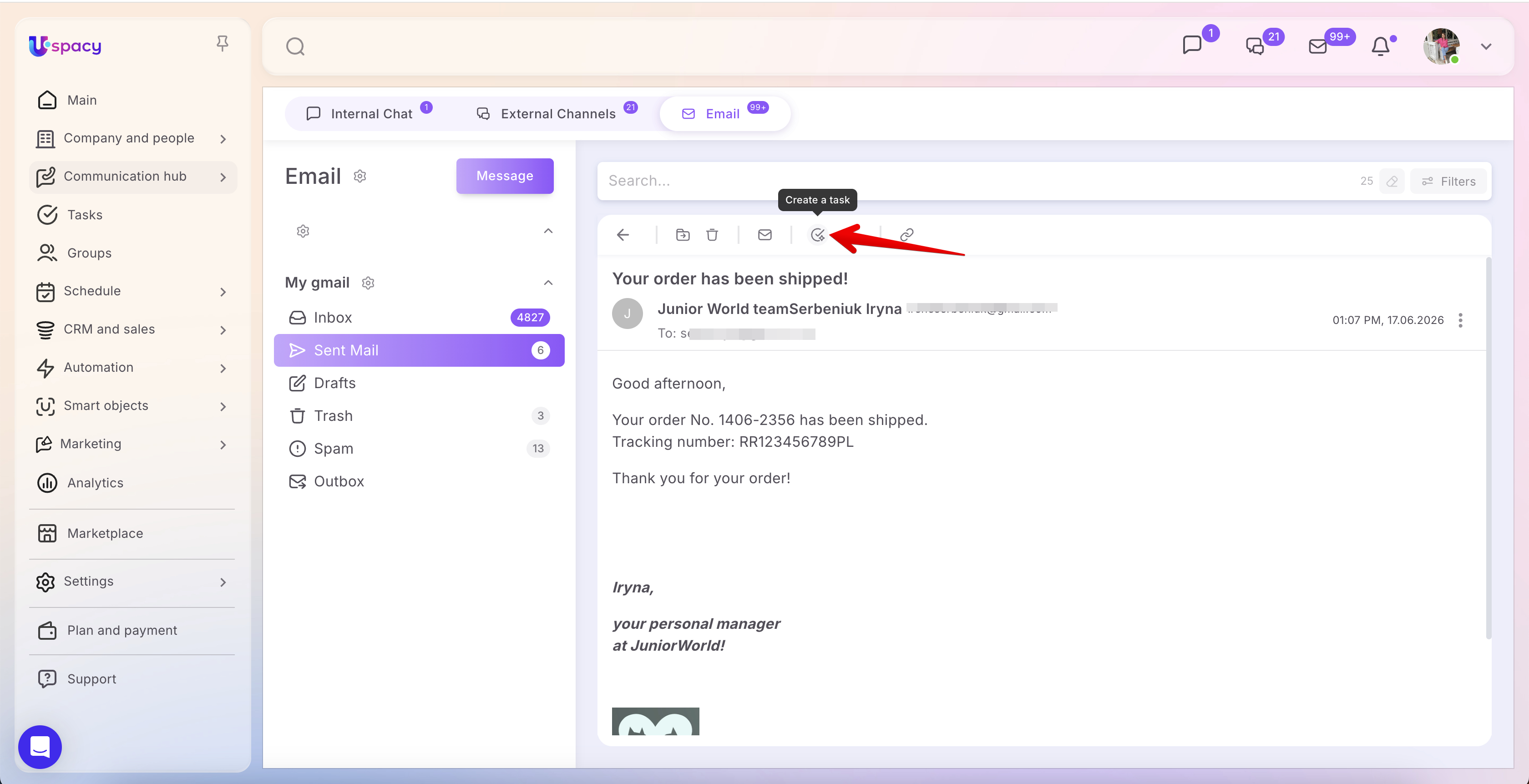
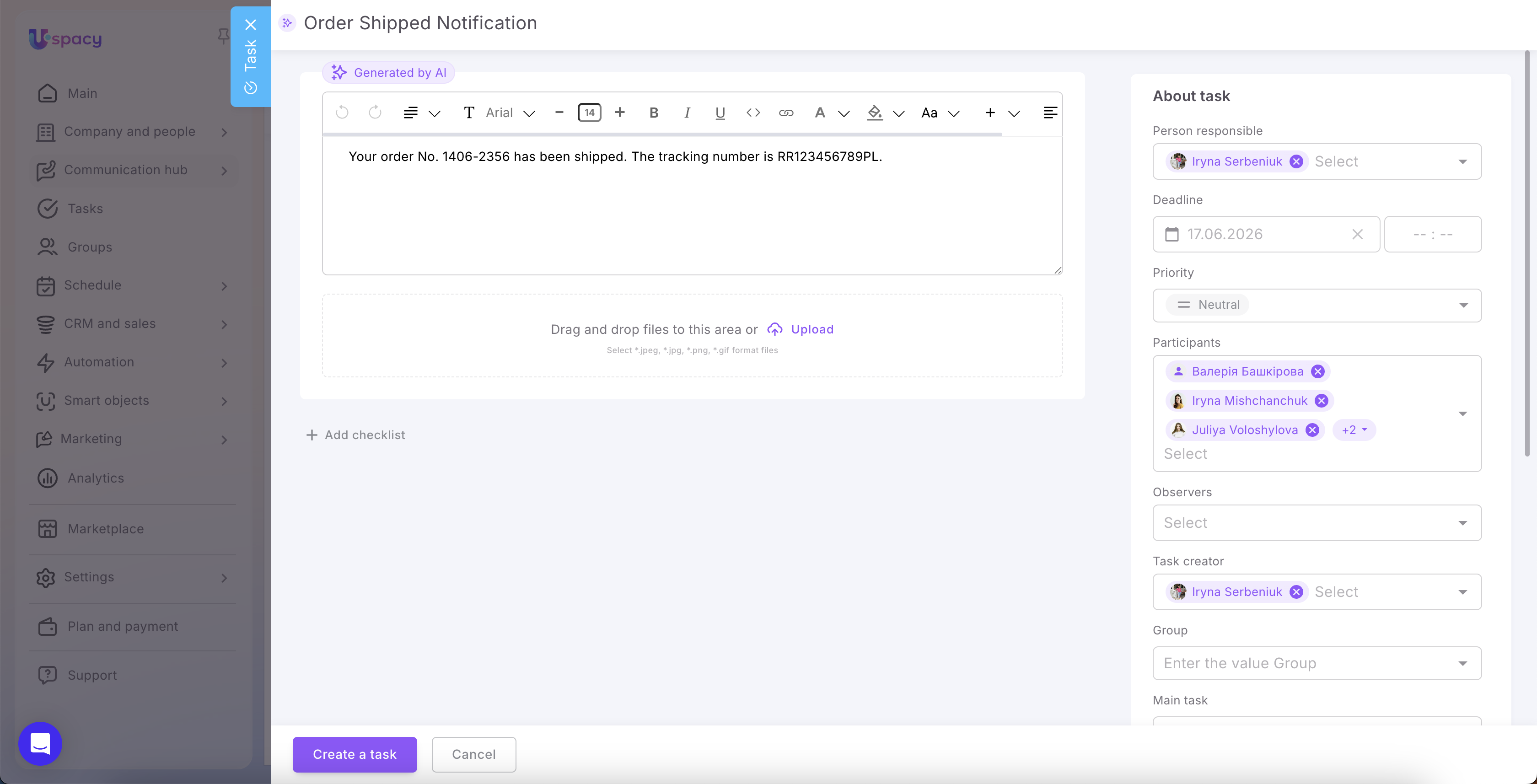
🔍 Read more about this feature in the article: “Creating a task from an email (AI)”.
🟣 Setting CRM relationships – this allows you to link incoming and outgoing messages with leads, deals, contacts, or companies so that the entire email history is stored within the relevant CRM records.
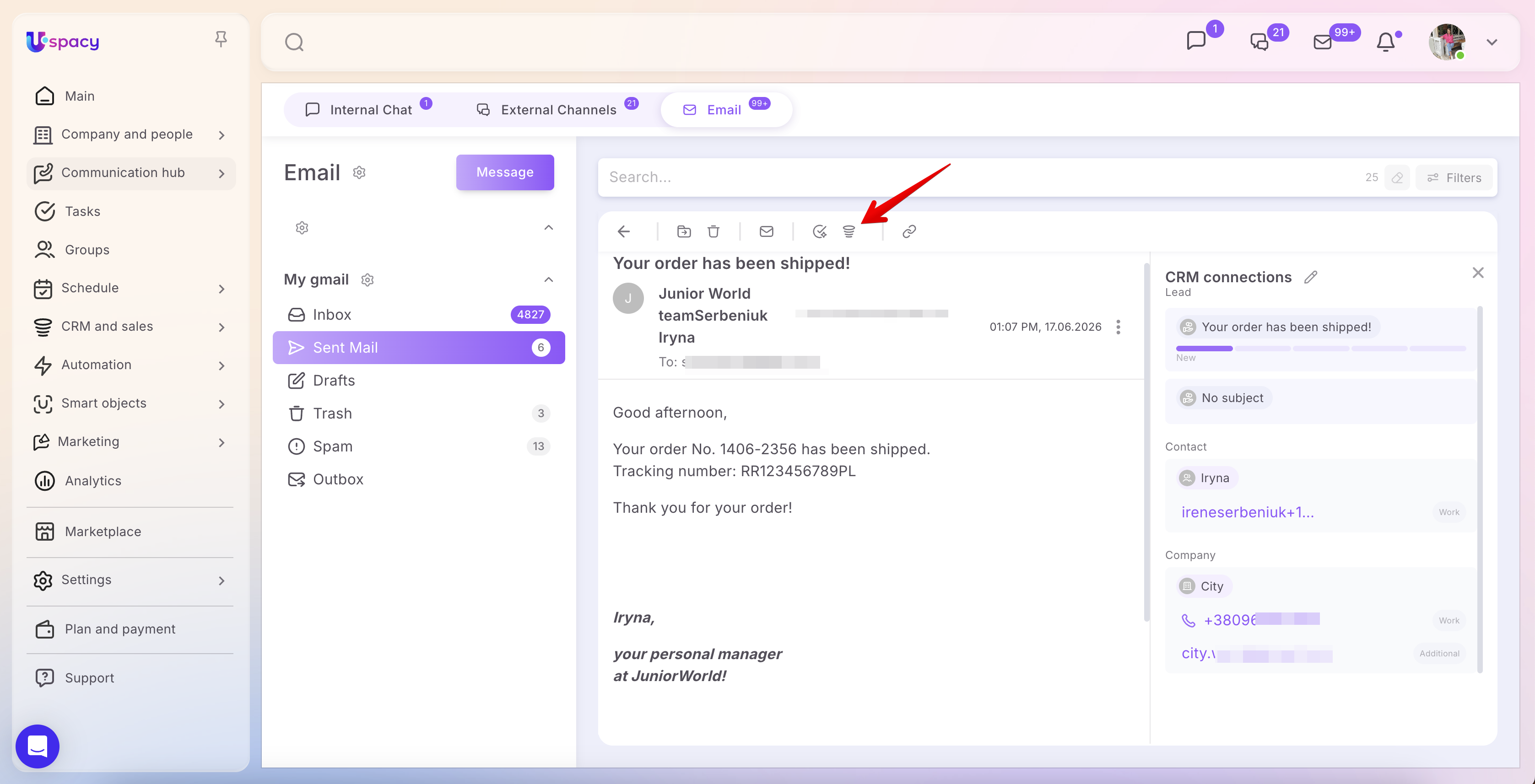
🔍 Read more about how this works and how to configure it in the article: “Email & CRM connections ”.
You can also check for these connections directly from the email list. A special icon is displayed next to the message. Hover over the icon to see the number of linked CRM elements.
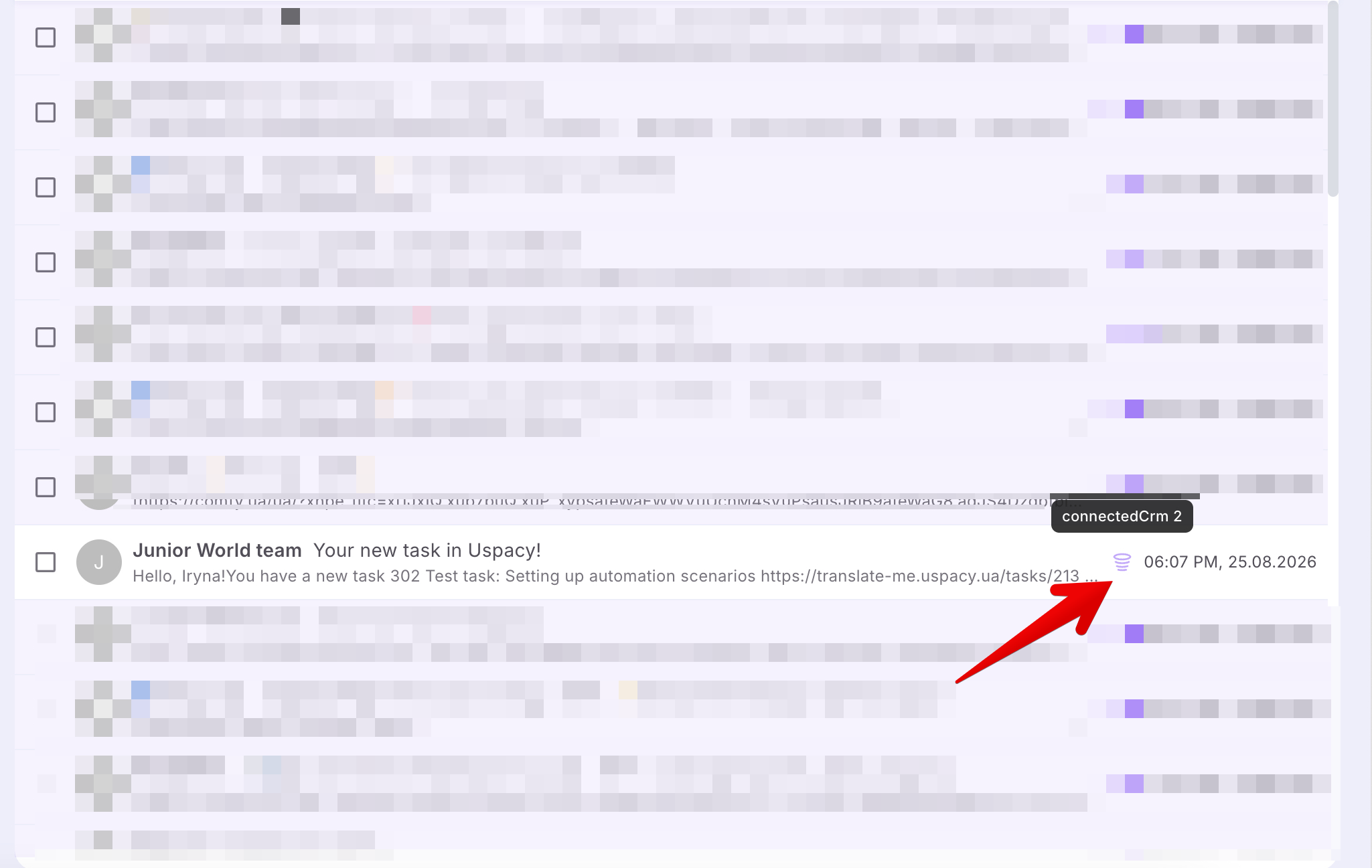
Click the icon to open the Connected entities panel and see which CRM element the email is linked to.
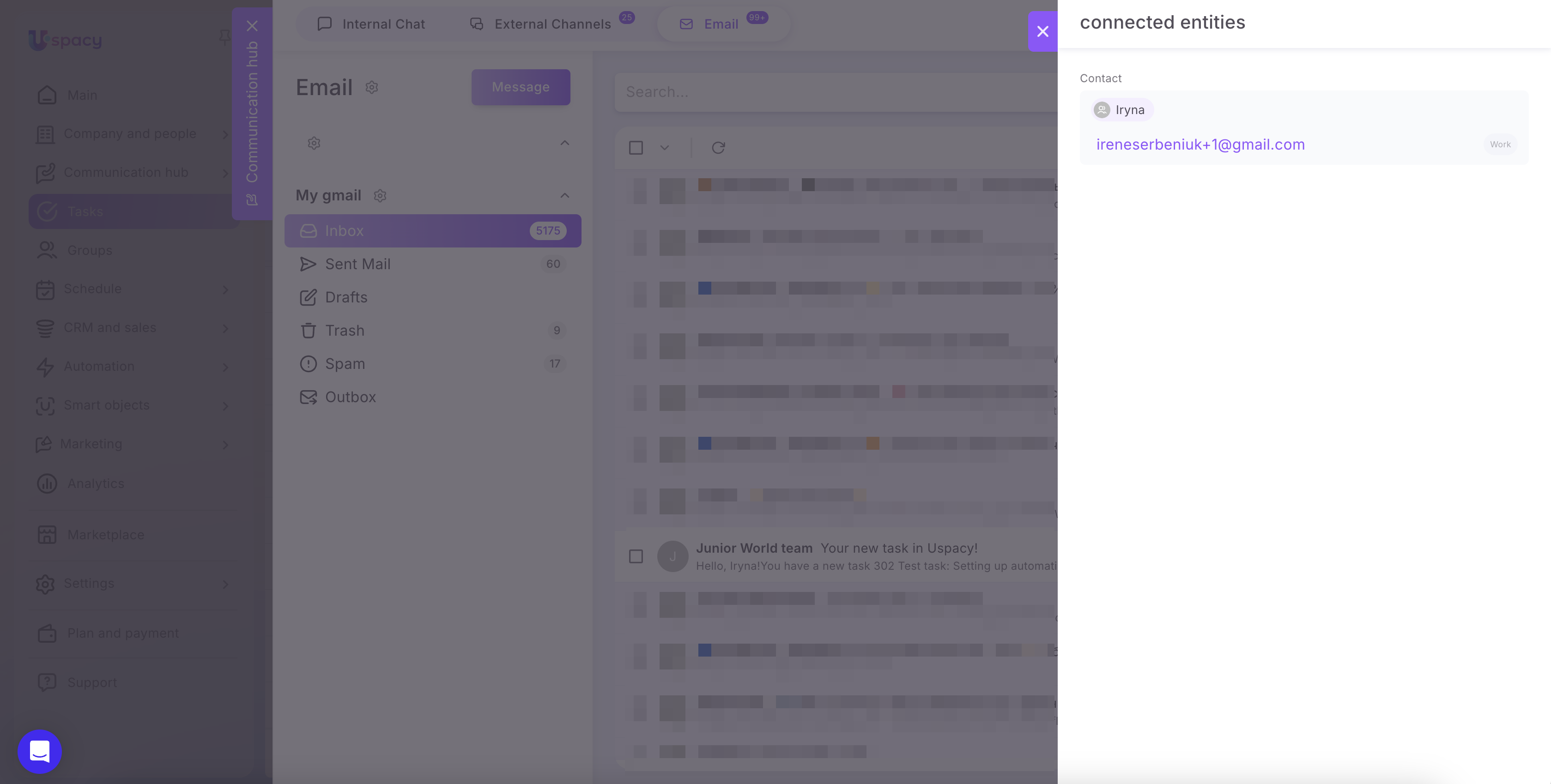
If the email has no links, the icon will display 0.
If the CRM connections option is disabled in the mailbox settings, this icon will not be displayed in the email list.
Actions with emails in the list
To activate the action menu, you must first select the desired email or emails.

💡To cancel your selection, just click on the minus above.

In order to mark all elements on the page, check the box in the list header.

Also, you can only select Read within a single page.

Or only Unread.

Then select what you want to do. So, the following options for actions with emails are available:
- move;
- delete;
- mark as read;
- mark as unread.
We have already explained what each of the actions means and how it works in the previous paragraph. The main difference is that the mass actions are available in the list. That is, you can move, delete and mark as read or unread not only one mail message, but several at once - a maximum of 50 within one page.
To switch between pages, you need to use the arrow buttons in the header.

Synchronization and uploading of emails from the mail client to Space occurs automatically, but if you have an unstable Internet connection or network problems, you can click Refresh from time to time.

Search and filtering of emails
In each folder you can find and filter emails according to certain parameters. Above the list there is a search bar and filters: Period, Email status and The name of the sender.
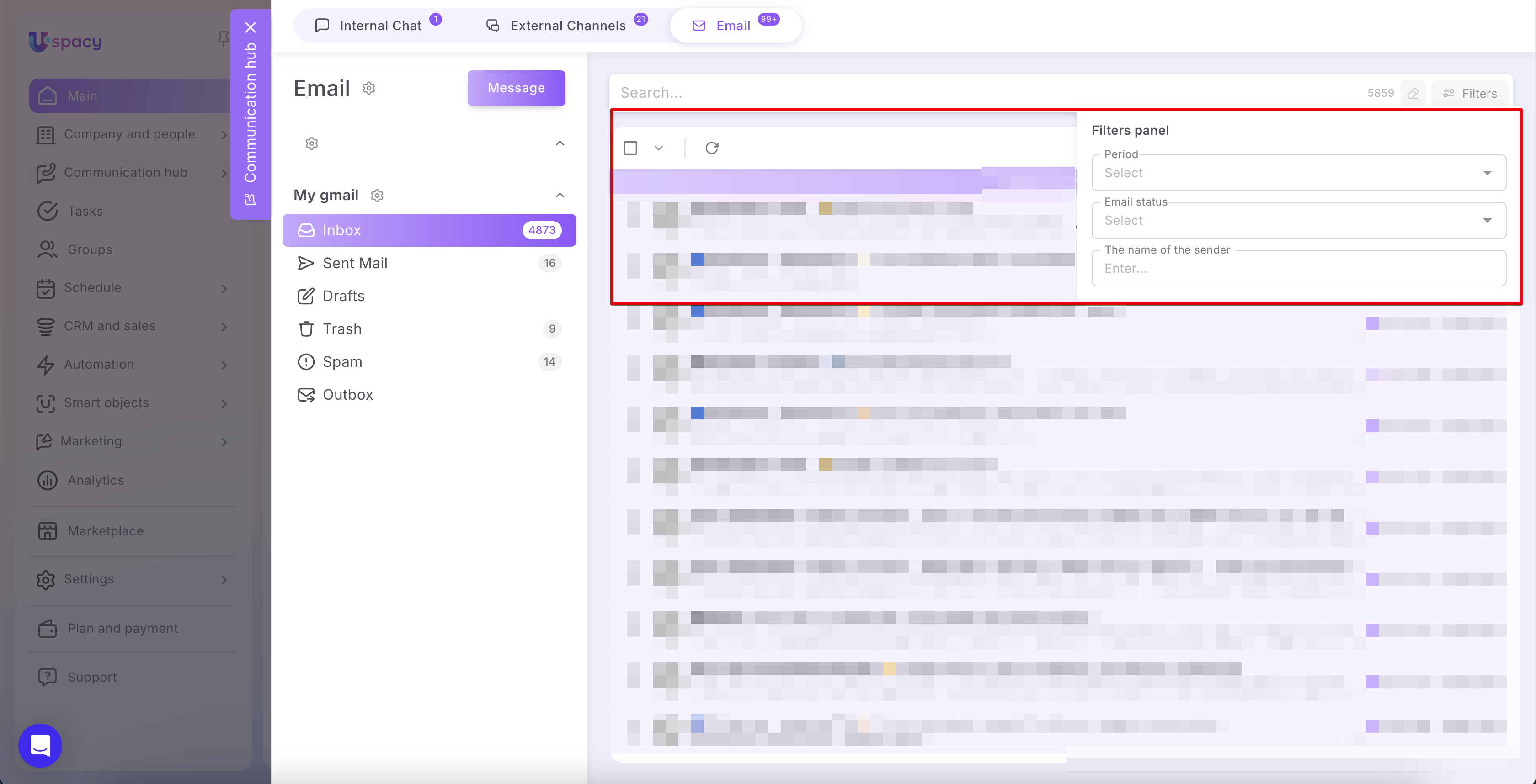
To find the desired group of emails, you can enter keywords.
☝🏻Search will be performed by sender, recipient and subject.

Or use filters. For example, find unread emails for a certain period (April 2024).

Or combine keyword search and filters.

As a result, you will see how many emails in the folder meet the specified parameters.

To reset the search bar and filters, just click on the Clear button.

Copying a link to an email
In Uspacy, you can now copy a direct link to a specific email. This is useful when you need to quickly share it with colleagues or paste it into a chat, comment, task, note, and more.
You can copy the link from several places:
1. In the email list via the additional actions menu, opened by right-clicking an email;
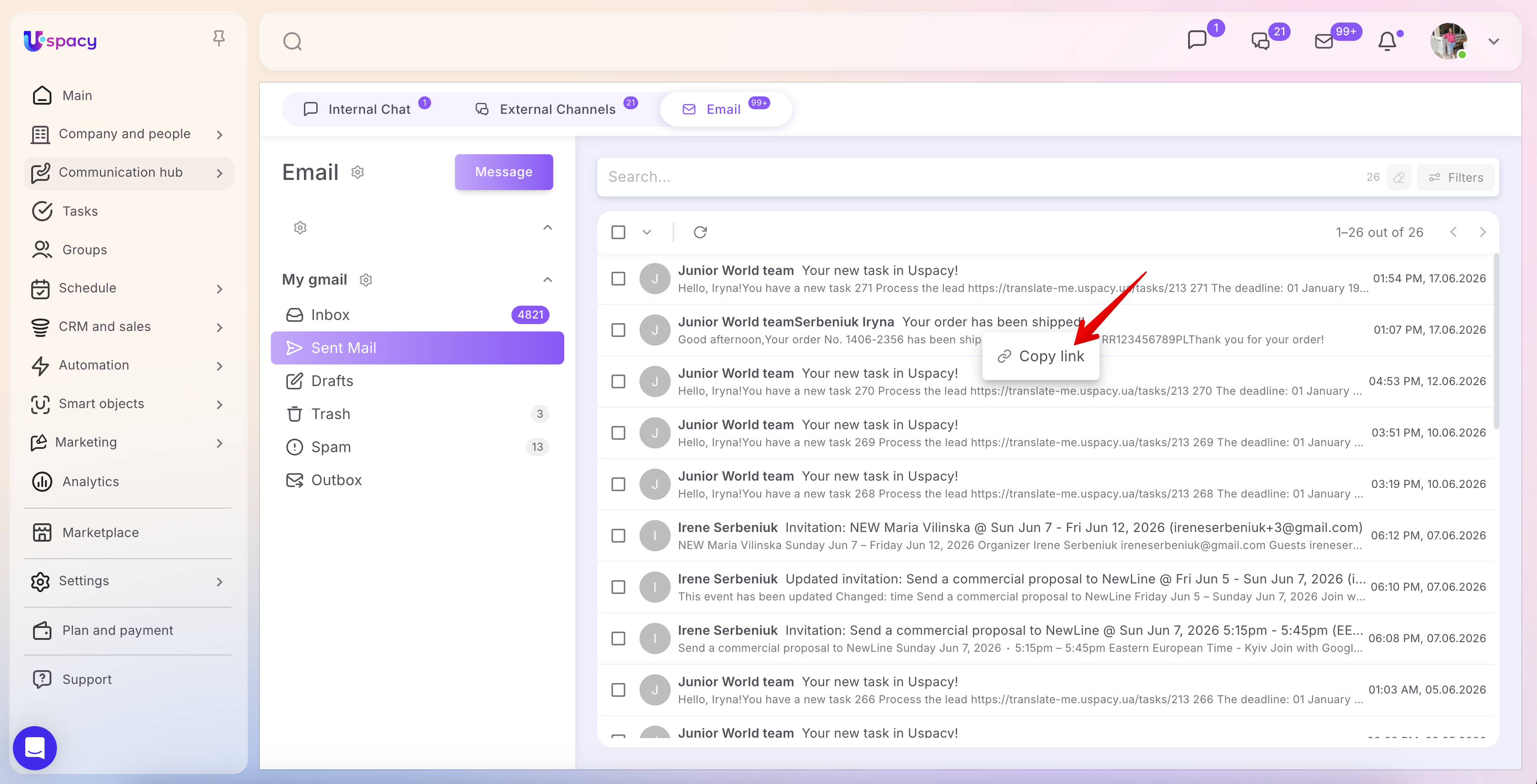
2. In an opened email via the “Copy link” button on the action panel;
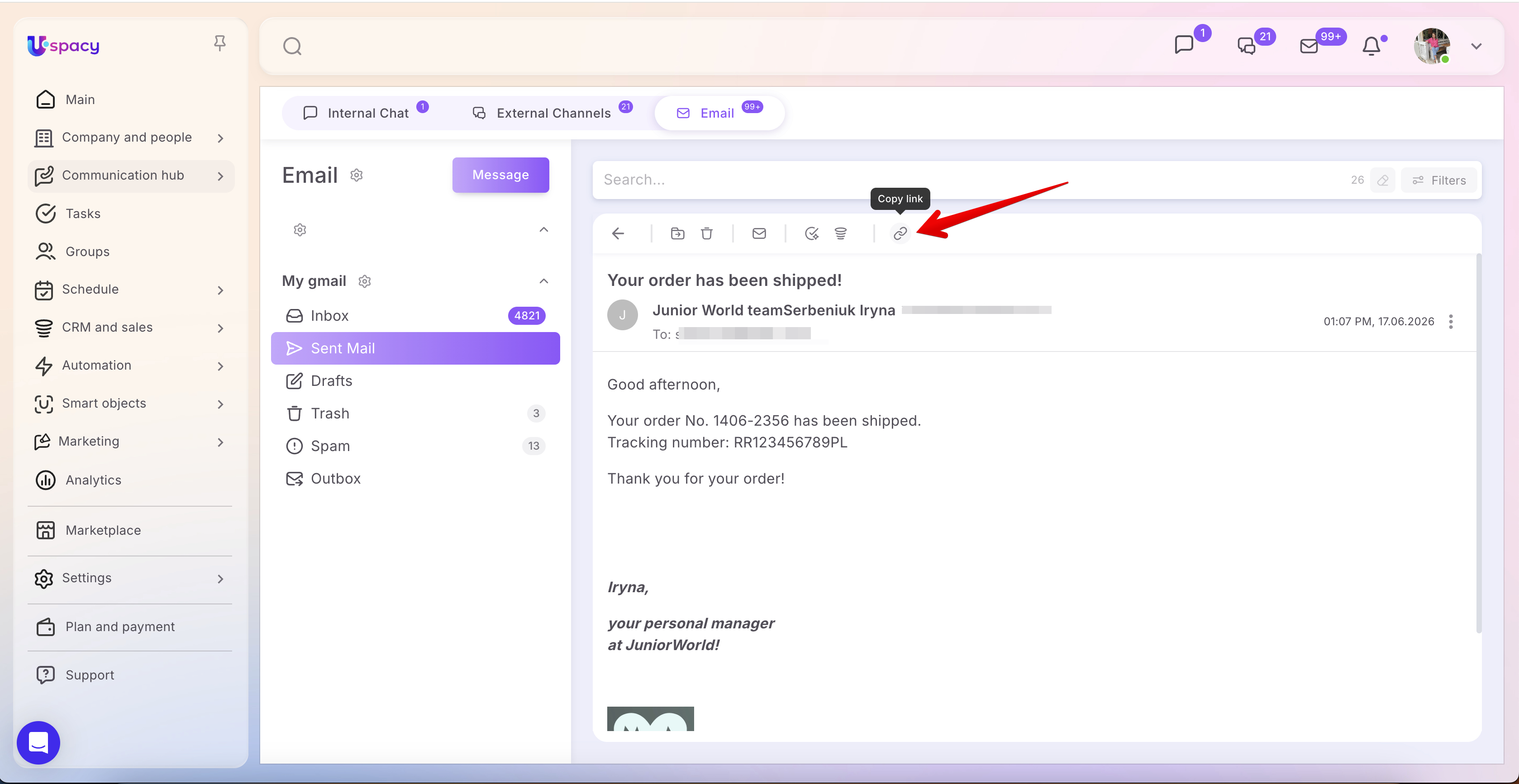
3. In the email block within a CRM element card via the interaction menu.
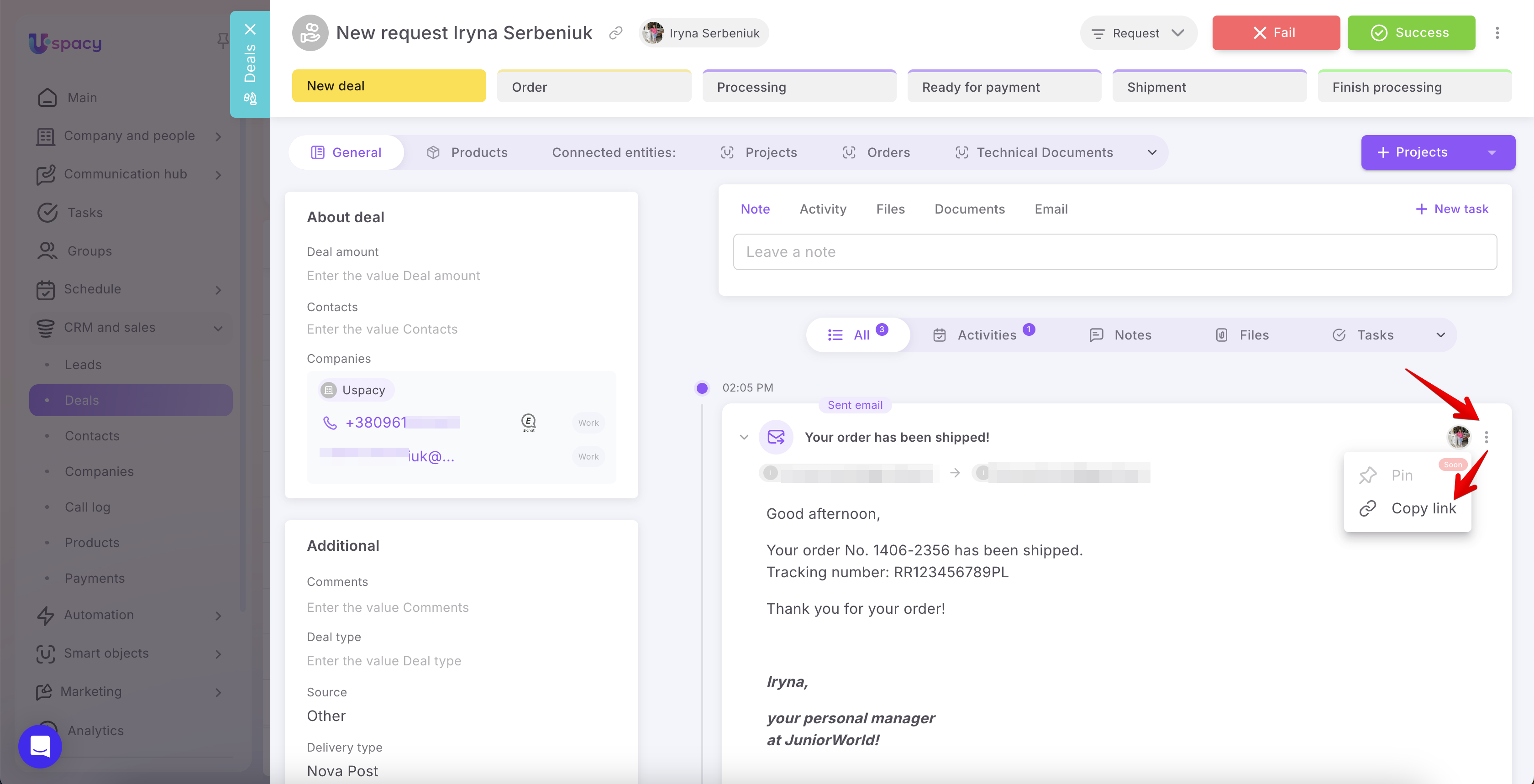
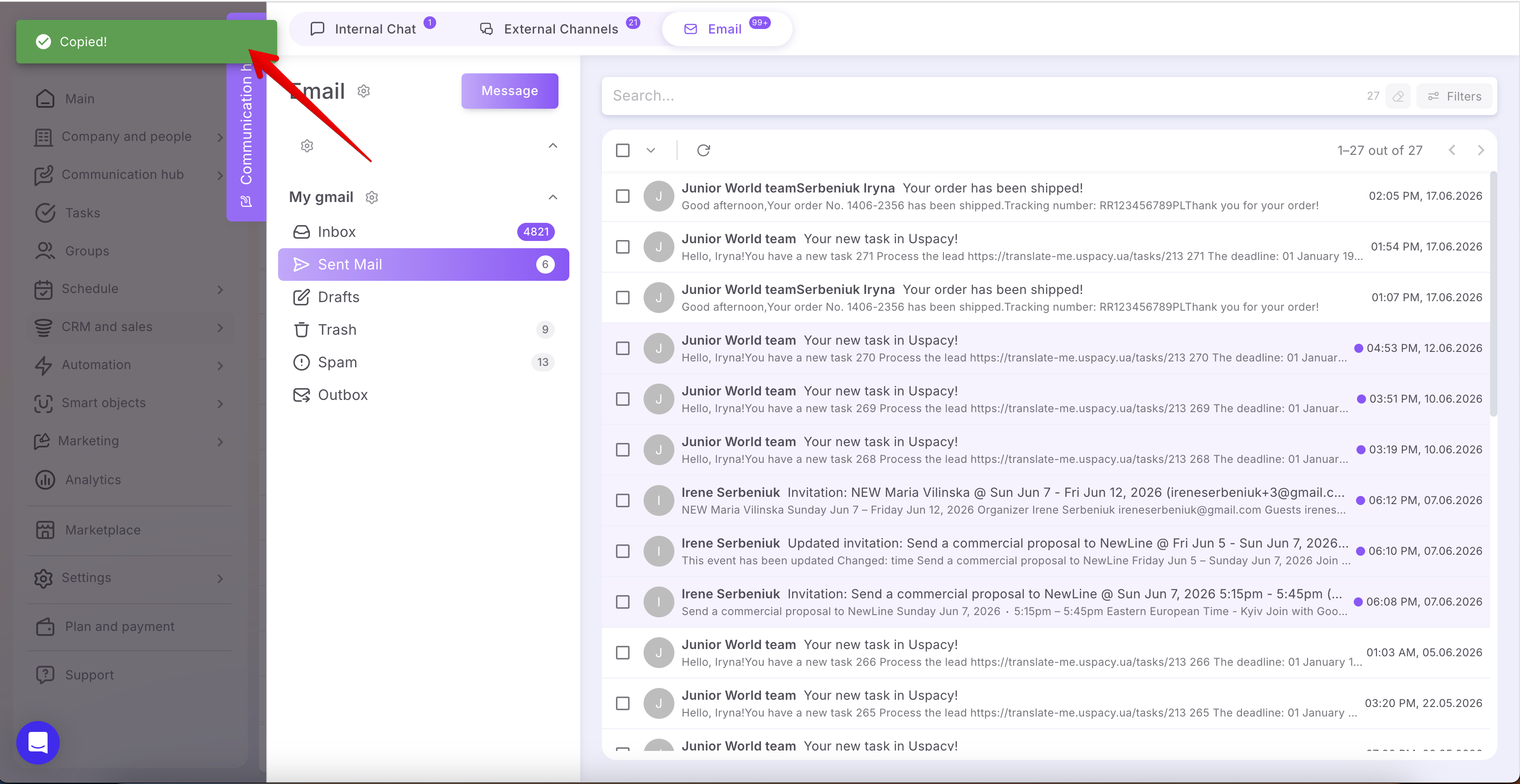
After clicking this option, the system copies the direct link to the selected email and shows a notification: “Copied!”
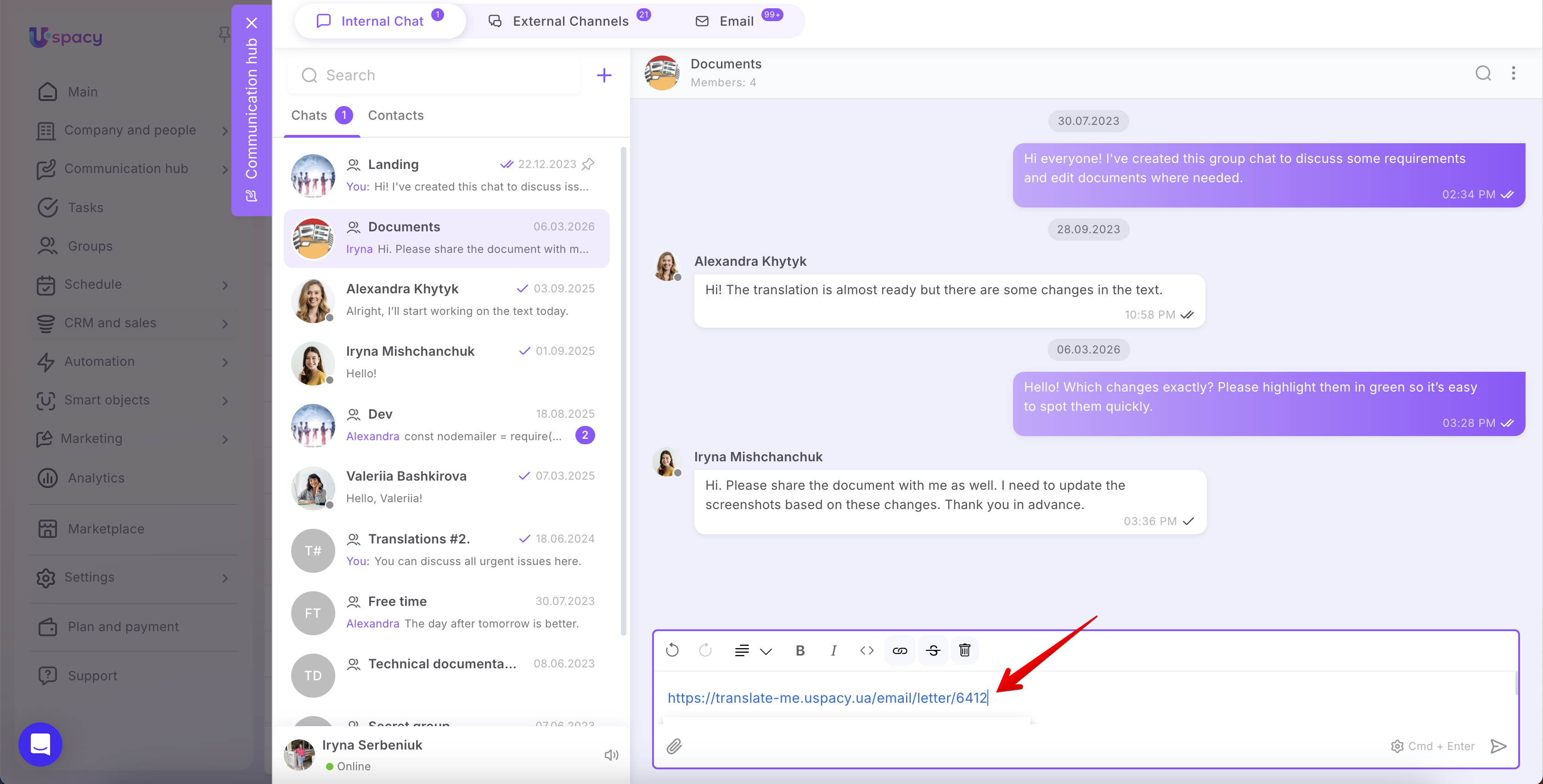
You can then paste the link wherever needed, for example into an internal chat or a comment.
☝🏻 Please note:
- If the link was copied for a specific email within a conversation thread, the system will automatically scroll to that exact message when the link is opened.
- If a user does not have access rights to the mailbox, opening the link will result in a 403 error page.
- If the email has been permanently deleted, the link will open a 404 error page.
If you have additional questions or you need to contact the support, send a request to this email [email protected]
Created: April 1, 2024 / Updated: August 25, 2026