🔍 You can read some general information about groups and work in them in the following article.
How to create a new group?
To add a new group to your space, first go to the Groups page.

If there are no groups in your Space yet, you can create the first one either by clicking on the corresponding button next to the search bar or by using the Add group button. It is located under the request to start using this tool.

If there are already groups in your Space, for example, one of your colleagues managed to test this functionality a little earlier 😉, then only the Create button will be displayed for you on this page.

After clicking on it, the window for creating a new group will open.
💡It will be identical for both the list and the cards modes.

Here you need to fill out the corresponding blocks and fields:
General information
This block contains the Name, Description and Image of the group.

❗️Please note that the Name field is required. If it is not filled out, the system will report an error and will not save and create the Group.

Description is not a required field. But filling it out will help colleagues navigate the group's topics and understand what work and non-work issues can be discussed and resolved here.
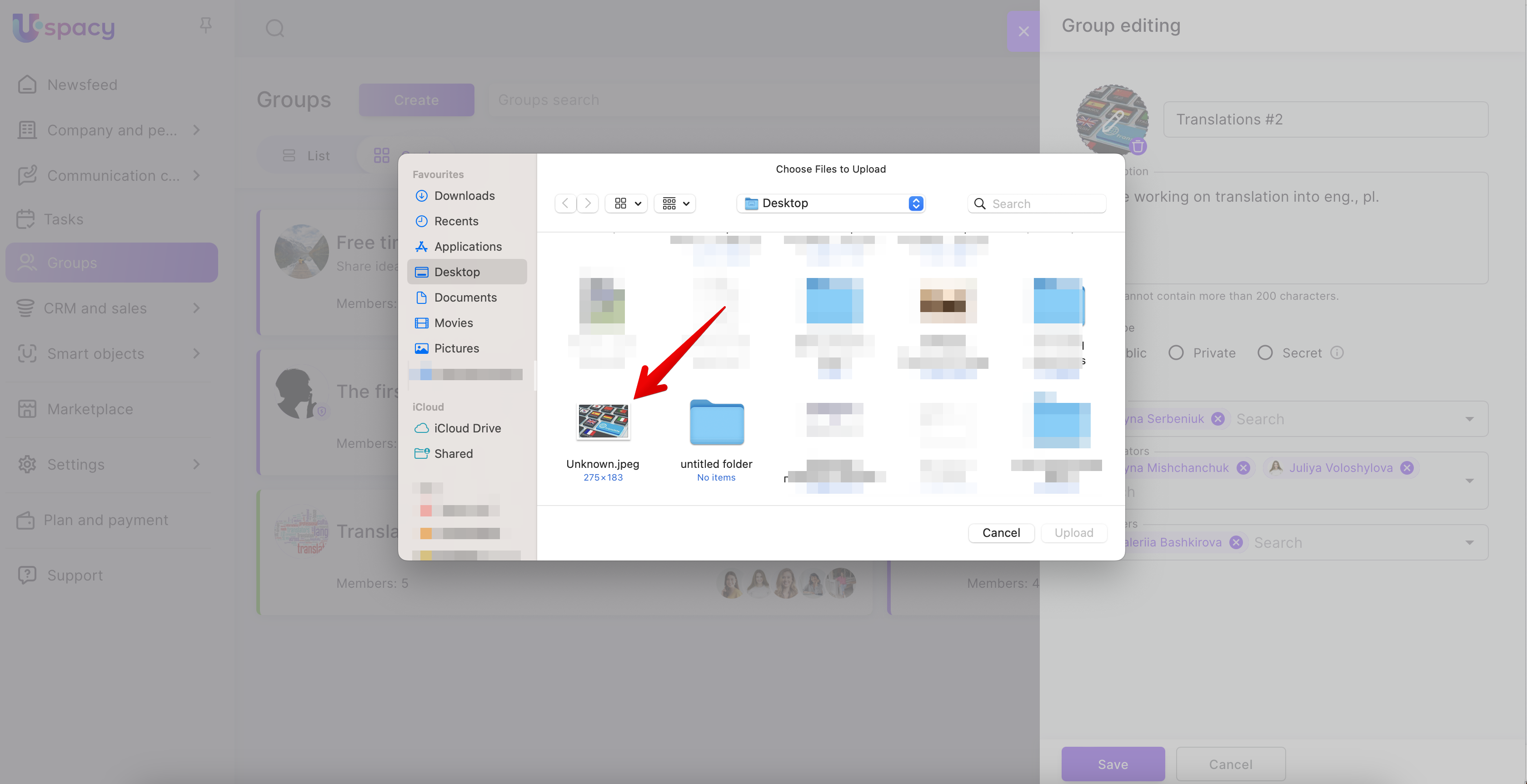
The group image is added by uploading it from the file manager of the personal computer.
Group type
When creating, you must specify the group type. By default, it will be an open group. But, of course, it can be changed.
Select the type you need, taking into account what level of access you want to give to the group.

At Uspacy, all groups are divided into three types:
- public – displayed on the groups page of all Space users, anyone can join and leave;
- private - available on the groups page, but the content is available only to members, so you must first send a request;
- secret - cannot be found in the Space (even by the administrator), only the owner of the group can send invitations to join, and only he/she can manage such a group.

🔍 You can read more about the types of groups in the following article.
Although the type is set while creating, it can be changed at any time by editing.
🔍 You can read more on how to change general information about the group, its type and members in the following article.
Appearance
Now it is possible to set a color theme for the group.
💡This option is available only to users of the "Professional" plan. You can read more about all plan features on this page.

If you activate the toggle button, you will be able to select the design for your group.

🟣 The background color will color the buttons and some other details of the interface of the entire group.

And the color of the icon will be displayed for the graphic image that will be selected in the item below.

Both standard system colors and the possibility to set your own ones are offered.

🟣 Icon will be displayed on the group page and you will also see it when opening the group. It will be in the color you selected for it in the item above.

💡 Pay attention! If an image is selected for the group, it will be shown as a result. In this case, the icon setting will not matter. It will only be displayed when the group does not have an image uploaded.
🟣 Pattern – the background image of the main block, which will be displayed when the group is opened.


Department staff
In this block you need to specify the owner, moderator (moderators) and members of the group.
🔍 You can read more about the roles in the group in the following article.
By default, even if you do not specify the owner of the group, it will be the person who creates it. But, of course, you can assign another user.

To do this, select the desired colleague from the list. To simplify the search, start typing his/her first or last name.

❗️Please note that a group can have only one owner.
If you assigned a user to this role by mistake, first delete him/her by clicking on the cross, and then select the desired one. Or don't fill out the field at all. Then you will become the owner.

Next, specify the moderators of the group. This role is the second, after the owner, in the range of opportunities for interaction with the group.
There can be several moderators.

And finally, add the desired number of group members.

💡You can select the All employees list item. In this case, all active users of the Space will become members of the group.

In order everything is saved and the group appears in Space, click Create.

The result
If it is a private or public group, it will be displayed on the Groups page for all Space users at once.


To quickly find it, use the search.


Secret groups are available on the page only for their members (members, owners and moderators).

For other users of the Space, they are not displayed and cannot be found through search.

Group interaction depends on the role of the Space user in this group (whether he/she is a member or not, whether he/she is a moderator or not, whether he/she is an owner or not). All people related to the group can join it after its creation and start working there at once.

If you have additional questions or you need to contact the support, send a request to this email [email protected]
Created: March 16, 2023 / Updated: June 26, 2024